How to Connect HP Printer to WiFi – Complete Step-by-Step Guide
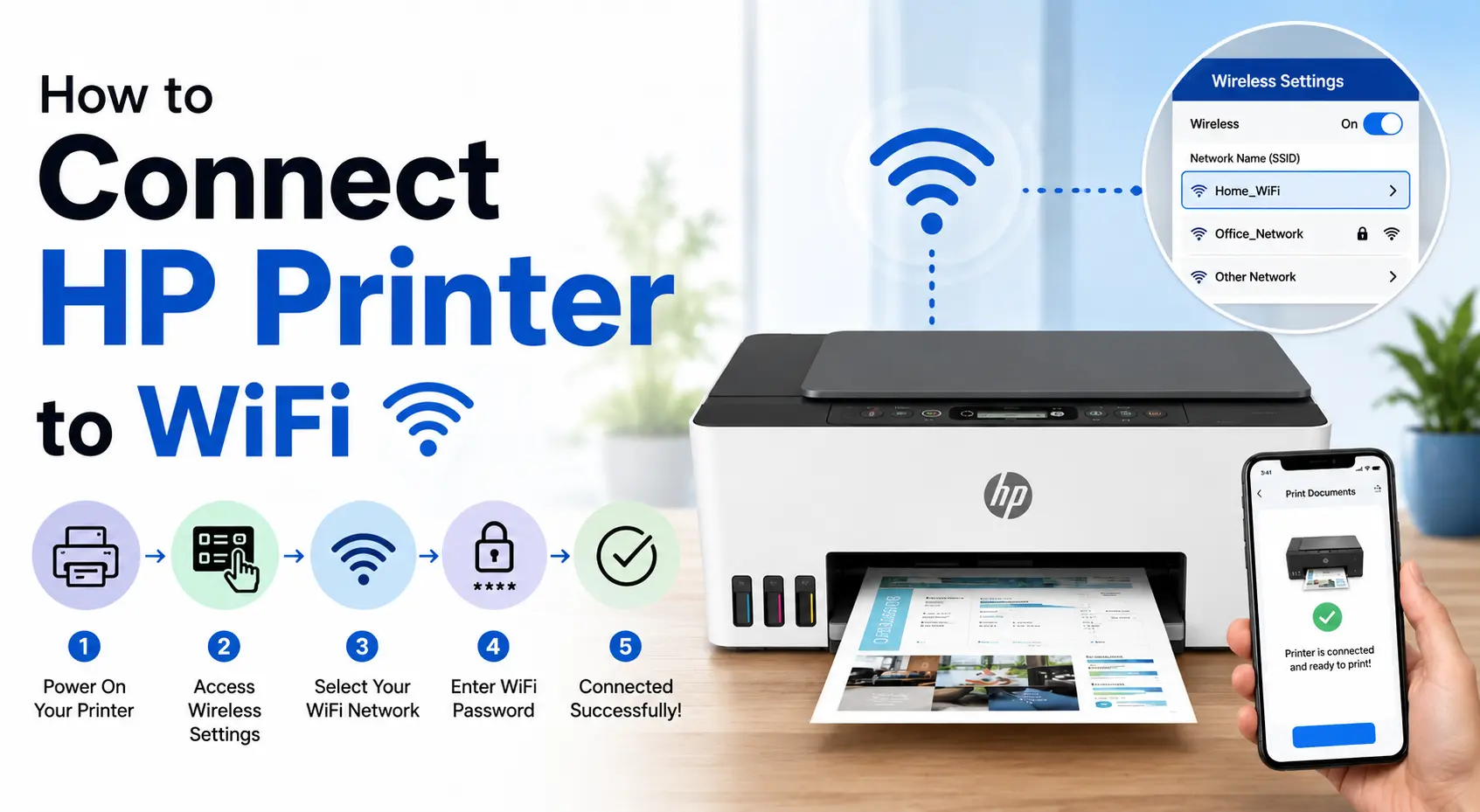
Let me be straight with you — connecting an HP printer to WiFi should be simple. Half the time it genuinely is. You press a couple of buttons, the wireless light goes solid, and you're printing from your couch five minutes later. But the other half? That blinking blue light becomes your nemesis and you end up deep in an HP support forum wondering what went wrong.
I've personally set up HP printers in dozens of homes and small offices over the years, and the same handful of problems keep coming up. This guide covers all four methods HP actually supports — and more importantly, it explains why things fail, not just which buttons to tap. Whether you just unboxed a new HP DeskJet or you're reconnecting an older HP ENVY after swapping out your router, there's something here for you.
Before You Touch Anything — Grab These First
- Your WiFi network name (SSID) — whatever shows up in your phone's WiFi list
- Your WiFi password — written down, not just memorized (you'd be surprised how often this trips people up)
- The printer within decent range of your router — 30 feet or less is ideal for the initial setup
- HP Smart App downloaded from 123.hp.com or your device's app store — it's free and worth having
Genuinely, verify your WiFi password on your phone before you start typing it into the printer. A single wrong character is the number one reason setup fails, and it's maddeningly hard to diagnose when everything else looks right.
Method 1: HP Smart App — Start Here
If you're setting up a new printer or reconnecting after a network change, the HP Smart App is the most reliable starting point. It walks you through the process with clear on-screen prompts, handles driver installation automatically, and — this matters — it gives you actual error messages when something goes wrong instead of just going silent.
It runs on Windows, macOS, Android, and iOS. Don't skip this and jump straight to WPS or the control panel method just because they sound faster. The app does background work (driver setup, firmware checks, HP account linking) that the other methods skip entirely.
Here's exactly what to do, with a couple of things to watch out for along the way.
- Download the HP Smart App Go to 123.hp.com or search "HP Smart" in your app store. Install it on the device you'll be printing from — phone, tablet, or computer. Takes about a minute.
- Wake the Printer and Open It Up to a New Connection Power on your HP printer. Press and hold the Wireless button for roughly 5 seconds — keep holding until the wireless light starts blinking blue. That blinking is the printer saying it's ready to connect to a network. If nothing blinks, hold a little longer.
- Open the App and Tap "Set Up a New Printer" Sign in or create a free HP account. Then tap Set Up a New Printer. The app scans nearby and should find your printer in setup mode automatically — usually within 10–15 seconds.
- Pick Your WiFi Network — Careful Here You'll see a list of nearby networks. Pick yours. Here's a real gotcha: if your router broadcasts both 2.4 GHz and 5 GHz bands with similar names — like "HomeNetwork" and "HomeNetwork_5G" — pick the 2.4 GHz one. Most HP home printers don't support 5 GHz, and the connection will silently fail if you grab the wrong band.
- Type the Password Exactly Enter it character by character — capital letters, symbols, everything counts. The app will try to connect. This takes 15–30 seconds. Don't panic if the wireless light keeps blinking during this; it's still working.
Method 2: Wireless Setup Wizard (on the Printer's Own Screen)
Got a printer with a touchscreen or a small menu display? Then you can skip the phone entirely. HP's Wireless Setup Wizard is built right into the printer's control panel — you scroll through a couple of menus, pick your network, type in the password, and you're done.
I use this method when a client's phone isn't cooperating or the HP Smart App is being temperamental. Cutting out the app cuts out a lot of variables. The one downside: typing your WiFi password with a tiny on-screen keyboard is a bit of a chore if the password is long and complicated. If that's you, the WPS method or Smart App might be less annoying.
- Find the Wireless Menu Tap the gear icon or go to Settings → Network → Wireless Setup Wizard. On older HP models it might be under Setup → Wireless Settings. They vary a bit, but look for anything combining "Wireless" and "Setup" and you'll find it.
- Let It Scan for Networks. The printer searches for nearby WiFi. Give it 15–20 seconds. If your network doesn't appear, your router might have SSID broadcasting disabled — common in office environments. Either enable it temporarily or switch to the WPS method, which doesn't need the network to be visible.
- Select Your Network Tap your WiFi name in the list. If you see two similar names — your 2.4 GHz and 5 GHz bands — go with the one your other home devices primarily use, or the one without "_5G" in the name.
- Type the Password and Confirm Use the on-screen keyboard to enter your WiFi password. Take your time here — it's small and easy to fat-finger a character. Tap Done or OK when you're ready.
- Watch the Wireless Light Blinking - still connecting. Solid - success. If it blinks for more than a minute and then stops without going solid, it gave up — almost always a wrong password or that 5 GHz band issue.
Method 3: WPS Push Button — Fastest When Your Router Supports It
WPS (Wi-Fi Protected Setup) is built around a clever idea — your router and printer shake hands automatically, without you ever typing a password. Press a button on the router, press a button on the printer within 2 minutes, and they connect on their own.
In practice, it's the fastest method when it works. Whether it works depends entirely on your router — not all routers have a WPS button, and some that do have it disabled for security. Check for a button labeled "WPS" (or an icon of two curving arrows) on the back or side of your router before you try this.
- Move the Printer Close to the Router — Just for Now You don't have to leave it there permanently. But for the initial WPS handshake, getting within 5–6 feet reduces the chance of a failed connection. Walls and distance can interfere, and when WPS fails there's no error message to help you figure out why.
- Put the Printer Into WPS Mode This varies by model. Printers with a touchscreen: go to Wireless Settings → Wi-Fi Protected Setup → Push Button → Start. Printers without a screen: press and hold the WiFi button for 5 seconds until it blinks rapidly. HP DeskJet 6000, ENVY 6400, and Tango models are a bit different — hold the WiFi and Power buttons on the back of the printer together for 3 seconds until the edge light flashes.
- Press the WPS Button on Your Router — Don't Dawdle You have 2 minutes. Walk to the router and press its WPS button for about 3 seconds. The router's light will blink, showing it's searching for a device to pair with.
- Wait for the Lights to Settle Both devices blink for a bit. If it worked, the printer's wireless light goes solid within 30–60 seconds. If it's still blinking after 2 minutes, the handshake failed — try the Smart App method instead, it's more reliable in tricky environments.
Method 4: HP Embedded Web Server — The Last Resort That Actually Delivers
This one sounds more technical than it is. Every networked HP printer has a tiny web server built inside it — HP calls it the Embedded Web Server, or EWS. Access it from a browser on your phone or laptop and you can run the wireless setup from there, even if the printer has no screen at all.
I pull out this method when everything else has failed: the Smart App can't find the printer, there's no WPS button on the router, and the printer has no display. It's a bit more involved, but it works in situations where the other methods simply won't.
Advanced — Great for Screen-Free Printers
- Connect to the Printer's Temporary Network On your phone or laptop, open your WiFi list. You'll see a network named something like HP=Setup EE_DeskJet 2700 — that's your printer broadcasting a temporary local hotspot. Connect to it. You'll lose regular internet access for a minute, which is normal.
- Open 192.168.223.1 in Any Browser Type that address into the URL bar and hit Enter. If your browser throws a privacy warning, click Advanced then Proceed — this is just a local printer address, not the open internet, so it's fine.
- Enter the Printer PIN if Prompted Some models require a PIN to get into the EWS. Look for a sticker inside the ink cartridge access door — open it and you'll usually find it on a label there.
- Run the Wireless Setup Wizard from the Browser Go to Network → Wireless → Wireless Setup Wizard → Next. Pick your home network, enter the password, and let it connect.
- Switch Your Device Back to Your Regular WiFi Once the printer connects, it drops the temporary HP=Setup network. Your device will lose internet — just switch back to your normal home WiFi and carry on.
Which Method Should You Actually Use?
Honestly, start with the HP Smart App unless something specific points you elsewhere. Here's a quick reference
Method | Best When | What You Need | Difficulty |
HP Smart App | New printer, first setup, any reconnection | Phone or computer | Easy — guided the whole way |
Wireless Setup Wizard | Printer has a touchscreen, no phone nearby | Just the printer | Easy, keyboard is a bit slow |
WPS Push Button | Router has WPS button, want it done in 60 seconds | WPS-capable router | Easiest — when the router cooperates |
HP Embedded Web Server | No screen, no WPS, Smart App won't find the printer | Browser + printer PIN | Moderate but very reliable |
Why Won't My HP Printer Connect to WiFi?
Honestly? 80% of the time it's one of three things — wrong password, wrong WiFi band (5 GHz when the printer needs 2.4 GHz), or the printer wasn't in setup mode when you started. Check those three first before anything else.
If you've verified all three and it's still not connecting, here's every other issue I've seen come up.
Notes for Specific HP Models
The process is broadly the same across HP's range, but a few series-specific things are worth knowing.
HP DeskJet (2700, 4100, 4155e)
DeskJet models are the most common HP home printers, and HP's Smart App is well-optimized for them — especially the 2700 and 4155e. Setup rarely has surprises on these. Just remember they're 2.4 GHz only, and make sure the printer is actually in setup mode (blinking wireless light) before you start the app.
HP ENVY (6000, 6055, 6455)
ENVY printers have a touchscreen, which makes the Wireless Setup Wizard genuinely easy — the wireless icon is right on the home screen. These models also work particularly well with the HP Smart App for mobile scanning afterward, so it's worth installing even if you set up via the control panel.
HP OfficeJet Pro (8025e, 9015e, 9025)
OfficeJet Pro models are office workhorses with larger touchscreens and generally fewer hiccups during WiFi setup. That said, office environments are exactly where the 2.4/5 GHz confusion is most common. Also worth assigning a static IP if the printer is doing high-volume print jobs — IP reassignment during busy periods can knock it offline at the worst times.
HP LaserJet (M140we, M209dw, MFP M234)
LaserJet home models have a slightly different menu path — look for Settings → Network → Wireless → Wireless Setup Wizard. Models without a screen (like the M140we) work best through the HP Smart App or WPS. These are 2.4 GHz-only, which surprises people in newer homes where 5 GHz is dominant.
Wrapping Up
Connecting an HP printer to WiFi doesn't have to be a frustrating experience — once you know which method suits your situation and where the common failure points are. Here's the short version one more time:
- HP Smart App — use this for any new setup or reconnection. Most reliable, period.
- Wireless Setup Wizard — great if your printer has a screen and you want to skip the phone entirely.
- WPS button — fastest method when your router supports it and you want no-password setup.
- HP Embedded Web Server — reaches cases nothing else can: no screen, no WPS, app won't find the printer.
And if you do everything right and it still doesn't connect — restart both devices, double-check you're on 2.4 GHz, verify the password on your phone first. One of those three things is almost certainly the actual problem.
Good luck. And when that test page prints — you've earned it.
Frequently Asked Questions
Can I set up WiFi on my HP printer without a computer at all
Yes — the HP Smart App on your smartphone does the whole job. You can also use the WPS button method, which doesn't need any device other than the printer and router. The Wireless Setup Wizard on the printer's own screen also works completely on its own if your model has a display.
Once it's on WiFi, can everyone in my house print to it?
Yes. Once the printer is on your home network, any device on that same network can print to it. Each person's device might need to add the printer once through their settings — Windows: Settings → Bluetooth & devices → Printers & scanners → Add device. Mac: System Settings → Printers & Scanners. On phones, the HP Smart App handles it automatically.
My printer connected fine but now shows "Offline" — what's happening?
Three common causes. First, Windows sometimes loses track of the printer after it goes to sleep — right-click the printer in Windows settings, open the print queue, and make sure "Use Printer Offline" is unchecked. Second, its IP address may have changed (DHCP reassignment) — a static IP reservation in your router settings fixes this permanently. Third, a Windows update occasionally resets printer status; reinstalling the printer in Windows usually fixes it quickly.
How do I reset my HP printer's WiFi settings completely?
On models with a touchscreen: Settings → Network Settings → Restore Network Defaults. On models without a screen: hold the Wireless and Cancel buttons together for 5 seconds until the wireless light starts blinking. That clears the stored network info and puts the printer back into setup mode so you can start fresh.
Does the printer need internet access, or just WiFi?
Just WiFi — local network access is all it needs for day-to-day printing. Internet is only needed for things like HP's cloud printing service, printing from outside your home, or automatic firmware updates. Regular printing from devices in your home works with no internet connection whatsoever.
Can I print from my iPhone to an HP printer on WiFi?
Two easy ways. One: download the HP Smart App, add your printer, and print directly from the app. Two: use Apple AirPrint — tap the Share button in any iOS app, choose Print, and your HP printer should appear if it's on the same WiFi. AirPrint requires no extra setup or app at all.
I changed my router or WiFi password — do I have to set up the printer again?
Unfortunately, yes. The printer holds the old network info and has no way to automatically pick up new credentials. Reset the printer's WiFi settings (see the question above) and run setup again using any of the methods in this guide. The second time around usually takes under 5 minutes since you know what you're doing.

