HP Printer Shows Offline? Here's What's Actually Happening and How to Fix It
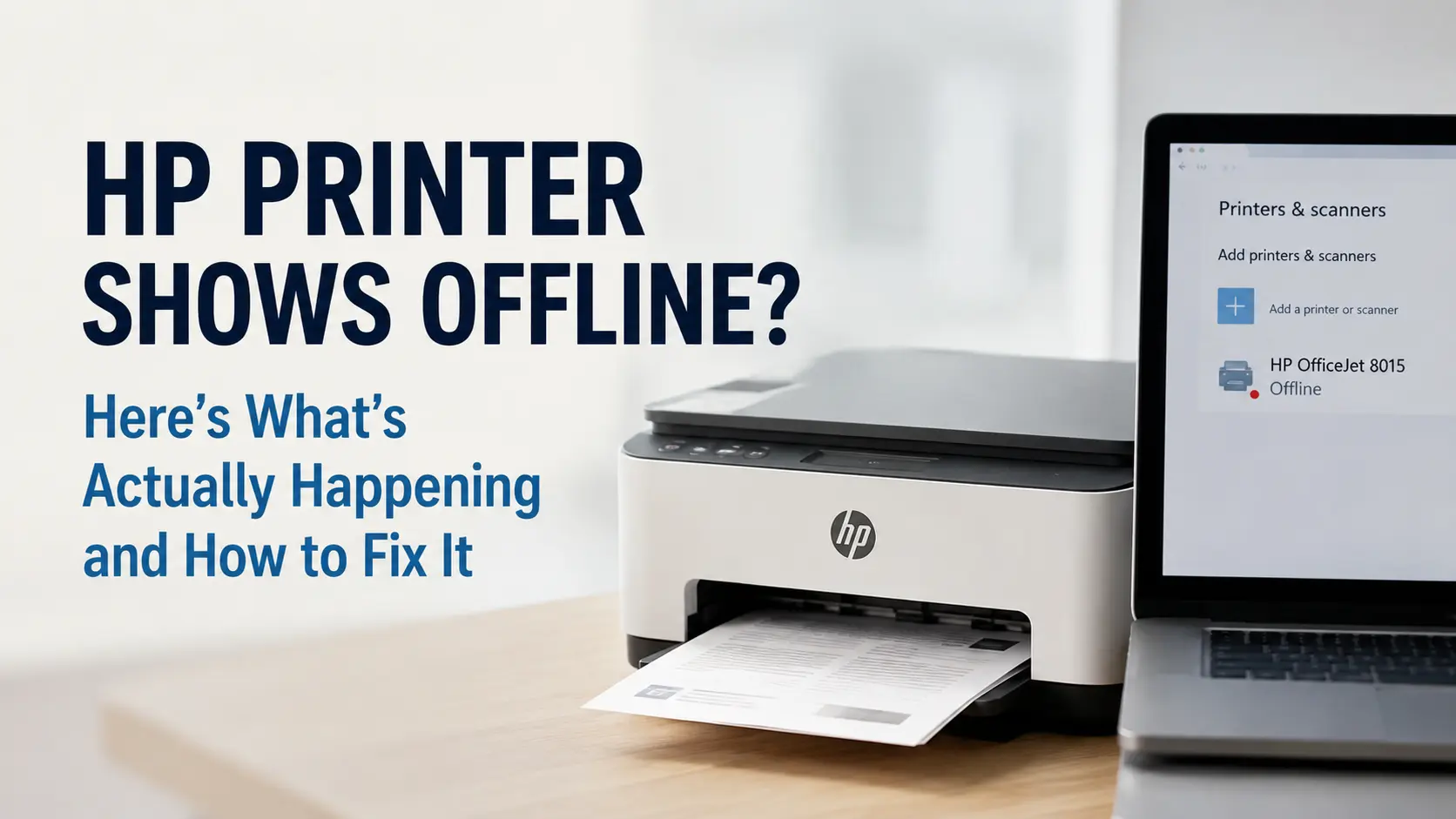
Your HP printer is almost certainly not broken. When Windows or macOS marks it "offline," the operating system has simply lost track of where the printer lives on your network, usually because its IP address changed. Power off the printer, unplug the router for 30 seconds, plug it back in, wait for it to fully reconnect, then turn the printer back on. In the majority of cases that single sequence brings the printer back online within two to three minutes, because it forces both devices to renegotiate a fresh IP address and clears the mismatch that caused the problem in the first place.
If that doesn't do it, the fix depends on which of a handful of specific things broke: the network path, a stuck print job, a driver, or a setting Windows flipped on its own. Below is what each cause actually looks like, and the exact fix for it.
Why HP printers go offline in the first place
"Offline" isn't a diagnosis, it's a symptom. Windows and macOS each keep a record of the printer's IP address (or, for USB, its port) inside the printer object they display in Settings. When the address that record points to no longer matches where the printer actually is, the OS can't confirm the printer is reachable, and it labels it offline even though the printer itself is sitting there fully powered on and idle.
The most common triggers, roughly in order of how often they show up in HP and Microsoft support forums:
- The printer's IP address changed. Most home and small-office routers hand out addresses using DHCP with a lease that expires and renews, commonly once every 24 hours by default on consumer routers, though this varies by manufacturer. A router reboot, firmware update, or even a long power outage can cause the printer to come back with a different address than the one Windows or macOS has on file.
- The printer went to sleep and dropped its network lease. HP's power-saving modes on inkjet models in particular can release the DHCP lease during deep sleep. The printer looks "off" to the network even though a light is blinking on the front panel.
- "Use Printer Offline" got toggled on. This is a genuine Windows setting, not a status readout, and it's easy to enable by accident with a stray click in the print queue window. Once it's on, Windows won't even try to contact the printer until you turn it back off.
- A stuck job froze the print spooler. One corrupted or oversized print job can jam the Windows Print Spooler service (spoolsv.exe), and every job queued behind it, plus the offline check itself, waits indefinitely.
- The driver is outdated, corrupted, or mismatched to the connection type. This shows up most after a Windows feature update, which can silently swap a working driver for a generic one that doesn't handle HP's status-reporting correctly.
- SNMP status queries are being blocked. Windows uses SNMP (Simple Network Management Protocol), a background protocol printers use to report their own status, to ask "are you there?" If a firewall, VPN, or a Windows 11 update setting blocks that query, Windows assumes no answer means offline, even when the printer is fine.
- A VPN or third-party firewall is sitting between the computer and the printer's local IP. VPNs that route all traffic through a remote tunnel are a frequent, and frequently overlooked, cause on laptops that travel between home and office networks.
Knowing which of these is happening tells you which fix to try first, instead of working through all ten methods in a fixed order every time.
Fixing it on Windows 10 and 11
Try these roughly in this order. Each one takes under five minutes, and you can stop as soon as the printer shows "Ready" instead of "Offline" in Settings > Bluetooth & devices > Printers & scanners.
METHOD 1 · RECOMMENDED FIRST
Use HP Print and Scan Doctor (free automatic fix)
HP's own diagnostic tool, free from support.hp.com, checks the exact things covered in this article automatically: the printer's actual IP address, whether it matches what Windows has stored, spooler health, and driver integrity. It's worth running before any manual step below because it will often name the specific cause instead of leaving you to guess, and it can fix the IP mismatch and spooler issues itself with one click.
🔧 Free official HP tool
Download HP Print and Scan Doctor directly from HP's support site. No account required.
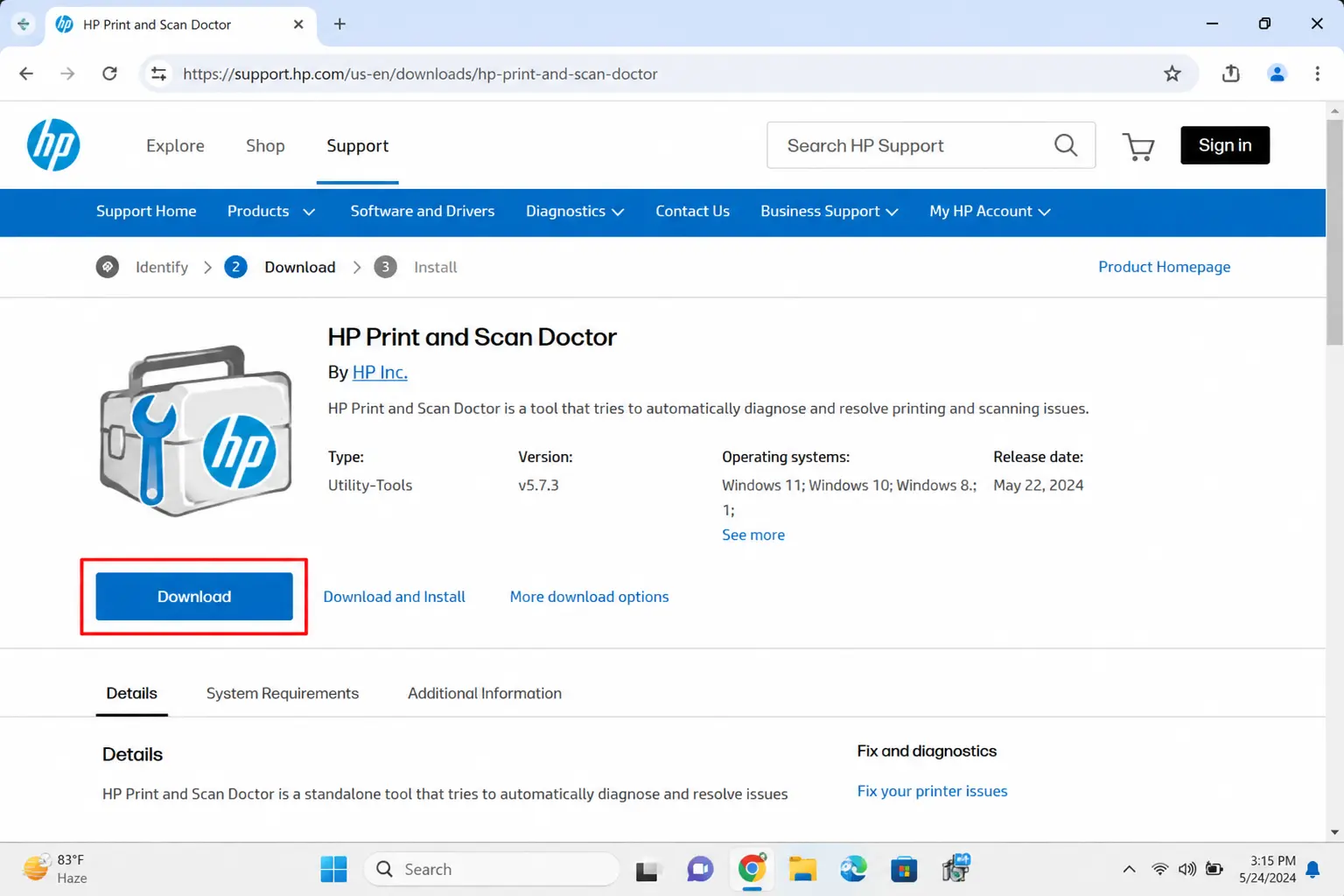
- Download HP Print and Scan Doctor from the HP support page
- Run the downloaded .exe file - no installation needed.
- Click Start, then select your HP printer from the list.
- Click Fix Printing and follow the on-screen prompts.
- The tool will automatically repair driver issues, clear stuck queues, and reset port settings.
- Click Print Test Page when prompted to confirm the fix.
METHOD 2
Turn off "Use Printer Offline" mode
This is the single most common cause with the simplest fix, and it's worth checking even if you're sure you didn't touch it.
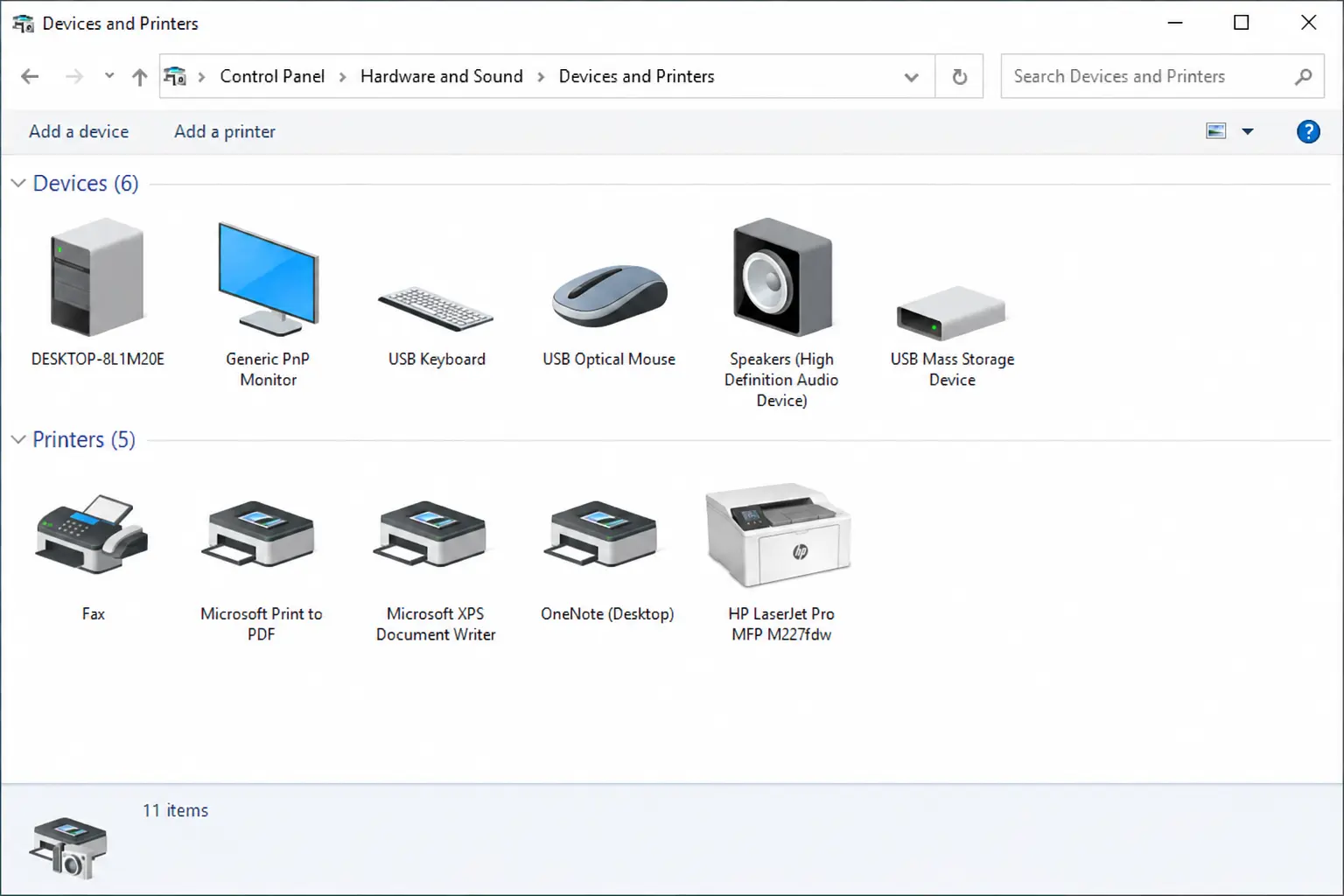
- Open Control Panel > Devices and Printers (search "Devices and Printers" from the Start menu if you don't see it).
- Right-click your HP printer and select See what's printing.
- Click the Printer menu at the top of the queue window.
- If Use Printer Offline has a checkmark next to it, click it to clear the checkmark.
The printer should switch to "Ready" within a few seconds. If it stays offline, the setting wasn't the actual cause, move to the next step.
Tech Note: In Windows 11, this setting sometimes flips back on by itself if a print job fails midway through. If you uncheck it and it turns back on within a few minutes, don't keep re-clicking it — go clear the queue first (Method 5), then disable it again. Otherwise it'll just keep re-triggering.
METHOD 3
Restart the Print Spooler service
This clears whatever's jammed in the background service that manages all print jobs, without touching your printer settings or driver.
- Press Windows key + R, type services.msc, and press Enter.
- Scroll to Print Spooler, right-click it, and select Restart.
- If Restart is grayed out, right-click and choose Stop, wait five seconds, then right-click again and choose Start.
METHOD 4
Clear the stuck print queue
Do this alongside the spooler restart, not instead of it, because a corrupted job in the queue is often what jammed the spooler to begin with.
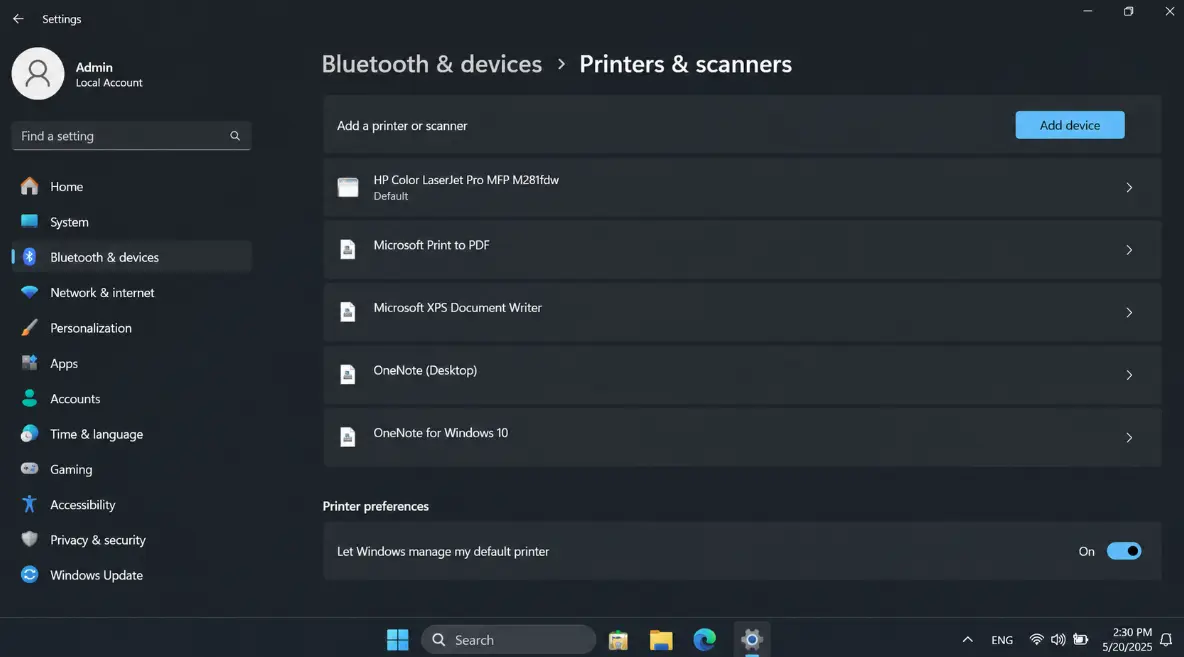
- Go to Settings > Bluetooth & devices > Printers & scanners.
- Select your HP printer, then Open print queue.
- Right-click any document listed and choose Cancel, or select Printer > Cancel All Documents.
- If a document refuses to delete, restart the Print Spooler service again (step 3) and it will usually clear on its own.
METHOD 5
Confirm it's set as the default printer
If a second printer, a PDF driver, or a "Microsoft Print to PDF" entry has quietly become the default, some apps will route jobs to that instead and report the HP printer as unreachable.
- In Printers & scanners, click your HP printer.
- Confirm Set as default is available to click (if it already says the printer is default, skip this step).
METHOD 6: WINDOWS 11 SPECIFIC
Turn off SNMP Status, especially after a Windows 11 update
This is a fix specific to Windows 11 systems where the printer worked fine until a recent Windows update, and it addresses the SNMP-blocking cause described above.
- Open Control Panel > Devices and Printers.
- Right-click the HP printer and choose Printer properties.
- Go to the Ports tab, select the port in use (it'll be checked), and click Configure Port.
- Uncheck SNMP Status Enabled.
- Click OK, then close out and check the printer's status.
This works because it stops Windows from relying on an SNMP query that isn't getting answered, and falls back to a simpler reachability check instead.
METHOD 7
Update or reinstall the driver
- Go to support.hp.com, search your exact printer model, and download the latest full driver package (not just the "basic" driver, which often lacks the status-reporting components).
- Uninstall the existing printer from Printers & scanners first.
- Run the fresh driver installer and let it detect the printer over USB or network.
METHOD 8 · FIXES THE ROOT CAUSE DIRECTLY
Assign a Standard TCP/IP Port with a fixed address
This is the most durable fix for network printers that keep going offline every few days, because it stops Windows from relying on discovery (WSD, the Web Services on Devices protocol most HP printers use by default) and instead points directly at one IP address.
- Find the printer's current IP: on the printer's touchscreen, go to the network or wireless settings menu, or print a network configuration page from the printer's own menu.
- In Windows, open Devices and Printers, right-click the HP printer, and choose Printer properties > Ports tab.
- Click Add Port, choose Standard TCP/IP Port, and click New Port.
- Enter the printer's IP address and follow the wizard to finish.
- Once added, select the new port for the printer under the Ports tab and apply.
Pair this with the router-side static IP step further down, otherwise the address you just entered will drift again at the next DHCP renewal.
Fixing it on Mac
macOS handles printer discovery differently, mostly through Bonjour (Apple's name for mDNS, the protocol that lets devices announce themselves on a local network), which makes a couple of these causes look different even though the underlying problem is the same address mismatch.
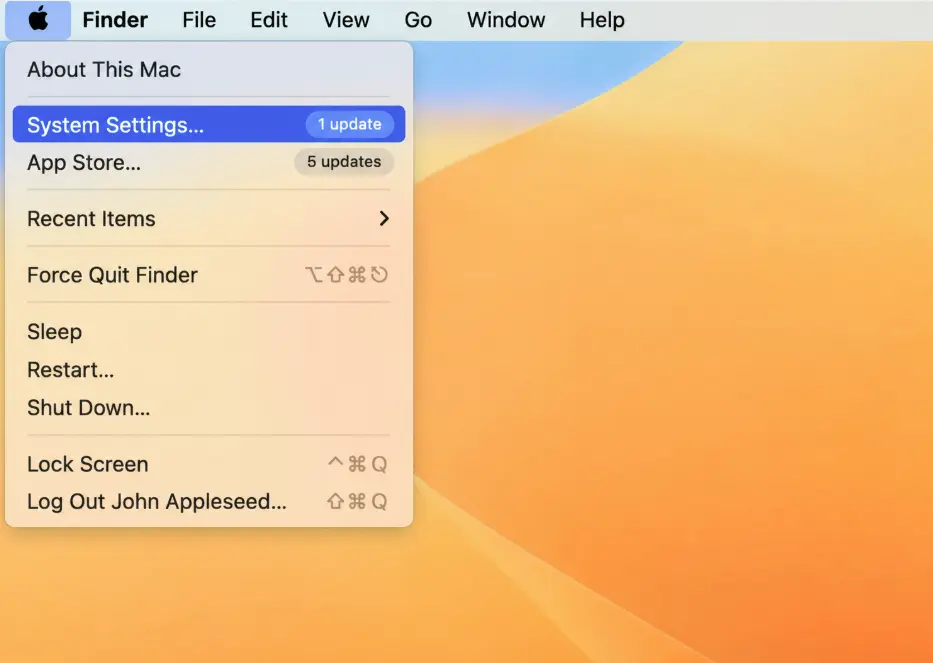
- Remove and re-add the printer. Go to System Settings > Printers & Scanners, select the HP printer, click the minus button to remove it, then click the plus button and select it again from the discovered devices list. This forces macOS to re-learn the printer's current address rather than relying on a cached one.
- Update macOS. Apple ships printer driver updates, including HP's AirPrint and IPP (Internet Printing Protocol) support, through regular macOS updates. An outdated OS version is a frequent, easy-to-miss cause of a printer that "worked yesterday."
- Temporarily disable VPN or third-party firewall software. If the printer comes back online the moment you disconnect the VPN, add an exception for the printer's local IP range in the VPN client or firewall settings rather than leaving the VPN off permanently.
- Clear the print queue. Open the printer in Printers & Scanners, click Open Print Queue, and remove any stuck jobs. A stalled job here can hold the printer in a "paused" or unreachable state that looks identical to offline.
- Add the printer by direct IP address instead of through Bonjour discovery. In Printers & Scanners, click the plus button, then the IP tab at the top of the Add Printer window, and enter the printer's address with protocol set to IPP. This bypasses Bonjour discovery entirely, which is useful if the printer isn't showing up in the discovered list at all.
The permanent fix: stop the IP address from changing
Every method above fixes the symptom for now. If the printer goes offline again in a few days, the actual problem is that your router keeps handing it a new DHCP address, and the fix is to stop that from happening rather than repeating the same troubleshooting every week.
Log into your router's admin page (usually 192.168.1.1 or 192.168.0.1, printed on a label on the router itself) and set up a DHCP reservation, sometimes labeled "static lease" or "address reservation," tied to the printer's MAC address. This tells the router to always hand that specific printer the same IP address, permanently, without you having to configure a static IP on the printer itself or touch Windows again. It's a five-minute router-side setting that eliminates the single most common root cause on this whole list.
Which method to try first
Match the symptom to the method instead of working through the full list top to bottom.
Symptom | Most likely cause | Fix to try first |
|---|---|---|
Printer was fine yesterday, offline today, nothing changed | DHCP address changed | Quick power cycle, then Standard TCP/IP Port (Windows) or remove/re-add (Mac) |
Went offline right after a Windows update | Driver reset or SNMP blocked | SNMP Status fix, then driver reinstall |
Print queue shows documents stuck at 0% | Jammed spooler | Restart Print Spooler, then clear queue |
Offline only when connected to work VPN | VPN routing blocks local traffic | Disable VPN or add a local-network exception |
Keeps going offline every few days on a schedule | No DHCP reservation set | Router-side static IP reservation |
Never goes online no matter what | "Use Printer Offline" mode enabled | Clear the Use Printer Offline checkbox |
What if none of this fixes it
If the printer still won't come online after a power cycle, a spooler restart, and a fresh driver install, the remaining suspects are outside software entirely: a failing Wi-Fi module inside the printer itself (more common on inkjets over three or four years old), a router that's blocking device-to-device traffic through AP or client isolation, or a genuinely dead network port if the printer is wired. At that point, HP Print and Scan Doctor's full diagnostic report, or a wired USB connection test, will tell you within a few minutes whether the printer or the network is actually at fault, which is the one distinction none of the steps above can make for you.
Related HP Printer Guides
HP printer not connecting to WiFi – fix guide
HP printer job stuck in queue – how to clear it
HP printer in error state – causes and fixes
How to update HP printer firmware (Windows & Mac)
HP printer not printing – complete troubleshooting guide
Frequently Asked Questions
What if the printer shows online but still doesn't print?
A stuck print queue, IP address conflicts, or outdated
drivers are the most common causes. Restart all devices, clear the print queue,
update drivers, and temporarily disable your firewall to isolate the cause. If
all else fails, run HP Print and Scan Doctor — it is specifically designed to
catch issues that appear "online" but silently fail.
My HP printer is connected to WiFi but still shows offline — why?
Why does my HP printer go offline after sleep or waking from sleep mode?
Sleep mode causes some HP printers to release their DHCP
network lease. When the printer wakes, the router assigns it a new IP address —
but your computer still holds the old one. The permanent fix is assigning a
static IP address (see the dedicated section above). A short-term workaround is
to disable deep sleep in the printer's Energy Settings menu.
HP printer went offline after a Windows 11 update — how do I fix it?
Windows 11 feature updates (23H2, 24H2) frequently break HP
printer port settings via an SNMP conflict. The fastest fix is Method 6 above:
go to Printer Properties → Ports → Configure Port → uncheck SNMP Status
Enabled. If that does not work, uninstall the printer completely and reinstall
using the latest full-feature driver downloaded directly from support.hp.com.
Is there a free tool to automatically fix HP printer offline?
Yes. HP's free official tool is called HP Print and Scan
Doctor (Windows only). Download it from HP's support page at support.hp.com.
For Mac, the HP Smart app (free from the Mac App Store) includes a Diagnose
& Fix feature that handles most offline causes automatically.
Can a firewall or VPN cause my HP printer to show offline?
Yes — this is more common than most people expect. VPNs
block or reroute local network traffic, which prevents your computer from
reaching the printer even though both are on the same physical network.
Corporate VPNs are especially problematic. Temporarily disable your VPN and
firewall and try printing. If it works, add your printer's IP address as a VPN
split-tunnel exception or a firewall inbound rule.
How do I find my HP printer's IP address?
On most HP printers: from the control panel, go to Settings → Network → Print Network Configuration Page. The IP address is printed on the page. On touchscreen models, tap the wireless icon on the home screen to see the IP directly. Alternatively, check your router's connected devices list — it will show the IP assigned to your printer's hostname.
How do I stop the HP printer offline issue from happening again?
The most effective long-term fix is assigning a static IP to
your printer via your router's DHCP reservation settings. Also: keep the
printer on the same WiFi band as your computer, update HP firmware regularly
via the HP Smart app, and avoid changing your router's SSID without
reconnecting the printer. If the printer goes into deep sleep, disable deep
sleep in the printer's Energy menu to prevent it from dropping its network
connection.

