How to Replace the Drum Unit on a Brother Printer (Complete Guide)
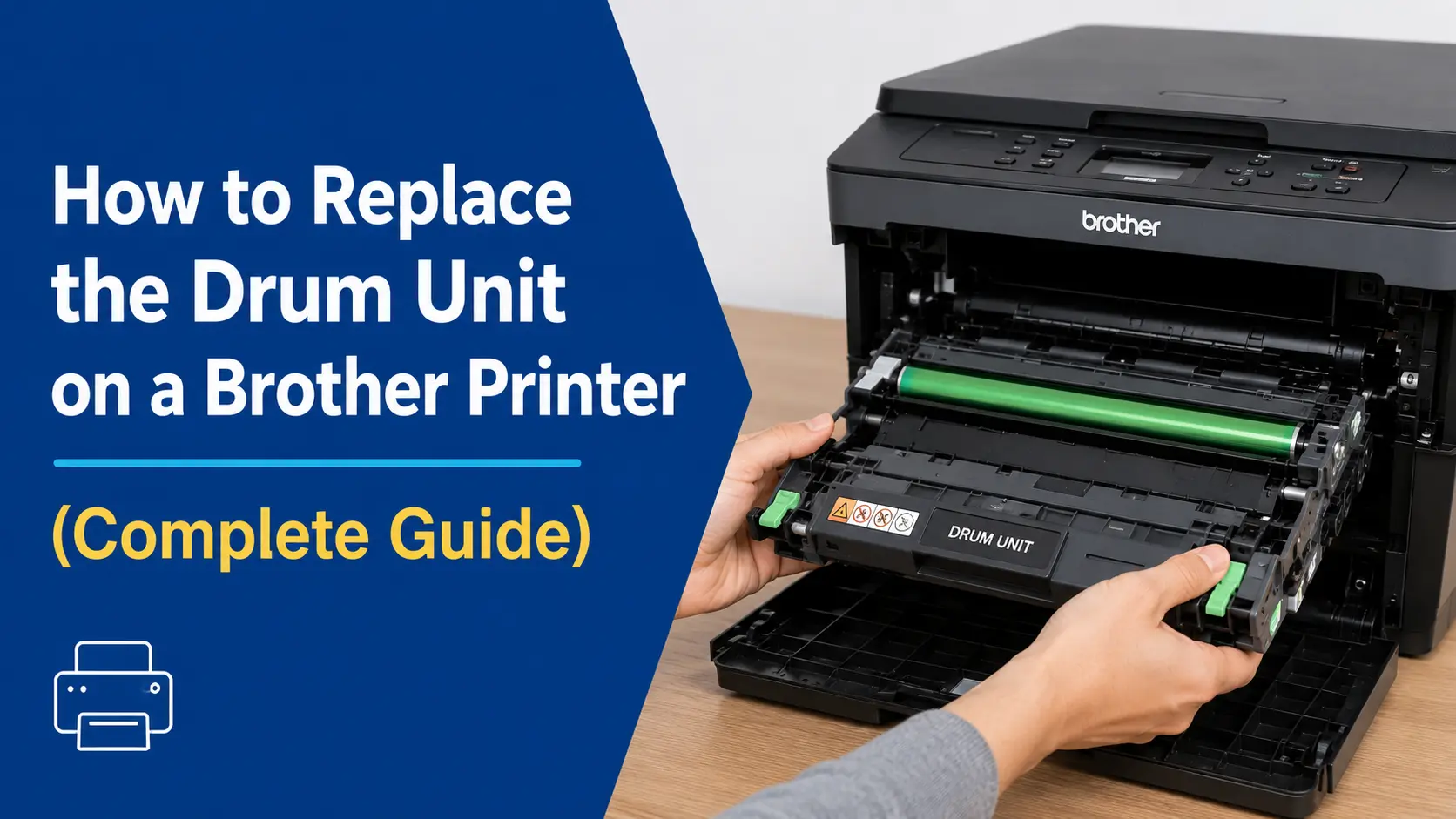
If your Brother printer is showing a "Replace Drum" or "Drum End Soon" warning, you need to swap out the drum unit — not the toner cartridge. That's a distinction worth getting right before you spend money on the wrong part. This guide walks you through the full replacement process, covering physical installation, counter reset steps by panel type, and the fixes for the errors that show up even after you've installed a new drum.
What Is a Drum Unit and Why Does It Need Replacing?
The drum unit is the green cylindrical component inside your Brother printer that transfers toner from the cartridge onto paper. Every time the printer runs a page, the drum rotates, picks up a charge, attracts toner, and presses it onto the sheet. Over tens of thousands of rotations, the photosensitive coating on the drum wears thin — and that's when you start seeing faded prints, grey streaks, or ghosting (faint repeated images across the page).
Unlike inkjet printers where the cartridge does everything, Brother laser printers separate the toner cartridge and the drum into two distinct consumables. The toner runs out faster (every 1,200–3,000 pages depending on the cartridge tier), while the drum typically survives 3–4 toner replacements before it needs to go.
How to Know It's Definitely the Drum (Not the Toner)
The printer will display one of these messages:
- "Drum End Soon" — you have some pages left, start ordering
- "Replace Drum" — the counter has hit its limit, replacement is needed
- "Drum Stop" — the printer has stopped accepting new jobs until the drum is replaced
If you're seeing streaks or dots but no error message, pull the drum out and inspect it in a dimly lit room. Scratches, toner buildup patches, or white spots on the green surface are clear signs it's past its usable life. Exposure to direct light for even a few minutes can permanently damage a drum unit, so work quickly.
Finding the Right Drum Unit for Your Printer Model
Before purchasing, check the label on the front of your printer or look in Settings > Machine Info for the model number. The drum part number is different from the toner part number.
DR-730 — ~12,000 pages Compatible with: HL-L2350DW, HL-L2370DW, HL-L2390DW, HL-L2395DW, DCP-L2550DW, MFC-L2710DW, MFC-L2750DW
DR-630 — ~12,000 pages Compatible with: HL-L2300D, HL-L2340DW, HL-L2360DW, HL-L2380DW, DCP-L2520DW, DCP-L2540DW, MFC-L2700DW, MFC-L2720DW
DR-420 — ~12,000 pages Compatible with: HL-2270DW, DCP-7065DN, MFC-7360N, MFC-7460DN
DR-820 — ~30,000 pages Compatible with: HL-L5100DN, HL-L6200DW, MFC-L5700DW, MFC-L6700DW
Note: The drum unit does not include toner. If you're replacing both at the same time, buy them separately. The toner slides into the new drum during installation.
Before You Start: Precautions That Actually Matter
Three things that cause replacements to go wrong:
- Static electricity — don't touch the gold electrodes or roller contacts inside the printer cavity. This isn't just cautionary boilerplate; touching those contacts can corrupt the drum's charge wire, causing permanent streaking.
- Light exposure — the green drum surface is photosensitive. Unbox the new drum in normal indoor light, but don't leave it sitting under a window or bright lamp. Even 10 minutes of direct light can damage it before it's ever used.
- Toner spills — place a sheet of paper under the assembly when working. Toner is fine carbon powder; it gets into everything and doesn't wash out with warm water (always use cold water if it gets on skin or clothing).
Step-by-Step: Replacing the Drum Unit
These steps apply to all current Brother mono laser models (HL, DCP, MFC series). Minor variations exist across models but the core process is identical.
Step 1 — Open the Front Cover
Leave the printer powered on. Open the front cover by pressing the release button or clamp on the front panel. The printer will go into standby mode automatically.
If the printer has been running, wait at least 10 minutes before reaching inside. The fuser assembly runs hot enough to burn skin.
Step 2 — Remove the Drum and Toner Assembly
Grip the handle on the drum unit and slide the entire assembly straight out toward you. The toner cartridge comes out attached to it — they're locked together as a single unit at this stage. Place it on the paper you laid down.
Step 3 — Separate the Toner Cartridge from the Old Drum
Press down the green lock lever on the side of the drum unit. While holding it down, pull the toner cartridge upward and out. Set the toner aside — you'll reuse it in the new drum (unless you're replacing the toner at the same time).
Step 4 — Prepare the New Drum Unit
Unbox the new drum, keeping it away from direct light. Remove all protective packaging, including any orange shipping tabs or plastic film covering the contacts.
Step 5 — Insert the Toner Cartridge into the New Drum
Slide the toner cartridge firmly into the new drum unit until you hear it click into place. When seated correctly, the green lock lever lifts back up on its own. If it doesn't lift, the cartridge isn't fully seated — pull it out and push again with more force along the guide rails.
Step 6 — Clean the Corona Wire
Inside the drum unit, there's a small tab (usually labelled with an arrow or marked in a different color). Slide this tab back and forth gently 5–6 times to clean the corona wire — the thin wire that charges the drum. Dust on this wire causes vertical streaks. Return the tab to its home position (there's a small indent or marker); leaving it misaligned causes a thick vertical stripe in every print.
Step 7 — Reinstall the Assembly
Slide the drum and toner assembly back into the printer along the guide tracks until it stops. You should feel it seat firmly. Do not close the front cover yet — the counter reset needs the cover open on most models.
Resetting the Drum Counter (By Panel Type)
This is the step most people miss — and it's why printers keep showing "Replace Drum" after a fresh install. The printer's page counter doesn't reset automatically. You have to tell it manually.
The reset method varies depending on what kind of control panel your printer has.
Models with LED Indicators Only (No Screen)
Covers: HL-L2350DW, HL-L2300D, HL-1110, HL-1210W
With the front cover still open after installing the new drum:
- Press and hold the Go button for approximately 4 seconds
- All four LED lights (Toner, Drum, Paper, Ready) will illuminate simultaneously
- Release the Go button
- Close the front cover
The Drum LED should now be off. If it stays lit, repeat with the cover open and hold the button for the full 4 seconds — timing matters on LED-only models.
Models with a Single-Line LCD and Arrow Keys
Covers: MFC-L2710DW, DCP-L2550DW, HL-L2390DW
With the front cover open:
- Press and hold OK for about 2 seconds — the display shows "Drum Unit"
- Press OK again to confirm
- Press the Up arrow (▲) to select Reset
- The display shows "Accepted"
- Close the front cover
Alternative method for some MFC/DCP models: press Clear while the cover is open → screen shows "Replace Drum?" → press the Up arrow to confirm reset → display shows “Accepted.”
Models with a Dual-Line LCD or Touchscreen
Covers: MFC-L2750DW, MFC-L2730DW, HL-L2395DW
- Close the front cover after installing the drum
- Press Settings (or the Menu icon on touchscreen models)
- Navigate to Machine Info → Parts Life → Drum
- On touchscreen models: press and hold "Black Toner" for 5 seconds to access drum life, then confirm reset
- Select Yes when prompted — display shows "Accepted"
For models with the # key (some larger MFC models):
- Press Cancel (X) to dismiss the drum error
- Immediately press and hold the # key
- A "Reset Menu" appears — select Drum → Yes
Compatible vs. Genuine: What's Actually Worth It
Genuine Brother drum units retail for roughly $60–$80 (DR-730, DR-630). Compatible third-party drums from reputable suppliers typically run $20–$35.
The honest take: compatible drums can work well, but quality varies considerably between brands. The drum surface coating is precision-manufactured — cheap versions can introduce banding, ghosting, or early wear. If your printer handles high-volume business printing, a genuine drum is worth the cost difference per page. For a home printer doing 50–100 pages a month, a well-reviewed compatible from a supplier with a return policy is a reasonable call.
One practical test: after installing a compatible drum, run a full-page density test print. If you see repeating dots or faint repeating patterns, the drum surface has a defect — return it before the return window closes.
Troubleshooting: When Things Don't Go Right
"Replace Drum" Message Persists After Installation
The counter wasn't reset. Go back through the reset steps for your panel type. If the message still shows after a correct reset, remove the drum assembly, reseat it firmly, and try again. A drum that isn't fully clicked into its guides can prevent the printer from recognizing it.
Print Has Repeating Dots or Spots at Regular Intervals
The drum surface is damaged — either scratched during installation, or it was left in direct light too long. The dot pattern repeats at the exact circumference of the drum (~94mm for most models). Replace the drum.
Streaks Running Vertically Down the Page
The corona wire needs cleaning. Pull the drum out, slide the cleaning tab all the way to one end, then back to its home marker. Reinstall and test print.
"No Toner" or "Toner Error" After a New Drum
The toner cartridge isn't fully seated in the drum. The lock lever must be fully up. Remove the toner, check the guide rails for debris, and reinsert with steady pressure until it clicks.
Drum Counter Reset Not Working on HL-L2350DW
A common reported issue: if the printer is showing a "Replace Toner" message at the same time, the drum reset menu can be blocked. Clear the toner message first — open the front cover, remove and firmly reseat the toner cartridge, close the cover — then initiate the drum reset once the printer is back in a Ready state.
How Long Should a Drum Actually Last?
Brother's official spec for most current monochrome drum units is approximately 12,000 pages at 5% page coverage. Real-world mileage varies:
- Home use (50–100 pages/month): A drum can last 8–10 years
- Small office (500 pages/month): Roughly 2 years per drum
- High-volume office (2,000+ pages/month): Under 6 months
Temperature, humidity, and paper type all affect drum life independently of page count. Glossy or coated paper is rougher on the drum surface than standard 80gsm copy paper. Running in a dusty environment shortens drum life noticeably.
One thing worth noting: the printer's drum counter is based purely on page count, not actual surface condition. It's possible to hit the counter limit with a drum that still prints cleanly, or to have a degraded drum that hasn't triggered the warning yet. Always judge by print quality alongside the counter.
After the Replacement: Quick Verification Steps
Once the drum is installed and the counter reset:
- Print a test page — go to Settings > Print Report > Test Print (or hold Go for 2 seconds on LED-only models)
- Check for even density across the full page width — no bands, no repeating spots
- Print a few real documents and inspect under good light
If the first few pages show slightly uneven density, that's normal. New drum surfaces need 5–10 pages to even out.
What Comes Next
If you've replaced the drum and the print quality is still poor, the issue may be with the fuser unit rather than the drum. Fuser problems typically show up as toner that smears when rubbed (it isn't being properly fused to the paper), whereas drum problems show up as missing or repeating patterns.
For ongoing maintenance, cleaning the corona wire every time you replace a toner cartridge adds almost no time and meaningfully extends drum life. It takes 20 seconds and prevents the most common cause of avoidable drum degradation.
Related Guides
If this article helped, these cover the next most common Brother printer tasks:
How to Connect Brother Printer to WiFi — Quick Wireless Setup Guide Step-by-step wireless setup for any Brother model, including WPS, manual SSID entry, and fixes for the 2.4 GHz connection issue most users hit with modern routers.
Brother HL-L2460DW WiFi Setup Guide: 3 Ways (With Fixes) Covers all three connection methods for the HL-L2460DW specifically — WPS push-button, the control panel menu route, and the Brother installer tool — plus the most common failure points for each.
How to Replace Toner in Brother MFC-L2750DW (Complete Beginner Guide) A walkthrough for swapping the toner cartridge on the MFC-L2750DW, including how to handle the "Replace Toner" message and what to do if the error stays on after installing a new cartridge.
3 Easy Fixes for Brother Printer Error 04 Error 04 usually points to a drum or fuser detection problem. If the drum replacement above doesn't resolve the error, this guide covers the three most reliable fixes in order of likelihood.

