HP Envy 7640 Paper Jam: The Complete Fix (Including the Jam That Isn't Really There)
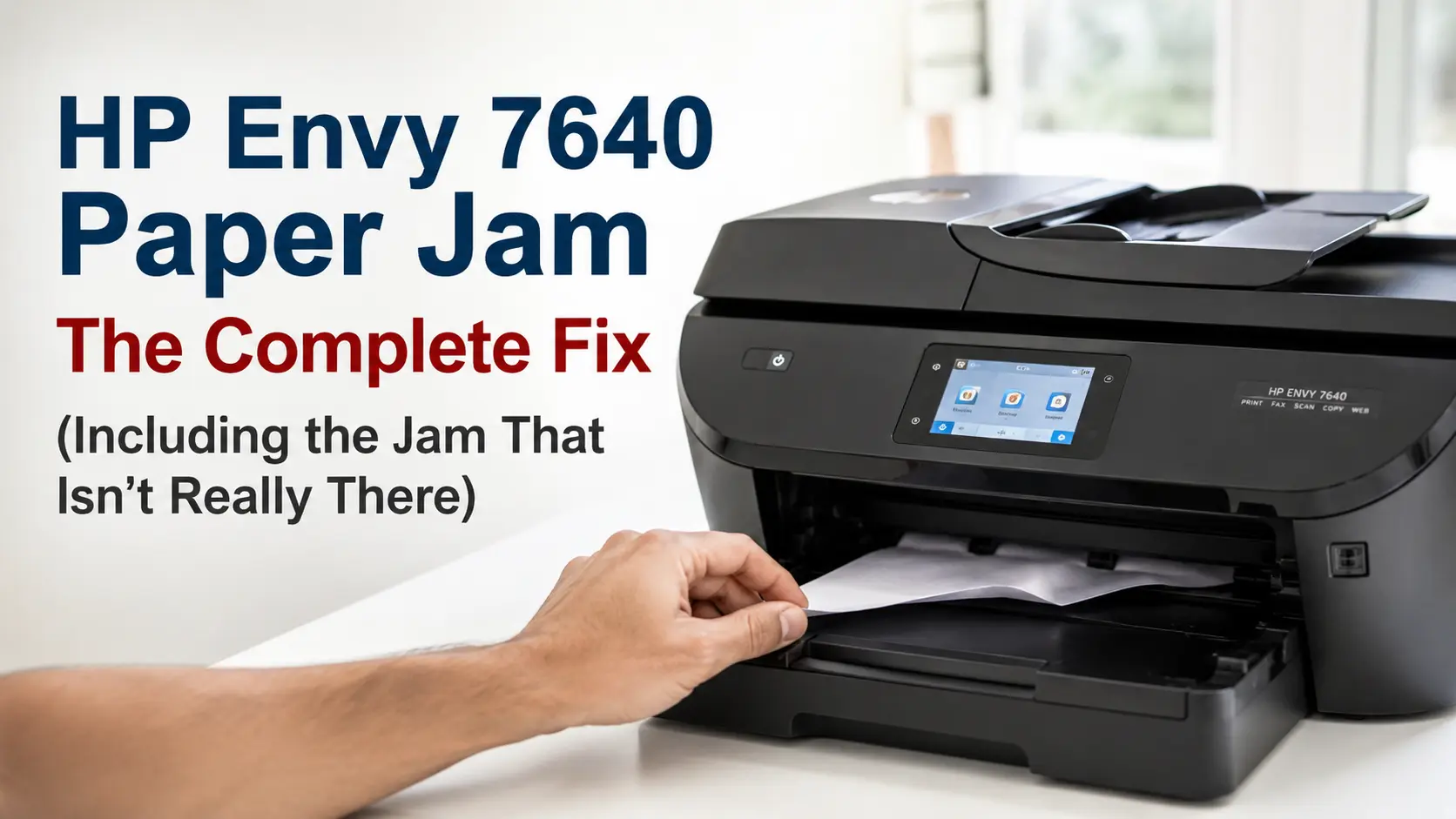
Quick answer: Unplug the printer, wait 60 seconds, and before you plug it back in, pull every sheet out of the input tray, the output tray, and the automatic document feeder (ADF) on top. Power it back on empty. If the jam message appears instantly, before the printer has even attempted to feed a page, you're not dealing with stuck paper at all - you're dealing with a sensor problem, and the fix for that is completely different from what most guides tell you to do.
That distinction is the part almost every other guide for this printer skips, and it's the reason so many Envy 7640 owners end up stuck for an hour on something that should take five minutes. Look through HP's own support community and the pattern is impossible to miss: owner after owner has emptied every tray, checked every panel with a flashlight, and still gets a paper jam warning. HP's own troubleshooting documentation for this printer line separates "real" jams from "false" ones as two distinct categories, because the false version is common enough to need its own set of steps.
So this guide splits the same way. First, a quick test to tell you which one you have. Then a full walkthrough for an actual physical jam, zone by zone. Then the false-jam fix that clears it permanently for a lot of people, a couple of related error messages that get mistaken for jams, and what's actually causing the repeat jams in the first place.
Real Jam or False Alarm? Run This Test First
With the printer unplugged and every tray completely empty, plug it back in and power it on.
- Instant error, no paper movement, no sound: false jam. A small sensor or mechanical flag somewhere along the paper path is stuck in the "paper detected" position even though nothing is there.
- Grinding, clicking, or a motor that stalls partway through a print attempt: real jam. Something is still physically obstructing the path.
This 30-second check saves you from the most common mistake people make with this printer - repeating the same "open every door, find nothing, close it back up" cycle without ever addressing the sensor underneath it.
Clearing an Actual Paper Jam
Work through these zones in order. Most jams on this model show up in the first two, not the rear door people usually assume is the culprit.
1. Input tray and pickup rollers
Extend the 125-sheet input tray fully and remove the entire stack, not just what's visible. Check the gap left behind where the tray was seated - a folded or curled sheet often lies flat against the base of that cavity rather than standing up where you'd notice it. While the tray is empty, run a finger along the black rubber pickup roller near the back. If it feels glazed or slick rather than slightly tacky, that's a wear issue, and it's worth reading the "why this keeps happening" section below.
2. Behind the ink cartridge door: the paper path cover
Lift the cartridge access door on top. Toward the back-center of that cavity, underneath where the cartridges sit, there's a small release lever. Lifting it pops out a removable paper path cover, which is exactly where a sheet that almost made it through tends to fold over and hide. Pull anything you find in the direction it was already traveling - down and out, following the curve of the path rather than straight back toward you. Yanking against the feed direction is how one sheet turns into several confetti-sized scraps, and even a single leftover fragment is enough to trigger another jam a few pages later.
3. The rear door and duplexer
This is the step that trips people up more than any other. It's common for owners to insist their unit doesn't even have a rear access door, and it's an understandable mistake; it doesn't look like a hinged door so much as a flat panel with a small squeeze-tab release. It houses the duplexer, the unit responsible for flipping paper automatically during two-sided printing. Squeeze the tab, pull the unit straight out, and check both the empty cavity and the duplexer itself; paper commonly lodges inside the small U-shaped turnaround path built into that piece.
4. The ADF, if you were scanning, copying, or faxing
The 25-sheet ADF is a separate paper path from the print mechanism entirely, so a jam here won't show up while you're printing and vice versa. Lift the feeder cover and check the rollers, then lift the ADF tray itself and check underneath; thin or slightly curled sheets frequently slip under the tray rather than jamming in the visible rollers. One related thing worth knowing while you're in there: even though the 7640 prints double-sided automatically, its ADF can't scan both sides of a page in a single pass. If a two-sided scan job seems to be misbehaving, you may be running into that hardware limit rather than an actual jam - the scan software will prompt you to flip the stack manually partway through instead.
The Jam Message With No Paper Anywhere
If you've cleared every zone above and it still insists there's a jam, the message isn't lying about what it's detecting - it's just detecting the wrong thing. Somewhere along the path, a small mechanical flag or optical sensor is supposed to move out of the way as a sheet passes and spring back once it's clear. Dried ink mist, paper dust, or just years of accumulation can leave that flag resting in the "blocked" position permanently, and the printer reports a jam because, as far as its sensor is concerned, one is happening.
Some owners have traced this to one specific spot: a small mechanism located just underneath the ink cartridges, separate from the cartridges themselves. Gently working it back and forth by hand to confirm it moves freely without forcing anything has cleared the error permanently in cases where cleaning and a normal restart hadn't.
For the cleaning itself, use a lint-free cloth barely dampened with distilled water on the rollers and any sensor area you can safely reach, then let everything air-dry for about 10 minutes before powering back on. Skip rubbing alcohol. It cuts through grime faster, but it also strips the tacky compound in the rubber rollers, and rollers that dry out get slick and start slipping within a few months, trading a jam you can fix today for a roller you'll need to replace later.
If the sensor still won't reset, a full power drain goes further than a normal unplug-and-replug: with the printer unplugged, hold the power button down for 15 seconds, release it, wait another 30 seconds, then reconnect the power cable directly to a wall outlet rather than a surge strip. This clears more of the printer's internal state than a quick restart does, and it's the step that resolves it for people a simple power cycle didn't.
"Print Carriage Cannot Move" Is a Different Message, Not a Different Problem
If what you're actually seeing says the print carriage can't move rather than a paper jam, it's worth knowing HP treats that as a distinct error, but the cause usually lives in the same neighborhood. The 7640 uses HP's thermal inkjet system, where the print nozzles are built into the ink cartridges themselves rather than being a separate part you never touch. Tiny heating elements vaporize a droplet of ink to fire it onto the page, and that whole cartridge assembly rides back and forth on a small carriage as it prints. Anything blocking that left-right travel a scrap of paper, leftover packing tape from a cartridge swap, or a cartridge that didn't fully seat throws this specific error instead of the paper jam one.
With the printer unplugged, open the cartridge door and gently slide the carriage across its full range by hand. It should move smoothly with light, even resistance. Any grinding or a spot where it catches has found your obstruction. This is also why a jam and a print-quality problem are almost never the same repair on this printer: the paper path and the ink delivery system are mechanically separate, so clearing a jam won't fix blotchy prints, and cleaning a clogged nozzle won't fix a jam.
Why the Envy 7640 Jams in the First Place
Four things account for nearly every repeat jam on this model, and none of them mean you got a bad unit.
Roller wear. The Envy 7640 came out in 2014, so any unit still running today is over a decade old. Rubber pickup rollers harden and develop a glazed surface with age and dust exposure, and a glazed roller can't grip paper the way a fresh one can - that's the slick feel mentioned earlier.
Humidity. HP's own paper-handling guidance recommends storing paper at room temperature and 45–55% relative humidity, away from doors, windows, and vents. Paper stored outside that range absorbs or loses moisture and starts to curl or go wavy, and wavy paper doesn't feed straight.
An overfilled tray. The 125-sheet capacity is a ceiling, not a target. Loading it right to the top adds extra pressure on the pickup roller and makes it more likely to grab two sheets instead of one.
Wrong stock for the job, especially in the ADF. Card stock, glossy photo paper, or anything with a visible curl is far more likely to misfeed in the thinner ADF path than in the main tray.
Keeping It From Happening Again
- Fan a new ream between your hands before loading it - this breaks the static cling that causes multiple sheets to feed as one, especially in dry winter months.
- Keep paper sealed in its wrapper until you need it, stored in that 45–55% humidity range rather than a garage, basement, or a spot near a heating vent.
- Load to roughly 75–80% of the tray's fill line instead of the maximum, particularly if jams have been recurring.
- Wipe the pickup rollers with a barely damp, lint-free cloth every month or so if you print often, and skip alcohol for the reasons above.
- The HP app, which has replaced HP Smart as HP consolidates its printer software, includes basic self-diagnostic tools that can flag a failing sensor before it turns into a jam-like error.
Repair or Replace: What Makes Sense for an Older Envy 7640
HP discontinued the Envy 7640 years ago in favor of the Envy 7800 series. That matters less for finding ink - HP 62 and 62XL cartridges are still widely available and more for parts. There's no first-party pipeline for a replacement roller or duplexer assembly; independent repair documentation exists through community sites like iFixit, but you're working with a used or third-party part rather than an OEM one.
Whether that's worth pursuing comes down to where the jam happens. A jam that shows up in a different spot every time is almost always a paper or humidity issue, and it costs nothing to fix with the habits above. A jam that shows up in exactly the same spot every single time, even right after cleaning the rollers, points to a worn part rather than bad luck. That's a more honest fork in the road, because this printer's standard-size cartridges are already low-yield by today's standards. HP's listed specifications put them at 165 pages for tricolor and 200 for black, which makes the ongoing cost of keeping an aging unit alive worth weighing against a new entry-level printer rather than assuming repair is automatically cheaper.
Related Guides
- HP Printer Paper Jam – Fix Paper Jam Errors Step by Step - our general hub for HP paper jam issues, useful if you're troubleshooting a different HP model than the 7640.
- Common HP Printer Errors, Causes, And Solutions - a good next stop if what you're actually seeing is a different error code, including the "print carriage cannot move" message covered above.
- How to Update HP Printer Firmware on Windows or Mac? - worth doing alongside the HP app self-diagnostics mentioned in the prevention section.
- Fix HP Officejet 5255 Not Printing Issue - a different HP model, but a related symptom: a hidden jam is one of the most common reasons a printer suddenly stops printing altogether.
Frequently Asked Questions
Why does my HP Envy 7640 say paper jam when there's no paper in it?
Almost always a stuck sensor flag rather than an error in the message itself. Clean the rollers and sensor area with distilled water, confirm the small mechanism under the cartridges moves freely, and try a full power drain before assuming there's a deeper fault.
Where exactly is the rear door on this printer?
Centered on the back panel. It's a flat panel with a small squeeze-tab release rather than a door with a visible hinge, which is why so many owners initially think their unit doesn't have one.
Can I put any paper in the ADF?
Stick to plain, uncurled paper within the weight range listed in your printer's documentation. Photo paper, card stock, and anything with even a slight curl belongs in the main tray instead - the ADF's thinner path has far less tolerance for stiff or wavy stock.
Is it worth repairing an Envy 7640 at this point?
If the fixes above resolve it, yes - there's no reason to replace a printer over a paper or humidity issue. If you've traced it to a specific worn part like a hardened roller, weigh the cost and effort of sourcing a third-party part against a new entry-level all-in-one, especially given how quickly this model's standard ink cartridges run out.