How to Connect Brother Printer to WiFi - Quick Wireless Setup Guide
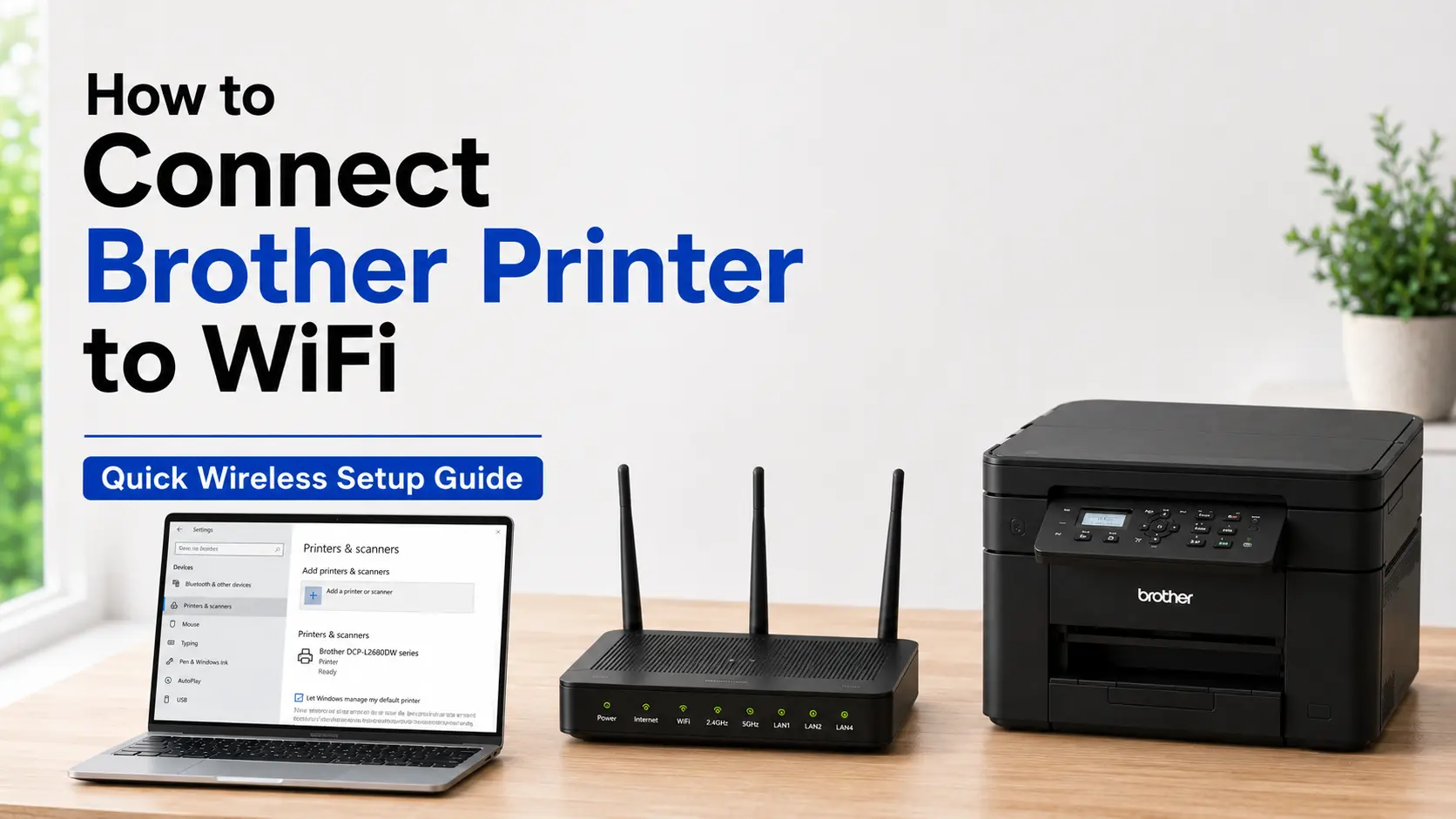
Open the printer's control panel, go to Menu → Network → WLAN → Setup Wizard, select your network name from the list, and enter your WiFi password. That's the connection itself, and on a printer bought in the last five years it takes about ninety seconds. The part that actually trips people up isn't the wizard, it's picking the right network to connect to in the first place.
Here's the detail that causes most of the support calls: nearly every Brother printer, including current inkjet models and the budget laser line, only talks to the 2.4 GHz radio. A handful of newer business-class machines added 5 GHz, but if you don't know for certain yours is one of them, assume it isn't. Most home routers broadcast both bands under one network name now, which means your phone happily jumps onto whichever one is faster and you never notice there are two. Your printer can't do that. If the wizard can't find your network at all, this is the first thing to check, not the last.
What You Need Before You Open the Menu
- Your WiFi network name (SSID), specifically the 2.4 GHz one if your router uses separate names for each band
- The WiFi password, which Brother's documentation calls the "network key"
- The printer powered on and sitting at "Ready" on its display
That's it. No serial numbers, no account creation. If any of those three aren't sorted, sort them first, because the setup wizard will fail in confusing ways rather than telling you plainly what's missing.
Four Ways to Get Connected
Which method makes sense depends on what you're already holding in your hand and how much patience the printer's tiny keypad has earned from you.
| Method | Best for | What it needs |
|---|---|---|
| Control panel Setup Wizard | Anyone with the WiFi password on hand | Manually typing SSID and password on the printer's keypad |
| WPS push-button | Routers with a physical WPS button | No password entry at all |
| Brother Mobile Connect / iPrint&Scan app | People who'd rather not type on a printer keypad | A smartphone and the app installed |
| USB-assisted setup | Stubborn units the wizard won't find | A computer, a USB cable, and the driver package |
Control Panel Setup Wizard
Go to Menu → Network → WLAN → Setup Wizard. The printer scans for nearby networks and lists them by signal strength. Select yours, then enter the password using the arrow keys and OK button.
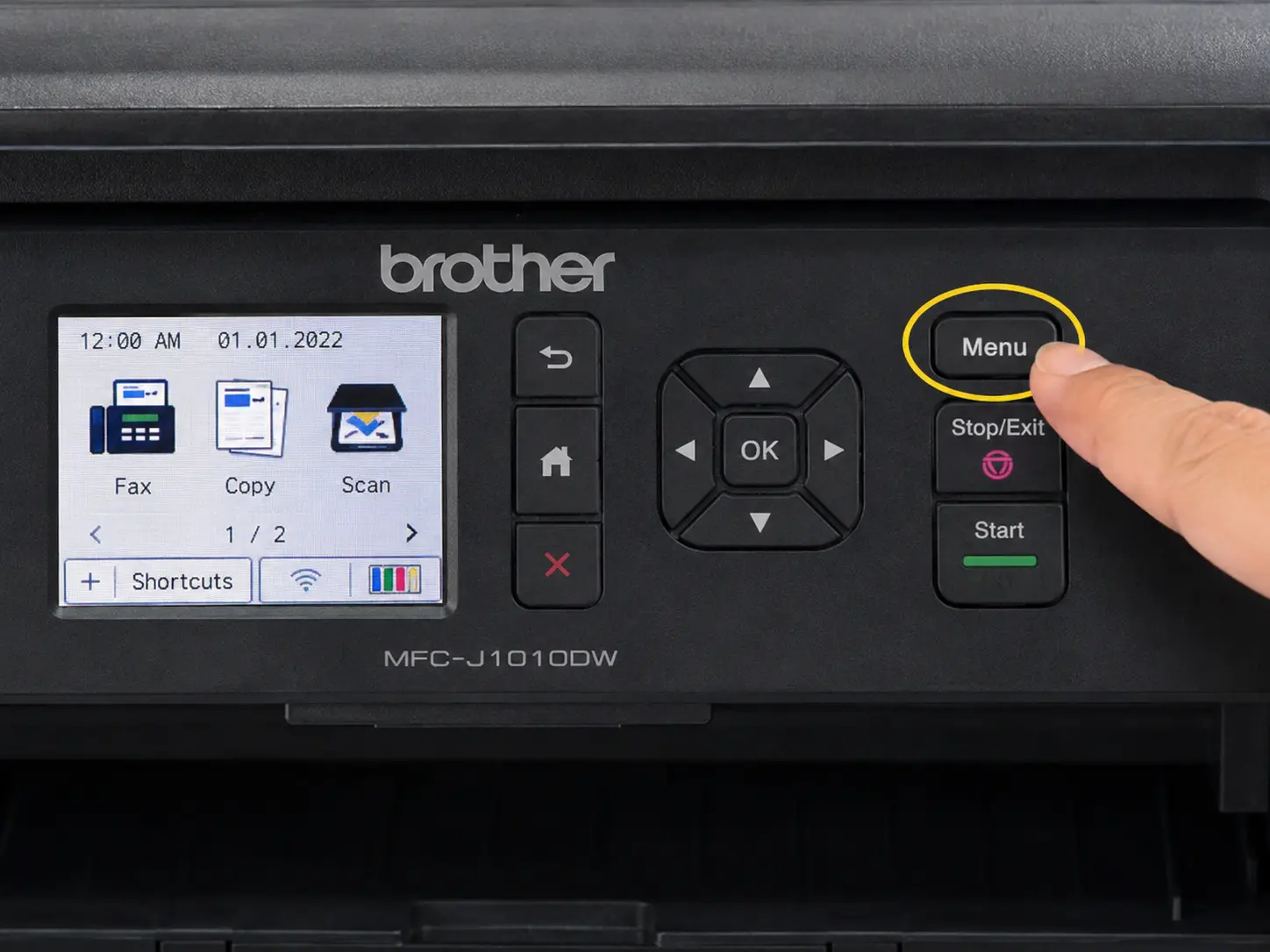
Step 1: On the printer, press the Menu button (some models show a gear icon or "Settings").
Step 2: Use the arrow keys to navigate to Network, then press OK.
Step 3: Select WLAN, press OK.
Step 4: Choose Setup Wizard, press OK.
Step 5: When prompted "Enable WLAN?" - press the up arrow or Yes.
Step 6: The printer scans and displays a list of available networks. Use the arrow keys to highlight your network name, press OK.
If your network doesn't appear, your router may be hiding its SSID. Select Manual Input and type the exact network name (it's case-sensitive).
Step 7: Enter your WiFi password character by character using the arrow keys. Each button press cycles through letters and numbers. Press OK when complete.
Common mistake: After entering the last character, make sure to move the cursor one position past the final digit before pressing OK. Leaving the cursor on the last character causes some models to miss it, resulting in an incorrect password error even when you typed everything right.
Step 8: Confirm the network name is correct, select Yes, press OK.
If successful, the display shows Connected and the WiFi indicator light on the front panel stays solid (not blinking). The printer may print a short wireless confirmation page.
Method 2: WPS Push-Button (Fastest Method — Under 60 Seconds)
If your router has a WPS button — nearly all modern home routers do, typically on the back or side — this method skips password entry entirely.
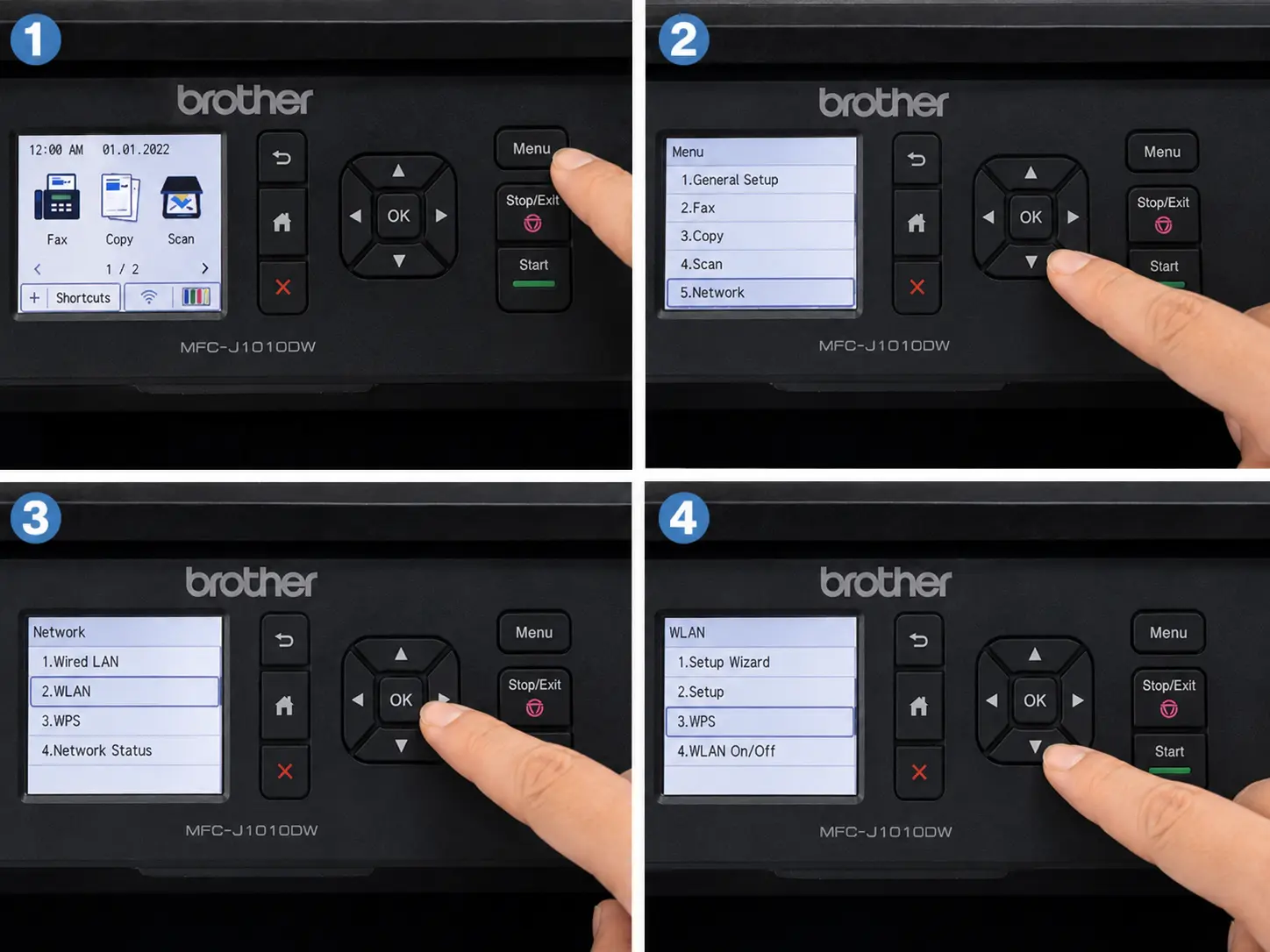
Step 1: On the printer's control panel, navigate to Menu → Network → WLAN → WPS (on some models it reads "Push Button" or appears as a standalone WPS option).
Step 2: Select Start or Push Button, press OK.
Step 3: Within two minutes, press and hold the WPS button on your router for 2–3 seconds until the WPS light blinks.
Step 4: The printer and router negotiate the connection automatically. When the WiFi indicator on the printer goes solid, the connection is established.
Important timing note: The two-minute window starts when you confirm on the printer, not when you press the router button. Get to your router quickly. If the window expires, just restart the process.
WPS PIN Method (Alternative)
Some routers don't support one-push WPS but do support PIN entry. In this case:
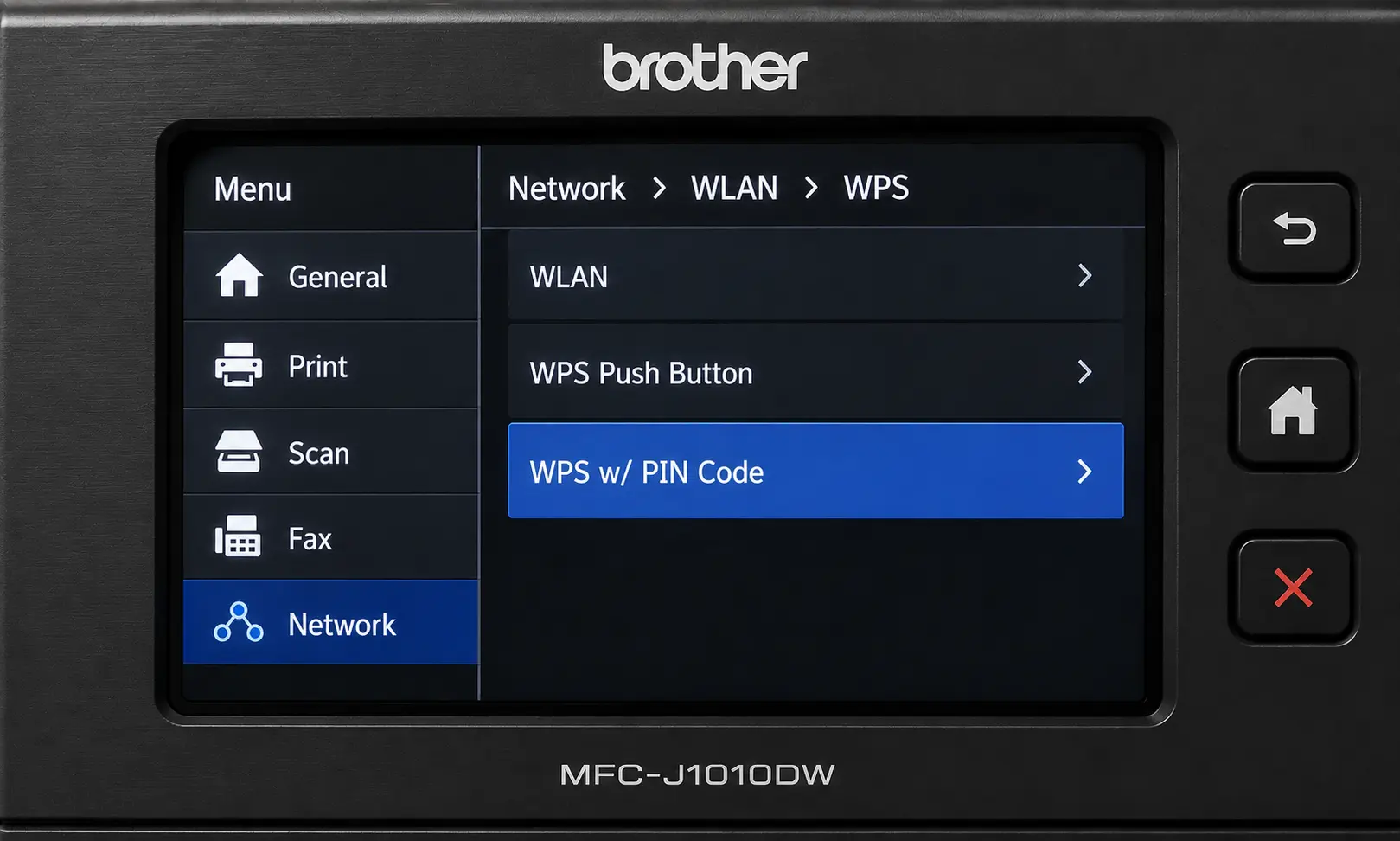
- Navigate to Menu → Network → WLAN → WPS w/ PIN Code
- The printer displays an 8-digit PIN code — write it down
- Log into your router's admin interface (usually 192.168.1.1 or 192.168.0.1)
- Find the WPS PIN entry section and type in the 8-digit number
- Submit — the printer connects within about 60 seconds
Method 3: Brother iPrint&Scan App (Best for Mobile Setup)
If you primarily print from a phone or tablet, or your printer doesn't have a full display, the Brother Mobile Connect app (rebranded from iPrint&Scan in 2023, though iPrint&Scan remains available) is the clearest path.
 from the App Store or Google Play_1782199524.webp)
Step 1: Download Brother Mobile Connect (or Brother iPrint&Scan) from the App Store or Google Play - both are free.
Step 2: Make sure your phone is connected to the same WiFi network you want the printer to use.
Step 3: Open the app and tap Printer Setup, then Setup via Wireless Router.
Step 4: Follow the in-app prompts. The app detects available networks and guides you through entering credentials — it's significantly less tedious than navigating arrow keys on the printer's panel.
Step 5: Once connected, tap No Device Selected on the home screen and select your printer from the list to confirm it's reachable.
This method is particularly useful for first-time setups on models with a small or button-only control panel, where manually entering a 20-character WPA2 password through arrow keys is genuinely painful.
Method 4: USB-Assisted Setup via Computer (Best for Stubborn Connections)
When wireless setup keeps failing — which usually points to a driver or configuration mismatch rather than a connection problem — this approach resolves it cleanly by letting your computer handle the heavy lifting.
For Windows:
- Visit support.brother.com, search your exact printer model, and download the Full Driver & Software Package
- Run the installer
- When prompted to select a connection method, choose Wireless Network Connection
- Connect the printer to your computer temporarily with a USB cable (A-to-B or USB-C depending on model) — you may already own one from the printer box
- The installer detects available networks and lets you select yours, then enter the password
- Once setup completes, disconnect the USB cable — the printer now operates wirelessly
For Mac:
- Download the Full Software Package from support.brother.com for your model
- Run the downloaded PKG file
- Select Wi-Fi/Wireless Network as the connection type
- When prompted, connect the USB cable temporarily
- The Wireless Device Setup Wizard detects your network
- After configuration, disconnect USB
Mac note: When adding the printer under System Settings → Printers & Scanners, choose the CUPS driver from the "Use" dropdown, not AirPrint. AirPrint works for basic printing but disables several scanning and advanced features on multifunction models.
Wireless Direct / Wi-Fi Direct (No Router Needed)
Wireless Direct lets your phone or laptop connect directly to the printer without involving a router - the printer itself acts as an access point. This is useful in hotels, conference rooms, or any place where you can't join the network.
To enable it:
- Navigate to Menu → Network → Wi-Fi Direct → On
- The printer broadcasts its own network named something like DIRECT-XXXXX_[Model]
- On your device, connect to that network using the password printed on the Wireless Direct information sheet (or found under the printer's network info page)
- Open the Brother app and print directly
One important limitation: while connected via Wireless Direct, your device loses its regular internet connection. It's a temporary connection method, not a replacement for router-based setup.
Why the Wizard Can't Find Your Network
If Setup Wizard comes back with an empty list or the connection times out, the cause is almost always one of these, roughly in order of how often each one shows up.
Your Router Is Broadcasting One SSID for Two Bands
This is the most common failure by far. Log into your router's admin page and look for separate network names for 2.4 GHz and 5 GHz. If they're combined under one name, split them, for example into "HomeNetwork" and "HomeNetwork-5G", then run the printer's setup wizard again and select the 2.4 GHz one specifically. You can merge them back afterward if you'd rather your phone handle the band-switching automatically; the printer only needs the split for the length of the setup process on some routers, though leaving it split avoids the same issue resurfacing after a router reboot.
TKIP Encryption Instead of AES
Brother's supported authentication methods are WPA and WPA2, and under WPA2 the only supported encryption is AES, not TKIP. If your router's WiFi security is still set to "WPA2-PSK (TKIP)" or "WPA/WPA2 Mixed," the printer will see the network but reject the handshake. Change the setting to "WPA2-Personal (AES)" or "WPA2-AES" in your router's wireless security settings.
An APIPA Address (169.254.x.x)
If the printer connects to the WiFi but its network report shows an IP address starting with 169.254, that's an APIPA address, which means the printer joined the wireless network but never got a real address from your router's DHCP service. Power cycle the router and the printer, in that order, and give it a minute to reconnect. If it happens repeatedly, set up a DHCP reservation for the printer in your router settings so it always gets the same address without depending on a fresh DHCP handshake each time.
Guest Network Isolation
Many routers put guest networks on "client isolation" by design, so devices on it can reach the internet but not each other. A printer on the guest network is invisible to your computer even though both show "connected." Put the printer on your main network instead.
Firewall Blocking the Ports
Overly aggressive firewall software on the connected computer can block the ports printing and scanning rely on, TCP 9100 for print jobs and UDP 54925 to 54926 for scan-to-computer on models that support it. Add exceptions for those ports if printing succeeds from one computer but not another on the same network.
ASUS Routers Specifically
ASUS routers have a feature called Airtime Fairness that throttles slower wireless clients to keep faster ones from being dragged down. Printers, being slow and infrequent WiFi clients, sometimes get starved out entirely. Turn it off in the wireless settings if you're on an ASUS router and the printer keeps dropping off after initially connecting.
Reading the Error Codes Yourself
Skip the guesswork and print a Network Configuration Report from Menu → Print Reports → Network Config. If the wireless status reads "Failed," it comes with a TS error code that points to a specific cause, straight from Brother's own troubleshooting documentation:
| Code | What it means | Fix |
|---|---|---|
| TS-01 | Wireless radio is turned off | Hold the WiFi/GO button for about 10 seconds to enable it; unplug any Ethernet cable first |
| TS-02 | Printer can't find the router at all | Move the printer within about 3 feet of the router temporarily, check that MAC filtering isn't blocking it, and confirm the SSID is typed correctly |
| TS-04 | Router's security type isn't supported | Switch to WPA2 with AES; the printer doesn't support TKIP-only or unlisted security modes |
| TS-05 | SSID or password entered incorrectly | Recheck both, character by character; if using WEP, use only the first WEP key |
| TS-06 | Authentication or encryption details mismatched | Reconfirm the exact security type set in the router matches what you selected on the printer |
| TS-07 | WPS or AOSS not detected on the router | Confirm your router supports WPS and that it's enabled, not just present as a physical button |
| TS-08 | Multiple WPS-enabled routers detected nearby | Common in apartments; disable WPS on neighboring routers isn't possible, so use the manual Setup Wizard instead |
That report tells you in about five seconds what would otherwise take twenty minutes of trial and error, so it's worth printing before trying anything else on this list.
After It Connects
Getting the printer onto the network is only half the job. A few things determine whether it stays reliable and whether it actually does everything the hardware is capable of.
Install the Full Driver & Software Package from support.brother.com rather than relying on whatever basic driver Windows or macOS installs automatically. The basic driver gets you printing; it commonly leaves out duplex printing, scan-to-computer, and status monitoring. On a Mac, pick the CUPS driver specifically during setup rather than AirPrint if you want access to those extra features, since AirPrint gives you print-only functionality with no configuration options.
Set a DHCP reservation for the printer in your router if you haven't already, even if it connected cleanly the first time. Without one, most routers can hand the printer a different IP address after a power outage or firmware update, and every computer that had it saved as a printer suddenly can't find it anymore. A reservation costs two minutes in the router's admin page and prevents that entirely.
Check support.brother.com for a firmware update once setup is done. Firmware updates on network-connected models fix wireless stability issues more often than most people expect, since the WiFi radio's behavior is largely governed by firmware rather than fixed hardware.
If the printer seems to drop off the network specifically after sitting idle overnight, look at its sleep timer settings under Menu → General Setup. Some units are more aggressive than others about dropping the wireless connection during deep sleep to save power, and a shorter sleep interval combined with a router that's slow to hand out a fresh lease on wake can look exactly like a dead connection when it's really just a slow one.
One more option worth knowing about even though it solves a different problem: Wireless Direct mode turns the printer itself into a small WiFi access point that a phone or laptop can connect to directly, with no router involved at all. It's not a fix for router connectivity issues, it's a separate feature for printing in places where there's no network to join in the first place, like a spare printer stored somewhere the router's signal doesn't reach.
Related Guides
Brother Printer Not Connecting to Wireless Network – Easy Fix
If you completed the WiFi setup but your Brother printer still won't connect or keeps dropping the connection, this guide walks through every known cause from DHCP conflicts to router security settings with step-by-step fixes.
Brother Printer Offline But Connected? Fix on Windows & Mac
Your printer shows as online in the network but Windows or Mac still marks it offline. This is a separate issue from the WiFi setup itself, usually a port assignment or IP mismatch, and this guide covers both platforms.
Brother HL-L2460DW WiFi Setup Guide: 3 Ways (With Fixes)
Model-specific walkthrough for the HL-L2460DW covering the control panel method, WPS, and USB-assisted setup, with fixes for the most common errors reported on this model.
How to Replace the Drum Unit on a Brother Printer (Complete Guide)
Once your printer is connected and printing, the drum unit is the next component that will eventually need replacing. This guide covers all Brother laser models and explains when to replace the drum versus the toner cartridge.
Brother HL-L2300D Printer Toner Reset
If your Brother printer is showing a "Toner Low" or "Replace Toner" warning prematurely - especially after installing a third-party cartridge- this guide explains how to reset the toner counter manually.
3 Easy Fixes for Brother Printer Error 04
Error 04 is one of the more common Brother-specific error codes and can appear alongside wireless connectivity issues. Three confirmed fixes, in order of likelihood.

