HP Printer Offline - Causes, Fixes for Windows & Mac (2026)
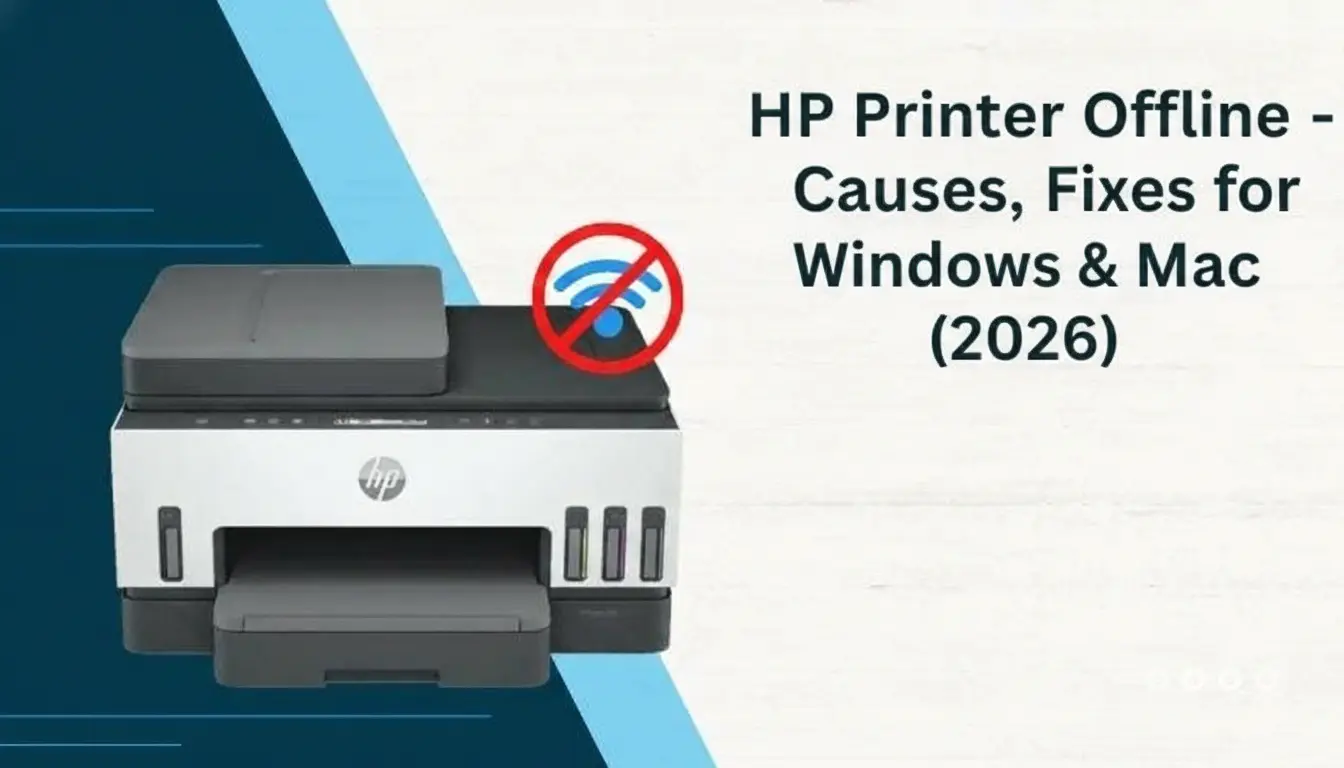
If your HP printer shows offline even when connected, it means your PC or Mac cannot communicate with it. This is a common issue on Windows and macOS caused by network problems, incorrect printer settings, outdated drivers, or print queue errors.
Why is my HP printer showing offline? That’s what you might always be asking yourself. Before getting started with the troubleshooting, you must learn the cause of the problem. We’ll discuss that with you here. Let’s look at the specific reasons for the HP printer being offline and how to get this issue resolved.
Reasons for HP Printer Offline Even When Connected
On your Windows or macOS computer, your HP printer says offline but is connected. Why does that happen? What could be the reason for this glitch? These are some of the reasons for the HP printer's offline issue
- A stuck print queue
- Printer running on outdated drivers
- Printer set to “Use Printer Offline” mode
- IP address changes
- Antivirus software or firewall interference
Challenges to Occur When Fixing the HP Printer Offline Issue
These are some of the possible challenges that you might face when fixing your HP printer that is showing an offline status:
- Corrupted printer drivers
- IP address conflicts
- Stuck or pending print jobs
- Firewall or antivirus interference
- Wrong printer settings
Steps to Fix HP Printer Offline Issue in Windows
Here is the ideal troubleshooting method you can try to fix the HP printer offline issue in your Windows PC:
Step 1: Press the Windows key on your keyboard.
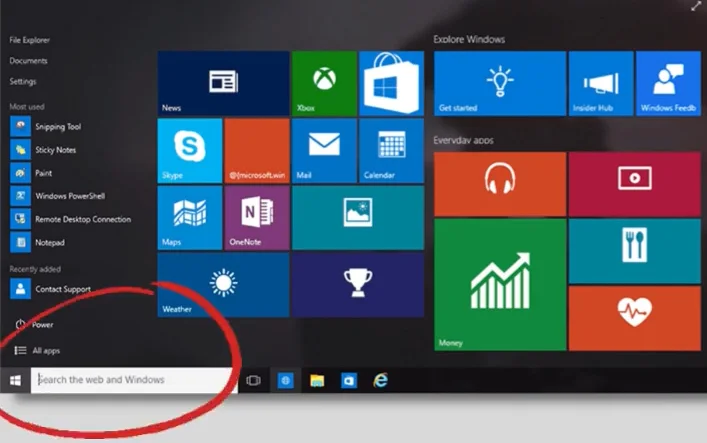
Step 2: Click on the search bar.
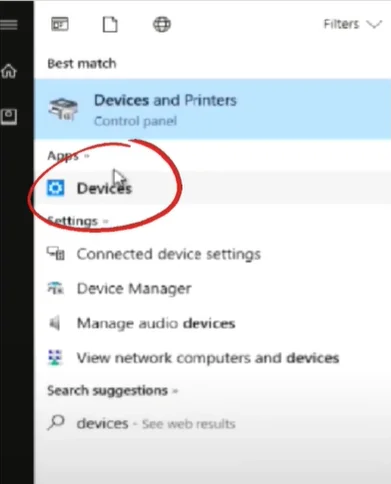
Step 3: After that, you have to click on “Devices.”
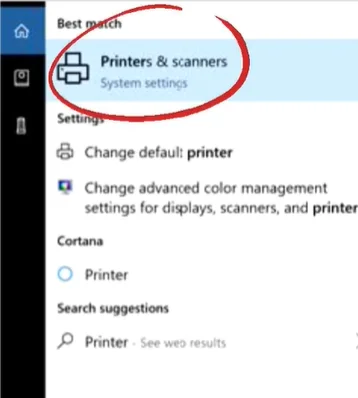
Step 4: You can see “Printers & Scanners” at the top. Click on that.
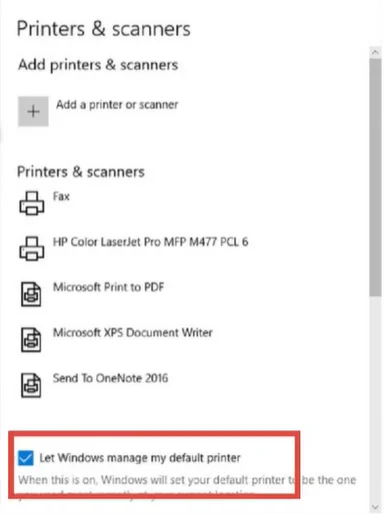
Step 5: Now go to “Let Windows Manage My Default Printer” and check the box next to it. If it’s already checked, carry on with the next step.
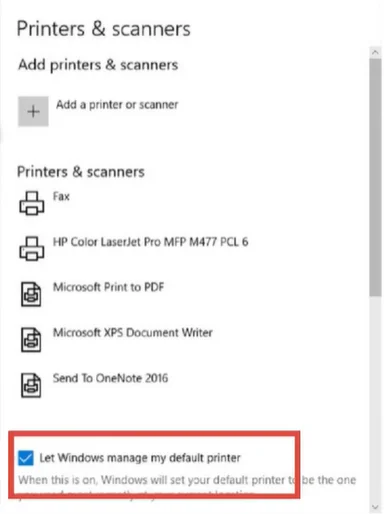
Step 6: On the list of devices, you must click on your printer model.
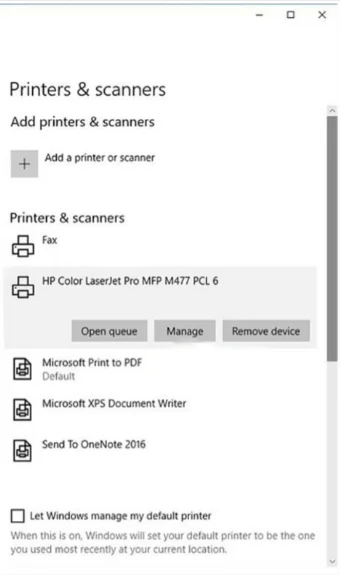
Step 7: Click “Manage.”
Step 8: If multiple names are there, do this:
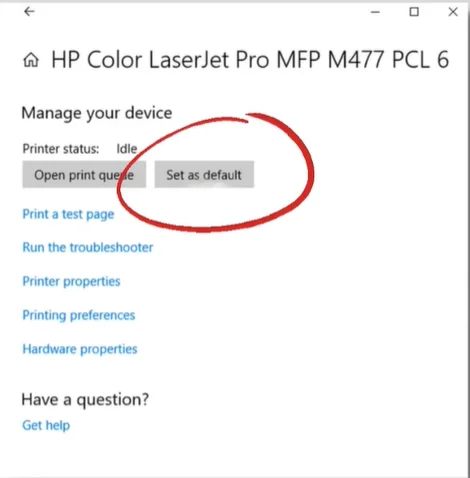
Step 9: Navigate to the “Manage your device” section.
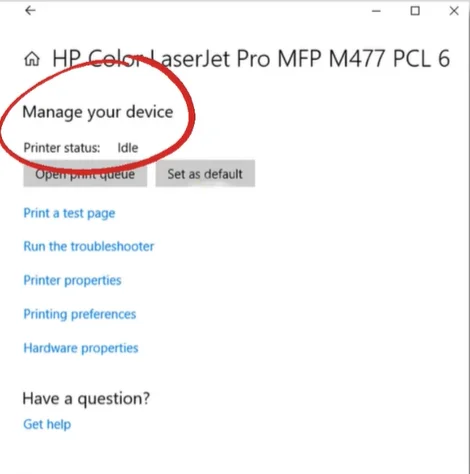
Step 10: Click the “Set as default” option.
Step 11: On your printer, execute the print jobs.
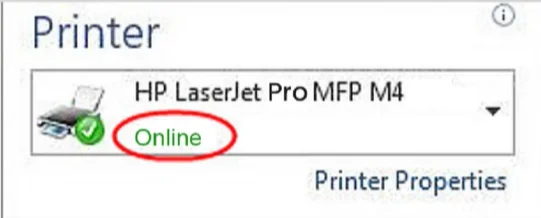
Step 12: If you see the online status under the name of your HP printer, the issue is fixed, and you can start with your tasks.
Steps to Fix HP Printer Offline Issue in a Mac Computer
These are the ideal methods you can apply to bring your HP printer back online in your Mac device:
Method 1: Run Diagnose and Fix
- Step 1: On your Mac, open the HP Smart application.
- Step 2: Open Diagnose & Fix.
- Step 3: If you don’t have the program, download it.
- Step 4: Click on the name of your printer model and click “Printers.”
- Step 5: After that, click Diagnose & Fix.
- Step 6: Click on the Start button.
- Step 7: Follow the steps given if an issue is found.
If this doesn’t work, try the “Remove & Re-Add” method. Follow the instructions carefully.
Method 2: Remove & Re-Add your Printer
- Step 1: In the top-left corner of the screen, click the Apple icon.
- Step 2: You can see System Preferences in the list. Click on that.
- Step 3: Now, click “Print & Scan.”
- Step 4: Select your printer model name to remove it from your Mac.
- Step 5: Check the bottom of the list and click the “-” icon.
- Step 6: The next step is to click on the “Delete Printer” option.
- Step 7: Click the “+” sign and follow the ongoing instructions.
- Step 8: Add your printer model to the list, and you’re done.
If the “Remove & Re-Add Printer” method does not resolve the HP printer offline issue, try resetting the printer.
Method 3: Reset the Print System
- Step 1: Click the Apple icon at the top left.
- Step 2: Select “System Preferences” from the list.
- Step 3: Click “Print & Scan” or “Printers & Scanners.”
- Step 4: Right-click anywhere in the Printers list.
- Step 5: Select “Reset printing system.”
- Step 6: Click on “Reset” to confirm.
- Step 7: Fill in the administrator name and password.
- Step 8: Click the OK button to complete the reset process.
- Step 9: Click the “+” icon and follow the steps.
- Step 10: Select your HP printer model and re-add it.
To Sum Up
That’s what you need to learn whenever your HP printer goes offline. We have provided the ideal methods to resolve the issue of HP printer being offline in both Mac and Windows. All we want for you is to get your printer in the correct state and make your daily tasks smooth and free from obstructions.
Related Articles
Why is My HP Printer Offline [Fixed]
How to Fix HP Printer Offline Error? The Best Methods
How to Fix HP Printer Offline Issue on Windows & Mac?
How to Fix HP Printer Offline Issue? [Easy & Quick Methods]
Frequently Asked Questions
Why Does My HP Printer Keep Saying Offline?
Why does my computer say my HP printer is offline? The HP printer on your workstation may show an offline status for several reasons. The major ones can be a loose USB or WiFi connection, software conflicts, wrong port settings, or outdated drivers or firmware.
My HP Printer Says Offline But is Connected? How to Fix This?
If your HP printer is still showing an offline message even when it is connected to Wi-Fi, you can try the power cycle method. Simply unplug the printer power cord, as well as the cord of your router or modem. Wait for a minute and then plug the cords back into their outlet. First, plug in your router, and then your printer.
You can also try restarting the Print Spooler. In the Windows search bar, type “Services,” find “Print Spooler,” right-click on it, and click on the “Restart” option.
Why Does My HP Printer Say Offline in Mac?
The HP printer going offline in your Mac computer can happen due to connection problems or incorrect settings. There may also be a network interference or a full print queue. The printer offline issue can be easily resolved by restarting both devices, updating the software, or re-adding the printer in System Settings.
Why Does My HP Printer Keep Going Offline?
Your HP printer constantly going offline can be a serious issue that users may face. It could be due to a connection error or software issues. A poor network connection or router interruptions have been the most obvious reasons for the offline issue. Moreover, changes in the network can also break communication between the printer and your PC. If the printer’s IP address changes, your computer may still try to connect to the old address; this leads to the printer showing offline status.
How to Check if Printer is Offline or Online?
To properly check if your HP printer is showing an offline status or not, simply open Settings on your computer. Search Control Panel and then go to Printers & Scanners. Choose the name of your printer model and then click on “Open print queue. Open the Printer menu to view your printer's status. For physical checks, see if the printer’s Wi-Fi light is not blinking, and it’s on the same network as your computer. Check if wires or cables are not properly connected.

