What Kind of Printer Is a Samsung, and Who Still Uses One?
Samsung printers are laser-based machines — almost exclusively. Unlike HP or Epson, which offer both inkjet and laser options, Samsung built its printer lineup almost entirely around toner-based technology: sharp, fast, and low cost-per-page on text documents. If you have a Samsung printer on your desk right now, it's almost certainly a laser model in the Xpress or ProXpress series.
Here's the thing most users don't know: Samsung no longer manufactures printers. In November 2017, HP Inc. completed the acquisition of Samsung's entire printer division for $1.05 billion. This means your Samsung printer is now technically supported by HP - drivers, firmware updates, and technical documentation all live at HP's website, not Samsung's. Samsung's own support page redirects printer users to hp.com/support/samsung.
This doesn't mean your printer stopped working. But it does mean the way you find help, download drivers, and get support has completely changed, and a lot of users run into problems simply because they're looking in the wrong place.
Samsung Printer Series - What You're Working With
Samsung organized its laser printers across several product families. Understanding which one you own determines what features are available, what consumables you need, and what issues are most likely to come up.
Xpress Series (Home and Small Office)
The Xpress line was Samsung's most widely sold range of compact monochrome and color laser printers aimed at home users and small offices. Common models include the M2020, M2020W, M2021, M2022, M2070, and M2070FW for monochrome printing. Color variants like the C430W and C480FW also fall here.
Print speeds in the Xpress range typically land between 19–21 pages per minute. The wireless models add Wi-Fi Direct and NFC printing, which lets you tap a compatible phone to the printer and print without opening an app. First-page-out time on most Xpress models is under 8–9 seconds faster than many inkjet all-in-ones that appear to be quicker on spec sheets.
The C430W and C480FW are the color Xpress models that come up most in support searches. These use a two-piece toner system (separate toner cartridge and drum unit), which gives you more flexibility — you can replace just the toner when it runs out and keep the drum until it actually wears down, rather than replacing both together.
ProXpress Series (Business and Workgroup)
The ProXpress models step up in duty cycle, print speed, and paper capacity. The M3820DW, for example, prints up to 40 pages per minute and supports a monthly duty cycle of up to 80,000 pages — a genuine workgroup machine. The M4530ND goes further still, with output up to 45 pages per minute and a high-capacity drum that reduces the cost per page significantly over time.
These models were built for businesses that print hundreds of pages daily and need Ethernet networking, automatic duplex printing, and large paper trays as standard. If you're using a ProXpress in a small office and experiencing slow print jobs, the bottleneck is often the network configuration, not the printer itself.
SL (Standard Line) Designation
You'll see "SL-" in front of most Samsung model numbers sold from 2014 onward. This is simply Samsung's internal model naming convention and doesn't represent a separate product line — an SL-M2070FW and an M2070FW are the same printer.
The HP Transition — What It Means for You Practically
This is the most practically important thing to understand about owning a Samsung printer today.
When HP completed the acquisition, Samsung's entire print IP portfolio over 6,500 patents and roughly 1,300 engineers transferred to HP. From a user perspective, this means:
Drivers: You can no longer get Samsung printer drivers from samsung.com. Go to support.hp.com, search for your model number, and download from there. HP has maintained drivers for most Xpress models, with some Windows 11 driver updates as recent as 2024.
Firmware: Any firmware updates for Samsung-branded printers are also hosted at HP's support site. This matters because outdated firmware is one of the most common causes of connectivity failures on Samsung wireless printers.
End-of-service: HP has progressively reached end-of-service-life (EOSL) dates for older Samsung models. Once a model hits EOSL, HP stops providing driver updates, spare parts availability, and official repair support. If your printer model is more than 7–8 years old, check whether it's already past EOSL before spending money on consumables or repairs.
Toner supplies: Samsung-branded toner cartridges are still sold through HP's supply channels and third-party retailers. HP's supply page for Samsung cartridges is at hp.com/go/samsungsupplies.
Samsung's Core Printing Technology - What Makes It Different
Two technologies show up repeatedly in Samsung printer documentation: ReCP and the Easy Eco Driver. Both are worth understanding because they directly affect print quality and running costs.
ReCP (Rendering Engine for Clean Page) is Samsung's image processing approach. Rather than simply rasterizing a document and sending it to the laser, ReCP analyzes each page to optimize edge sharpness, reduce toner scatter, and maintain consistent density across different media weights. In practical terms, this means Samsung laser output looks particularly clean on mixed documents — pages with both fine text and graphics come out more consistently than on printers using basic PCL rendering at the same stated resolution.
The SL-C430W, for instance, is spec'd at 2400 x 600 dpi, which sounds modest compared to inkjet photo printers. But with ReCP processing, the actual output sharpness on text documents exceeds what that raw dpi figure suggests.
Easy Eco Driver is a print-time filter that can remove images, change fonts from bold to regular, and skip blank pages before a job is sent to the printer. Critically, it modifies the print output without altering your original document. Samsung's own data suggested up to 20% toner savings for typical office document mixes when using the Eco mode settings. For businesses printing internal reports and drafts daily, this adds up quickly.
The One-Touch Eco Button on hardware takes this further - it applies preset paper and toner-saving rules to every job with a single physical button press, including skipping blank pages in large print runs.
Toner Cartridges - Original vs. Compatible, and the Firmware Problem
Samsung printer users encounter the "Not Compatible Toner" or "Install Toner" error more than almost any other issue. This is worth discussing plainly, because the cause is specific and frequently misunderstood.
Samsung (and later HP) used chip-based authentication on toner cartridges. Firmware updates sometimes applied automatically when installing new drivers can reset the cartridge recognition criteria, causing previously accepted cartridges to suddenly fail, including genuine Samsung-branded ones that were already installed and working.
Several distinct causes exist for the "toner not recognized" error:
The most common and easiest to fix: dirty electrical contacts. The four gold contacts on the front of the toner cartridge and the corresponding contact points inside the printer door accumulate fine toner dust over time. Cleaning these with a dry cloth resolves the error in the majority of cases where the cartridge itself is fine.
A less obvious cause: firmware-induced incompatibility. If the error appeared shortly after a Windows Update that also updated printer drivers, a new firmware version may have changed the cartridge authentication. In some cases, rolling back to an older driver version (not updating from the original installation CD) resolves this.
For third-party or refilled cartridges specifically: chip compatibility is the issue. Refilled cartridges reuse the original cartridge shell but often replace the authentication chip with a third-party equivalent. If the chip version doesn't match what the current firmware expects, the printer rejects it. This is a hardware-level lock, not something that can be resolved through software settings.
If you rely on compatible cartridges, avoid updating firmware unless you have a specific reason - the latest firmware is not always the best firmware for your particular situation.
Wireless Setup and Connectivity - The Most Common Point of Failure
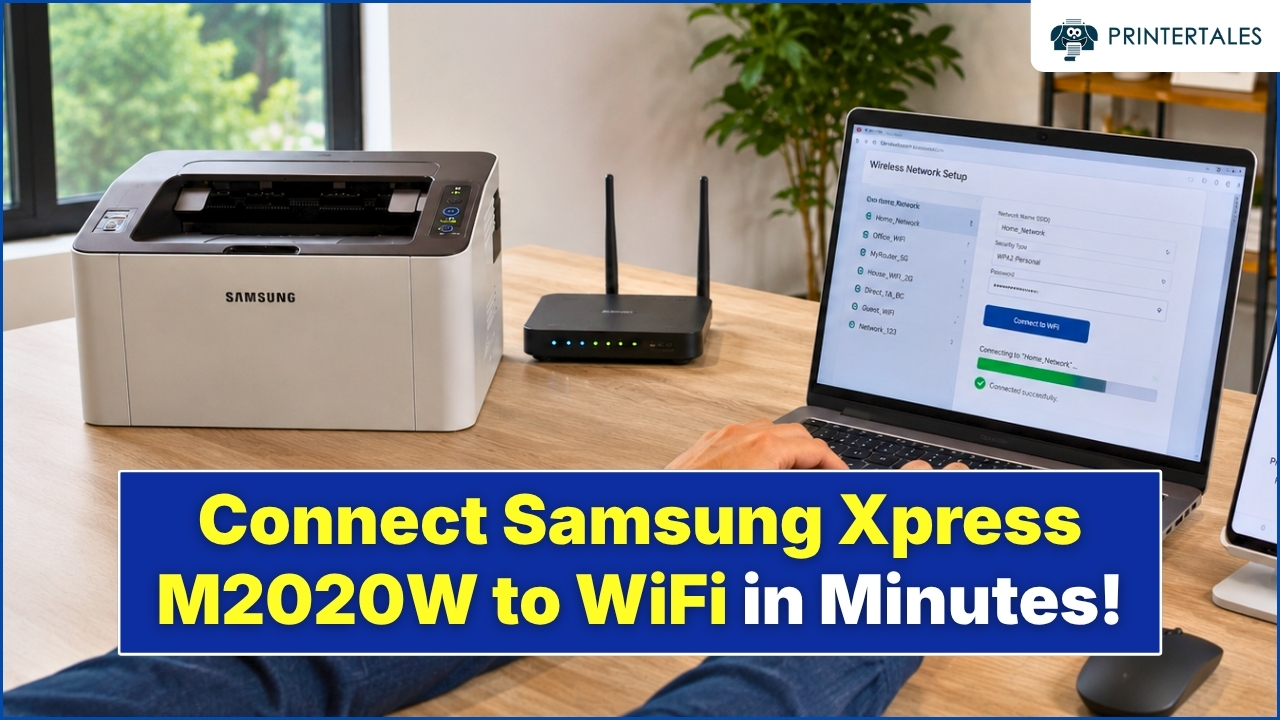
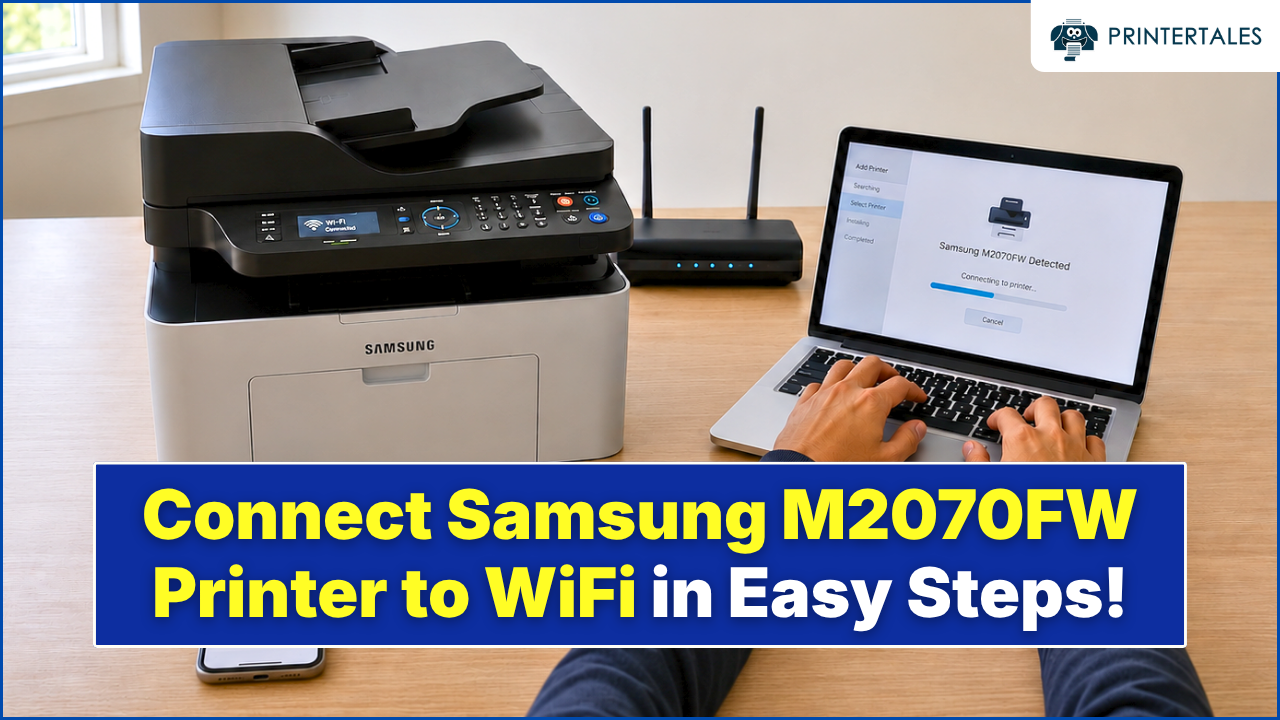
Samsung Xpress wireless printers use Wi-Fi Direct, NFC, and standard WPA2 network Wi-Fi. The single most common connectivity issue isn't the printer - it's the router.
Samsung wireless printers work on 2.4 GHz only. If your router uses a combined SSID that broadcasts both 2.4 GHz and 5 GHz under the same name, the printer may initially connect but will frequently drop or fail to reconnect after a router restart. The fix is to split your 2.4 GHz and 5 GHz networks into separate SSIDs at the router level and connect the printer to the 2.4 GHz one specifically.
The WPS button connection method works reliably when both the router and printer support WPS Push-Button. Press the WPS button on your router, then within two minutes press the WPS button on the printer. This avoids manually entering network credentials and tends to produce more stable connections than using the printer's LCD menu-based network setup.
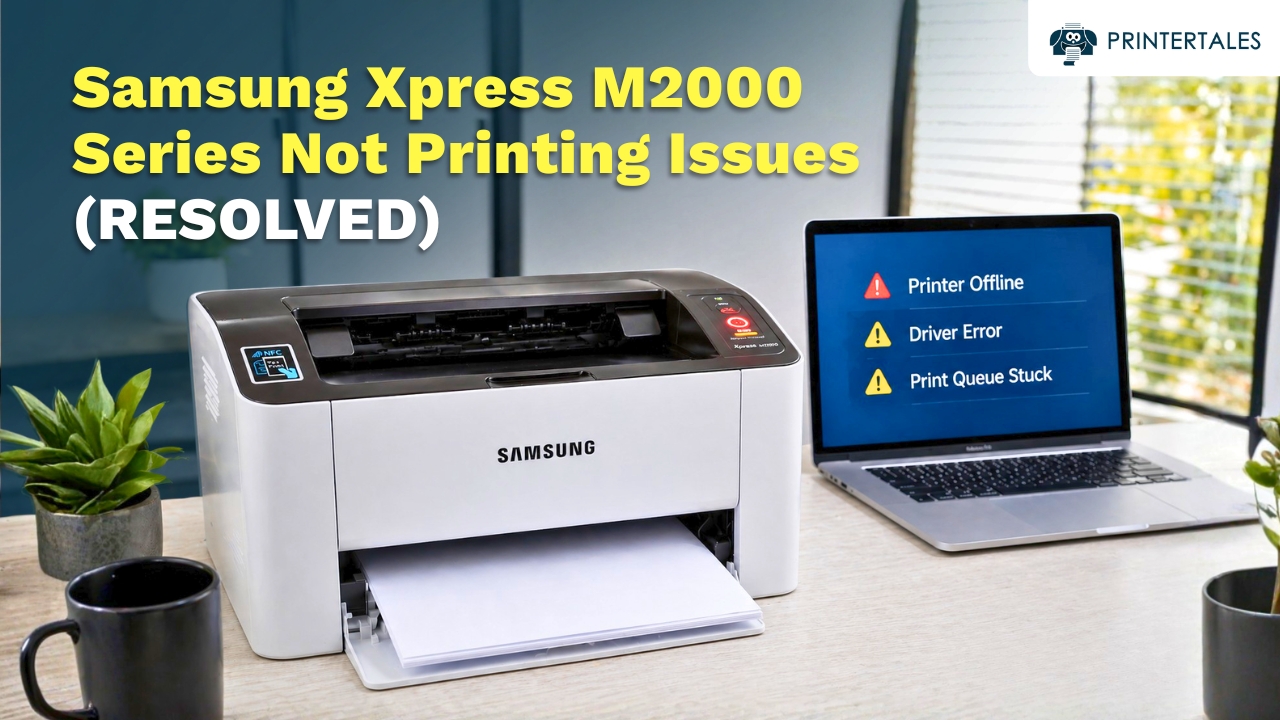
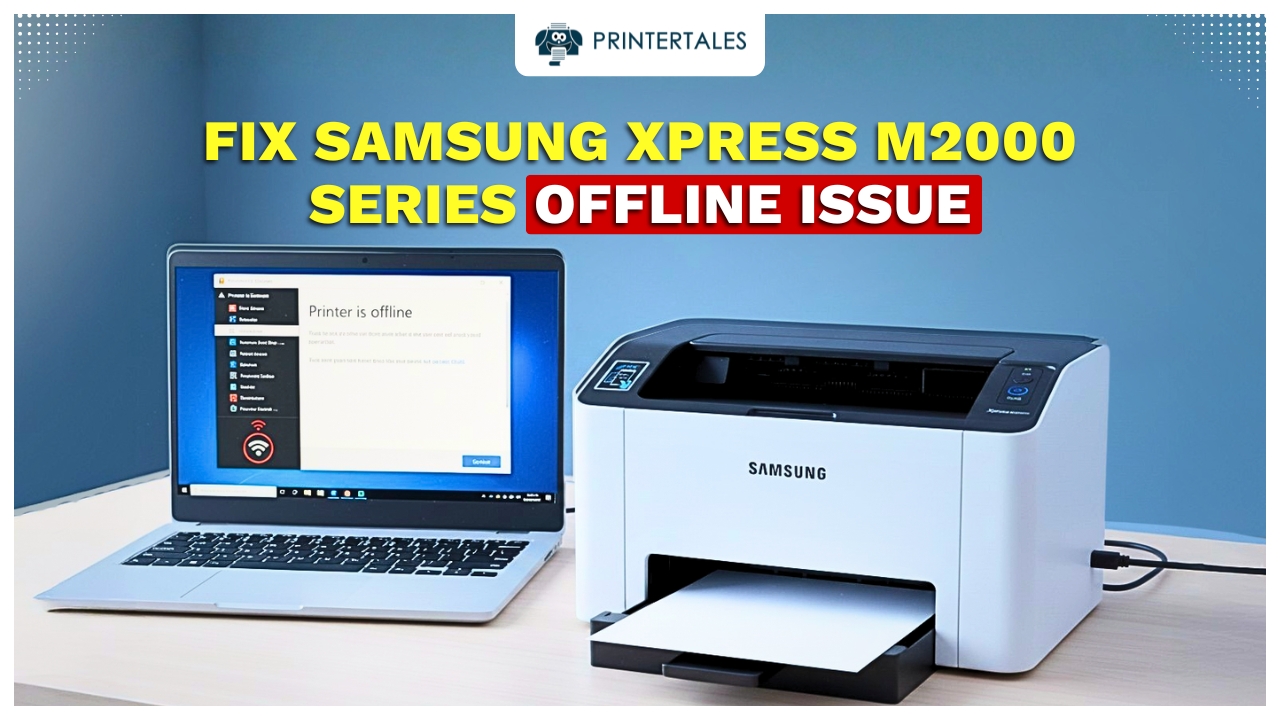
Static IP assignment matters more on Samsung printers than on some other brands. If your printer's IP address changes when the router reboots (as happens by default with DHCP), the printer will go offline in Windows even though it's physically connected. Assigning a static IP via your router's DHCP reservation table keeps the printer at the same address permanently, preventing the majority of recurring "printer offline" issues.
Paper Jams - Where They Actually Happen
Samsung Xpress printers jam in three predictable locations, and knowing which one you have narrows the fix immediately.
Input tray jams (the paper feeds partway in and stops): Almost always caused by paper loaded above the fill line, mixed paper sizes, or slightly damp paper that the separation roller can't pull cleanly. Samsung's input trays are sensitive to paper stack alignment — the paper guides must sit snugly against the stack, not just roughly in position.
Fuser area jams (paper gets through the rollers but stops near the output): The fuser runs hot and attracts paper fragments over time. If you're getting jams 60–70% of the way through the paper path, the fuser area needs cleaning. This requires removing the fuser unit - on Xpress models this is accessible without tools on most designs— and clearing paper fragment buildup from the exit rollers.
Duplex path jams (on models with automatic two-sided printing): Paper re-entering the duplex path for the second side occasionally catches on the duplex guide if the paper is even slightly curled from the first pass through the fuser. Using paper with a higher moisture content, or paper that's been stored in a humid environment, significantly increases duplex jam frequency.
Samsung Printer Models Still in Active Use
Despite being a discontinued brand for new production, millions of Samsung printers are still in active daily use. These are the models that come up most frequently in support requests:
- SL-M2020 / M2020W / M2021 / M2022 — Compact monochrome Xpress, home and student use
- SL-M2070 / M2070FW — Monochrome Xpress all-in-one with scan, copy, fax; one of the most common small-office Samsung models
- SL-C430W — Color Xpress laser, 19 ppm, Wi-Fi, NFC
- SL-C480FW — Color Xpress all-in-one with 800 MHz CPU, print/scan/copy/fax
- SL-M3820DW — ProXpress monochrome, 40 ppm, high-volume business use
- SL-M4530ND — ProXpress high-capacity monochrome, 45 ppm
- CLX-3305 / CLX-3185 — Older color laser all-in-ones still in use in small offices
- SCX-3401 / SCX-4321 — Legacy multifunction models; driver support from HP becoming limited
If you're deciding whether to repair vs. replace an older Samsung, the practical break-even point is roughly: if the repair cost (parts + labor) exceeds 40–50% of an equivalent current HP laser printer, the HP makes more financial sense — particularly given ongoing driver and OS support for new models.
Common Error Codes - What They're Actually Telling You
Samsung printers use numeric codes prefixed with their category. The most common ones you'll encounter:
13.x errors - Paper jam. The second digit indicates location: 13.1 is typically the input tray area, 13.2 is the fuser/output area. Clear all paper from the indicated zone, check for torn fragments, and close all access covers before powering the printer back on.
14.x errors - Toner empty or not recognized. See the toner contacts section above. This code triggers both when the toner is genuinely empty and when there's a chip or contact recognition failure.
46 / Replace Drum - The drum unit has reached its rated page count. On Samsung two-piece toner systems, the drum and toner are separate. The drum lasts significantly longer than a toner cartridge — typically 10,000–30,000 pages depending on the model.
U1-2320 - Scanner unit failure (on multifunction models). This is usually a hardware issue with the flatbed scanner motor or its ribbon cable connection, not a software fix.
51.x errors - Fuser unit error. The fuser runs at high temperature and is one of the components with a finite service life. A 51.x error on an older printer often signals fuser replacement is needed rather than a soft reset.
For any error that persists after the described checks, the starting point is always: power off completely, disconnect the power cable for 60 seconds, and reconnect before trying again. This clears the printer's internal job queue and resets transient error states.
Need help with a specific Samsung printer issue? Use the categories above to go directly to the relevant guide — from driver installation to WiFi setup to paper jams and error codes.