How to Connect an Epson Printer to Mac (Wi-Fi & USB)
The fastest way to connect an Epson printer to a Mac is through System Settings > Printers & Scanners: click the + button, wait for your printer to appear via Bonjour or AirPrint, select it, and let macOS install the software automatically. On most home networks this takes under two minutes, assuming your printer and Mac are already on the same Wi-Fi network.
That said, "it shows up and prints" isn't always the same as "it's set up correctly." Epson printers have two very different ways of talking to a Mac - AirPrint and the full Epson driver and which one macOS picks by default changes what you can and can't do later (duplex printing, paper type selection, ink-level monitoring, and scanning access all depend on it). We'll cover both paths, plus the specific fixes for the connection issues that actually show up in support forums, not just the generic "restart everything" advice.
What You Need Before You Start
Three things determine whether this goes smoothly:
- Your printer and Mac on the same network. If your router broadcasts separate 2.4GHz and 5GHz networks (common with mesh systems like eero or Google Wifi), and your Mac is on 5GHz while the printer joined 2.4GHz, macOS often can't see it at all. Most Epson printers only support 2.4GHz Wi-Fi, so check your Mac's network name in the menu bar against what you set on the printer's control panel.
- The printer already has an IP address. Print a network status sheet from the printer's control panel (usually Settings > Network Settings > Print Status Sheet) to confirm it has one. Skip this and you're troubleshooting blind later.
- Your macOS version. As of mid-2026, the current release is macOS 26 "Tahoe." Epson has published Tahoe-specific drivers for most active printer models, but a handful of older ones (pre-2016 releases) only get AirPrint support going forward, not a full driver. Check Epson's support page for your exact model before assuming a driver exists.
Method 1: Wireless Setup Through System Settings (Recommended for Most People)
This is the built-in macOS path and doesn't require downloading anything from Epson first, though you may be prompted to install software mid-process.
- Turn on your Epson printer and connect it to Wi-Fi using its control panel or the physical setup wizard that ran when you unboxed it.
2. On your Mac, open System Settings > General > Printers & Scanners.

3. Click Add Printer, Scanner, or Fax.
4. Wait a few seconds. Bonjour discovery on a busy network can take 10-15 seconds even when everything's working. Your printer should appear by name (e.g., "EPSON WF-2830 Series").
5. Click it. Look at the Use dropdown before you click Add. This is the step almost every guide skips, and it's the one that matters most.
Here's why that dropdown matters: macOS will usually default to one of two options - AirPrint or the specific Epson driver (something like "EPSON WF-2830 Series"). If macOS can't find a matching driver, it silently falls back to AirPrint and most people never notice.
AirPrint vs. the Full Epson Driver - Why It Actually Matters
This is the part that trips people up, and it's worth understanding rather than just picking one at random.
AirPrint is Apple's own driver-free printing protocol. It works by sending a generic, standardized print job (based on IPP, Internet Printing Protocol) that any AirPrint-compatible printer can interpret. It's genuinely driver-free no software installation required, which is exactly why it's the path of least resistance for macOS.
The trade-off: AirPrint has no idea what's actually inside your printer. Epson's higher-end models use PrecisionCore printheads, which fire ink through microscopic nozzles with far tighter tolerances than older thermal inkjet designs, and that precision is only useful if the software tells the printhead exactly how to use it things like which paper feed path to use for photo paper versus plain paper, or how to lay down finer droplet patterns for higher DPI settings. AirPrint can't pass along any of that. It sends a generic job and lets the printer apply its own defaults, which is why people report AirPrint prints look "fine but flat" compared to prints made through Epson's own driver.
Practically, this is what you lose with AirPrint on most Epson models:
- Ink level monitoring in the print dialog (you won't know a cartridge is low until it fails mid-job)
- Paper type-specific quality settings (matte, glossy, photo paper profiles)
- Duplex (double-sided) printing controls, even on printers that support it
- Access to Epson Scan 2 for scanning from the same connection
What you gain with AirPrint: zero driver maintenance, and it survives macOS updates without breaking, which the full driver sometimes doesn't (more on that below).
My take after setting up more of these than I'd like to admit: use AirPrint for a printer that only needs to handle occasional text documents. If you print photos, use both sides of the page, or care about ink tracking, install the real Epson driver either from Epson's support site or the Epson Smart Panel app from the Mac App Store, which also handles scanning and printer status in one place.
Method 2: Installing the Full Epson Driver
- Go to epson.com/support and search your exact printer model — not just the product line, since driver packages differ by revision.
- Under Drivers & Downloads, filter by your macOS version (select "macOS 26.x" if you're on Tahoe; older Macs should match their actual version rather than assuming the newest package works).
- Download and run the installer package, then restart when prompted.
- Go back to System Settings > Printers & Scanners, remove any AirPrint entry for the same printer (select it, click the minus button) to avoid duplicate listings, and re-add it. This time the Use dropdown should show the actual Epson driver name.
If the Epson-specific driver doesn't appear in that dropdown even after installing it, macOS may need a nudge.
Critical Tahoe Fix: If your freshly installed Epson driver isn't showing up in the Use dropdown, go to System Settings > Privacy & Security > Local Network and make sure
rastertoescpll(Epson's raster-to-printer-language conversion process) is toggled ON, along with any other Epson-named entries in that list. macOS Tahoe's stricter local network permissions frequently block driver communication by default, even after a clean install this single toggle resolves the majority of "driver installed but not detected" reports.
Method 3: USB Connection
If Wi-Fi setup keeps failing, a wired connection sidesteps network issues entirely and is worth doing even temporarily to confirm the printer itself works before troubleshooting Wi-Fi further.
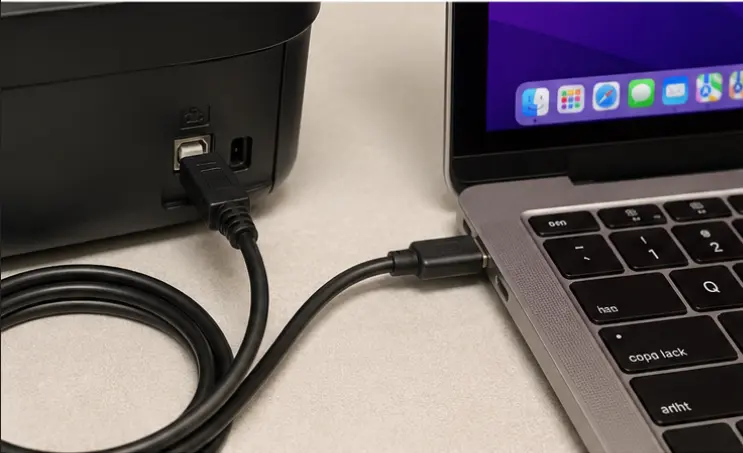
1. Connect the printer to your Mac with a USB-B to USB-C (or USB-A, depending on your Mac) cable.
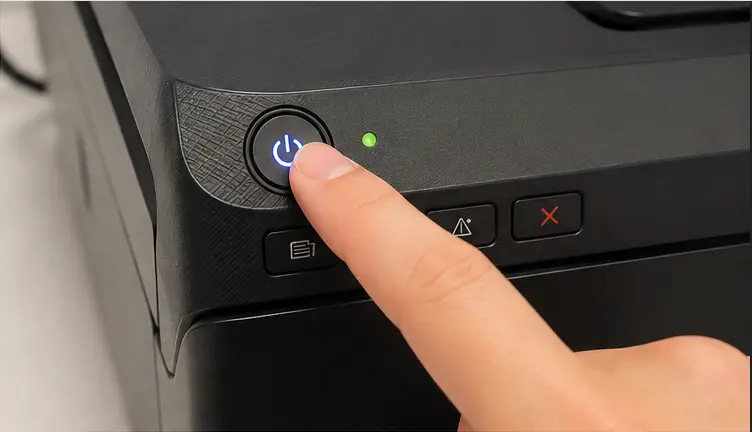
2. Turn the printer on.
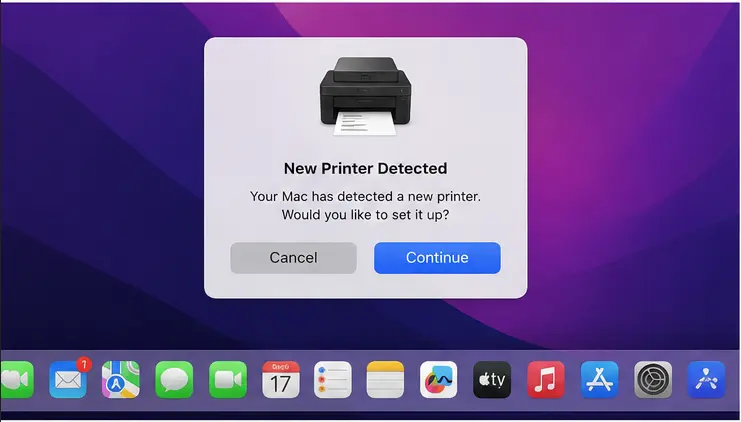
3. macOS should detect it automatically and either prompt you to install software or add it using a built-in driver.
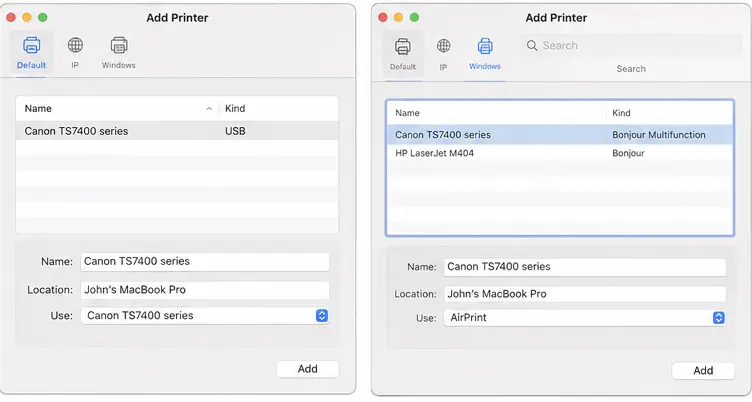
4. If it doesn't appear, follow Method 1 or 2 manually - USB-connected printers show up in the same Add Printer window as Bonjour or IP-based printer discovery.
Note: some current-generation Epson printers restrict certain features (like scanning) over USB on macOS Tahoe due to a known compatibility gap Epson has acknowledged; if scanning stops working after a USB setup, check Epson's Tahoe support page for your model rather than assuming it's a hardware fault.
Troubleshooting: When the Printer Won't Show Up or Won't Print
Printer doesn't appear in the Add Printer window at all Confirm both devices are on the same Wi-Fi band (see the 2.4GHz note above). Router-level client isolation a security feature on some mesh and guest networks that blocks devices from seeing each other is the second most common cause and won't show any error message; it just makes the printer invisible to Bonjour.
Printer shows as "offline" even though it's on Remove the printer entry entirely (System Settings > Printers & Scanners, select it, click minus), then re-add it rather than trying to fix the existing entry. Stale printer entries carry over a cached IP address that no longer matches the printer if your router reassigned one.
Print jobs stall in the queue
Nuclear Option That Actually Works: Right-click (or Control-click) anywhere in the printer list under Printers & Scanners and select Reset printing system. This wipes the entire spooler and every printer entry - it sounds drastic, and you'll need to re-add each printer afterward, but it resolves the majority of stuck-queue issues that survive a normal restart. Worth doing before you spend time on anything more granular.
Everything worked until a macOS update This is common enough that it's a known pattern rather than bad luck: macOS updates occasionally reset which driver is assigned to a printer, silently switching it to AirPrint or dropping the connection. Third-party endpoint security software (ESET and SentinelOne have both had documented conflicts with recent Tahoe releases) can also block printer access after an update — worth checking if you're on a work laptop with managed security software installed.
Setting a Default Printer or Managing Multiple Epson Printers
If you have more than one Epson printer on the network (common in home offices running a photo printer plus a general-use one), go to System Settings > Printers & Scanners, and use the Default printer dropdown at the bottom of the window to set which one macOS uses automatically. You can still choose a different printer per print job from the Print dialog - the default only controls what's pre-selected.
Related Guide
How to Add Epson Printer to Mac?
How To Connect Epson Printer To Mac On A Wireless Network?
Epson Printer Job Stuck in Queue – Fix Print Jobs Easily
The main article's "Print jobs stall in the queue" section gives the macOS-side fix (Reset Printing System); this page covers the same symptom in more depth for anyone who needs the fuller walkthrough.
Epson Printer Not Connecting to WiFi
Matches the "Printer doesn't appear in the Add Printer window" troubleshooting section - useful for readers whose problem is actually on the printer's network side rather than the Mac side.
Epson Printer Offline
Matches the "Printer shows as offline even though it's on" section - a broader companion for the stale-IP-address scenario the main article only covers briefly.
Frequently Asked Questions
Do I need to install Epson software to print from a Mac?
No. AirPrint lets you print without installing anything, but you'll lose access to paper-type-specific quality settings, ink monitoring, and duplex controls, as covered above.
Can I connect an Epson printer to a Mac without Wi-Fi?
Yes, via USB - see Method 3. Bluetooth is not supported on most Epson printer models for direct Mac printing.
Why does my Epson printer keep disconnecting from my Mac?
The most frequent causes are a router reassigning a new IP address to the printer (fixed by removing and re-adding it) and 2.4GHz/5GHz band mismatches on mesh routers. If it happened right after a macOS update, check the Local Network privacy toggle first.
Is Epson Smart Panel required?
No, it's optional. It bundles printing, scanning, and status monitoring into one app and is worth installing if you scan documents regularly, but the standard driver install through System Settings covers printing on its own.

