How to Download and Install Brother Printer Driver?

Does your Brother printer go offline unexpectedly? If your Wi-Fi router shows solid green lights and strong signal strength, the issue is likely not with your internet. In that case, what’s causing the offline error? The answer may lie in your printer driver.
A corrupted printer driver could be the culprit behind the Brother printer’s offline problem. This creates a roadblock in your daily printing tasks, especially when you need the printer urgently.
The good news is that downloading and installing the latest driver can fix the issue. If you are unsure how to proceed, don’t worry - we have explained all the steps for you below. Before following the steps, it’s important to learn the common mistakes to avoid for a smoother process.
Mistakes to Avoid When Downloading & Installing Drivers
Take a glance at the common mistakes that you need to avoid when downloading and installing the drivers for the Brother printer:
- Downloading from unofficial sources
- Forgetting to remove the old or conflicting drivers before downloading the new ones.
- Installing a driver for the wrong OS version (For instance, a Windows 10 driver on Windows 11).
- Multitasking during the installation processes.
- Failing to update the driver later on.
- Using outdated installation files.
Steps to Download and Install Brother Printer Driver
The following are all the steps to know for correctly downloading and installing the Brother printer driver:
Step 1: Open your browser.
Step 2: Search for your printer driver according to the model number.
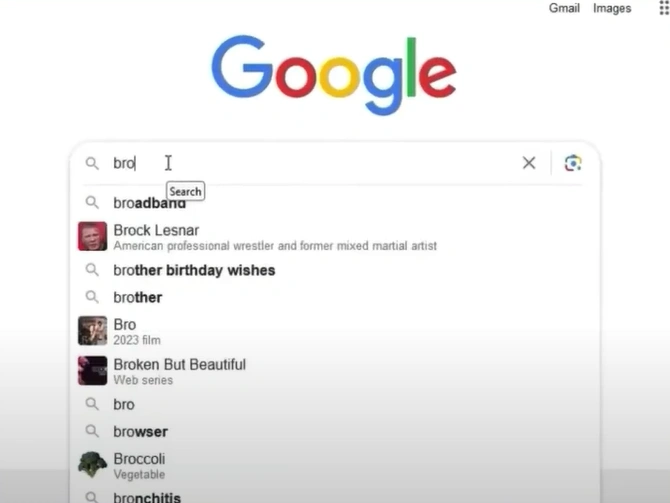
Step 3: Open Brother’s official support website.
_1758186658.webp)
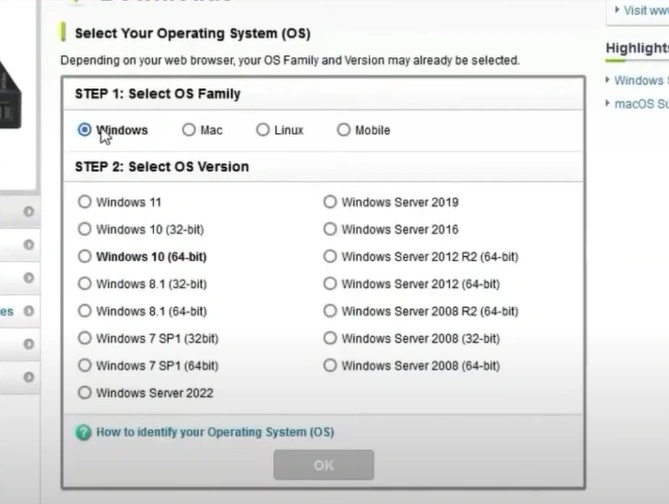
Step 4: Check the operating system.
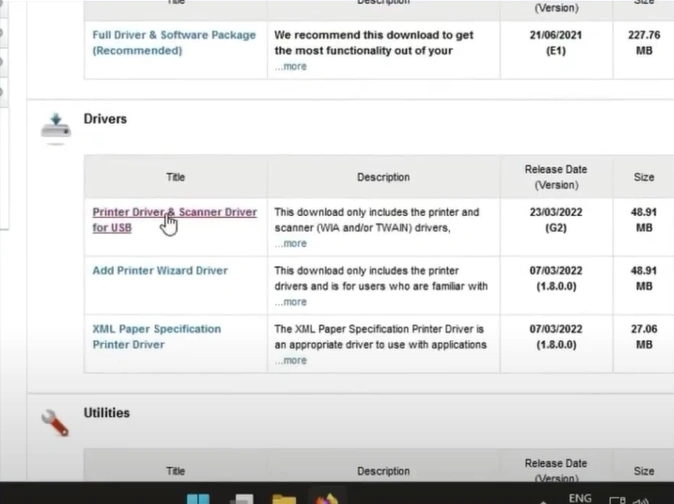
Step 5: Go to the driver’s section.
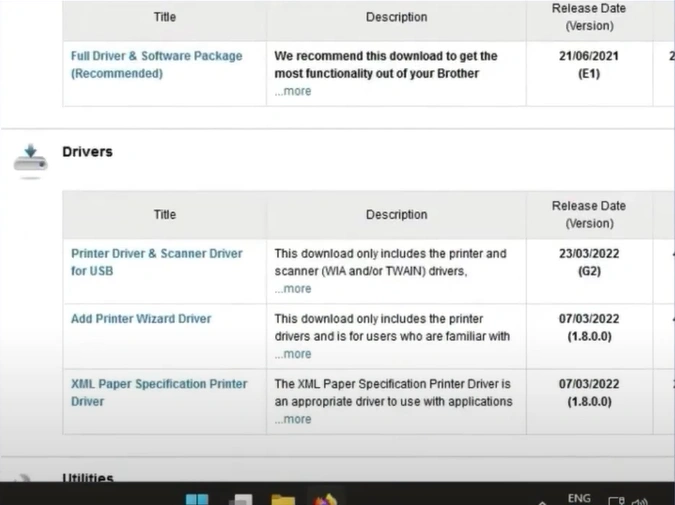
Step 6: Click on the latest printer driver.
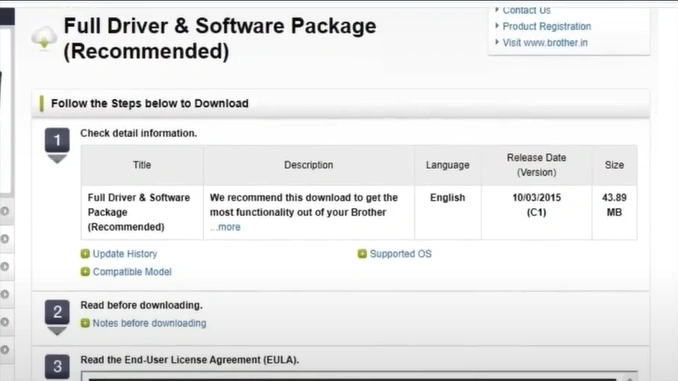
Step 7: Review the license agreement and select the “Agree to the EULA and Download” button.
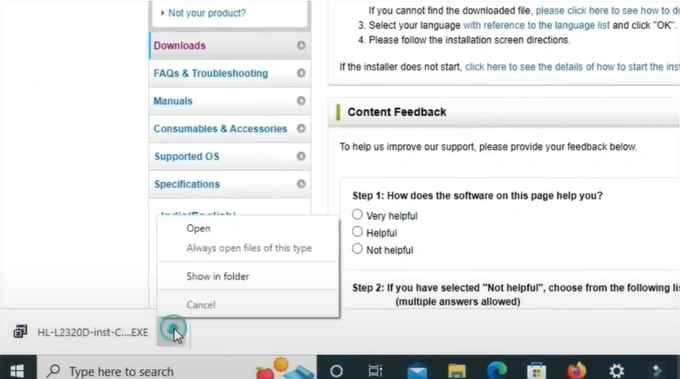
Step 8: Once downloaded, open the file.
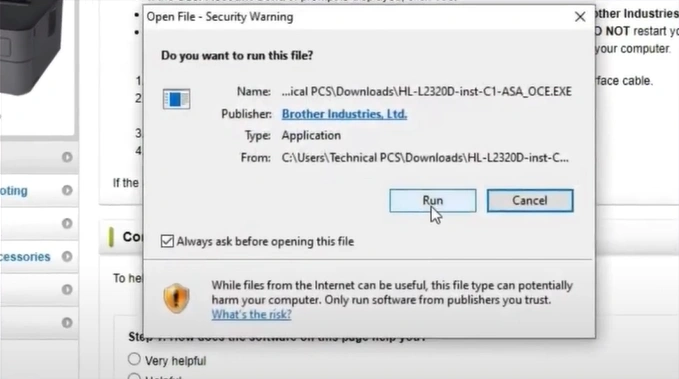
Step 9: In the security warning window, click on Run.
Step 10: Once the setup files are extracted successfully, check the language and click on OK.
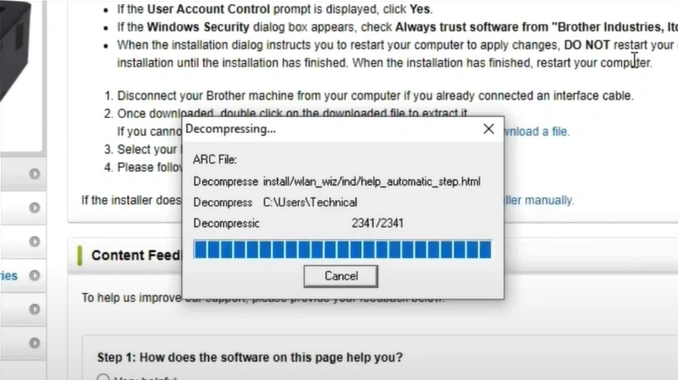
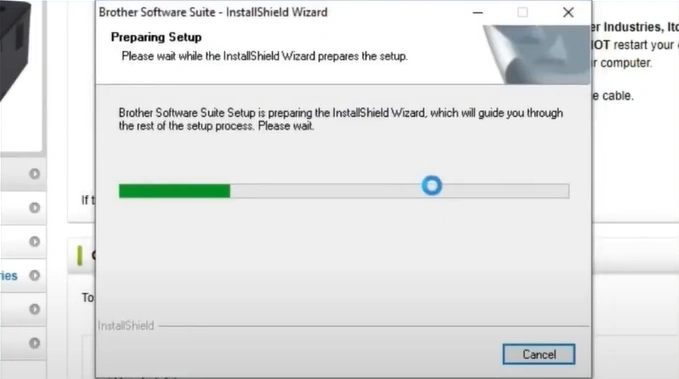
Step 11: Wait for the setup to prepare.
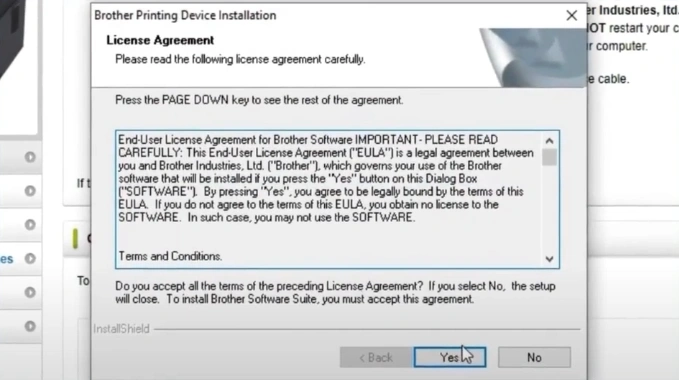
Step 12: During installation, review the license terms again and click on Yes to continue.
Step 13: Choose the setup type and click on Next.
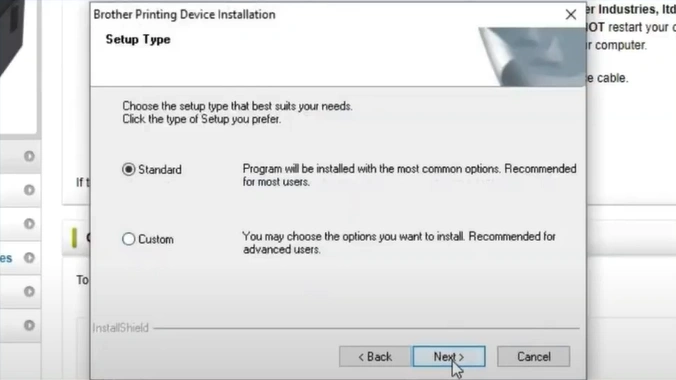
Step 14: If you have selected the standard type, the installation will start.
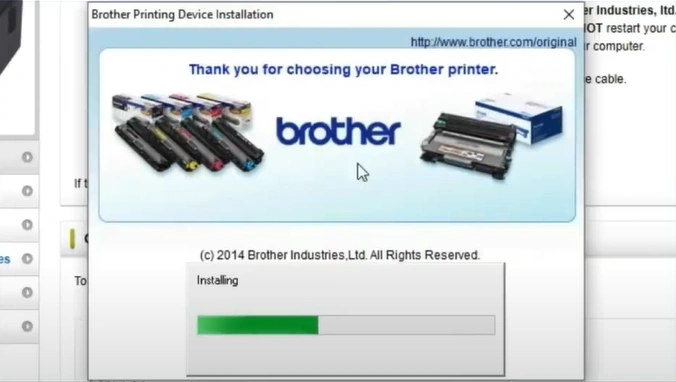
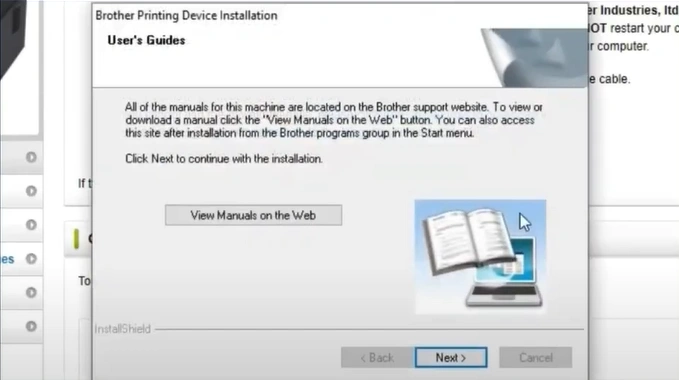
Step 15: In the User’s Guide window, click on Next.
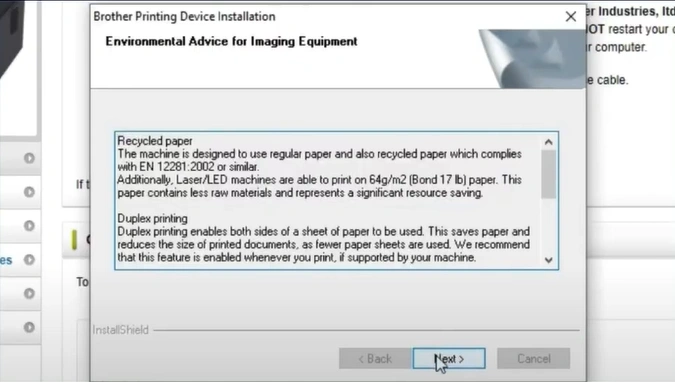
Step 16: Read the environmental advice and click on Next.
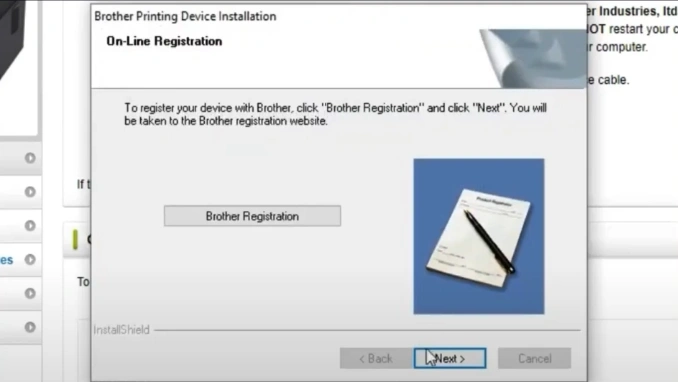
Step 17: Register your device with Brother and click on Next.
Step 18: Once the setup window shows that installation is complete, click Next.
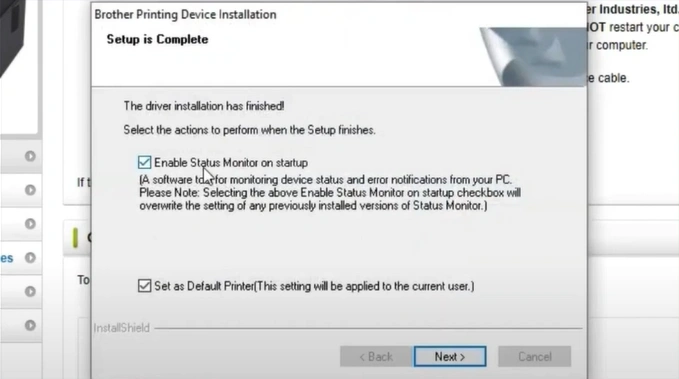
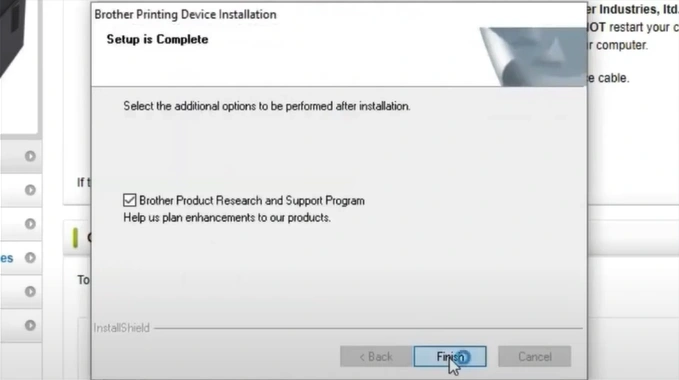
Step 19: At last, click on the Finish button.
To Sum Up
Get the correct Brother printer driver downloaded and installed on your system, and resume your routine work. Once installed, your Brother printer should work smoothly without errors. Just stick to all the above steps, and do not miss out on any. Download only from the official Brother website, and install drivers that are compatible with your OS. Remove the conflicting drivers before you add the new driver.
Important Tip: After installing the driver, restart your computer. Some printer drivers require a reboot for changes to take effect.
Related Article

