Epson EcoTank ET-2980 Paper Jam: 3 Places to Check
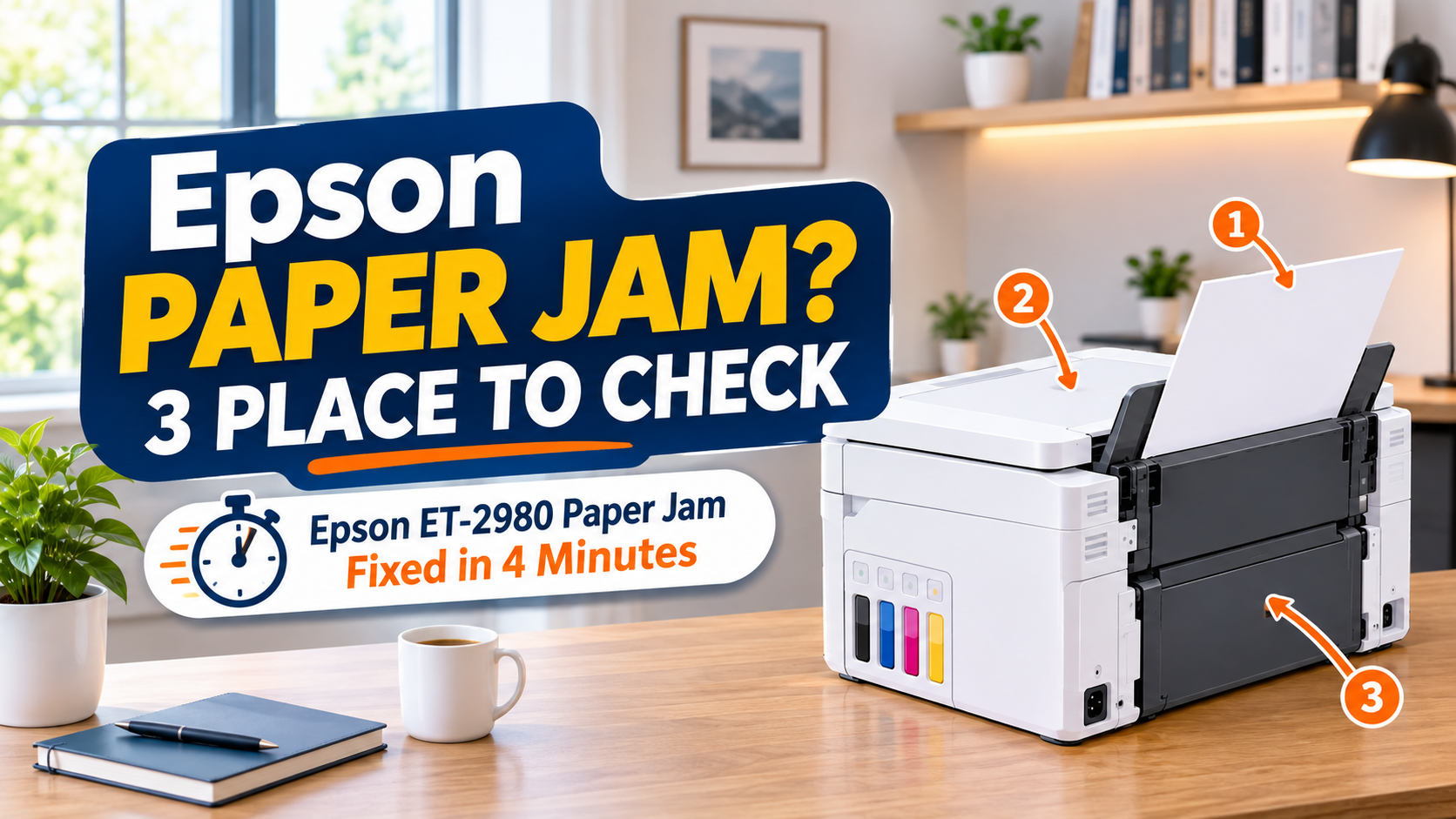
If your Epson ET-2980 shows Paper jam, press Stop, then check three places in this order: the rear paper feeder, inside the printer (raise the control panel, then lift the scanner unit) and the rear cover. Pull paper out slowly with both hands so it doesn’t tear. Then press the button the screen tells you to press. Most jams clear at the first or second place.
If the screen says E-01 Printer error instead, that’s a different message. Turn the printer off and on first. Epson’s guide says to look for a jam only if E-01 comes back.
Pete AI by Printer Tales: Not sure what your screen is telling you? Type the exact message into Pete AI and it will tell you which step to start with. It’s free: printertales.com/pete-ai
Watch on youtube (click on the link): How to clear a paper jam on the Epson EcoTank ET-2980
What’s your ET-2980 doing?
Find your symptom, then jump to that fix.
Before you put your hand inside. Don’t touch the flat white cable, the clear (translucent) film or the ink tubes. Epson warns this can cause a malfunction. Keep your other hand off the control panel buttons while you work, and watch your fingers when the scanner unit closes.
Place 1: The rear paper feeder
The ET-2980 feeds paper from the back, not from a front tray. So that’s where most jams start.
- Press Stop on the control panel to cancel the print job.
- Look at the rear paper feeder. If you see a sheet, hold it with both hands and pull it slowly, straight up.
- Take out the rest of the paper stack too. You’ll reload it properly at the end.
I found Paper torn, did you? Don’t dig for the scrap from the top. A torn piece usually ends up inside or under the rear cover, so keep going.
Place 2: Inside the printer
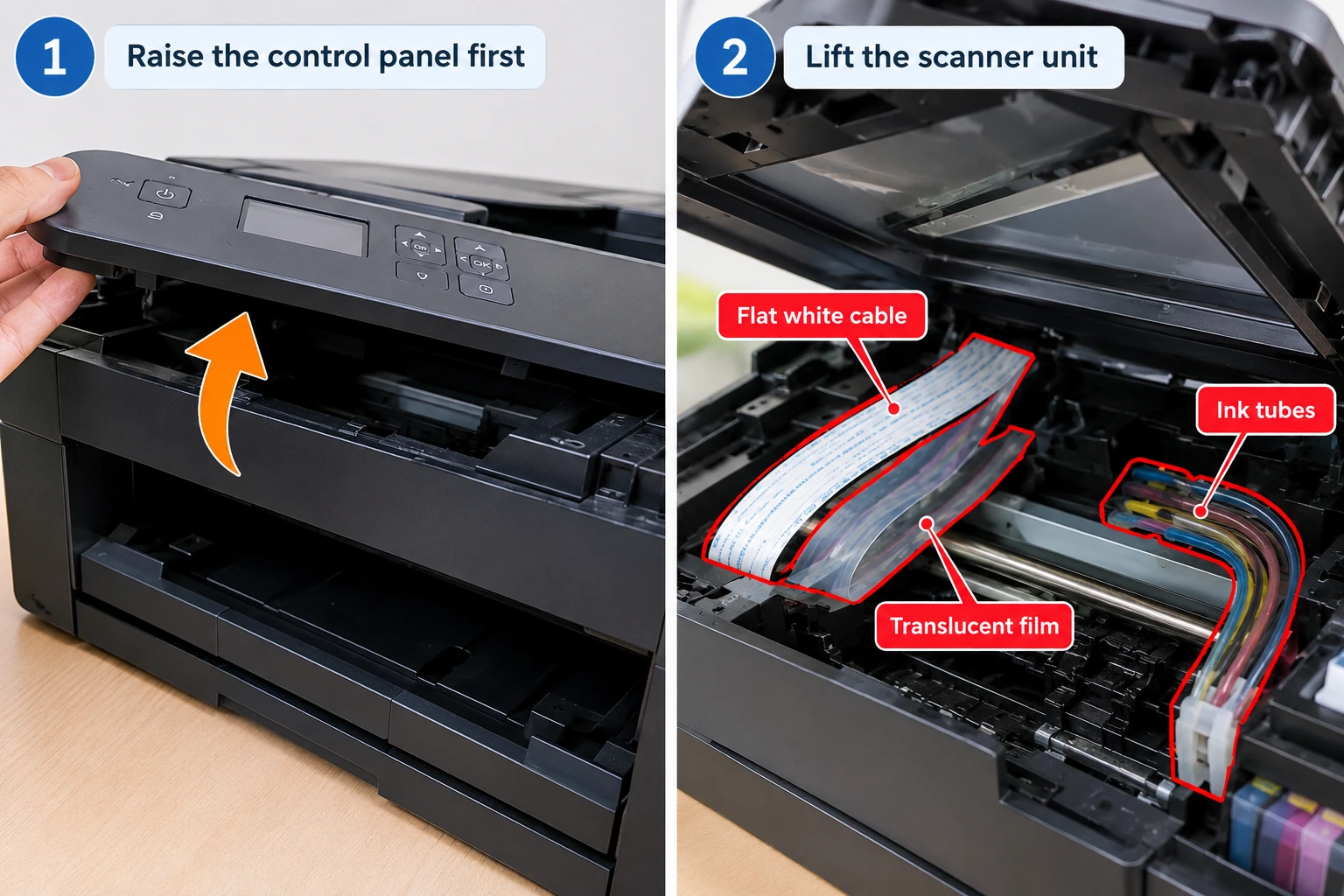
- Raise the control panel first.
- Lift the scanner unit until it clicks and stays open.
- Look along the paper path. Pull out any paper or scraps, slowly. A flashlight helps here.
- Don’t touch the white cable, the clear film or the ink tubes (see the warning box above).
- Close the scanner unit. It’s designed to close slowly and resist a little, to protect your fingers. Keep pushing gently until it closes.
I left the paper scrap which i could not remove and in the next print it cam out on its own.
Place 3: The rear cover
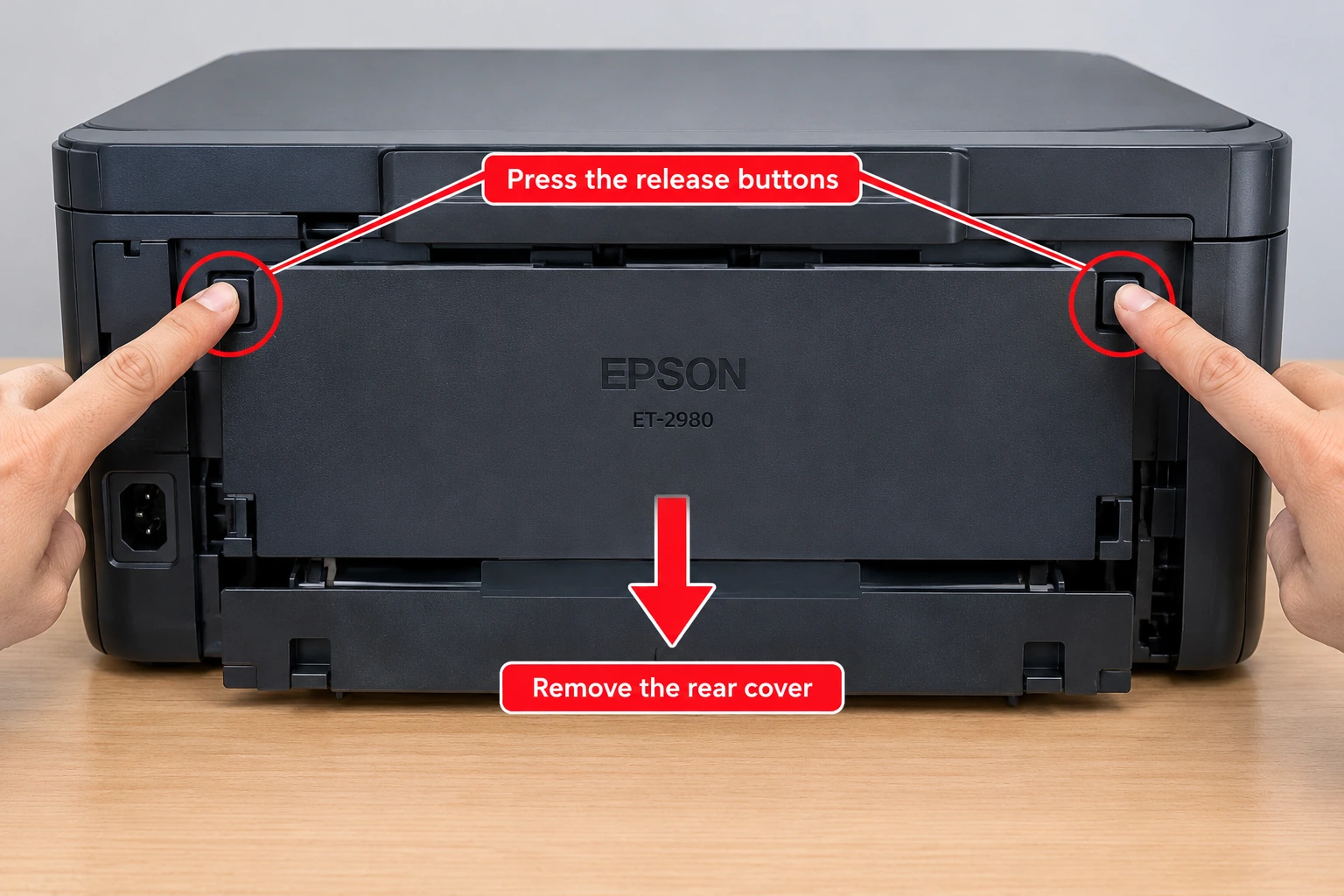
This is the spot people miss, because you can’t see it from the top. Check it whenever paper tore, or the jam happened during 2-sided printing.
- Press the release buttons on the rear cover and pull the cover off.
- Carefully remove any paper from inside the opening.
- Check the cover itself too. Paper can stick to the inside of it.
- Press the buttons in and push the cover back on until it sits flat.
Now press the button the screen tells you to press to clear the message. If W-01 is still there, turn the printer off, wait about 10 seconds and turn it back on.
Reload the paper the right way like suggested in the video
A lot of repeat jams start with how the paper goes back in. Epson’s steps for the rear feeder:
- Flip the feeder guard forward and raise the paper support.
- Slide the edge guides all the way out.
- Fan plain paper, then tap the stack on the table to line up the edges. (Don’t fan photo paper.)
- Load the paper printable side up, short edge first, in the middle of the feeder.
- Slide the edge guides against the paper. Snug, not tight.
- If the screen asks, choose the paper size and type you loaded and press OK.
Don’t overfill. The stack must stay below the arrow mark on the edge guides.
2-sided printing jams
The ET-2980 prints 2-sided automatically: it pulls the page back in and flips it inside. That turn is where thin, curled or ink-heavy pages catch.
- Load fewer sheets for 2-sided jobs. That’s Epson’s own first fix for 2-sided jams.
- Use paper that suits auto 2-sided printing. For thick paper or photo paper, choose a Manual 2-sided option in the print settings. The printer prints one side and asks you to flip the stack.
- Pages with lots of ink (dark photos, full-color flyers) can come out slightly damp and curled. Curled pages catch on the way back in. Print those as manual 2-sided, and let side one dry before you flip it.
- Check the rear cover (Place 3) after any 2-sided jam. That’s where these pages usually stop.
Jams that keep coming back
If the printer jams again and again, or shows a jam with no paper in it, work through these one at a time.
- Check the paper settings. The paper size and type on the control panel must match what’s loaded. If a page stops halfway out the front, Epson says the size setting is usually wrong: cancel, set the right size and print again.
- Swap the paper. Damp, thin, old or curled paper jams and wrinkles. Try a fresh ream. If single sheets jam, try loading a few more. If several feed at once, fan them or load one at a time.
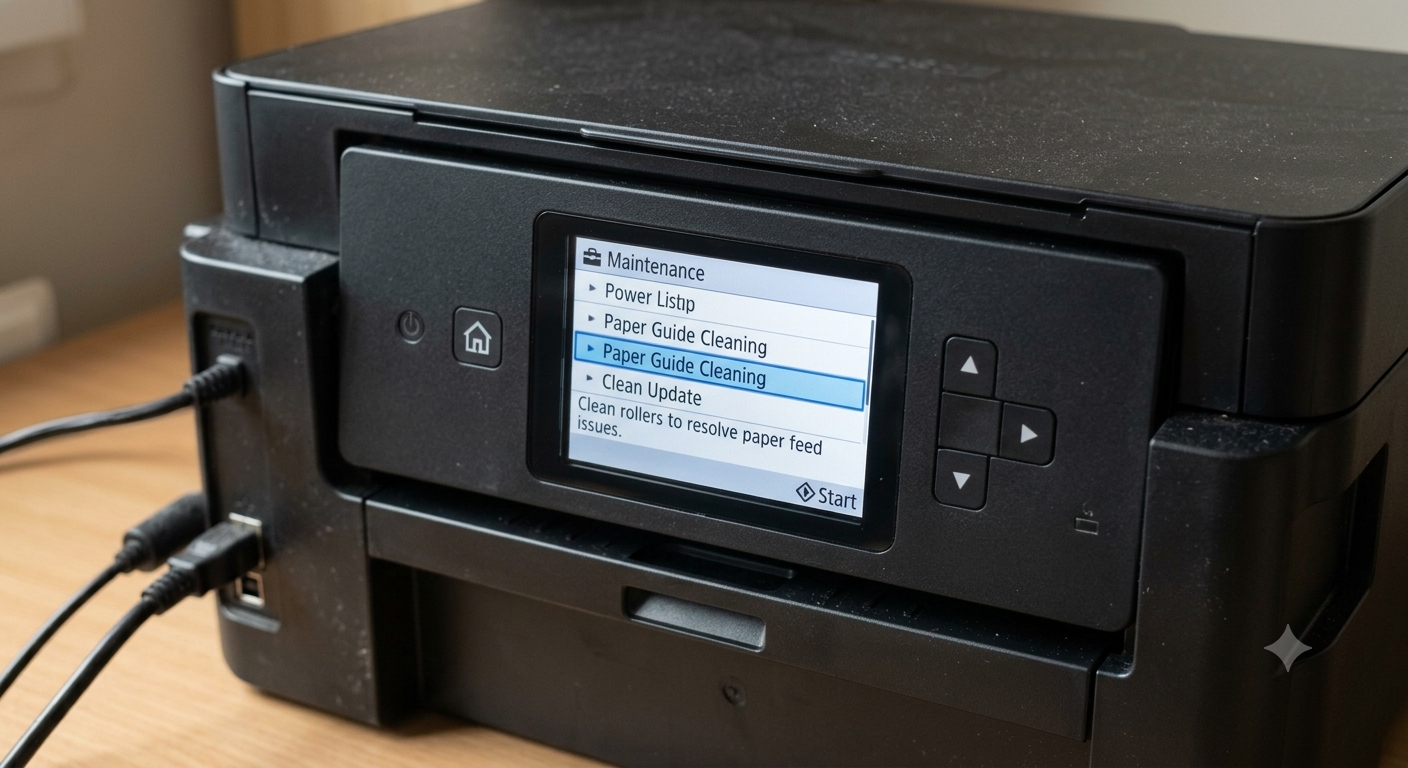
- Clean the paper guide. Load plain Letter or A4 paper. On the control panel, select Maintenance, then Paper Guide Cleaning, and follow the screen. Repeat until the pages come out clean. This also helps if your pages come out smeared after a jam.
- Still smeared after that? Turn the printer off, lift the scanner unit and wipe the area shown in Epson’s guide with a cotton swab. Don’t use tissue: the lint can clog the print head.
- Check where the printer sits. It needs to be on a flat, level surface, and nothing should rest on the feeder guard.
Still jamming after all that? Tell Pete AI by Printer Tales what you’ve tried and what the screen says, and it’ll suggest the next step: printertales.com/pete-ai. If the message won’t clear at all, contact Epson support through epson.com.
What not to do (this helped me)
- Don’t tilt, flip or shake the printer to get paper out. It’s an ink-tank printer, and ink can leak.
- Don’t use tweezers or anything metal inside it.
- Don’t yank the paper. A torn scrap is much harder to find than a whole sheet.
Summary
When your Epson ET-2980 jams, press Stop and check three places: the rear paper feeder, inside the printer (raise the control panel, then the scanner unit) and the rear cover. Pull paper out slowly and never touch the white cable, clear film or ink tubes. Reload the paper printable side up, below the arrow mark, and make sure the paper settings match. For repeat jams or smears, run Paper Guide Cleaning. For 2-sided jams, load fewer sheets or switch to manual 2-sided printing.
Printer Tales is an independent DIY platform and is not affiliated with Epson or any printer manufacturer.
Sources
- Epson ET-2980 User’s Guide: Paper Jam Problems Inside the Product
- Epson ET-2980 User’s Guide: Paper Jam Problems in the Rear Cover
- Epson ET-2980 User’s Guide: Product Status Messages (W-01, E-01)
- Epson ET-2980 User’s Guide: Paper Feeding Problems
- Epson ET-2980 User’s Guide: Paper Ejection Problems
- Epson ET-2980 User’s Guide: Loading Paper in the Rear Paper Feeder
- Epson ET-2980 User’s Guide: Paper Loading Capacity
- Epson ET-2980 User’s Guide: Cleaning the Paper Guide
- Epson ET-2980 User’s Guide: Double-sided Printing (Windows)
Related articles
Frequently Asked Questions
What does W-01 mean on an Epson ET-2980?
It’s the paper jam message. Remove the jammed paper, then press the button shown on the screen. If it stays, turn the printer off and back on.
My ET-2980 says paper jam, but there’s no paper. What now?
A small scrap is usually stuck inside or under the rear cover. Check Places 2 and 3 with a flashlight, then run Paper Guide Cleaning.
Where is the rear cover on the ET-2980?
On the back of the printer. Press its release buttons to take it off.
Why does my ET-2980 jam when printing on both sides?
Usually too much paper, curled pages or paper that doesn’t suit auto 2-sided printing. Load fewer sheets, or use manual 2-sided printing for thick or ink-heavy pages.
How much paper can I load in the ET-2980?
Up to 100 sheets of plain Letter or A4 paper, and 20 sheets of photo paper. Keep the stack below the arrow mark on the edge guides. I ussualy keep 30 letter or a4 size paper and 10 photo paper.