Epson EcoTank Setup Step by Step: ET-2980, ET-3950, ET-4950
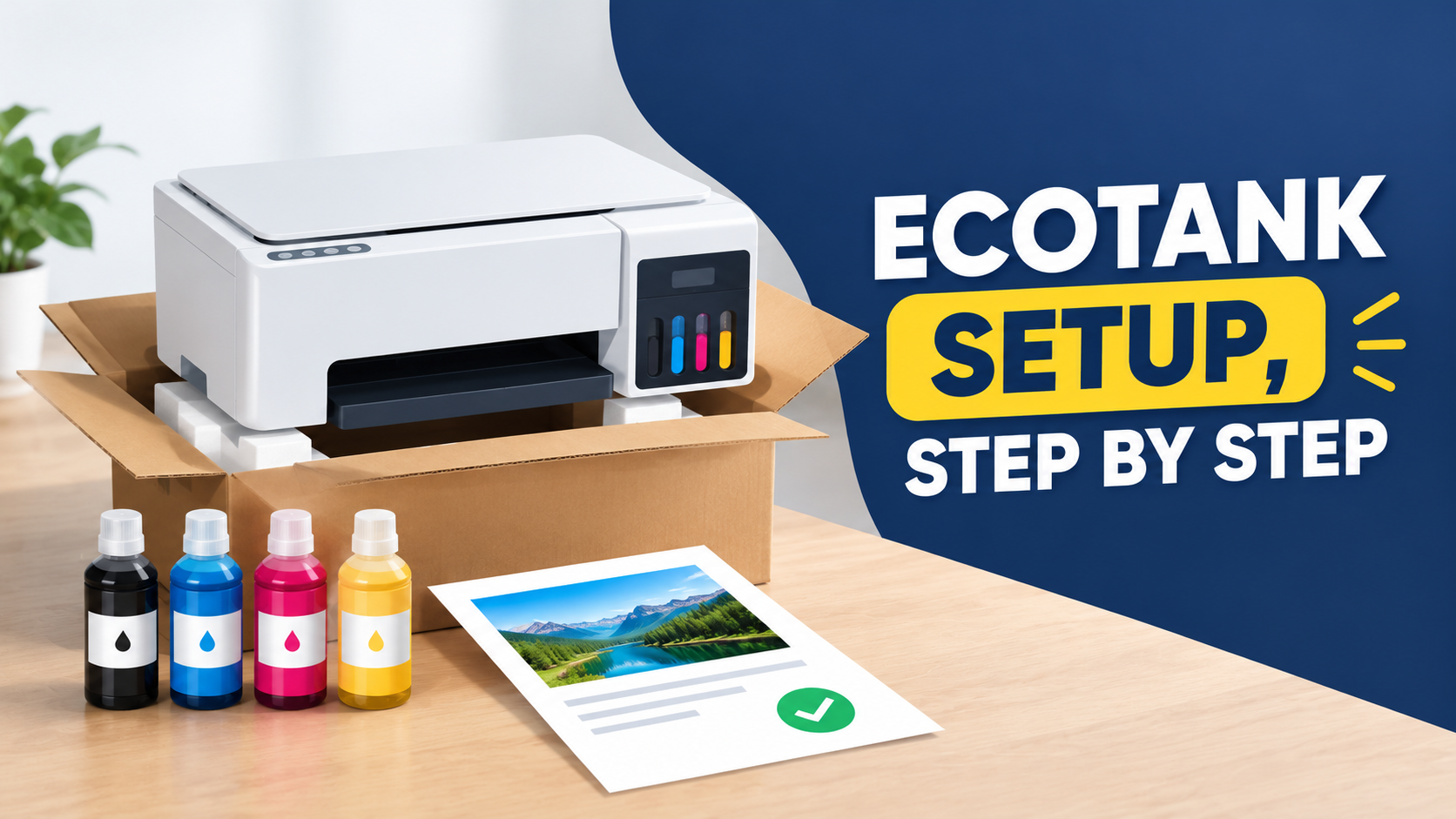
Setting up an Epson EcoTank Printer comes down to six main stages: remove the packing, fill the four ink tanks from the included bottles, turn the printer on and let it charge its ink system for about 11 minutes in my case, load paper, run the print quality adjustment, then install the software from Epson’s website. Don’t connect the printer to your computer until the installer asks.
The broad steps are the same on the Epson ET-2980, ET-3950 and ET-4950. The details aren’t, and they’re exactly where people get stuck: which way the paper goes, which button starts the ink charge, and whether you can plug in a network cable.
How the three models differ
Check the model number on the front of your printer, then find your column.
The ET-3950 and ET-4950 share one setup sheet from Epson. The ET-2980 has its own, and its rear paper feed is the biggest practical difference.
Step 1: Unpack and remove all the packing
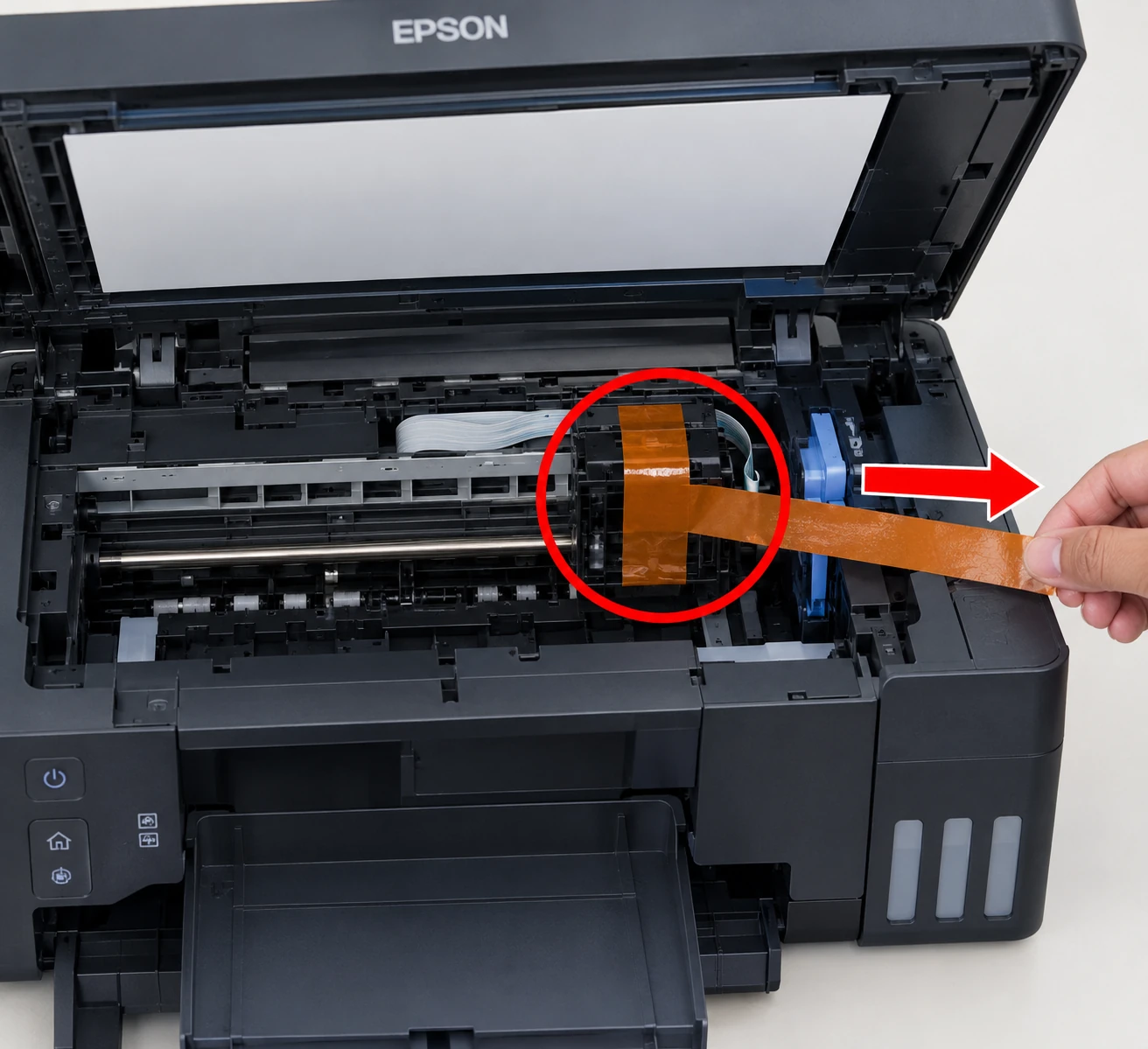
Take off every piece of blue tape and protective material, outside and inside. Lift the scanner unit to check underneath; packing often hides there. Inside the printer, leave the flat white cable, the ink tubes and their translucent cover alone.
On the ET-2980, Epson suggests a two-step close for the scanner unit: lift it slightly, lower it until it stops, then repeat the motion so it closes fully.
Connect the power cord to the back of the printer and to the wall. Leave the USB or network cable out for now. Epson’s setup sheets are firm on this, because the installer configures the connection itself later.
One more thing before you start: don’t open the ink bottles until you’re ready to fill. Epson vacuum-packs them to keep the ink reliable.
Step 2: Choose phone setup or printer setup
Epson website recommends its Smart Panel app, which walks you through setup on your phone or tablet. Download it, turn the printer on, and only then open the app. If it doesn’t spot the printer, tap the + icon and choose the option to set up a new product.
Prefer not to use a phone?
Everything below works from the printer’s own control panel. When the printer later offers Smart Panel setup on its screen, choose the option to continue from the printer.
Step 3: Fill the ink tanks
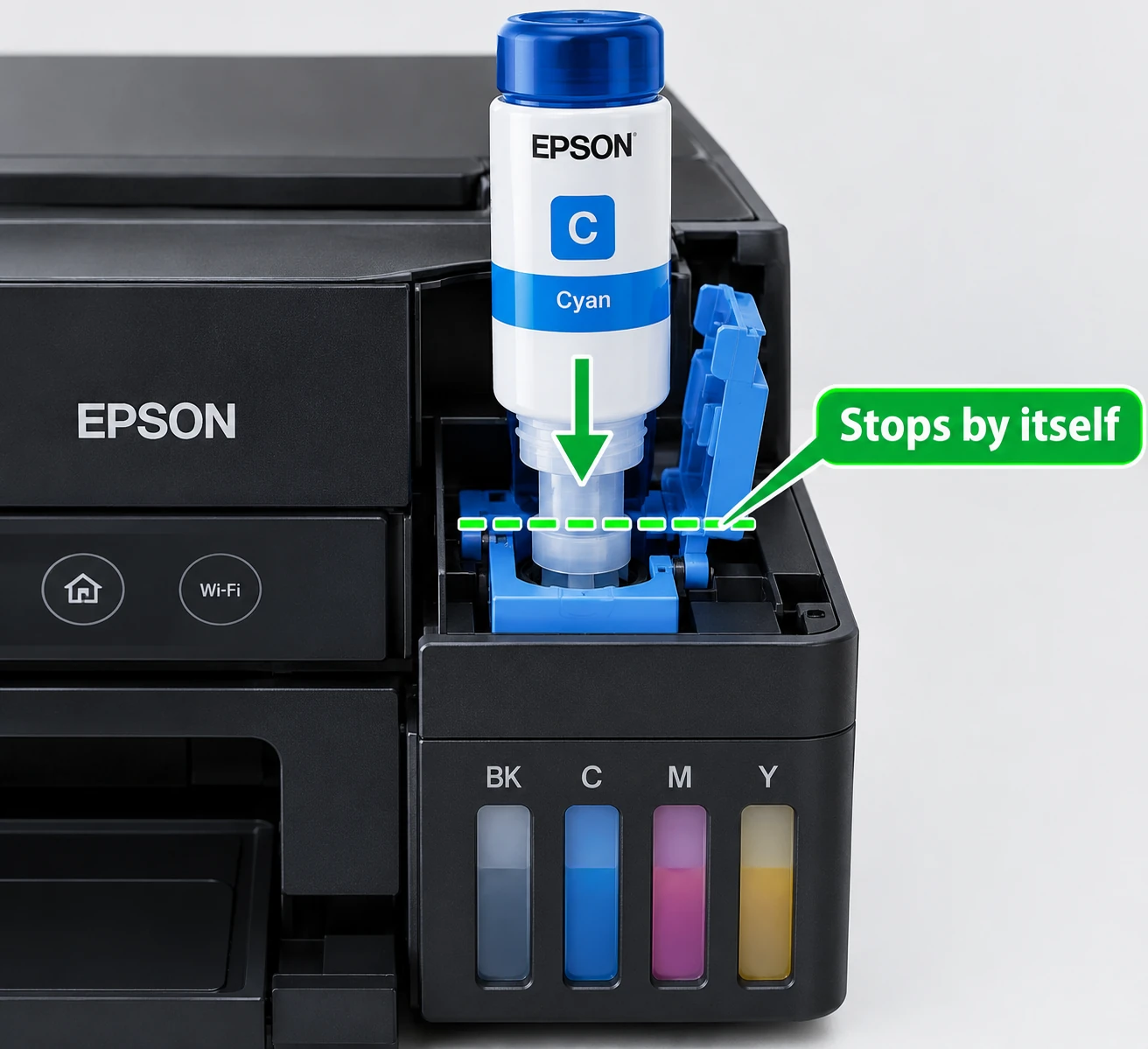
Open the ink tank cover and flip open the black (BK) tank’s cap. A colour-coded sticker on the tank unit shows which tank is which.
Unpack the black bottle and hold it upright. Twist the cap off slowly. Don’t shake or squeeze it, and avoid touching the top once the cap is off.
Push the bottle into the black filling port. Each bottle is keyed to fit only its own colour, so if it resists, check you’re at the right tank rather than forcing it.
Then let it fill on its own. Ink flows into the tank and stops automatically at the upper line. If it doesn’t start flowing, lift the bottle out and reinsert it. Don’t squeeze it, and don’t leave it resting in the port afterwards, because the bottle can be damaged or leak.
Remove the bottle, recap it, close the tank cap securely, and repeat for cyan, magenta and yellow. Keep any leftover ink upright; you’ll top the tanks off once setup is finished.
The bottles in the box are partly used to charge the printhead, so they print fewer pages than the replacement bottles you’ll buy later. That’s expected, not a fault.
Step 4: Turn on and charge the ink
Close the ink tank cover and press the power button. The power light flashes.
Pick your language. The ET-4950 also asks for your country, date and time. If an error code appears at this point, turn the printer off and look for packing material you missed.
When the printer offers Smart Panel setup, choose to continue on the printer. A message then refers you to the Start Here sheet; press and hold the help button for 5 seconds.
Now start the ink charge. On the ET-2980, press the start button. On the ET-3950 and ET-4950, follow the on-screen instructions. Epson puts charging at about 11 minutes, and it’s finished when the power light stops flashing.
While it charges, don’t unplug the printer, don’t turn it off, and don’t lift the scanner unit. Any of those wastes ink.
When charging finishes, press OK (ET-2980 and ET-3950) or select To adjustment (ET-4950) to continue.
Step 5: Load paper and adjust print quality
Wait until charging is done before loading paper.
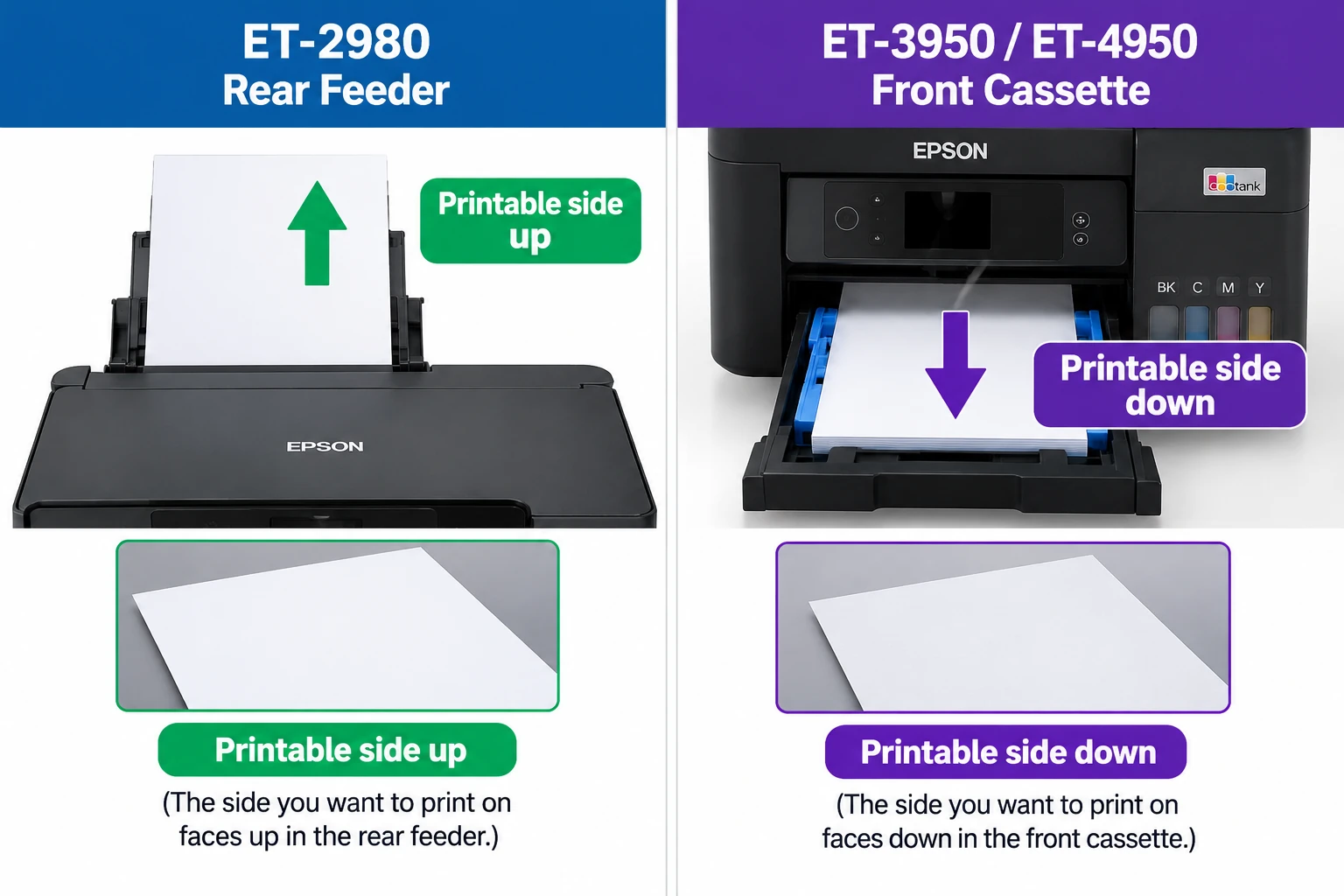
On the ET-2980, paper goes in the back. Open the rear cover, raise the paper support and tilt it back slightly. Slide the edge guides out, then load paper printable side up, short edge first, in the middle of the feeder. Bring the guides in until they touch the paper, and keep the stack below the line under the symbol on the edge guide.
On the ET-3950 and ET-4950, paper goes in the front cassette. Pull it out, slide the edge guides all the way out, and load paper printable side down against the front guide. Bring the side guides in, keep the cassette flat as you slide it all the way back, and close the front of the cassette.
Set the paper size and type on the control panel. The printer then offers a print quality adjustment; follow it now, or choose Adjust Later.
The ET-4950 also asks about fax at this stage. Connect a phone cord to the LINE port and select Proceed, or choose Set Up Later if you don’t use fax.
Step 6: Install the software
You’ll need an internet connection. Make sure the printer still isn’t connected to your computer; on Windows, cancel any Found New Hardware message and unplug the USB cable if you’d attached one.
Go to epson.com/support, search for your exact model, and download its software package. Run it and follow the prompts.
At the Select Your Connection screen, choose how the printer will talk to your computer. Wireless is right for most homes, and the installer usually configures it automatically. Direct USB needs your own cable, since Epson doesn’t put one in the box. The ET-3950 and ET-4950 also offer a wired network connection through their Ethernet port.
Printing from a Chromebook works differently; Epson has separate instructions at epson.com/support/chromebookprint.
After setup
Top off each tank with the ink left in the setup bottles. After that, glance at the tank levels every so often. Epson cautions that printing for a long time with any tank below its lowest line can damage the printer, so refill before it gets that low.
If the first prints show lines or odd colours, run a nozzle check from the printer’s maintenance menu and clean the printhead if the pattern has gaps.
If the screen goes dark, the printer is just asleep. Press the power button (ET-2980), any button (ET-3950), or touch the screen (ET-4950) to wake it.
Guides for your model
- ET-2980: the full setup guide, rear paper feeder and all [link to topic 8]
- ET-3950: Wi-Fi setup, paper jams, and offline fixes
- ET-4950: connecting from the touchscreen [link to topic 6], plus paper jams and reset
Summary
Setting up an Epson EcoTank takes six steps: remove all the packing, fill the four ink tanks, turn the printer on and let the ink charge for about 11 minutes, load paper, run the print quality adjustment, and install the software from epson.com/support. Don’t connect a USB cable until the installer asks. The ET-2980 loads paper at the back, printable side up; the ET-3950 and ET-4950 use a front cassette, printable side down.
Sources
- Epson Start Here: ET-3930/ET-3940/ET-3950/ET-4950 Series (PDF)
- Epson Start Here: ET-2980 Series (PDF)
- Epson ET-2980 support page
- Epson ET-3950 support page
- Epson Australia: ET-3950 specifications
Related articles
- Epson EcoTank ET-4850 Setup Guide: Wi-Fi, Ink Filling and Driver Installation
- How to Setup Epson Printer?
- How to Use the Epson Smart Panel App: Setup, Scan & Print from Phone
- How to Clean an Epson Printer Head (Without Making the Clog Worse)
- Epson EcoTank ET-2850 / ET-2870 Wi-Fi Setup
- How to Connect a Printer to a Laptop or Computer
Frequently Asked Questions
How long does EcoTank ink charging take?
About 11 minutes on the ET-2980, ET-3950 and ET-4950, according to Epson’s setup sheets. It’s finished when the power light stops flashing.
Why did the first bottles run out sooner than expected?
Part of the ink in the box is used to charge the printhead during setup. Replacement bottles usually print more pages than the first.
Should I shake the ink bottles?
No. Epson’s instructions say not to shake or squeeze them, and to hold them upright while opening.
I put a bottle in and nothing happened. What now?
Lift it out and push it back in. If it won’t seat at all, it’s the wrong colour for that tank; each bottle is keyed to its own port.
Can I connect with Epson Ecotank USB instead of Wi-Fi?
Yes, choose Direct USB connection in the installer. You’ll need your own USB cable, because Epson doesn’t include one.
When should I plug in the USB cable?
Only when the installer tells you to. Epson’s setup sheets say to keep it unplugged until then, and to cancel any Found New Hardware message Windows shows.