How to Connect the Epson EcoTank ET-4950 to Wi-Fi
To connect an Epson EcoTank ET-4950 to Wi-Fi, press Home, tap the network icon at the top of the touchscreen, then tap Wi-Fi option. Follow the Start Setup and select Wi-Fi Setup Wizard. Tap your network, tap the Enter Password field, type the password, and tap OK, then Start Setup. Signal bars on the Home screen confirm the connection.
Two other ET-4950 features are worth knowing about. It can run Wi-Fi Direct at the same time as your normal Wi-Fi, which lets visitors print without your network password. And its fax uses the phone line, so it keeps working when Wi-Fi doesn’t.
One step before you start
Epson’s manual for the ET-4950 recommends keeping a printed copy of your fax and network settings, because a breakdown or repair can wipe them. If the printer has been on a network before, print a status sheet now: Settings → General Settings → Network Settings → Network Status → Print Status Sheet. File it somewhere you’ll find it.
Initial setup and the first ink fill need to be finished before wireless setup. If your printer is brand new, see our EcoTank setup guide first.
Check your router’s network names
The ET-4950 supports both the 2.4 GHz and 5 GHz bands (Wi-Fi 5). Problems tend to come from routers that broadcast both bands under one name, which most mesh systems do. Epson’s recommendation is to give each band its own name, such as “Home 2.4 GHz” and “Home 5 GHz”, then connect the printer to one of them.
The printer accepts WPA2 Personal and WPA3-SAE security, as well as older WEP, so a modern home router’s default settings should be fine.
Method 1: the touchscreen Wi-Fi Setup Wizard
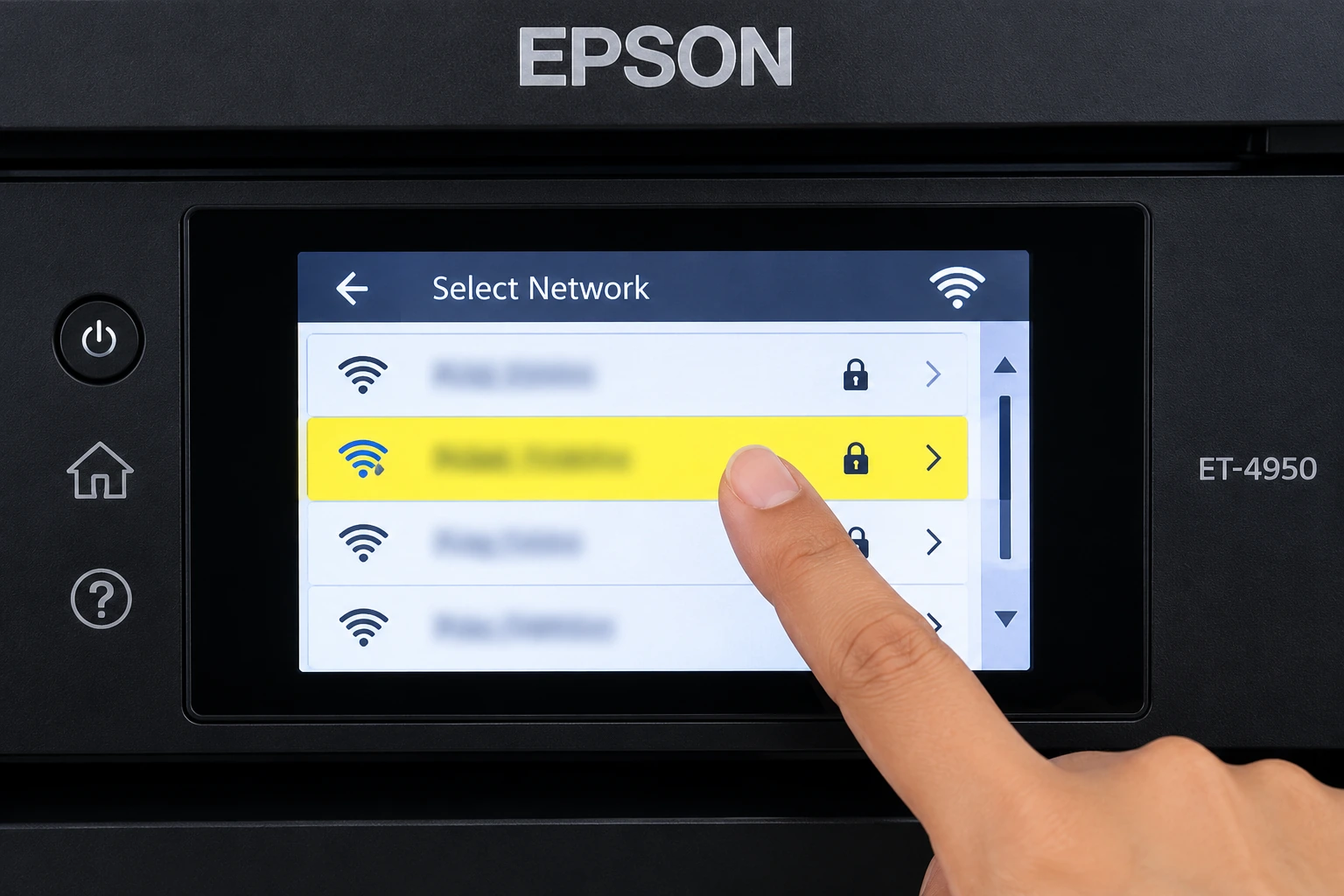
Press the Home button if you’re not already on the Home screen, then tap the network icon at the top.
Tap Wi-Fi (Recommended). You’ll see Start Setup on a printer that has never been on a network, or Change Settings on one that has. Tap whichever appears, then tap Wi-Fi Setup Wizard.
Tap your network in the list. If it isn’t there, tap Enter Manually and type the network name on the on-screen keyboard.
Now tap the Enter Password field. Network names and passwords are case-sensitive, and the keyboard has a separate key for switching case and another for numbers and symbols. Type slowly here; a single wrong character is enough to fail. Tap OK when you’re done.
Check the summary and tap Start Setup. If it works, tap Close, then press Home. Signal bars at the top of the screen show the connection and its strength. If it fails, the printer offers Print Check Report (the codes are explained below) or Re-enter to try the details again.
Method 2: WPS push button
If your router has a WPS button, you can skip the password.
Tap the network icon, then Wi-Fi (Recommended) → Start Setup or Change Settings → Push Button Setup (WPS). Follow the on-screen instructions: press the WPS button on your router, then tap Start Setup on the printer. Epson’s limit is two minutes between the two.
WPS doesn’t let you choose which network or band the printer joins. If your router offers several, Method 1 gives you control.
Method 3: from your phone with Epson Smart Panel
Connect your phone to the Wi-Fi you want the printer on, turn on Bluetooth, and open Epson Smart Panel close to the printer. If the app finds the ET-4950, follow its prompts. If not, tap + and choose the option to set up a new product.
Wi-Fi Direct Step at the same time as Wi-Fi
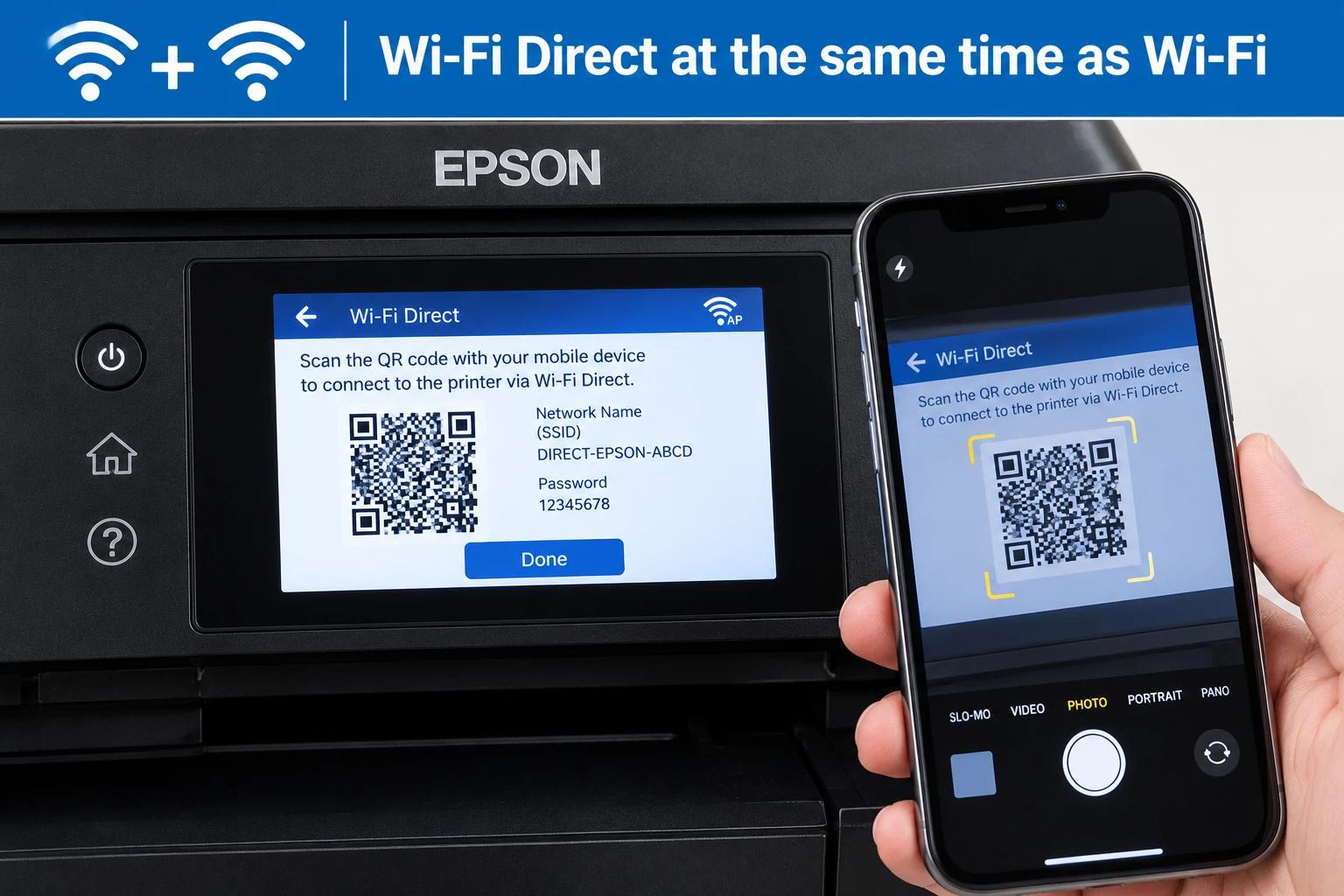
Epson’s specifications for the ET-4950 note that infrastructure mode (your normal Wi-Fi) and Wi-Fi Direct can be used simultaneously. In practice, the printer stays on your network for everyone in the house or office, while a visitor’s phone connects straight to it.
To turn it on, tap the network icon, then Wi-Fi Direct, scroll down, and tap Start Setup. A phone with Epson Smart Panel can connect using the details on the screen. Without the app, tap Other Methods:
- iPhone or iPad: choose iOS and scan the QR code with the Camera app.
- Android: choose Android and follow the prompts.
- Laptops and other devices: choose Other OS Devices, then join the DIRECT- network shown and enter the password displayed.
Tap Complete when you’re done. Up to eight devices can connect this way. Epson notes Wi-Fi Direct doesn’t support the older 802.11b standard, which won’t matter for any recent phone.
Ethernet and fax
The ET-4950 has a LAN port on the back for a wired connection. It can’t use Ethernet and Wi-Fi at the same time, so if you plug in a network cable, Wi-Fi setup will fail until you unplug it (the connection report shows this as E-1).
Fax is separate from all of this. It uses the phone line through the LINE port, so a Wi-Fi outage doesn’t stop faxes going out or coming in.
Setup failed? Read the connection report
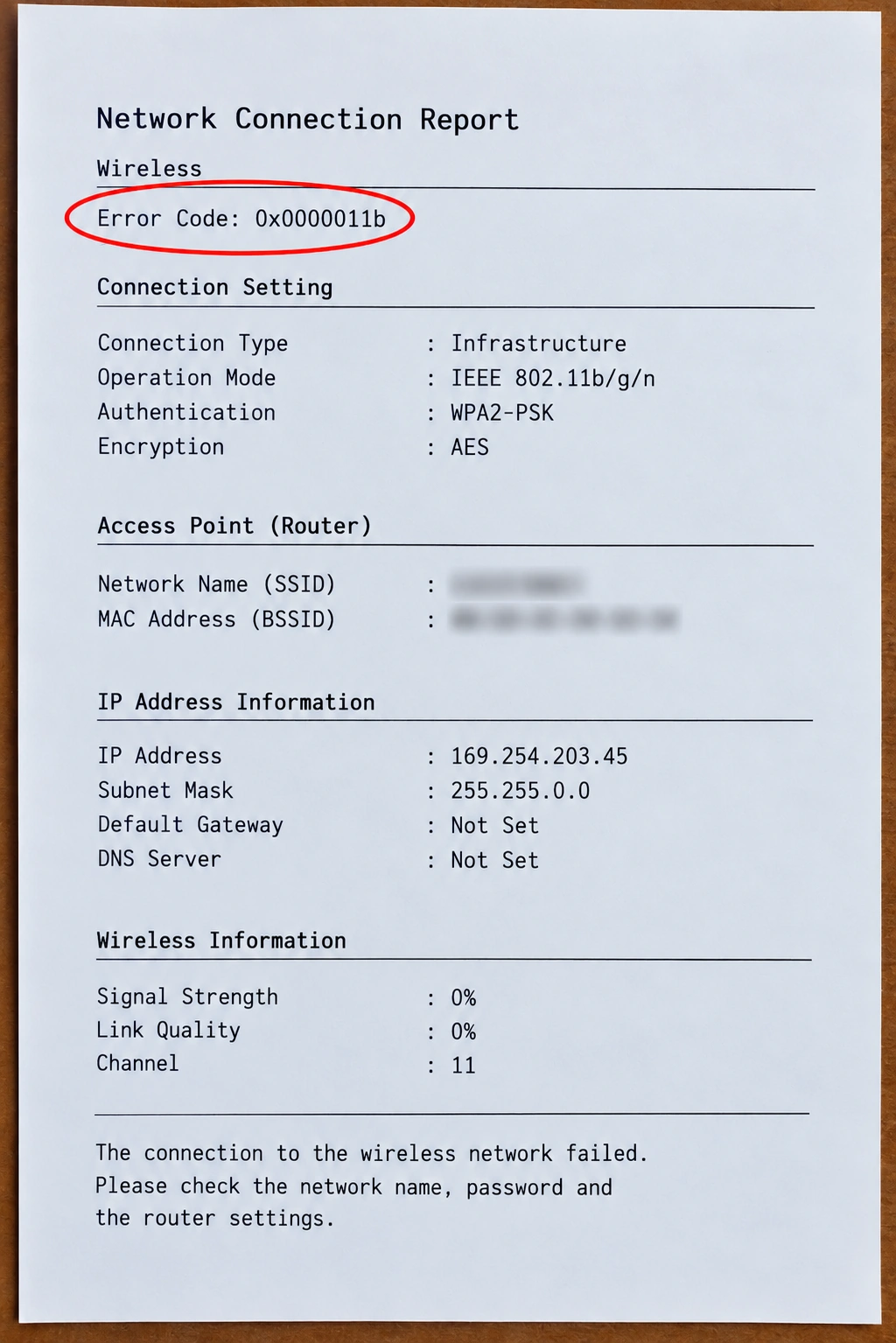
Follow the print it from Settings , then click on General Settings. Select Network Settings then select Connection Check , you will get option to Print Check Report. The error code at the top points to the cause.
If nothing obvious shows up, Epson’s order for a clean restart is: turn off the router, computer and printer, wait about 10 seconds, then turn on the router first, then the computer or phone, then the printer.
The printer’s browser-based settings page, Web Config, is also handy for offices. Type the IP address from the status sheet into a browser on the same network. The first visit asks you to set an administrator password, and Epson sets the default to the printer’s serial number.
Printing from your computer
Being on Wi-Fi doesn’t make the printer appear on your computer automatically. Download the ET-4950 software from Epson’s support site and choose the wireless connection when asked. If the printer was on USB before, Epson’s steps are to unplug the cable, uninstall the software, and reinstall it for Wi-Fi. After a router change on Windows, do the same uninstall and reinstall.
Sources
- Epson ET-4950 User’s Guide: Selecting Wireless Network Settings from the Control Panel
- Epson ET-4950 User’s Guide: Enabling Wi-Fi Direct
- Epson ET-4950 User’s Guide: Network Interface Specifications
- Epson ET-4950 User’s Guide: Product Cannot Connect to a Wireless Router
- Epson ET-4950 User’s Guide (PDF): for WPS, connection report codes, Web Config, Ethernet, LINE port
Related articles
- How to Connect Epson Printer to WiFi? [Step-by-Step]
- Epson Printer Not Connecting to Wi-Fi: Fix Wireless Connection
- How to Connect Epson Printer to Laptop Wireless?
- How to Use Epson Smart Panel App?
- How to Connect an Epson Printer to Wi-Fi?
- Why Your Printer Won’t Connect to Wi-Fi and How to Fix It
- How to Connect Your Phone to a Printer (iPhone & Android)
Frequently Asked Questions
Does the ET-4950 support 5 GHz Wi-Fi?
Yes. It supports 2.4 GHz and 5 GHz (Wi-Fi 5). If it struggles, split your router’s bands into two network names.
Can the ET-4950 use Wi-Fi Direct and my normal Wi-Fi at once?
Yes. Epson’s specifications list them as usable simultaneously, with up to eight devices on Wi-Fi Direct.
Will fax stop working if Wi-Fi goes down?
No. Fax runs over the phone line connected to the LINE port.
Where’s the printer’s MAC address?
On the network status sheet and the connection report, both printed from Settings → General Settings → Network Settings.
How do I reset only the network settings?
Settings → Restore Default Settings → Network Settings. That leaves your copy, scan and fax settings alone. Our ET-4950 reset guide covers every reset option.