Epson ET-3950 Printer Offline? 3 Methods for Windows & Mac
If your Epson ET-3950 printer does not work, work through these steps in order and stop as soon as.Restart the printer, cancel any stuck jobs, untick Use Printer Offline in the Windows like visible in image attached below in the blog. Print queue (or remove and re-add the printer on a Mac), then restart your router. If the printer’s own Wi-Fi icon shows no connection, reset its network settings and reinstall the Epson software.
That’s the same sequence Epson publishes for this model, quickest fixes first. The early steps take seconds, so it’s worth trying them before anything bigger.
First, let us find out where the problem is
Before changing anything on your computer, check whether the printer itself can print. Load a few sheets of plain paper, press Home, and go to Maintenance then Print Head Nozzle Check after that Press OK.
If the pattern prints, the Epson ET-3950 Printer is working. The problem sits between your computer and the printer, which is what the fixes below deal with.
If nothing prints, look at the printer’s screen for an error, such as a paper jam or an ink warning, and clear it. An error on the printer can show up on the computer as Offline. Once the nozzle check prints, carry on.
Fixes for Epson ET-3950 Printer Offline Issues
1. Restart the printer
Turn the ET-3950 off, wait a few seconds, and turn it back on. Then try printing again.
Pay attention if this works but the problem keeps returning after the printer has been asleep. Epson’s guidance for this model is clear: if a power cycle gets it printing again, the cause is the wireless router, not the printer. Your router’s manufacturer, or a different router, is the long-term fix.
2. Cancel stuck print jobs
One job that never finished can block everything queued behind it. Open the print queue for the ET-3950 on your computer and cancel every document listed, then send a fresh test print.
3. for Windows: untick Use Printer Offline
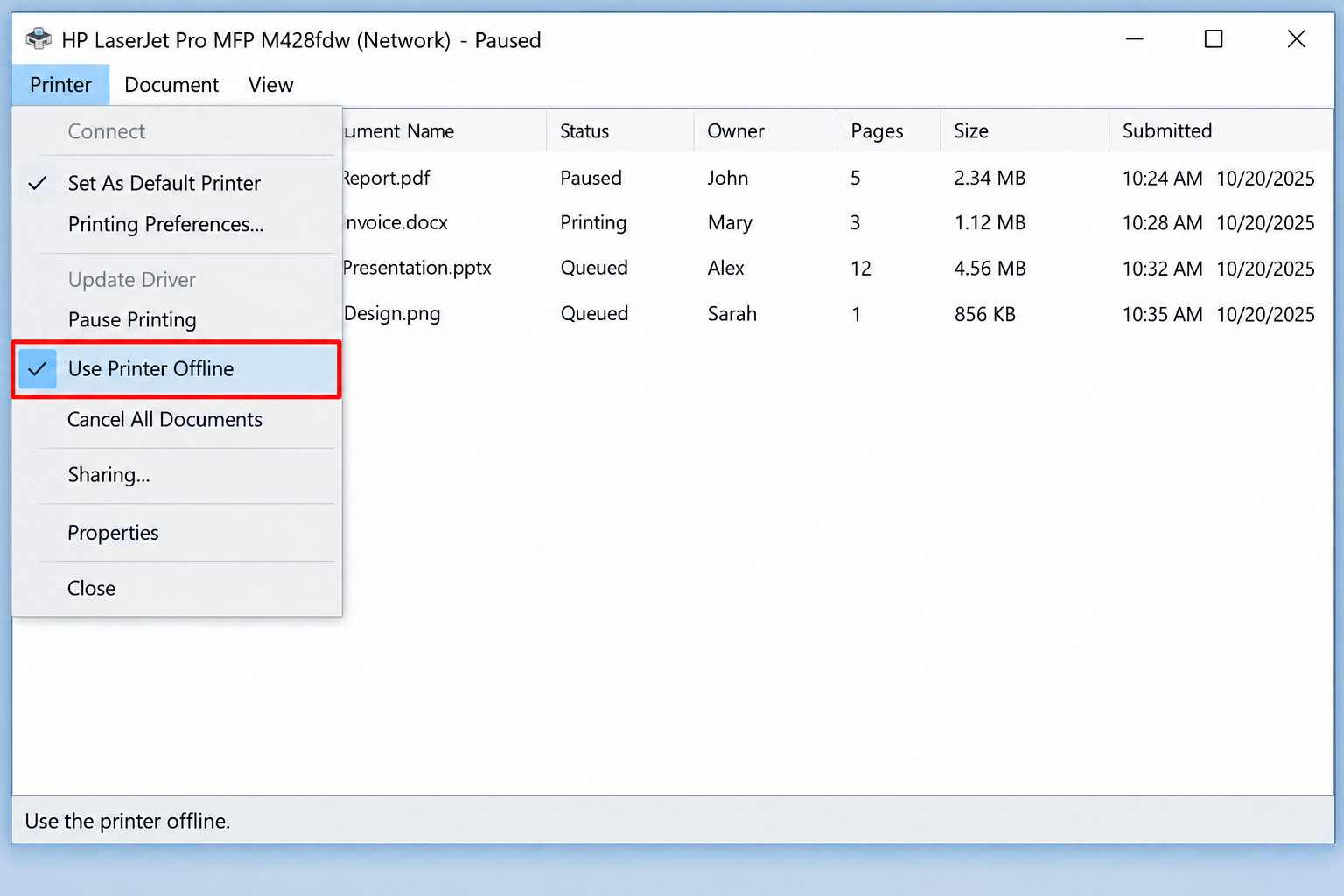
This is the setting most people never find. In the ET-3950’s print queue window, open the Printer menu at the top. If Use Printer Offline is ticked, click it to remove the tick.
Windows can switch this on by itself when it briefly loses the printer, and it doesn’t switch it back off when the printer returns. While it’s ticked, Windows holds every job and shows the printer as Offline, even when the printer is perfectly reachable.
3. For Mac: remove the printer and add it back
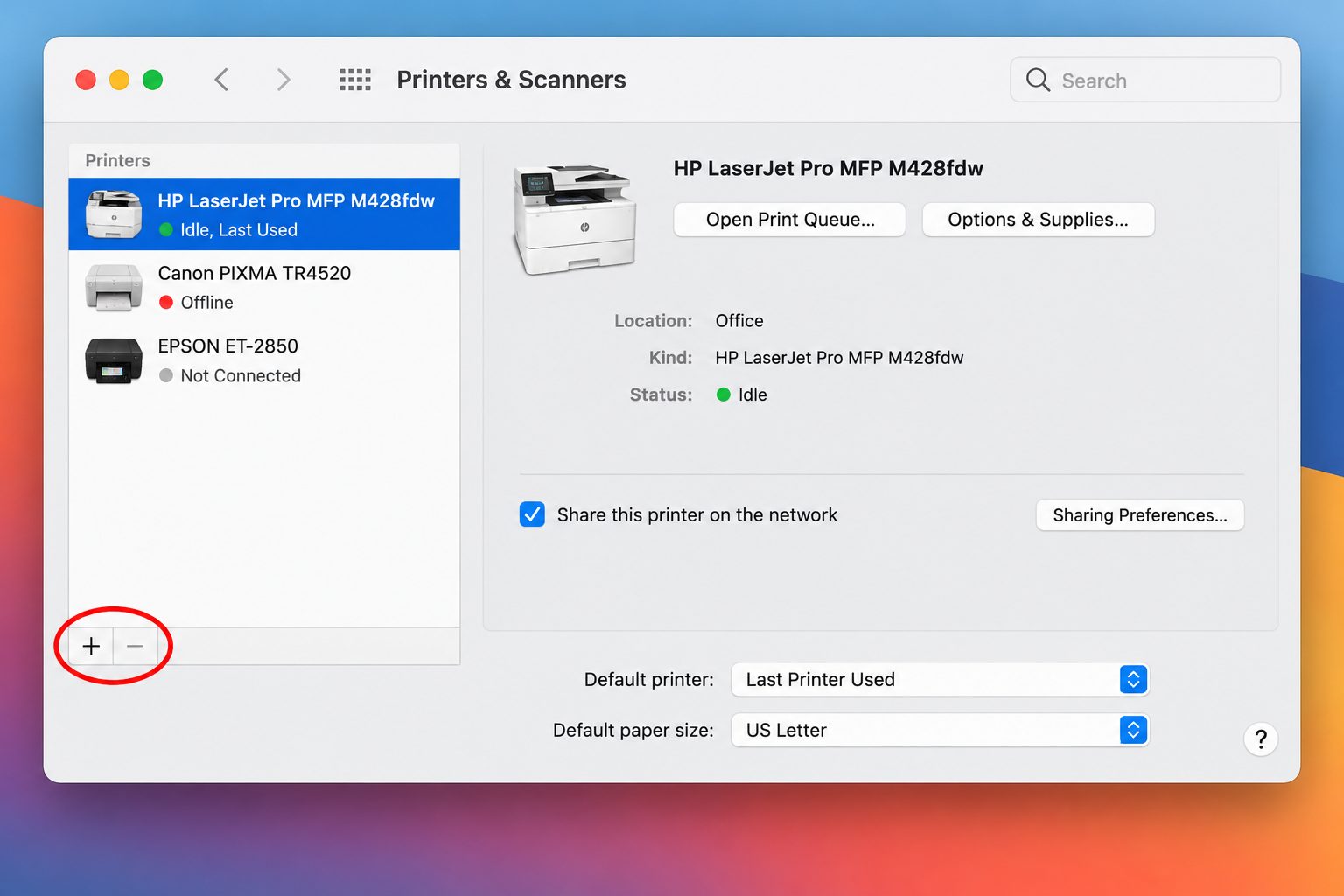
On a Mac, Epson’s equivalent step is a clean re-add. Open System Settings (System Preferences on older macOS) → Printers & Scanners. Select the ET-3950 and click the minus (–) button to remove it.
Then click the plus (+) button, choose the ET-3950 listed with Kind set to Bonjour, select it in the Use menu, and click Add. Print a test page.
4. Check the printer’s Wi-Fi icon, then restart the router
Look at the top of the ET-3950’s screen.
If the Wi-Fi icon shows signal bars, the printer is still on your network. Unplug the router’s power cord, wait a moment, and plug it back in. Once it’s back up, restart your computer and try again. Other devices in the house may need to reconnect afterwards.
If the icon shows an error or no connection, the printer has dropped off the network entirely. A router restart won’t bring it back; go to the reset and reinstall below.
Last resort: reset network settings and reinstall
When the printer has lost the network, or nothing above helped, Epson’s final step is a clean start on both sides. It takes longer, but it clears out whatever stale connection details the computer was holding on to.
Start on the printer. Press Home and go to Settings → Restore Default Settings → Network Settings, then select Yes. This resets only the network settings. Your copy and scan settings stay as they are. Then turn the printer off and disconnect any cables from it.
On the computer, Epson’s instructions say to switch off the firewall temporarily, because it can block the installer from finding the printer. On Windows 11 that’s Settings → Network & Internet → Advanced network settings → Windows Firewall. On a Mac it’s under System Settings → Network (or Security on older versions) → Firewall. If you use a separate security suite, its firewall needs the same treatment.
On a Mac, also remove the ET-3950 from Printers & Scanners. On Windows, uninstall the Epson printer software.
Restart your router by unplugging it for a moment.
Now download the Drivers and Utilities Combo Package from the Downloads tab on Epson’s ET-3950 support page. Run it and follow the prompts, choosing the wireless connection when it asks.
Once setup finishes, turn your firewall back on. Leaving it off after the install leaves the computer less protected for no benefit.
Stop it going offline again
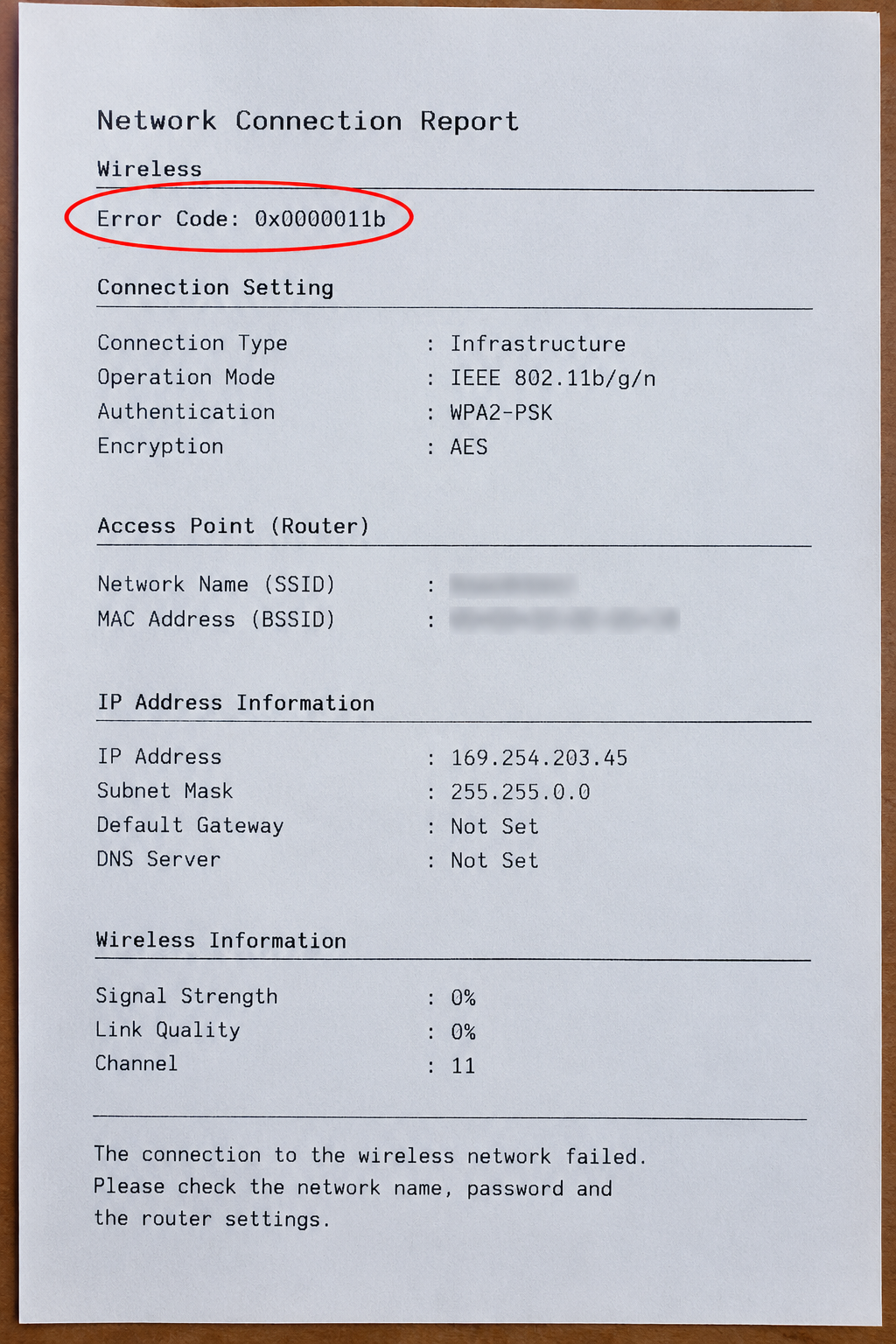
If the ET-3950 keeps dropping to Offline after router restarts, a changing IP address is a likely cause. Your computer remembers the printer at one address, the router hands it a new one, and the computer can’t find it.
Print a network status sheet to see the printer’s current IP address: Settings → General Settings → Network Settings → Network Status → Print Status Sheet. Then, in your router’s settings, reserve that address for the printer. Most routers call this DHCP reservation or a static lease. The printer then gets the same address every time.
This tip is standard router practice rather than part of Epson’s offline FAQ, but it targets the exact pattern Epson describes: a printer that works after a restart and drops again later.
Summary
When the Epson ET-3950 shows Offline, first print a nozzle check to make sure the printer itself works. Then restart the printer and cancel any stuck print jobs. On Windows, untick Use Printer Offline; on a Mac, remove the printer and add it back. Next, restart your router. If the printer has lost Wi-Fi, reset its network settings and reinstall the Epson software. Reserving the printer’s IP address in your router helps stop it going offline again.
Sources
- Epson FAQ: ET-3950 shows Printer is Offline with a wireless connection in Windows
- Epson FAQ: ET-3950 shows Printer is Offline with a wireless connection on a Mac
- Epson FAQ: product will not wake up when printing wirelessly
- Epson ET-3950 User’s Guide: Resetting Control Panel Defaults
- Epson ET-3950 User’s Guide: Checking the Nozzles from the Control Panel
- Epson ET-3930/ET-3940/ET-3950 Series User’s Guide (PDF): check network status sheet path
Related articles for printe offline error
- How to Fix Epson Printer Offline Issue on Windows & Mac?
- Why Does My Epson Printer Say Offline and How to Fix It?
- Resolve Epson ET-3850 Offline Problem
- Printer Says Offline But Is Online: Fix
- Printer Offline in Windows 11: How to Fix It
- Why Is My Printer Offline When It’s Connected?
- Why Your Computer Suddenly Can’t Find Your Printer ?
Frequently Asked Questions
Why does my ET-3950 say Offline when it’s switched on?
Usually the computer has lost track of it, not the other way round. A stuck job, the Use Printer Offline setting in Windows, or a changed IP address are the usual suspects. The nozzle check tells you quickly whether the printer itself is fine.
Will resetting the network settings erase my other settings?
No. Go to Settings and Restore Default Settings after than go to Network Settings and click reset only the network. The separate Clear All Data and Settings option is the one that wipes everything, and you don’t need it here.
It only goes offline after sleeping. Is the printer faulty?
Epson’s manual says that if turning the printer off and on fixes it, the router is the cause. Check for a router firmware update, or try the DHCP reservation tip above.
Do I need to reinstall the software every time?
Not if you follow my instructions. The reinstall is the last step for when the printer has lost the network or nothing else works. Try the quicker steps first.
Is it safe to turn off my firewall?
It is only for the few minutes of the installation process, as Epson’s steps describe. Turn it back on as soon as setup completes.