How to Fix Brother MFC-L8900CDW Printer Not Printing Issue?
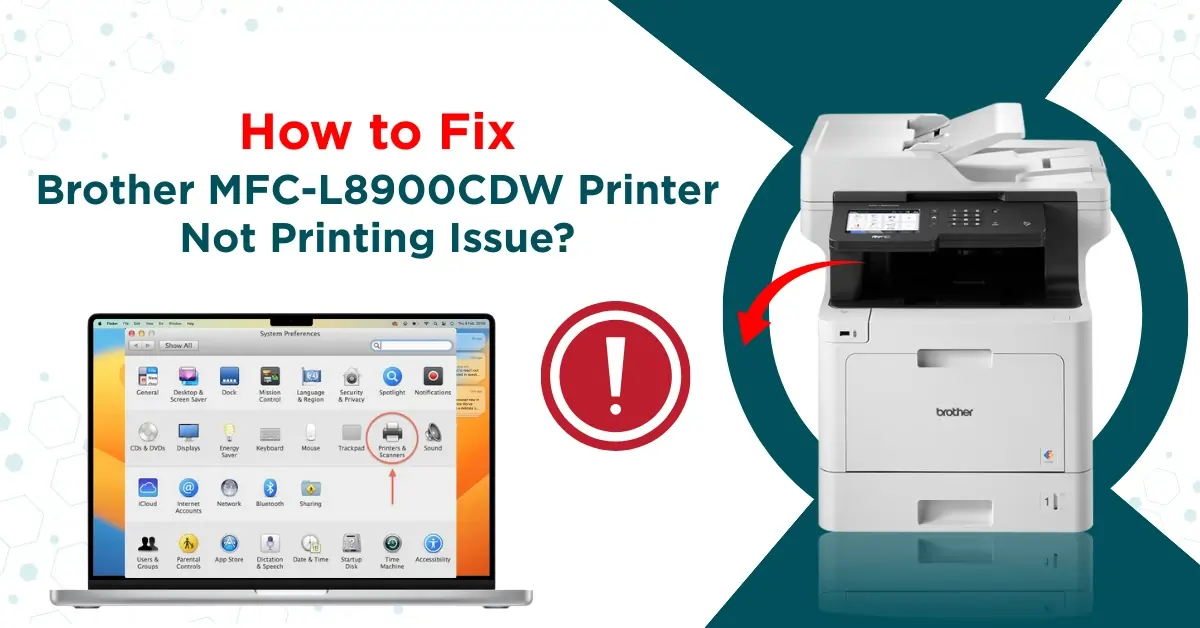
Is your Brother MFC-L8900CDW printer showing the “not printing” issue? It is a common error and can happen out of the blue, regardless of the printer. It is necessary to fix the issue as soon as possible to save the printer from further damage. You should look for the paper jam, printing settings, network connection, and ink cartridge to confirm everything is alright and take action if there is any issue.
Plus,, if the issue is not going easily and you have no clue how to fix your Brother printer not printing issue, then attain detailed info about the 7 proven solutions.
Solution 1: Check Physical Connection
Ensure the physical connection of your printer is done correctly to get your device to print properly again.
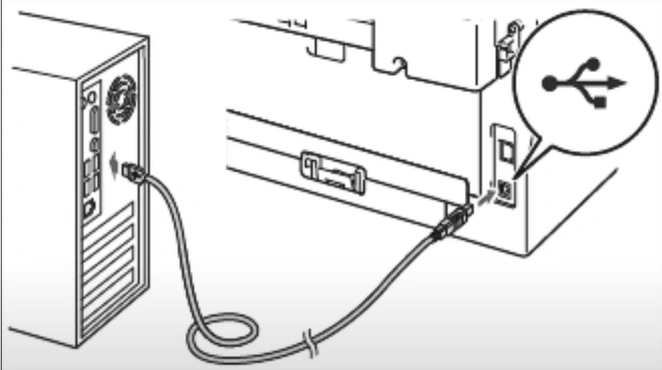
- Check that the USB cable is connected properly on both ends.
2. Inspect that the network on your printer and computer are the same.
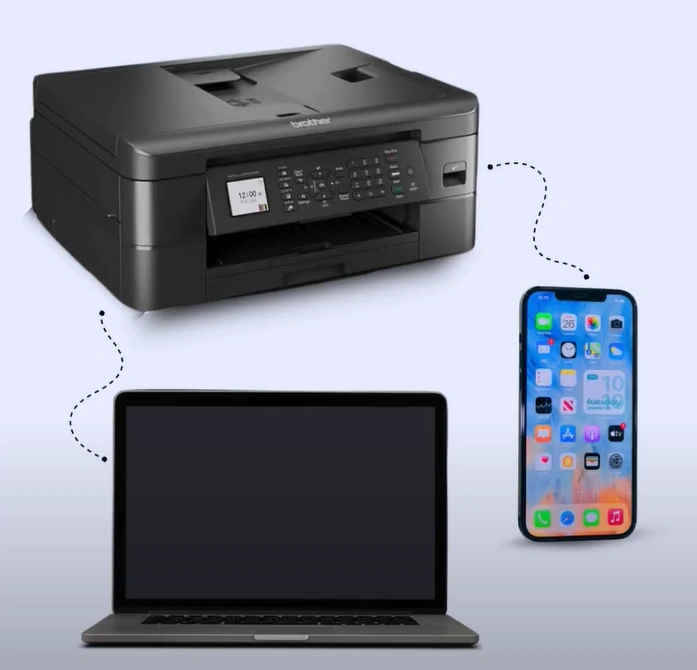
3. If you print via Bluetooth, ensure the printer is connected to your computer or mobile device.
Solution 2: Cancel All Print Jobs
Follow the below steps to cancel all the print jobs if they are stuck in a queue.
1. Open the Bluetooth and Other Devices page in your Settings.
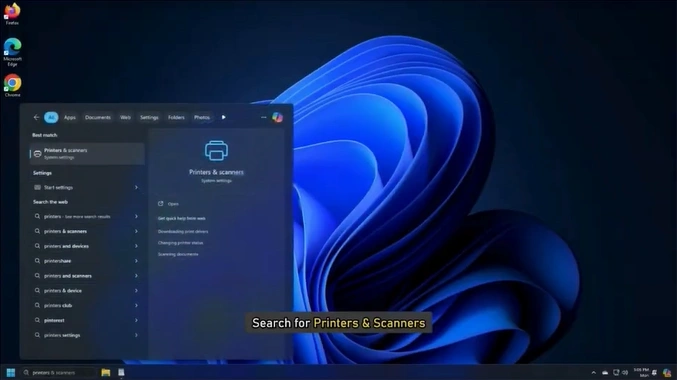
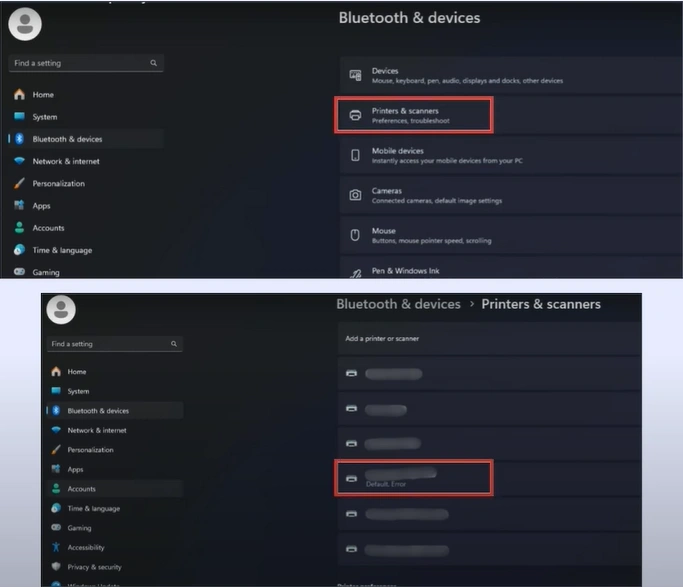
2. Then click on Printers & Scanners and click on your printer.
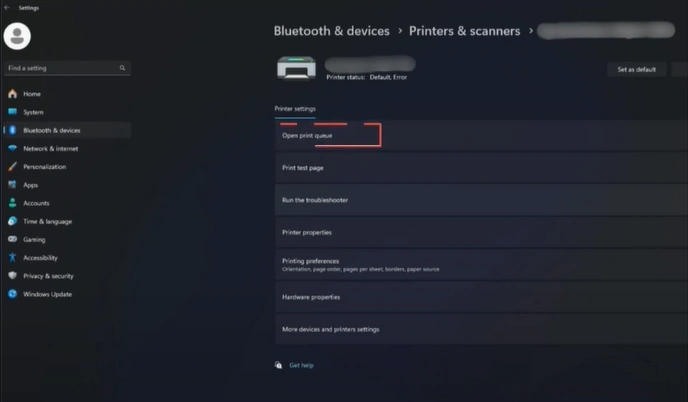
3. Click on Open Print Queue.
4. Select the three dots, then select the Cancel All option and click Yes.
_1746008544.webp)
5. Now, restart your device.
_1746008625.webp)
Solution 3: Check the Default Printer
If you have not selected your Brother printer as your default printing machine, then these are the steps to follow to select it as your default machine.
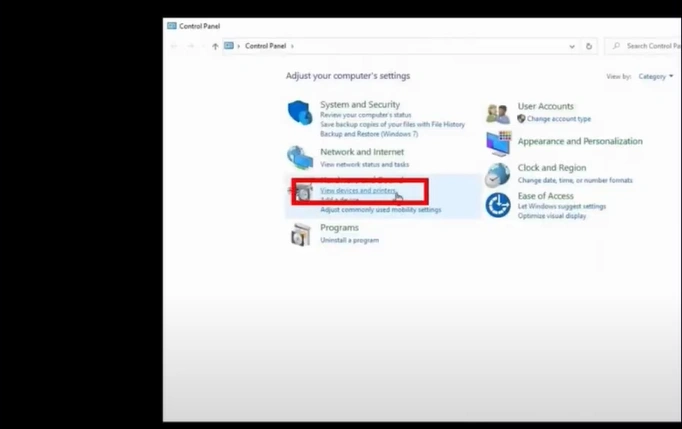
1. First and foremost, open the Control Panel.
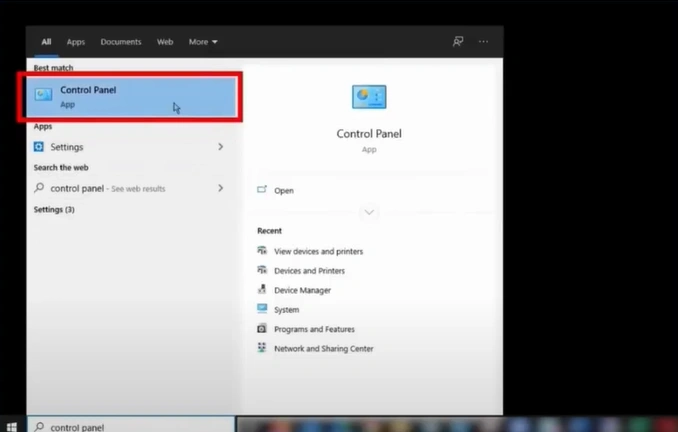
2. Click on the View Devices and Printers option.
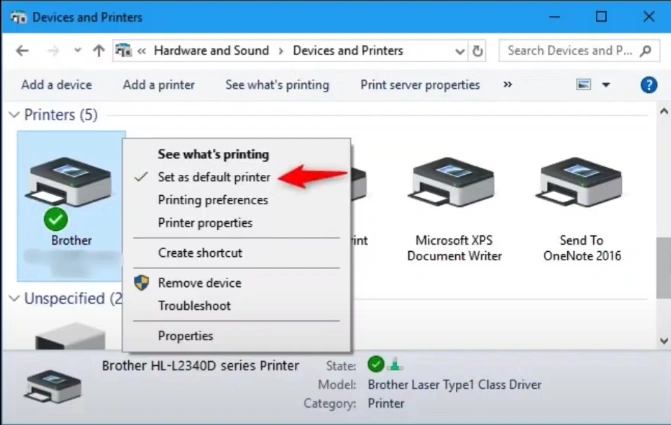
3. Right-click on your Brother printer and select Set printer as default option.
4. Now, see if the printer issue is gone; otherwise, move to the next step.
Solution 4: Check the Printer Status
With the help of the steps below, check your printer status to get rid of the issue.
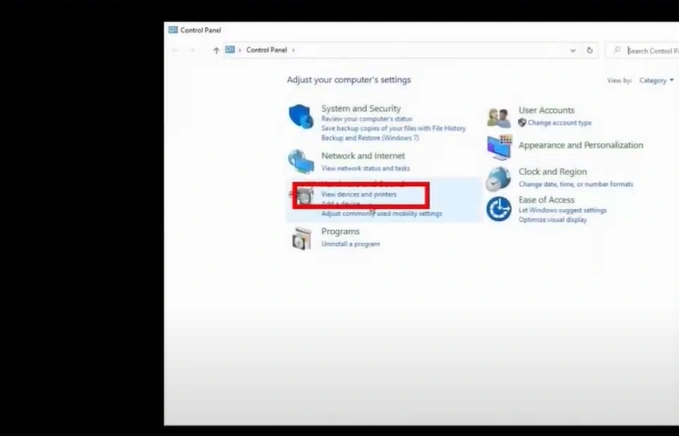
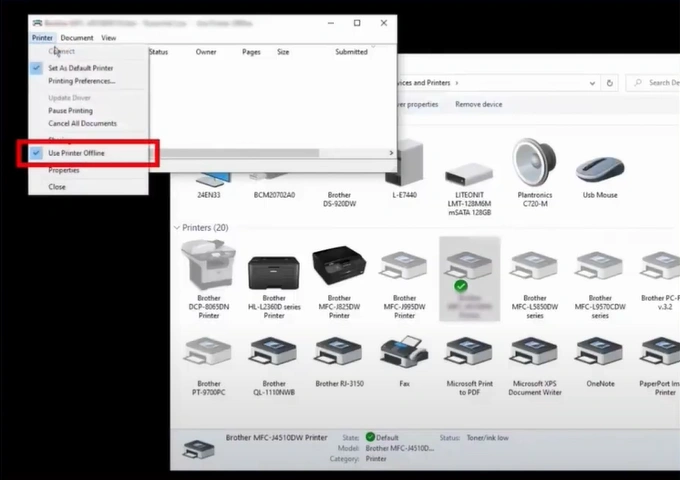
1. Go to the Control Panel window and choose View devices and printers
2. Right-click on your printer.
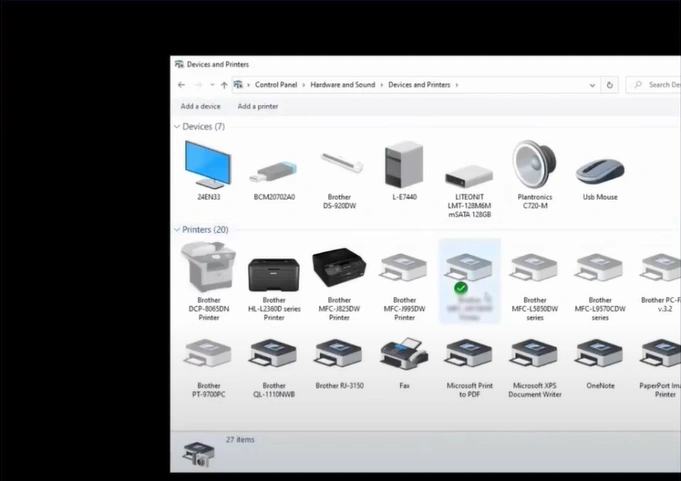
3. Click on See what’s printing.

4. Click on Printer, then uncheck the “Use Printer Offline” option.
Solution 5: Reinstall the Driver Package
Sometimes, the problem with your printer driver can also lead to problems with the driver package. Here are the steps you can follow to reinstall the driver package and see if it fixes the issue.
1. Open the Brother utility on your computer.
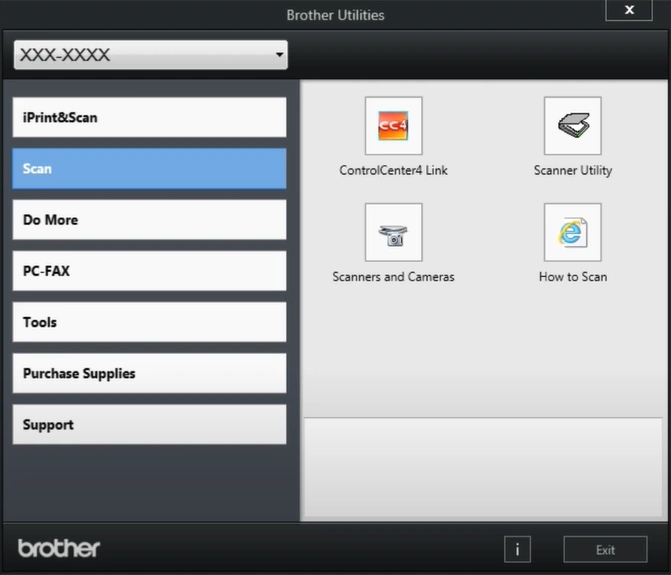
2. Select your model name from the drop-down, open Tool in the left panel, and click on Uninstall.
_1746009739.webp)
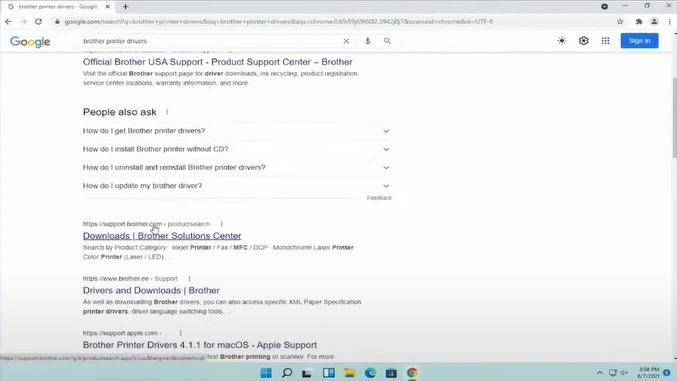
3. Go to the Brother driver website to find your printer model.
4. Select your operating system, and then you should press the OK button.
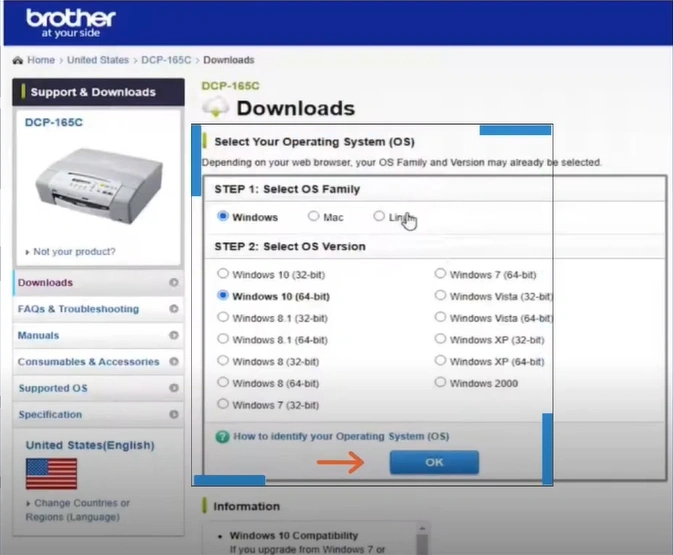
5. Click on Full Driver and Software Package, then click on Agree to the EULA and Download.
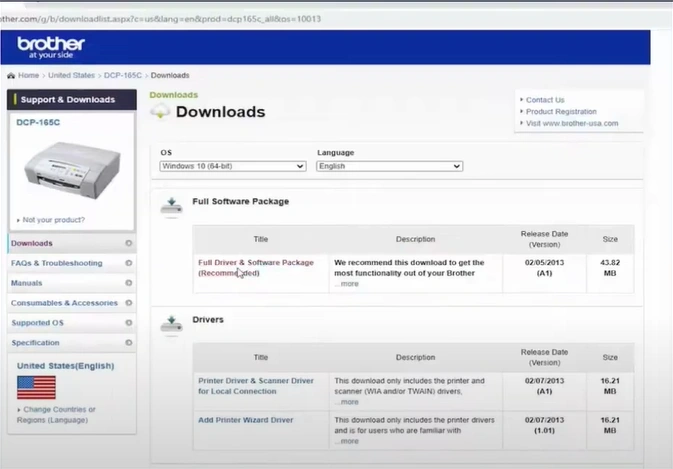
6. Once the package is downloaded, double-click on it to install.
_1746009958.webp)
Solution 6: Check Firewall Settings
With the help of the steps below, check the firewall settings in your printer and see if it resolves the issue.
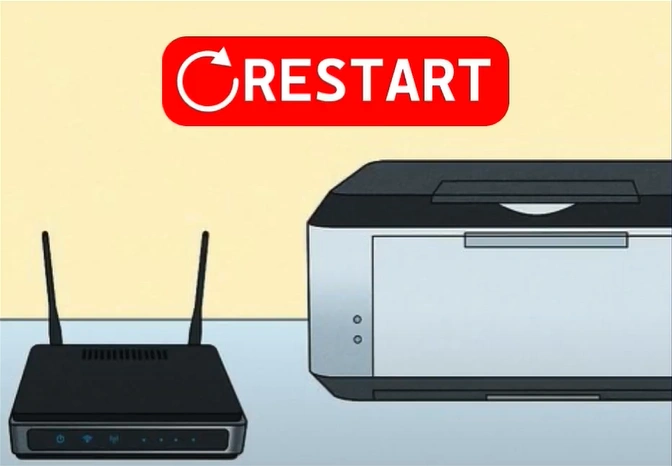
1. Restart your router and Brother printer.
2. Click on the Start menu/icon and open Settings.
_1746010240.webp)
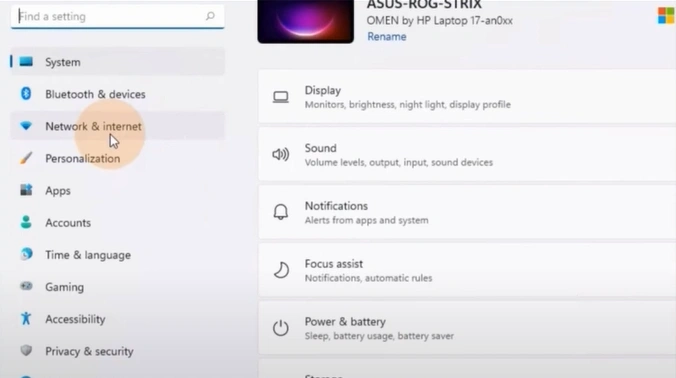
3. Open the Network & Internet Settings option.
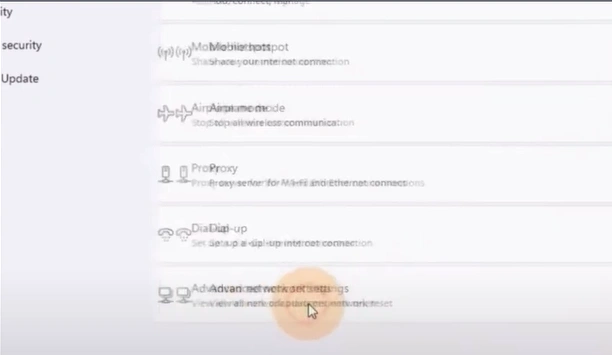
4. Go to Advanced Network Settings.
5. Under related settings, click on the Windows firewall.
_1746010490.webp)
6. Check for any Firewall software settings that might block the printer from establishing a network connection.
_1746010588.webp)
Solution 7: Restart the Print Spooler
The procedure below will help you restart the print spooler service and fix the issue.
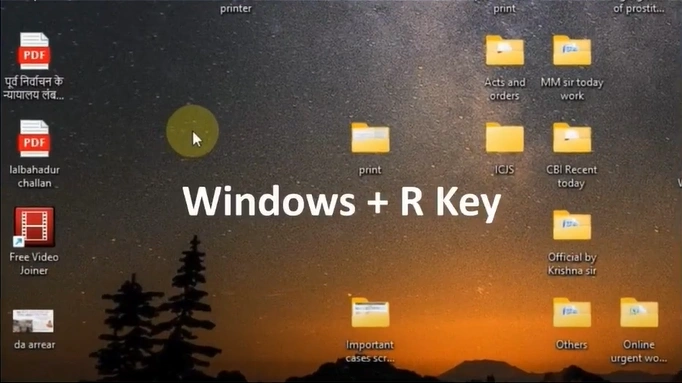
1. Press the Windows and R keys together to open the Run box.
2. Enter “services.msc” and click on OK.
3. Scroll down, right-click on the Print Spooler, and select Restart.
_1746010795.webp)
Final Words
We have shared the best possible solutions with you to fix the Brother MFC-L8900CDW not printing issue. Follow all these methods one by one to see if they are able to get your printer printing perfectly again. Also, you can learn about the key reason behind the issue to quickly fix the problem. Apart from that, it would be wise to reach out for more help if the problem still shows on your Brother printer.

