How to Add Printer to MacBook?
Suppose you have a couple of documents to print using your printer, but you find that it is not connected. In this case, you are left with two choices: leave your work and let it pile up until someone completes the printer connection, or you can set it up yourself and complete your tasks. However, the latter seems ideal if you want to finish your work on time.
Moreover, if adding the printer to a MacBook seems challenging, I will help you with the connection regardless of your printer brand. Below, I will help you learn two simple methods: using the default method and by IP address. So, let’s jump right into the process now!
Method 1: Add by Default
This is the primary procedure you can use if you want to add any printer to your Mac device wirelessly. Follow all the steps properly to establish a seamless connection.
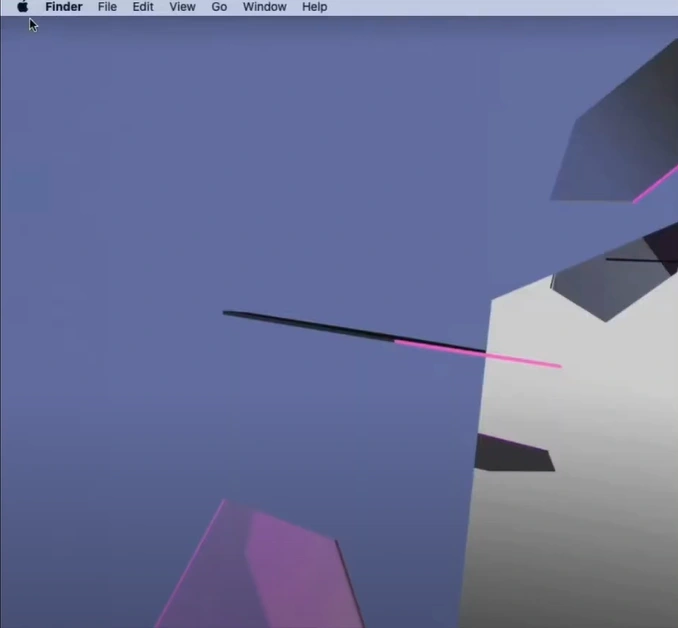
1. On your Mac device, click on the Apple icon and open System Preferences.
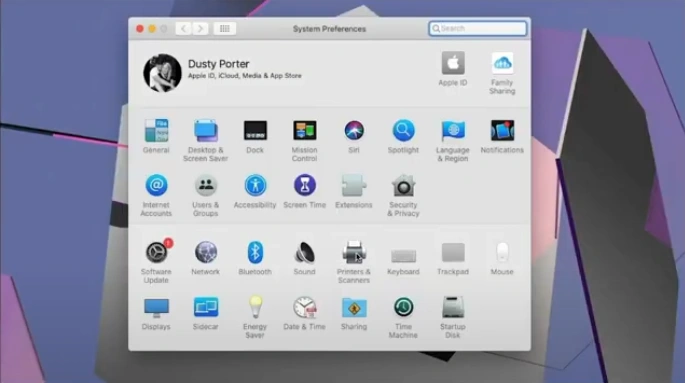
2. Then, click on Printers & Scanners.
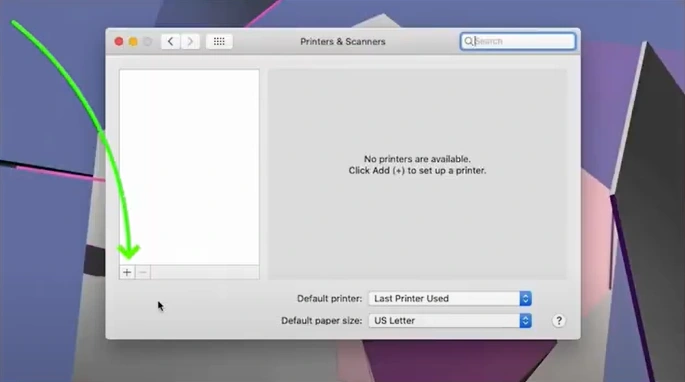
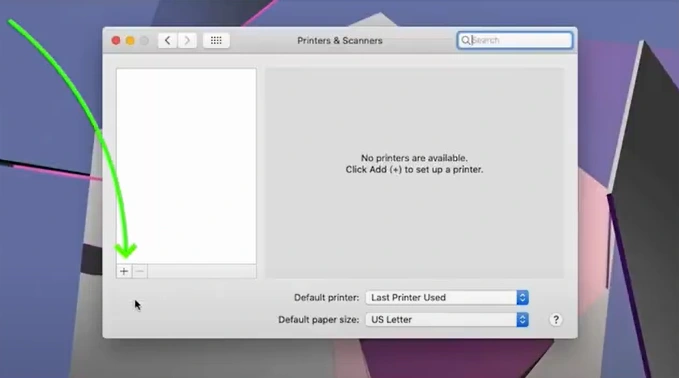
3. Click on the Add (plus sign) icon.
4. Select your printer in the discovered printer list.
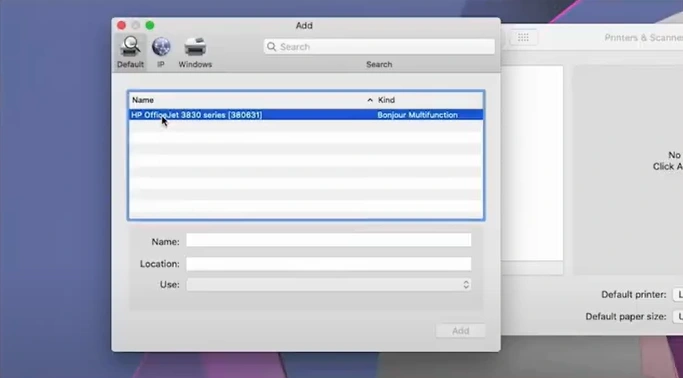
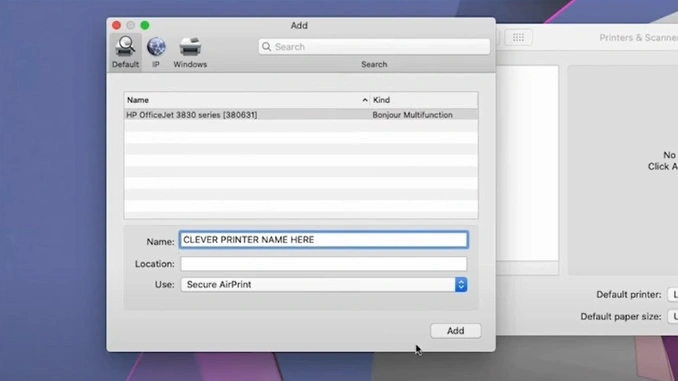
5. Give the printer a name if you want, and click on Add to start the setup process.
Method 2: Add by IP Address
You can use your printer’s IP address to connect it to a macOS device. Below are the simple steps you can follow to do that.
1. On your Mac screen, click on the Apple icon and open System Preferences.
_1750674482.webp)
2. Click on the Printers & Scanners option.
_1750674572.webp)
3. Click on the Add icon.
4. Then, go to the IP tab.
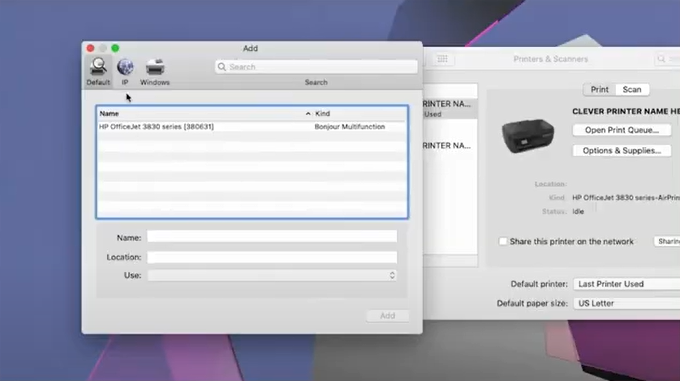
5. Enter the IP address of your printer.
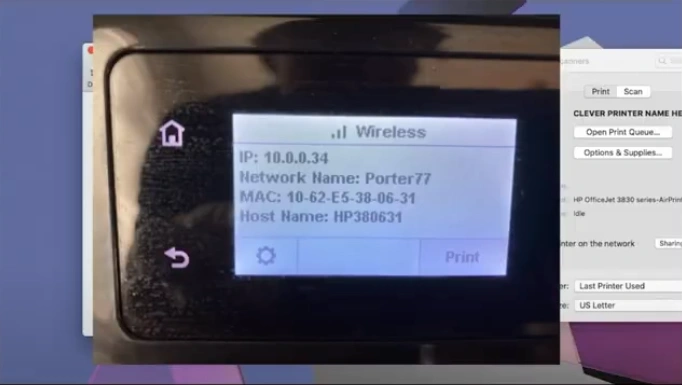
6. Click on Add.
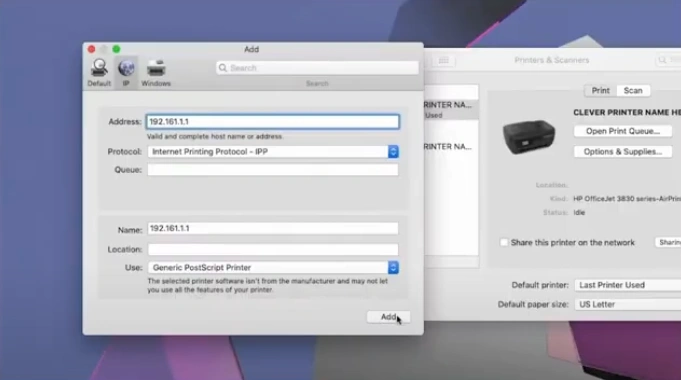
7. Now, your printer connection to your MacBook will be complete.
In Summary
With the help of the two methods we have shared here, you can establish a wireless connection between your printer and your Mac computer. You can try both methods and see which one works for you. In addition, you should make sure to follow all the connection criteria to avoid any problems. Moreover, if you are facing some challenges during the connection process or need more help in establishing the connection, then it would be good to get your hands on more guides and assistance.

