How to Update Brother Printer Driver?
Do you want to learn the process of the Brother printer driver? Are you having any issues updating your printer driver? Well, sometimes you are likely to face issues with your printer driver update due to many reasons, such as network connection, system settings, firewall protection, etc. As a result, first, check all these points and fix them if there is any problem.
In addition, following the wrong update procedure could also result in an unsuccessful update. To avoid facing any issues and update the Brother printer driver easily, gain a thorough understanding of the best tutorial here.
Procedure for Updating the Brother Printer Driver
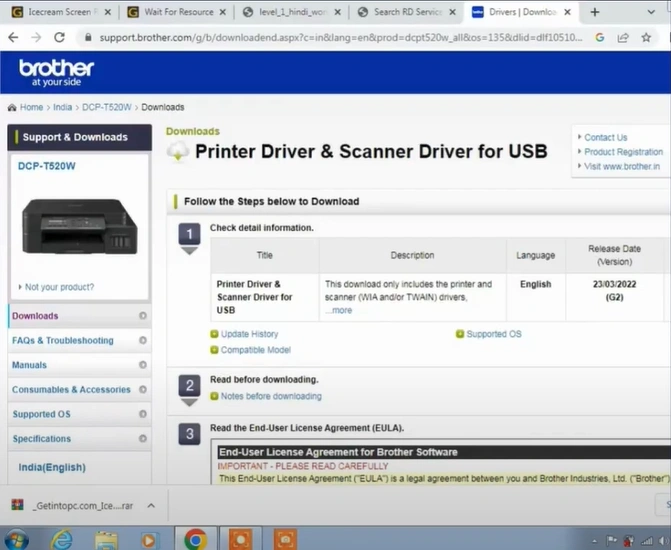
1. Open your browser and search for the Brother printer driver according to your product name.
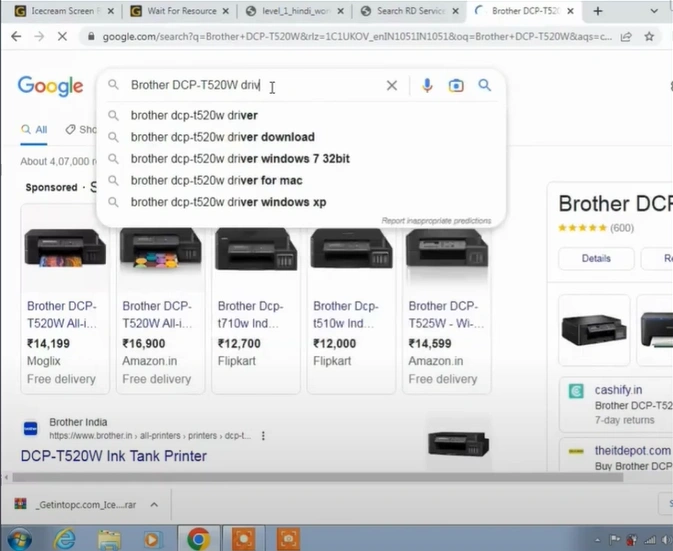
2. Check the operating system.
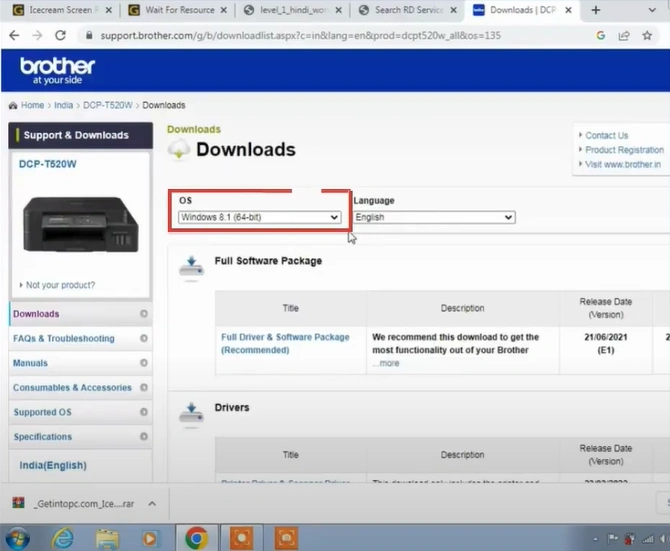
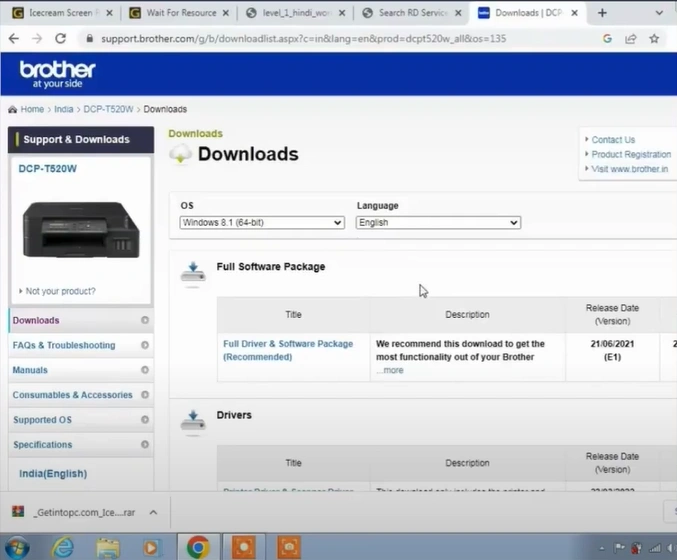
3. Scroll to the Drivers section and click on the latest printer driver.
4. Now, review the license agreement and click on the “Agree to the EULA and Download” button.
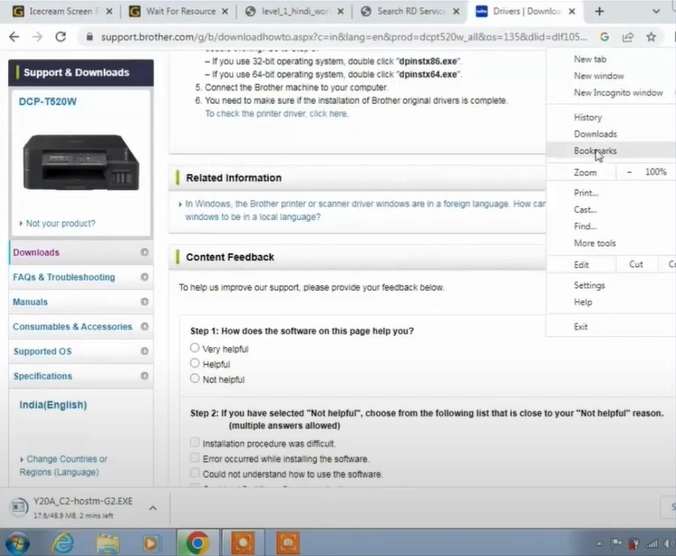
5. Go to the Downloads and click on the “Show in Folder” option.
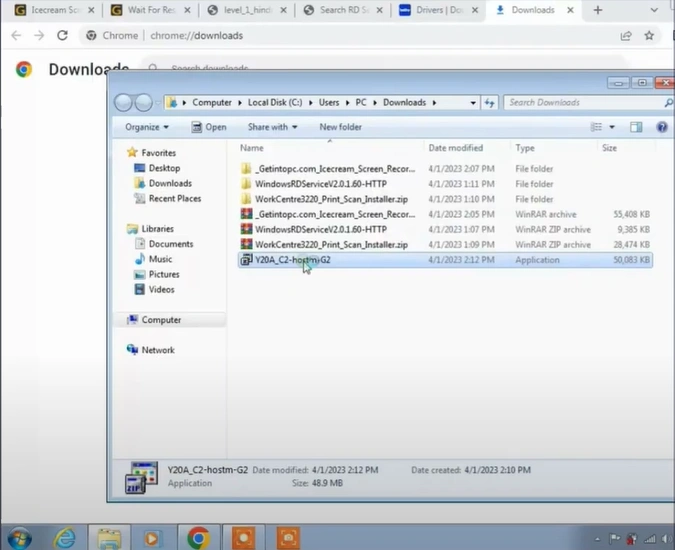
6. Double-click on the file and click on Run.
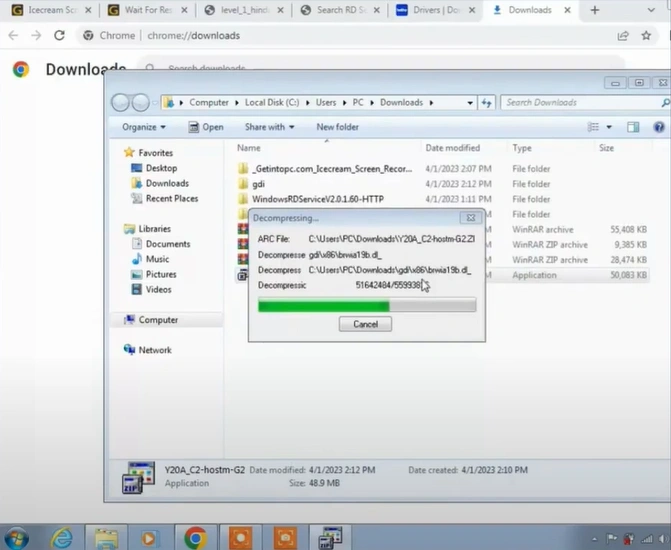
7. Once the decompression is successful, click on OK.
8. Next, click on the Start menu, then search and open Device Manager.
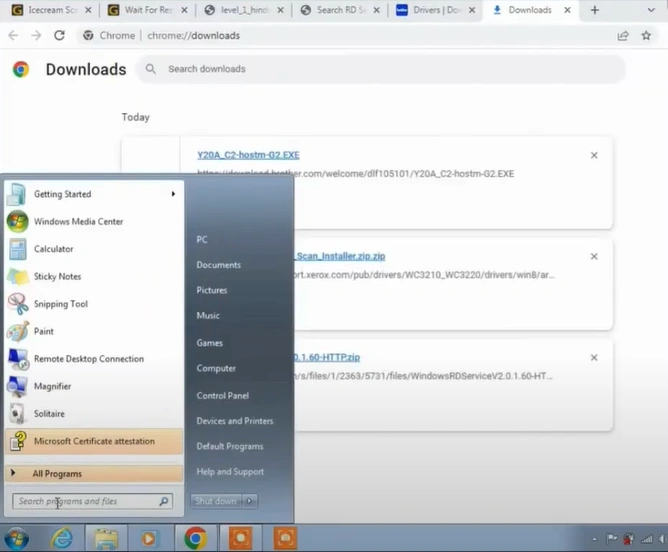
9. Find the Other Devices, then expand it and click on the printer you want to update.
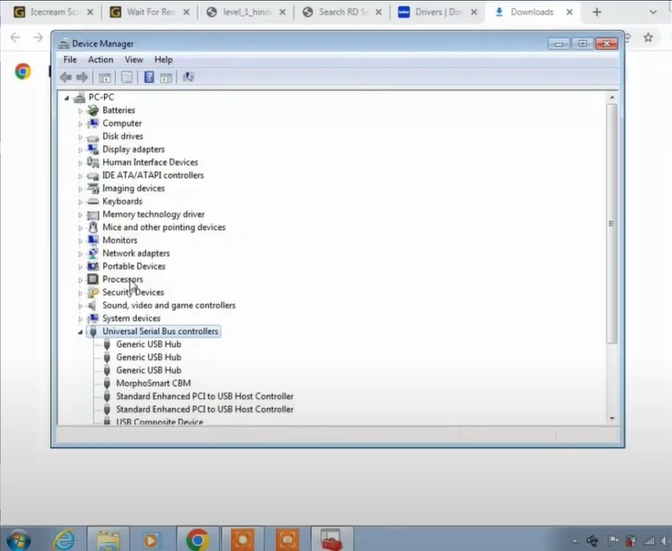
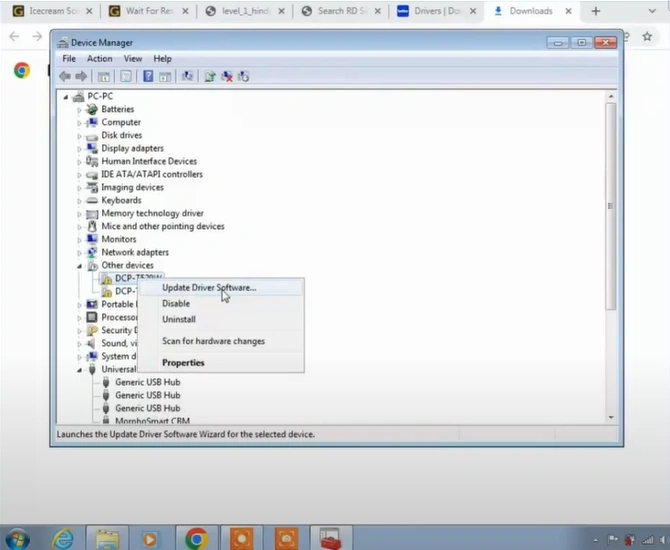
10. Click on Update Driver Software.
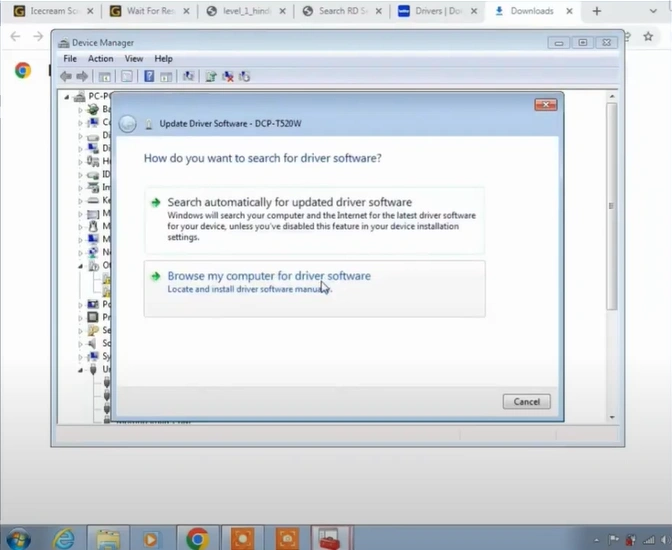
11. Choose the “Browse my computer for the driver software” option.
12. Locate the decompressed file and click on OK.
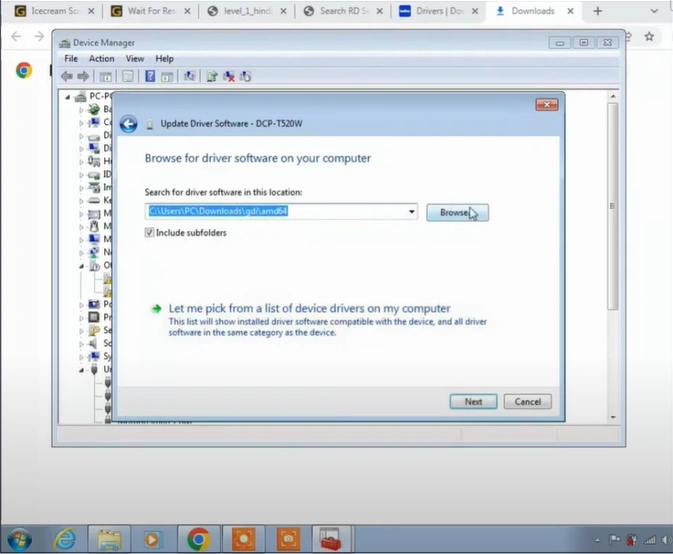
13. You should click on Next to install the printer driver.
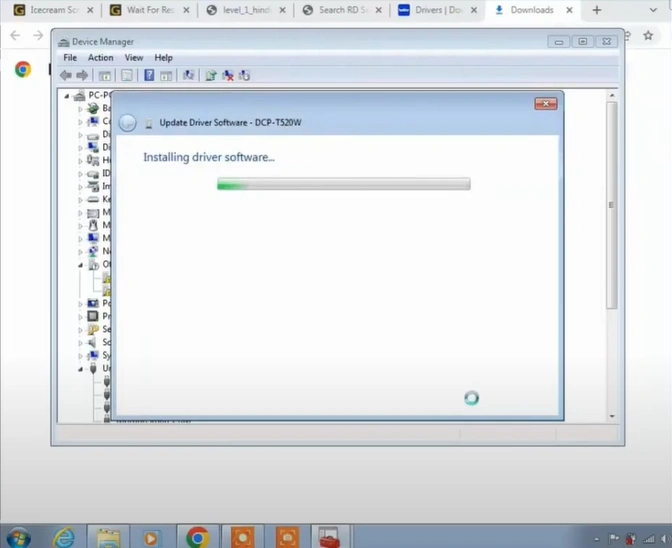
14. Finally, your Brother printer driver update process will be complete.
Wrap Up
We hope you can successfully download the latest Brother printer driver update on your device. You should read all the procedures and use them carefully to get a suitable update for your Brother printer. Moreover, if you are still facing any problems in updating your Brother printer driver, then make sure to get more help to tackle the problem more efficiently.

