Brother Printer Not Connecting to Wireless Network – Easy Fix
A Brother printer not connecting to WiFi is a common issue among regular printer users. However, if you are facing it for the first time, it might feel really frustrating and confusing. Many users report a Brother printer WiFi setup problem when setting up a new device or changing network settings. But it can be fixed by understanding the reasons behind it and following the troubleshooting methods shared in this guide.
Why Your Brother Printer Won’t Connect to WiFi
There are several reasons why your Brother printer is not finding the wireless network:
- Weak wireless network signal
- Incorrect WiFi settings
- Outdated software or printer firmware
Quick Checks Before You Start
- Restart your printer and router.
- Place the printer closer to the router to improve signal strength.
- Note down your SSID name and password.
- Confirm if WiFi is working properly on other devices.
How to Fix Brother Printer WiFi Connection Issue
After knowing the main reasons, it is time to start Brother printer wireless connection troubleshooting using the methods given below.
Fix 1: Connect Printer Using Wireless Setup Wizard
Your Brother printer may not be properly connected to a network or may not have been configured correctly. Hence, connecting it via the wireless setup wizard will scan for available networks and store the correct password. Here is how to connect a Brother printer to WiFi using the wireless setup wizard:
1. Connect your power cord to your printer, then plug it into the wall outlet.
2. Press the Menu button on the printer’s control panel, and then press the up or down arrow buttons to select Network and press OK.
3. Select “Setup Wizard” using the up or down arrow, and press OK.
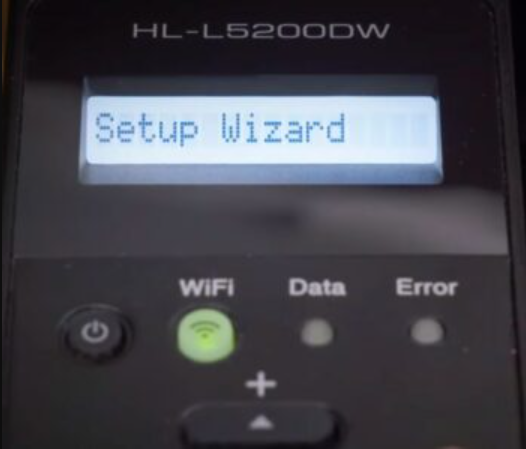
4. Select Yes when WLAN Enable? Appears to enable your wireless network, and then the wireless setup wizard will start.
5. You’ll see a list of available networks on your printer's display.
6. Select the SSID network you noted earlier, and press OK.
7. If the setup requires a network key, enter it, then press OK to apply the settings, and click Yes to apply the changes.
8. Your printer’s screen will display “Connected” upon a successful connection.
9. If the connection fails, your printer will print a wireless connection report. From there, you can check the printed report.
Fix 2: Reset Network Settings on Brother Printer
Your printer stores old network data, such as the SSID name and password. If you’ve recently changed your router, updated your WiFi password, or switched networks, your printer needs an update for that. This is how you can reset the network settings on your printer.
- Press the Settings button, and then select All Settings.
- Select Network, and then click Network Reset.
- Click "Yes" when your printer displays “Reset Network?”
- Press Yes for two seconds when it displays “Reboot OK?” and the printer will restart.
Fix 3: Use WPS Push Button (If Available)
Sometimes, a manual setup may fail due to typos or configuration issues. The WPS method is an automatic way to transfer network details from a router to a printer. Therefore, you don’t need to manually enter the password. Here is how you can use a WPS connection method for your printer:
1. First, confirm that your WiFi router or access point has a WPS symbol.
2. Press the WiFi router’s WPS button.

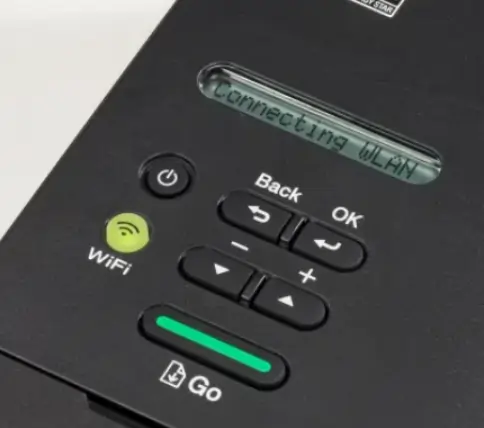
3. Press and hold the WiFi or wireless button on the printer for five seconds.
4. Finally, the WiFi indicator on your printer will blink green. Once the connection is set up, the WiFi indicators will flash green.
Fix 4: Update Printer Drivers and Firmware
Outdated software may not be compatible with new network connections, and it may cause network failures. Bugs in software can also affect wireless connectivity.
- To update printer drivers, you need to uninstall them first. To start, go to the Start menu at the bottom of your Windows screen.
- Select Brother, and then select Brother Utilities.
- Choose your printer’s name from the list, and click "Tools" on the left and click "Uninstall." Then go with the on-screen instructions to uninstall the Brother software and drivers.
- Visit support.brother.com, and search for your printer model name in the search bar, or click on-screen options to select your printer model.
- Select your operating system from the menu, and click OK.
- Select the full driver & software package and let it download on your computer.
- Open the software package from the downloads folder on your computer, and let it install.
Fix 5: Check Router Frequency (2.4GHz vs 5GHz)
If your Brother printer keeps disconnecting from WiFi, your router's frequency could be the reason. Many printers support only 2.4GHz networks, and if your router is only set to 5GHz, it creates problems with connectivity. Hence, the ideal step is to check your router frequency and then switch to 2.4 GHz.
- Go to your router’s admin panel using the IP address and select wireless settings.
- Now, uncheck or disable the 5 GHz option.
- You can also set up a separate SSID name for the 2.4 GHz network and connect your device.
Conclusion
A Brother printer not connecting to WiFi is usually due to incorrect network settings or a weak network. It can also happen because of outdated printer drivers or firmware. However, it is a common issue experienced by almost every user once in a while. It can be fixed by reconnecting your printer to WiFi, checking the frequency of the router, and updating the printer software.
Frequently Asked Questions
Why is my Brother printer not finding WiFi?
Brother printers usually can’t find a wireless network due to outdated network settings or drivers.
How do I connect my Brother printer to WiFi?
- Go to the Menu on your printer.
- Select Network, and then select WLAN, and press OK.
- Select Setup Wizard and click Yes to enable it.
- Choose your WiFi name from the list.
- Use the arrow keys or the touchscreen to enter your network’s password, and press OK to apply.
Why does my Brother printer keep disconnecting from WiFi?
Your printer keeps disconnecting due to an outdated printer driver or firmware, or conflicts with the IP address.

