Canon MG2522 Not Printing? Here's What's Actually Wrong
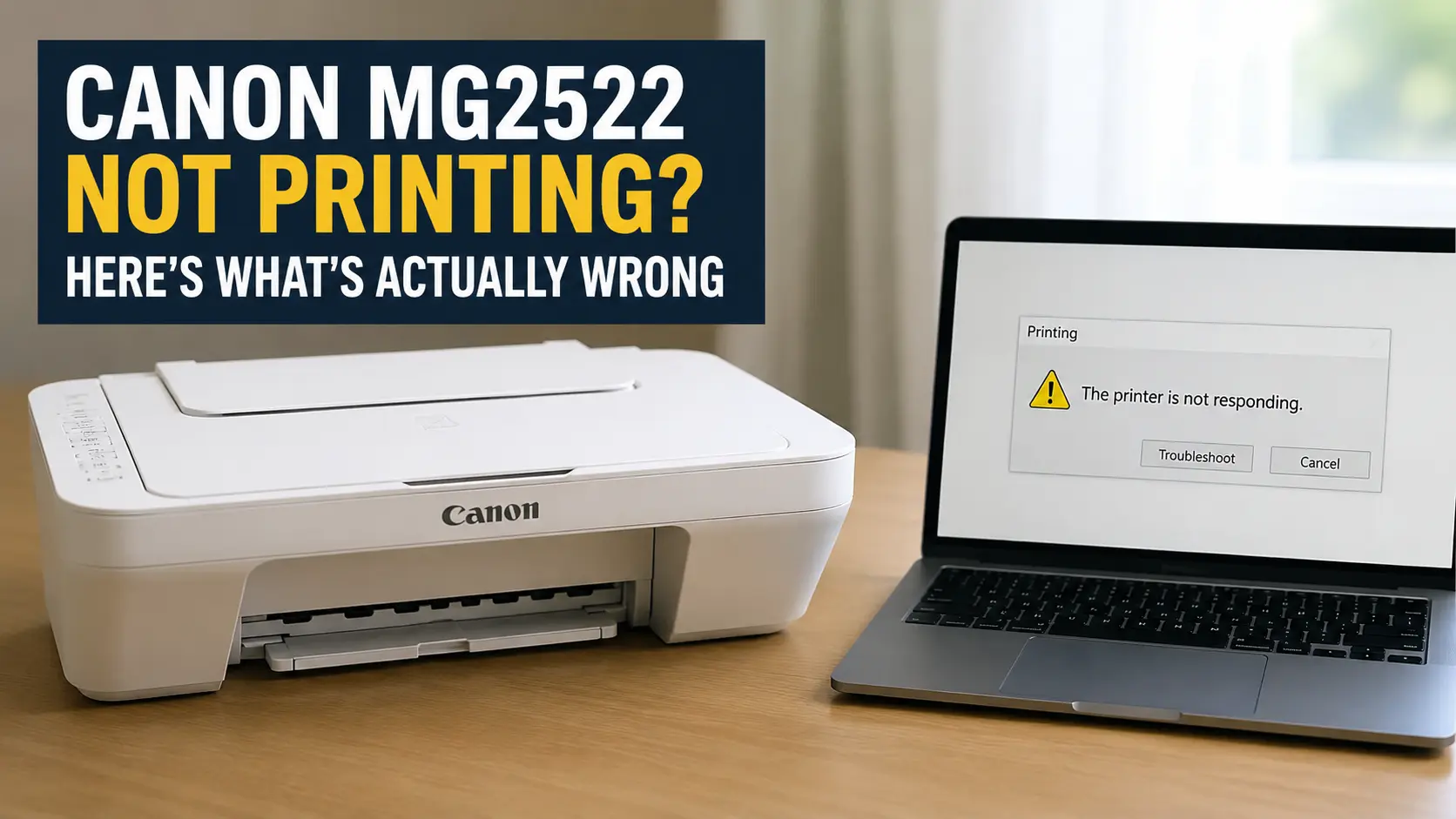
Nine times out of ten, a Canon MG2522 that won't print is failing for one of two unglamorous reasons: your computer no longer thinks the printer is connected and ready, or a FINE cartridge isn't seated firmly enough to complete the electrical contact that tells the printer it has ink. Both are usually fixable in under five minutes, and neither requires a service call.
The MG2522 makes this harder to diagnose than it should be, because it has no screen. It's also USB-only. Unlike its MG2922 and MG2525 siblings, Canon stripped Wi-Fi out of this model entirely, so if you've been hunting for a wireless setup menu that doesn't exist, that's not a bug, that's the product. With no display and no network connection to check, the printer has exactly two ways to tell you what's wrong: the pattern of the amber Alarm light, and whatever status message Windows or macOS reports back over the cable. Read those two signals in order and you'll usually land on the real problem before you've tried a single generic fix.
What the Blinking Amber Light Is Already Telling You
Before you unplug anything, look at the light. Canon's own service documentation for the MG2500 series ties each flash count to a specific fault, and the pattern matters as much as the count: a light that blinks alone means something routine, while the Power and Alarm lights blinking alternately mean something the printer considers a hardware-level error.
| Flashes | What it means | Support code |
|---|---|---|
| 2 | No paper in the rear tray | 1000 |
| 3 | Cover was open during printing, or paper is jammed at the output slot | 1203, 1300 |
| 4 | A FINE cartridge is installed but not seated correctly | 1687 |
| 5 | A FINE cartridge is missing or unsupported | 1401, 1403, 1485 |
| 8 | Ink absorber is nearly full | 1700, 1701 |
| 9 | Protective tape or material is still on the cartridge | 1890 |
| 13 | Cartridge is likely out of ink | 1686 |
| 14–15 | Cartridge isn't recognized | 1684, 1682 |
| 16 | Ink has run out | 1688 |
| 2 (alternating) | General printer error | 5100 |
| 10 (alternating) | Service-level error | B200, B201 |
That code 9 (support code 1890) catches more first-time owners than any other line in this table. Every PG-245 and CL-246 cartridge ships with an orange strip of tape sealing the print nozzles for shipping, and it's easy to peel off the outer packaging cap while leaving that strip stuck to the underside of the cartridge. The printer sees ink, but the tape is physically blocking the print head, so it refuses to run. Pull the cartridge back out and check the bottom edge, not just the top, before you assume anything is actually broken.
If the Light Isn't Blinking at All, the Problem Is Upstream
A steady green power light with nothing printing usually means the printer isn't refusing the job, it's never receiving it. Because the MG2522 only talks over USB, this is the single most common failure mode, and it's on the computer's side of the cable more often than the printer's.
On Windows, open Settings > Bluetooth & devices > Printers & scanners, select the MG2522, and open the queue. Two settings silently block every job: Use Printer Offline and Pause Printing. Either one can get toggled on by a driver hiccup or a printer that briefly lost power, and Windows won't warn you it happened. If the queue shows a job stuck at the top that won't clear, a spooler restart fixes it faster than uninstalling anything: open an administrator Command Prompt and run net stop spooler, then delete the contents of C:\Windows\System32\spool\PRINTERS, then run net start spooler. That clears a wedged job in about ten seconds without touching the driver itself.
On a Mac, the equivalent reset lives in System Settings > Printers & Scanners. Right-click (or Control-click) in the printer list and choose Reset printing system, which wipes every configured printer and forces a clean re-add, usually the fastest fix when a Mac printer that worked yesterday suddenly shows no queue activity at all.
Two more things worth ruling out before you touch the printer itself: swap the USB cable to a port on the computer directly, not through a hub or a keyboard's pass-through port, since the MG2522's Hi-Speed USB interface can be finicky about power delivery through unpowered hubs. And if you're setting this printer up fresh on a machine running Windows 11, know that Canon's official driver package for the MG2522/MG2525 was built before Windows 11 shipped; it still installs and runs fine, but Windows Update sometimes fails to find it automatically, so pulling the driver directly from Canon's support site gets you there faster than waiting on automatic detection.
The next question is usually: it looks connected, the queue is empty, and it still won't print. That almost always means the cartridges, not the connection, so that's where to look next.
You Just Changed the Ink, and Now Nothing Prints
This is common enough that it has its own recurring thread on Canon's user forums: someone replaces one or both cartridges, closes the lid, and the printer goes silent or starts blinking. The cause is almost always physical, not electronic.
Each PG-245 and CL-246 cartridge carries its own print head built into the cartridge body, not a separate fixed head inside the printer. That's a meaningful difference from how printers like Epson's work, and it's why Canon's contact strip, the gold or copper colored band on the cartridge, matters so much: it's both the electrical connection and part of the printhead assembly. A cartridge that isn't pressed down until it clicks won't complete that contact, which is exactly what triggers support codes 1687, 1682, and 1684. Open the cartridge cover, remove each cartridge, and press it back in until you feel and hear the click, not just until it stops moving.
If reseating doesn't clear a 1682 or 1684 code, check the contact strip itself for ink residue. It's common for a cartridge refilled at home, or a low-quality remanufactured cartridge, to weep a small amount of ink onto that strip during shipping or refilling, and even a thin film is enough to break the electrical read. Wipe the strip with a dry, lint-free cloth or a dry cotton swab, never a wet one, and do the same to the corresponding brass pins inside the printer's cartridge holder. If a cartridge still won't be recognized after cleaning and reseating it two or three times, the internal chip has failed. These are single-use, disposable electronics; that's not a defect so much as how the part is built.
Genuine Canon cartridges cost more than compatible or remanufactured ones for exactly this reason: the printhead riding along on that cartridge is precision hardware, and a poorly made replacement is more likely to misfire, clog, or short against the carriage contacts than a $4 ink tank on a printer with a separate fixed head would be. If you've been chasing recognition errors since switching to third-party ink, that's the first variable worth removing before you troubleshoot anything else.
When the Error Is Serious: B200 and a Dead Print Head
If the Power and Alarm lights blink alternately about ten times, or your computer shows support code B200 or B201, the printer has detected an electrical fault severe enough that it shut the print head down to protect itself. Because the print head lives inside the cartridge on this model, B200 doesn't automatically mean the printer itself is dead the way it would on a printer with a fixed head, but it usually does mean one specific cartridge has failed internally, often from a short at the carriage contacts caused by ink contamination or physical damage to the gold strip.
Start by removing both cartridges and inspecting the carriage contacts (the pins inside the printer, not on the cartridge) for a metallic sheen from ink buildup; wipe them dry the same way described above. If B200 clears with the cartridges reseated, you were dealing with contact corrosion. If it returns immediately with only one cartridge installed at a time, you've isolated which cartridge is actually shorting the system, and replacing that one cartridge is usually the whole fix. If B200 persists with a brand new cartridge of either color installed alone, the fault is in the carriage or logic board itself, and at that point you're weighing repair against replacement, which is worth doing with real numbers, not instinct.
Is It Actually Worth Fixing?
The MG2522 typically sells new for somewhere around $35 to $45 through Amazon and Walmart bundles, and that price matters more than it would for a $300 printer, because a full set of high-yield replacement ink can cost nearly as much as starting over.
| Cartridge | Yield (ISO pages) | Typical street price* | Approx. cost per page |
|---|---|---|---|
| PG-245 (standard, black) | 180 | $18-22 | ~$0.11 |
| PG-245XL (black) | 300 | $28-32 | ~$0.10 |
| CL-246 (standard, color) | 180 | $20-24 | ~$0.12 |
| CL-246XL (color) | 300 | $33-39 | ~$0.12 |
*Genuine Canon pricing fluctuates by retailer and over time; figures above reflect typical retail listings at the time of writing, not a fixed MSRP.
A full XL black-and-color set runs roughly $60 to $70, which is often more than the printer itself costs new. That math changes the calculus on repair: for a paper jam, a stuck spooler, or a code 1682 you can clear by cleaning contacts, fix it, obviously. For a confirmed B200 that survives a fresh cartridge in isolation, or for an ink absorber that's actually full (see below), the honest advice is to stop troubleshooting and buy a new unit rather than sink another $60 in ink and an hour of your evening into a printer that cost less than that ink to begin with. That's not true of Canon's higher-end photo printers, where a $150-plus body justifies real repair effort; it is true of this one.
The "Ink Absorber Almost Full" Message
Eight flashes, or support codes 1700/1701, mean the internal waste ink pad, the sponge that catches ink purged during cleaning cycles, has reached the level Canon's firmware flags as nearly saturated. Canon's official position is unambiguous: there's no consumer-facing reset for this counter, and the fix is a service center replacing the absorber and resetting the internal count with a proprietary tool that isn't distributed publicly.
You'll find combination button presses circulating in forums and video comment sections claiming to reset this counter yourself. Some of those sequences do something, typically triggering a maintenance or service-mode function, but they're not a documented reset of the actual waste ink counter, and Canon has never published one for consumer inkjets in this class. Given that this printer costs less than a single set of replacement ink, and that a genuinely full absorber can eventually leak ink inside the case if ignored, this is the one error on this list where "just buy a new printer" isn't a cop-out, it's the fix Canon itself would give you.
Keeping It From Happening Again
Most of what looks like a mysterious MG2522 failure is actually a printhead that dried out from disuse; a printer that sits untouched for three or four weeks is far more likely to throw a "not printing" or blank-page fault than one used weekly, simply because the microscopic nozzles in that FINE cartridge can dry out between uses. Run a nozzle check every couple of weeks if the printer goes quiet: on Windows, right-click the printer in Printers & scanners, open Printing preferences, and use the Maintenance tab's cleaning and nozzle check functions; on Mac, open the printer's utility from System Settings > Printers & Scanners > Options & Supplies. A five-second nozzle check costs a fraction of a page in ink and catches a drying cartridge before it turns into a support code.
Related Guides
- walks through the initial USB and driver install if you're setting the printer up for the first time rather than troubleshooting one that's already running.
- a deeper walkthrough of the offline/spooler fix covered above, with screenshots for both operating systems.
- B203 is B200's close cousin; if your lights are blinking in the same alternating pattern but the code on screen doesn't match, check here.
- another alternating-light code from the same family as the 5100 error in the table above.
- for the Windows 11 driver-detection quirk mentioned earlier.
- If what you actually wanted was Wi-Fi, this is the sibling model that has it; the MG2522 doesn't.
- every other Canon guide on the site, if your error code isn't one of the above.