How to Clear Printer Queue on Mac?
I have used many printers with Windows and Mac computers, and it is not new to encounter the print jobs stuck in the queue problem.
If you are using a printer with your Mac device, facing this problem could be the result of temporary glitches, incorrect settings, a low power supply, performing many print jobs at once, etc. Plus, a bunch of other underlying problems with the printer or its connection can also cause the issue.
Clearing the printer queue on a Mac is simple, but many people might not know how to do it. As a result, I am about to tell you the quick procedure to clear the printer queue easily.
Steps to Clear Printer Queue on Mac
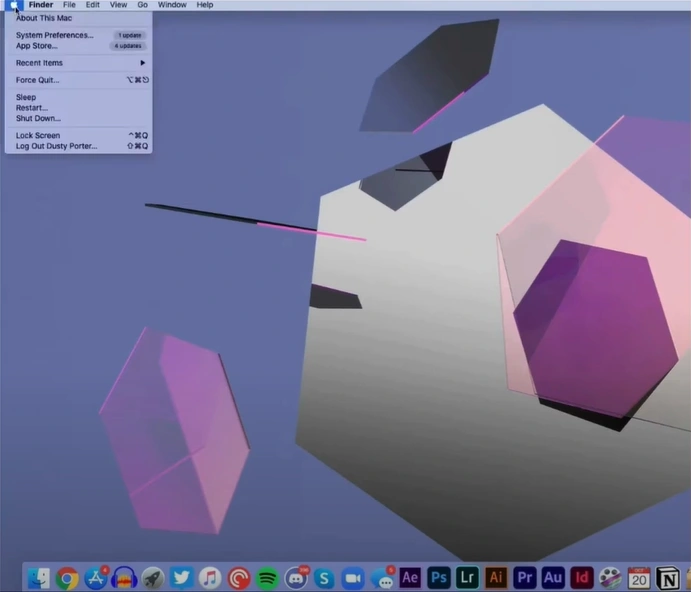
1. Click on the Apple icon and open System Preferences.
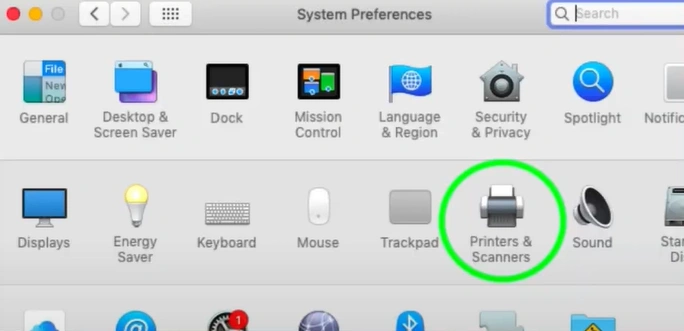
2. Click on the Printers and Scanners.
3. Select your printer name from the left panel and click on the Open Print Queue button.
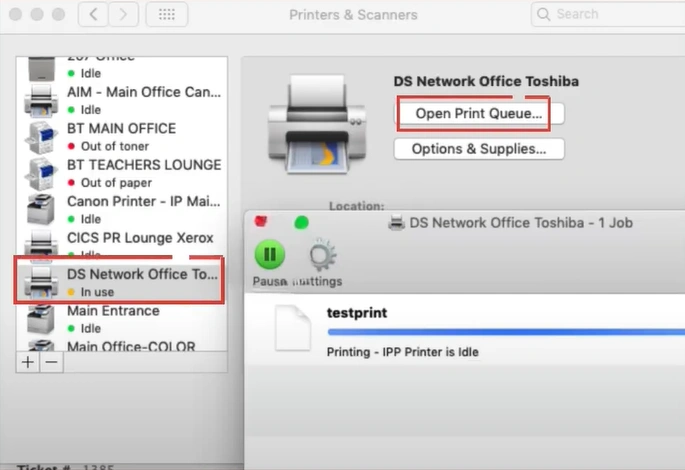
4. Click on the Cancel icon to clear the print queue.
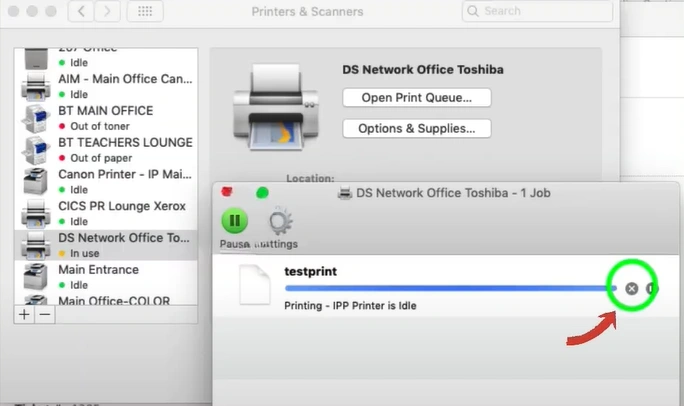
5. Finally, check if the process is complete.
Final Words
We hope your printer's print queue on your Mac device is cleared with the help of these guides. You need to follow these steps properly to avoid facing any issue with your printer. Apart from that, it is always wise to seek additional help if the printer is not out of the problem yet.

