How to Clean an Epson Printer Head (Without Making the Clog Worse)
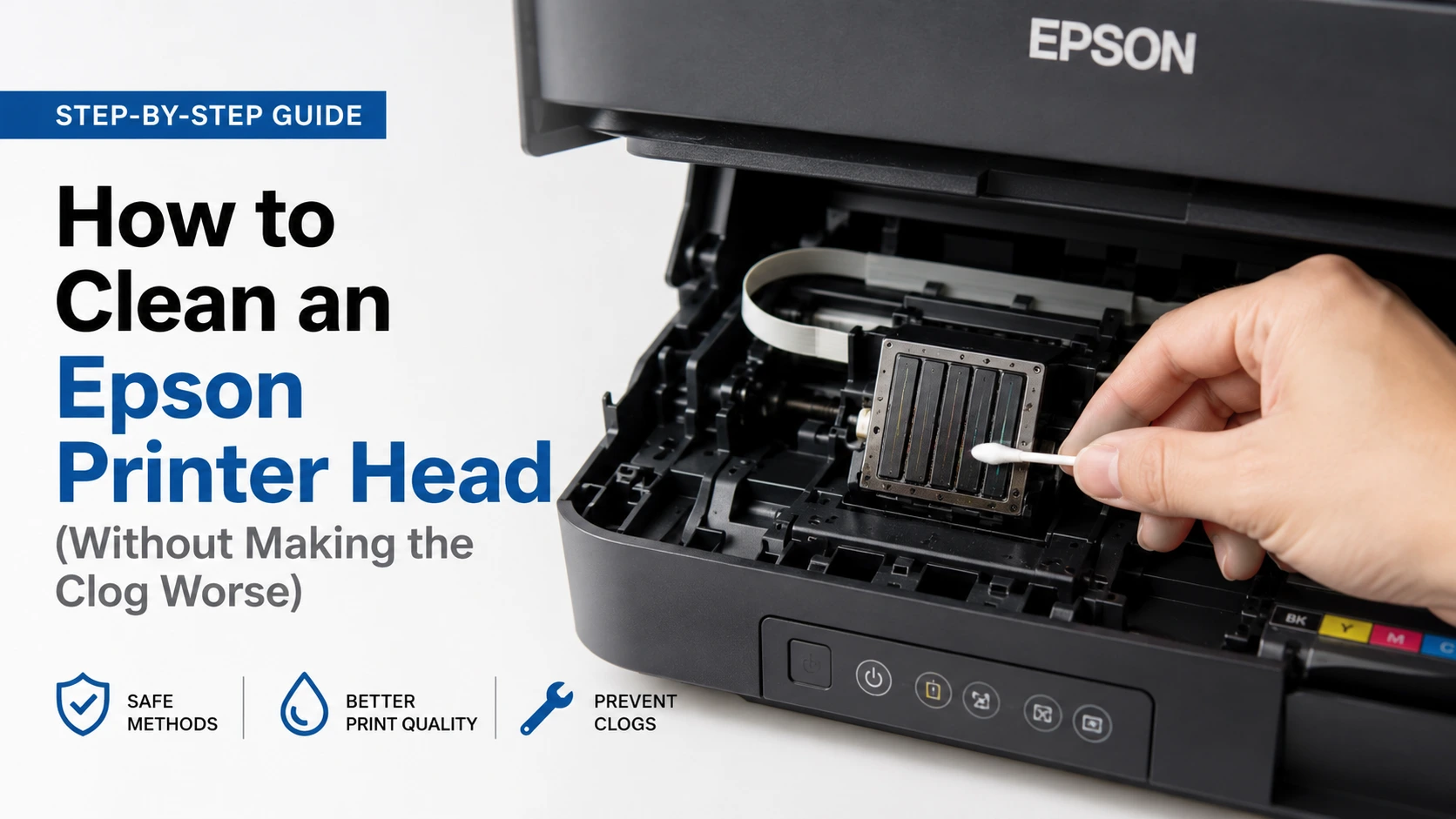
If your prints are coming out with faded colors, thin white lines, or entire sections missing, the fix is almost always the same three-step sequence: run a nozzle check, run Head Cleaning from the printer's utility, then check again. Most Epson clogs clear up in one or two cycles because Epson's software cleaning forces ink backward through the nozzle plate under pressure, dislodging the dried ink that's blocking it. You don't need to open the printer for this, and in most cases you shouldn't not yet.
Here's the sequence, then the reasons it sometimes doesn't work and what to do when it doesn't.
Step 1: Run a Nozzle Check First (Don't Skip This)
Before cleaning anything, print a nozzle check pattern. This tells you which nozzles are actually clogged instead of guessing, and it gives you a baseline to compare against after cleaning.
On Windows: Open your printer's Properties, go to the Maintenance tab, and select Nozzle Check. On Mac: Go to System Settings > Printers & Scanners, select your Epson printer, open Options & Supplies > Utility > Open Printer Utility, and choose Nozzle Check. On the printer itself: Most EcoTank and higher-end models let you run this from the LCD panel under Setup or Maintenance.
The printed pattern shows a grid or a set of parallel lines for each ink color. Solid, unbroken lines mean that color's nozzles are clear. Gaps, faint sections, or entirely missing lines mean clogging in that channel. I've found this step matters more than people expect a lot of "clogged nozzle" complaints turn out to be a single color with a small gap, which clears in one cleaning cycle, versus a printer with three colors half-missing, which is going to need the more aggressive Power Cleaning option and possibly more than one attempt.
Step 2: Run Head Cleaning From the Printer Utility
If the nozzle check shows gaps, run the standard Head Cleaning function from the same Maintenance tab or utility menu. This takes about 1-2 minutes. The printer draws ink from the cartridges or ink tank through the print head and out through the nozzles, physically pushing dried ink and air bubbles out of the way.
A few things worth knowing before you do this:
- It uses real ink, not a cleaning fluid. Each cleaning cycle consumes a measurable amount of ink from every cartridge, not just the clogged one, because the cleaning mechanism operates on the head as a whole.
- Don't run more than 2-3 cycles back to back. Epson's own documentation recommends waiting at least 12 hours between repeated attempts if the first few don't work. Running cleaning cycle after cycle doesn't dissolve stubborn dried ink any faster it just burns through ink and, on printers with a saturable waste ink pad, pushes you closer to a "waste ink pad full" error.
- Never power off or unplug the printer mid-cycle. The print head parks itself in a sealed position when the printer shuts down normally, protecting the nozzles from air exposure. Interrupting a cleaning cycle can leave the head unparked and drying out, which creates a worse clog than the one you started with.
Print another nozzle check afterward. If the pattern is clean, you're done. If it's improved but not perfect, run one more cycle. If it hasn't changed at all after 2-3 attempts, move to Power Cleaning.
Step 3: Power Cleaning (For Nozzles That Won't Budge)
Power Cleaning is a more forceful version of the same process, available on most modern Epson models through the same Maintenance menu. It draws significantly more ink through the system in a single pass, which is exactly what you want when a nozzle check comes back mostly blank rather than showing partial gaps.
The tradeoff is ink consumption Power Cleaning uses noticeably more ink than a standard cleaning cycle, so it's not something to run casually. Epson recommends limiting it to once, then waiting 12 hours before trying again if needed.
Step 4: Power Ink Flushing (The Last Software Option)
If you've done the nozzle-check-then-clean cycle three times, or run Power Cleaning once, waited the recommended 12 hours, and the pattern still isn't clean, Power Ink Flushing is the next tier. This replaces all of the ink sitting in the tubes between the ink tank and the print head useful specifically when the clog isn't at the nozzle plate itself but further back in the ink delivery path, which happens more often than people assume on printers that have sat unused for weeks.
Before running it, check that your ink tank or cartridges are at least a third full. Epson explicitly warns that flushing with low ink can damage the printer, since the system is designed to move ink through, not air. Like Power Cleaning, this one also needs a 12-hour gap between attempts.
Why Epson Heads Clog in the First Place
This is worth understanding because it changes how you prevent the problem, not just how you fix it.
Epson uses a permanent print head design across most of its consumer and EcoTank lines, built on what the company calls PrecisionCore or Micro Piezo technology. Instead of heating ink to force it through the nozzle (the way thermal inkjet printers from other brands work), Epson's heads use thin-film piezoelectric elements layers about a micrometer thick that flex when voltage is applied, physically pumping ink droplets out of the nozzle. There's no heat involved, which is part of why Epson heads are designed to last the life of the printer rather than being replaced with every cartridge.
The tradeoff is that piezo heads are more sensitive to what happens when the printer sits idle. Heat-based heads get a fresh burst of ink pushed through every time they fire, which has a mild self-clearing effect. Piezo heads don't, so if ink sits still in the nozzle for long enough a few weeks of no printing is usually enough the water in the ink evaporates through the microscopic nozzle openings and leaves the pigment or dye behind as a dried residue. That residue is the clog.
This is also why the printers I've seen clog the most aren't the ones used constantly, but the ones used once a month or less. If you print rarely, set a recurring reminder to print one page even a blank test page triggers the printer's internal nozzle-clearing behavior every 7-10 days. It's a smaller ink cost than a full cleaning cycle and it prevents the problem instead of treating it.
Third-party or refilled ink is the other major contributor. Genuine Epson ink is formulated with a specific viscosity and pigment suspension that matches the tolerances of the piezo nozzles. Off-brand inks that don't match that viscosity closely enough are more prone to settling and drying unevenly inside the nozzle channel, which is why printers running non-OEM ink tend to show up more often in clog troubleshooting threads.
When Software Cleaning Isn't Enough: Manual Cleaning
If you've gone through nozzle check, Head Cleaning, Power Cleaning, and Power Ink Flushing with no improvement, the clog is likely dried solid rather than just recently formed, and no amount of internal pressure is going to push it out. At this point, a manual soak is the next reasonable step before assuming the head is dead.
- Turn off the printer normally (let it park the head) and then unplug it.
- Open the top cover or scanner unit so the print head carriage is accessible. On most models it will be sitting to the right or in the center.
- Soak a lint-free cloth or a folded paper towel in distilled water not tap water, which leaves mineral deposits that create new clogs. Some people use a 1:1 mix of distilled water and isopropyl alcohol, or a purpose-made cleaning solution, for stubborn dried ink.
- Lay the damp cloth under the print head (don't press it directly onto the nozzle plate) and let it sit for several hours, or overnight for a clog that's been building for months.
- Reconnect the printer and run another nozzle check before doing anything else.
This works because dried pigment ink dissolves back into liquid form when it's rehydrated slowly, the same principle behind soaking a dried-out paintbrush instead of scrubbing it. What it won't fix is physical damage to the piezo element itself or a head where the nozzle plate has actually cracked if a manual soak plus another round of Power Cleaning doesn't move the needle, you're likely looking at a replacement print head or, on models where the head isn't user-replaceable, a new printer.
Related Guides
Epson Printer Not Printing or Printing Blank Pages? Here's What Actually Fixes It
Epson L3110 Black Ink Not Printing [Fixed]
Frequently Asked Questions
How often should I clean my Epson print head?
Only when a nozzle check shows a problem. Cleaning preventatively when there's no clog just wastes ink - the nozzle check is free, cleaning isn't.
Will head cleaning fix misaligned or blurry text that isn't faded?
No. Gaps or faded lines are a clog issue; text that's sharp in some spots and blurry in others, or printed in the wrong position, is usually a head alignment issue, fixed through the separate Print Head Alignment tool in the same Maintenance menu, not through cleaning.
Why does my printer say "waste ink pad at end of service life" after repeated cleanings?
Every cleaning cycle dumps a small amount of purged ink onto an absorbent pad inside the printer, and that pad has a fixed capacity tracked by the printer's internal counter. Frequent cleaning cycles from chronic clogging accelerate this. A few Epson models allow the pad to be reset or replaced by a technician; on many consumer models, it effectively marks the end of the printer's usable life.
Is it normal for cleaning to not fully fix the pattern on the first try?
Yes, especially with multiple ink colors or a printer that's sat unused for over a month. Two to three cycles clearing progressively more of the pattern is typical; a pattern that looks identical after three full cycles is the signal to move to Power Cleaning rather than repeating standard cleaning again.

