Epson Printer Not Printing or Printing Blank Pages? Here's What Actually Fixes It
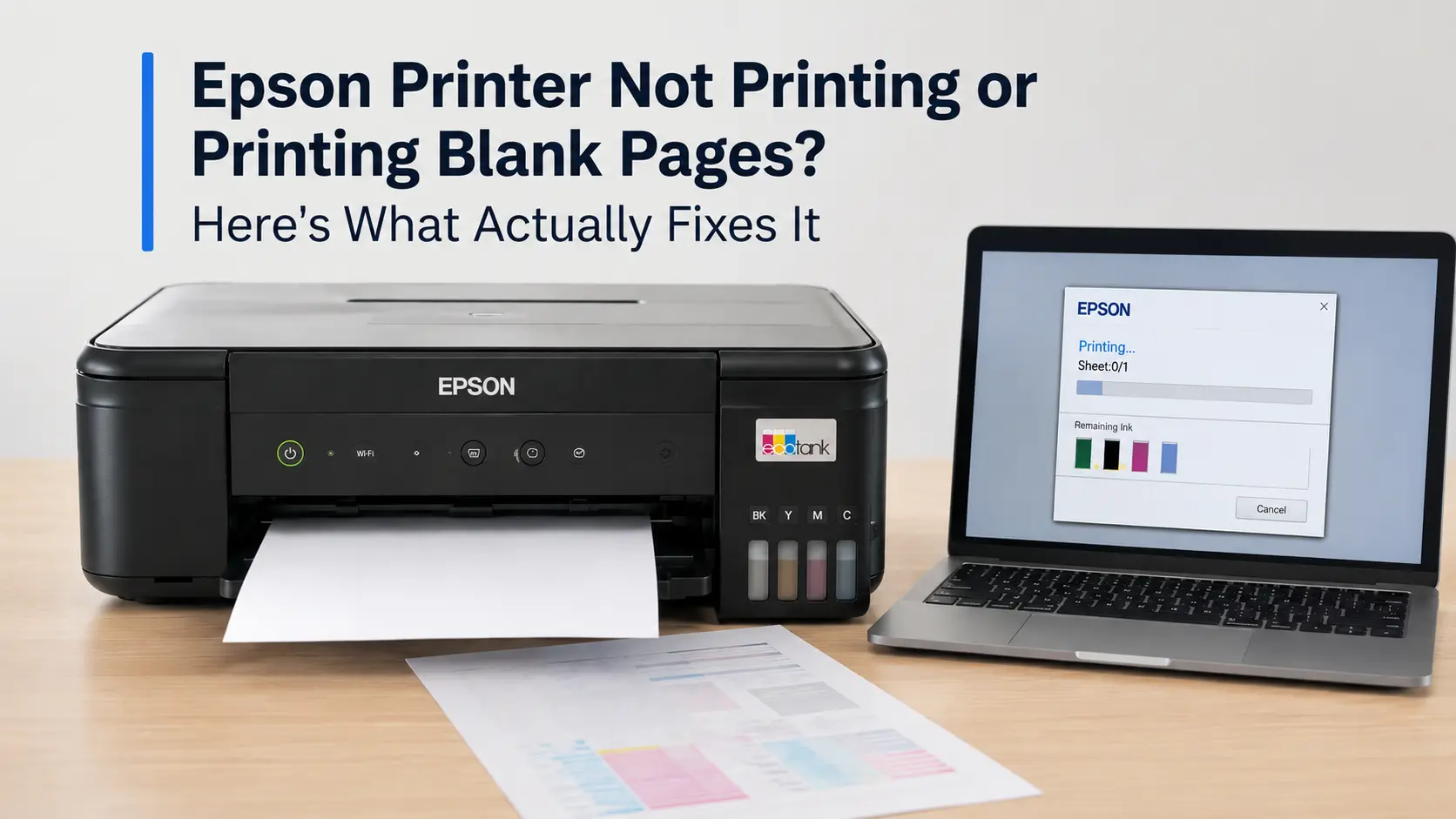
If your Epson is either refusing to print at all or spitting out blank sheets, you're dealing with one of two different problems, and they don't have the same fix. A printer that stays silent (jammed queue, spinning "printing" status, nothing comes out) is usually a communication or software issue. A printer that runs through paper but leaves it empty is almost always an ink delivery problem at the printhead. Mixing these two up is the single biggest reason people spend an hour reinstalling drivers when the real issue is a dried-out nozzle three inches away.
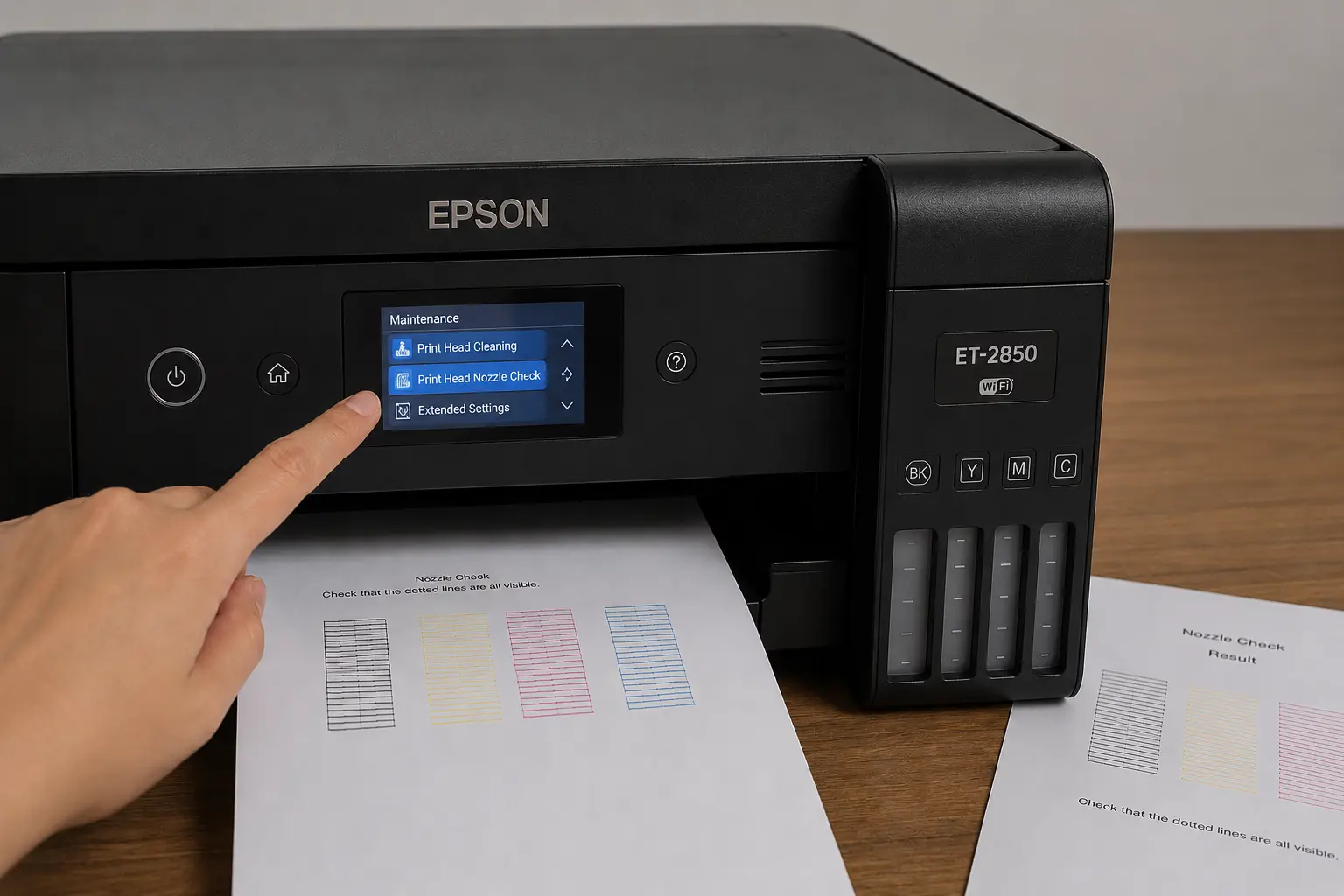
Start here: run a nozzle check (Setup → Maintenance → Print Head Nozzle Check on most panel-equipped models). If the test pattern comes out with gaps, missing colors, or nothing at all, you have a hardware/ink problem - skip straight to the printhead section below. If the nozzle check prints cleanly but your actual documents don't, the problem is in Windows or macOS, not the printer, and you'll want the software section instead.
Blank Pages vs. No Printing At All: Why the Distinction Matters
I've fielded enough of these tickets to notice a pattern: people troubleshoot blank-page issues like connectivity issues, and vice versa, because both feel like "the printer is broken." They're not the same failure.
Blank or partially blank pages almost always trace back to one of three things: a dried or air-locked nozzle, a piece of protective tape still sealing the cartridge, or a driver setting silently discarding content it thinks is empty (more on that below - it trips people up constantly). No output whatsoever, where the print job vanishes from the queue or hangs indefinitely, is far more likely to be a spooler conflict, a stalled maintenance box, or a Wi-Fi handshake that's dropping mid-job. Epson's own printhead technology actually explains why the first category is so common on inkjets specifically, which is worth understanding before you start swapping cartridges.
The Overlooked First Check: Protective Tape and Cartridge Seating
Before touching any menu, physically re-seat every ink cartridge or, on EcoTank models, confirm the ink tank valve wasn't left in transit-lock position after a refill. New cartridges ship with a thin strip of tape over the ink outlet - it's easy to peel off the visible top label and miss the second strip underneath, which leaves the cartridge sealed even though it looks installed correctly. This alone causes a disproportionate number of "brand-new cartridge, still printing blank" complaints, and it's rarely mentioned first because it feels too simple to be the answer. Check it anyway; it takes fifteen seconds and costs nothing.
Run a Nozzle Check Before Anything Else
Every Epson inkjet - from a $90 home unit to a business-class WorkForce - has a built-in nozzle check pattern. It's not optional troubleshooting; it's the diagnostic step everything else depends on.
How to run it: Load plain A4 or letter paper, then go to Setup (or the wrench icon) → Maintenance → Print Head Nozzle Check. The printer runs a small pattern of horizontal lines in each ink color.
How to read it: Solid, unbroken lines in every color mean the printhead itself is fine - your problem is downstream (settings, driver, or spooler). Gaps, faint sections, or missing colors mean ink isn't reaching part of the nozzle array, which is exactly what causes blank or streaky output.
Why Epson Printheads Clog in the First Place
Epson's current printheads use what the company calls PrecisionCore MicroTFP technology - a thin-film piezoelectric actuator bonded to a nozzle plate at the microelectronics level. Instead of using heat to fire ink (the way thermal inkjets from other brands do), each nozzle uses a tiny piezo crystal that physically flexes to eject a droplet. Epson states each drop weighs around 7 nanograms, with the printhead capable of firing roughly 50,000 droplets per second per nozzle bank. That's the "Heat-Free" branding you'll see on their business inkjets.
The practical upshot for troubleshooting: because there's no heating element, nothing "burns off" residue the way it can in a thermal system. If a nozzle channel that fine sits idle for a few weeks - common with home printers used sporadically the water carrier in the ink sporadically evaporates and leaves solid pigment or dye residue behind, physically blocking a channel smaller than a human hair. That's a clog, and it's mechanical, not electronic, which is why reinstalling drivers never fixes it.
Clean the Print Head - But Don't Overdo It
If the nozzle check shows gaps, run the built-in Head Cleaning cycle from the same maintenance menu. A few things worth knowing that most guides skip:
- Never power off mid-cycle. Epson explicitly warns that an interrupted cleaning cycle can damage the printhead permanently. This isn't overcaution, the cycle repositions ink through a pressurized path and cutting power mid-flush can introduce air into the line.
- Stop after three consecutive cycles with no improvement. Each cleaning cycle draws real ink from your cartridges to flush the line, so an unlimited cleaning loop just burns through ink without necessarily clearing a stubborn clog. If three cycles don't fix it, Epson's own guidance is to power down and leave the printer untouched for at least 12 hours (some documentation says 6), then try once more. Capillary action alone sometimes finishes softening a clog that agitation couldn't.
- If a printer hasn't printed anything in 30+ days, expect to need this. Epson's own support documentation recommends printing something at least monthly specifically to prevent this; it's cheaper than a cleaning cycle and avoids the issue altogether going forward.
If cleaning cycles consistently fail after a rest period and multiple attempts, that generally points to a genuinely dried or physically damaged printhead rather than a simple idle clog, and on most consumer models the printhead isn't a separately replaceable, user-serviceable part; at that point you're comparing repair cost against a new unit.
When Cleaning Doesn't Help: Check for a Maintenance Box or Waste Ink Block
This is the category that gets misdiagnosed constantly, because the symptom printer accepts the job, does something, but nothing comes out, or printing stops mid-job — looks identical to a driver problem.
Every Epson inkjet routes a small amount of ink to an internal waste reservoir every time it primes, cleans, or aligns the head. On cartridge-based models this is usually a sealed pad inside the chassis; on EcoTank and many WorkForce models it's a user-replaceable "maintenance box." Once the printer's internal counter believes that reservoir is full, it will block printing outright — even if the box still has physical capacity left, because the count is tracked electronically, not measured by a sensor. You'll typically see a "Service Required" or "Replace Maintenance Box" message on the LCD or in the desktop status monitor when this happens.
A few practical notes from actually working through these:
- Frequent nozzle cleanings accelerate this counter, so a printer that's needed a lot of cleaning cycles recently may hit this wall sooner than its age suggests.
- Heavy borderless printing fills a separate, smaller platen pad faster than normal bordered printing does, because the printer intentionally overspray-prints past the paper edge.
- Third-party reset utilities exist that clear the counter without physically replacing the pad worth knowing they exist, but understand you're resetting a safety counter, not fixing the underlying ink saturation, and doing this repeatedly on a pad that's genuinely saturated risks ink leaking into the printer's internals. If your printer is still under warranty, this is one repair worth letting Epson or an authorized service center handle rather than DIY-ing.
Software-Side Causes That Look Like Hardware Failures
If the nozzle check came back perfectly clean, none of the above applies - the printhead is fine, and something upstream is either sending an empty page or not sending the page at all.
Skip Blank Page setting fighting you. In the print driver (Printing Preferences → Maintenance tab → Extended Settings), there's a "Skip Blank Page" option that's meant to save paper on multi-page documents that genuinely contain blank pages. Occasionally this setting misreads a page with very light content a faint watermark, a mostly-white image, a PDF with an invisible layer— as blank and skips it, or conversely leaves it toggled off when it should catch genuinely empty pages padding out your document.
Wrong media type selected in the driver. If the print settings specify glossy photo paper while you've loaded plain paper (or vice versa), the printer can calculate ink droplet placement incorrectly enough to produce a page that looks blank to the eye even though ink was technically applied — this is more common with photo printers than document printers.
Stalled print spooler (Windows) or a corrupted print queue. This causes the "no output at all" symptom rather than blank pages: the job sits in the queue indefinitely or errors out silently. Here's the fix, step by step:
- Open Windows Services. Press Windows key + R, type
services.msc, and hit Enter. - Stop the Print Spooler. Find Print Spooler in the list, right-click it, and select Stop. Leave this window open.
- Clear the stuck queue. Open File Explorer and go to
C:\Windows\System32\spool\PRINTERS. Delete everything inside that folder — these are the cached job files causing the hang. - Restart the Print Spooler. Back in the Services window, right-click Print Spooler again and select Start.
This resolves a surprising share of "printer shows offline" or "job stuck at 0%" complaints that have nothing to do with the printer itself.
Outdated or mismatched driver after a Windows or macOS update. OS updates occasionally break the handshake between the driver and the actual printer firmware, particularly on machines that upgraded Windows versions without a fresh driver install. Reinstalling the current driver directly from Epson's support site (rather than relying on Windows Update's generic driver) fixes this more reliably than any other single step in this category.
Quick Diagnostic Table
| Symptom | Nozzle check result | Likely cause | Fix |
| Blank pages, printer otherwise normal | Gaps or missing colors | Clogged nozzle | Head cleaning cycle |
| Blank pages, brand-new cartridge | Clean | Protective tape still sealed | Re-check cartridge seating |
| Blank pages, only certain documents | Clean | Skip Blank Page / media type setting | Check driver Extended Settings |
| No printing, "Service Required" message | N/A — blocked before printing | Maintenance box / waste ink counter full | Replace box or reset counter |
| No printing, job stuck in queue | N/A — job never reaches printhead | Spooler or driver conflict | Clear spooler / reinstall driver |
| Printing improves then degrades again within days | Passes, then fails again | Printer sitting idle between uses | Print a test page weekly |
When to Stop Troubleshooting and Call a Professional
If you've run three cleaning cycles, waited the recommended 12 hours, confirmed the nozzle check still shows major gaps across multiple colors, and the printer is more than a couple of years old, you're likely looking at physical printhead degradation rather than a routine clog. On most consumer Epson inkjets, replacing just the printhead isn't a standard user repair option the way swapping a cartridge is, so at that point it's worth pricing out a service center repair against a replacement unit - for entry-level home printers, a new unit is very often the more economical path, while business-class or wide-format Epsons are usually worth repairing given their higher replacement cost.
Related Guides
Fix Epson ET-3850 Not Printing Issue
A model-specific companion for EcoTank owners - same printhead-cleaning and Skip Blank Page logic from the main article, applied to one exact model.
Epson EcoTank ET-2760 Printer Not Printing Color [Fixed]
Video format covering the color-specific variant of the same failure - useful for readers whose nozzle check showed missing colors rather than a fully blank page.
How to Fix Printer Color Problems Epson
Goes deeper on the "nozzle check shows gaps in some colors, not others" branch that the main article's diagnostic table only summarizes.
Epson Printer Job Stuck in Queue – Fix Print Jobs Easily
This one's a direct match for the spooler/queue section of the main article - same underlying fix (stop the Print Spooler service, clear C:\Windows\System32\spool\PRINTERS, restart), just presented as its own dedicated page for people searching that exact symptom.
Epson ET 4800 Not Printing Color [Fixed]
Another model-specific video variant — covers clogged printhead nozzles and faded/streaky/blank output on one specific unit, same diagnostic path as the main article in a shorter format.
Epson L3110 Black Ink Not Printing [Fixed]
Same clogged-nozzle/head-cleaning diagnostic path as the main article, applied to the specific case of one color dropping out rather than the whole page going blank - a natural variant a reader might land on if only black is missing.
Frequently Asked Questions
Why does my Epson print a nozzle check fine but blank actual documents?
That's a software or settings issue, not a hardware one - the printhead is clearly firing correctly. Check the Skip Blank Page setting, confirm the correct media type is selected, and try printing from a different application to rule out a corrupted document.
Will running head cleaning too many times damage my printer?
It won't damage the hardware, but it will waste ink and accelerate how quickly your maintenance box or waste pad counter fills up, which can trigger a separate "service required" block. Stick to the three-cycles-then-wait approach rather than running cleaning cycles back to back indefinitely.
Is it normal for an Epson printer to need cleaning if I haven't used it in a while?
Yes, this is expected behavior with piezoelectric printheads, not a defect. Epson's own guidance recommends printing something monthly specifically to keep ink moving through the nozzles and prevent the evaporation-based clogs that idle time causes.
Can I fix a "maintenance box full" message myself?
On models with a user-replaceable maintenance box, yes, it's a straightforward swap. If your printer uses an internal, non-user-serviceable waste ink pad instead (common on older or lower-cost models), that's a service center job, since accessing it means partially disassembling the printer.