How to Connect HP Officejet 100 Mobile Printer via Bluetooth?

Using the HP Officejet 100 Mobile Printer can be made much more convenient by connecting it to Bluetooth. The Bluetooth feature eliminates the hassle of dealing with wires and cables, allowing for wireless printing from your phone, laptop, or tablet.
If you are someone who is always on the go, the Bluetooth feature is ideal for you. You can enjoy hassle-free printing both inside and outside the office. Printing has never been so convenient and efficient before.
But what to do to get my HP Officejet 100 Mobile Printer connected to Bluetooth- that might be the question on your mind right now. We have outlined the entire process, but before we proceed, we would like to share some preparatory tips with you. Let’s go!
What to Know Before Performing the Connection Process?
Preparing your HP Officejet 100 Mobile Printer for Bluetooth connection is important. Here are some preparatory tips to know:
Check the Compatibility of the Printer
It is always good to check if your HP printer model supports Bluetooth connectivity, as some variants only support USB connection. Your printer must have the Bluetooth adapter properly installed.
Keep the Devices Close Enough
You must keep both your printer and your device close to each other to ensure a steady, hassle-free connection.
Turn on Bluetooth on the Printer
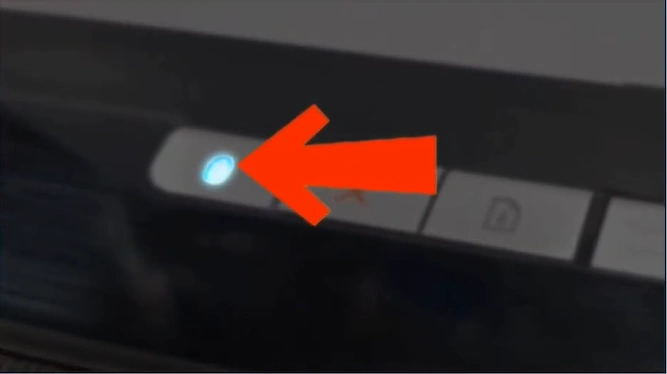
Press the Bluetooth button on the printer’s control panel. Check that the Bluetooth light is on (steady or blinking)- this is a sign that the printer is discoverable.
Install the HP Smart App and the Drivers
Download and install the HP Smart app by visiting the official HP Support website. Search for the latest version. Have the correct printer drivers installed to expect smooth pairing and printing.
Problems That Occur When Connecting the Printer to Bluetooth
Here are some common problems that might arise when you’re trying to connect your HP Officejet 100 Mobile Printer via Bluetooth:
- Printer not listed in Bluetooth devices
- Bluetooth not detected
- Printer not listed in Bluetooth devices
- Bluetooth light errors
- Connection fails after pairing
Steps to Connect HP Officejet 100 Mobile Printer via Bluetooth
Take a glance at the following steps to connect the HP Officejet 100 Mobile Printer via Bluetooth:
Step 1: Turn on your printer.
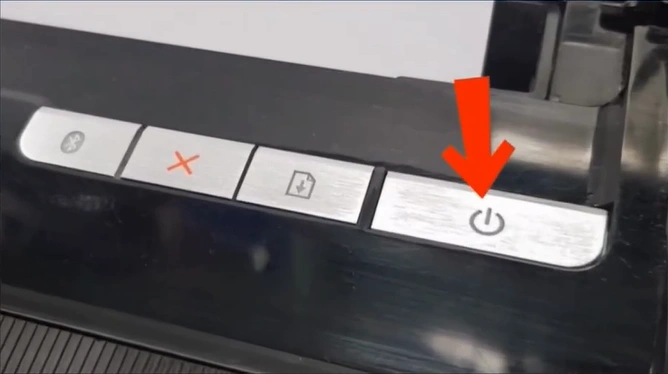
Step 2: Press the Bluetooth button, and it will light up blue.
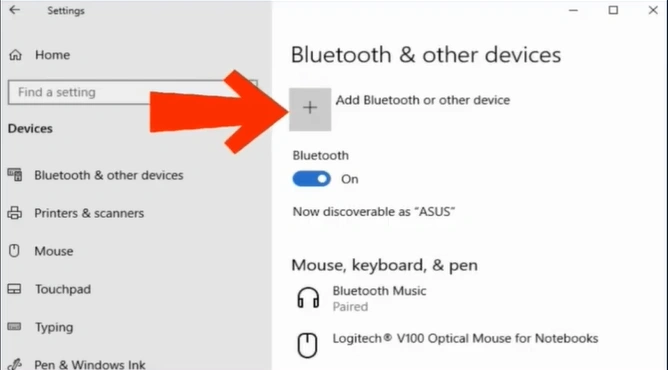
Step 3: On your Windows computer, open Bluetooth & other devices settings.
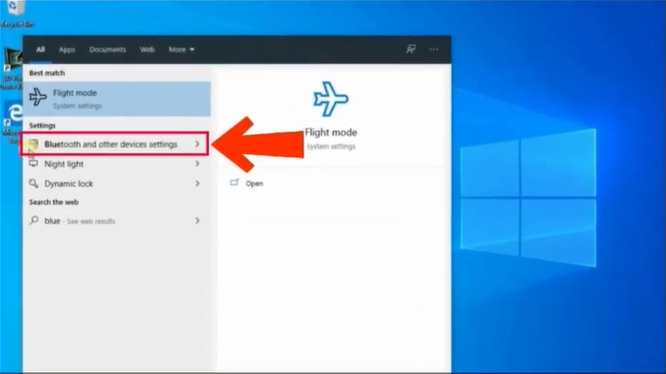
Note: If you’re using another device, open Bluetooth settings.
Step 4: Ensure your Bluetooth is on.
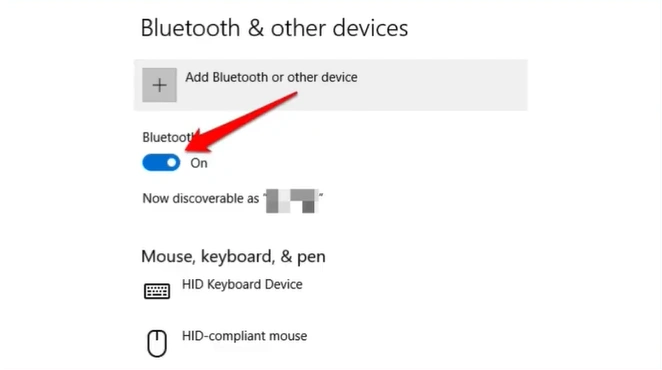
Step 5: Click the “Add Bluetooth or other device” button.
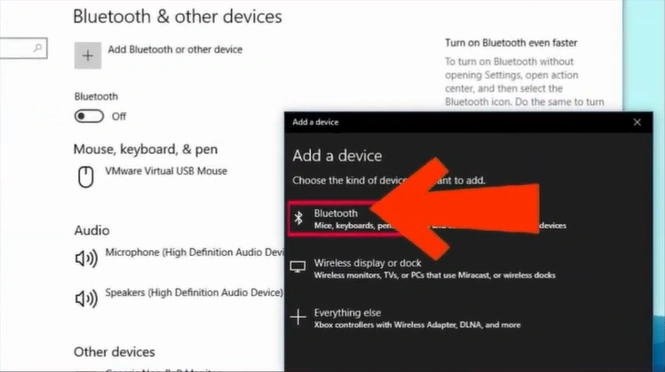
Step 6: In the “Add a device” window, select the Bluetooth option.
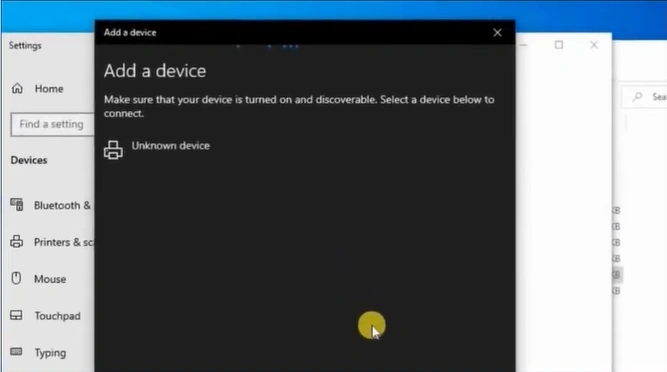
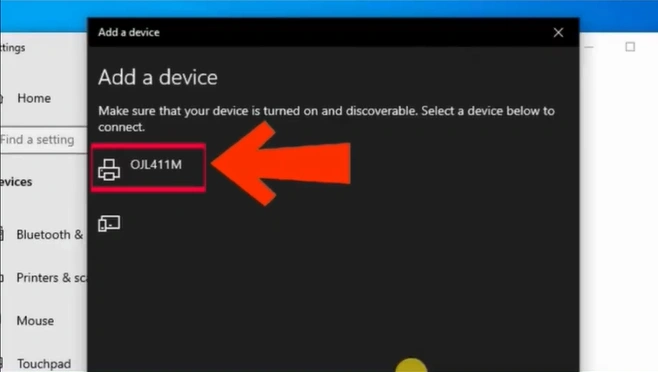
Step 7: Wait for your Officejet 100 Mobile Printer to appear in the list of available devices, with a device name starting with “OJL411MY.”
Step 8: Once listed, select the device name.
Step 9: Enter the default Bluetooth passkey “000000” in the PIN field.
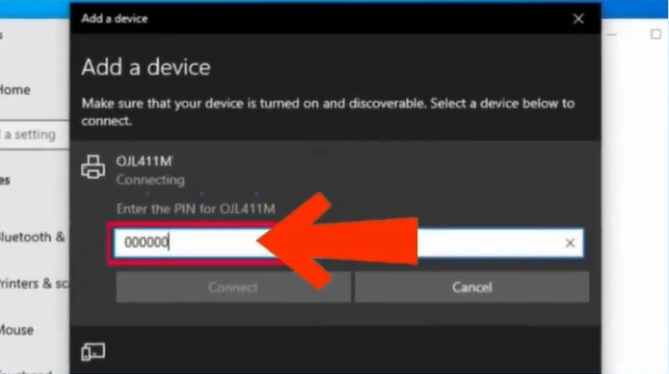
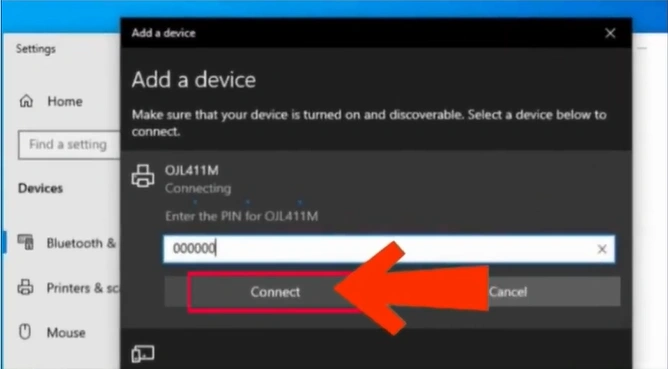
Step 10: Once done, click on Connect.
In a Nutshell
Connect your HP Officejet 100 Mobile Printer via Bluetooth and make your everyday printing tasks smoother and more efficient. You are now ready to experience wireless printing with your smartphone, tablet, or laptop, no matter where you are.
To properly connect the HP Officejet 100 Mobile Printer via Bluetooth, just follow the instructions we’ve mentioned. Watch out for potential issues that may arise along the way and address them promptly.
Related Article

