How to Clear Printer Queue in Windows 10?

While printers are meant to increase our productivity by scanning, printing, and copying documents at the same time, they are prone to showing some errors every now and then. If you are getting the print queue stuck in your printer, then it could be the result of a firmware issue, printer settings, sending too many documents, or other factors.
Resolving this issue is crucial to get your printer printing perfectly once again. Ready to know how to clear the printer queue in your Windows 10? Let's start!
Instructions to Clear Printer Queue in Windows 10
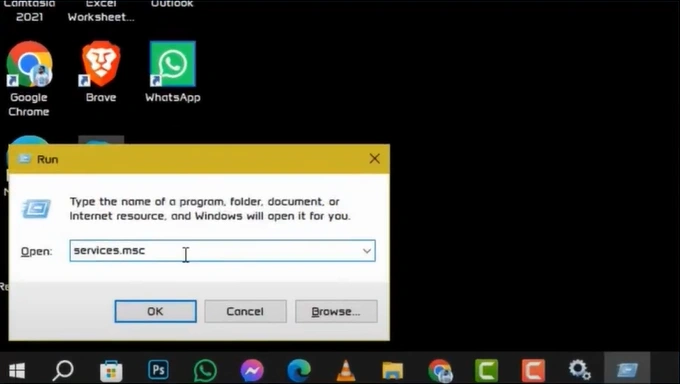
1. Press the Windows + R key to open the Run dialog box, enter "services.msc" and click on OK.
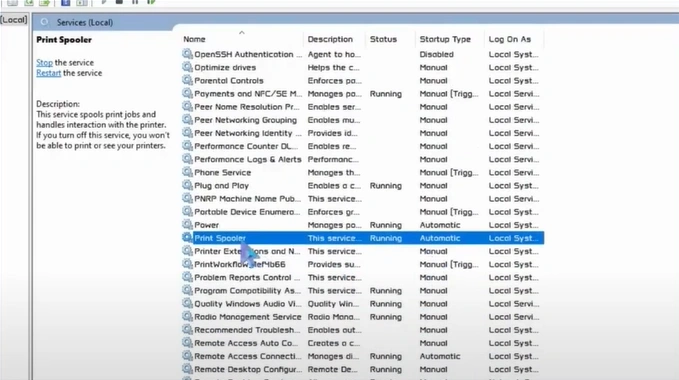
2. Scroll and find the print spooler.
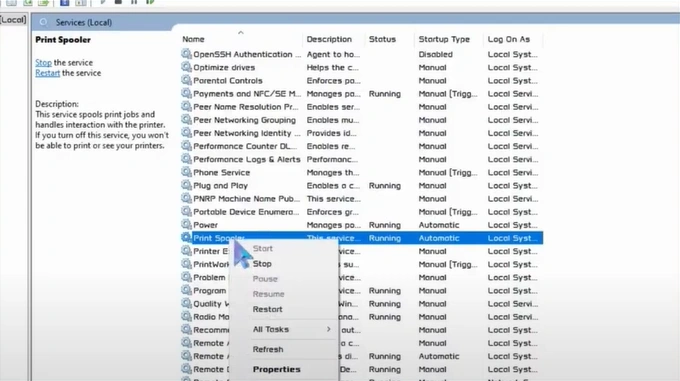
3. You should right-click on the print spooler and select Stop.
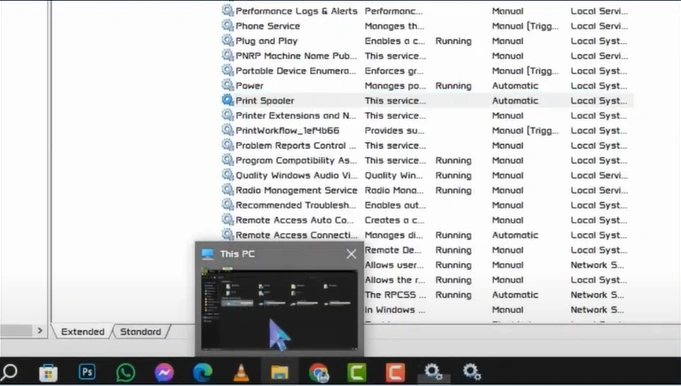
4. Now, open your File Explorer.
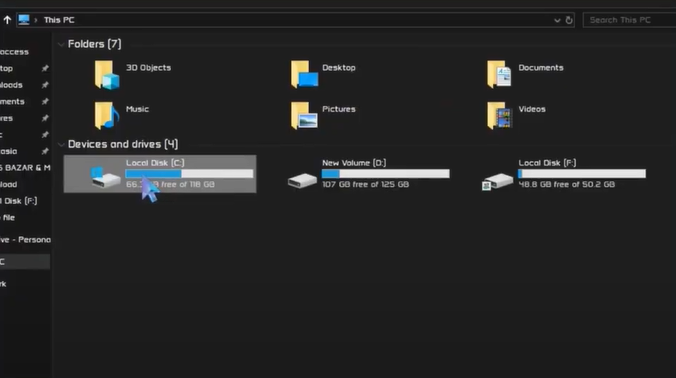
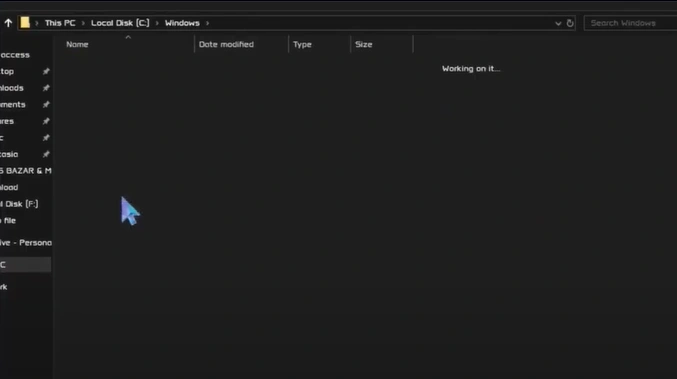
5. Open the Local Disk C, find and open the Windows folder.
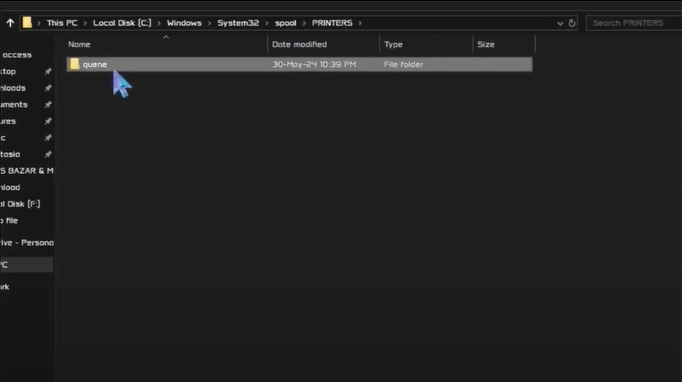
6. Next, open the "System32" folder, double-click on the "spool" folder, and then open the "printers" folder.
7. Delete all the files and folders permanently inside the "Printers" folder.
8. Close the File Explorer window/page and right-click on the Print Spooler again.
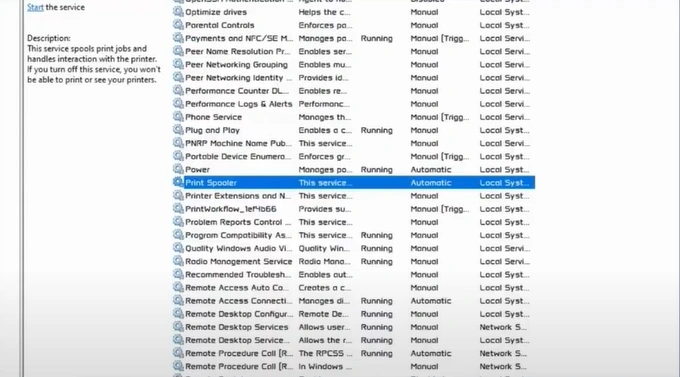
9. Then, select Start.
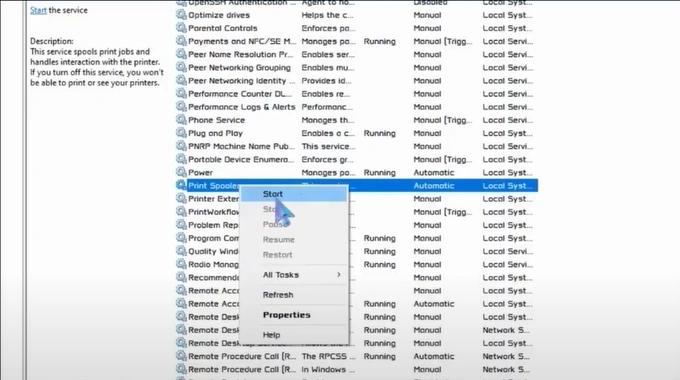
10. Finally, check if your printer is showing a stuck print queue or not.
We hope your printer's print queue is clear after using our instructions. To avoid facing any more complications, you should follow these steps carefully on your printer and Windows 10 device. Additionally, reach out for further information and guides if the issues persist.

