How To Clear Printer Queue Windows 11?

We have helped many printer users resolve the issue and cleared their queries related to the printer queue. The main cause of a print queue being stuck could be too many print jobs given to the printer at once, or the printer not functioning properly. As a result, if you are also facing the same problem on your printer, which is connected to your Windows 11, then you need to clear the print queue. Here, we will explain the pinpoint steps that will help you clear the printer queue in Windows 11 and get your printer working perfectly once again.
Steps to Clear Printer Queue Windows 11
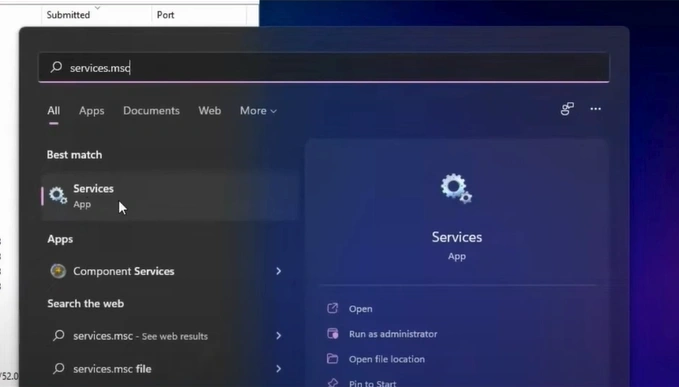
1. Click on the search icon and search “services.msc.”
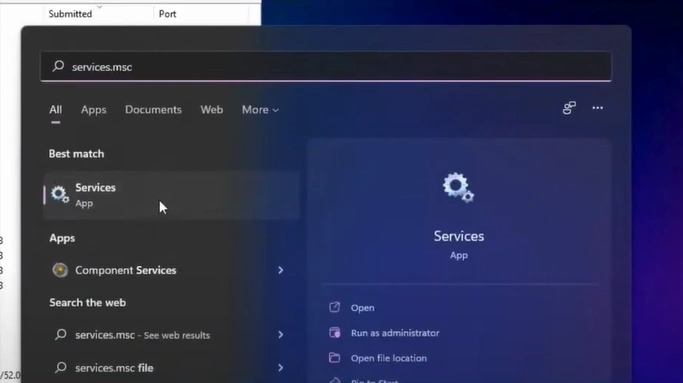
2. Next, open the Services window.
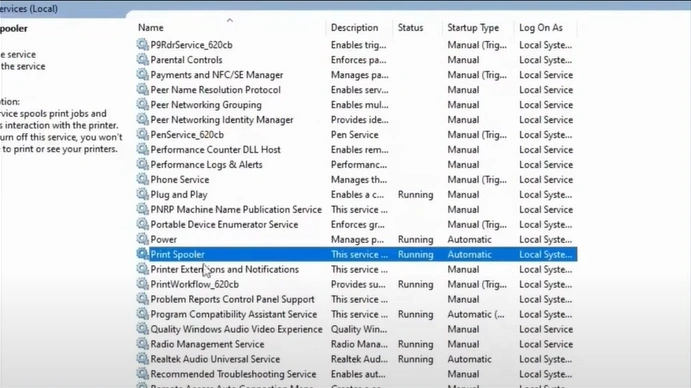
3. Scroll down on the open page and then look for the print spooler.
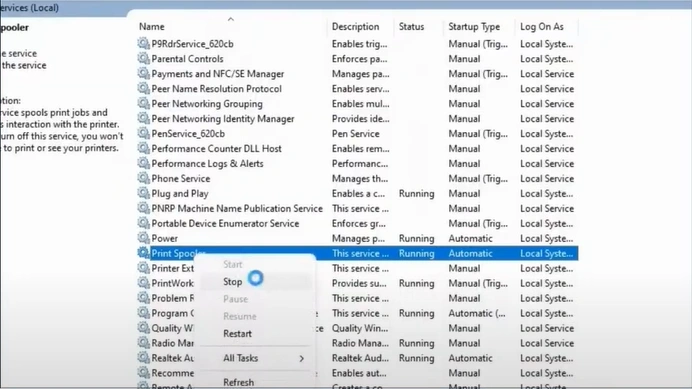
4. After that, you should right-click on the print spooler and choose Stop.
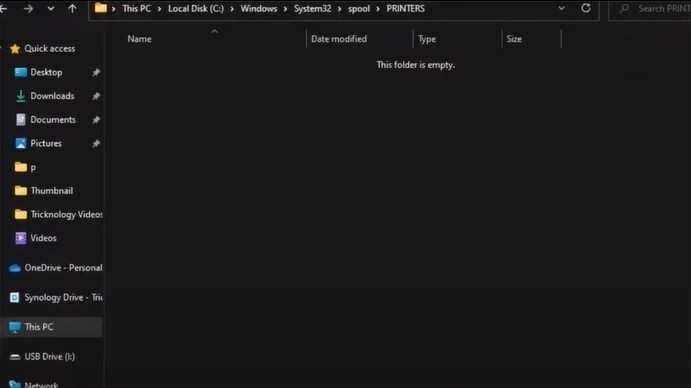
5. Moreover, open your File Explorer.
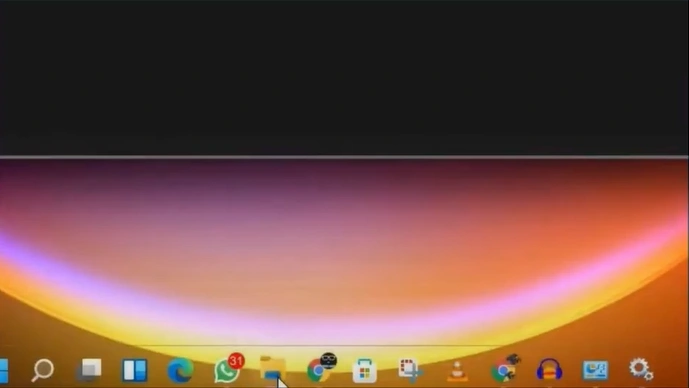
6. Then, open Local Disk C and find and open the Windows folder.
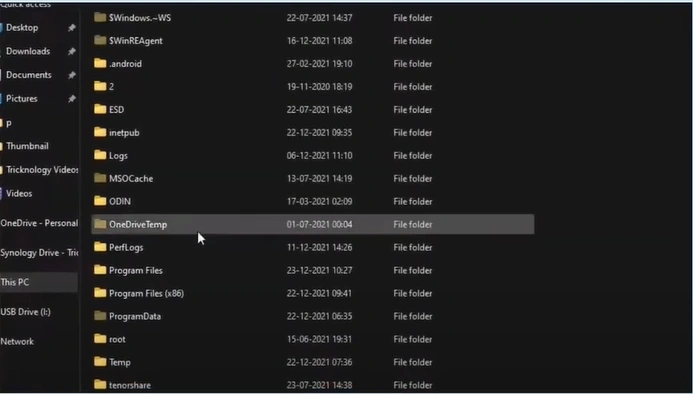
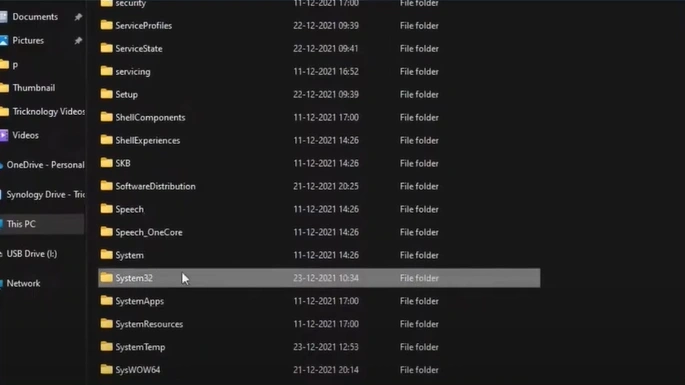
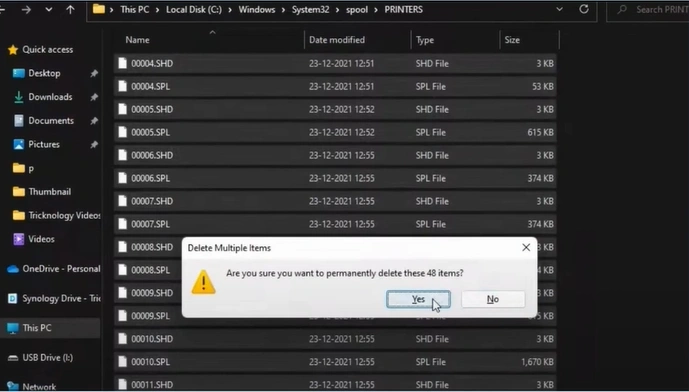
7. Open the "System 32" folder, double-click on the "spool" folder, then open the "PRINTERS" folder.
8. Next, make sure to select all the files and delete them permanently.
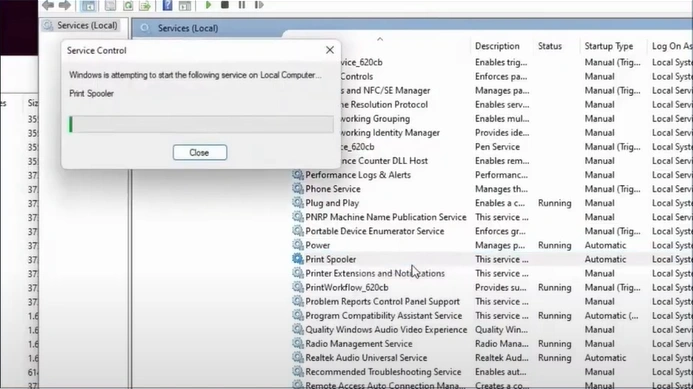
9. Close the File Explorer and right-click on the Print Spooler again.
10. Click on the Start option.
Here, we have shared the step-by-step guide to clearing the printer queue in your Windows 11 device. You can follow these proven steps to remove any print-related issues on your printer. In addition, you may need to look for more help and guides if you are unable to clear your printer's print queue or face any problems resolving the printer issue.

