How to Connect HP LaserJet MFP M234dwe to WiFi?
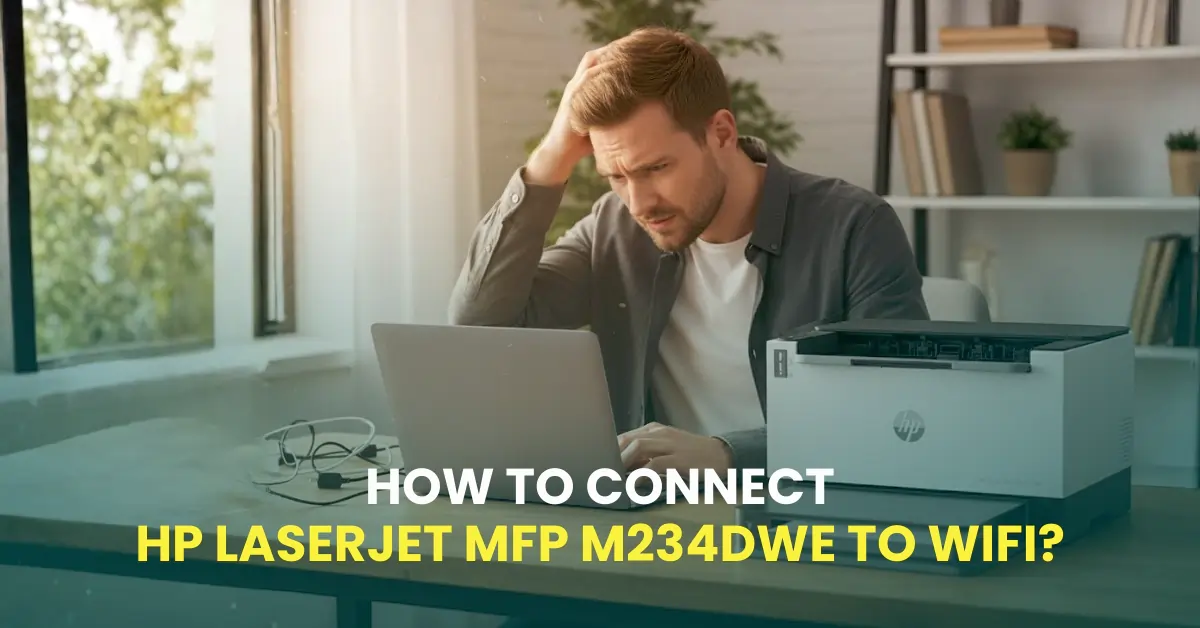
Whether you have noticed this or not, your workspace, where you use the HP LaserJet MFP M234dwe printer, looks very messy. Those tangled wires and cables make your daily print tasks harder. Not to worry, there is one way to clear up the mess. You can connect your HP LaserJet printer to a WiFi network.
Clear the clutter, reduce the risk of tripping over cables, and get your tasks done smoothly. It is very simple to link your HP LaserJet MFP M234dwe to your WiFi network, and before we go to the steps, let’s look at some common problems you may face.
Challenges When Connecting HP LaserJet MFP M234dwe to WiFi
As a user, you may come across many common problems when trying to connect your HP LaserJet printer to WiFi. Here are a few of them:
- Poor or unstable signal
- Wrong password
- Network name (SSID) hidden
- Printer firmware is outdated
- Firewall or security software is blocking the connection
Preparations Before You Start With the Connection Process
These are some important preparatory steps to know before you start with the HP LaserJet MFP M234dwe to WiFi setup:
- Place the printer within the range of your WiFi router
- Power on your printer and check its control panel
- Update the HP Smart app if it is not up to date.
- Check if your device and printer are on the same WiFi network.
Steps to Connect HP LaserJet MFP M234dwe to WiFi
Follow these steps to connect your HP LaserJet MFP M234dwe printer to your WiFi network:
Step 1: Power on your printer if it is not already on.
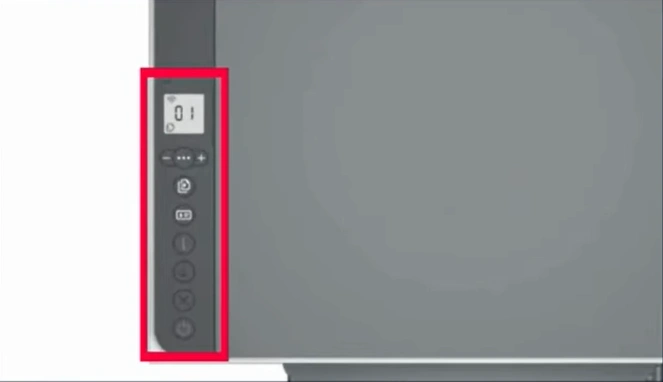
Step 2: Place some printer sheets in the paper tray.
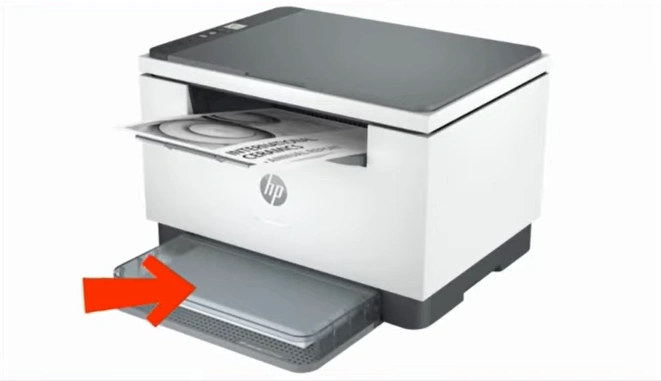
Step 3: On the printer control panel, locate the Information (i) button. Press and hold this button until the Cancel & Reset buttons light up with the (i) button.
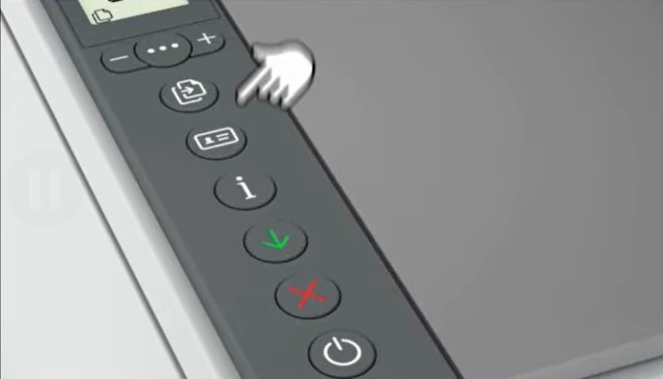
Step 4: Next, press and hold the (i) button for three seconds.
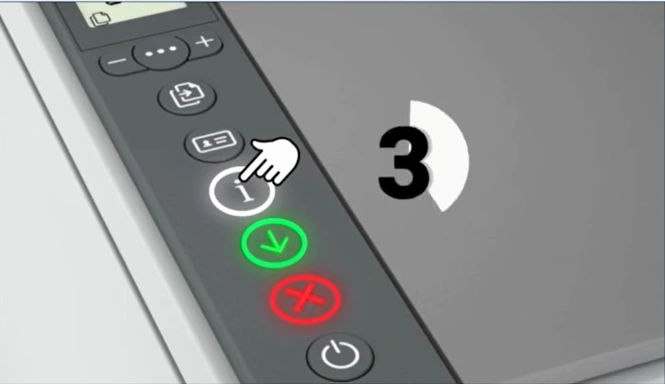
Step 5: Then, press and hold the Wireless and Resume buttons together, and release them.
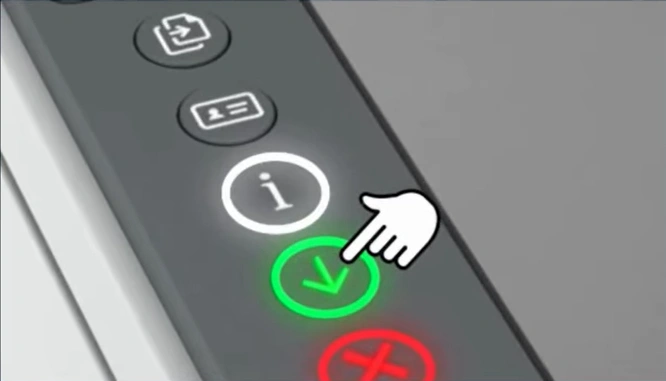
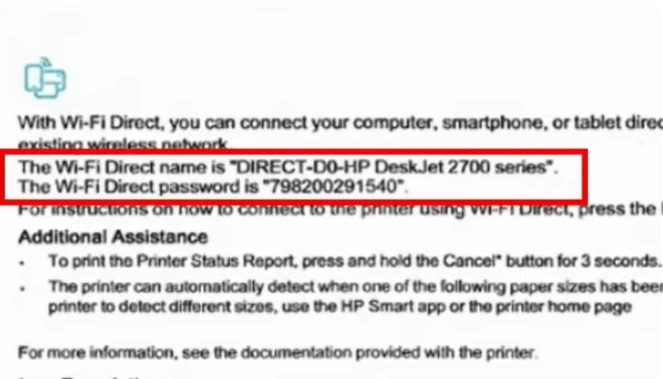
Step 6: You will get a printout with the WiFi Direct name and password.
Step 7: On your mobile device, open Settings and tap on the WiFi icon.
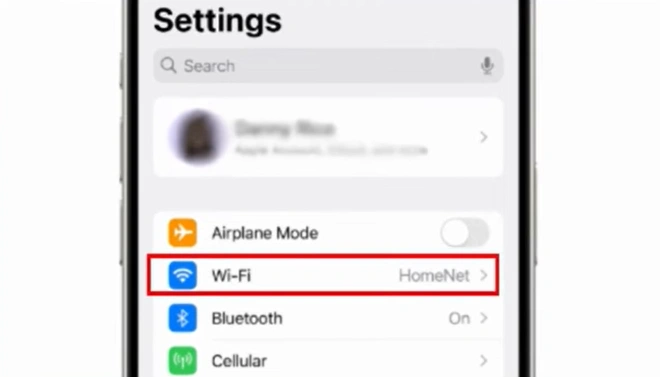
Step 8: Make sure your WiFi is on, then search for nearby devices.
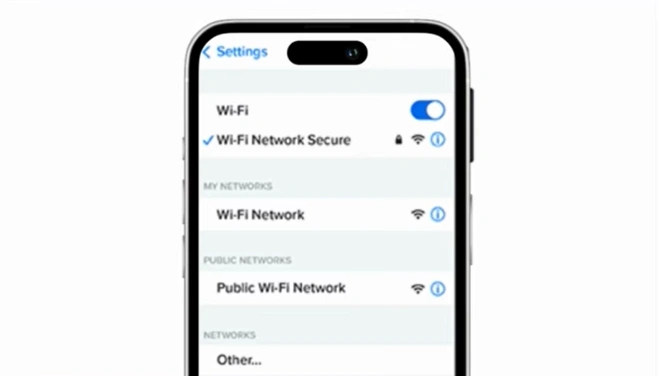
Step 9: Select your printer’s WiFi Direct name once you see it.
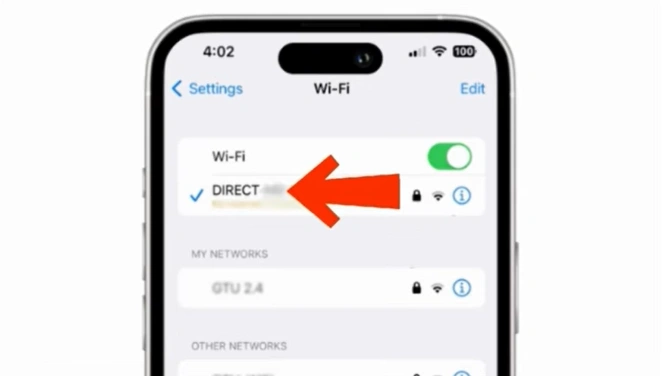
Step 10: Fill in your WiFi Direct password and tap on connect or join.
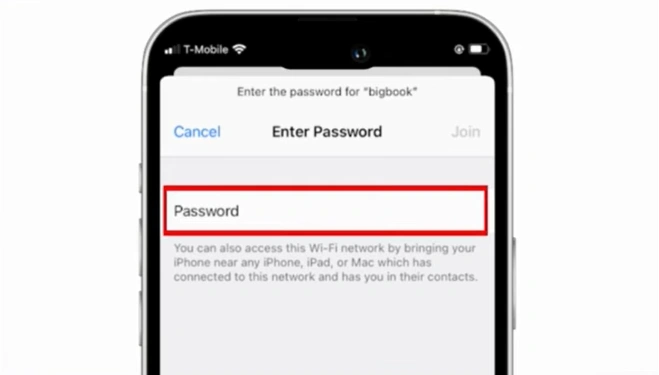
Step 11: Your device connects to the printer through WiFi Direct.
Conclusion
Follow the steps above and start printing wirelessly. You can print from anywhere once your HP LaserJet MFP M234dwe printer connects to WiFi. Bring in more organization with no messy cables that often clutter your desk. Allow multiple users to access your printer over the same network.
Related Article

