How to Connect Sawgrass Virtuoso SG500 Sublimation Printer to the Computer (Windows/Mac)?

The Sawgrass Virtuoso SG500 sublimation printer opens endless possibilities for making personalized projects. Its smart design and features provide great results in terms of quality and precision. Also, it works smoothly with Windows and Mac devices. Before you start using its functions, you need to complete its setup process, which might be challenging for you. Want to learn the complete procedure to connect your printer to Windows and Mac operating systems? Understand the step-by-step instructions below.
For Windows
Follow these comprehensive steps to connect your Sawgrass Virtuoso SG500 sublimation printer to your Windows device.
1. Press the Menu button/key on the control panel.
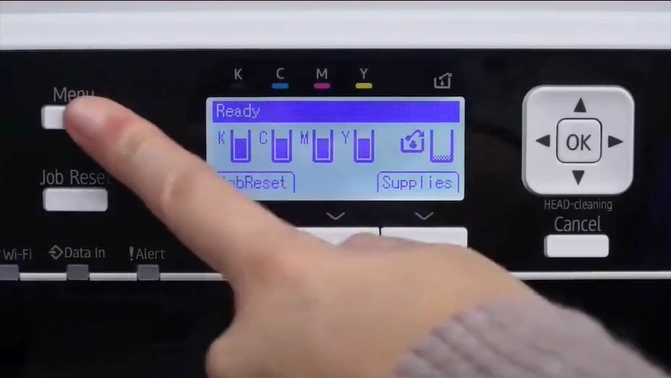
2. Scroll and select System Settings.
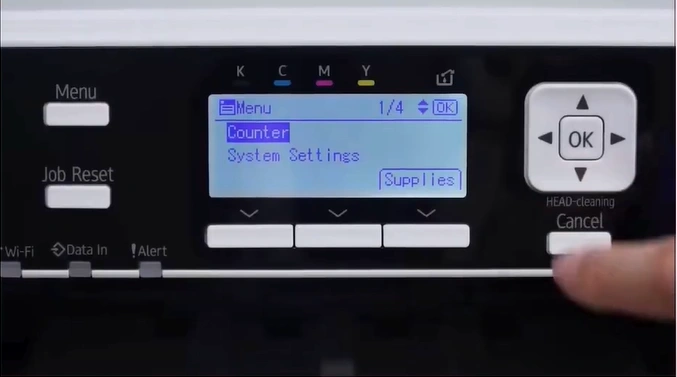
3. Then, scroll and open Interface Settings.
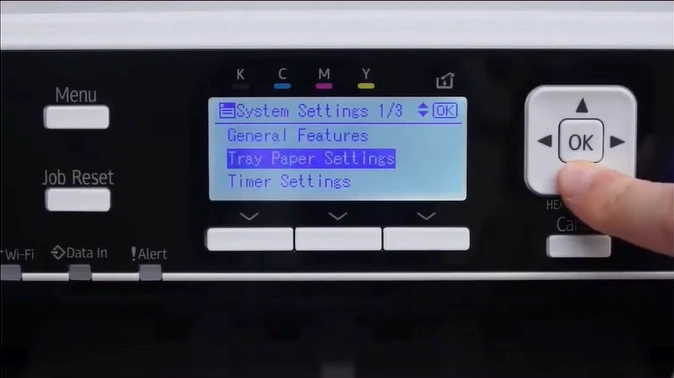
4. Next, use the up or down buttons to select the Wireless LAN option.
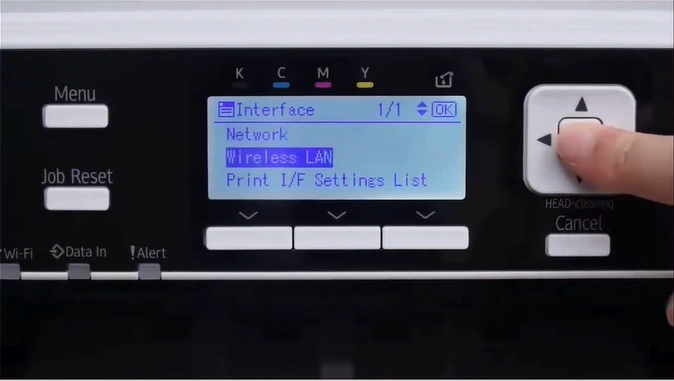
5. Select the Wireless LAN Easy Setup.
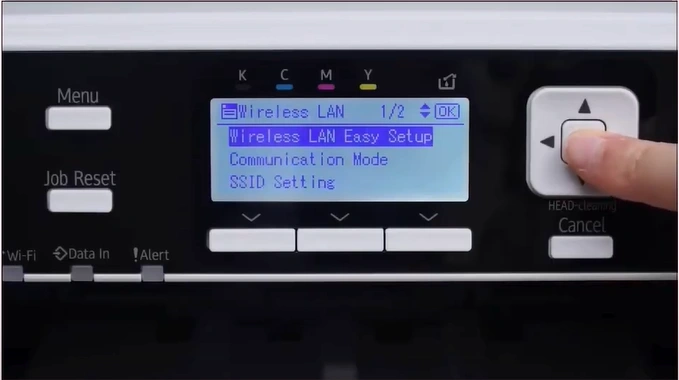
6. Choose SSID Auto Search.
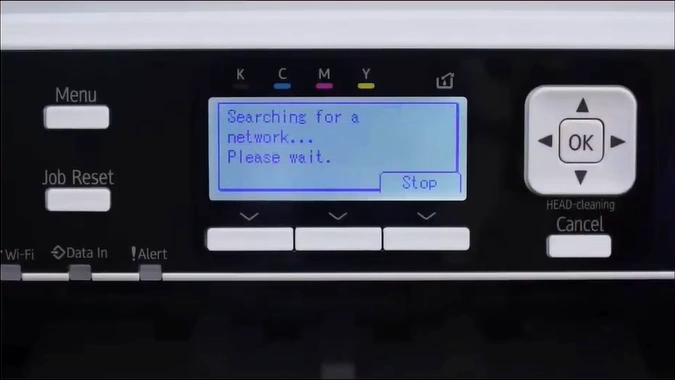
7. Select the wireless network.
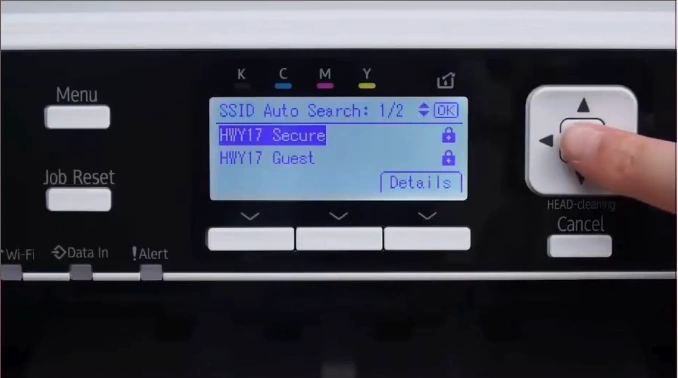
8. Tap on the Enter option.
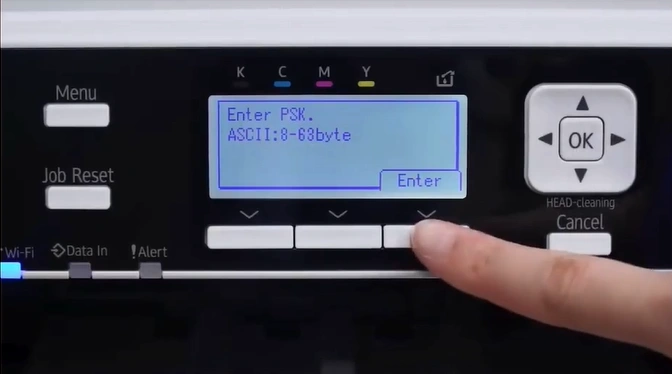
9. Type the correct password and select Accept.
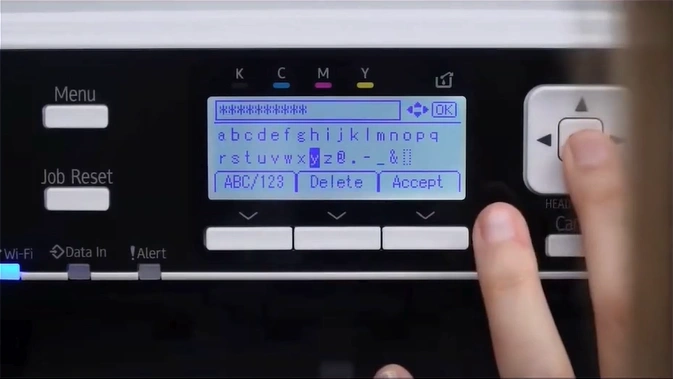
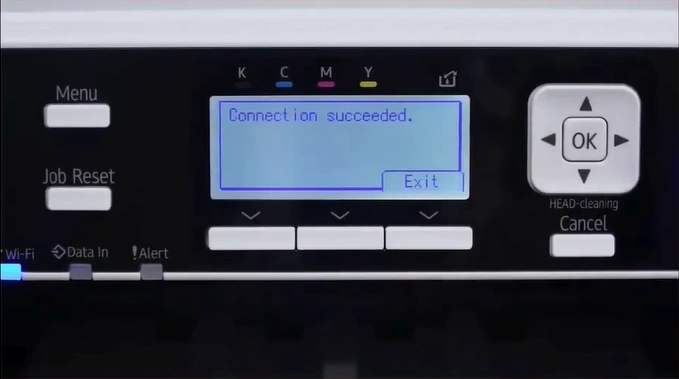
10. Once the device is successfully connected, press the Exit button.
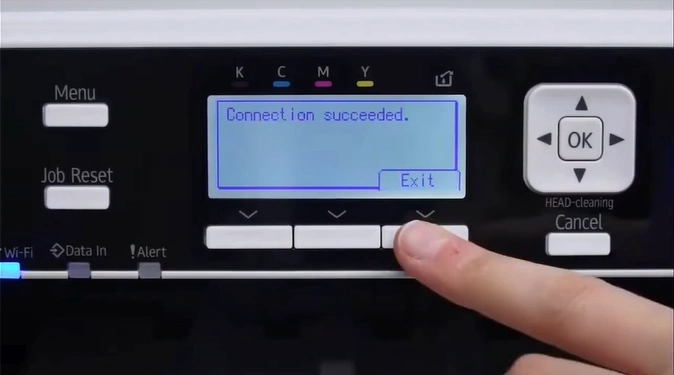
11. Now, visit the Sawgrass Ink official website and click on Get Started.
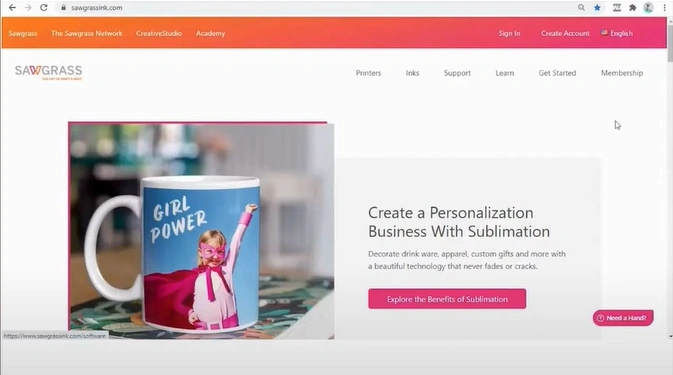
12. Select Print Manager, then click on Download for Windows.
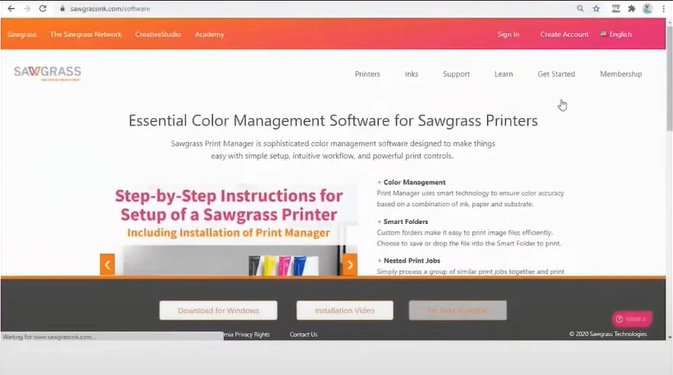
13. Once it is downloaded, open the file.
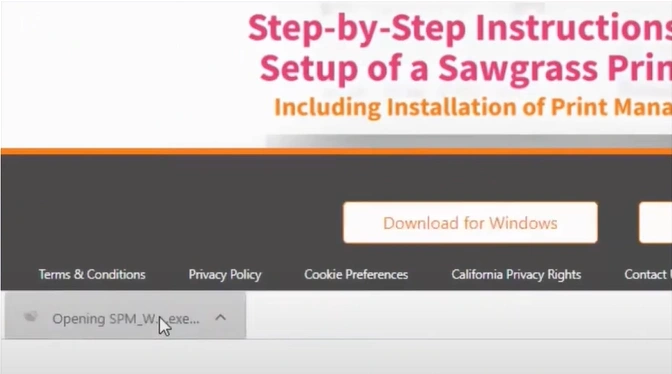
14. A window indicates that the app is not Microsoft verified; click 'Install anyway'.
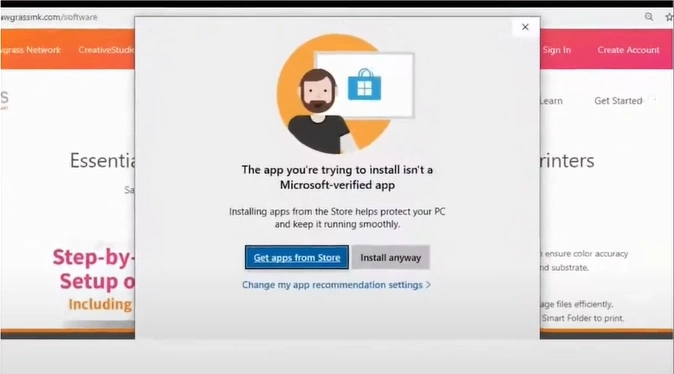
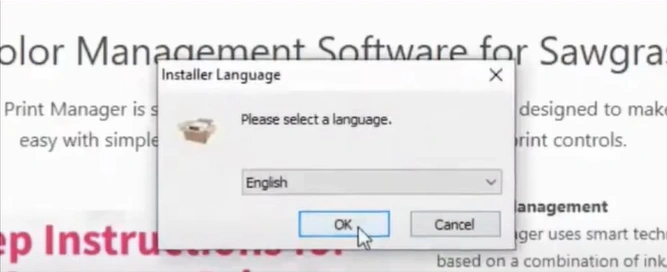
15. Click on the language you prefer, then click on OK.
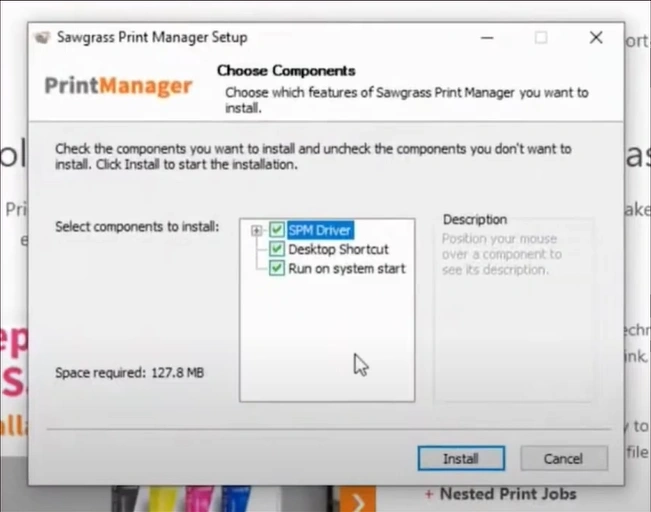
16. Choose the components to install and press the Install button.
17. After successful installation, click on Finish.
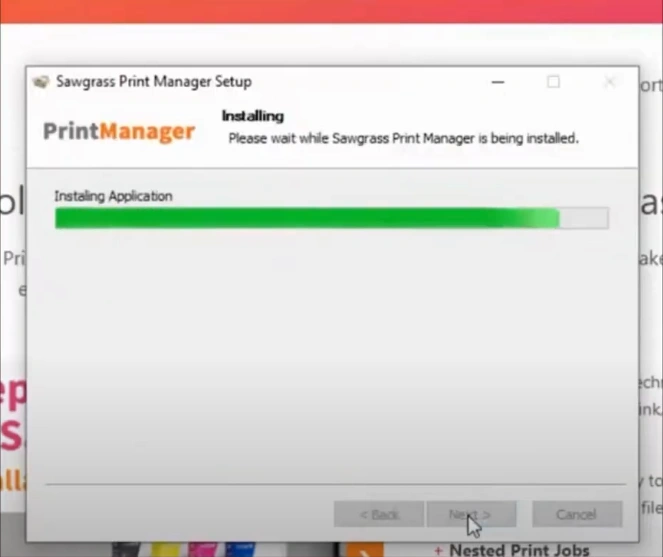
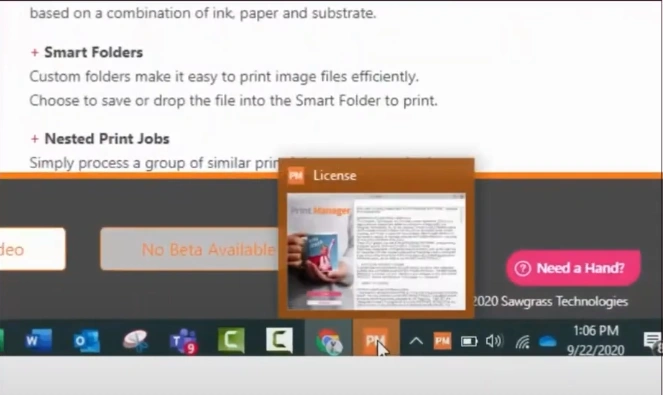
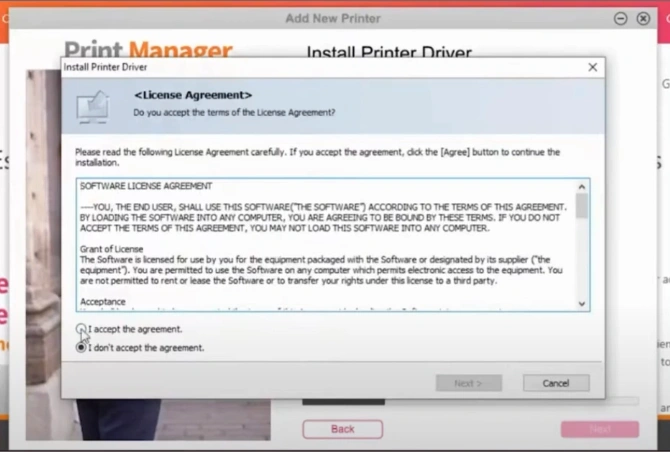
18. Open the Print Manager app, read it, and agree to the license agreement.
Also Read:- Fix the HP Print Job Stuck in Queue
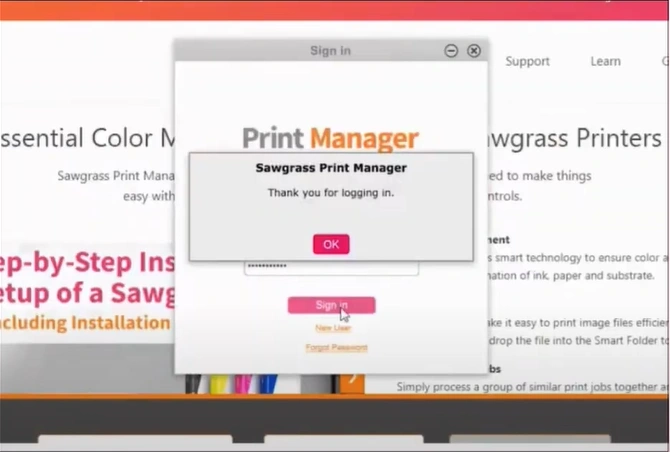
19. Next, log in with your email and password, then click on OK.
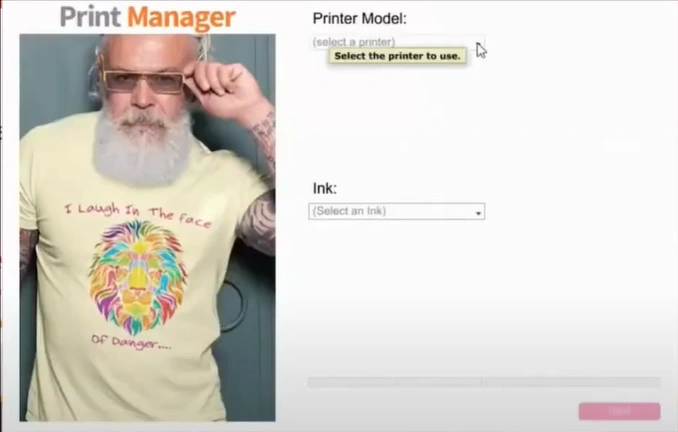
20. Select your printer model and select Ink, then click on Next.
21. If an update is available, click on the Update button, accept the license agreement, and then click on Next.
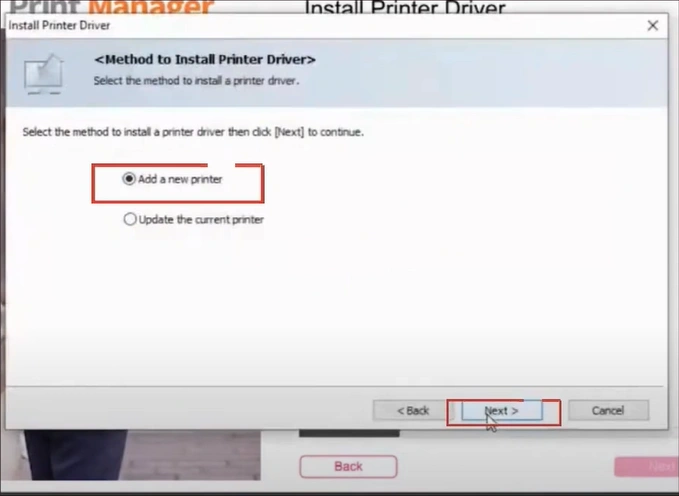
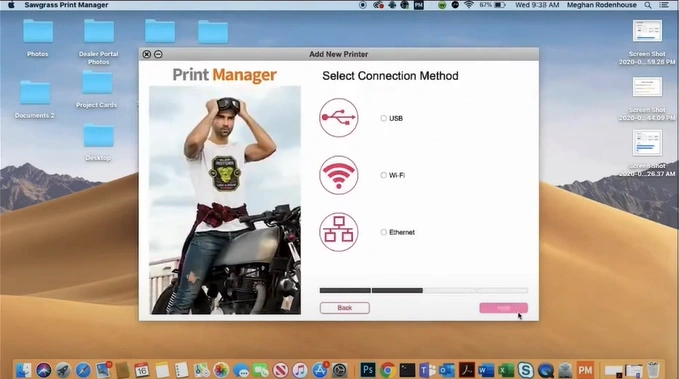
22. Select the “Add a new printer” radio button and click on Next.
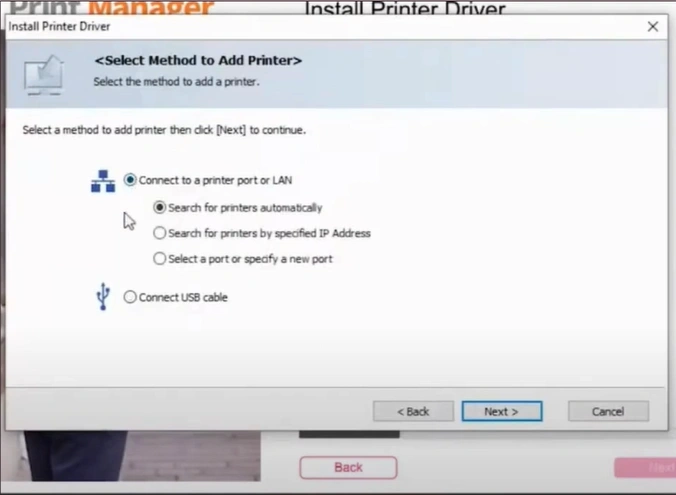
23. Select your method, connect the printer, and select Next.
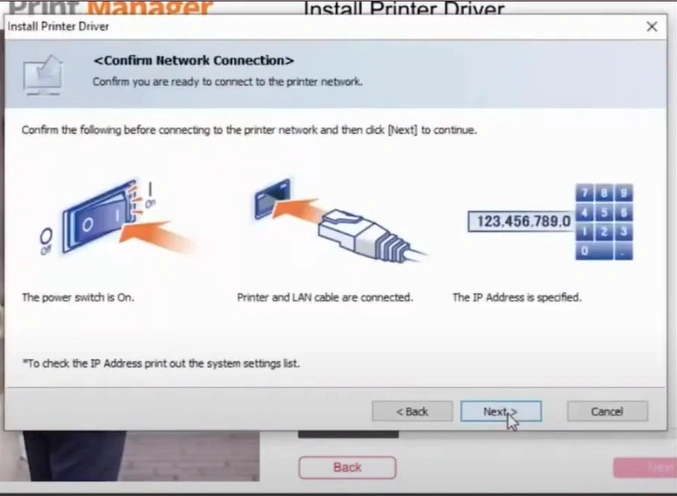
24. Follow the on-screen prompts, then click on Next.
25. Choose your Sawgrass printer model and click on the Next option.
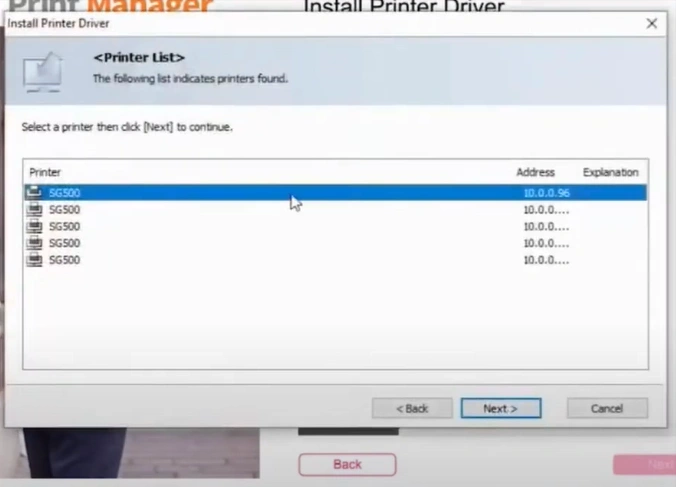
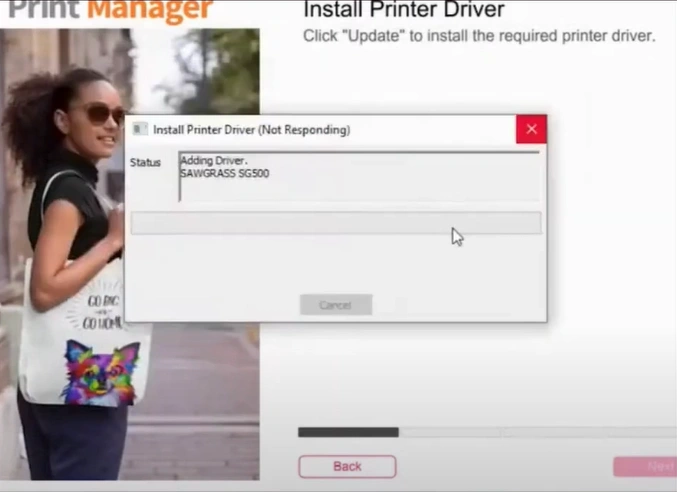
26. You should click on Continue and then click on Install.
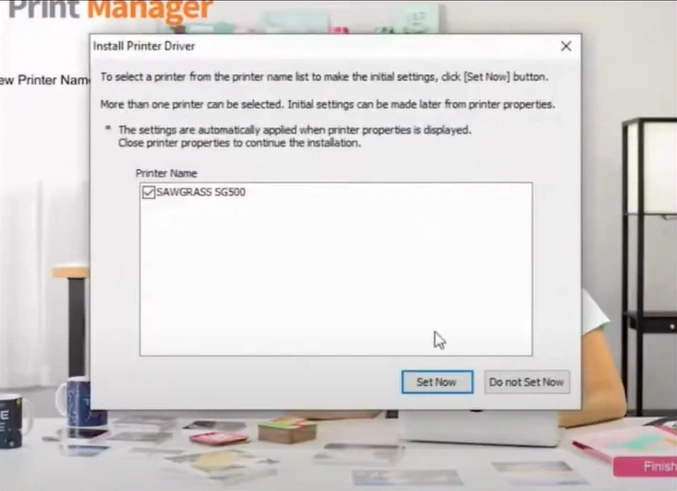
27. After installation, click on Set Now.
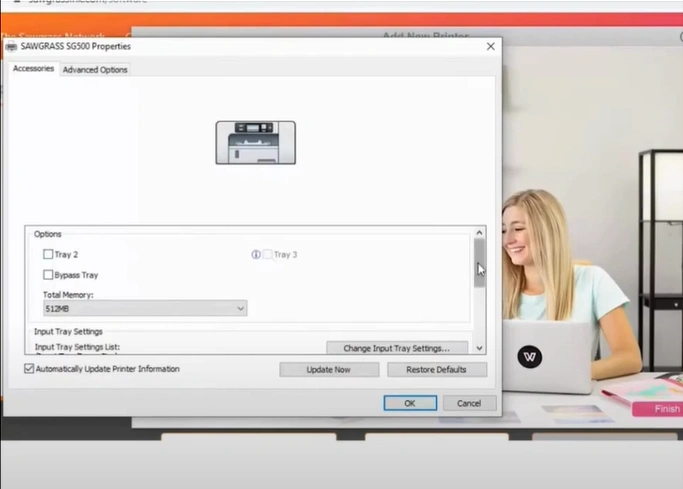
28. In the Properties window, choose the option you prefer, and then click OK.
29. Choose the Restart option and then click on Finish.
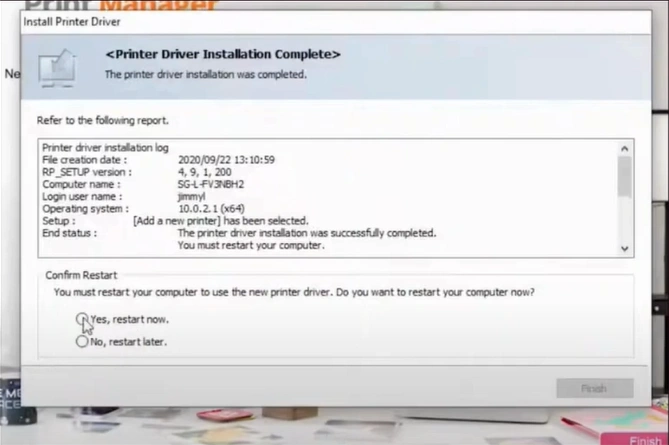
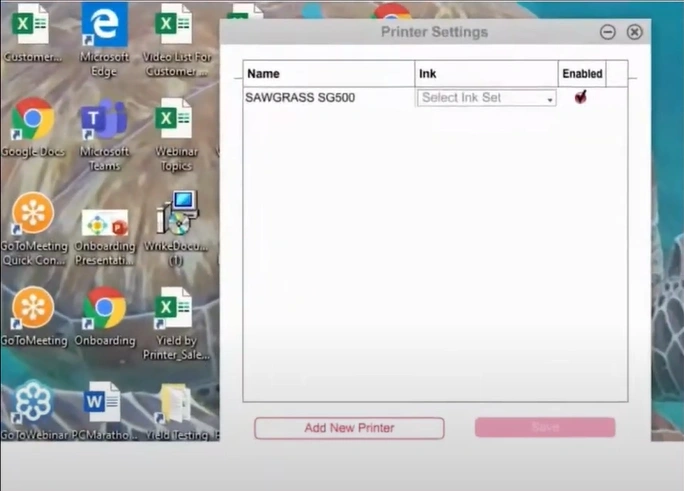
30. In the printer settings window, select "Ink" and click "Save."
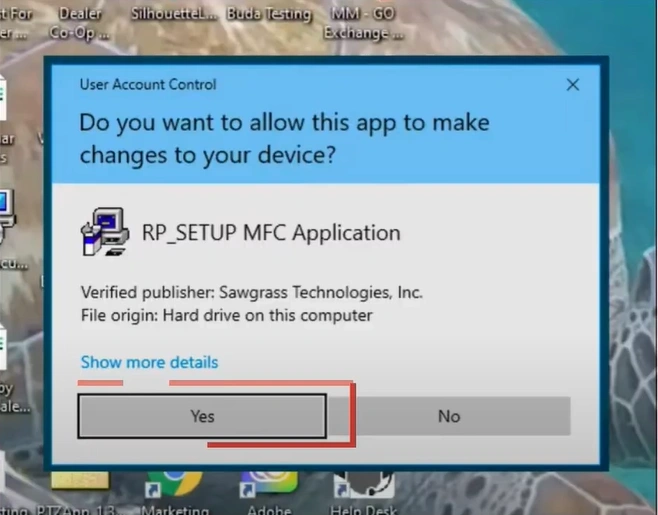
31. Select Yes to enable the app to make changes.
For Mac
If you want to connect your Sawgrass Virtuoso SG500 sublimation printer to a Mac device then follow the below steps to complete the process.
1. Press the Menu button/option on the operational panel.
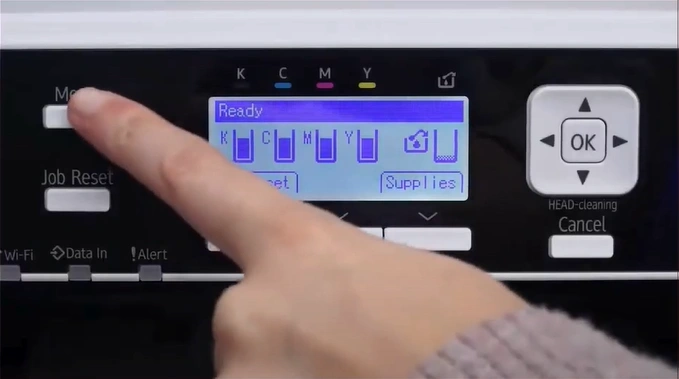
2. Next, scroll and open System Settings.
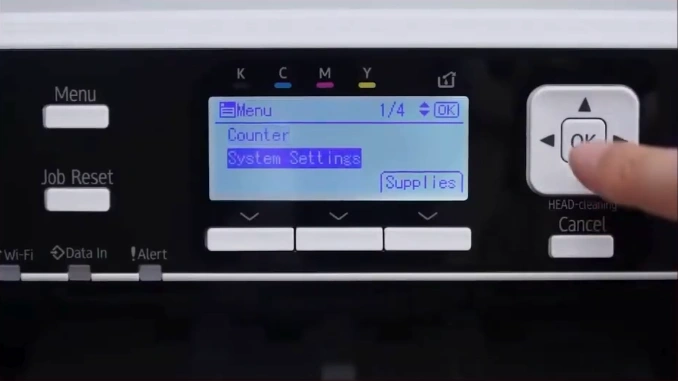
3. Then, scroll down and press OK on Interface Settings.
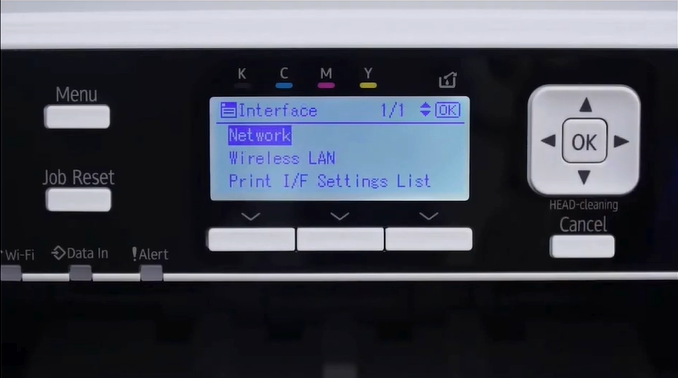
4. Tap on the Network option.
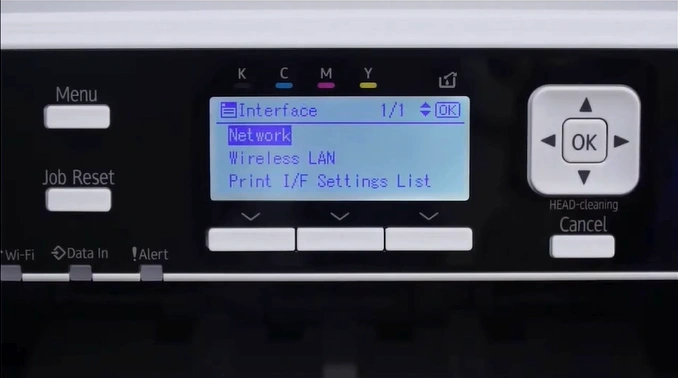
5. Open the Wireless LAN, then select Wireless LAN Easy Setup.
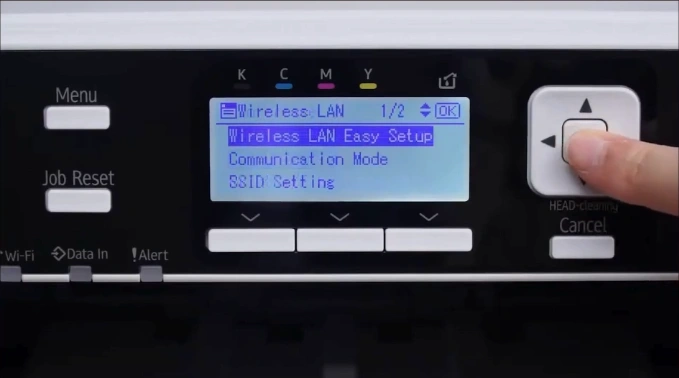
6. Choose SSID Auto Search.
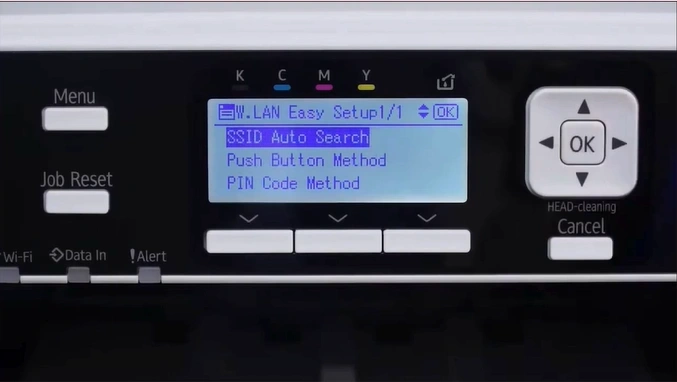
7. Select the wireless network name.
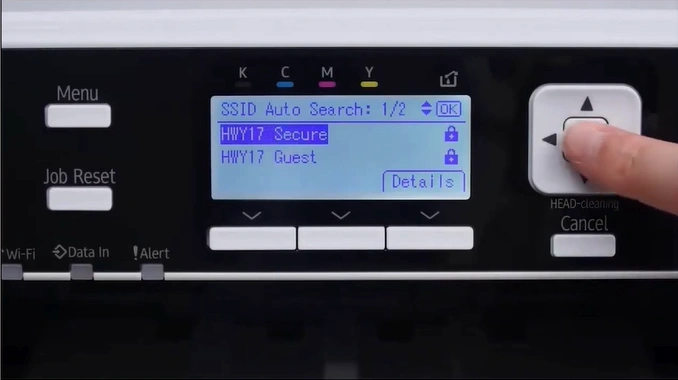
8. Press Enter to fill in the password.
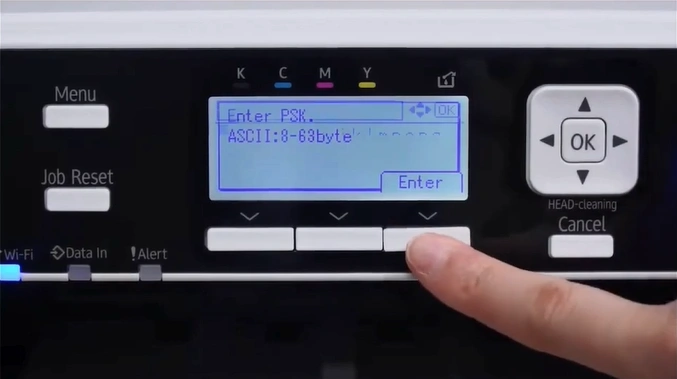
9. Type your network password and press Accept.
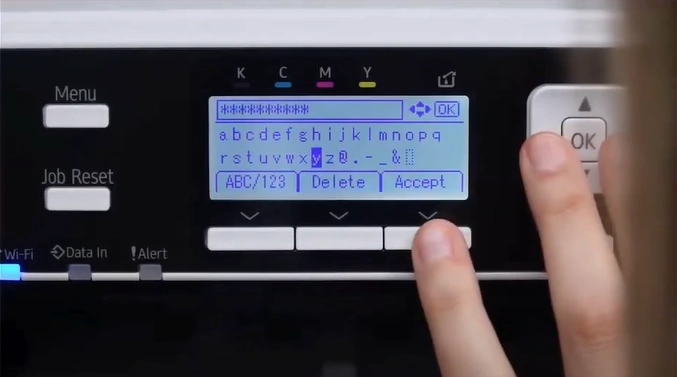
10. Once successfully connected, press Exit.
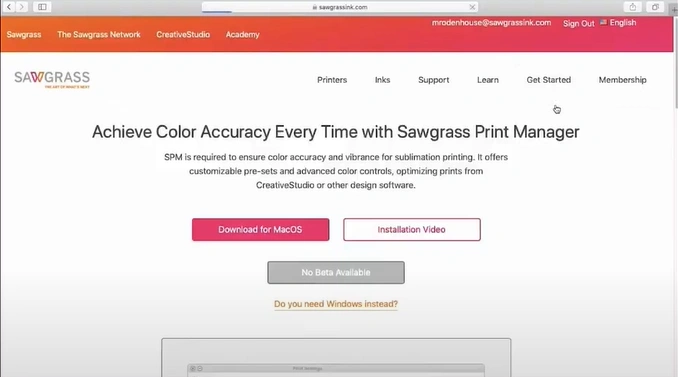
11. Click on Printer Manager.

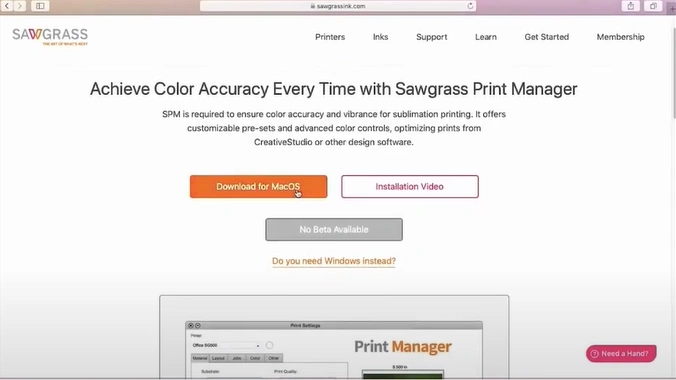
12. Press the “Download for macOS” button.
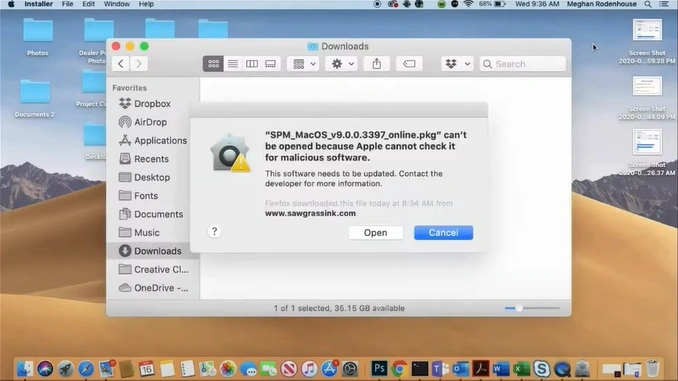
13. Open your downloaded file.
14. Follow the on-screen guides to complete the installation.
15. Finally, your sublimation printer will be ready to use.
Sum Up
Here, you have complete knowledge about the setup process of your Sawgrass Virtuoso SG500 printer on Windows and Mac. Follow the methods according to the operating system you are using, and then start working with it right away. Besides that, look for more help if necessary.

