Brother HL-L2300D Printer Toner Reset

The Brother HL-L2300D printer in your office is showing a “Toner Low” or “Replace Toner” message. But you know that you are not running out of toner, and the prints also look okay. Even so, the printer continues to display the error message.
The Brother HL-L2300D model tracks toner usage electronically rather than by measuring the toner left in the cartridge. Because of this, resetting the toner counter can help your printer recognize the cartridge as new again and resume printing without disruptions. How to perform a toner reset may be the main question on your mind.
Below, we explain the full process to reset the Brother toner. Before starting, let’s first discuss the issues that may arise during the reset process.
Problems You May Face During Brother Toner Reset
While trying to reset the Brother printer toner, you may face certain issues, like:
- The toner reset doesn’t work even after performing the steps correctly.
- The “Replace Toner” or “Toner Low” message still shows up.
- Using an incompatible or non-genuine toner cartridge
- Firmware updates are blocking the manual reset
Easy Steps to Reset Brother HL-L2300D Printer Toner
Before proceeding with the instructions below, verify that your printer is powered on and ready. Ensure that the toner cartridge is correctly installed. Now, let’s get started with the process:
Step 1: Disconnect the printer’s power cable from the outlet.
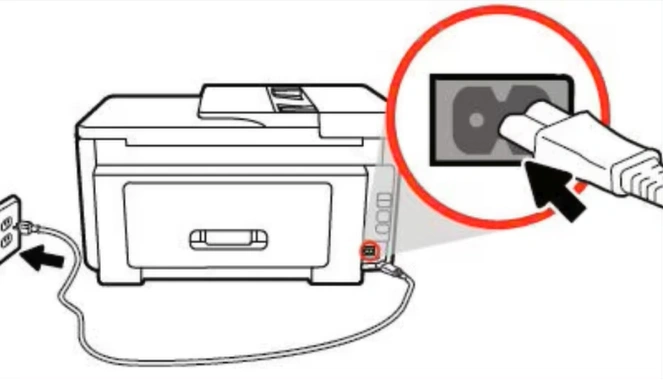
Step 2: Open the front cover and slide out the drum and toner unit.
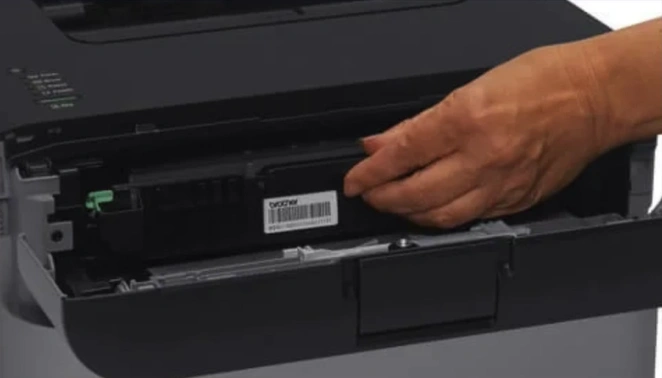
Step 3: Press and hold the green button on the printer.
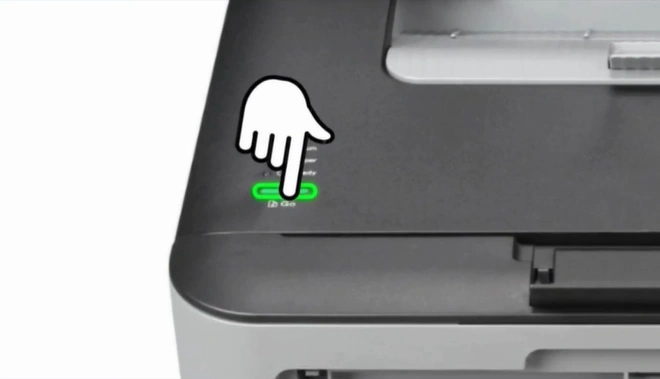
Step 4: Plug the power cord into the outlet.
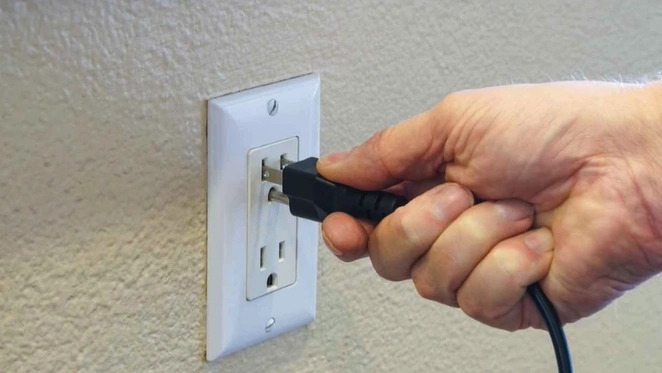
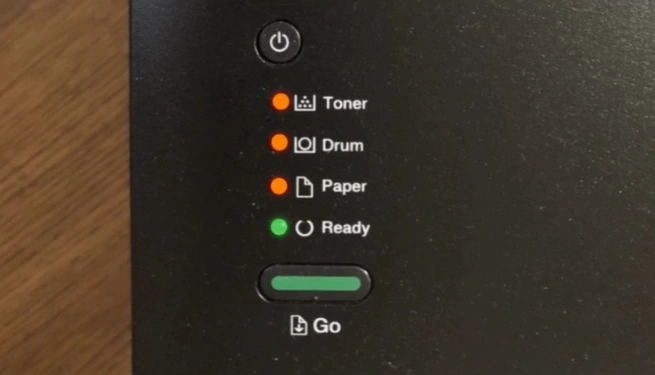
Step 5: Check whether the Toner, Drum, and Paper lights flash.
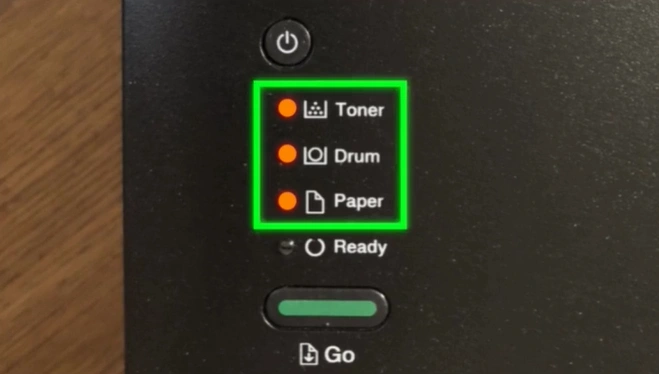
Step 6: Now, press and hold the green button for a few seconds (10 seconds recommended).
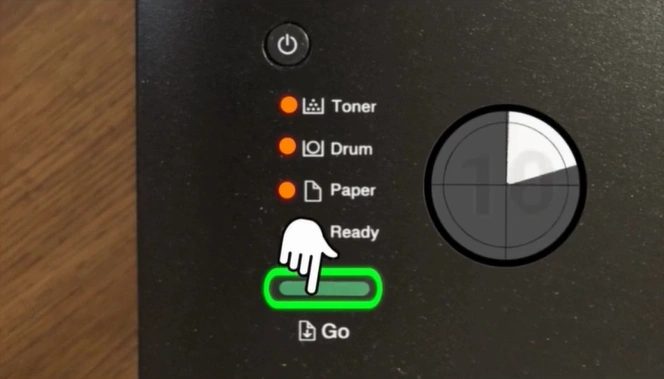
Step 7: After that, release the button and press it nine times.
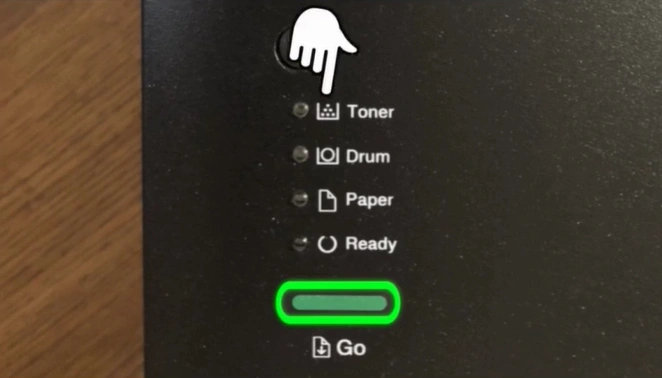
Step 8: Check whether the Toner, Drum, and Paper lights flash again after going off.
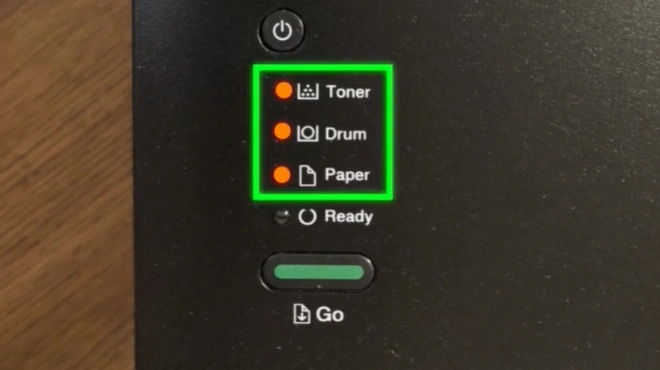
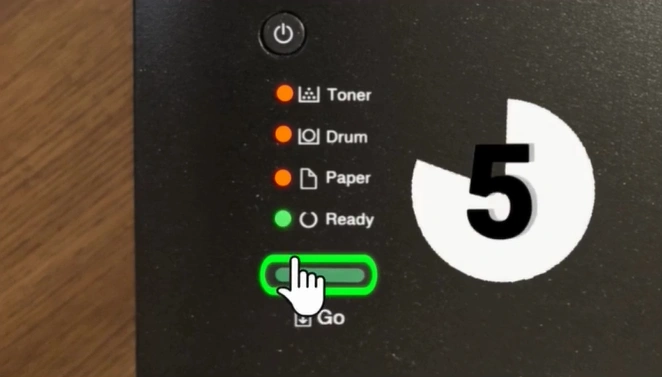
Step 9: Press the green button 5 times.
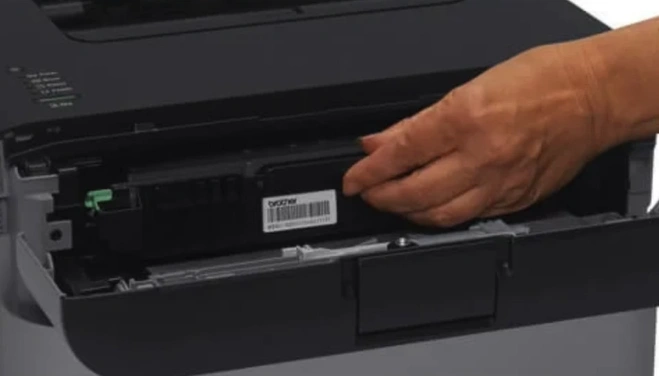
Step 10: Reinstall the toner unit and close the front cover.
Step 11: Wait for your toner to reset.
Final Words
After the reset, your Brother HL-L2300D printer will start recognizing the cartridge, and there won’t be any error message. You can carry on with your daily printing using the remaining toner. Just follow each step carefully as discussed above, save time, and avoid unnecessary cartridge replacements.
Related Article
Frequently Asked Questions
Why do I need to reset toner on my Brother HL-L2300D printer?
Resetting the toner on the printer is necessary when the printer cannot recognize the cartridge. You may also need to reset the toner when the “Toner Low” or “Replace Toner” light stays on even after installing a new cartridge.
How often should I reset toner on Brother HL-L2300D?
It is recommended to reset the toner counter on your printer whenever you replace the toner cartridge. You must also try a reset if your printer is showing a “Replace Toner” message even after installing a new cartridge.
Will resetting the toner cause any damage to printer?
No, resetting the toner counter itself usually won't damage your printer. But not performing the reset correctly can lead to poor print results or other issues.
Is toner reset necessary after every toner replacement?
Yes, a toner reset is a necessary step to perform right after a replacement. The reset is important because your printer needs a signal to recognize the new cartridge.
How long does a Brother HL-L2300D toner cartridge last after reset?
A standard Brother printer cartridge can last up to 2,600 pages. But it depends on how often you print and what print settings you apply.

