Brother Printer Offline But Connected? Fix on Windows & Mac (Easy Guide)
A Brother printer going offline is a common error when it doesn’t print or respond. In this situation, your printer says “Offline” or “Paused” and doesn’t respond to the print commands you send. This problem usually occurs due to connection problems or incorrect printer settings on Windows or Mac. There are several other reasons for this error as well. Therefore, if you have been struggling with an offline printer error, you’ll find the main troubleshooting methods here.
Before trying advanced troubleshooting, follow these quick checks:
- Make sure your printer is turned on and not showing any error lights.
- Restart your printer, computer, and Wi-Fi router.
- Ensure that cable connections, such as USB or Ethernet, are secure.
Why Is Your Brother Printer Showing Offline but Connected?
Your printer may go offline even if it is properly connected to your device and network. This can happen due to technical errors or printer setting issues. These include incorrect printer settings, outdated printer drivers, a faulty print spooler service on Windows, or a paused printing system on Mac.
How to Fix Brother Printer Offline Issue on Windows?
Your printer may go offline on Windows when it's not set as the default printer or set to offline mode. Faulty print spooler services and outdated printer drivers may also cause this issue.
Fix 1: Set Printer as Default
A Brother printer that is not set as the default might be the reason for an offline error, especially when your printer is connected but showing offline. Set it as the default to allow your computer to detect your printer automatically, following the steps below.
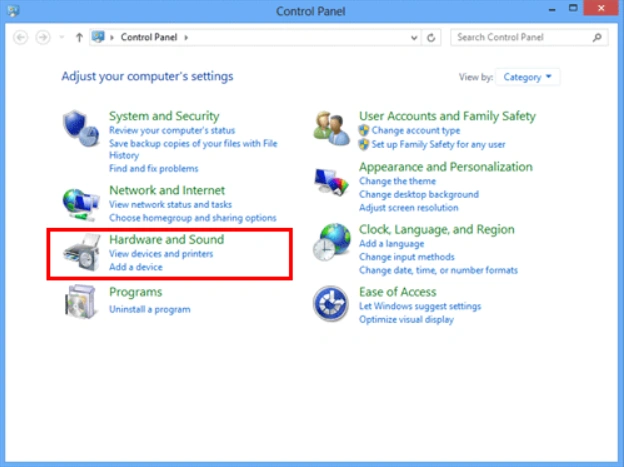
1. Go to the Start menu at the bottom of your Windows screen, and type “control panel.”
2. Select it from the results, and select “View devices and printers” under Hardware and Sound.
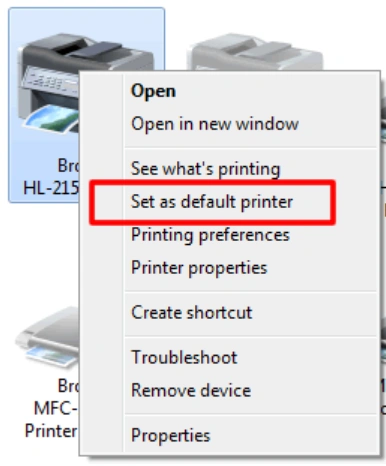
3. Select your printer, and right-click on it. Click the “set as default printer” option to make it the default device.
Fix 2: Turn Off “Use Printer Offline” Mode
If your Brother printer is set to offline mode, it will stop printing and show an “offline” error message. To fix this error, change its status from offline to online on your computer using these steps:
- Click the Start button at the bottom of the screen and type “printer.”
- Select Printers & Scanners from the list, and then click on your printer.
- After that, select “See what’s printing” or “Open queue.”
- Check whether the “Use Printer Offline” option is checked. Uncheck it if it's checked.
Fix 3: Restart Print Spooler Service
The print spooler is a software program in the Windows system that manages print jobs. It works like a queue for print jobs. If it's faulty, it may stop multiple print jobs from printing, leading to an offline printer issue. In this case, restart the Print Spooler service to fix the offline error.
1. Press the Windows and R keys together to open the Run command box, type services.msc, and click OK.

2. Scroll down to the Print Spooler option and right-click on it.
3. Select the Restart option. Alternatively, you can select Stop first, then select Start after a few minutes.
Fix 4: Uninstall & Reinstall Printer Drivers
Printer drivers are special software that enable your computer to communicate with your printer. Each printer has its own printer driver. When this software gets outdated or corrupted, the printer may show an offline error. Here are the steps to update drivers:
- Go to the Start menu at the bottom of your Windows screen, and search for Settings.
- Select Apps under Settings, and then select Apps & Features, and find your Brother printer drivers.
- Select the Uninstall option from the list to remove it from your computer.
- Visit support.brother.com in your browser to open Brother’s official support website.
- Select your Windows version from the on-screen options, and click OK.
- Click on the Full Driver & Software Package option.
- Then, click the “Agree to the EULA and Download” button to proceed.
- The printer drivers will be downloaded to your system's Downloads folder.
- Go to the Downloads folder, and double-click on the downloaded file.
- Follow the on-screen steps to install the printer drivers.
How to Fix Brother Printer Offline Issue on Mac?
Your printer may go offline due to changes in your Mac's printer settings, such as an offline status or outdated printer drivers. Here are the most effective troubleshooting methods to resolve this error.
Fix 1: Reset Printing System
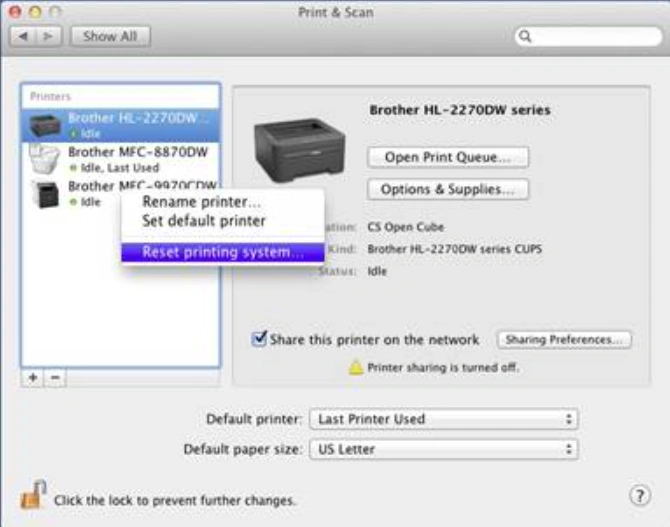
Resetting the printing system on a Mac is a troubleshooting method for a range of problems, including the printer being offline. Here are the detailed steps for resetting the printing system:
- Click the Apple menu, open System Settings, and then select Printers & Scanners.
- Right-click on the empty space in the list of printers on the left.
- Select the “Reset Printing System” option to confirm the system reset.
Fix 2: Re-Add the Printer
Re-adding the Brother printer to the Mac resolves communication errors between the printer and the Mac. Here is how you can re-add your printer to your Mac:
- On your Mac system, click the Apple menu, then choose System Preferences.
- Select Printers & Scanners from the sidebar, select your printer, and click the minus button to remove it.
- Click the (+) sign to add your printer once again.
- Check if the printer starts working again and the offline error is resolved.
Fix 3: Check Printer Status
If your Brother printer is set to offline on your Mac, it may cause printing problems. Therefore, you can check if it's offline and get it back to online status using these steps:
1. Navigate to System Settings in the Apple menu.
2. Select Printers & Scanners from the list, and select your printer from the list.
3. Select the “Options & Supplies/Open Print Queue” option and then click on Printer.

4. Check if your printer shows an “offline” or “Paused” status. Select the Resume button to get the printer online.
Fix 4: Update macOS & Printer Drivers
If you’re using an old version of macOS and printer drivers, you’re likely to face a printer offline issue. Updating macOS and Brother printer drivers may resolve the printer offline issue.
1. Click the Apple menu in the top left side of your Mac screen and choose System Settings.
2. Select the General option in the sidebar, and click on Software Update.
3. Check for the updates, and select the “Update Now/Upgrade Now” option to proceed. These updates will also include printer drivers for your printer.
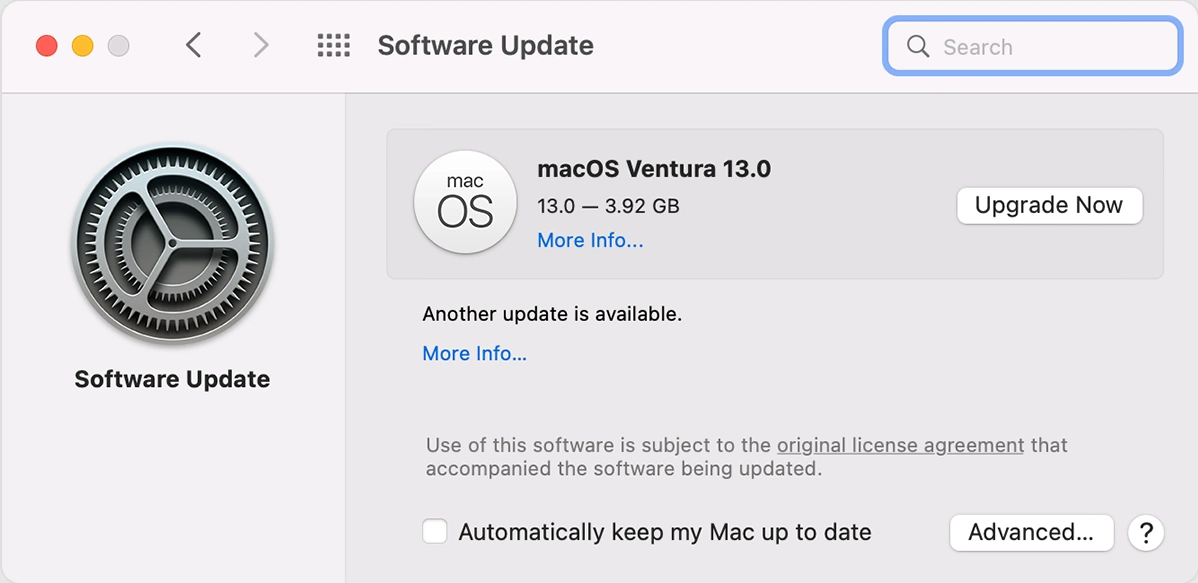
4. Turn on automatic updates to keep macOS and printer drivers up to date.
Summing Up
A Brother printer may show an offline status when its settings aren’t configured correctly on your Windows or Mac computer. For instance, the printer is not set as the default printer, or is set offline. Outdated or corrupted printer drivers may also prevent the printer from responding to print commands. To fix the errors, you can bring it back online, update printer drivers, and remove and re-add it to your system.
Related Article
Frequently Asked Questions
Why is my Brother printer offline on Mac but working on Windows?
It can happen due to setting issues on Mac, such as a paused printer, outdated macOS, or printer drivers. It can also be a configuration issue between your Mac and the printer.
How do I clear a stuck print job on my Brother printer?
- In the Start menu search bar, type “Control Panel”.
- Locate your printer, right-click it, and select “See what’s printing.”
- Select the Printer option, and select “Cancel All Documents.”
- On Mac, go to System Settings and select Printers & Scanners.
- Select your printer’s name, and click the Open Print Queue option.
- Click the delete sign next to the print job you want to delete.
How do I get my Brother printer back online?
- Set your printer as the default printer.
- Disable the “Use Printer Offline” option.
- Update your printer drivers.
- Re-add your printer to your computer.

