How to Install HP Printer Driver?

Installing the driver for your HP printer helps in completing its setup and allows you to access its advanced features and functions. HP users can visit the official website to find a suitable driver for their printer model.
Moreover, some people, especially new users, might encounter some trouble in completing the driver installation. There may be many reasons for facing the problem. As a result, it is necessary to take precautions.
Besides that, gaining the pinpoint procedure of HP printer driver installation can also be beneficial. To help you, this tutorial aims to share the in-depth info to streamline the process.
Steps to Properly Install Your HP Printer Driver
1. Open your browser and go to the HP printer driver’s official website.

2. Now, enter your HP printer model name in the search section and click on Submit.
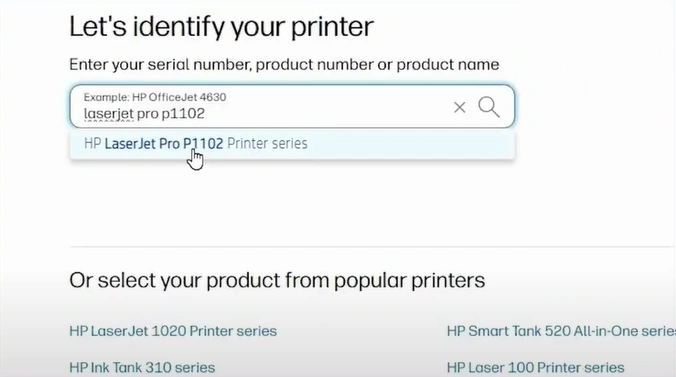
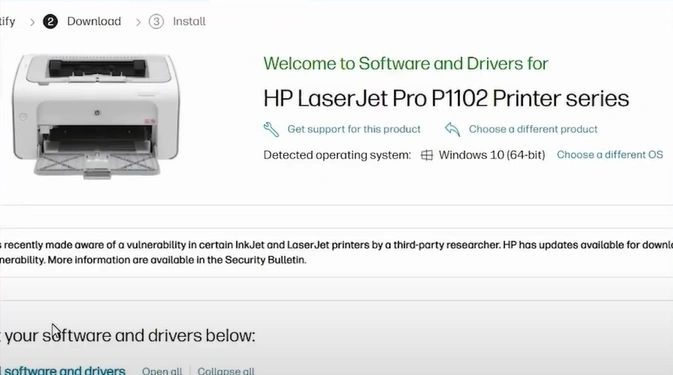
3. Verify the detected operating system.
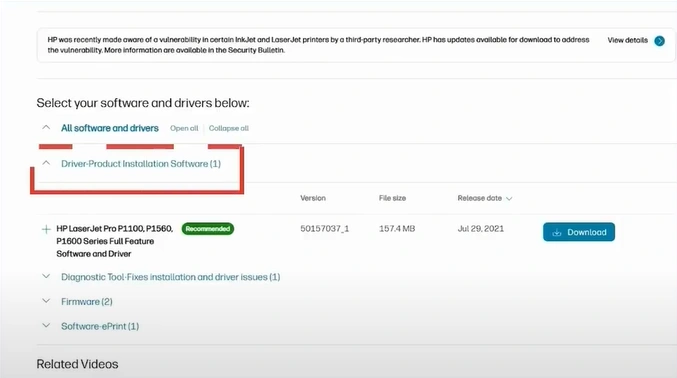
4. Scroll down and expand Driver-Product Installation Software.
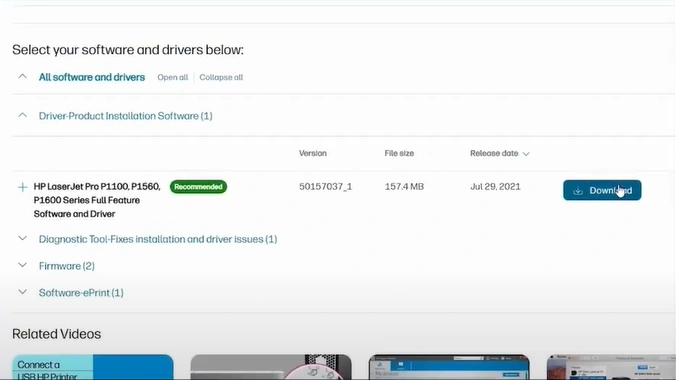
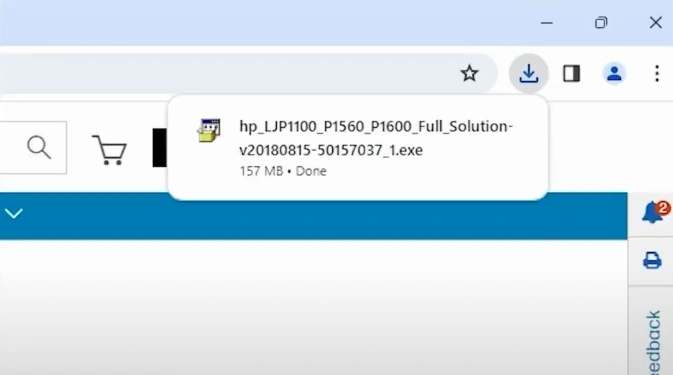
5. Now, you need to download the latest driver.
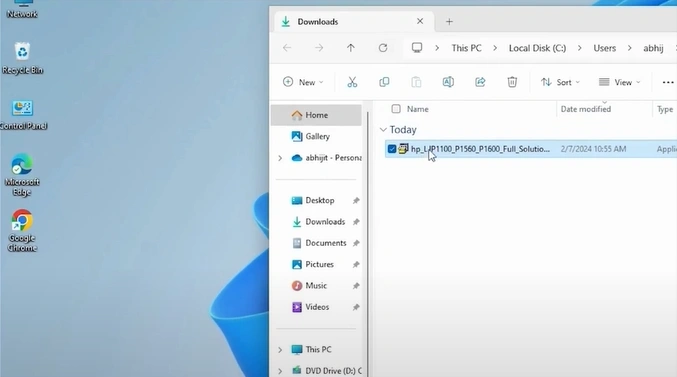
6. Open the downloaded file in the folder.
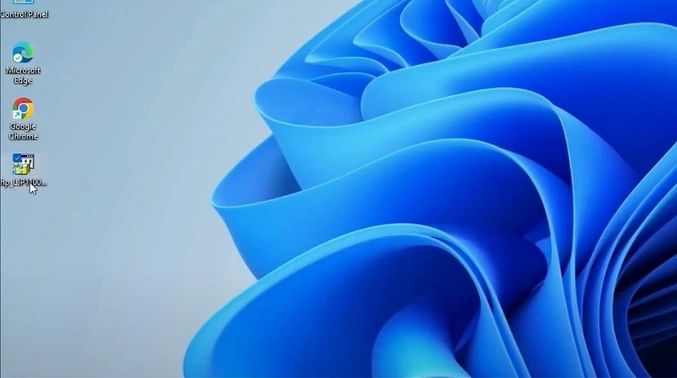
7. Next, drag and drop the file on the desktop.
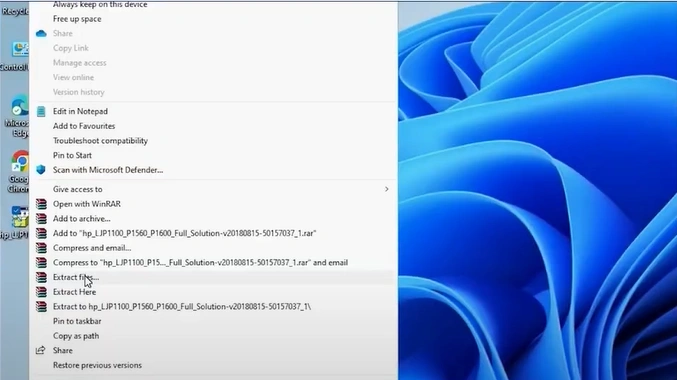
8. You should right-click on the file and select “Show more options” from the list.
9. Click on the Extract File option and press the OK button in the new window.
10. Open the start menu, then you need to search and click on Printers or Scanners.
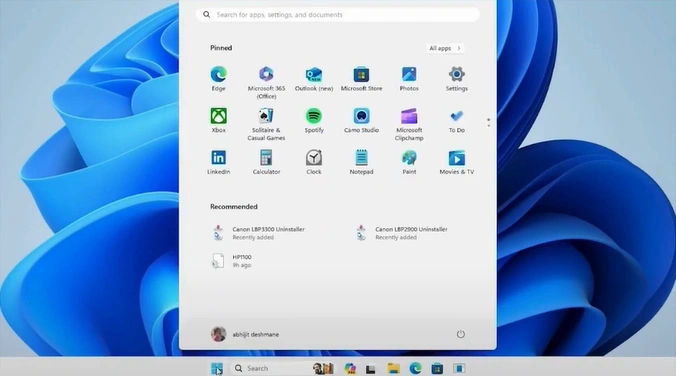
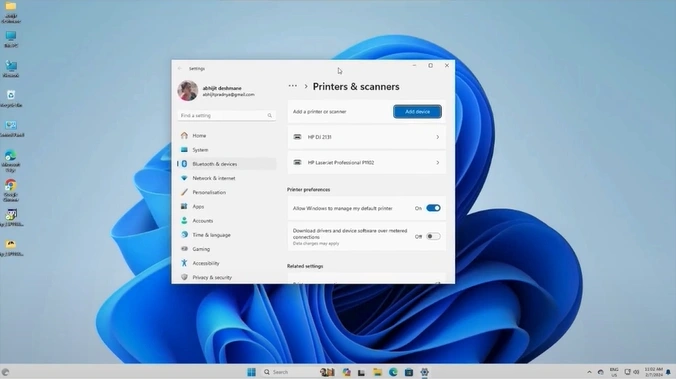
11. Next to the “Add a printer or scanner” option on the Add device button.
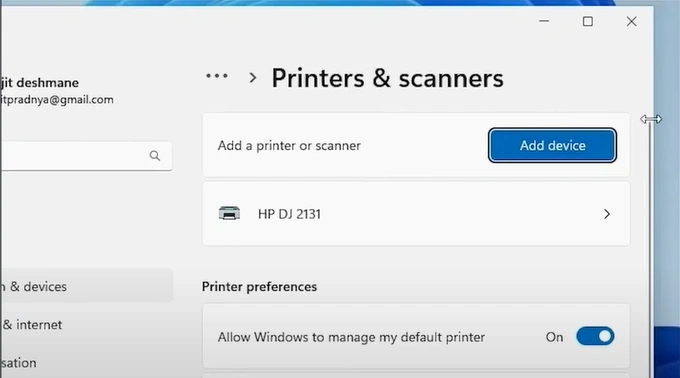
12. A new option, “The printer that I want isn’t listed,” will appear, then click on Add manually.

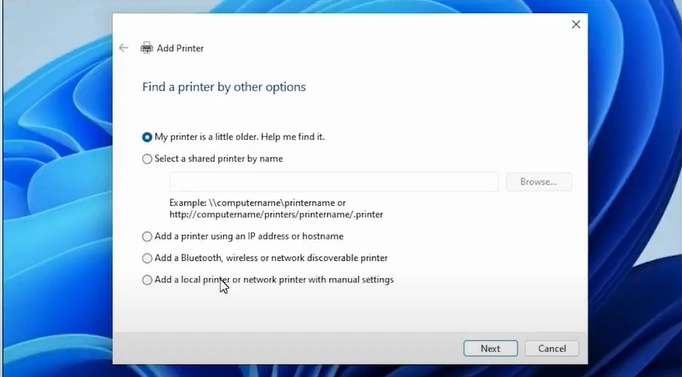
13. Now, select the “Add a local printer or network printer with manual settings” button and click Next.
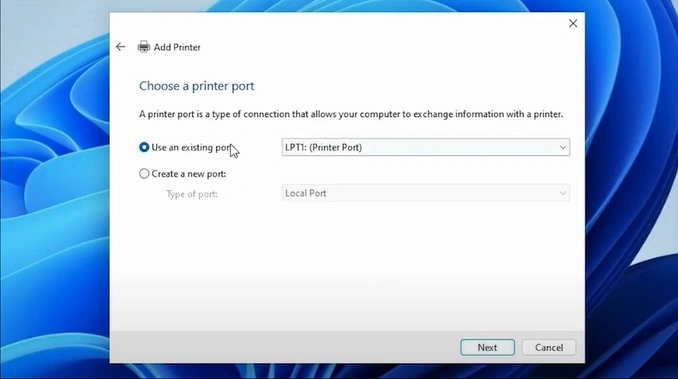
14. Select the “Use an existing port” option, select the “USB_001” from the drop-down, and click on Next. (Note- Select com4_001 or any HP port option if the USB option is unavailable.
15. In the Add Printer window, click on the “Have Disk” button.
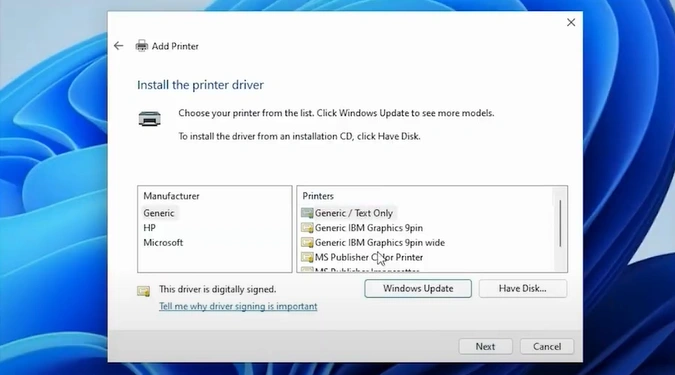
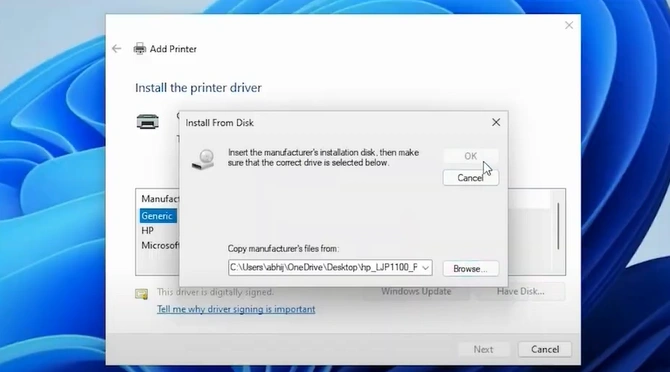
16. Click on Browse, open the extracted file, then open any “.INF” file.
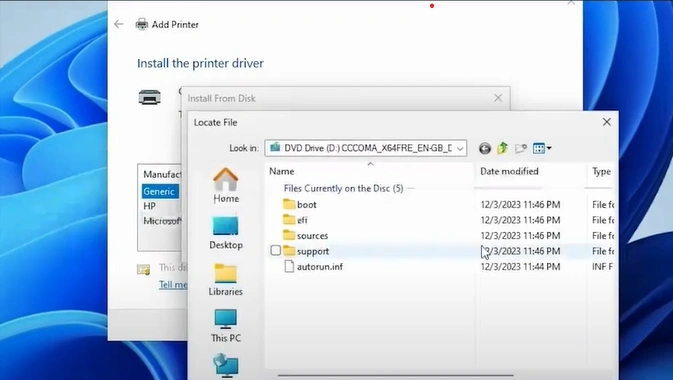
17. Then, click on the OK button.
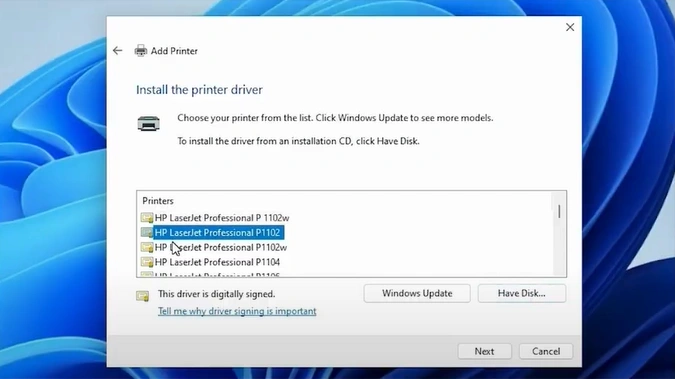
18. Choose your printer model and click on Next.
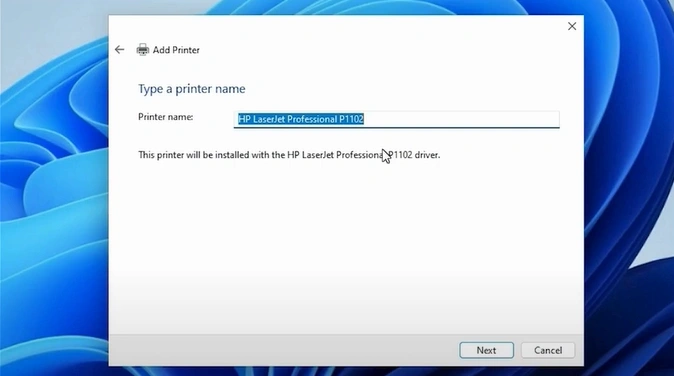
19. Provide a printer name if you want, and click on Next.
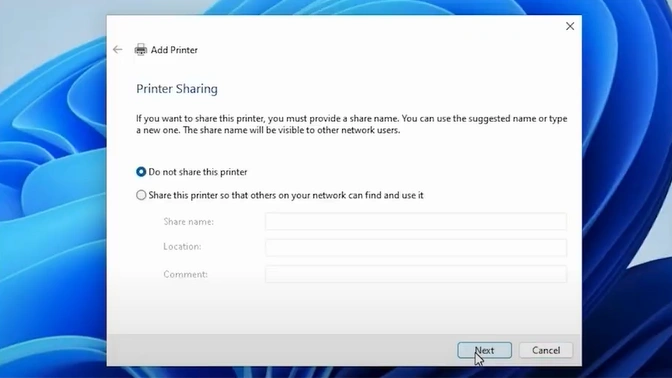
20. Choose your printer sharing option and click on Next.
21. Click on Print a test page or click on Finish.

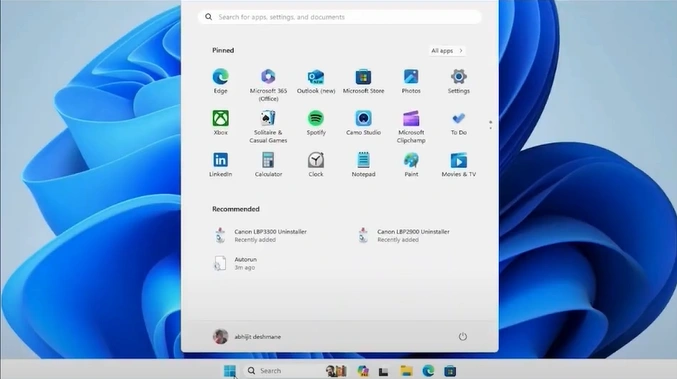
22. Open the Start menu again, then search and click on Printers and Scanners.
23. Verify that your printer is available.
24. Now, start using your HP printer.
Also Read:- How to Connect HP 3700 Printer to WiFi?
Final Words
We hope your HP printer driver installation is completed easily after following these methods properly. You need to follow the connectivity criteria of your printer to make the connection successful, and follow all the steps as we have mentioned to get the right drivers. Besides, it is recommended that you get your hands on more solutions and guides to resolve the driver issue quickly and set up the machine.

