How to Scan Documents From Printer to Computer?

All-in-one printers not only come with the features to print documents, but they can also copy and scan documents. These features enhance the user's productivity. However, not many people know how to utilize them, and some face issues while scanning. If you are also looking forward to using the scanning features, we're here to help. Below are two easy-to-follow methods for scanning your documents with utmost ease.
Method 1: Using Windows Fax and Scan
This is the procedure that will help you scan your documents to your computer by using the Windows Fax and Scan features.
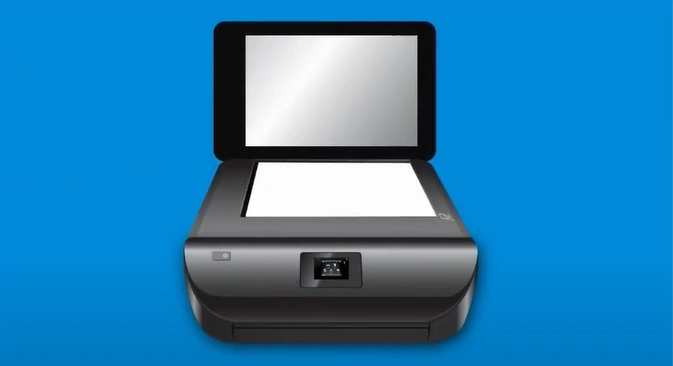
1. Place the documents you want to scan in the printer.
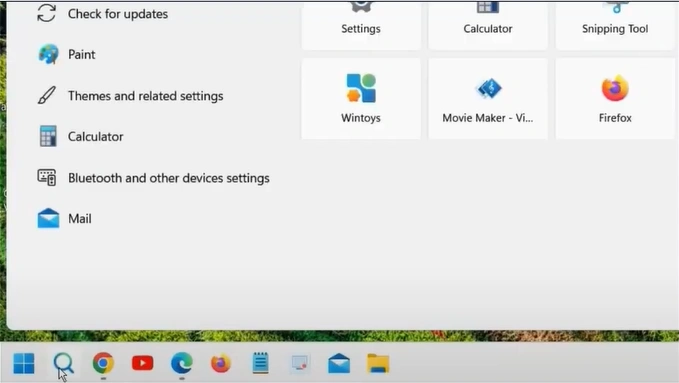
2. On your Windows, click on the search icon.
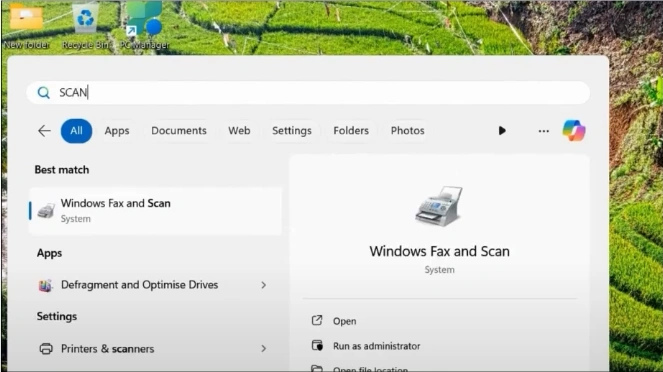
3. Search for "Windows Fax and Scan" and open it.
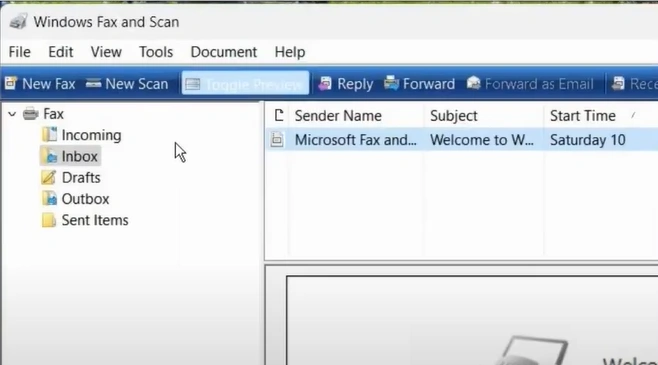
4. In the pop-up window, open the New Scan tab.
5. Select your scanner and click on the OK button.
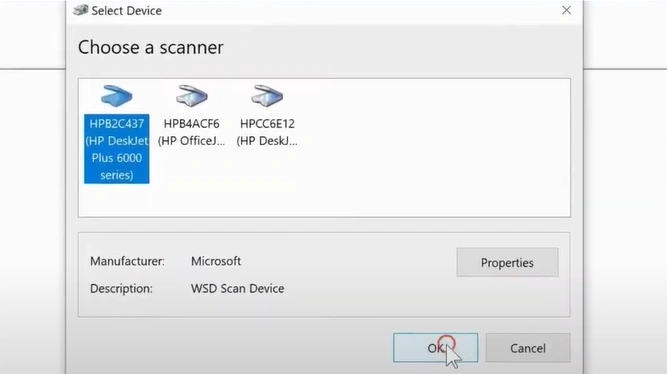
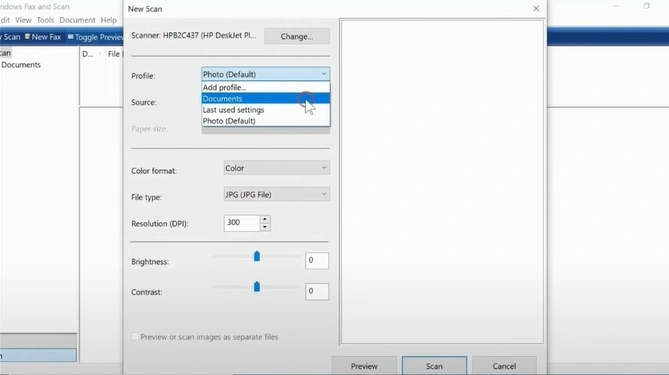
6. Change your desired scan settings.
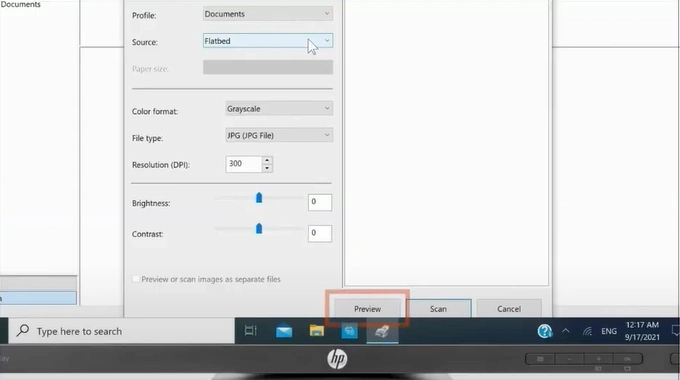
7. Click on the Preview button to check the scan.
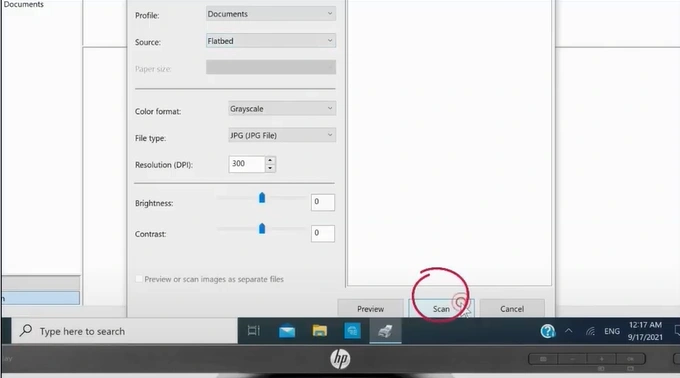
8. Then, press the Scan button.
9. Once the scan is finished, you can save the scan by clicking on Save as.
_1748511257.webp)
Method 2: Using Windows Devices and Printers
Follow the guide below to use the Windows Devices and Printers to scan documents on your device.
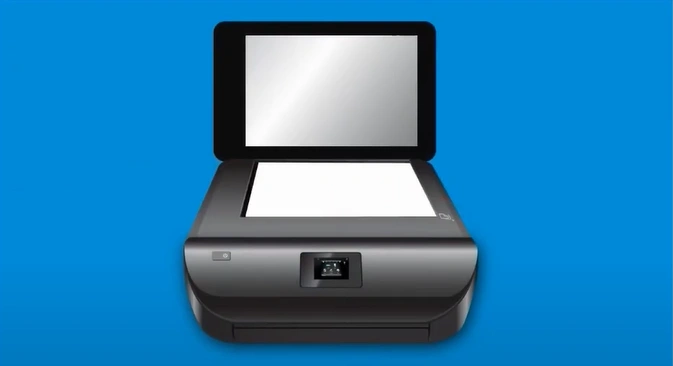
1. Place the document you want to scan in your printer.
2. Click on the Start menu.
_1748511684.webp)
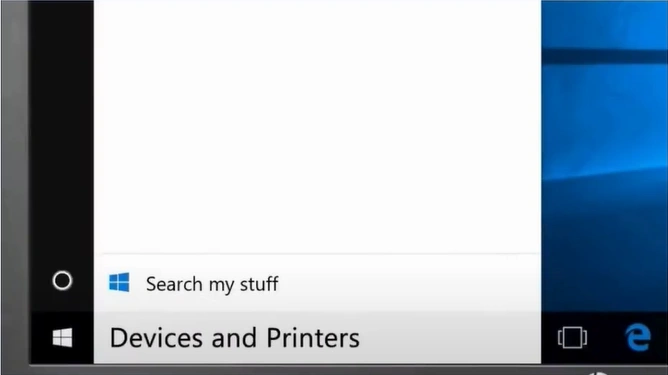
3. Search for "Windows Devices and Printers" and open it.
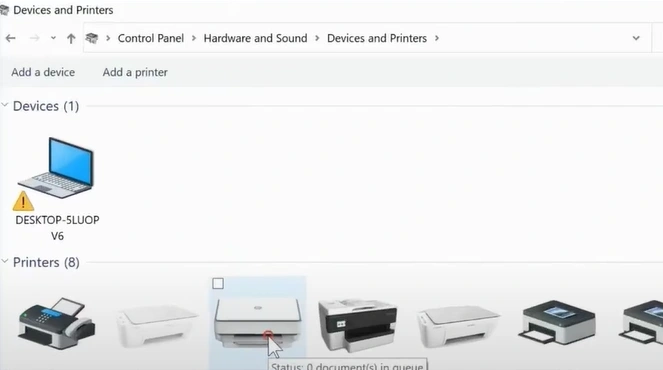
4. Under the Printers section, right-click on your printer.
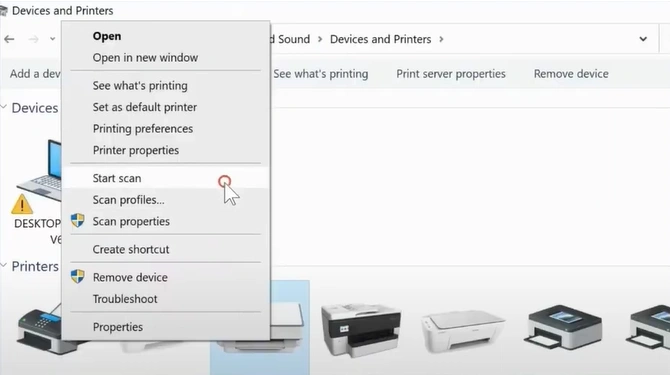
5. Select Start Scan from the list of actions.
6. In the New Scan window, click on the Change button.
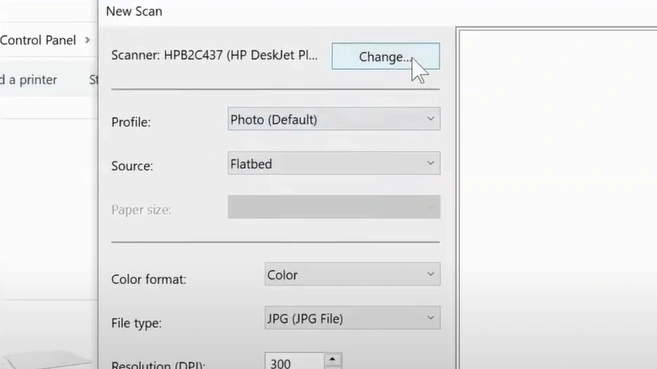
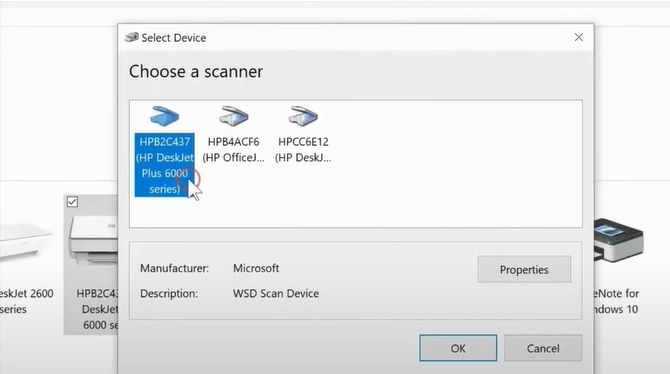
7. Select your scanner and click on OK.
8. Change your desired scan settings.
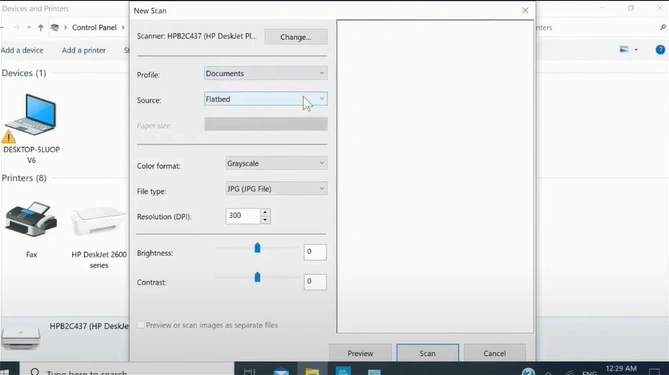
9. Click on the Preview button to check the scan.
_1748511912.webp)
10. Now, press the Scan button.
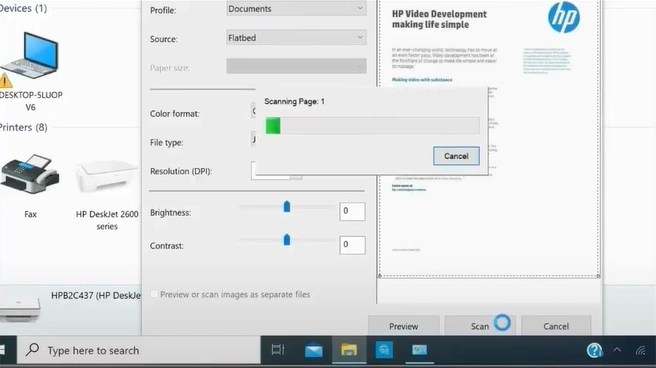
11. Once the scan is complete, the Import Pictures and Videos pop-up will appear.
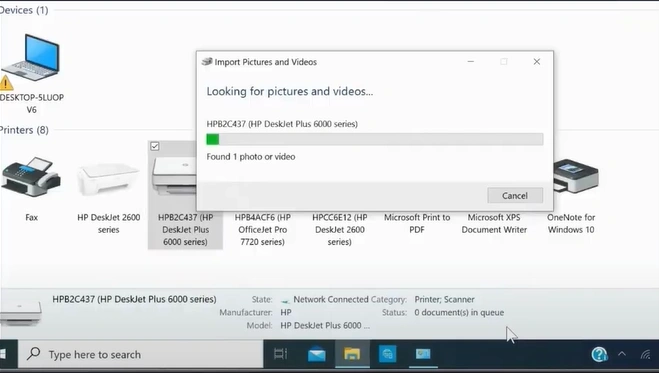
12. Select your desired options. (Note- click on More options to use other import options.)
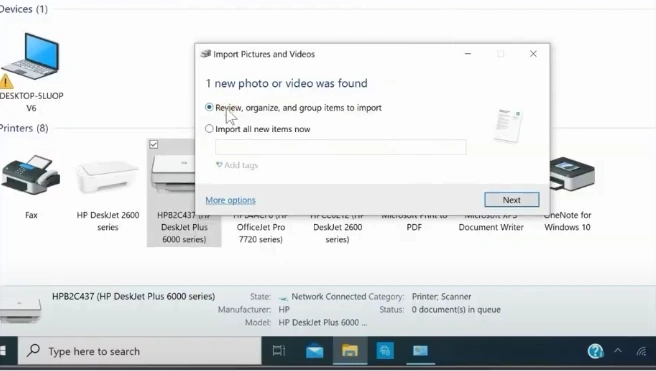
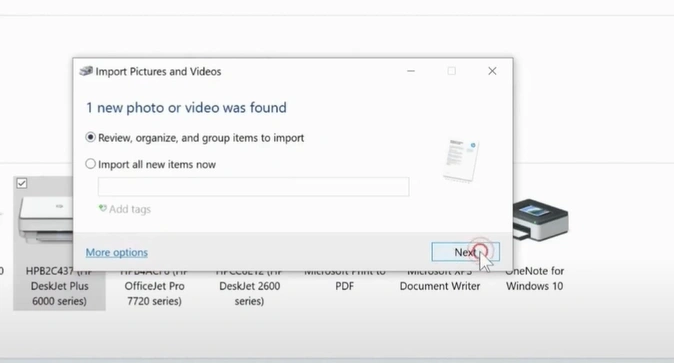
13. Click on Next.
14. In the next window, click on Import.
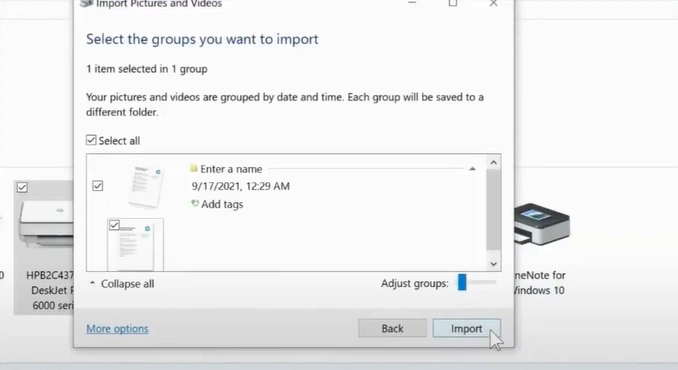
15. The document scan will be complete.
Also Read:- How to Clear Printer Queue in Windows 10?
Final Words
We hope that with the help of these two methods, you can complete the document scan from your printer to your computer. If you want to avoid any challenges, make sure you are using the right procedure and check the connection between the printer and the PC. Also, feel free to get your hands on more assistance.

