How to Update HP Printer Driver?

I have been working with printers for a long time and noticed regular driver updates are necessary to run them smoothly. Various HP printer driver updates are automatically installed when you update your computer operating system. However, the automatic updates do not work for some devices, and users need to install the new updates manually.
But if you do not know the process for updating your HP printer driver, then I am going to share the complete step-by-step guide with you. Read this quick guide carefully and get the latest update for your HP printer easily.
Quick Steps to Update HP Printer Driver
1. First, open the HP support website in your browser.
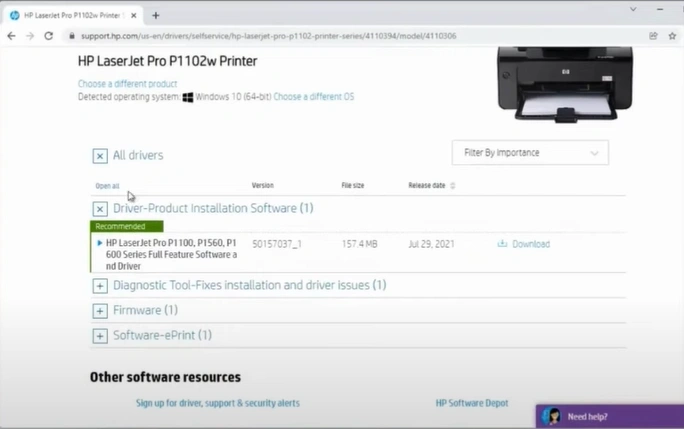
2. Open the Software and Drivers tab and then click on the Printers option.
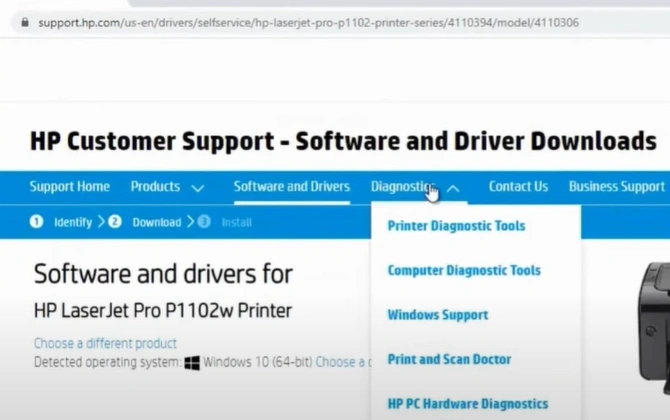
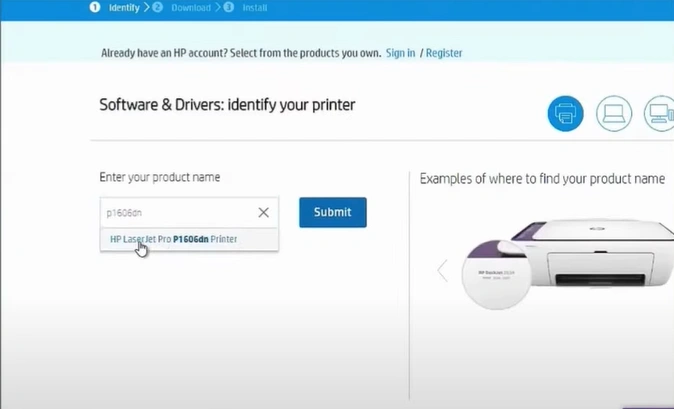
3. Enter your HP printer name and click on the Submit button.
4. Open Driver-Product Installation Software, then click on the Download option.
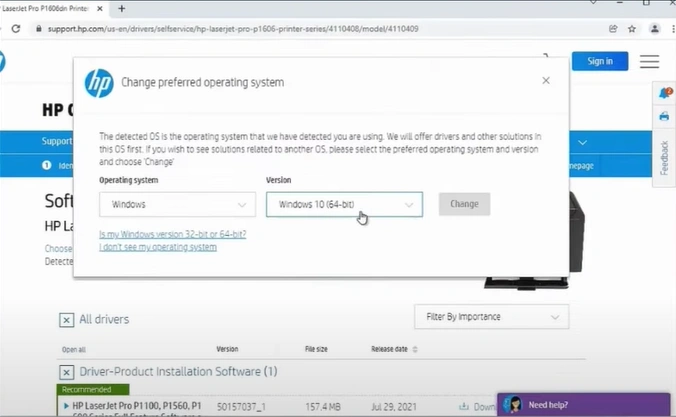
5. Now, your HP printer driver update will be complete.
Also Read:- How to Connect HP Deskjet 4155e Printer to WiFi?
Wrap Up
We hope that this guide has helped you download and install the right driver for your HP printer. Follow these steps carefully to complete the process easily without facing any issues. Also, ensure that your device has the proper network connection to download the update easily. Besides that, if you are facing any problem with the update or need more help, then it would be best to get your hands on more resources to get a profound understanding.

