How to Connect HP Deskjet 4155e Printer to WiFi?

HP Deskjet 4155e has advanced features and comes with multiple connectivity options. You can use a USB cable or WiFi connectivity to complete its setup and print documents flawlessly. The setup process is not a big deal for those who already know it. On the other hand, for new users, it can be a little challenging to establish the connection between the printer and the WiFi router.
Many users also face issues due to software or hardware complications. In this case, it is beneficial to have a proper understanding of the whole procedure. Here, you will find a step-by-step guide to connect HP Deskjet 4155e Printer to WiFi easily.
Instructions to Connect HP Deskjet 4155e Printer to WiFi
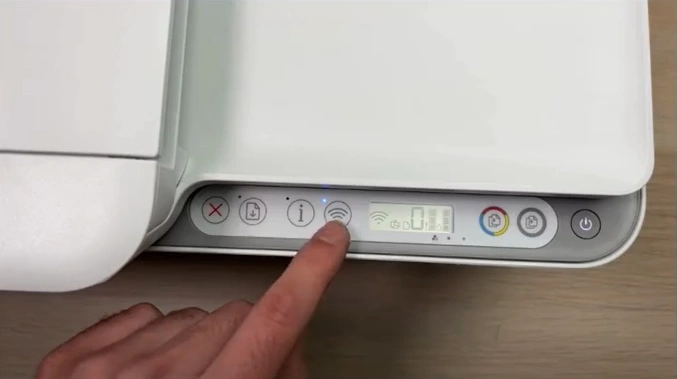
1. While your printer is turned on, press the WiFi button once to turn on the WiFi direct connection.
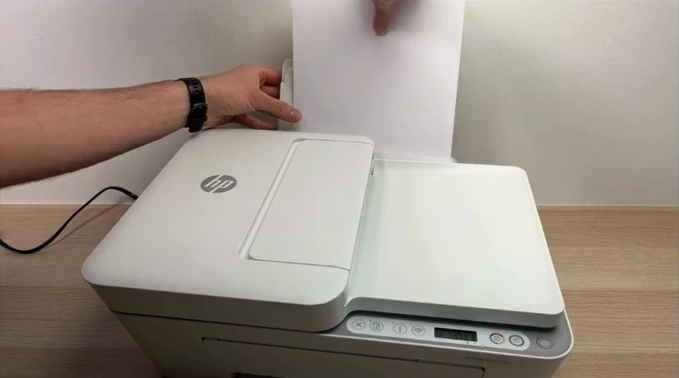
2. Insert the papers into your printer.
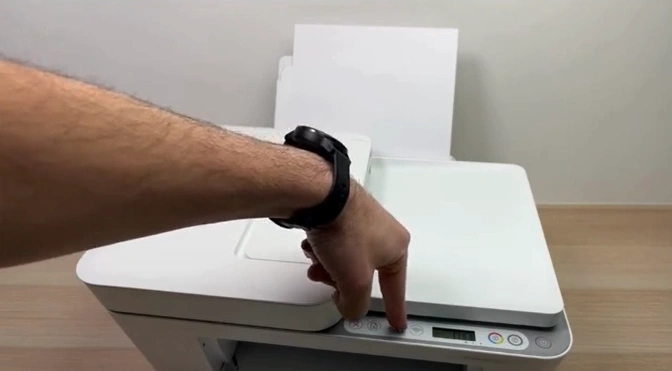
3. Press the Information button on the printer operational panel.
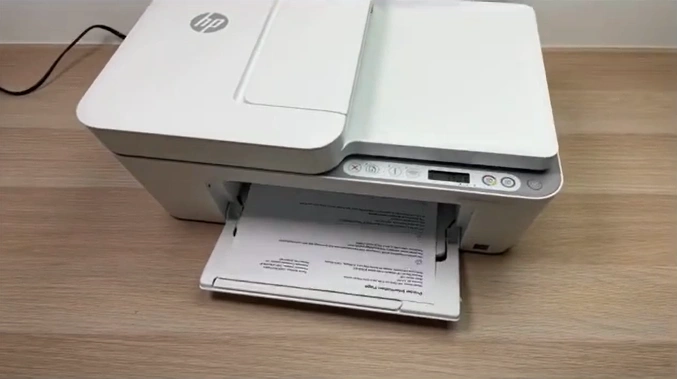
4. Look for a WiFi direct name and password in the printout.
5. Open WiFi on your phone.
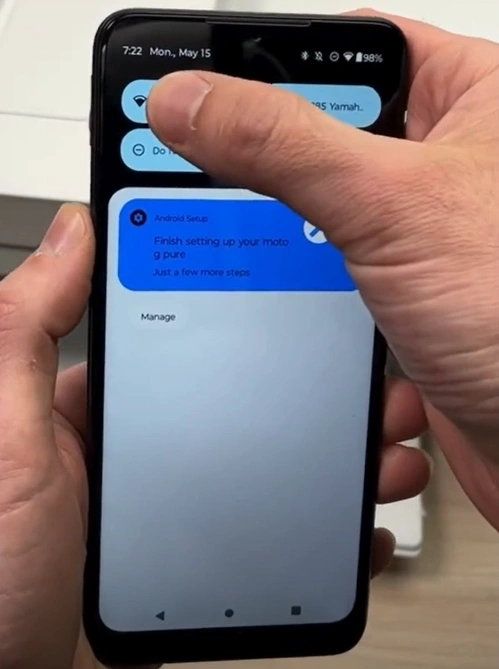
6. In the available devices, look for the Wi-Fi Direct name and select it.
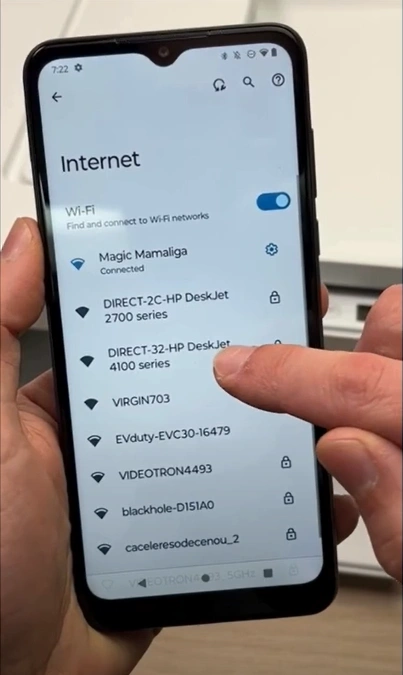
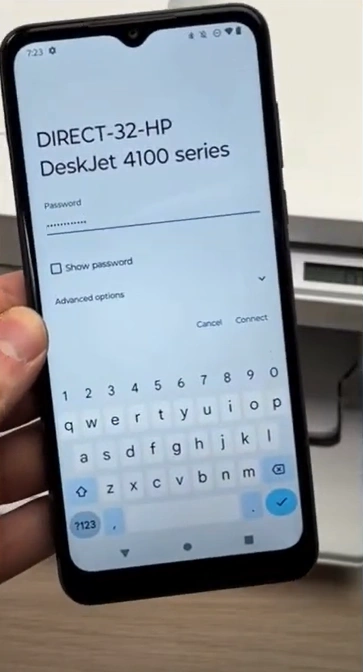
7. Enter the password and connect.
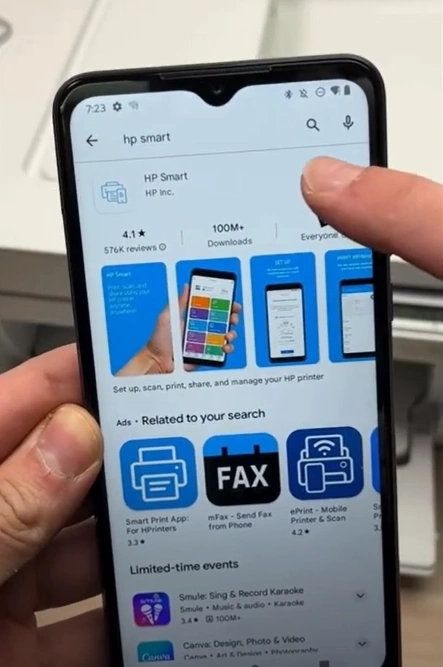
8. Download the HP Smart app on your device.
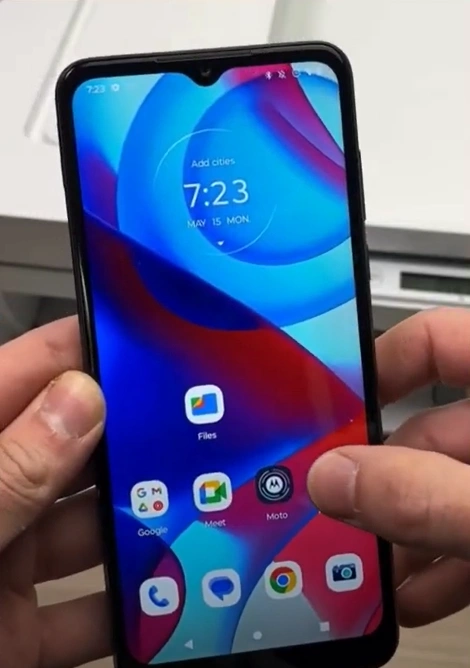
9. Once downloaded, open the application.
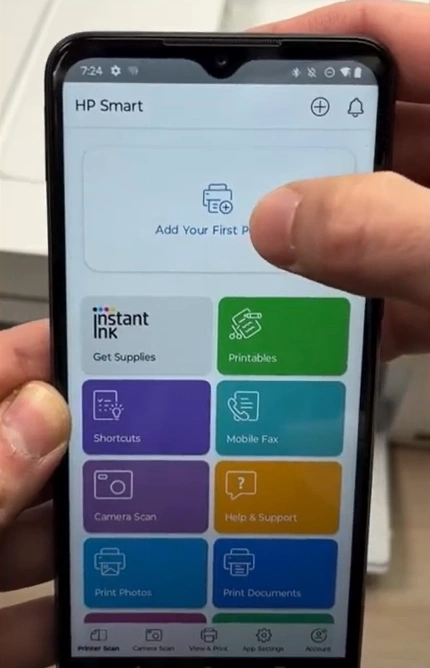
10. Tap on Add your first printer.
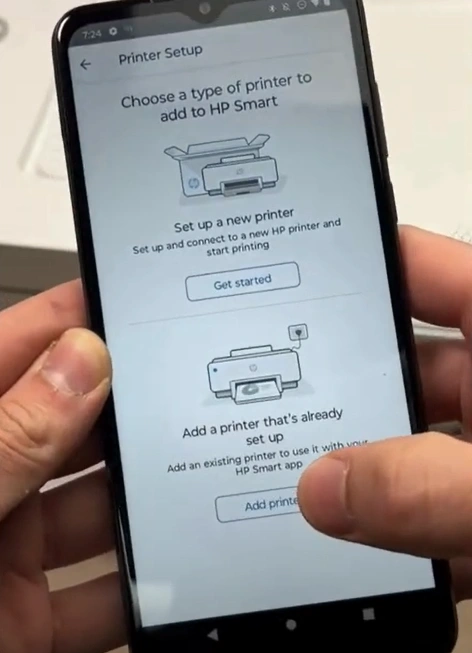
11. Tap on Add a printer; then the phone will search for available nearby printers.
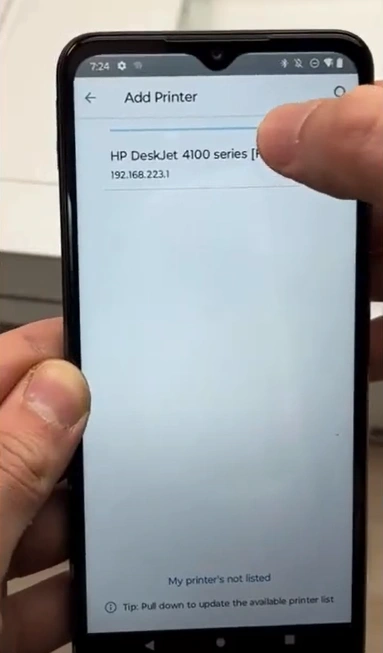
12. Now, select your printer to connect to WiFi successfully.
13. Finally, your HP 4155e printer will be ready to use.
Also Read:- How to Fix Driver Unavailable For HP Printer?
Wrap Up
We hope your HP Deskjet 4155e Printer WiFi connection is successful after following these simple instructions. To avoid any problems during the connection, make sure that the printer and the computer device are within your WiFi router’s range. You should also seek additional help if any problem occurs during the setup or the process is not completed thoroughly.

