HP Printer Offline – Causes, Best Fixes & How to Get It Back Online?
![HP Printer Offline [Fixed]](https://printertales.com/public/upload/blog/6986f7258d616_hp-printer-offline-causes-and-fixes.webp)
Many HP printers show “Offline” when your computer loses communication with the device — this can happen even when your printer looks connected to Wi-Fi. Let's say you are about to print some documents on your HP printer, and you find it offline. Surely it would be frustrating, isn't it? Seeing this problem in printers is common.
Why Your HP Printer Goes Offline?
The offline status prevents print jobs from going through and usually signals problems with network connectivity, printer drivers, device settings, or stuck print jobs.
Sometimes, a simple restart can fix your problems, while other times, it can take hours. So, if you are facing an issue and want to fix it quickly, then it is good to look for the reason behind it. Internet connection issues, driver problems, wrong settings, etc., are the most common reasons.
After learning about the key cause of the problem, you can use the specific solutions I have shared below. Or you can try using all the solutions one by one. So, keep reading until the end and get your HP printer online again.
Solution 1: Check Connection
If you find your printer offline, then first, you need to check your internet connection. Here are the quick steps to check the connection.
1. Ensure your HP printer is properly connected to the Wi-Fi network.
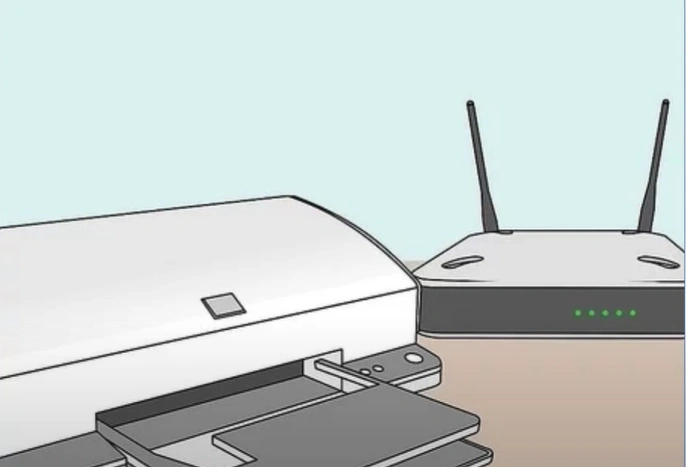
2. Make sure the Wi-Fi is providing a stable internet connection.
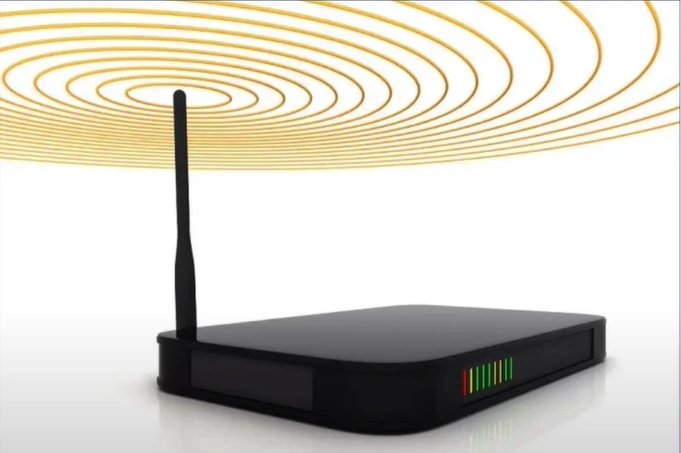
3. Check to see if the HP printer is powered on. If it's not, turn it on.
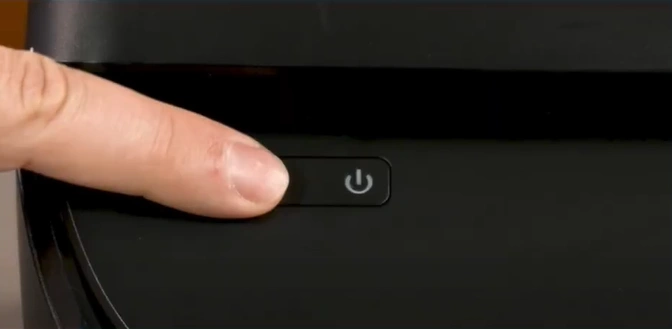
4. Now, check if your HP printer is showing the offline problem.
Solution 2: Set the Printer As the Default
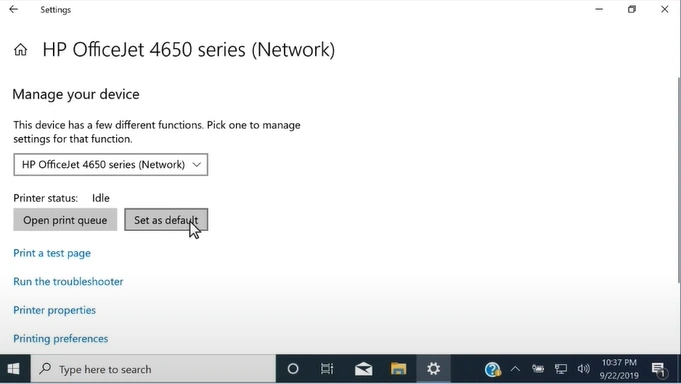
You first need to check and set your printer to the default if it is showing offline. Follow the steps below to select your HP machine as your default printing device.
1. Click on the Start menu.
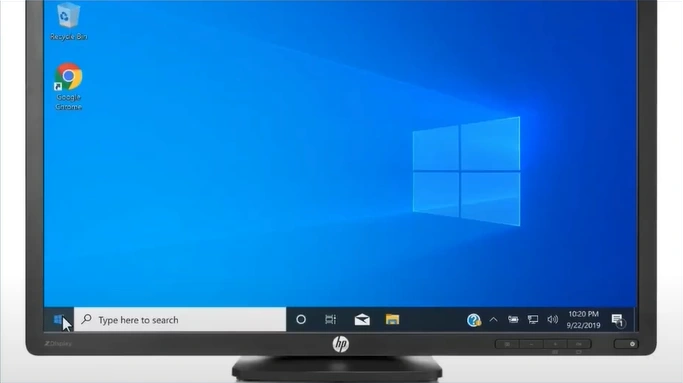
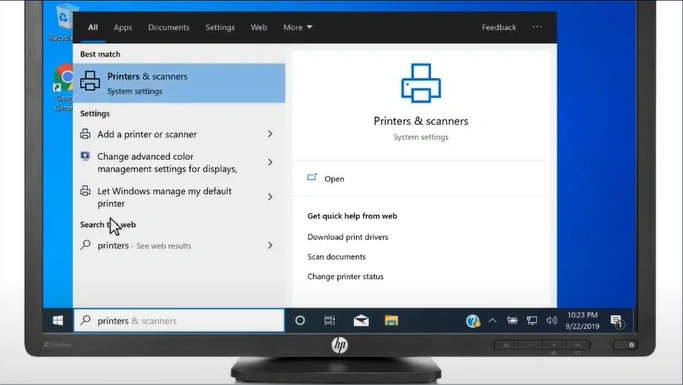
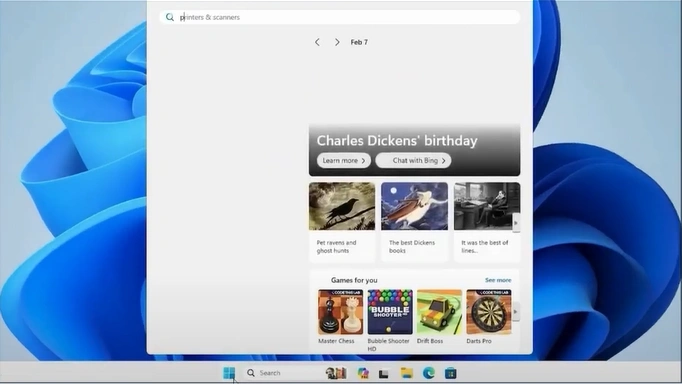
2. Search and open Printers & Scanners.
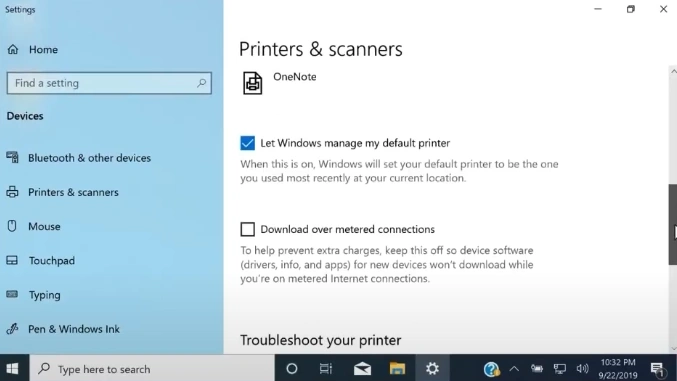
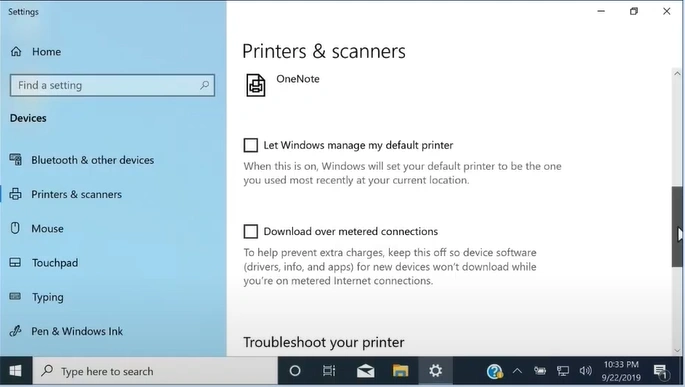
3. Scroll to the "Let Windows manage my default printer" option and uncheck it.
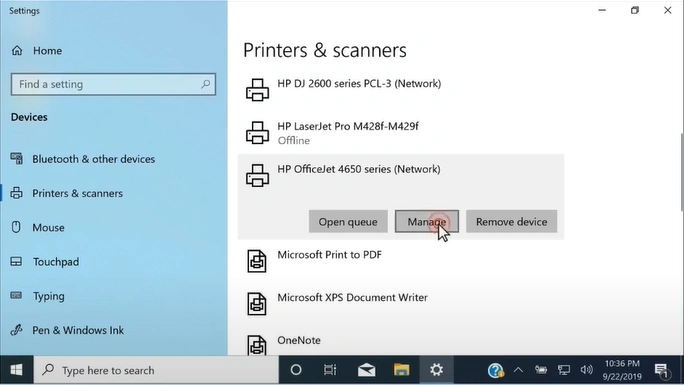
4. Now, scroll up and select your printer from the available printers.
5. Next, click on the Manage option.
6. Select the "Set as the default" option.
Solution 3: Set the Printer as Online
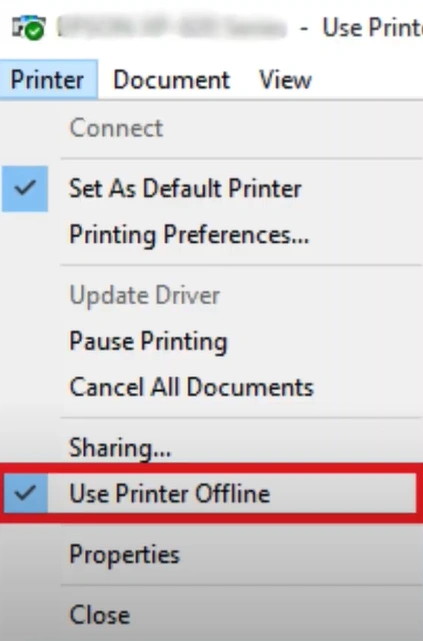
When you have selected the "use printer offline" option for your printer, then it can show offline even if it is connected to your PC. Here is how you can remove this issue by deselecting the option.
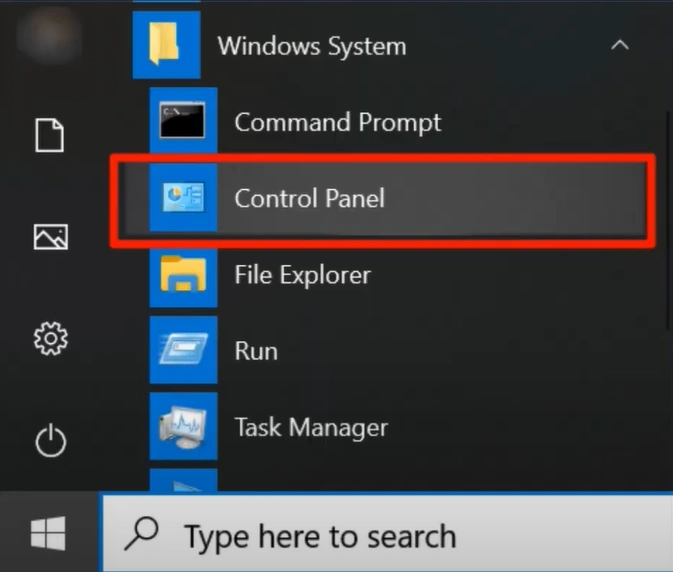
1. Click on the search bar and open the Control Panel.
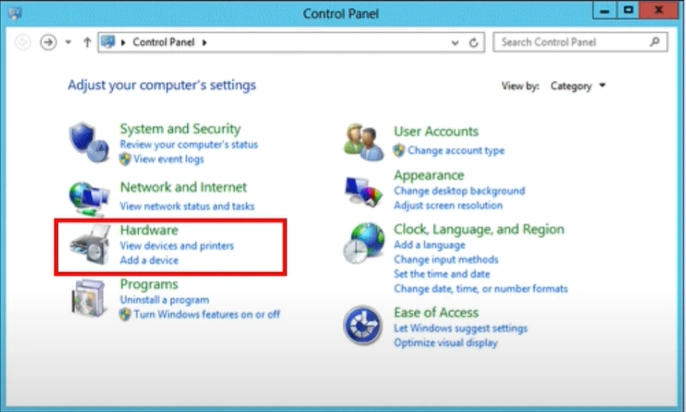
2. After that, choose Devices and Printers.
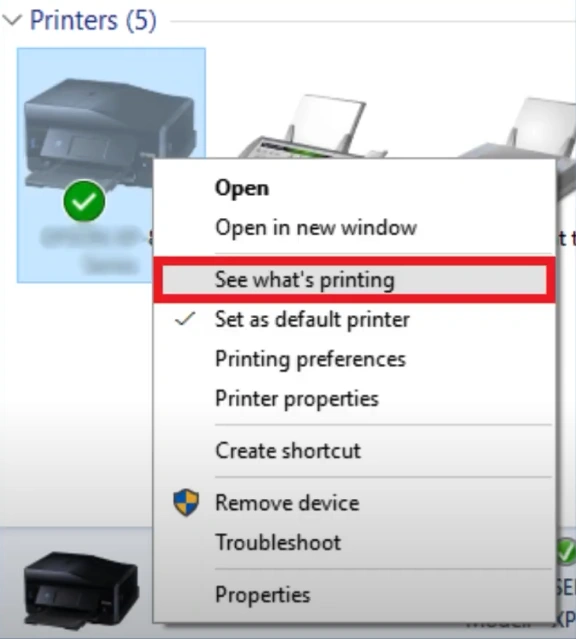
3. Then, right-click on your HP printer.
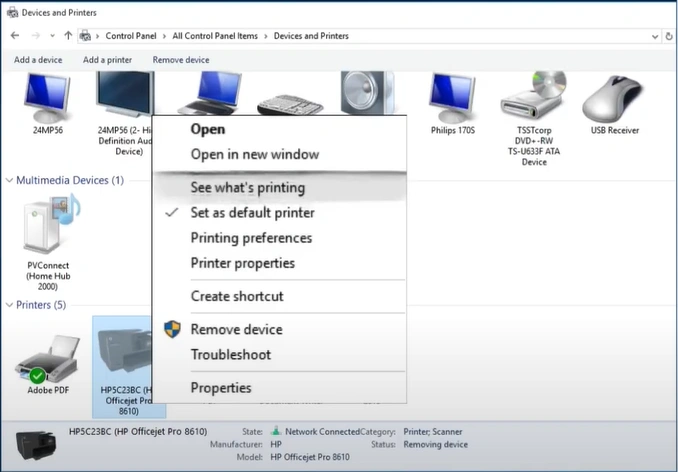
4. Click on See what's printing.
5. Unselect the Use printer offline option if checked.
Solution 4: Delete All Print Jobs
You should delete your printing jobs if your printer is offline to check if it is able to remove the problem. Below are the steps you can follow to do that.
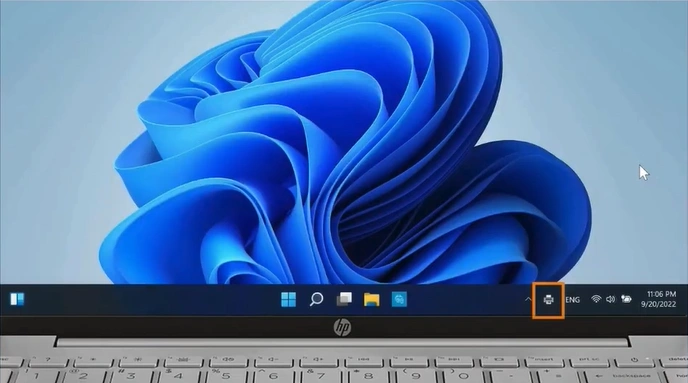
1. Firstly, double-click on the printer icon at the bottom right of the taskbar.
2. Then, right-click on the print job you want to cancel.
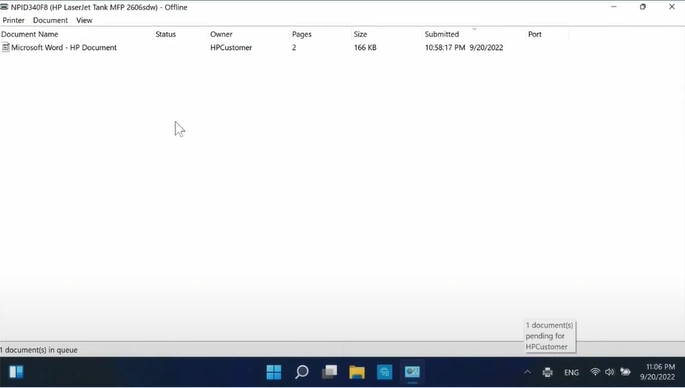
3. Select the Cancel option.
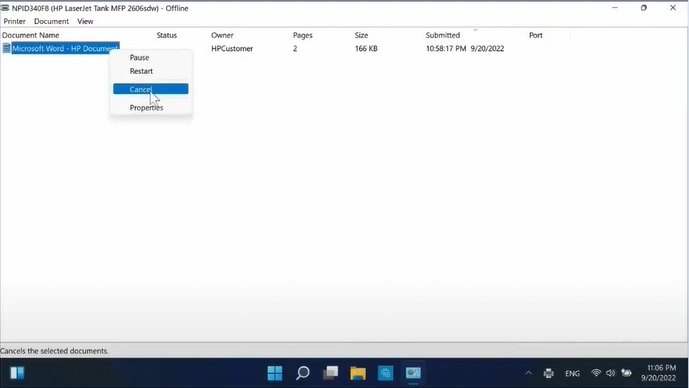
4. Click Yes to confirm your cancellation.
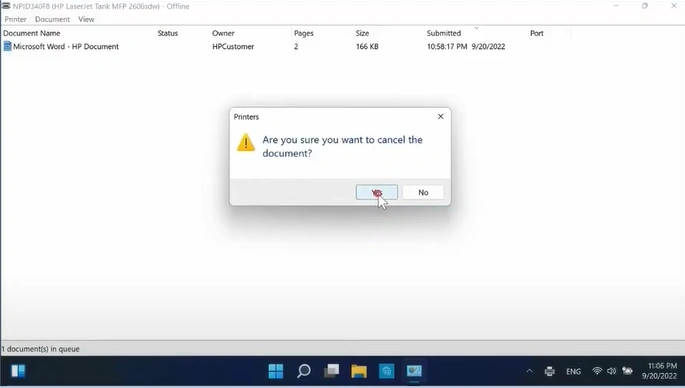
5. Check if your HP printer offline problem is gone; if not, then move to the next step.
Solution 5: Restart the Print Spooler Service
These are the quick steps you can follow to restart the print spooler service in your HP printer and bring it online. Make sure to follow the steps carefully.
1. Click on the search icon and enter "service.msc," and search for it.
_1752571911.webp)
2. Next, open the Services applications.
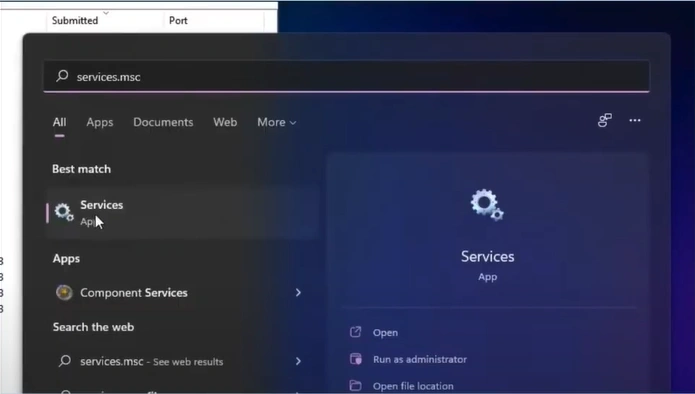
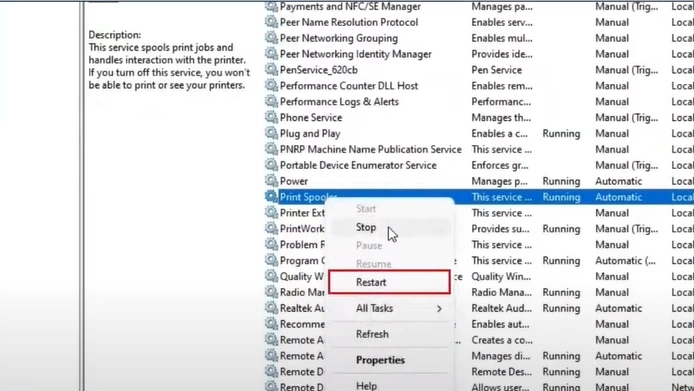
3. Scroll and find Print Spooler.
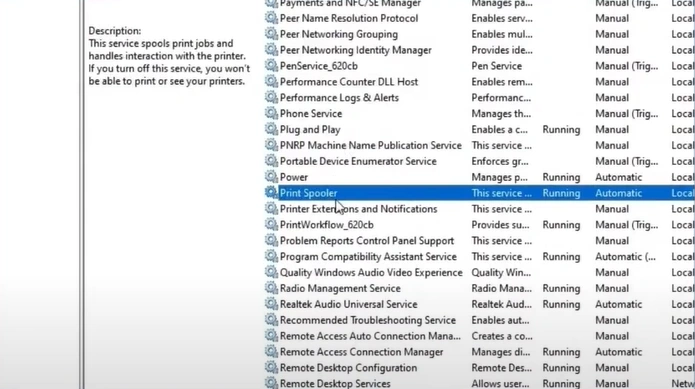
4. Right-click on the Print Spooler and select Restart.
Solution 6: Reinstall the Printer Driver
Outdated or corrupt drivers are another key reason to get your printer into an offline state. Below is the procedure you can follow to reinstall the driver and fix the issue.
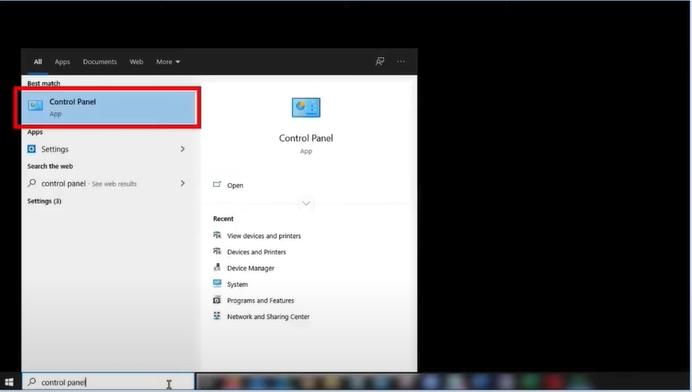
1. Open the Control Panel and click on the "View devices and printers" option.
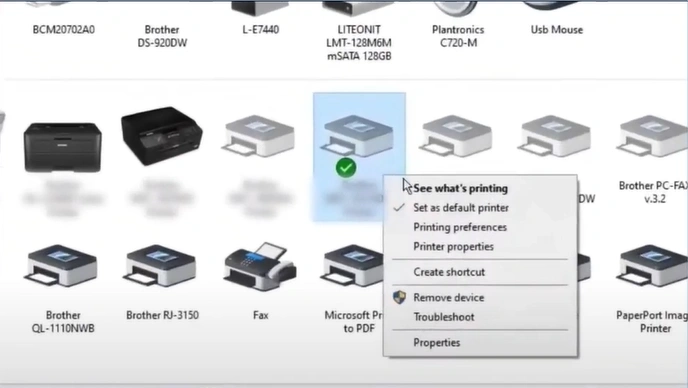
2. Right-click on your HP printer device and click on "See what's printing."
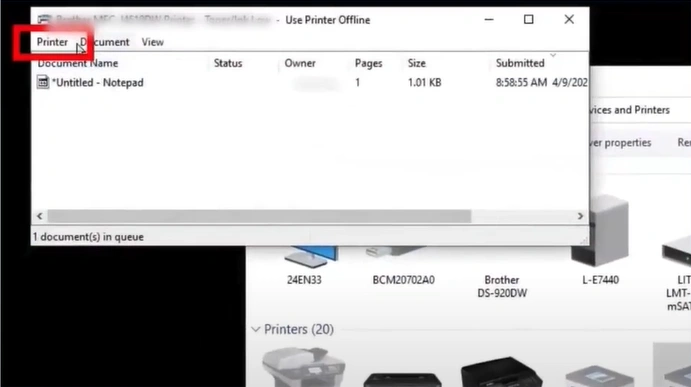
3. Click on the Printer tab and select Cancel All Documents, then click on Yes.
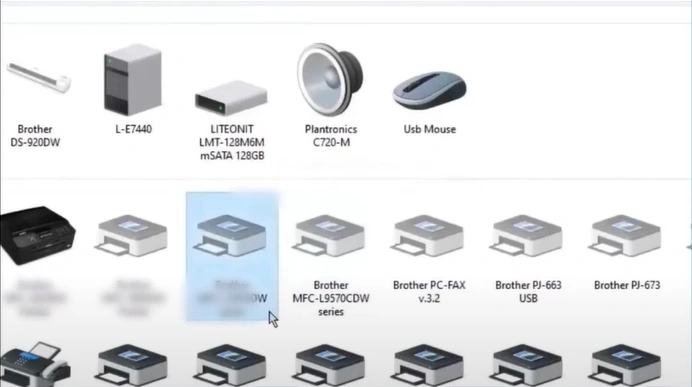
4. Now, right-click on your printer device, select Remove device and click on Yes.
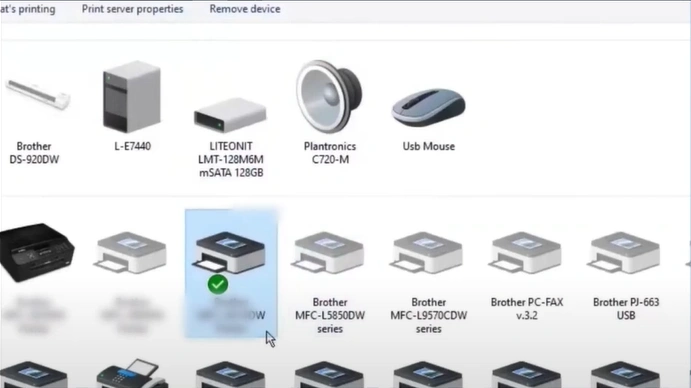
5. Select any other printer and click on the Print Server Properties tab.
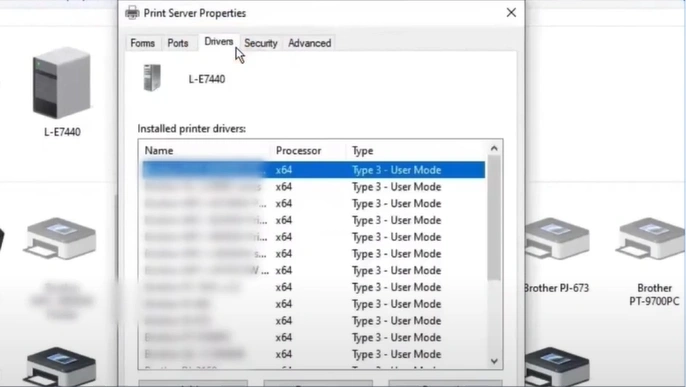
6. Next, click on the Drivers tab.
7. After that, you should locate your printer driver and then click on the Remove button.
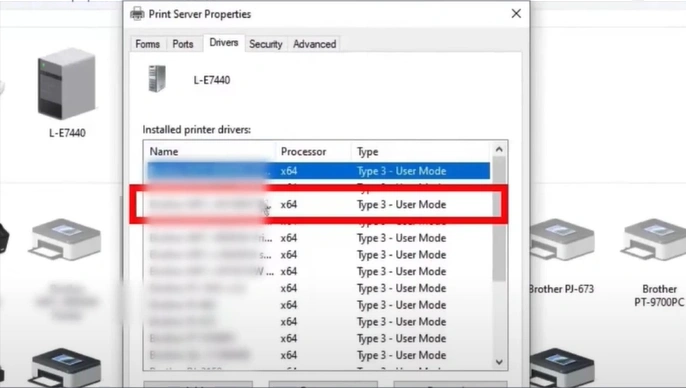
8. Select the "Remove driver only" radio button and then click on OK.
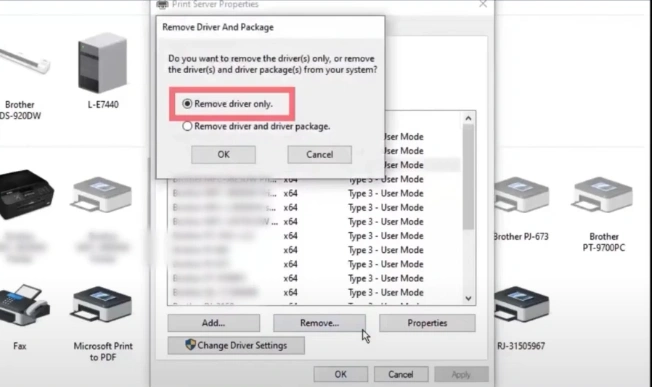
9. Click on Yes in the prompt to delete the printer driver.
_1752572997.webp)
10. Open your browser and go to the HP printer driver's official website.
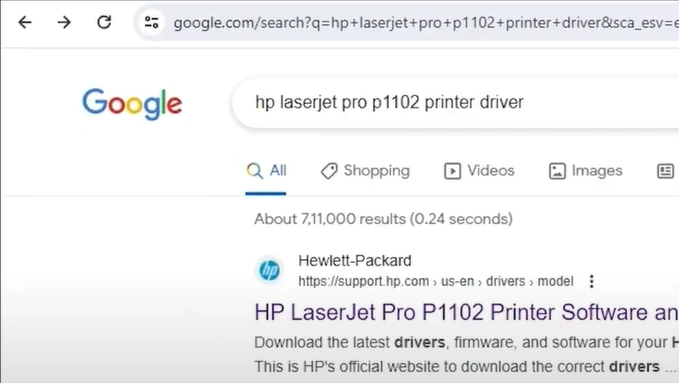
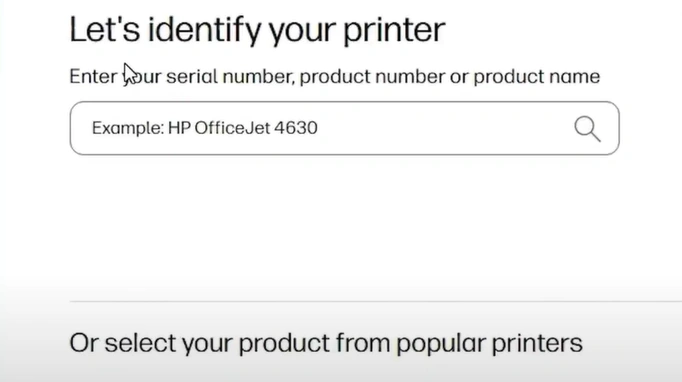
11. Enter your printer model name in the search field and submit.
12. Verify the detected operating system.
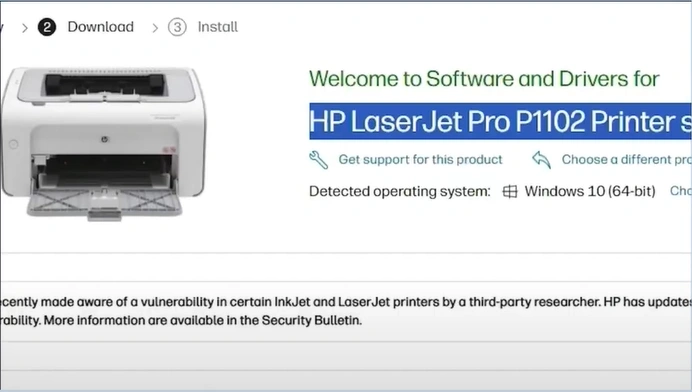
13. Next, scroll down and expand the Driver-Product Installation Software.
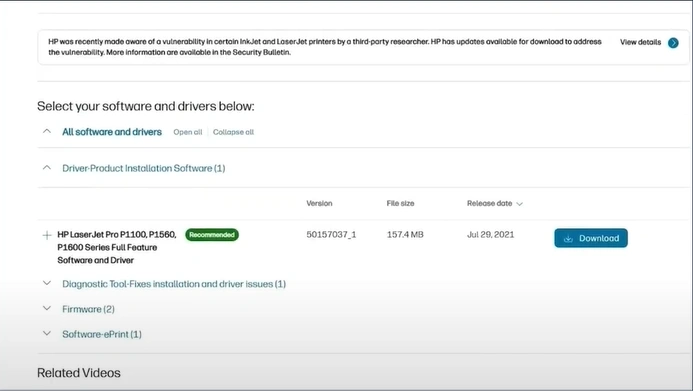
14. Select the option to download the latest driver.
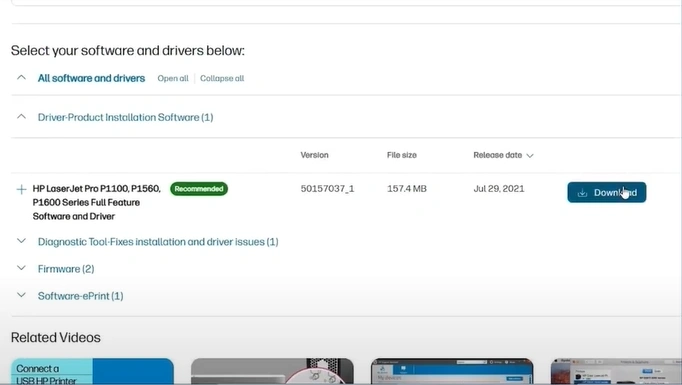
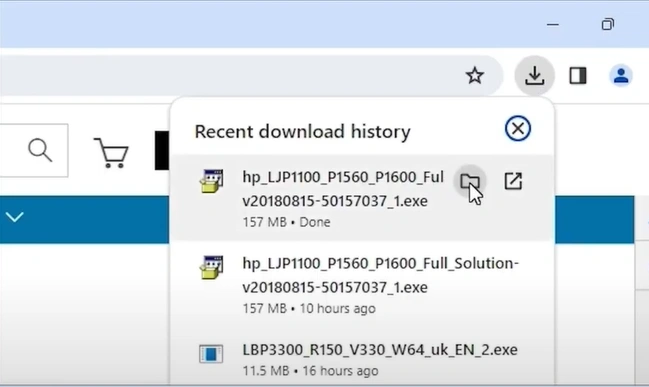
15. Open the downloaded file in the folder.
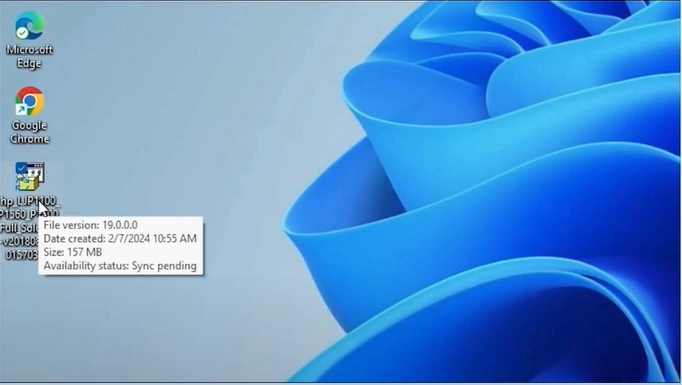
16. Drag and drop the file on the desktop.
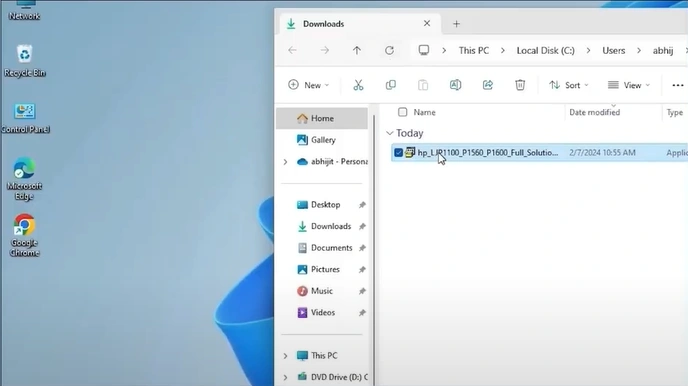
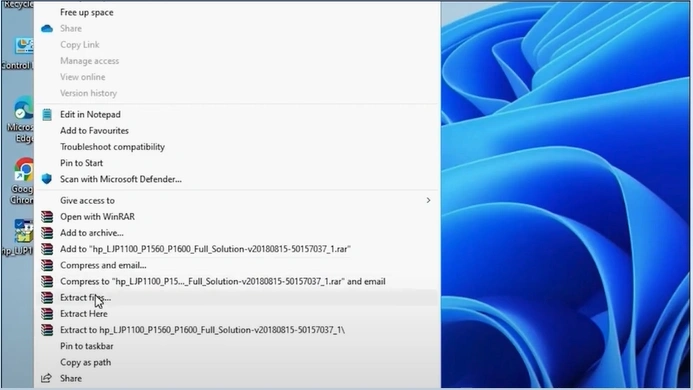
17. Right-click on the file and select "Show more options" from the list.
18. Click on the Extract File and press the OK button in the new window.
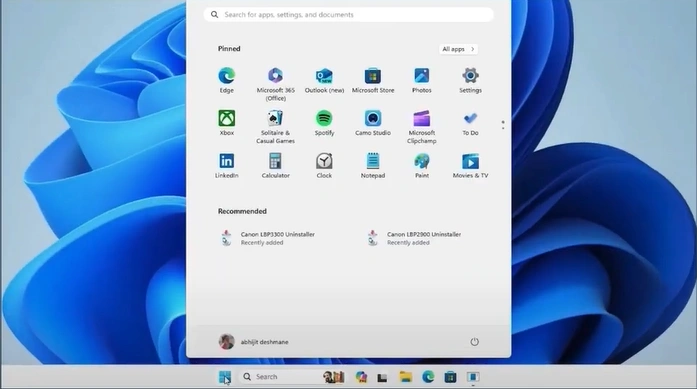
19. Open the Start menu, then search and open “Printers and scanners.”
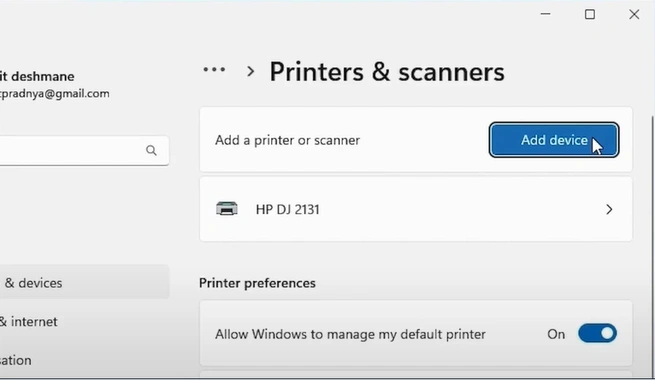
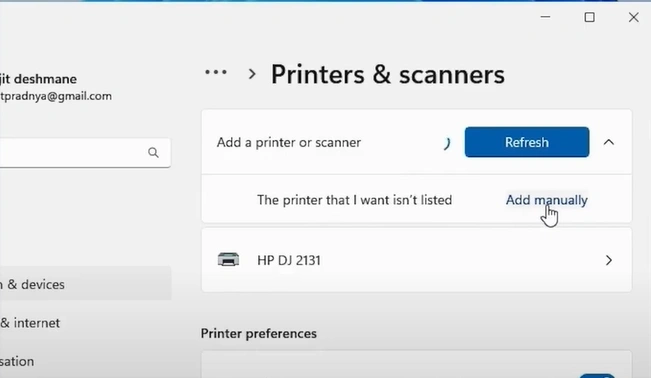
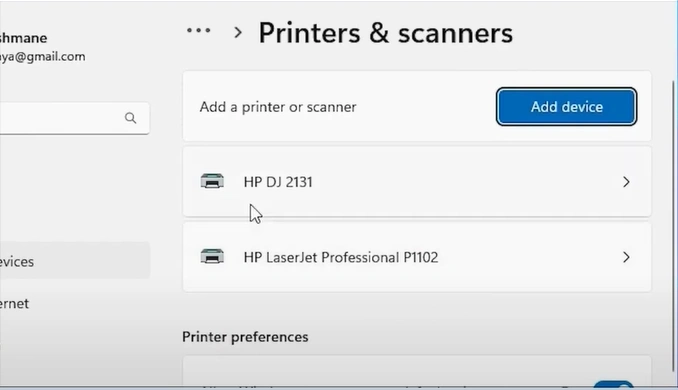
20. Next, to "Add a printer or scanner," click on the Add device button.
21. A new option, “The printer that i want isn’t listed,” will appear then click on Add Manually.
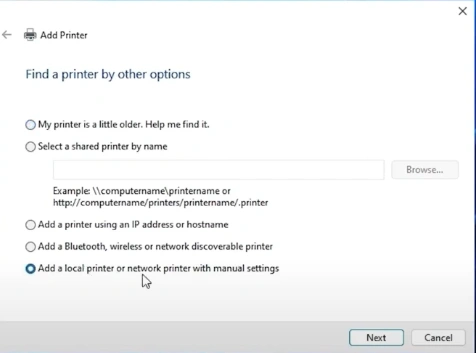
22. Select the “Add a local printer or network printer with manual settings” option and click on Next.
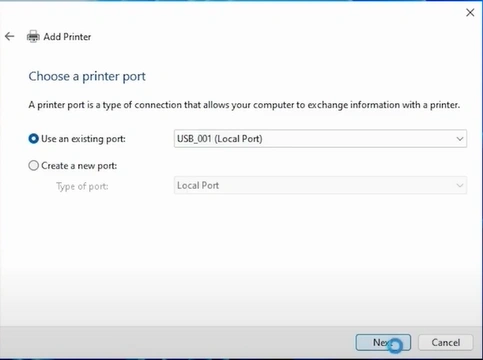
23. Choose the “Use an existing port” option.
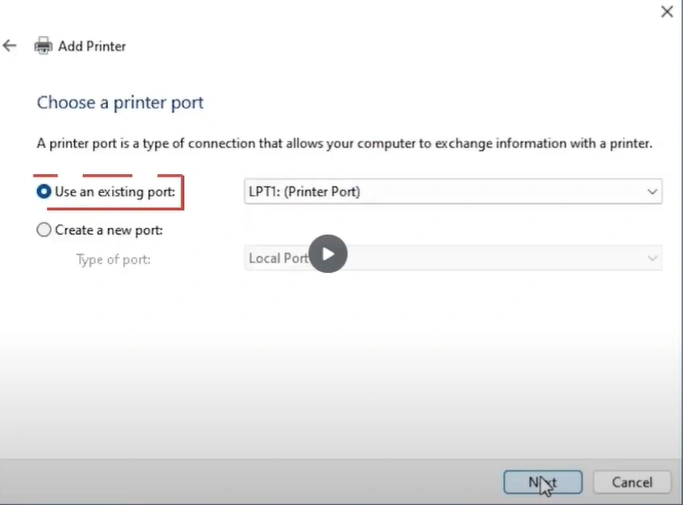
24. Select the “USB_001” from the drop-down. (Note- Select com4_001or any HP port option if the USB option is unavailable.)
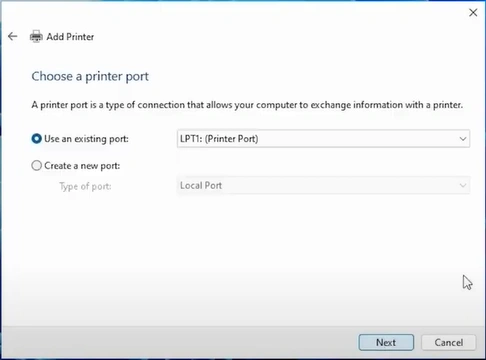
25. Click on Next.
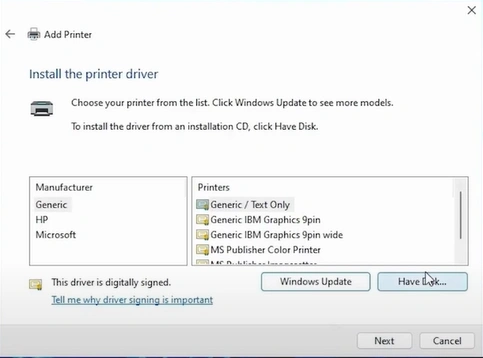
26. In the Add Printer window click on the “Have Disk” button.
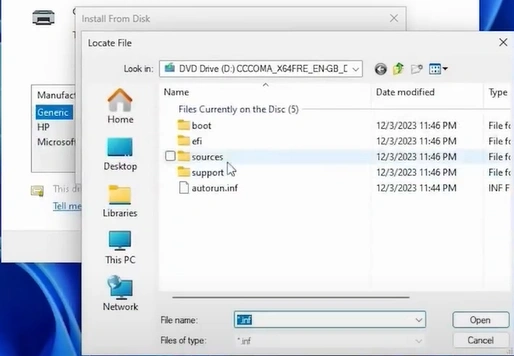
27. Click on Browse, open the extracted file, then open any “.INF” file.
28. Click on OK.
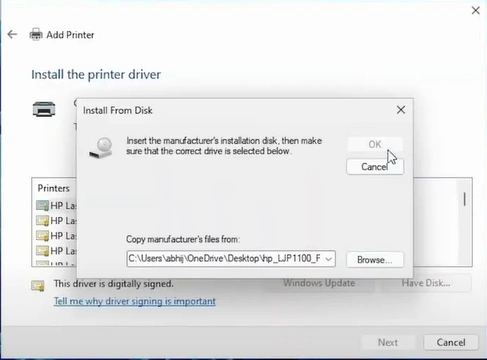
29. Select your printer model then click on the Next button.
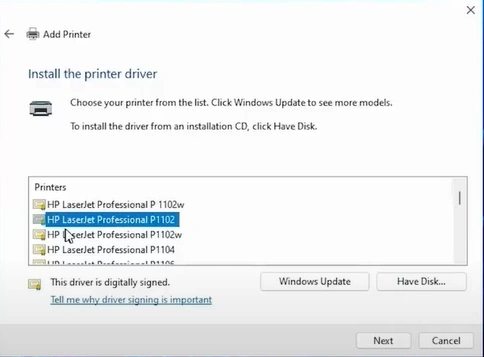
30. Provide a printer name if you want and then select Next.
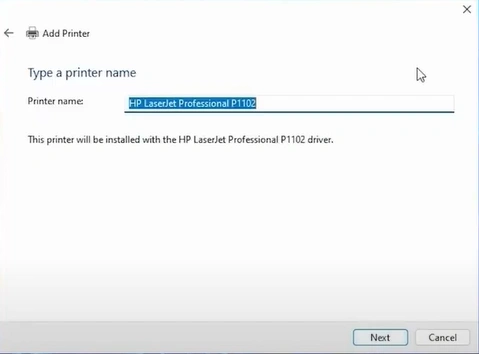
31. Choose your printer sharing option and click on Next.
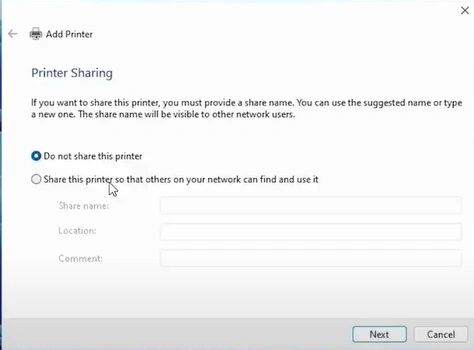
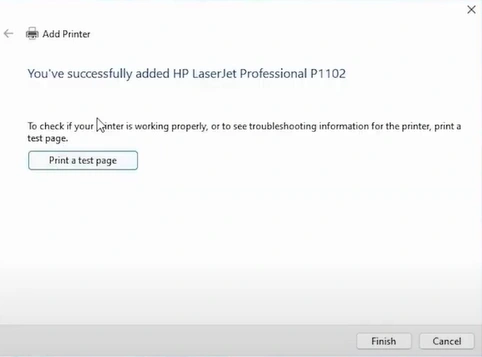
32. Click on Print a Test Page or click on Finish.
33. Go to the Start menu once again then search and open the Printers and Scanners.
34. Verify that your printer is available.
Wrap Up
After using these solutions I have mentioned here, you will be able to get your HP printer online once again. Make sure to follow all the solutions correctly to fix the issue quickly. Also, make sure to look for the root cause of the problem to use the specific solution directly to remove the issue. However, if your HP printer is still showing the offline problem, it would be best to seek additional guides and solutions to gain a deeper understanding of how to resolve the issue.

