How to Connect HP DeskJet 3700 Printer to Phone?
Printing directly from your smartphone using the HP DeskJet 3700 printer is useful. To do this, you need to connect the printer to your mobile device. However, connecting the printer to a phone may feel confusing if you are unsure of the steps. You might be setting up your printer for the first time, changing your Wi-Fi network, or you may prefer printing from your phone instead of a PC.
We have explained the entire process of how to connect the HP DeskJet 3700 printer to your phone. By following these instructions, you can start wireless printing from your Android or iOS device. Before starting the steps, let’s take a look at some common issues that may interrupt the connection.
Common Problems When Connecting HP Printer to a Phone
Here are the potential challenges that can occur when you are trying to connect the printer to your mobile device:
- Printer not found or connection failed
- Not using the correct network band
- Temporary app issues
- Incorrect Wi-Fi Direct setup
- Android Print Spooler errors
Steps to Connect HP DeskJet 3700 Printer to Your Phone
Check that your device is connected to a steady network. Also, confirm the printer's condition and the power outlet. Once everything is checked, you can proceed further:
Step 1: Power on your printer and make sure the power outlet is working.
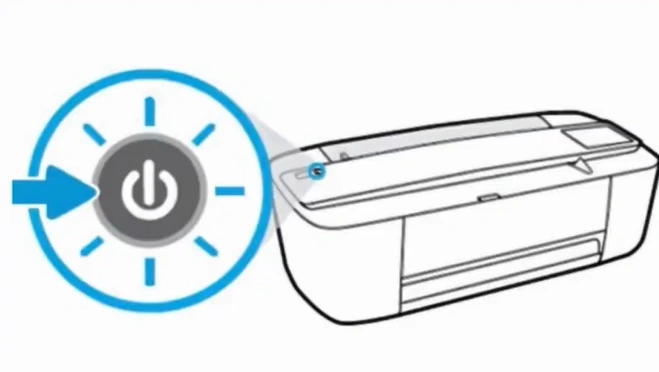
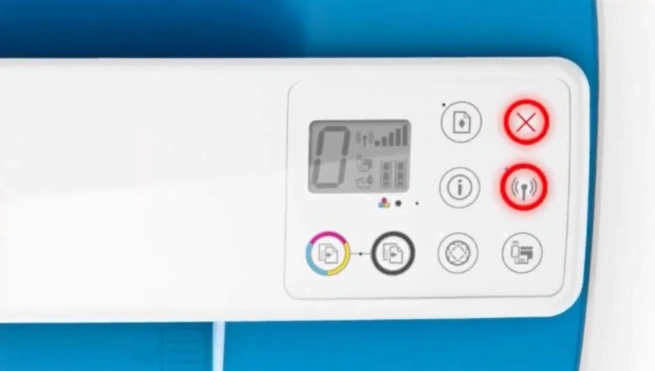
Step 2: Press and hold the Cancel (X) and Wi-Fi buttons together until the power button starts blinking.
Step 3: Check if your smartphone is connected to Wi-Fi.
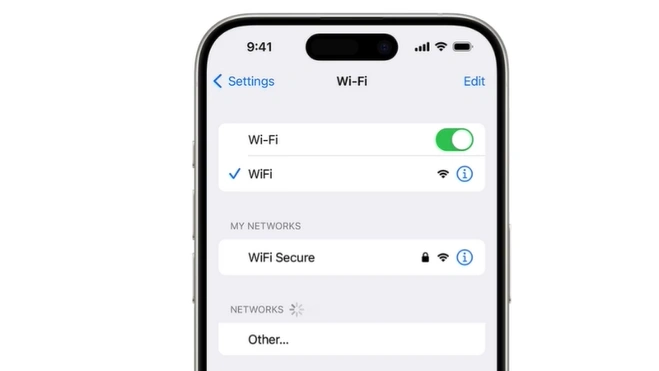
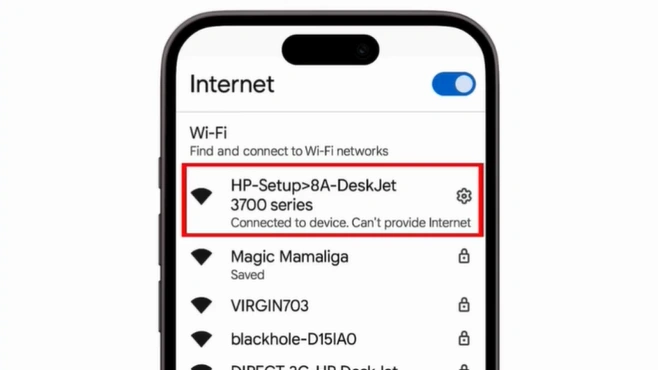
Step 4: Go to Wi-Fi settings on your device and select your printer’s name from the list of available devices.
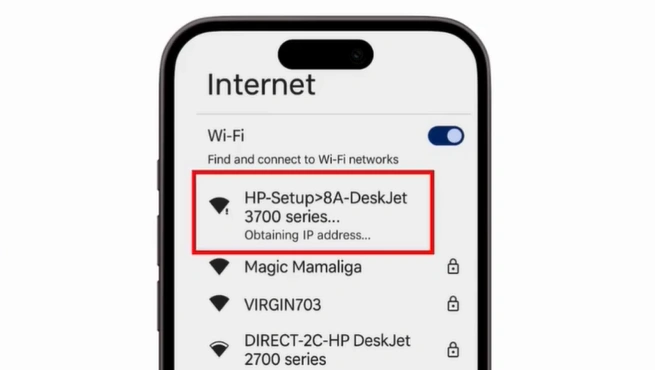
Step 5: Once the printer is connected, open the Play Store or App Store on your device.
Note: If the app is already installed, skip to Step 8.
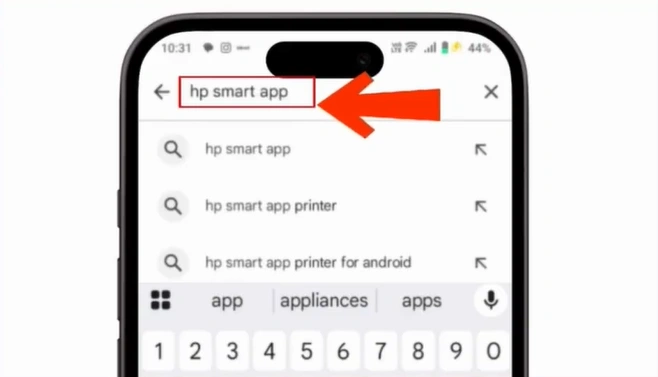
Step 6: If using an Android device, open the Play Store and search for the HP Smart app.
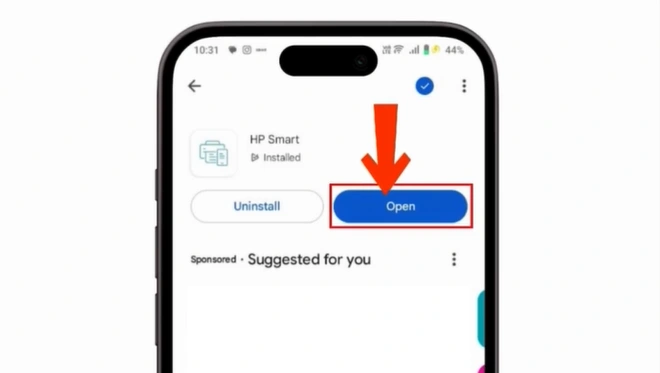
Step 7: Once the app is installed, tap on Open.
Step 8: Log in to your existing account or create a new one to use the app.
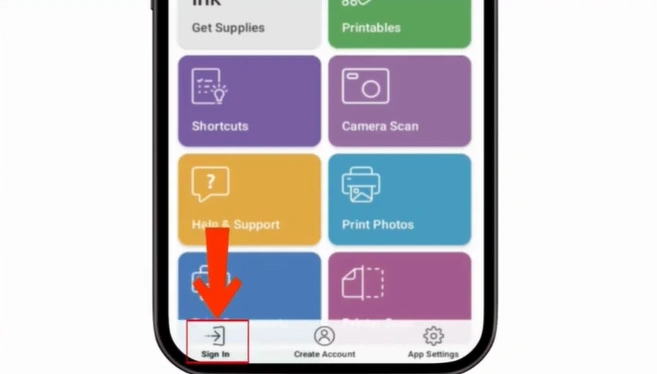
Step 9: If you have previously connected another device to the app, your interface may appear slightly different.
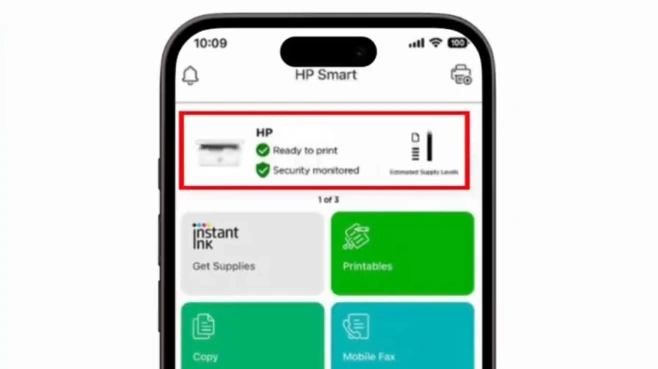
Step 10: To add a new printer, tap the printer icon located in the top-right corner of the screen.
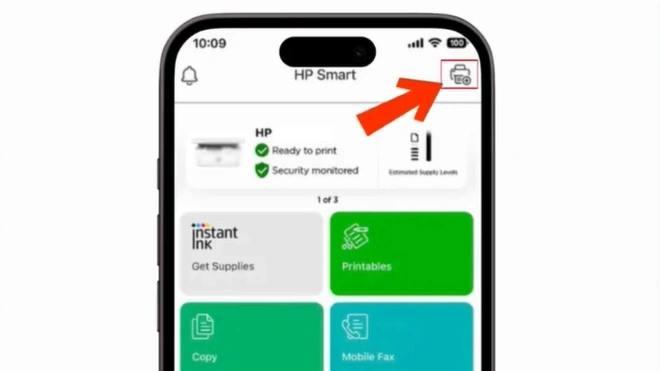
Note: If you’re a first-time user, click on the “Add Your First Printer” option shown on the screen.
Step 11: Tap on Add Printer.
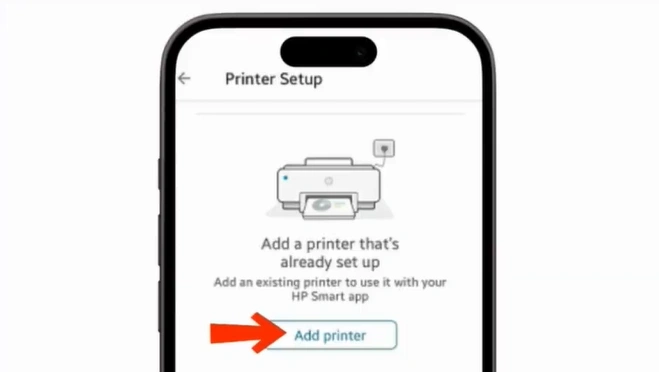
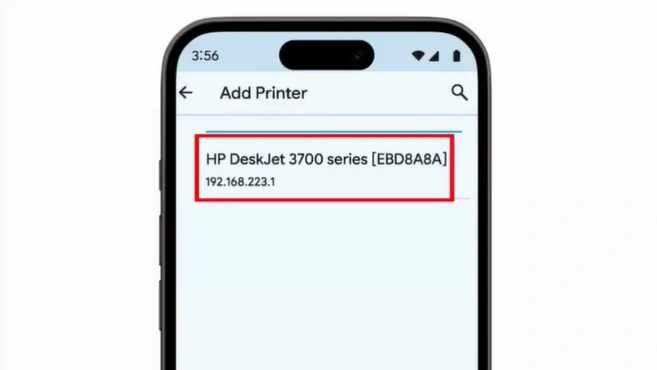
Step 12: When you see your HP DeskJet 3700 series on the Add Printer page, tap on it.
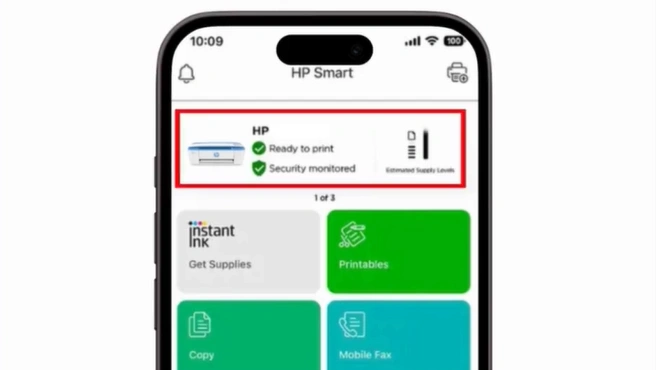
Step 13: You’ll see your printer series on the HP Smart app's home screen. This indicates that the printer is connected to your device.
To Sum Up
Setting up your HP DeskJet 3700 printer and starting wireless printing is now easier. Now, you can print from your mobile device without using your desktop system by keeping your printer connected. Just follow the above instructions, and you’re all set. No more feeling frustrated or guessing technical steps. Everything will be easy to control from your phone.
Frequently Asked Questions
How do I connect HP DeskJet 3700 to an iPhone?
Turn on your printer.
On your iPhone, open the App Store.
Click on Get to install the HP Smart app.
Check that the phone is connected to Wi-Fi
Launch the app on your device.
Follow the steps to connect your printer.
How to connect HP DeskJet 3700 printer to new Wi-Fi?
Turn on your printer. Place it near your Wi-Fi router.
Install the HP Smart app on your device.
Open the app and select "Set Up a New Printer" or "+ Add Printer."
Follow the on-screen steps to find your printer
Select your new Wi-Fi, and enter the password.
You’ll see the blue Wi-Fi light on the printer. When it turns solid, the connection is established.
Can I print from my phone without installing an app?
If you want to use basic features, you can stick to the default Apple AirPrint (for iPhone users) or Mopria (for Android users). For advanced features, the HP Smart app is recommended.
Why is my HP DeskJet 3700 not connecting to a mobile?
Your printer may not connect due to incorrect network settings, outdated app versions, or a weak connection.

