How to Connect HP LaserJet Pro M203dw to WiFi?

When you use your HP LaserJet Pro M203dw printer with wires, it often becomes messy and frustrating. But you can make things easier by connecting your printer to a wireless setup. With your printer on WiFi, your print tasks become easy, and you can send documents and photos from your phone, laptop, or tablet without trouble.
You no longer need to shift furniture or keep plugging and unplugging power cords. Connecting your printer to WiFi keeps your desk clean, and multiple users can join the same network. This can benefit small offices or shared workspaces. The setup process is much simpler than you could imagine. We’ll look at the steps to connect the HP LaserJet Pro M203dw printer to WiFi, but first, check the problems that may come up during the setup.
Common Problems Faced When Doing the Setup
Check out these issues that most users face when connecting the HP LaserJet Pro M203dw printer to a WiFi network:
- Frequent “lost connection” or intermittent WiFi drops
- Printer not showing in the WiFi setup
- Router settings, IP conflicts, or DHCP issues
- Printer not working with 5GHz networks or the wrong WiFi band
- Outdated firmware or software problems
- Poor router placement
Mistakes to Avoid When Performing the Steps
Take a close look at these common mistakes that you must avoid when trying to connect the HP LaserJet Pro M203dw printer to WiFi:
- Entering the wrong WiFi password: Even a small typo can prevent the printer from connecting. Make sure you’re entering the correct password.
- Skipping a firmware update: Old firmware can stop the WiFi setup or stop the printer from connecting. Ensure you have the latest updates installed before you begin the process.
- Not restarting devices: Temporary glitches in the router or printer can disrupt the setup if you don’t restart both devices. By restarting devices, you can refresh the network and resolve minor issues.
- Keeping the printer too far from the WiFi router: Poor signal strength may prevent the printer from connecting. You must position the printer closer to the WiFi router during setup to ensure a strong connection.
- Ignoring router settings: Features like MAC filtering or wrong security settings can block the connection. Check the router’s settings beforehand to verify its compatibility with the printer.
Steps to Connect HP LaserJet Pro M203dw to WiFi
Check out these essential steps to successfully connect the HP LaserJet Pro M203dw to WiFi:
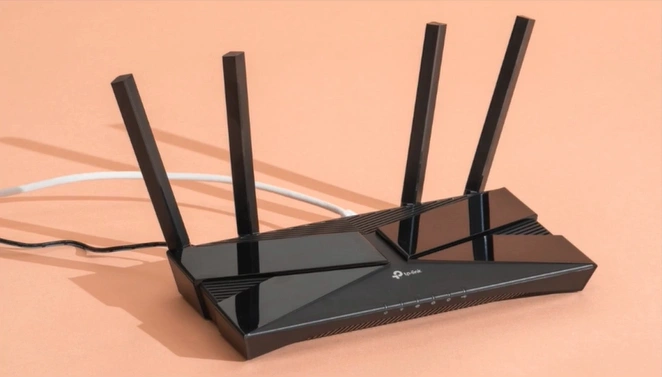
Step 1: First, ensure your device is connected to WiFi.
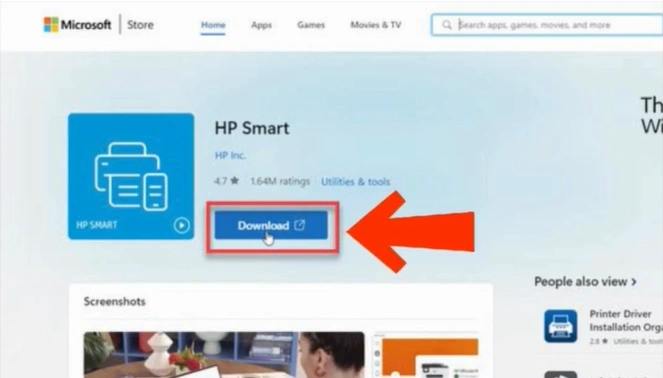
Step 2: Next, download and install the HP Smart app on your device.
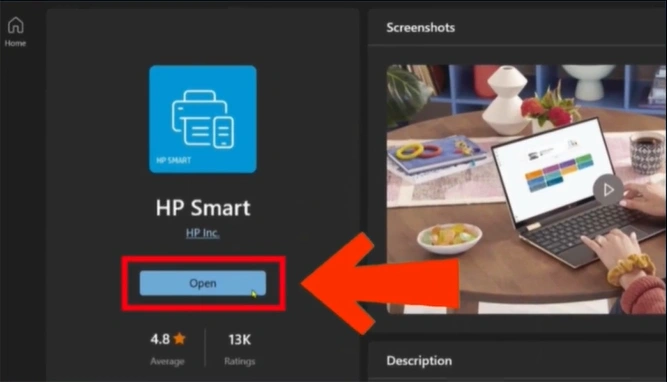
Step 3: Once the setup finishes, select “Open.”
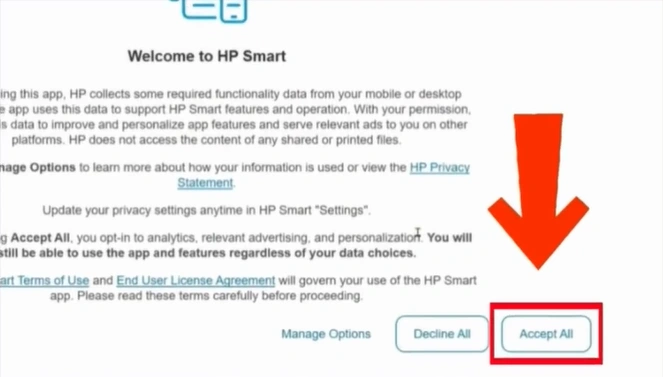
Step 4: A welcome page will show up. On the same page, click on Accept All.
Step 5: Next, click on Sign in.
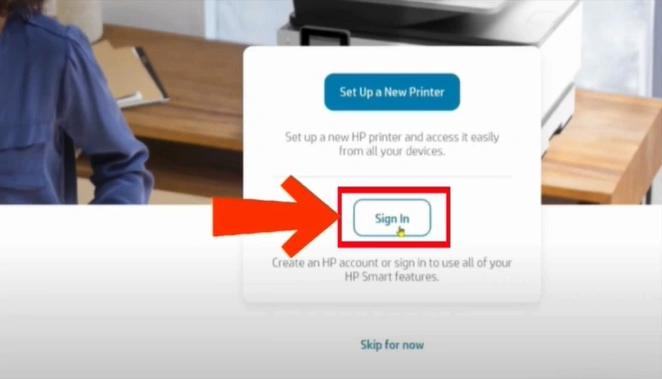
Step 6: If you already have an account, type your login details and click on Sign in. If not, click on “Sign up.”
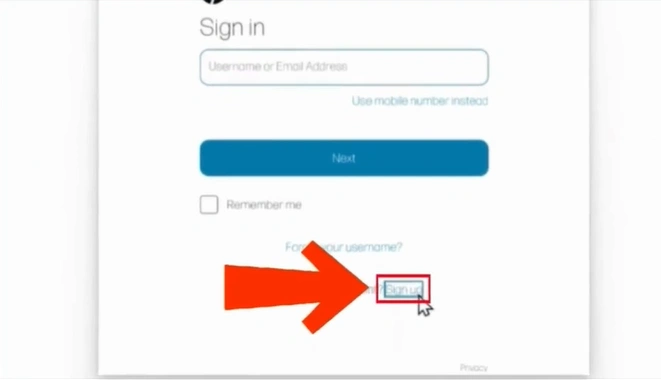
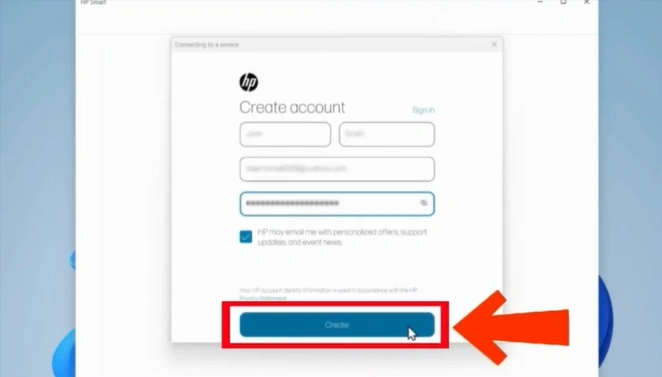
Step 7: On the Create account screen, enter your credentials, then click Create.
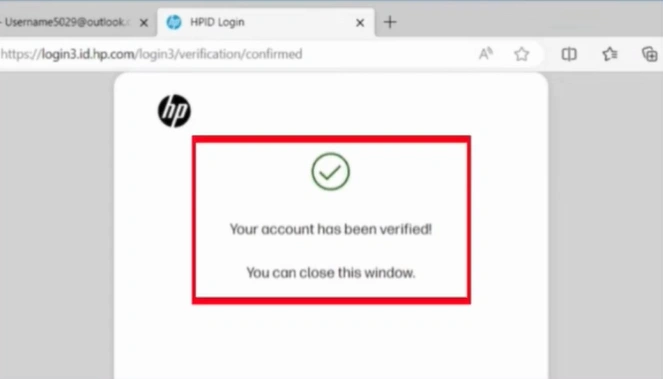
Step 8: Open the email account you have added and open the email from HP to verify.
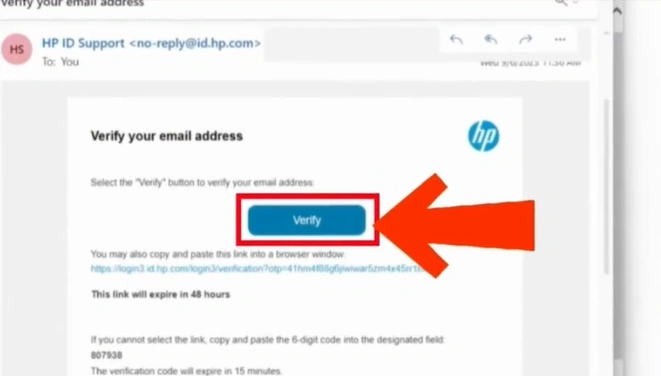
Step 9: Once verified, close the window.
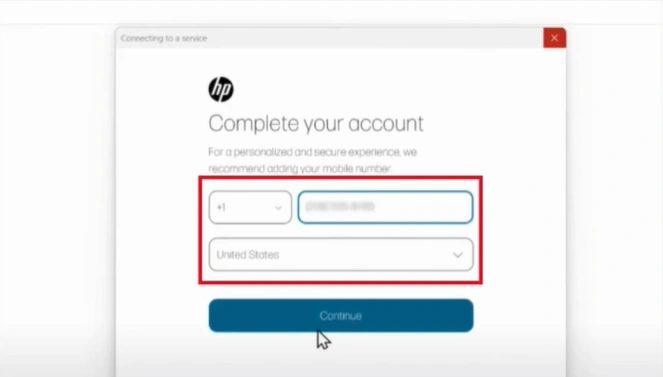
Step 10: Go back to your HP Smart app, add your phone number, and select your country.
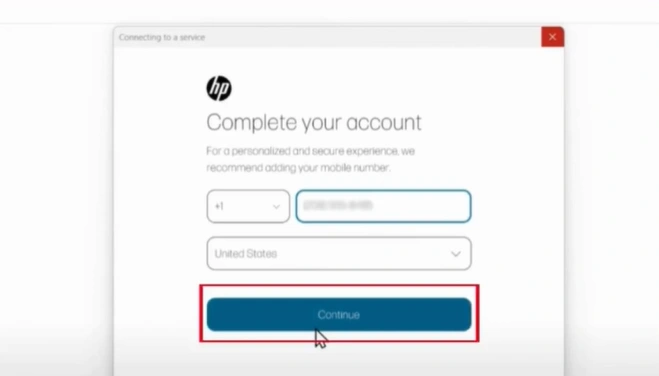
Step 11: Click the Continue button.
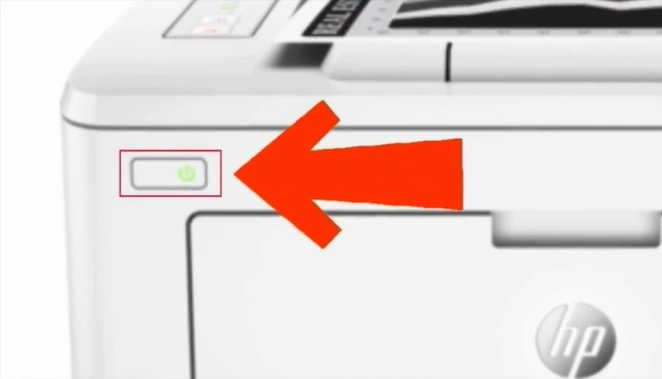
Step 12: Turn on your printer.
Step 13: Press and hold the Wireless button on your printer.
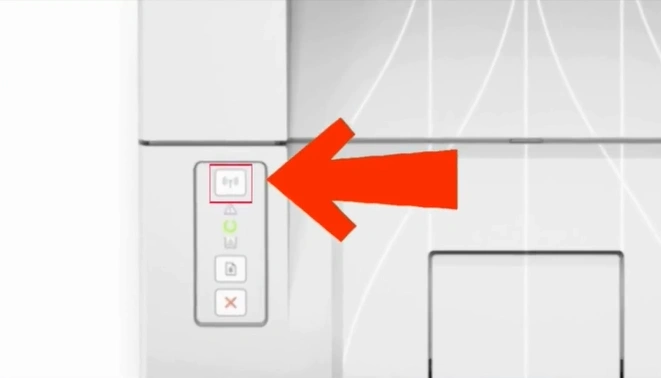
Step 14: Once the Attention and Ready light flashes, release the Wireless button.
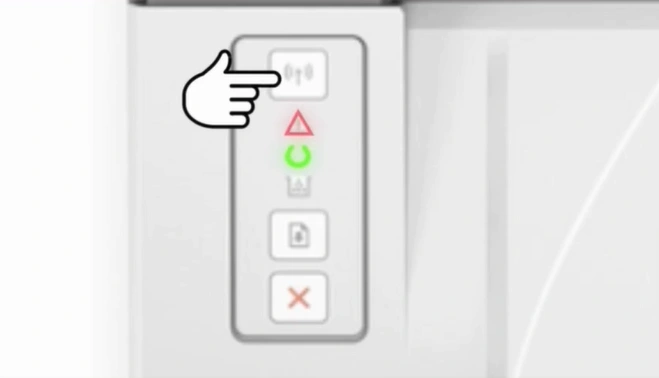
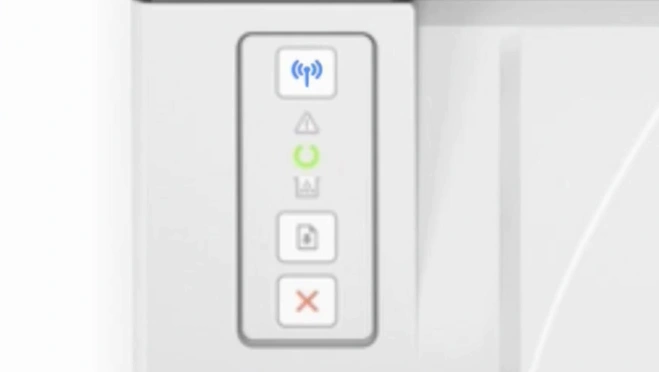
Step 15: Wait for the Wireless light to flash.
Step 16: Return to the app and click on the “Add Printer” button.
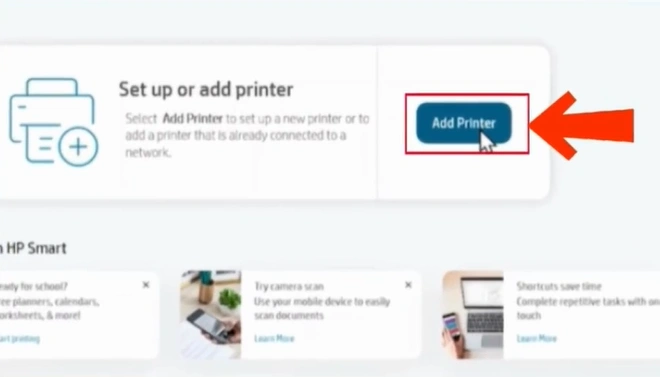
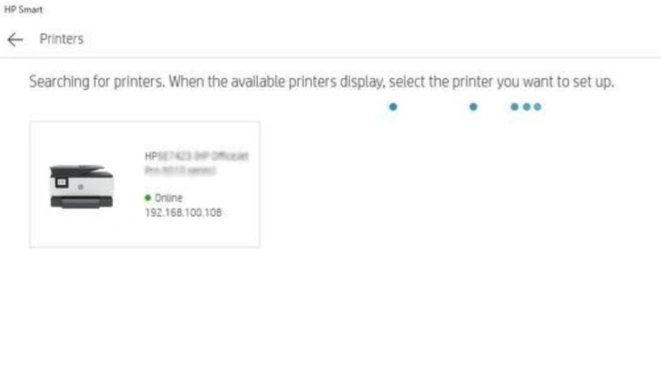
Step 17: Once your HP LaserJet Pro M203dw appears in the search list, select it.
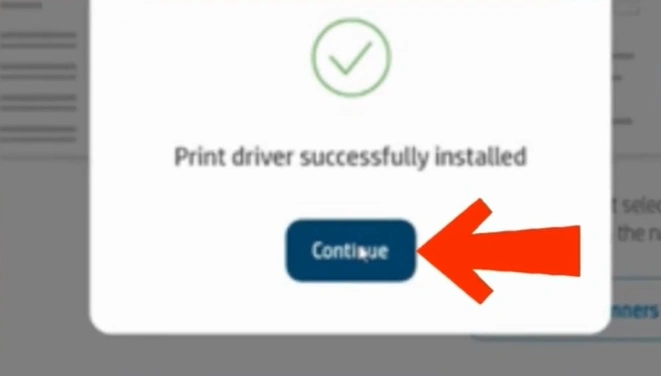
Step 18: After the printer driver is successfully installed, click on Continue.
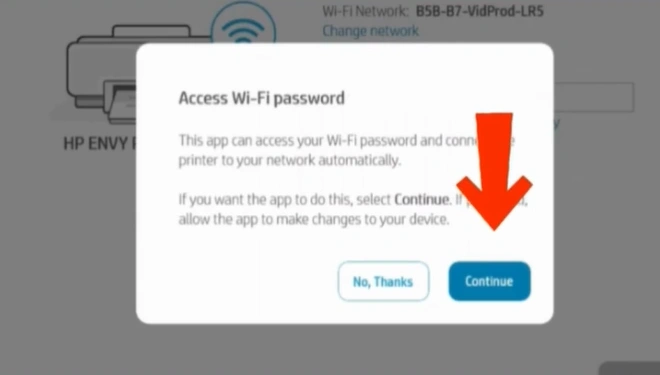
Step 19: In the WiFi password access pop-up, click Continue.
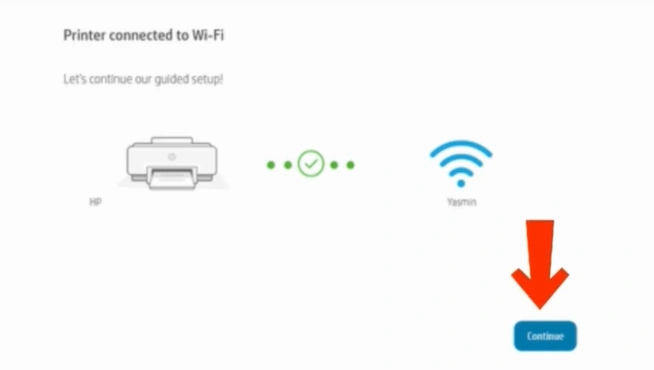
Step 20: After the printer is successfully connected to WiFi, click on Continue.
Summing up
See how easy it was to connect your HP LaserJet Pro M203dw printer to WiFi. You only need to follow a few simple steps to start using your HP printer wirelessly. When your printer is on WiFi, you can finish your print tasks quickly. That could be great for your everyday work in the office.

