How to Fix Brother MFC-J1205W Printer Not Printing Issue

Seeing your Brother MFC-J1205W printer in “not printing” issue and want to fix it? As a printer user, you are likely to encounter this situation every now and again. Even minor problems with your device’s hardware and software can lead to this situation. It is wise to find out the key cause of the problem so you can fix the issue quickly.
Moreover, if you are unable to figure out the root cause of the issue, then worry not- we have got your back. Here understand the 7 top troubleshooting methods to get your printer printing perfectly once again.
Solution 1: Check Connection
If the printer is not printing documents, then check its connections and the device it is connected to.
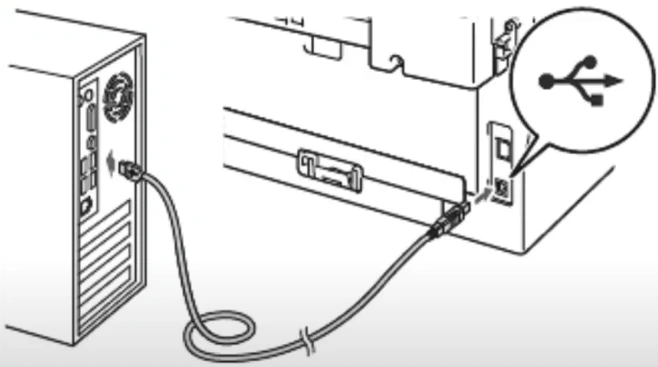
1. Ensure the USB cable is connected properly on both ends.
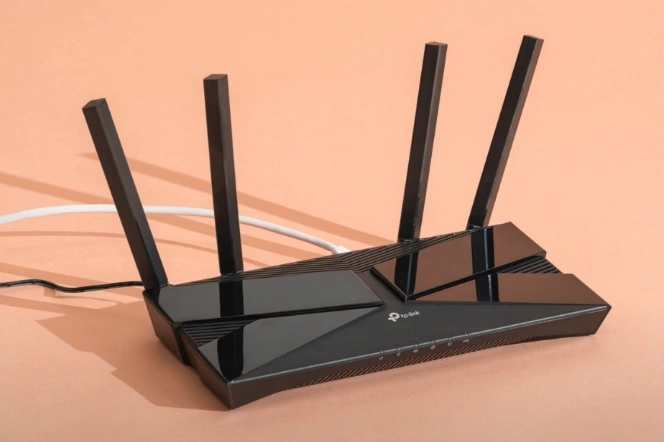
2. Verify that the network on your printer and computer are the same.
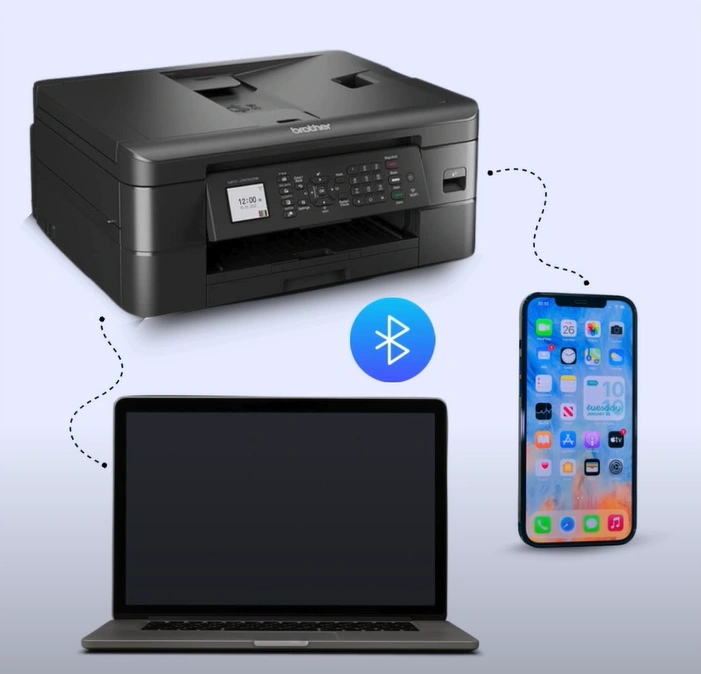
3. If you are printing via Bluetooth, ensure the printer is connected to the computer or mobile device.
4. Now, check if the printer prints the document.
Solution 2: Check the Default Printer
Ensure that your Brother printer is selected as the default printer by following the steps below.
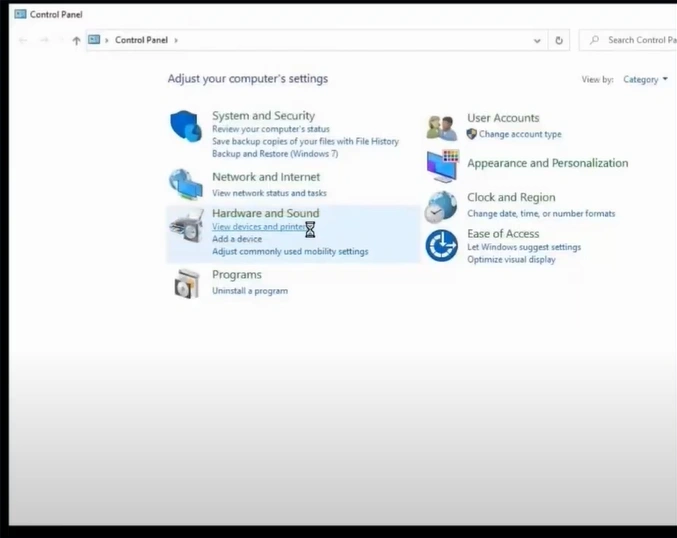
1. The first step is to open the Control Panel window.
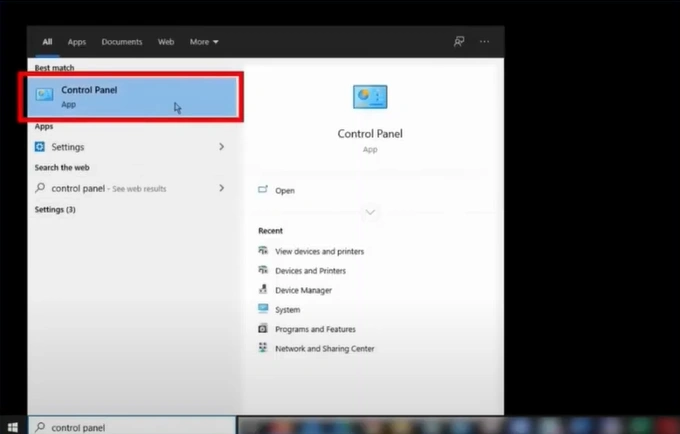
2. Click on the View Devices and Printers option.
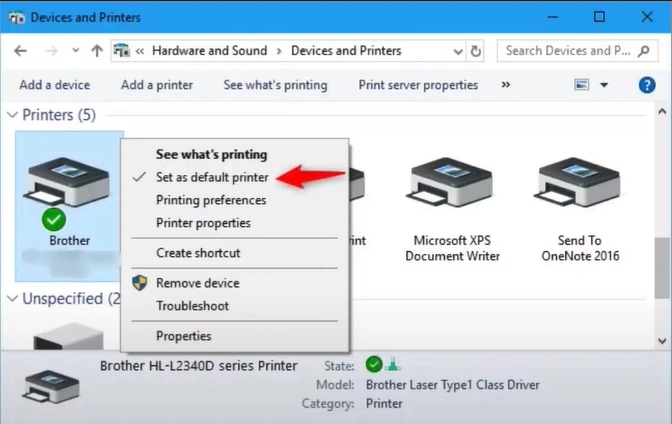
3. Right-click on your Brother printer and select the “Set Printer as default” option.
Solution 3: Check the Printer Status
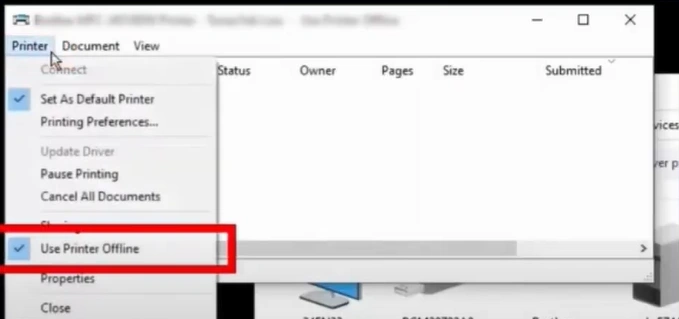
If the ‘Use printer offline’ option is selected for your Brother MFC-J1205W, then it can show some problems in printing documents. These are the steps to check the printer status and make changes if necessary.
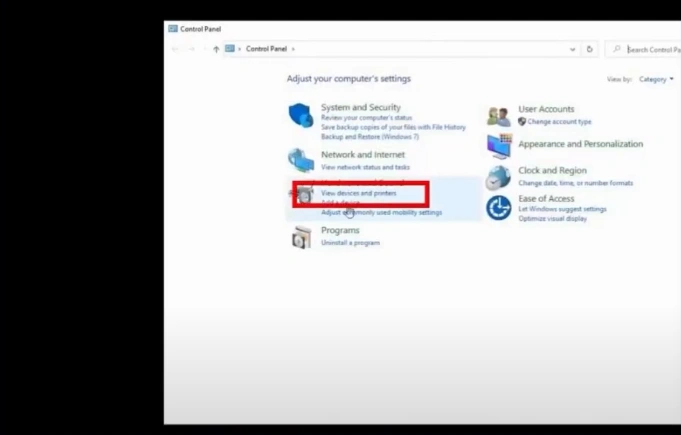
1. Open the Control Panel page and click on "View devices and printers."
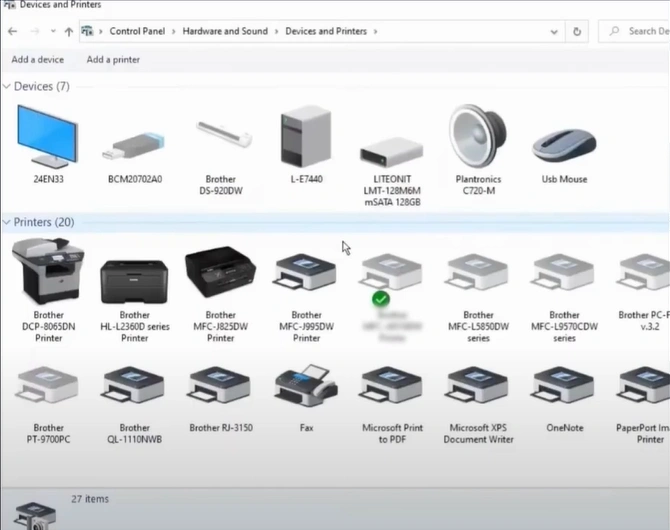
2. Right-click on your printer.
3. Click on the See what’s printing option.
_1745577217.webp)
4. Click on Printer, then uncheck the “Use Printer Offline” option.
Solution 4: Cancel All Print Jobs
Too many print jobs being stuck in the queue is another major reason for printing issues. Follow the steps below to cancel the pending print jobs.
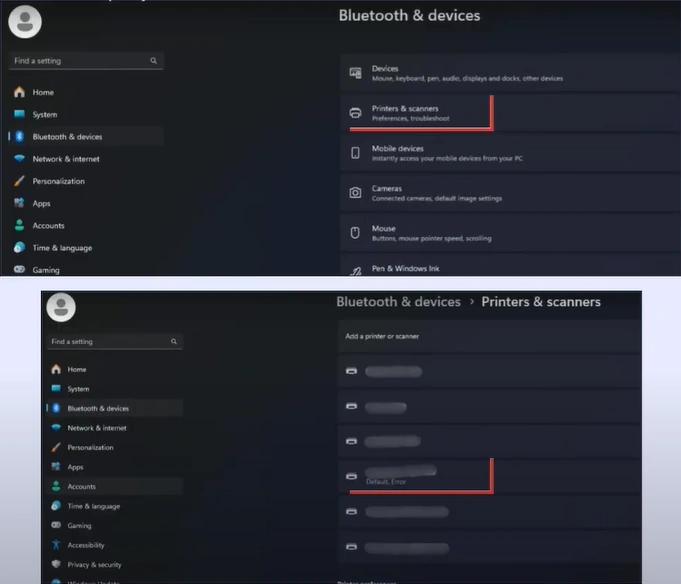
1. Open the Bluetooth & devices in your settings.
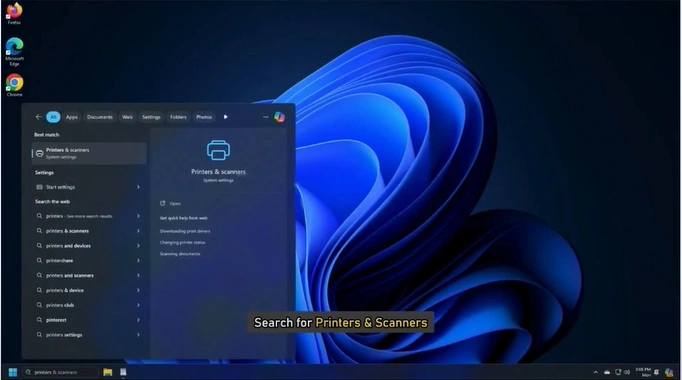
2. Click on Printer & Scanner, and click on your printer option.
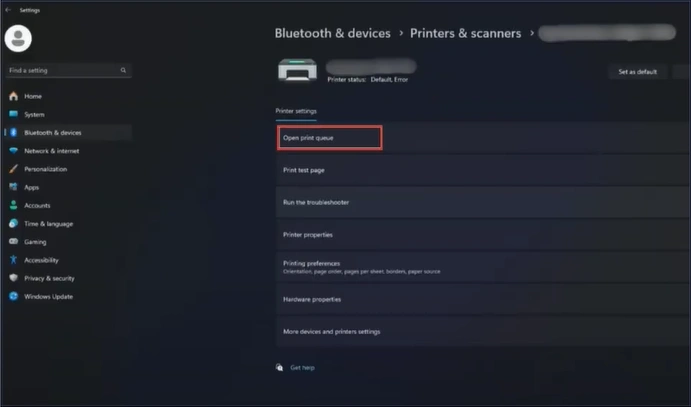
3. Click the "Open Print Queue" option.
4. Select the three dots, then select the "Cancel All" option and click "Yes".
_1745577801.webp)
5. Now, restart your PC.
Solution 5: Check Firewall Settings
Below are the steps you can follow to check the firewall settings on your device and then disable it if necessary.
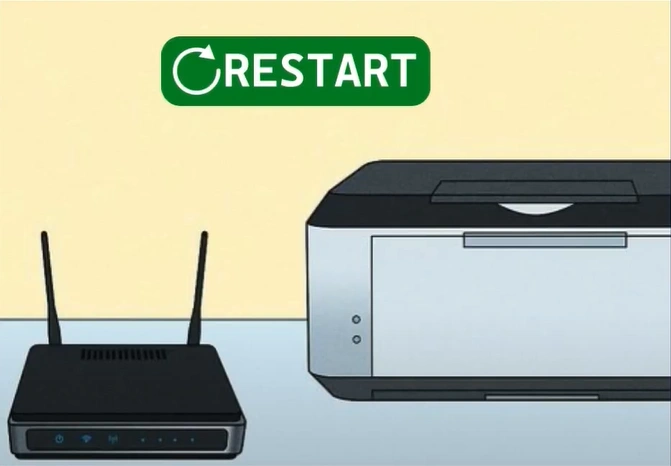
1. Restart your router and printer.
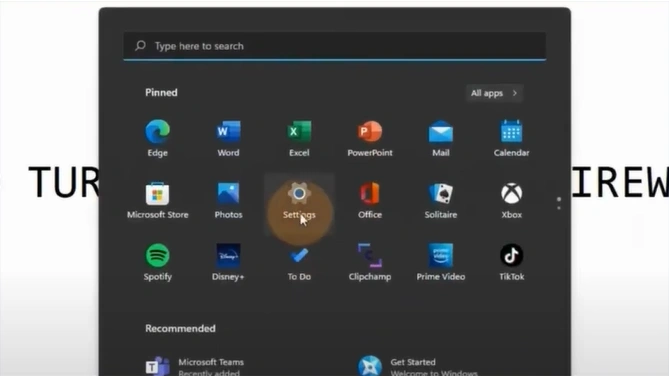
2. Click on the Start menu and open Settings.
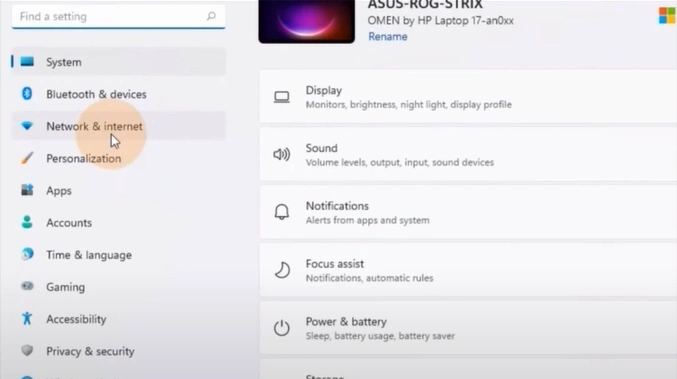
3. Open the Network & Internet Settings option.
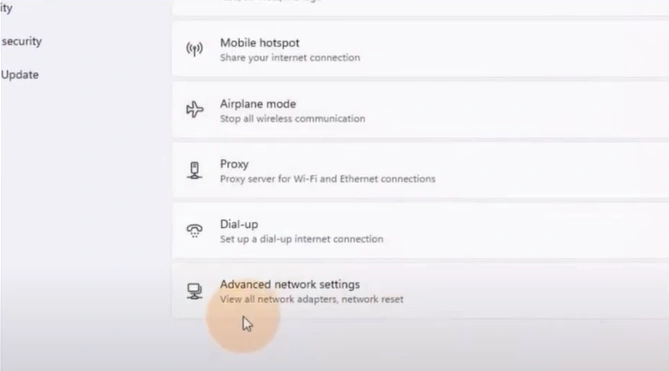
4. Go to Advanced Network settings.
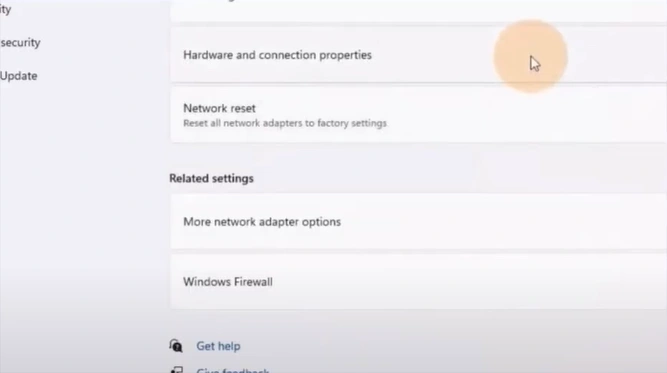
5. Under related settings, click on the Windows firewall.
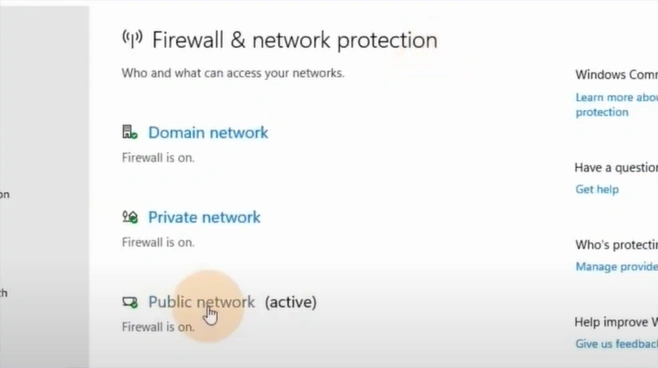
6. Check for any Firewall software settings that might block the printer from establishing a network connection.
Solution 6: Restart the Print Spooler
You can try restarting your print spooler program to get rid of the not printing issue in your Brother printer.
1. Press the Windows and R keys together to open the Run dialog box.
_1745578681.webp)
2. Type “services.msc” and click on OK.

3. Then, scroll down, right-click on the Print Spooler, and select Restart.
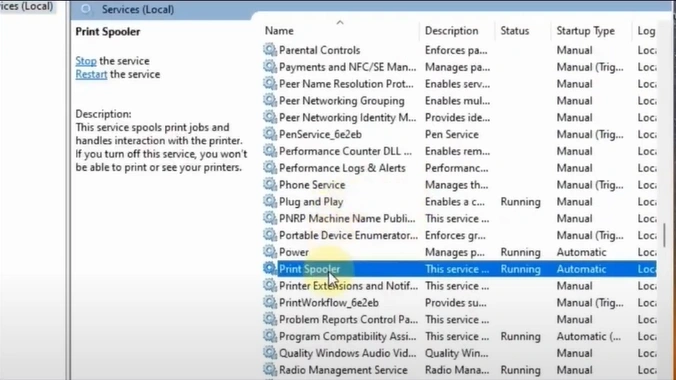
4. Check if the problem still persists.
Solution 7: Reinstall the Driver Package
The outdated driver could be another key cause of the “not printing” problem in your printer. Here is how you can reinstall the driver package on your device easily.
1. Firstly, open the Brother utility on your computer.
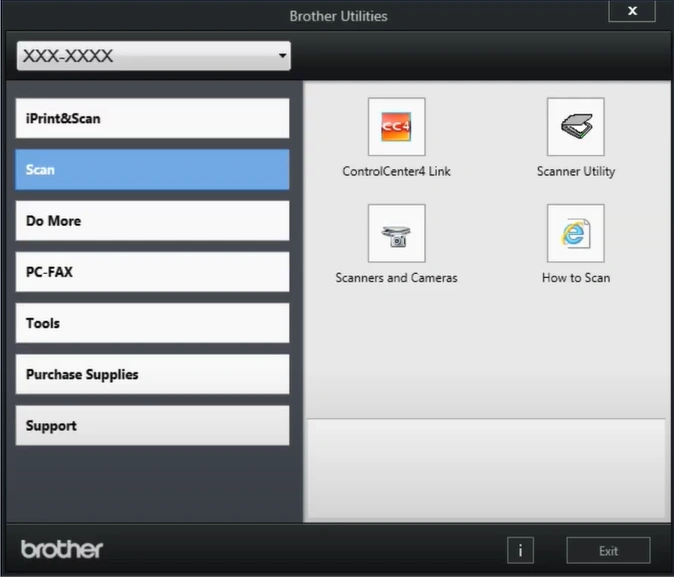
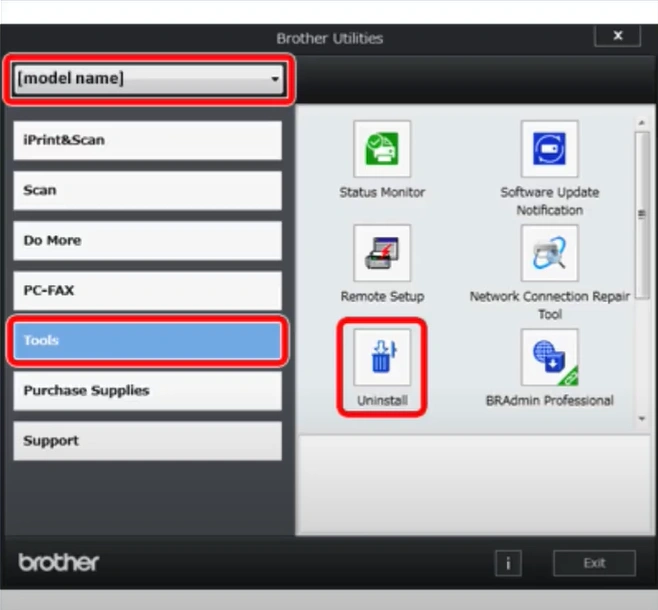
2. Select your model name from the drop-down, open Tool in the left panel, and click on Uninstall.
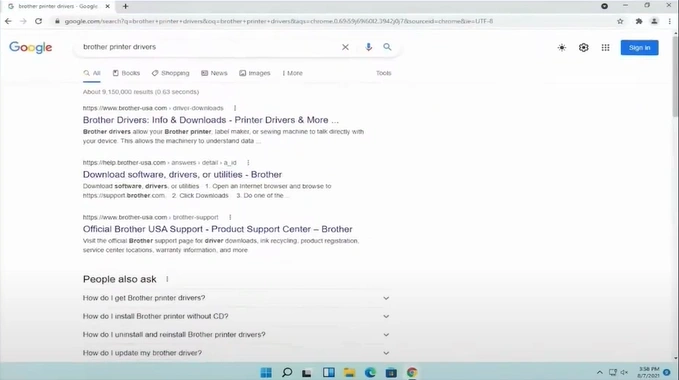
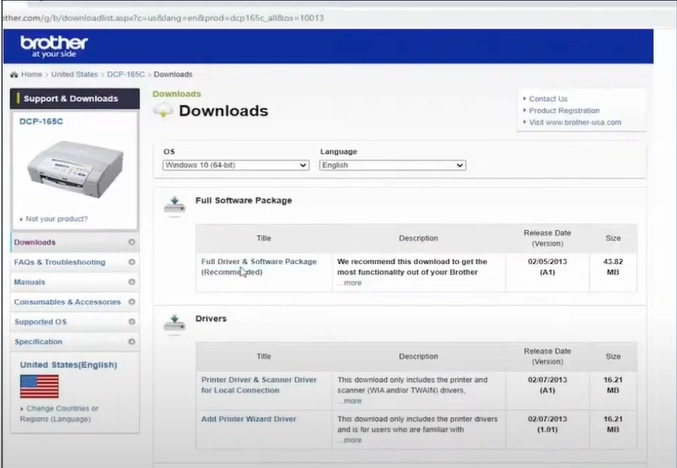
3. Now, go to the Brother driver website to find your printer model.
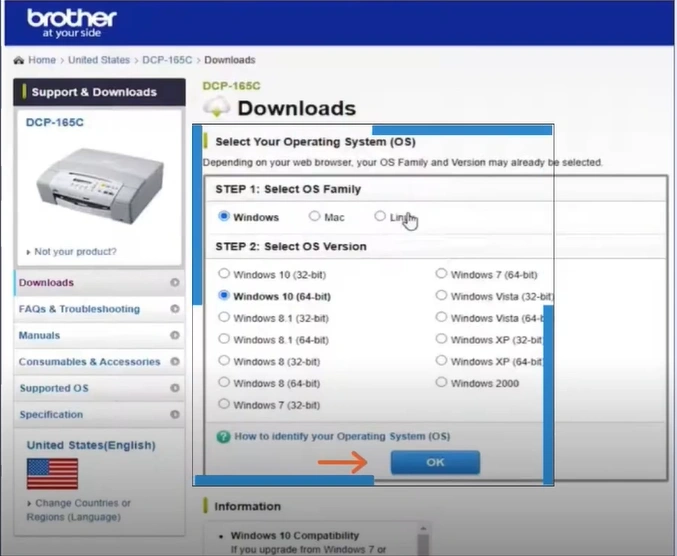
4. Choose the operating system and then press the OK button.
5. Click on "Full Driver and Software package," then click "Agree to the EULA and Download."
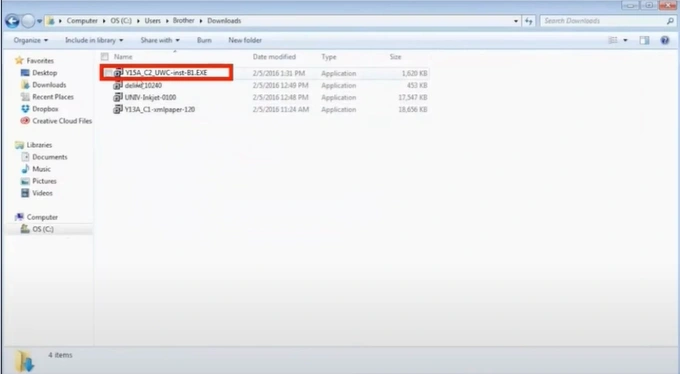
6. Once the package is downloaded, double-click on it to install.
Final Words
These are the primary solutions we have shared with you to fix the printing issue in your Brother MFC-J1205W printer. Use all these methods or any specific method first, according to the problem you are facing with your device. Also, you can use other methods due to the complexity of the issue.

