How to Fix Brother MFC-J1205W Printer Offline Issue

Have you got your Brother MFC-J1205W printer in an offline state and are struggling to fix it? As a printer user, anyone can encounter this problem with their printer without prior warning. Several minor or major software or hardware conflicts can cause this issue with your printer.
Sometimes, users can easily fix minor issues. However, some people struggle to resolve the minor problems even after spending hours of effort. If you are also looking for effective solutions to resolve your Brother printer offline error, then read the full information about the several best possible methods here.
Method 1: Check Physical Connection
The hardware issue in your printer connection could be one of the possible reasons for the offline error. Here is how to check the physical connection for your device.
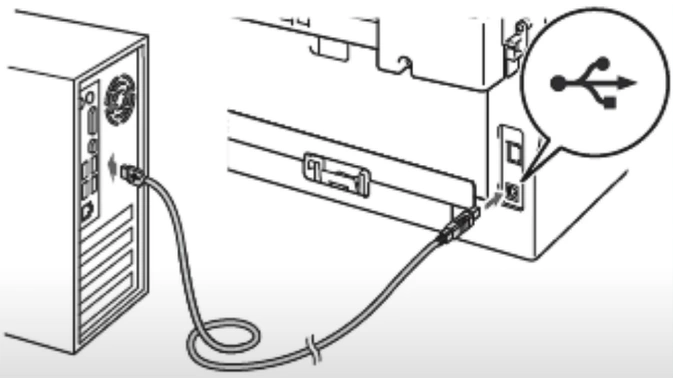
1. You should check if the USB cable is connected properly to the printer and computer.
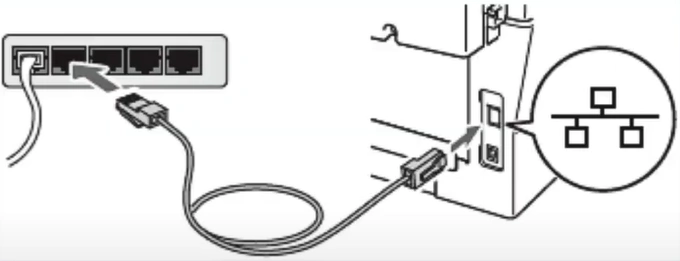
2. If you are using an Ethernet cable, ensure that your cable is connected to the printer and router/access point.
3. Now, see if your Brother printer is online or not.
Method 2: Set as Default Printer
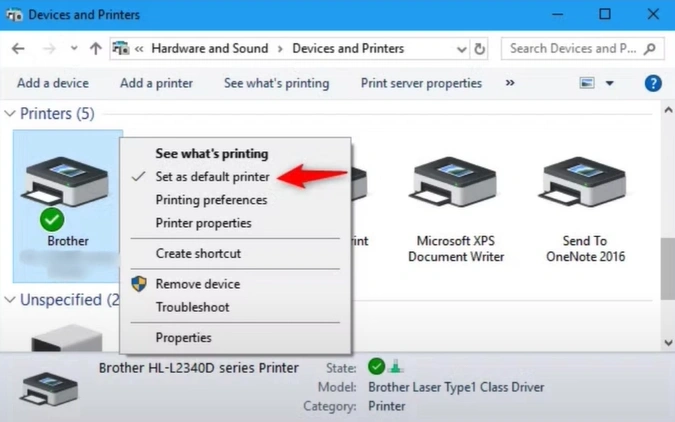
Not selecting your Brother printer as your default device is also important to fix the offline problem. Here is how you can easily set it as the default.
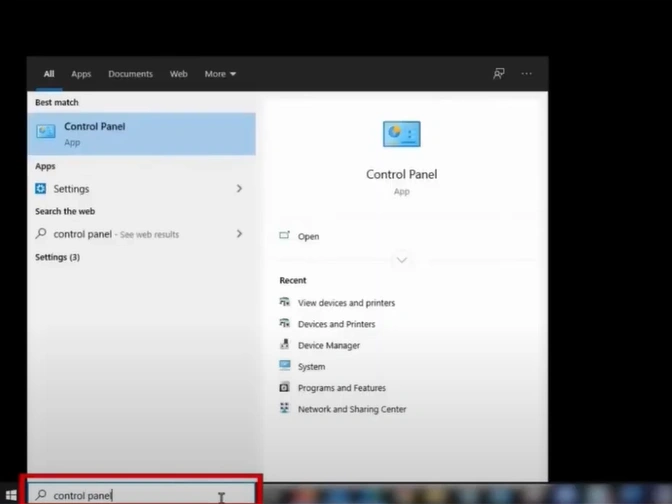
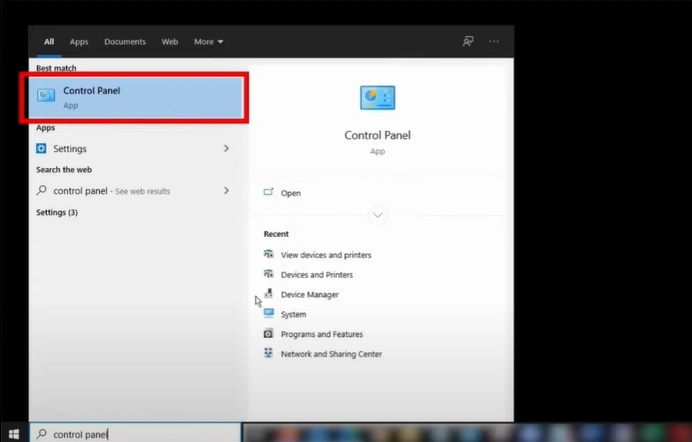
1. First, open the Control Panel window.
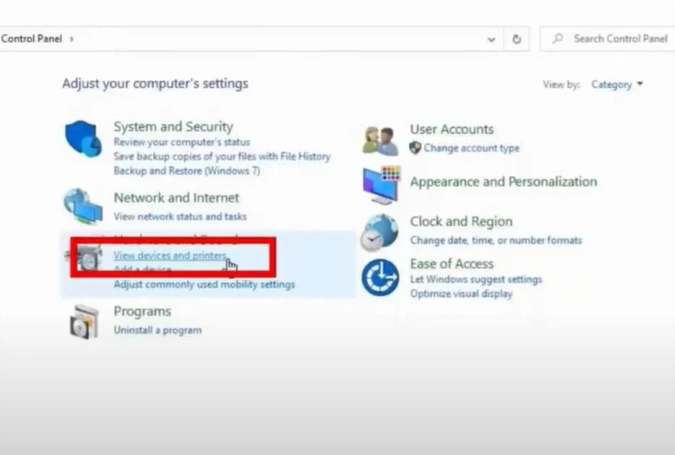
2. Right-click on your Brother printer and select the “Set as default printer” option.
3. Check the printer; if the problem still persists, then move to the next step.
Method 3: Delete All Print Jobs
Follow the procedure below to remove all the pending print jobs for your printer to bring it offline.
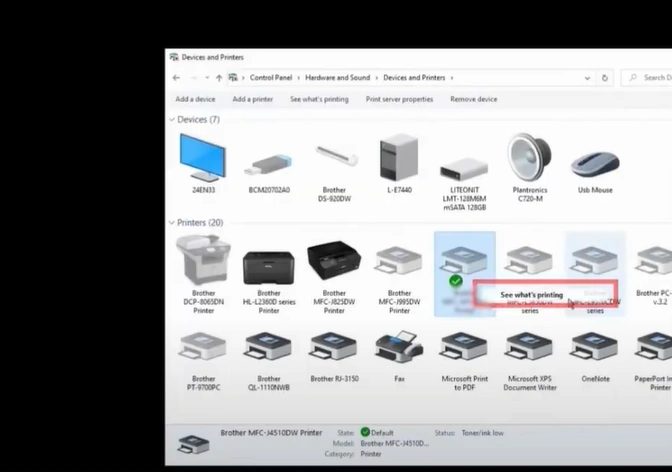
1. Open the Control Panel and click on View Devices and Printers.
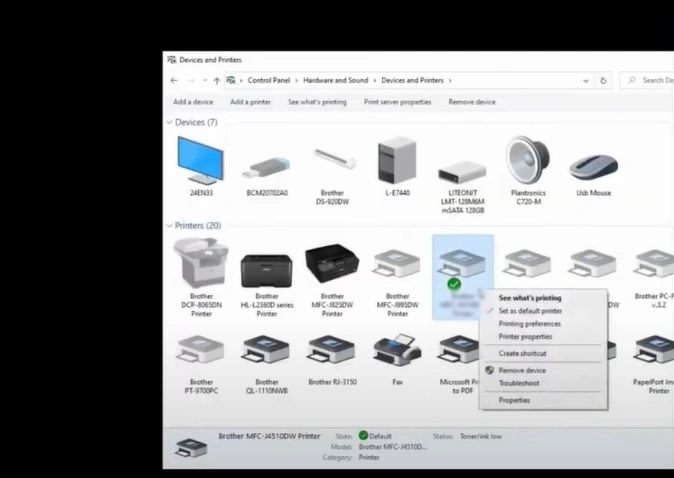
2. Right-click on your printer device and click “See what’s printing.”
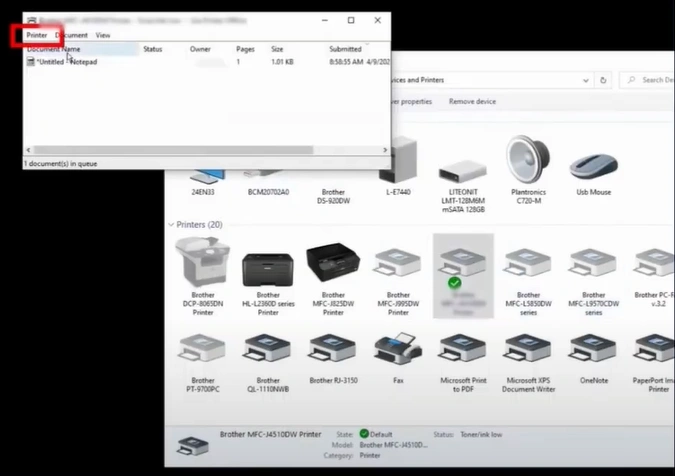
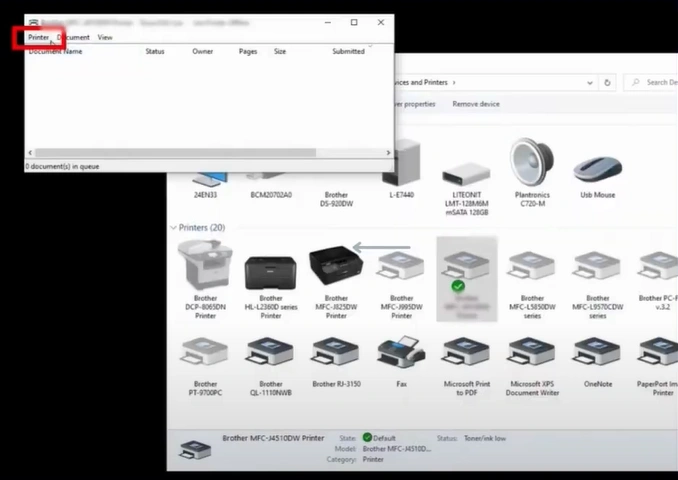
3. Now, click on the Printer tab, select Cancel All Documents, then click on Yes.
Method 4: Check Printer Status
You can also check the printer status and make necessary changes to resolve the offline issue. Here is how you can do it.
1. Open the Control Panel and click on View Devices and Printers.
_1751358268.webp)
2. Then, you should right-click on your Brother printer.
_1751358323.webp)
3. Click on “See what’s printing.”
4. Click on Printer, then you need to uncheck the Use Printer Offline option.
Method 5: Reinstall the Printer Driver
The driver is another key factor in addressing the issues with your printer. These are the right procedures you can follow to reinstall the driver of your Brother printer and resolve the issue.
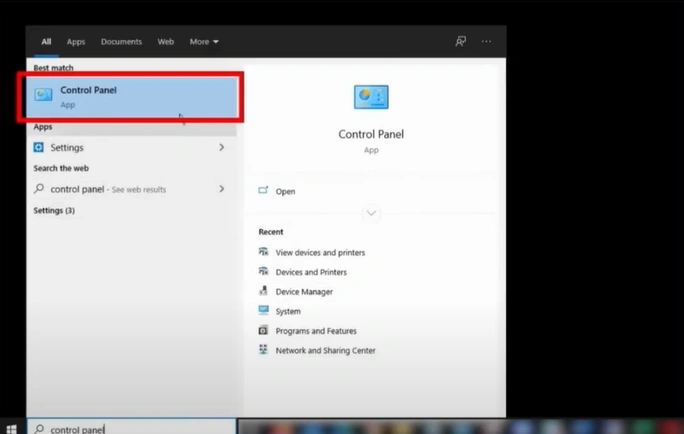
1. Open the control panel window and click on View devices and printers.
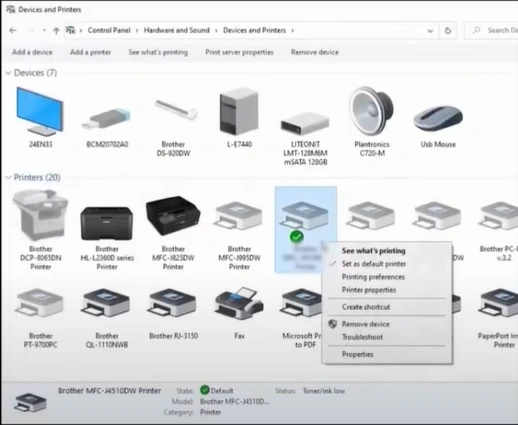
2. Then, you need to right-click on your printer device and click See what’s printing.
3. Click on the Printer tab, select Cancel All Documents, then click on Yes.
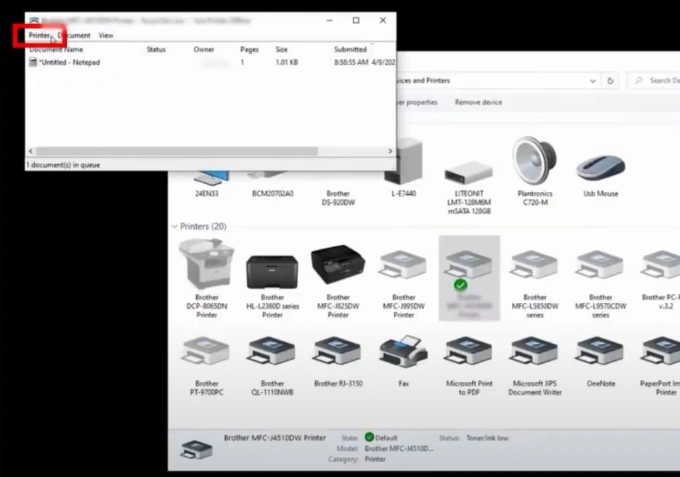
4. Right-click on your Brother printer, select Remove, and click Yes.
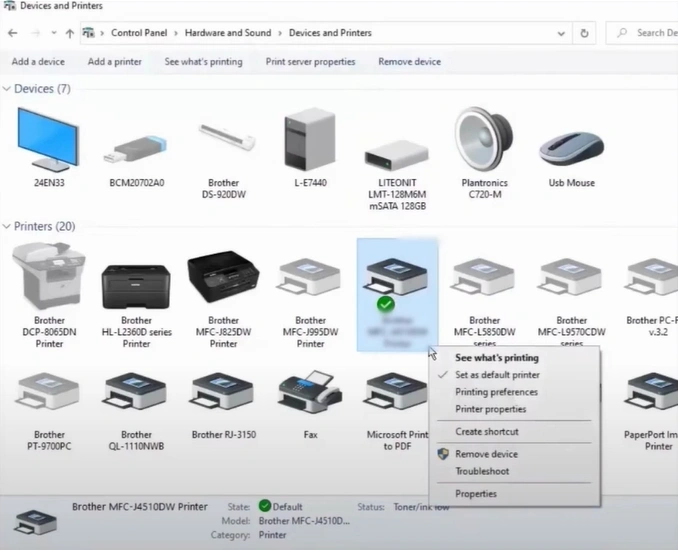
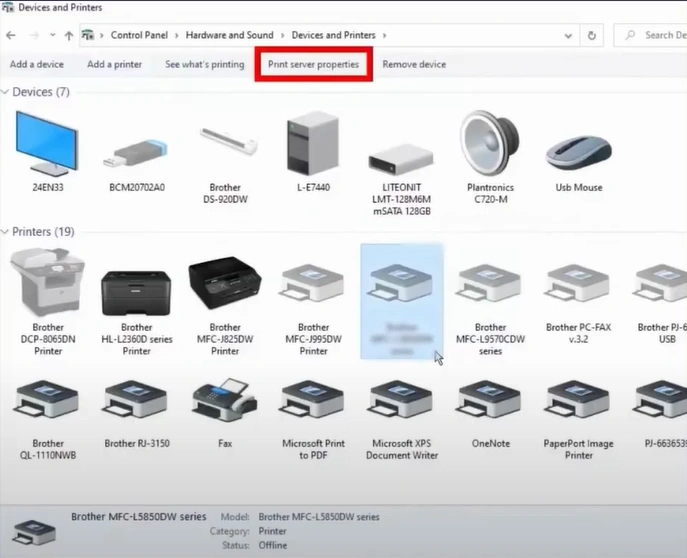
5. Select any other printer and click the Printer Server Properties tab.
6. Then, click on the Drivers tab.
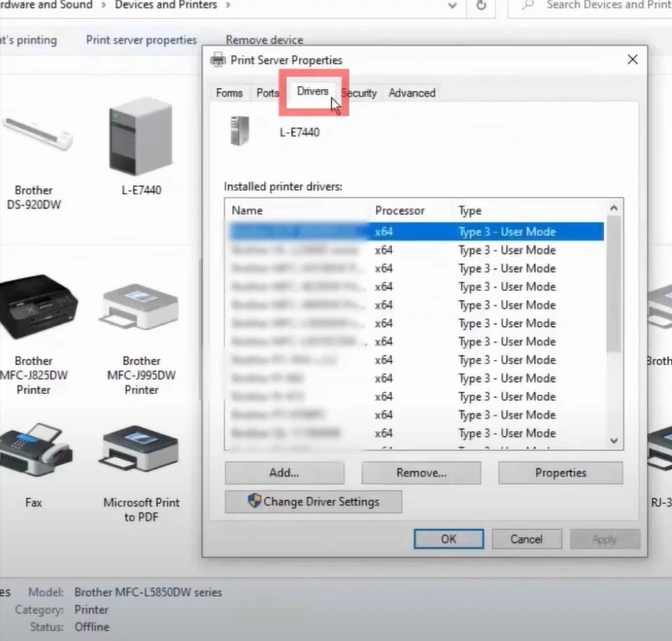
7. Locate your printer driver and click on the Remove button.
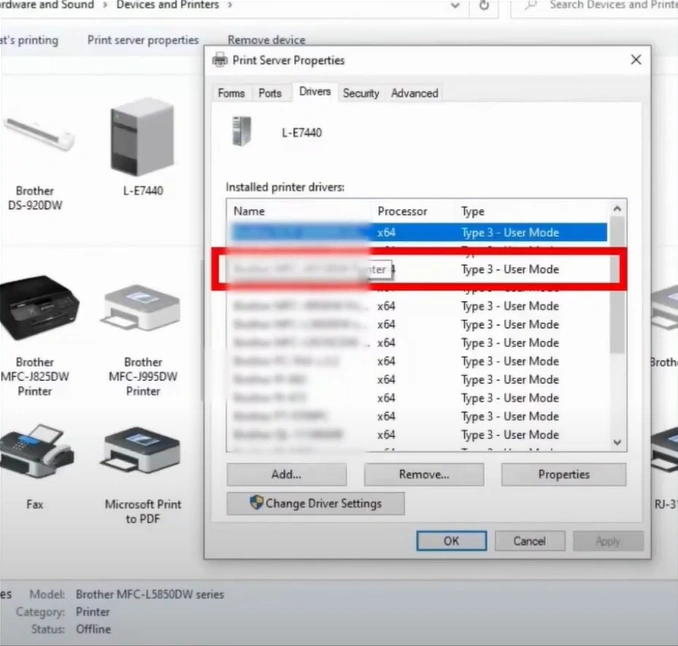
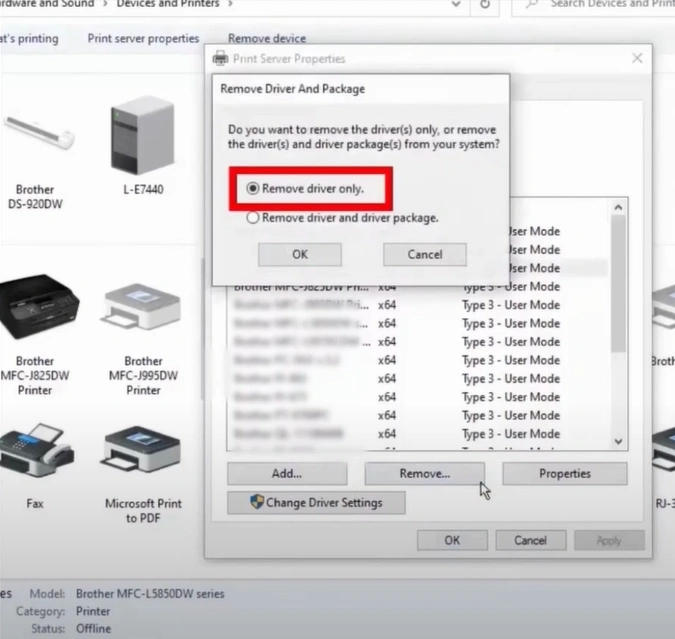
8. Select Remove Drivers Only, then click on OK.
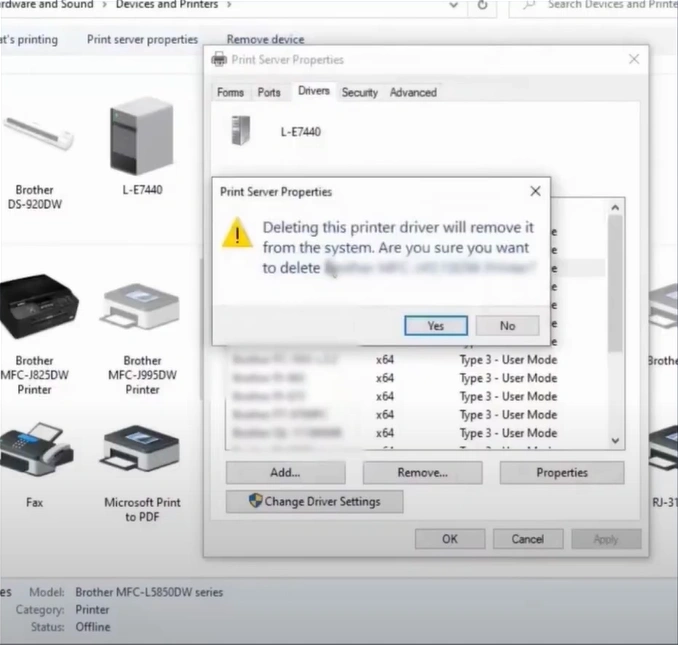
9. Click Yes to delete the printer driver. (Note- if a window appears with “printer driver is currently in use,” reboot your computer and perform all steps again.)
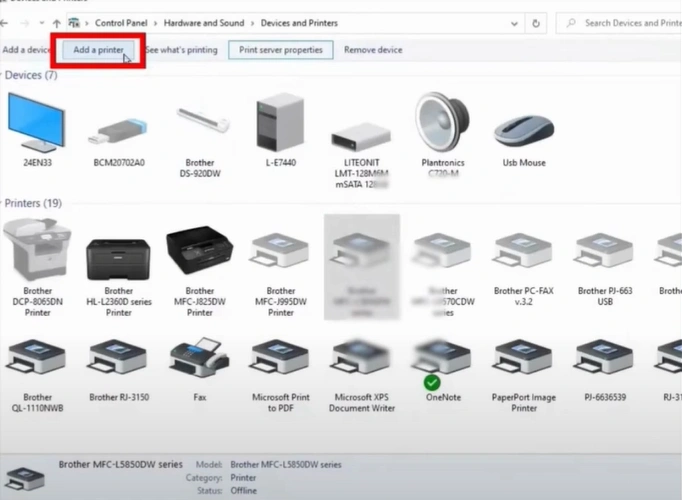
10. Click on the Add Printer option.
11. Click on the “The printer that I want is not listed” option.
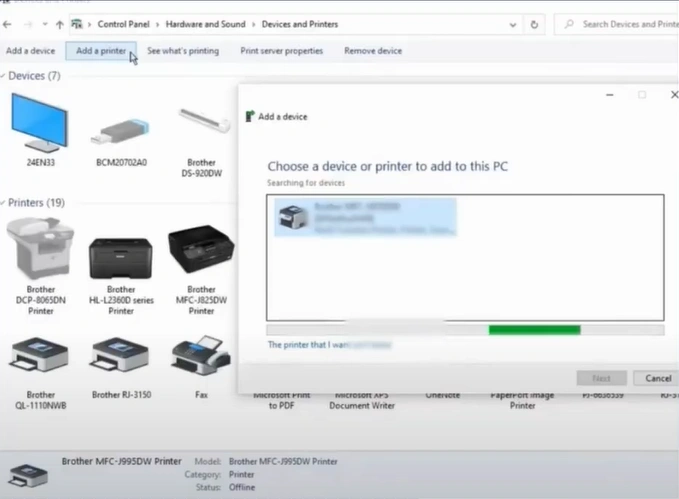
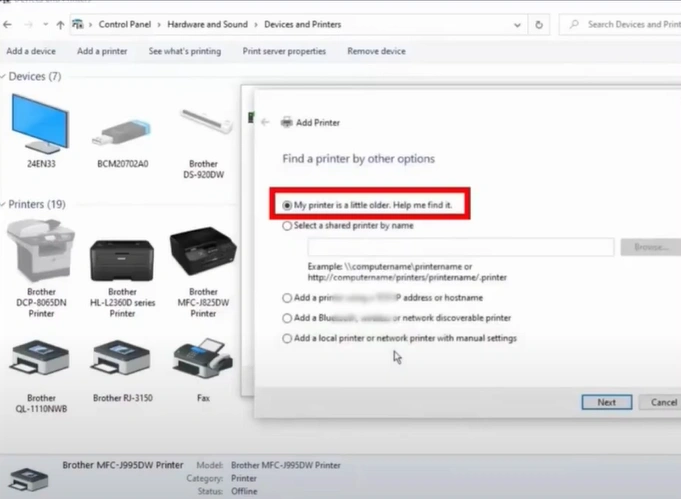
12. Select the “My printer is a little older. Help me find it” option, then click Next.
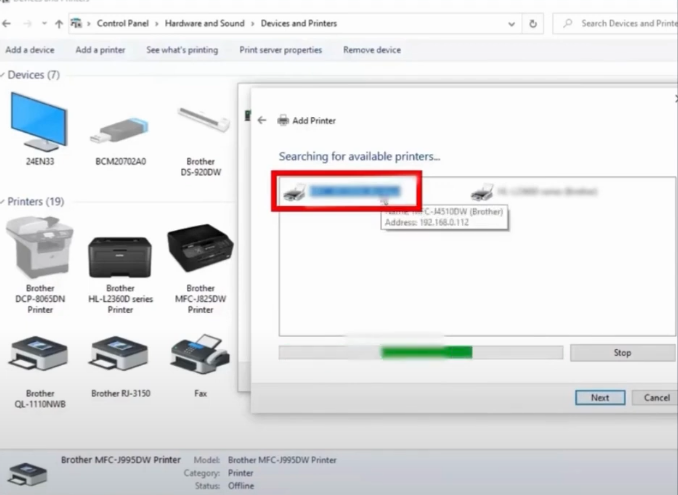
13. Select your printer and click Next.
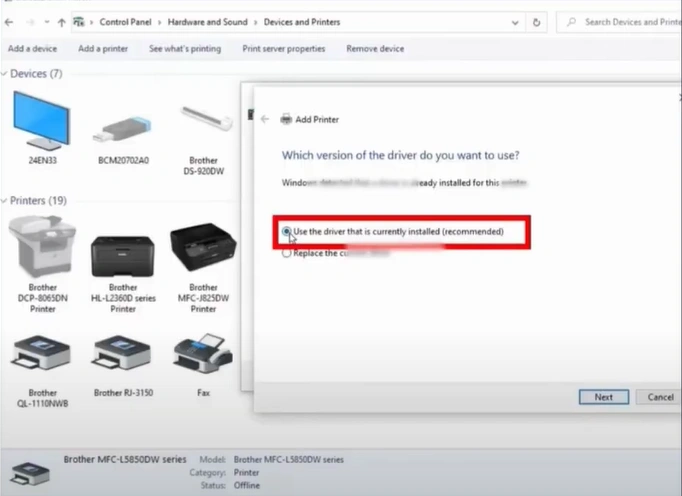
14. Choose the “driver currently installed” option and click Next.
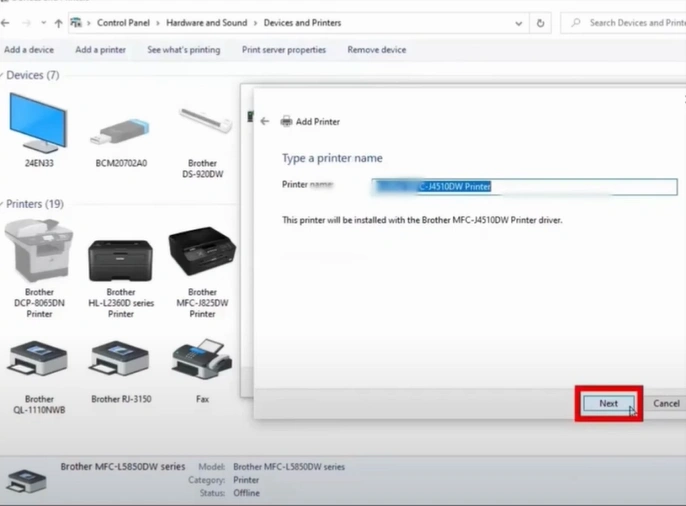
15. Provide the printer name or click Next.
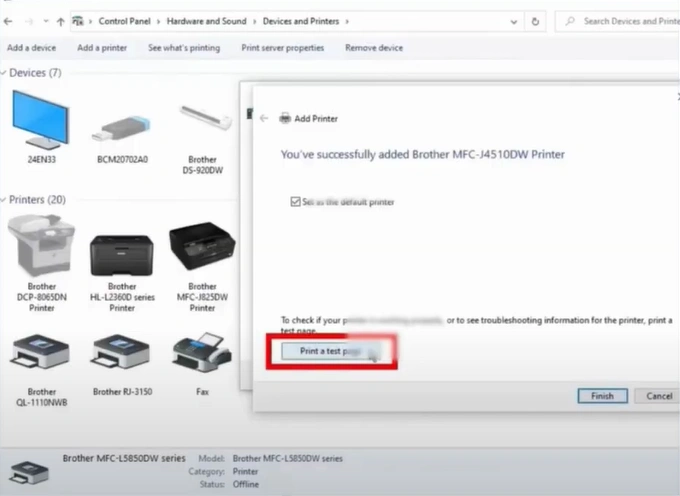
16. Click on the “Print a Test Page” option.
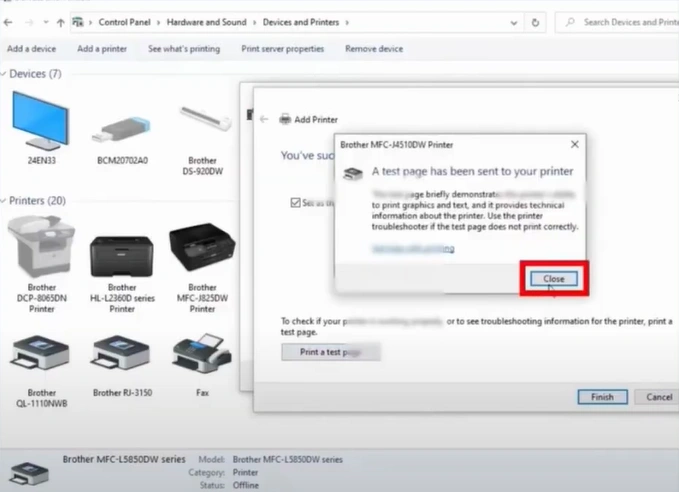
17. Click Close, then click on Finish.
18. Finally, check if your printer is out of the offline state.
Also Read:- How to Connect Brother MFC L3750CDW Printer to WiFi?
Final Words
We hope you are successful in fixing your Brother MFC-J1205W printer offline issue and that the device is working again perfectly after using our solutions. You can also try to figure out the key reason behind the issue, use the right method accordingly, and fix the issue in no time. In addition to that, you can also reach out for additional help if the problem is not resolved yet or if you need more help with any step.

