How to Connect Your HP ENVY 6458e to Wi-Fi (and Keep It Connected)
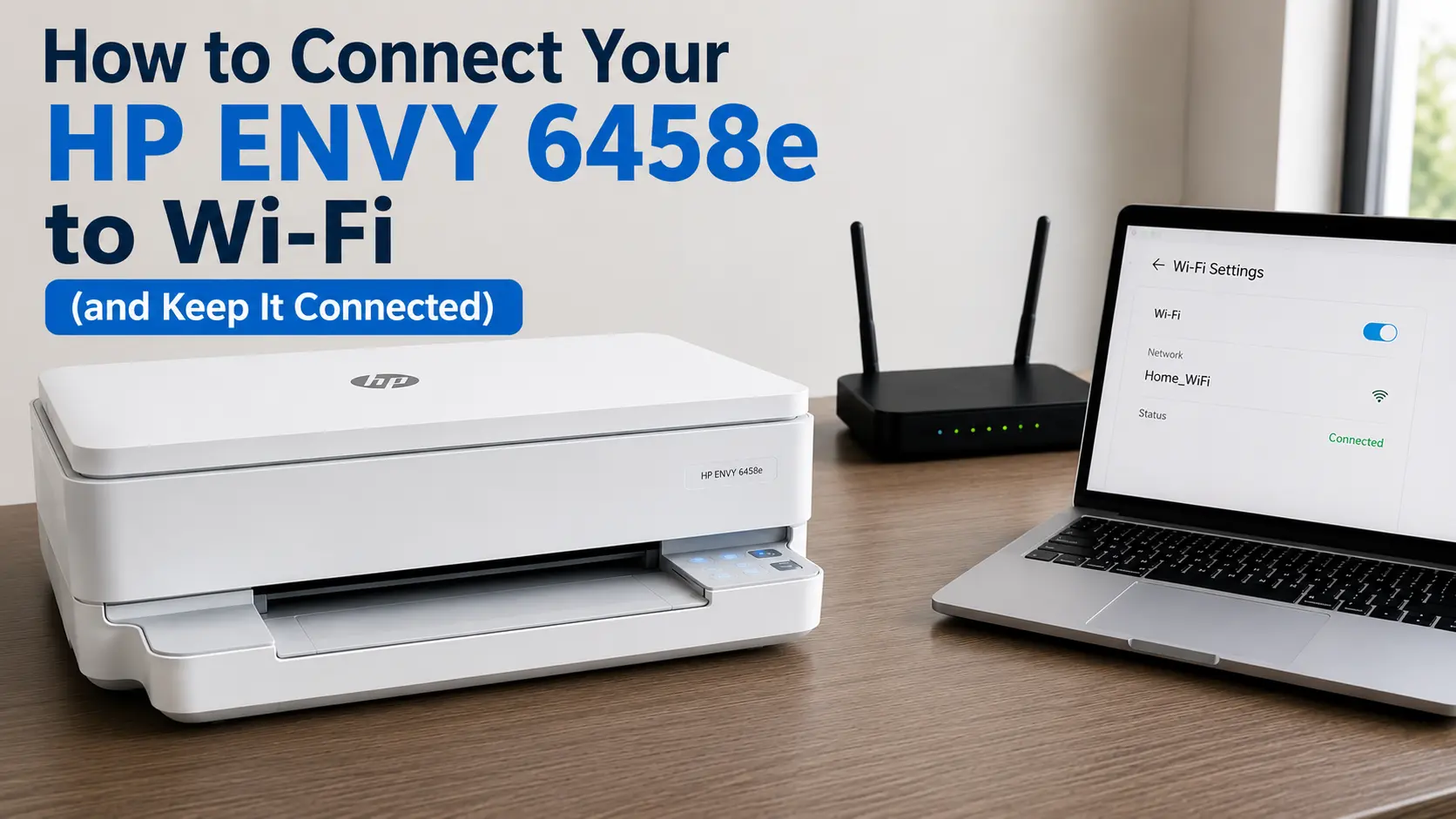
The fastest route is the HP Smart app and for this particular printer, it's not just the easiest option; it's close to the only one HP actually designed around. The ENVY 6458e has no navigation screen, so there's no on-printer menu for "Network Setup" to dig through the way there is on older HP models. Everything routes through either the app or a WPS handshake with your router.
Here's the short version: power on the printer, install HP Smart on your phone or computer, let it discover the printer while its light bar is pulsing purple, then pick your network and enter the password when the app asks. Under five minutes, start to finish, if your router broadcasts a plain signal. It takes longer, and this is the part most setup guides skip if your router merges its 2.4 GHz and 5 GHz bands under one network name, which is the single most common reason this exact model stalls during setup. That gets its own section below.
Quick path, if you just want the short version:
- Load paper and install the two HP 67 setup cartridges that shipped in the box.
- Install HP Smart from hp.com/setup, the Apple App Store, Google Play, or Microsoft Store never a third-party "123hp" site (more on why below).
- Open the app, tap Add Printer, and let it find the ENVY 6458e while the light bar pulses purple.
- Select your Wi-Fi network, enter the password, and wait for the light to turn solid blue.
- When the app asks about HP+, read the section on that further down before you tap yes.
Before You Start
A few things about this specific model are worth knowing before you touch anything, because they explain why some generic "connect your HP printer" instructions won't quite match what's in front of you.
What you'll need:
- Your Wi-Fi network name and password (check the router itself or your ISP's app if you don't have it memorized)
- The printer plugged in, with paper loaded and the setup ink cartridges installed
- A phone, tablet, or computer within range to run the setup app
- A few minutes of patience during the first firmware check - more on that in Method 1
No screen, just lights. HP calls this a "Smart Contextual" control panel: instead of an LCD menu, you get a light bar that only illuminates the icons relevant to what's happening. During setup, that light bar is your entire interface:
| Light behavior | What it means |
|---|---|
| Pulsing purple | Wireless setup mode - discoverable by HP Smart or a router's WPS button |
| Pulsing blue | Actively connecting to a network |
| Solid light blue | Connected and ready to print |
| Pulsing green | Busy, or installing a firmware update |
| Solid or slow-flashing amber | Warning - check the HP Smart app for specifics |
| All lights fast-blinking amber | Serious error - turn the printer off and back on |
It's dual-band. The ENVY 6458e supports both 802.11b/g/n on the 2.4 GHz band and 802.11ac on 5 GHz. That's genuinely better than a lot of budget HP inkjets, which are 2.4 GHz-only, but it also means your router's band configuration matters more than it would for a single-band device, which is the root cause of most connection failures covered further down.
The Wi-Fi button is on the back, next to the USB port and power connector - not the front control panel. Hold it for 5 seconds to enter wireless setup mode. This also clears any previous network connection, which is handy if you're starting over.
Method 1: The HP Smart App (Recommended)
This is the path HP actually built the printer around, and it's the only method that also handles driver installation, firmware updates, and, if you want it, HP+ registration in one continuous flow.
- Prep the printer. Load plain letter or A4 paper into the input tray. Open the ink access door, remove the protective tape from both cartridges, and install them; rotate each one so its taller end faces into the printer before clicking it into place. Close the door.
- Power on and wait. Give it 30–60 seconds after first boot. The light bar cycles briefly before settling into pulsing purple, meaning it's ready to be found.
- Install HP Smart. On a computer, go to hp.com/setup. On a phone or tablet, use the Apple App Store, Google Play, or Microsoft Store.
- Add the printer. Open the app, choose Add Printer, and let it scan. It should appear by name within a few seconds while it's still in that purple discovery state.
- Pick your network. If your router shows separate names for 2.4 GHz and 5 GHz, either works; choose whichever has the stronger signal where the printer actually sits.
- Wait for solid blue. The light pulses blue while connecting, then turns solid light blue once it's genuinely on the network. If it seems to hang for a minute or two here, that's usually a firmware update installing in the background; let it finish rather than unplugging the printer.
- Answer the HP+ prompt carefully. The app offers free months of Instant Ink and automatic updates in exchange for activating HP+. It's a one-way decision - see the dedicated section below before responding.
Does It Matter If You're on Windows, Mac, iPhone, or Android?
Not much - HP Smart runs the same flow on all four. Two platform notes worth knowing: Mac users tend to have the smoothest experience, since this printer supports Apple AirPrint and Bonjour (Apple's device-discovery protocol), and HP specifically recommends a Bonjour-compatible router for the most reliable Mac connection. Android and Chromebook users can also print without HP Smart at all once the printer is on the network, since it's Mopria-certified - any Mopria-compatible print app will find it, though you'd still need the app or WPS to get it onto the network in the first place.
Method 2: WPS Push-Button Pairing
If you'd rather not install an app or create an HP account just to get a printer online, WPS is the alternative, provided your router still has a physical WPS button, which is a bigger "if" than it used to be.
- Put the printer into WPS mode. On the back, press and hold the Wi-Fi button for 5 seconds, then release. The light bar pulses purple.
- Press your router's WPS button within about 2 minutes. That's the window before the printer's request times out. Miss it, and just repeat step 1.
- Watch for solid blue. Once the handshake finishes, the light turns solid light blue, connected, no password typing required.
The catch: many newer mesh systems (eero, Google Nest Wifi, and most ISP-supplied gateways from the past few years) either hide WPS inside an app menu or drop it entirely. Part of the reason is security — the WPS PIN method has had a known brute-force vulnerability on record since 2011, and a lot of networking teams disable it by default now. If there's no physical button labeled WPS on your router, it's faster to fall back to Method 1 than to keep searching for a setting that may not exist on your hardware.
Method 3: The Temporary USB Trick
This one gets skipped in most setup guides because it sounds backward for a wireless printer, but if the app can't find the printer, or finds it and the pairing keeps failing, plugging in a USB cable temporarily often gets you unstuck faster than repeating the wireless attempt.
- Connect the printer to your computer with a standard USB-A-to-USB-B cable (not included in the box).
- Open HP Smart and let it install the printer over the wired connection. This completes driver installation and cartridge validation without wireless in the loop at all.
- In the app, go to the printer's network or wireless settings and set up Wi-Fi from there.
- Once it shows connected wirelessly, unplug the USB cable; it keeps working over Wi-Fi from that point on.
This matters more for this printer than it did for older HP models, because both the setup cartridges and any HP+ activation need to validate against HP's servers. Doing that over a stable wired connection first, then adding Wi-Fi second, avoids a scenario where a shaky wireless handshake interrupts validation halfway through and leaves the printer thinking setup never finished.
The HP+ Decision You'll Hit Mid-Setup
However you connect, you'll be asked to activate HP+ at some point in the process. It shows up as a simple prompt, but it behaves more like a contract.
What it actually does: HP+ enrolls the printer in HP's cloud-connected ecosystem, unlocks automatic firmware updates, and can start a free trial of Instant Ink, HP's ink subscription. In exchange, it requires an HP account, an internet connection, and Original HP ink cartridges for the life of the printer. That last part is the detail people miss: once HP+ is active, the printer stops accepting third-party or refilled cartridges permanently, even if you never subscribe to Instant Ink, and even if you cancel it later.
The internet requirement isn't a one-time check, either. HP+ and Instant Ink both depend on the printer periodically confirming your account and cartridge status with HP's servers. HP's own support documentation confirms that if the printer goes without internet access for an extended stretch, printing can pause until it reconnects. That's a big part of why a genuinely stable connection, not just a technically successful one, matters more here than it would on a printer that isn't cloud-dependent.
It's also worth knowing the broader context before deciding. HP's cartridge-authentication system, which it calls Dynamic Security, has drawn repeated class-action lawsuits since 2016 alleging it was used to lock out third-party ink and toner. HP settled one case for $1.5 million in 2019, settled another in 2024 (court approval followed in March 2025) without paying affected customers or admitting wrongdoing, and remains a defendant in additional litigation over the same practice that was still active as of mid-2026. None of that makes HP+ the wrong choice - plenty of people are happy trading ink flexibility for never running out, but locking a printer to one ink source for its entire lifespan is a decision worth making on purpose, not by default.
Skip HP+ during setup, and the printer still connects to Wi-Fi and prints normally. You just won't get the free Instant Ink trial, and you keep the option to use whatever ink you want later.
Fixing the Most Common Wi-Fi Problems
The Printer Can't Find Your Network at All
If HP Smart can't see your network, or the printer sits in purple "searching" mode indefinitely, it's almost always one of two things — and neither is really the printer's fault.
Your router might be merging both bands under one name. Most mesh systems and many newer ISP gateways use "band steering" (sometimes called Smart Connect) to broadcast 2.4 GHz and 5 GHz under a single network name and quietly assign devices to whichever band it prefers. HP's own troubleshooting documentation addresses this directly: if your router can broadcast separate names for each band, connect the printer to one of those specific names rather than the merged one. Most router apps let you split this temporarily — give the 2.4 GHz band its own distinct name, connect the printer, and merge them back afterward if you want; the printer stays on whichever band it originally joined.
Your router's security mode might be too strict. If it's set to WPA3-only, some HP printers — depending on firmware — can't authenticate. Switching the band to WPA2, or a mixed WPA2/WPA3 setting, fixes this without meaningfully weakening your home network's security.
The Printer Connects, Then Shows "Offline" Later
This is one of the most common complaints in HP's own support community, and it's worth calling out because the fix usually has nothing to do with Wi-Fi. When a printer that was working fine suddenly shows "offline" in your print queue, it's very often still connected; what's actually broken is Windows or macOS holding onto a stale printer status. Before touching any network settings:
- Restart the print spooler (Windows) or reset the printing system (Mac), rather than immediately redoing Wi-Fi setup.
- Check whether the printer's IP address changed. Most home routers assign addresses dynamically, so a router restart can hand the printer a new one while your computer keeps looking for the old address.
- Print a network configuration page by pressing the Information button (the small "i" icon) on the control panel - it shows the printer's current IP address and signal status, so you can confirm whether Wi-Fi is actually the problem before assuming it is.
If the light bar shows solid light blue, the printer is on the network. Whatever's wrong is happening downstream of that.
Using the Embedded Web Server for a Permanent Fix
Every HP network printer, including this one, runs a small built-in webpage called the Embedded Web Server (EWS), reachable by typing the printer's IP address directly into a browser on the same network. It's a genuinely useful tool most people never discover: the Network tab shows the exact band, signal strength, and IP configuration in use, and lets you assign the printer a static IP address instead of a dynamic one. That one change permanently solves the "offline after every router restart" problem, since the printer's address never shifts again.
If none of this resolves things, HP's free Print and Scan Doctor tool (Windows only) automatically diagnoses and repairs most local connectivity and driver conflicts without you needing to pin down the cause yourself first.
Watch Out for Fake "HP Setup" Sites
Search for help with this exact task and you'll run into ads and websites often with "123" somewhere in the name or URL that look official but aren't run by HP. HP's own support community and its official fraud-alert page both confirm this is an active, ongoing problem: these sites mimic the real setup flow, then throw a fake error demanding you call a support number, which connects you to someone posing as an HP technician who may ask for remote access to your computer or payment for problems that don't exist.
The real setup path only ever runs through hp.com, the official HP Smart app listing on your phone's app store, or the Microsoft Store never a phone number embedded in a search result or a pop-up insisting you call before it'll let you continue. If a support chat or call starts asking for payment or remote access before it's diagnosed anything, that's the signal to stop and go directly to hp.com/support instead.
Related HP Printer Guides
- HP Printer Not Connecting to Wi-Fi - broader troubleshooting if your specific symptom wasn't covered above.
- Printer Offline: Causes and Fixes - for offline status that shows up after the printer's already been working fine for a while.
- How to Update HP Printer Firmware on Windows or Mac - worth a look if the automatic update during setup didn't finish, or you want to trigger one manually later.
- Common HP Printer Errors, Causes, and Solutions - a wider reference for error codes and light patterns beyond what's covered here.
- HP Smart Tank 7301 Wi-Fi Setup (video guide) - for anyone setting up a different HP model in the same household.
- HP Printer Showing Offline on Mac – How to Fix (video guide) - pairs well with the offline troubleshooting section above.
Frequently Asked Questions
Does the HP ENVY 6458e support 5GHz Wi-Fi?
Yes, it's dual-band, supporting 802.11b/g/n on 2.4 GHz and 802.11ac on 5 GHz, so you're not limited to the older, more congested band the way you would be with many budget inkjets.
Can I use this printer without ever connecting it to Wi-Fi?
Yes, over USB, printing, copying, and scanning all work fine that way. You'll lose mobile printing and AirPrint, and if HP+ is active, occasional internet access may still be required for cartridge validation, so "USB only, forever" and "HP+" don't really coexist long-term.
How do I find the printer's current IP address?
Press the Information button to print a status page listing the current IP address, network name, and signal strength, or check the same details inside HP Smart under printer settings.
Why does my printer keep disconnecting from Wi-Fi on its own?
Usually one of three things: the router reassigned a new IP address after a restart (fixable with a static IP through the EWS), the printer's auto-off setting needs a moment to reconnect on wake, or you're on a merged-band network hitting the same band-steering confusion covered above. The "self-healing Wi-Fi" HP advertises on this model is designed to catch and fix minor drops automatically - it just isn't instant, so give it a minute or two before assuming setup failed.
Do I have to enroll in HP+ to use this printer?
No. It's offered, not required. Declining it still gets you a fully functional wireless printer - you just skip the free Instant Ink trial and the automatic firmware updates bundled with it.
How do I fully reset the network settings and start over?
Press and hold the Wi-Fi button on the back for 5 seconds. That clears the current connection and puts the printer back into pulsing-purple setup mode, ready to pair again from scratch.