How to Do Brother MFC-L8900CDW Printer WiFi Setup

Choosing the WiFi setup for your Brother MFC-L8900CDW printer could be the best way to get a seamless printer experience. The device comes with advanced wireless connectivity options, allowing users to connect it to a computer or smartphone easily. In addition, with a WiFi connection, users can print from multiple devices simultaneously and eliminate the use of unnecessary cables/wires. But do you know how to set up your Brother printer on WiFi? Well, worry not if you don’t. Read the quick and precise guide for your printer setup and complete the process with utmost ease.
Steps to Set Up Brother MFC-L8900CDW on WiFi
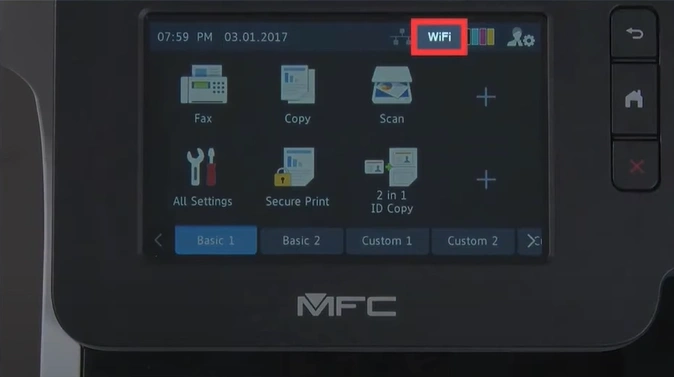
1. Press the Wi-Fi icon on your printer display.
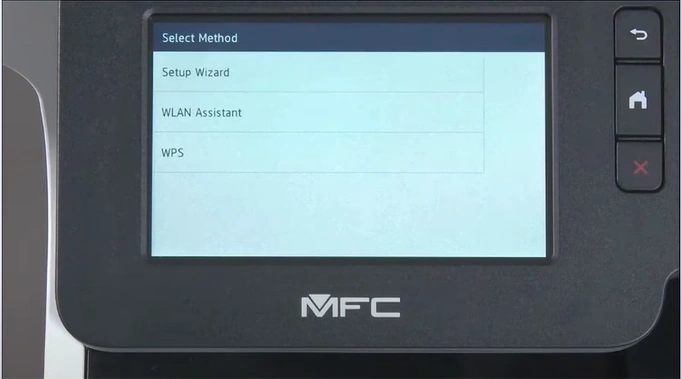
2. Then select the Setup Wizard Method.
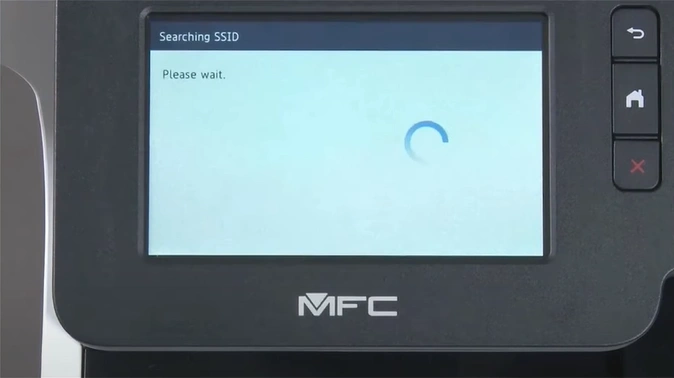
3. Tap on Yes to enable WLAN.
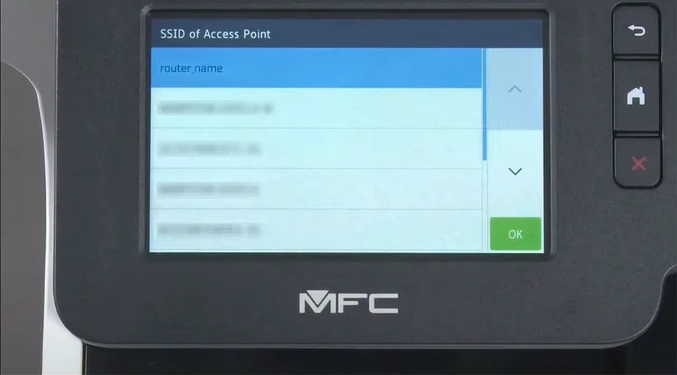
4. Now, choose the access point’s SSID and then select OK.
5. Type the network key and then tap OK.
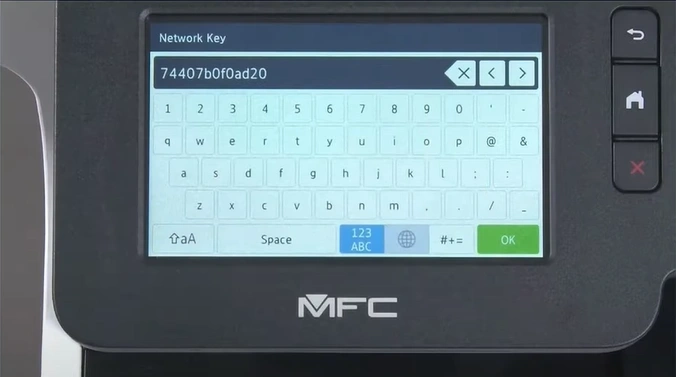
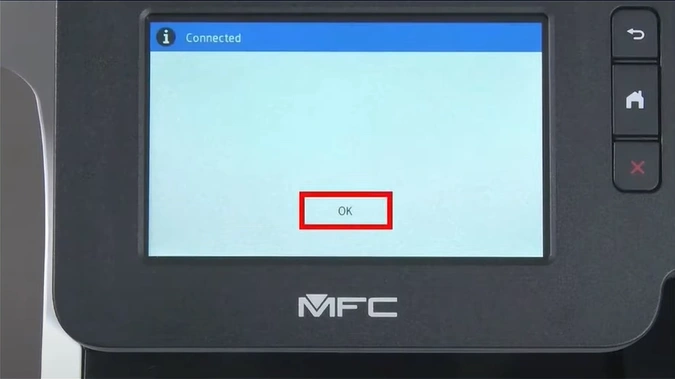
6. Once successfully connected, tap OK.
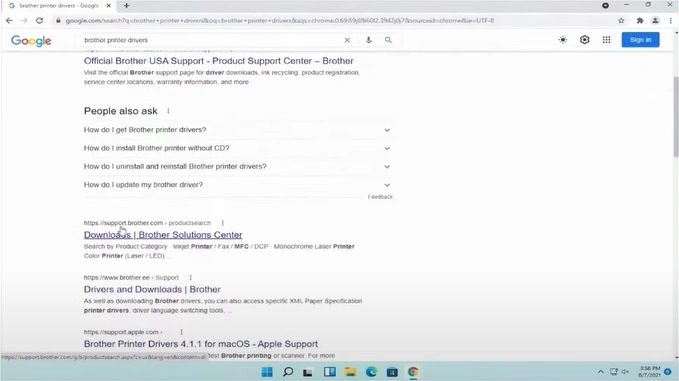
7. Furthermore, go to the Brother Driver website to find your printer model.
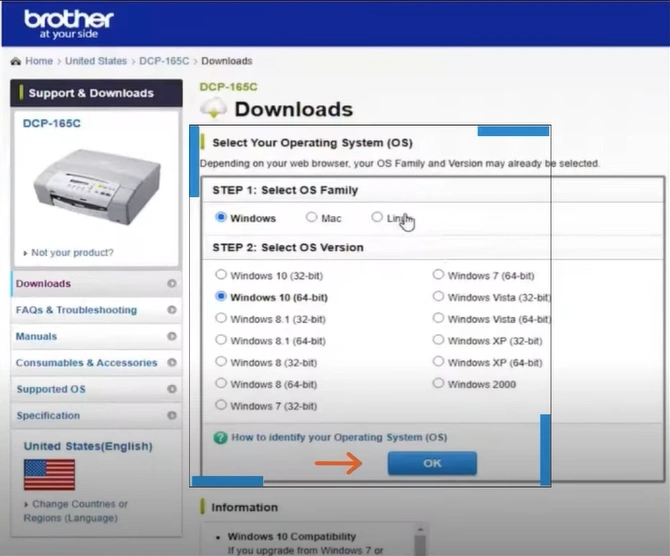
8. Select the operating system and press the OK button.
9. Click on the Full Driver & Software package, then click on “Agree to the EULA and download.”
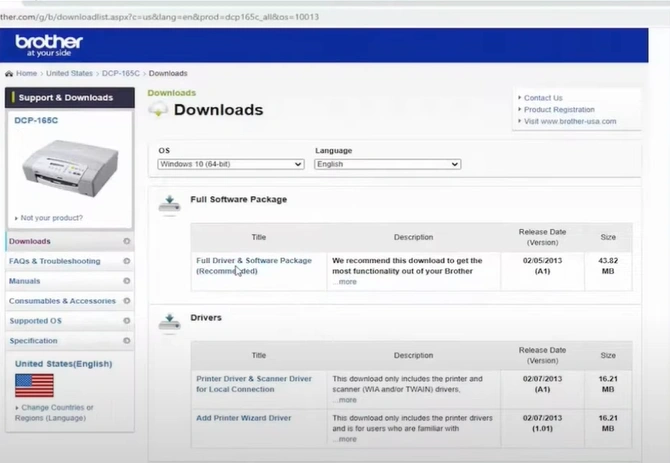
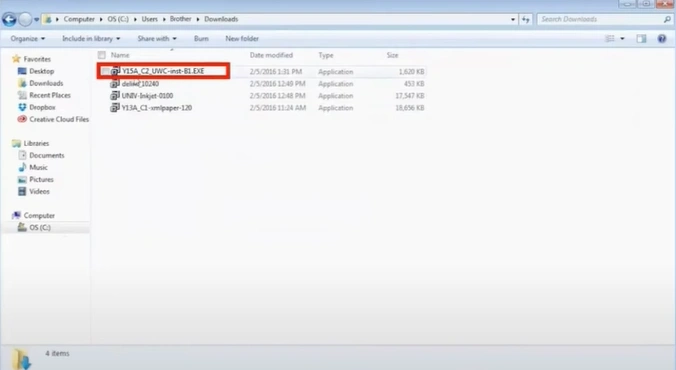
10. Once the package is downloaded, double-click on it to install.
Also Read:- How to Fix Brother MFC-L3750CDW Printer Offline Issue
Wrap Up
If you use the procedure we have shared above, you can complete the Brother MFC-L8900CDW printer WiFi setup without facing any issues. However, to avoid hurdles, connect the device to compatible devices and update its OS. In addition, in the event of any complications, it would be wise to seek additional guidance.

