How to Fix Brother MFC-L3750CDW Printer Offline Issue

Isn't it annoying to get your Brother MFC-L3750CDW printer offline without any warning? Well, you are not alone in facing this issue. But it becomes more annoying if you are unable to fix the issue. A number of minor or major causes can result in the offline problem, leaving your printer unresponsive and interrupting your work.
If you want to fix the issue quickly, then having the knowledge of the right solutions is important. To help you easily fix your Brother MFC-L3750CDW printer's offline issue, we will walk you through the 7 most effective solutions.
Method 1: Restart Your Device
Sometimes, an offline issue with your printer can happen due to a minor technical glitch. Thus follow the given steps to restart the device to see if it helps in fixing the issue.
1. Turn off your Wi-Fi, PC, or mobile, and printer.
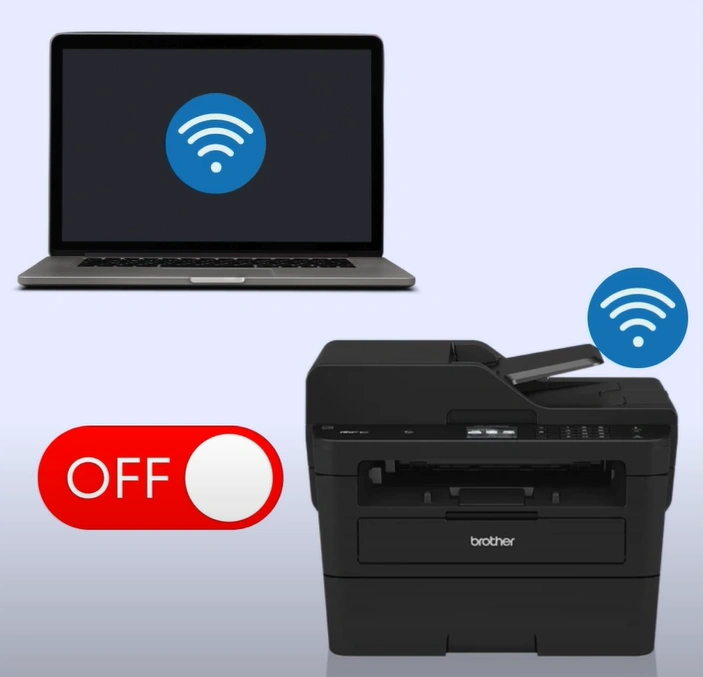
2. Turn on all the devices.
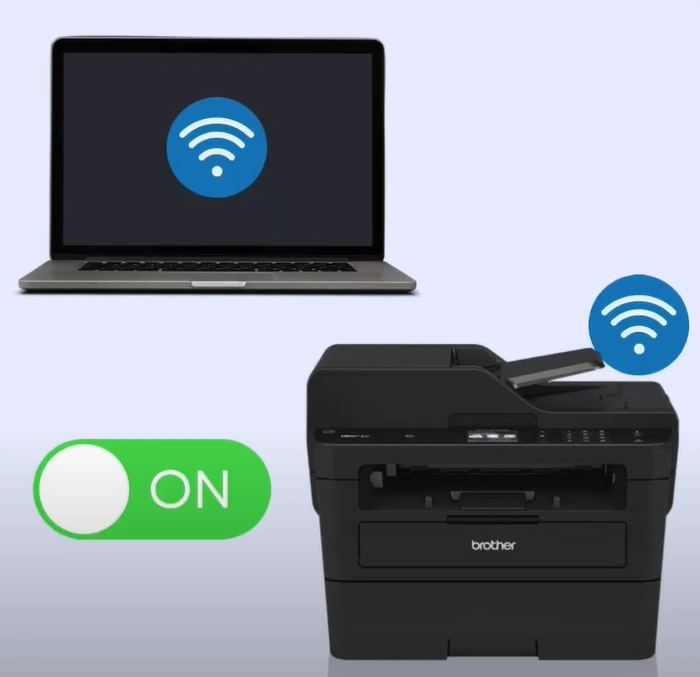
3. Now, check if the offline issue is gone.
Method 2: Check Physical Connections
The hardware connection faults are also key reasons you can get your printer into an error state. Follow the steps below to check everything is good with the connection.
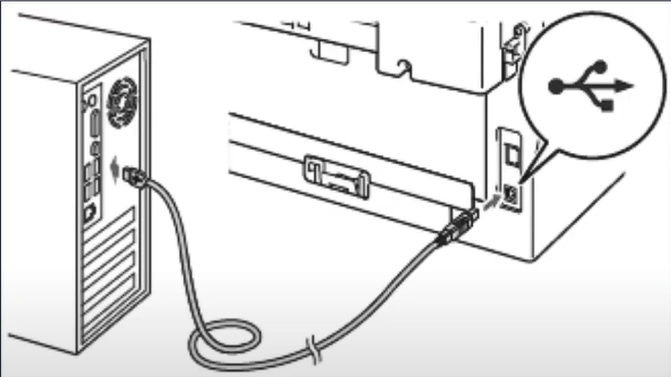
1. Confirm if the USB cable is connected properly to the printer and computer.
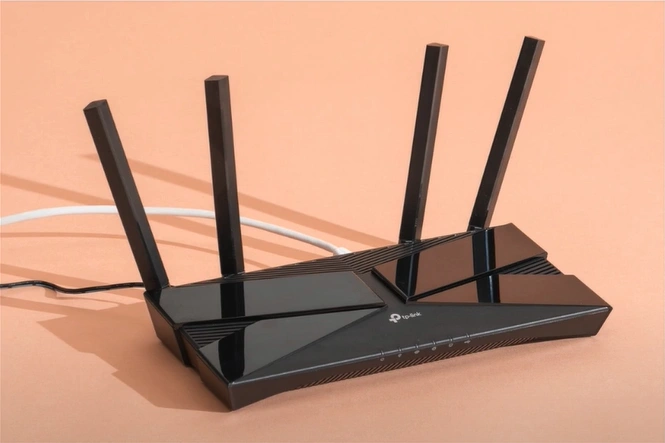
2. If you are using an Ethernet cable, ensure the cable is connected to the printer and router/access point.
Method 3: Set the Printer as Default
With the help of this procedure, confirm if the printer is set as the default and select it if not selected. Read now!
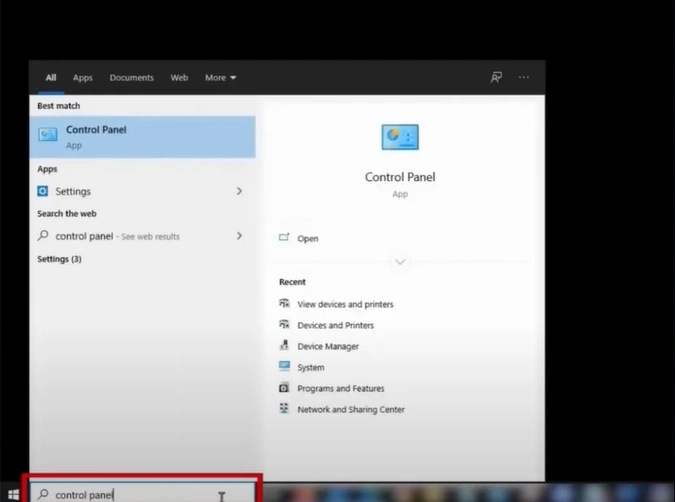
1. First, open the control panel.
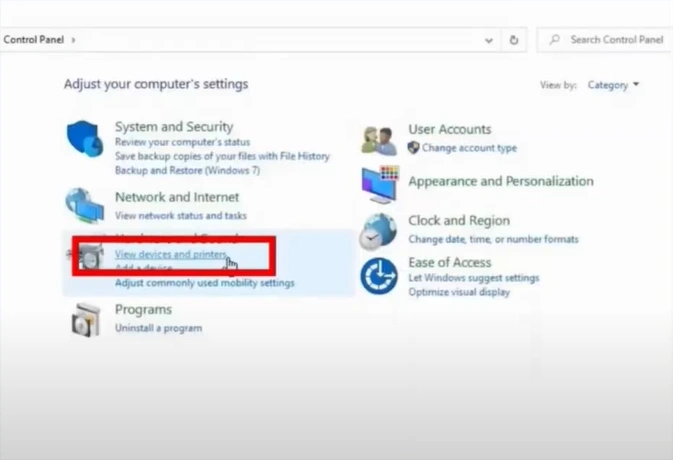
2. Click on View Devices and Printers.
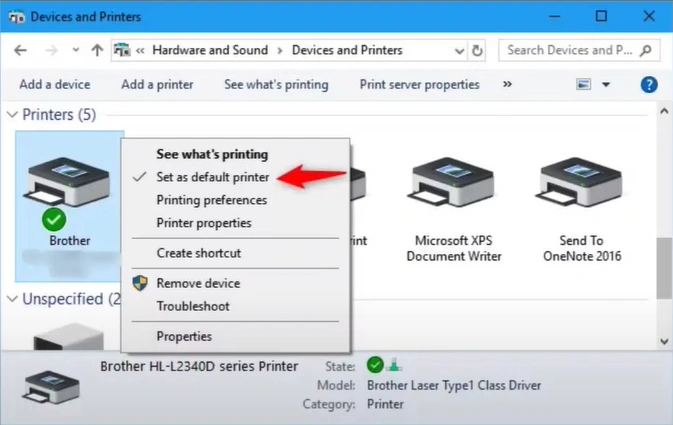
3. Right-click on your Brother printer and select the "Set as default printer" option.
Method 4: Delete All Print Jobs
You can delete all the printer jobs to get your printer out of the offline issue. These are the proper steps to do that.
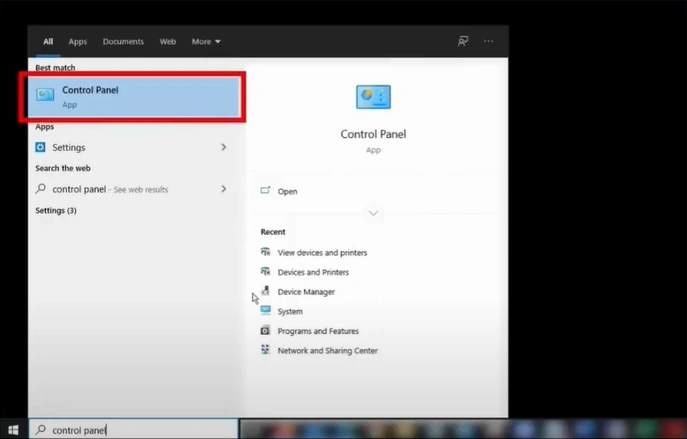
1. Open the Control Panel page and click on View devices and printers.
2. Right-click on your printer device and click "See what's printing."
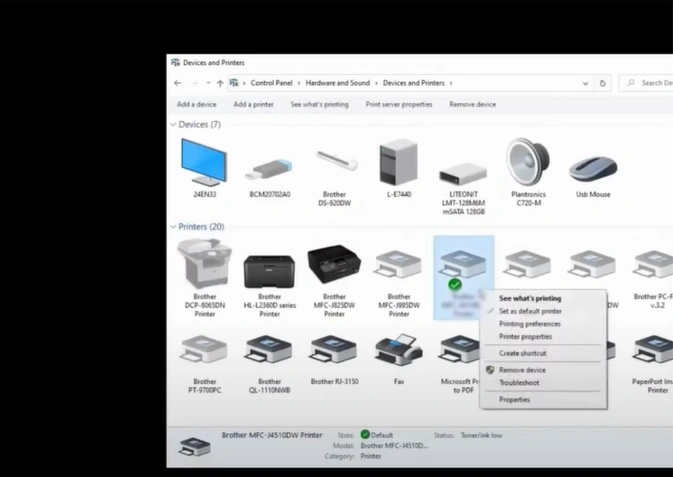
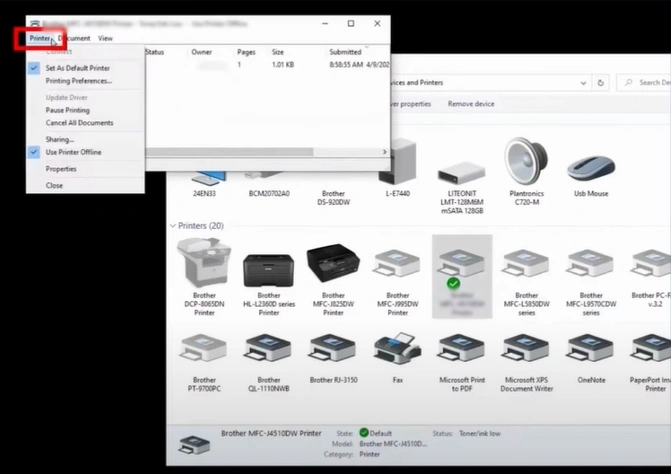
3. Click on the Printer tab, select Cancel All Documents, then click on Yes.
Method 5: Check Printer Status
With the help of the steps below, you can easily check the printer status to get rid of the offline error.
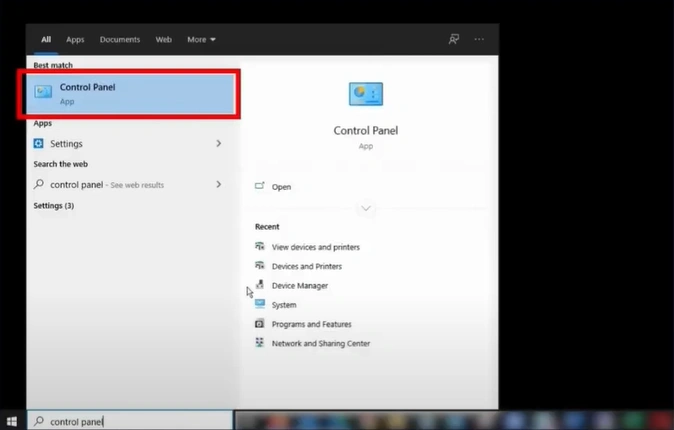
1. Go to the Control Panel and click on View Devices and Printers.
2. And then, you need to right-click on your Brother printer.
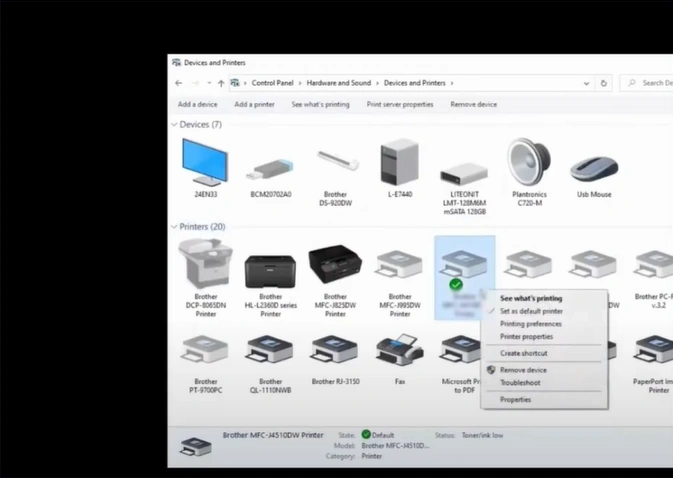
3. Select the "See what's printing" option.
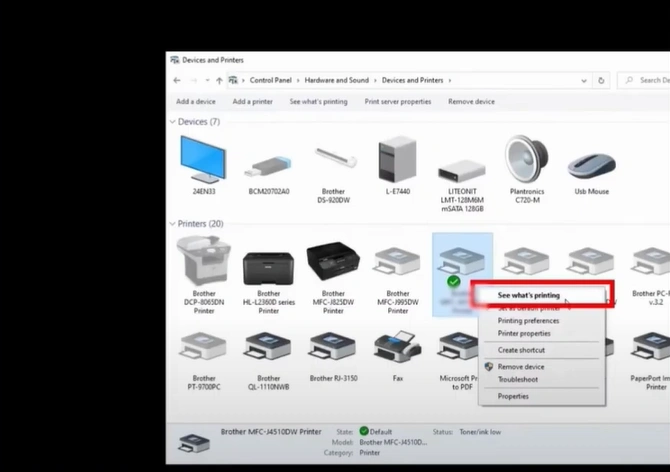
4. Now, select Printer, and then you need to uncheck the Use Printer Offline option.
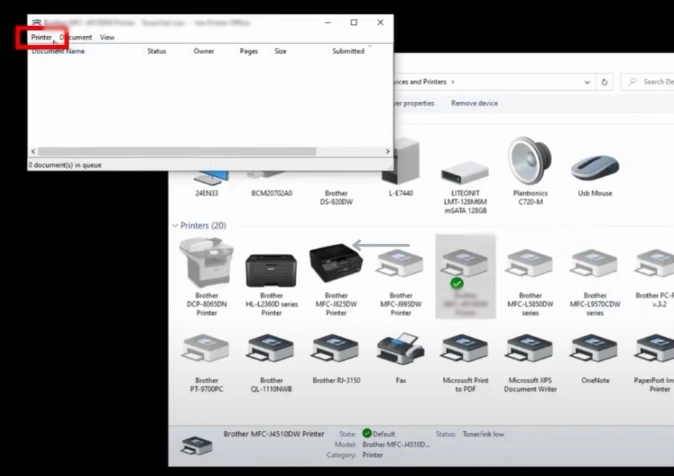
5. Check if the printer is out of the offline state or move to the next solution.
Also Read:- How to Reset Drum Brother MFC-L3750CDW Printer?
Method 6: Check for Firewall or Antivirus Settings
The firewall or antivirus interruptions, or settings, can also cause the issue with your printer. Use these steps to check and make changes in the firewall and antivirus settings.
1. Click on the Start menu/option and click on Settings.
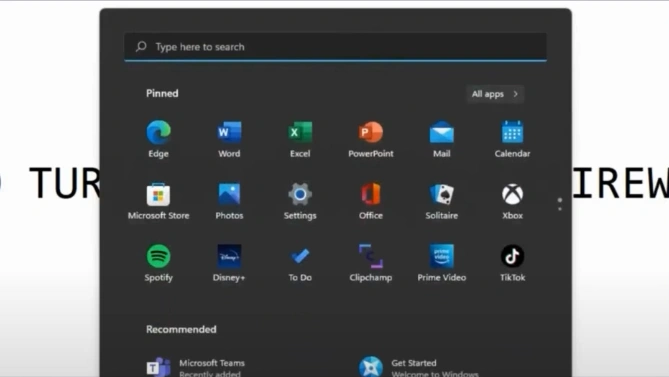
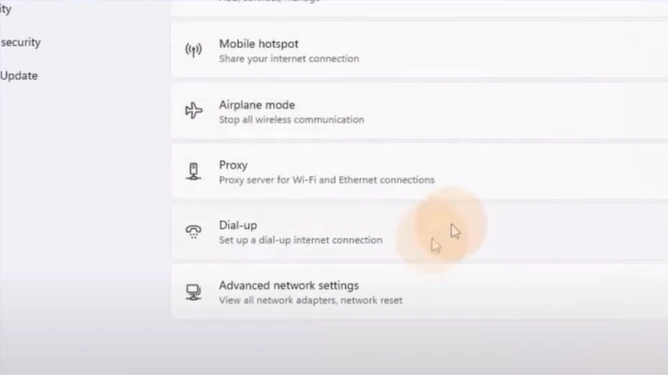
2. Open the Network & Internet settings.
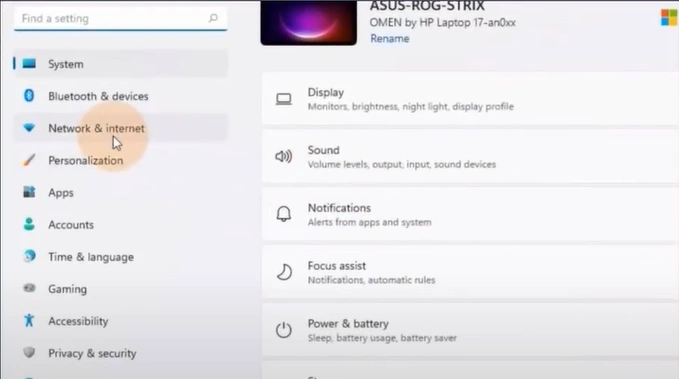
3. Go to Advanced network settings.
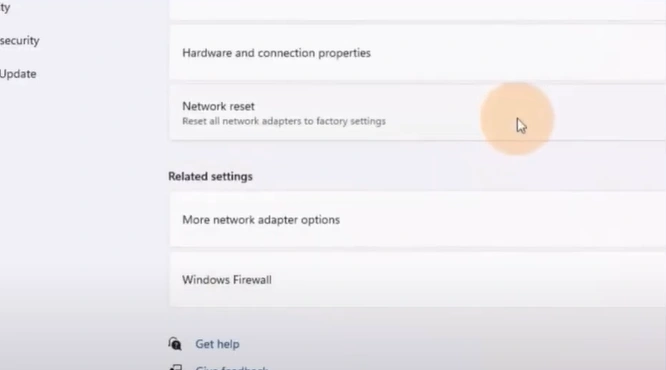
4. Under related settings, click on the Windows Firewall.
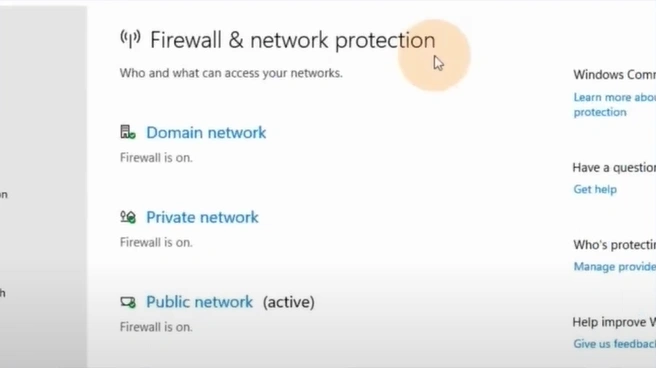
5. Check for any Firewall software settings that could block the printer from establishing a network connection.
Method 7: Delete and Reinstall Printer Driver
If there are any issues with your printer driver, then it can lead to some issues. Here is the quick procedure you can follow to remove the driver and then reinstall it on your device.
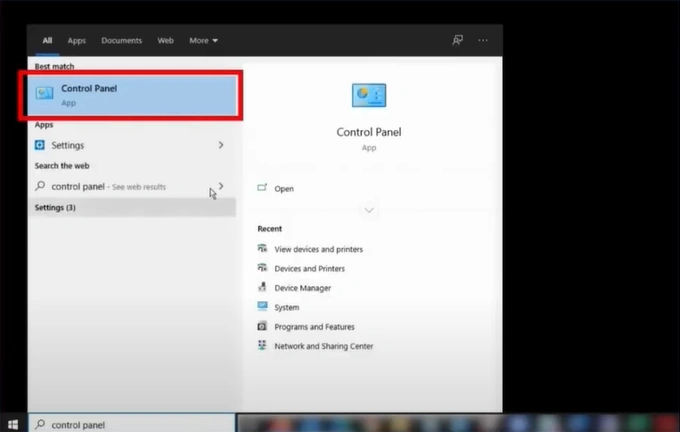
1. Open the control panel window and click on View devices and printers.
2. Next, you need to right-click on your printer device and click See what's printing.
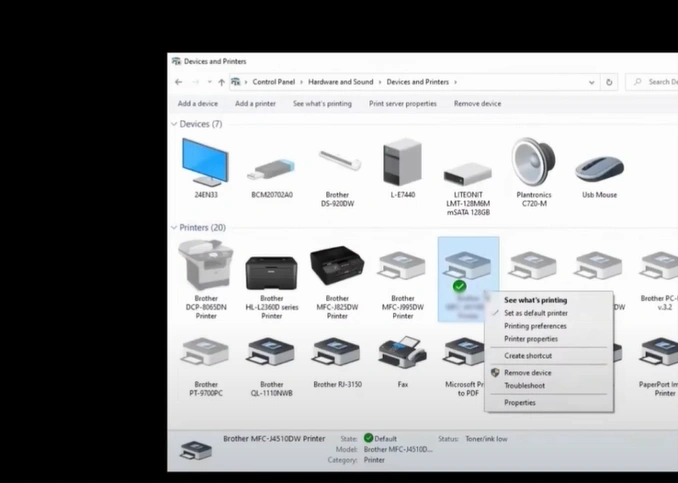
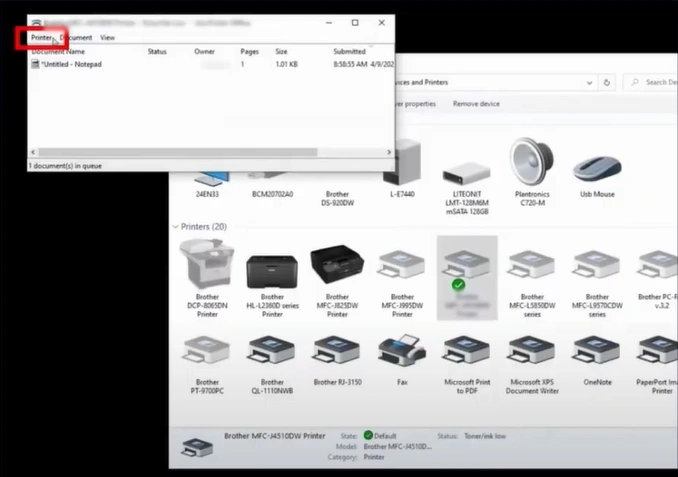
3. Go to the Printer tab, select Cancel All Documents, then click on Yes.
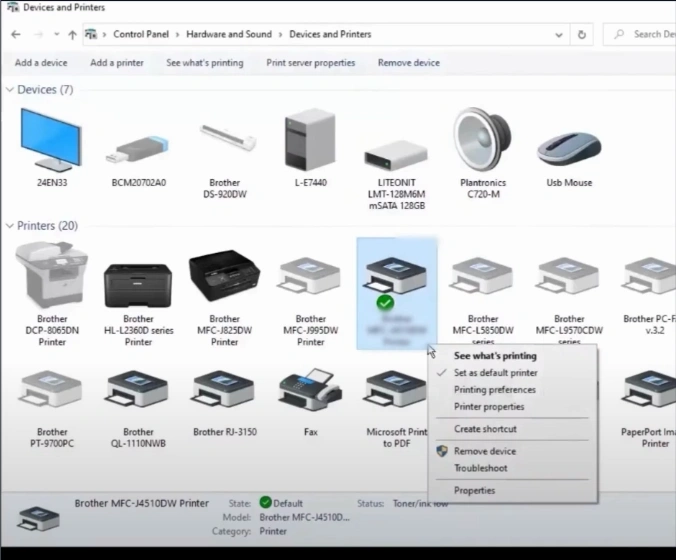
4. Now, right-click on your Brother printer, select Remove, and click Yes.
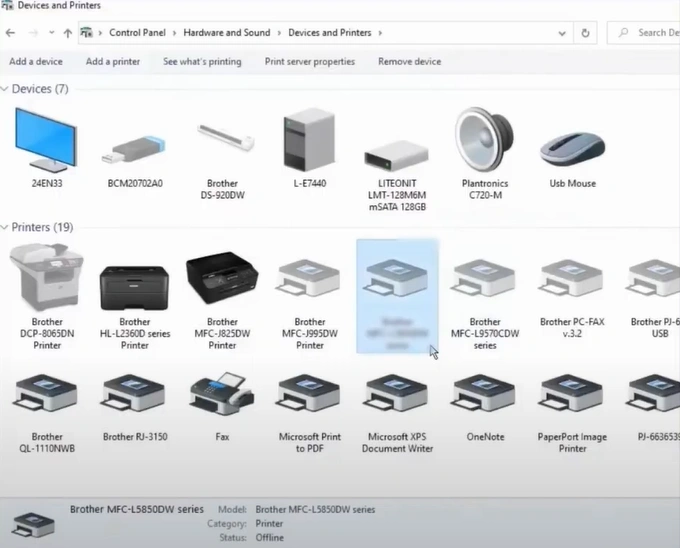
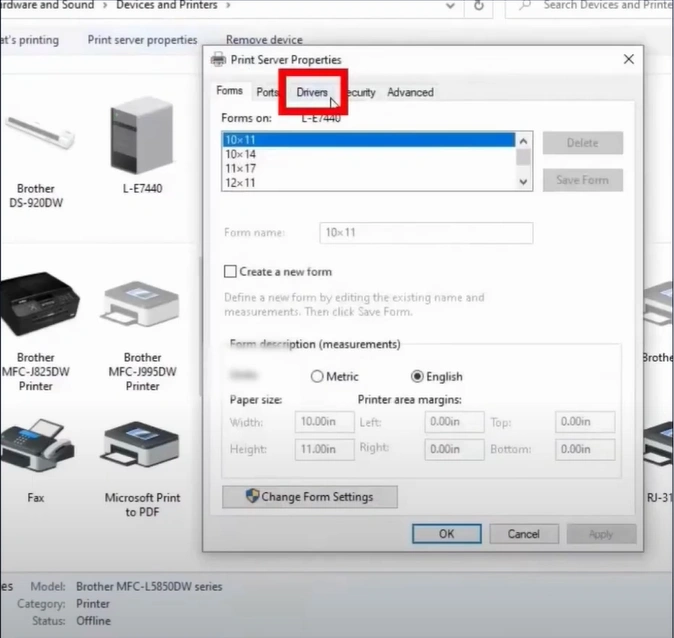
5. Choose any other printer and click the Printer Server Properties tab.
6. Then, you should select the Drivers tab.
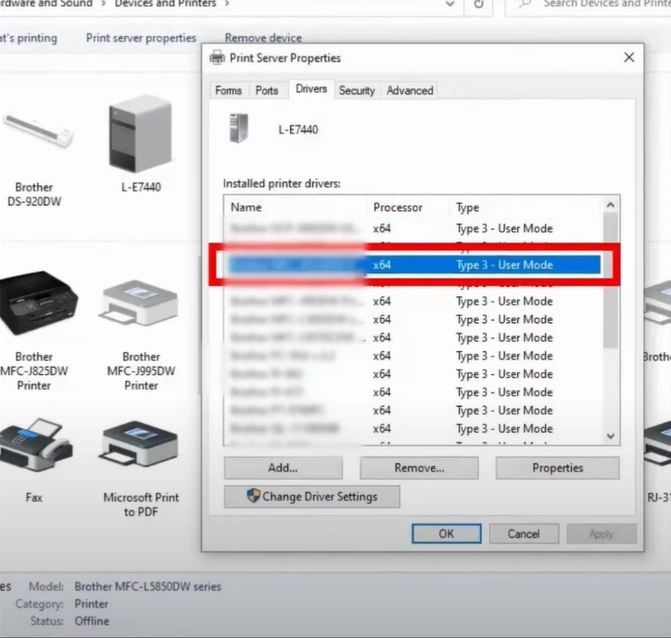
7. Look for your printer driver and click on the Remove button.
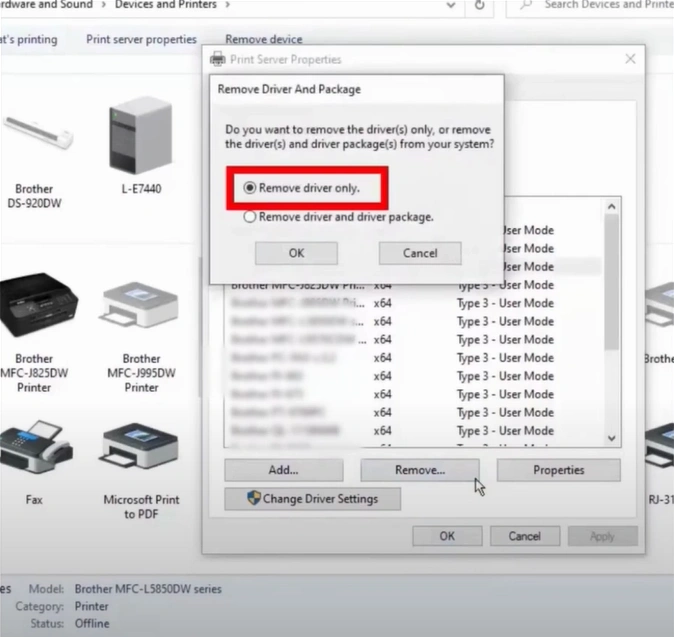
8. Click on Remove Drivers Only, then click on OK.
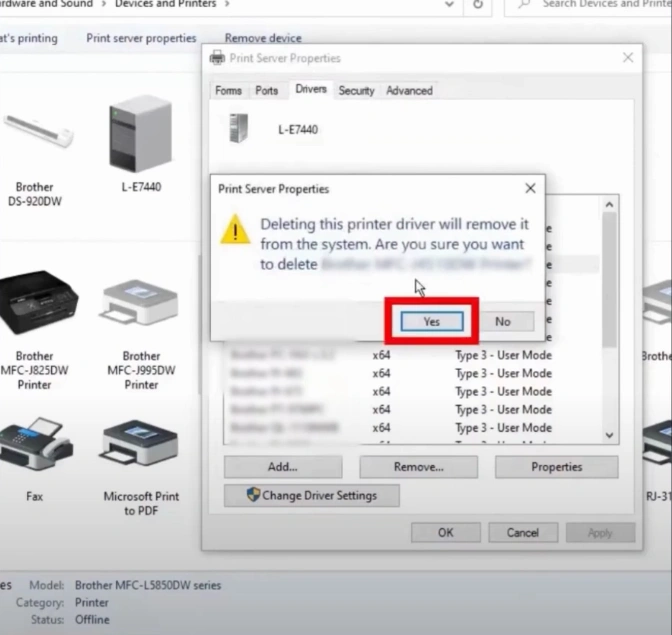
9. Click Yes to delete the printer driver. (Note- if a window appears with "printer driver is currently in use," reboot your computer and perform all steps again.)
10. Click on the Add Printer option.
_1747215673.webp)
11. Click on the "The printer that I want is not listed" option.
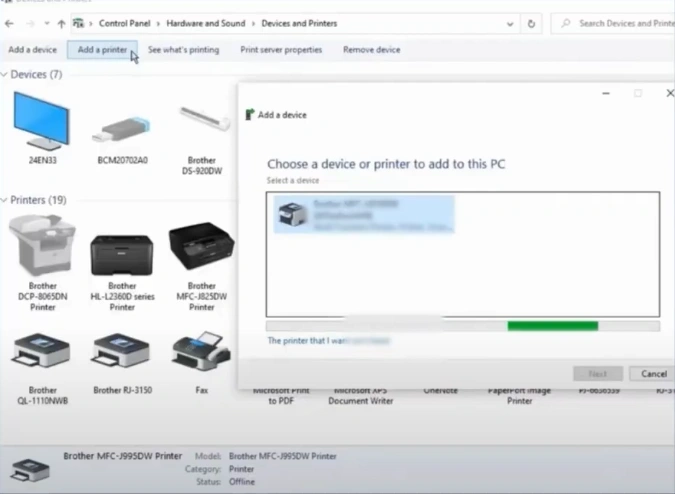
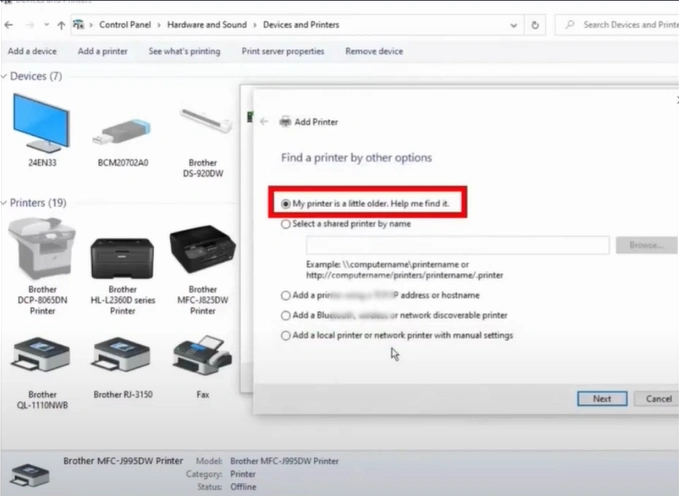
12. Choose the "My printer is a little older. Help me find it" option, then click Next.
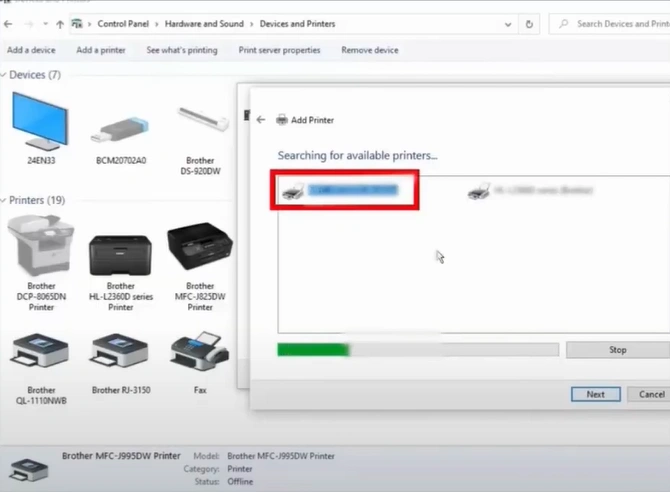
13. Click on your printer and click Next.
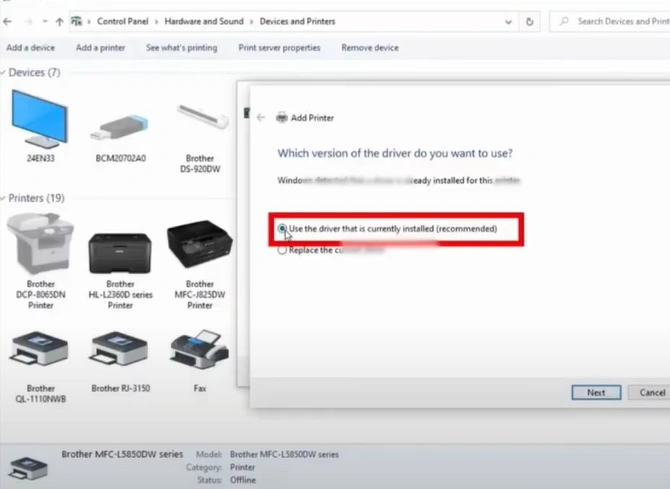
14. Select the "driver currently installed" option and click Next.
15. Provide the printer name or click Next.
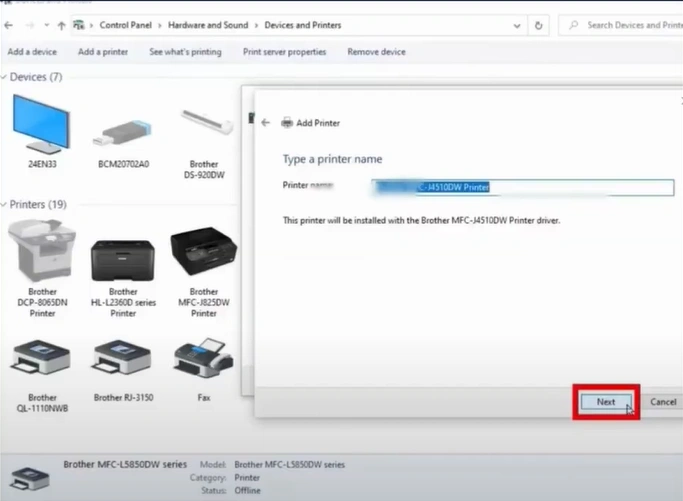
16. Click on the "Print a Test Page" button.
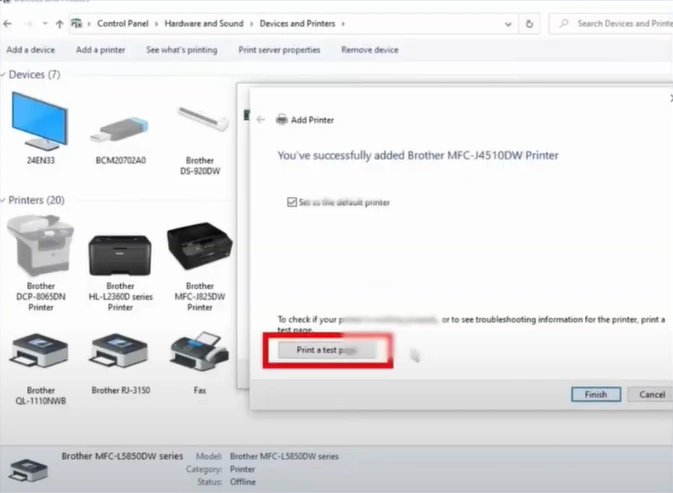
17. Click Close, then click on Finish.
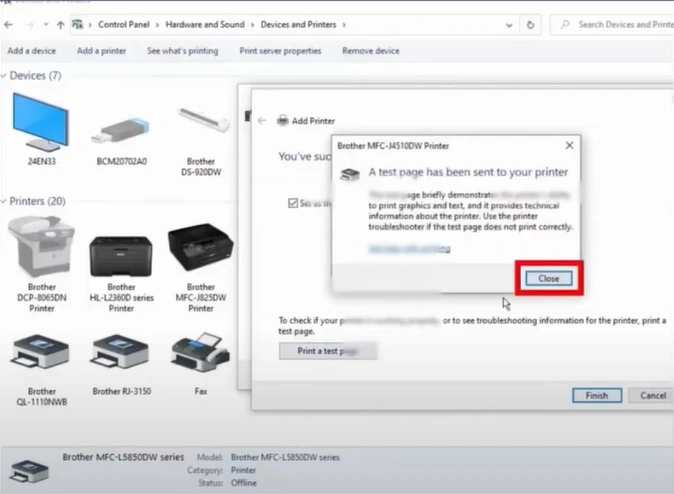
18. Now, see if the printer is still facing the offline issue.
Final Thoughts
Facing the problem with the printers is nothing new; even a minor technical or software issue can cause this problem. If you use the mentioned solutions properly, then there is a high chance that your Brother MFC-L3750CDW printer's offline issue will be resolved. However, if the offline problem still persists, then look for further guidance and solutions to get the profound info to get your printer working perfectly once again.

