Easiest Way to Connect HP LaserJet Pro M15w to WiFi

If you want to use your HP LaserJet Pro M15w wirelessly, you can connect it to WiFi for easier printing. Imagine using a machine that starts working with just a few taps. Yes, it is possible once the printer connects to a WiFi network.
Without tangled wires or cables on your desk, your daily tasks feel stress-free. You can print from anywhere at home or work, and other users can also share the same printer.
Now you may wonder how to connect your HP LaserJet Pro M15w to WiFi. We have outlined the setup process here. Before we go to the steps, check a few important things first. Let’s start.
Things to Check Before Setup
Before you connect the printer to WiFi, check the following:
- Make sure your WiFi router is powered on and working correctly. The printer supports only 2.4 GHz WiFi.
- Keep your network name and WiFi password at hand (important details that are required during the setup).
- Check that the WiFi light on your printer is blinking if it is in setup mode.
- The phone or PC you are using for the setup process must be connected to the same wireless network you want to connect your printer to. So, do check that.
Challenges When Connecting HP LaserJet Pro M15w to WiFi
It is very simple to connect your HP LaserJet Pro M15w printer to WiFi. But when doing that, many challenges can arise and get in the way. Here are some of them:
- Outdated printer firmware
- Network compatibility issues
- The printer is too far from the router
- Interference from other devices
Steps to Connect HP LaserJet Pro M15w to WiFi
Here are all the necessary steps to follow to successfully connect your HP LaserJet Pro M15w printer to a WiFi network:
Step 1: First, check that your printer is powered on.
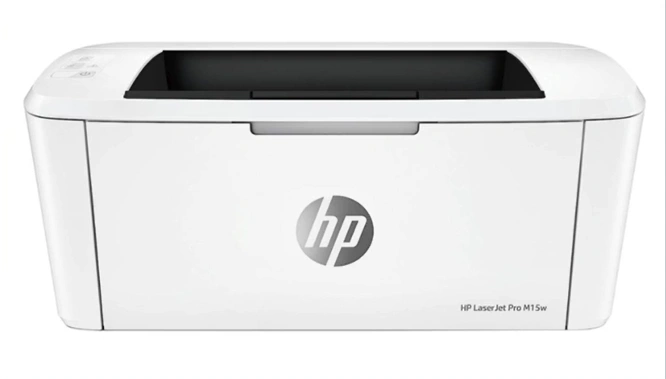
Step 2: After that, place paper sheets inside the input tray.
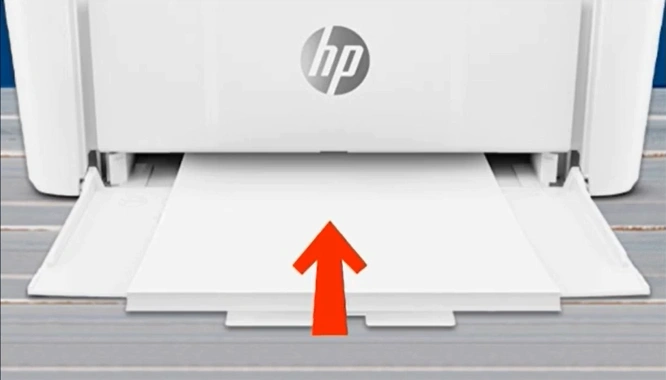
Step 3: On the printer’s control panel, press and hold the Resume/Cancel button for 3 to 4 seconds.
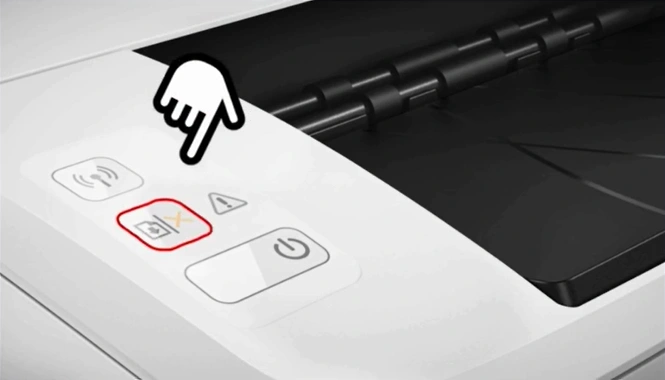
Step 4: A printout will come out; it will include the WiFi Direct name and password.
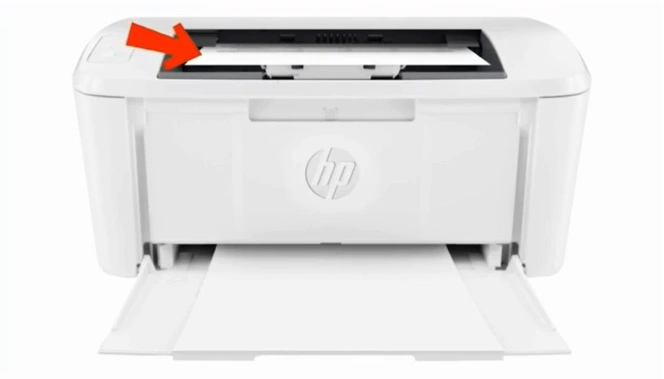
Step 5: On your mobile device, navigate to the WiFi settings.
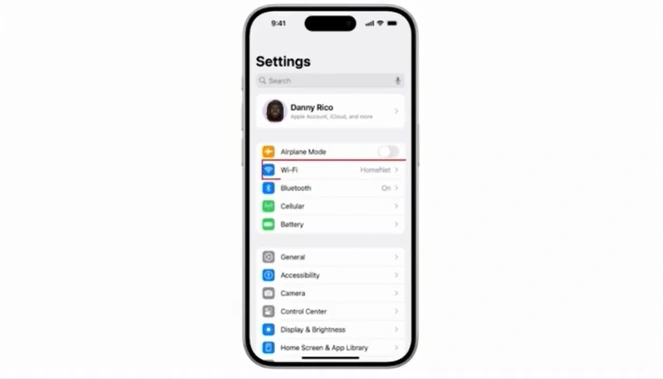
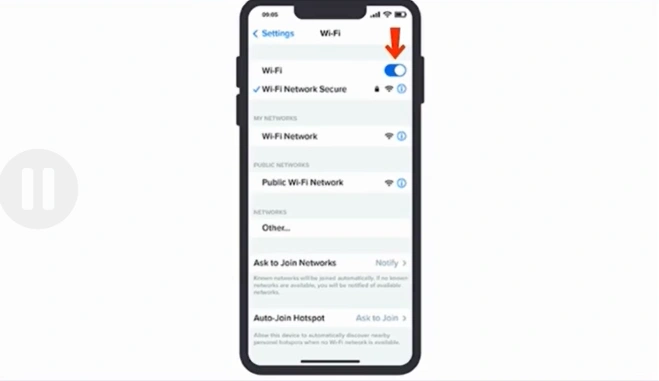
Step 6: Make sure WiFi is turned on, then search for nearby devices.
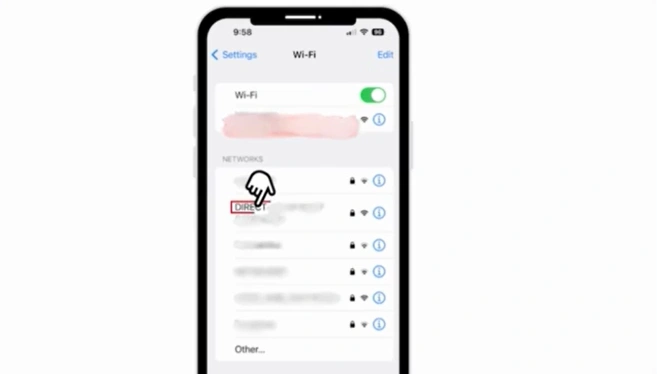
Step 7: If you see your printer’s WiFi Direct name in the WiFi settings, tap it.
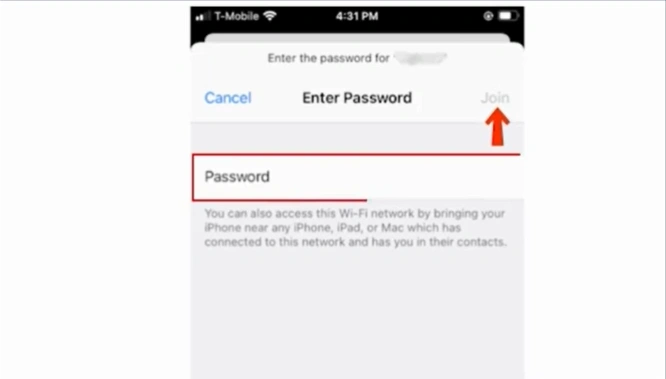
Step 8: Now, enter the WiFi Direct password and tap on Connect or Join.
Also Read:- How to Do HP Smart Tank Plus 651 Wireless Setup?
Summing Up
This guide covers how to connect your HP LaserJet Pro M15w printer to a WiFi network. Follow the steps to complete the setup. Once you have connected your printer, you can start using it wirelessly. Make sure you remember your network name and WiFi password, and check if the WiFi light on your printer is blinking when in setup mode. Also, see that all your devices are connected to the same network during the process.

