How to Connect HP OfficeJet Pro 8620 to WiFi?

Do you want to give your workstation a more professional look? You may have your HP OfficeJet Pro 8620 tangled in cables. If you want a cleaner and more organized workspace, connect your printer to your WiFi network.
With this connection, you can handle your daily print tasks more comfortably. It helps you work without clutter and constant plugging and unplugging.
You may wonder how to connect the HP OfficeJet Pro 8620 to WiFi. It takes only a few simple steps. We’ll go through each step, but before that, take a look at the potential problems that might occur and slow down the connection process.
Possible Problems When Connecting HP OfficeJet Pro 8620 to WiFi
These are some common issues that you may encounter when connecting your HP OfficeJet Pro 8620 to WiFi:
- Printer not found on the network
- WiFi network not detected
- Network setup or driver issues
- The printer connects, but keeps dropping the connection
Mistakes to Avoid During the Wireless Connection Process
When trying to connect the HP OfficeJet Pro 8620 printer to WiFi, there are a few mistakes that can prevent a stable connection. Let’s take a glance at these mistakes and learn how to avoid them:
Using the Wrong WiFi Band or Network
Many OfficeJet models use 2.4 GHz networks rather than 5 GHz. Check your printer manual and connect to the correct band. Also, make sure you choose your private network, not a guest or public network.
Entering the Wrong WiFi Password
A small typo can stop the connection. Check numbers, capitals, and special characters before you enter the password.
Not Restarting After Network Changes
Many users forget to restart the printer and router after changing the WiFi settings. Restart both devices if you update the SSID, password, or router security.
Weak or Unstable Signal
Placing the printer far from the router or behind thick walls or metal can weaken the signal. Place the printer closer to the router and aim for at least three bars on the printer display.
Skipping HP Smart or Full Driver Setup
Install the HP Smart app or the full driver package so your computer and printer communicate correctly. Download the latest version from the official HP support site.
Not Updating the Printer Firmware
Outdated firmware can cause WiFi problems. On the printer, go to Setup > Printer Maintenance and choose Update the Printer.
The Right Steps to Connect HP OfficeJet Pro 8620 to WiFi
Here are the essential steps to follow for connecting the HP OfficeJet Pro 8620 to WiFi:
Step 1: On your printer screen, tap on the Wireless icon.
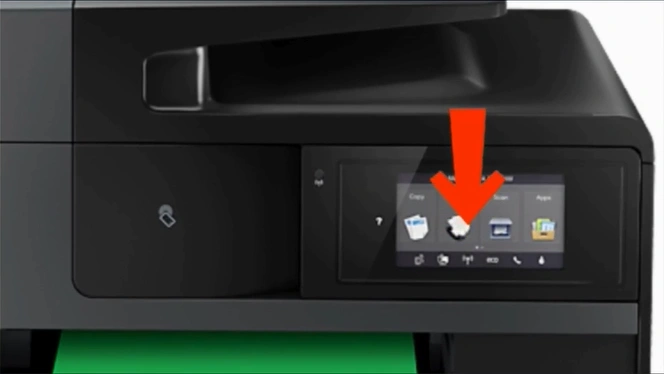
Step 2: Tap on the Settings icon.
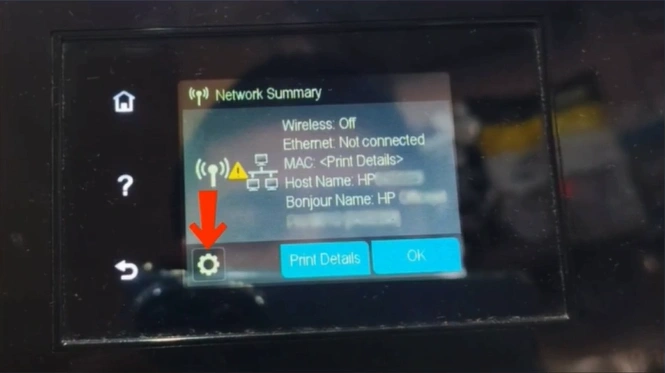
Step 3: In the Network menu, select Wireless settings.
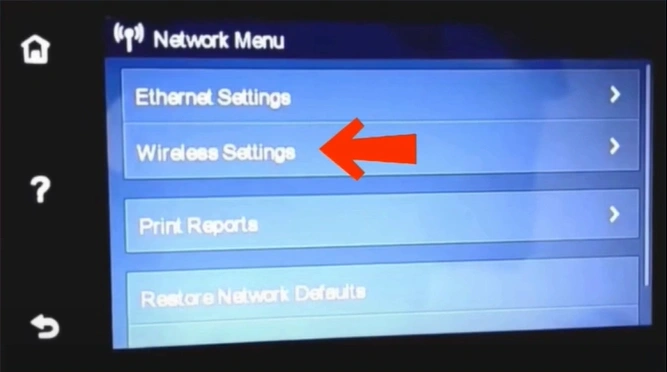
Step 4: Select Wireless Setup Wizard.
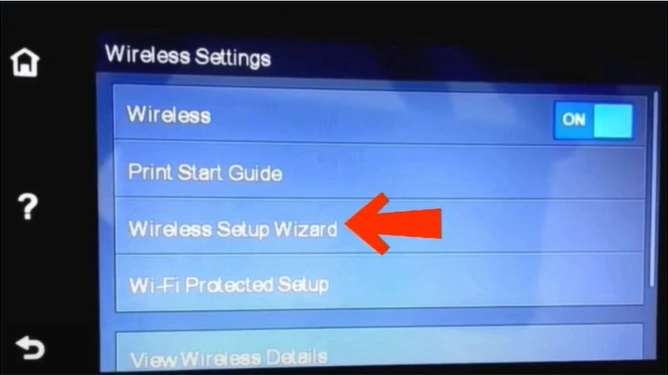
Step 5: From the list of available networks, select your WiFi router.
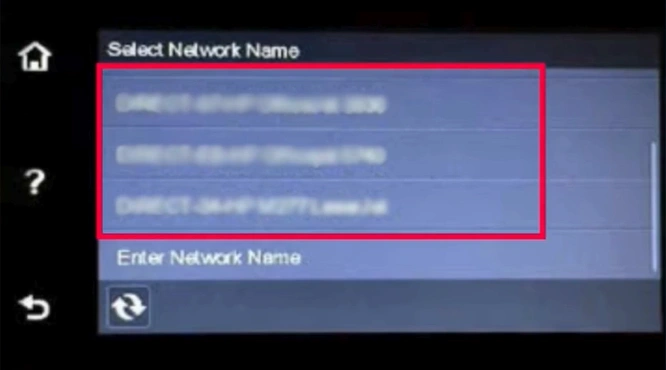
Step 6: On the Enter your wireless password page, tap on the field to enter your WiFi password.
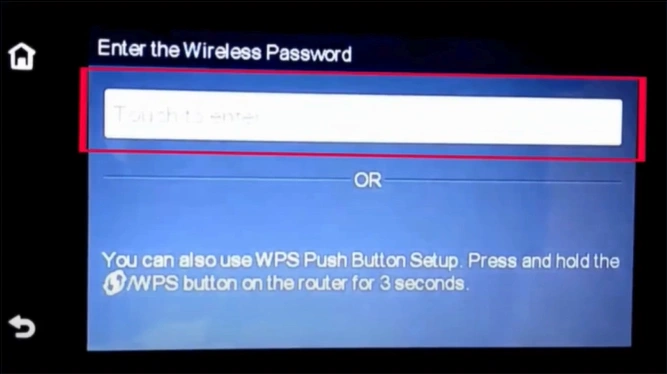
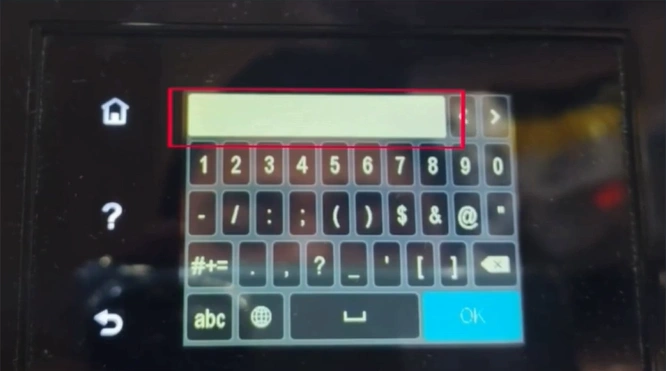
Step 7: Enter the password and tap on OK.
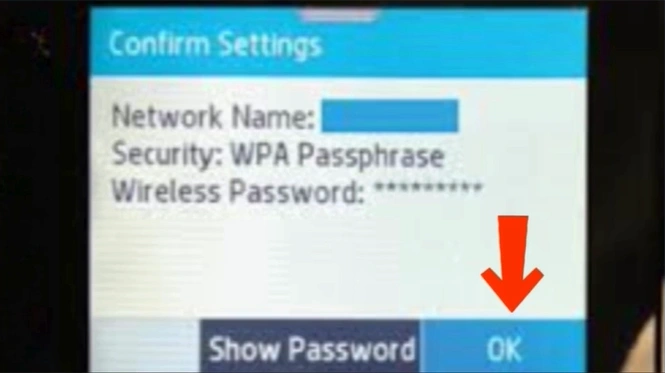
Step 8: On the Confirm Settings, check the information and tap on OK.
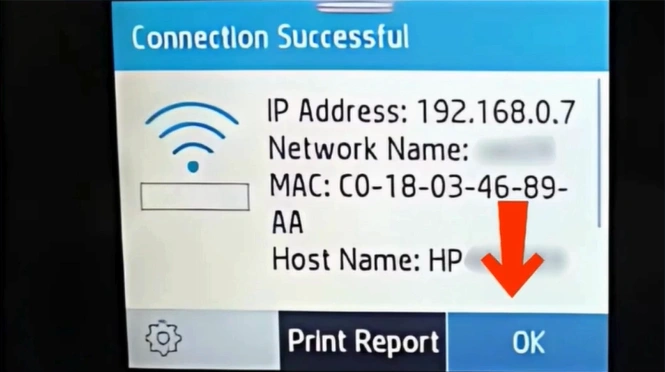
Step 9: Once successfully connected, tap on OK.
Summing Up
That’s how easy it is to connect the HP OfficeJet Pro 8620 printer to a wireless network. Just follow the instructions we explained above, and you are done. Once the connection succeeds, you will see a confirmation message on the printer screen.
Make sure you handle the potential issues carefully to keep the connection process smooth.
Double-check the WiFi password before confirming. Avoid placing the printer far from the WiFi router. After making changes, restart both your printer and your device.
Related Article

