How to Connect HP Printer to Computer?

Connecting an HP printer to a computer enhances its functionality. It also improves the user's workflow, helping them stay ahead of their schedule. The HP printer comes with a variety of connectivity options, allowing users to choose as per their convenience.
You can also complete the connection of your printer easily and start using it. But do you know the right procedure to establish the connection? Here, take a look at the comprehensive guide to set up your machine.
Procedure to Connect Your HP Printer to a Computer Device
1. On Windows, search for Microsoft Store and open it.
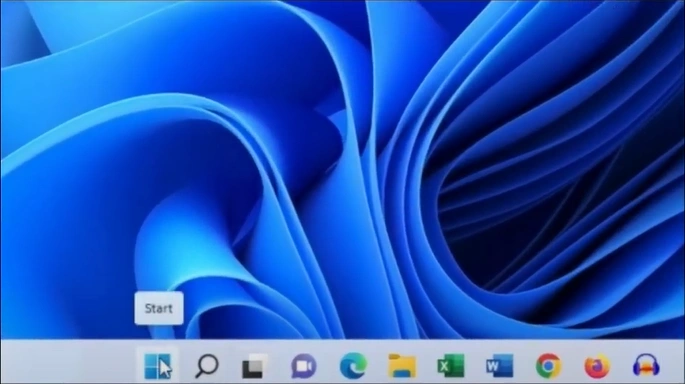
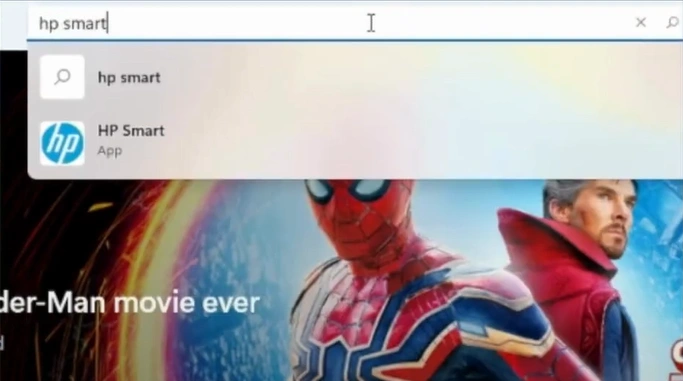
2. Navigate to the search bar and open the HP Smart App.
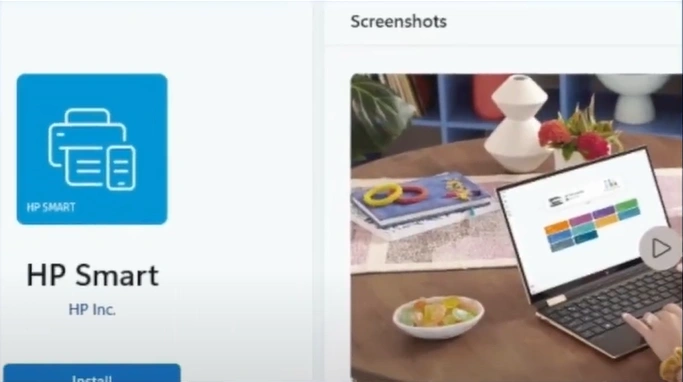
3. Now, click the Install button to download the app.
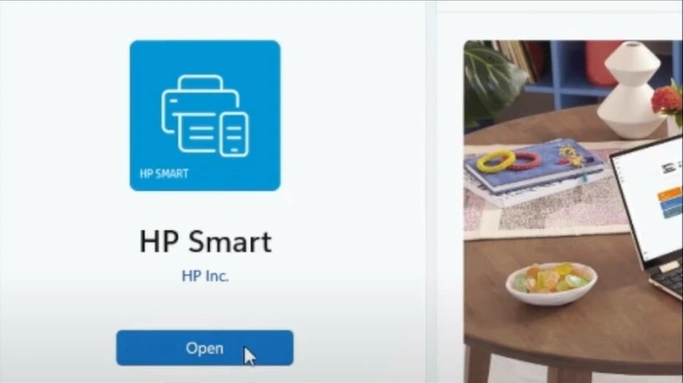
4. Open the app and click Accept All after successful download.
5. Click on "Skip for now" to perform setup from the Home page.
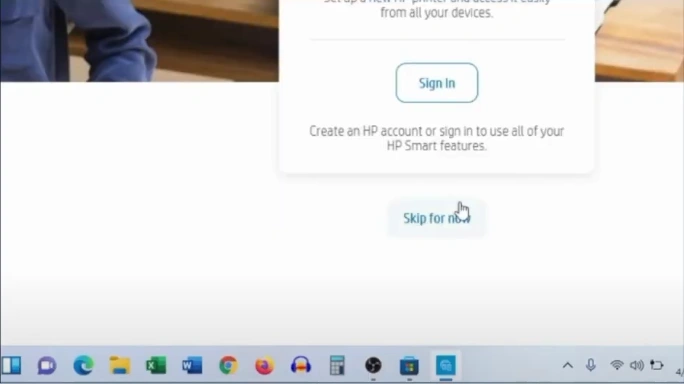
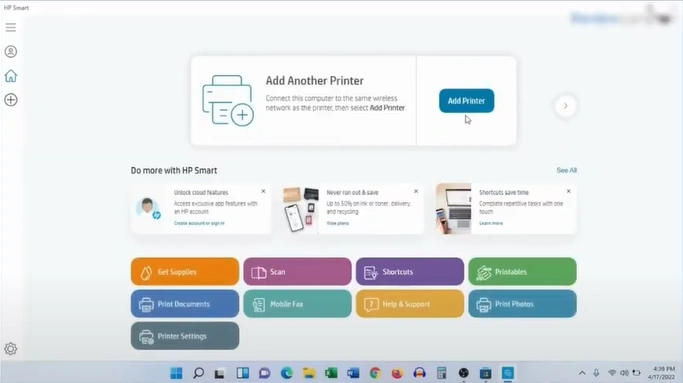
6. Click on the Add printer button.
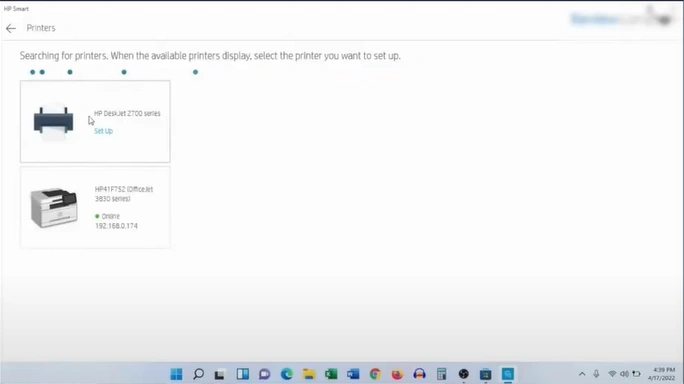
7. Find your HP printer and click on the Set up option.
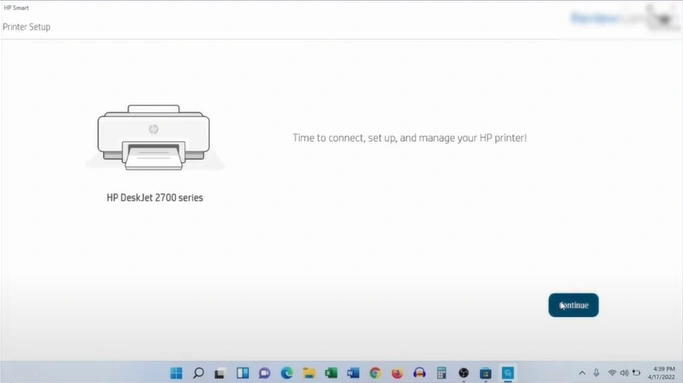
8. Now, go ahead and click on the Continue button.
9. Press "No thanks" if asked to access the Wi-Fi password.
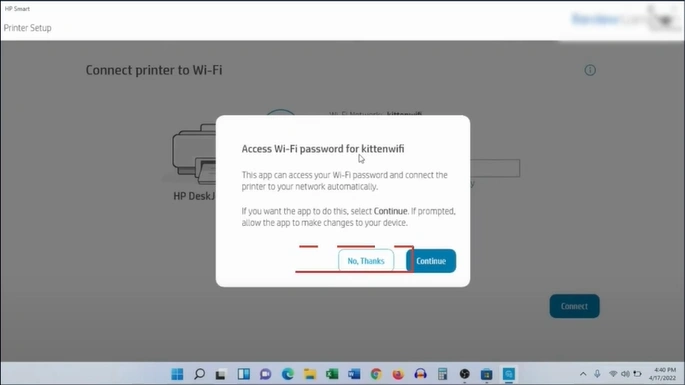
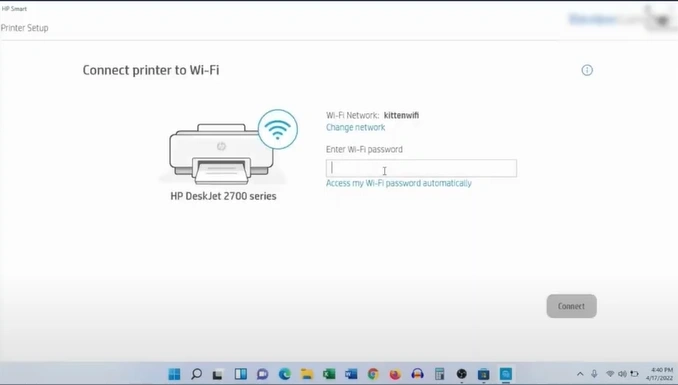
10. Enter your password manually, then click on the Connect button.
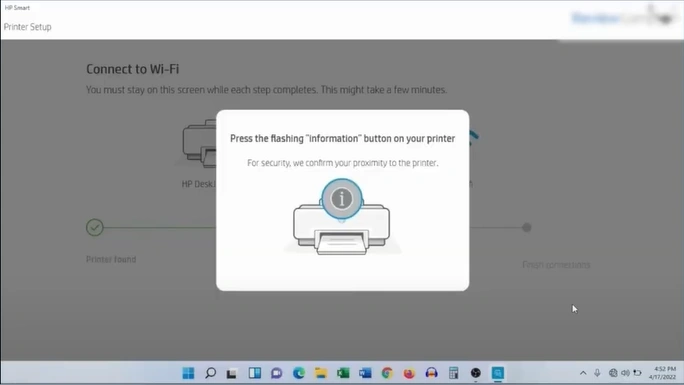
11. Press the flashing information button on your printer when asked.
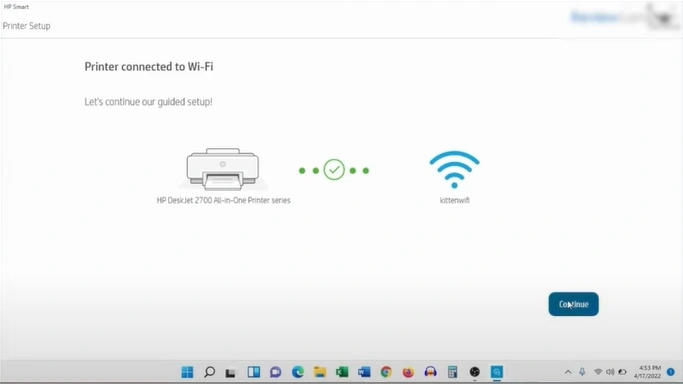
12. After successfully connecting, click the Continue button.
13. Click the "Accept All" button to enjoy connected printing services.
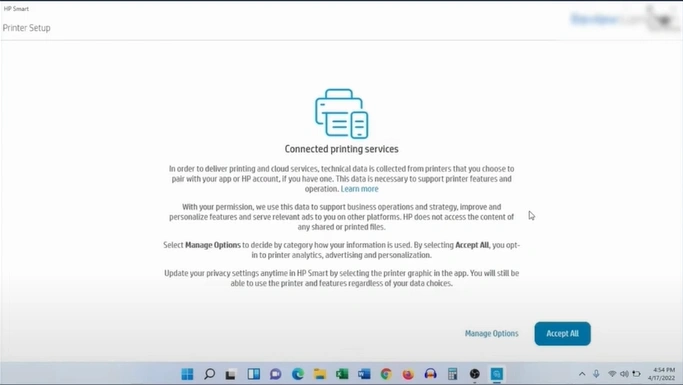
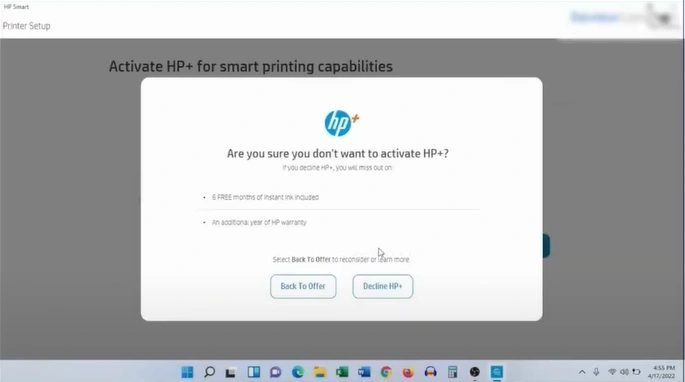
14. In the next window, choose your preferred option.
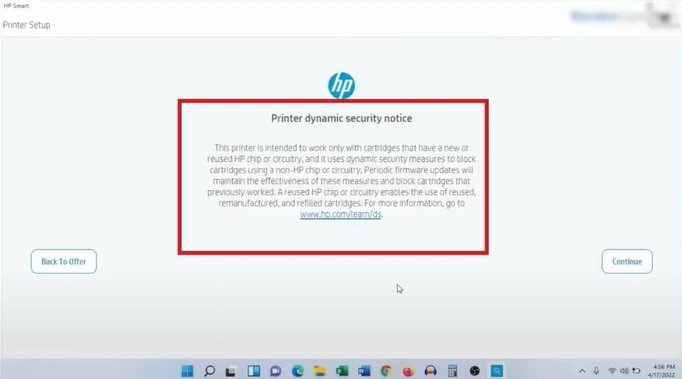
15. Read the printer dynamic security notice and click the Continue button.
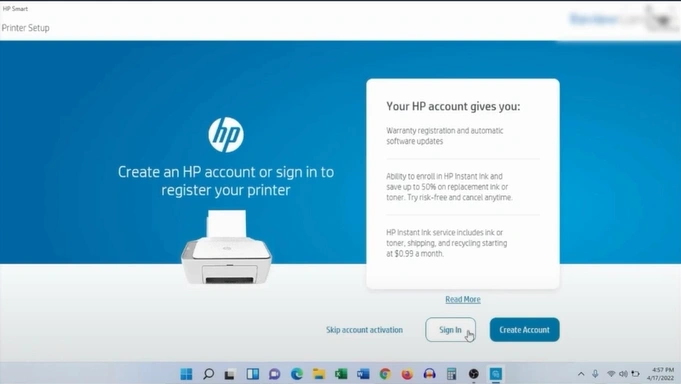
16. Now, sign in and create an account.
17. Wait for the setup process to end, then select between enabling and disabling ink delivery.
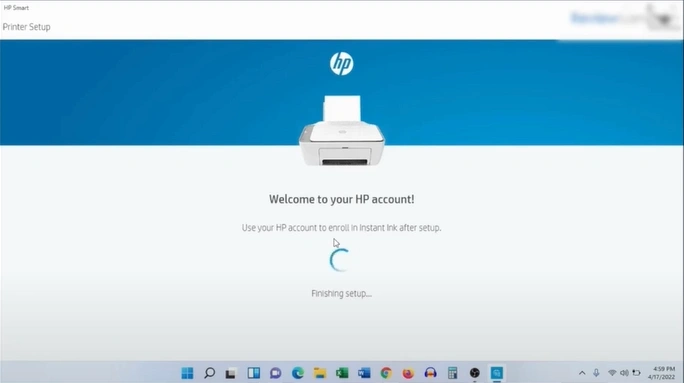
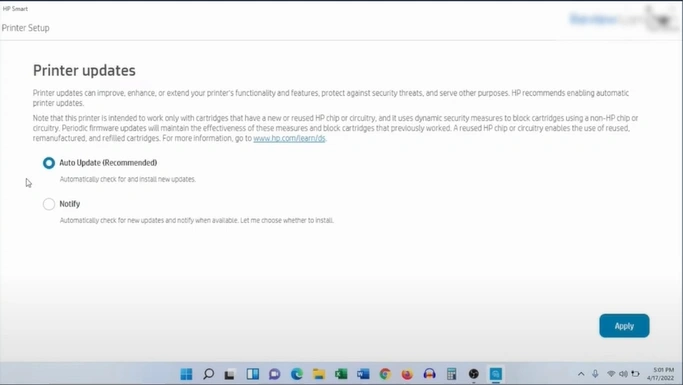
18. Choose the Auto Update and Apply option.
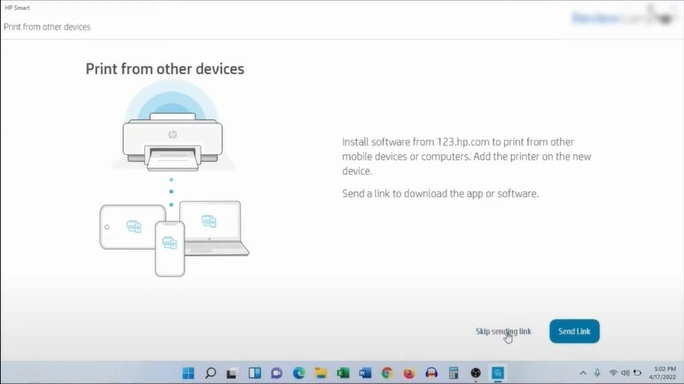
19. Choose between skipping sending a link or sending a link.
20. On the next page, select the skip printing page or print option.
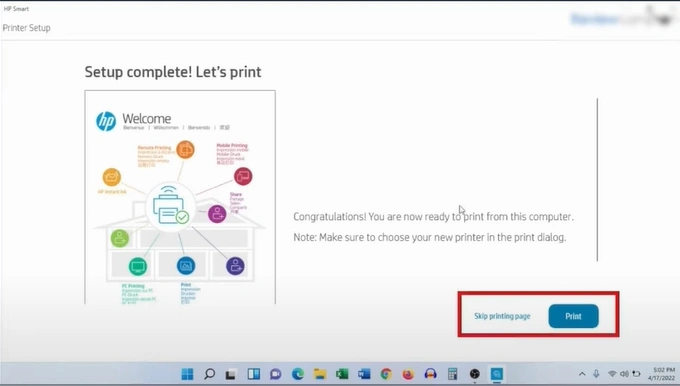
21. Lastly, the HP printer will be connected to your computer; it will be complete.
Final Words
Here, you have got to learn about the pinpoint procedure to establish the connection between your HP printer and computer device. Use all the steps carefully to complete the setup hassle-free and start using your device without facing any problems. In addition, if you are having any problems or the connection is not done properly, then try to reach out for additional help and guidance.
Related Guide

