How to Setup HP ENVY Inspire 7955e Printer?
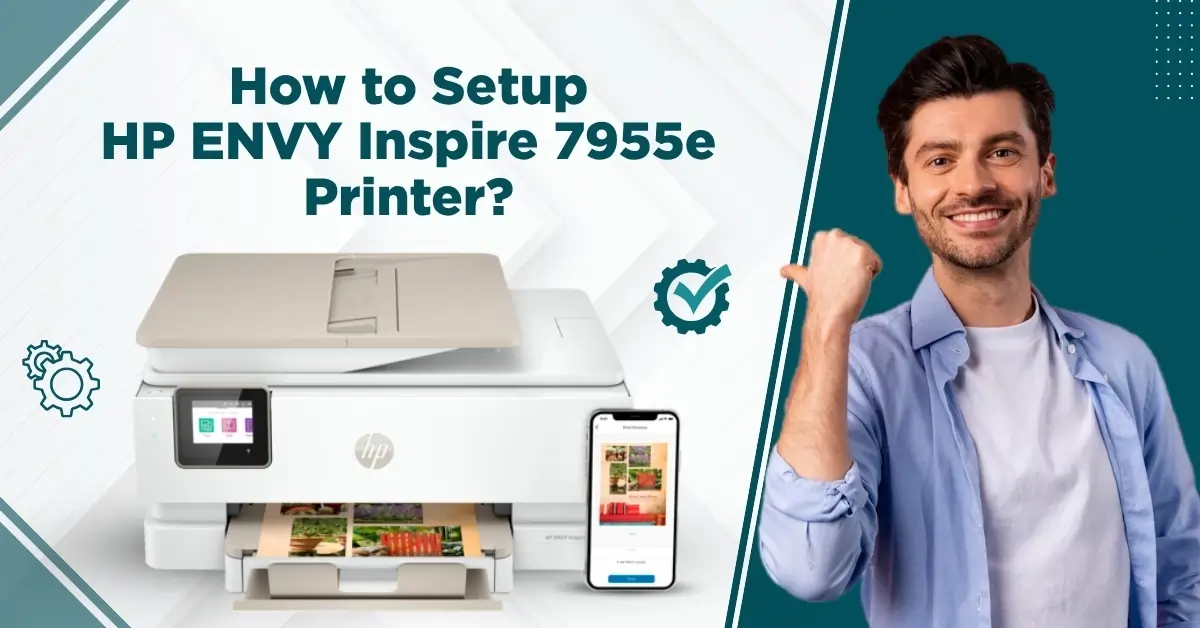
In my experience, setting up some printers always seems easier than actually doing it. When you are doing the setup, there are high chances of facing various problems, such as an unsuccessful setup, a printer connected but not working, a printer not working properly, and many others. I have helped many people with various connection methods to complete the setup easily.
So you have got your brand new HP ENVY Inspire 7955e printer and want to set it up, but where to start? I have helped many people with various connection methods to complete their printer setup easily. As a result, I will walk you through the proper guide below to set up your HP ENVY Inspire 7955e printer.
Steps to Set Up HP ENVY Inspire 7955e Printer
Below are the complete steps you can follow to set up your printer wirelessly
1. First, you need to turn on your HP ENVY printer.
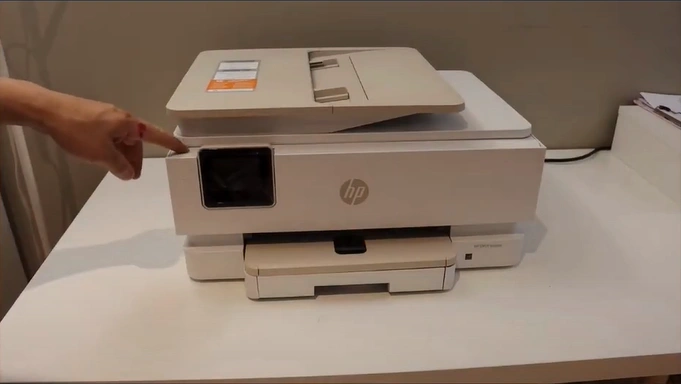
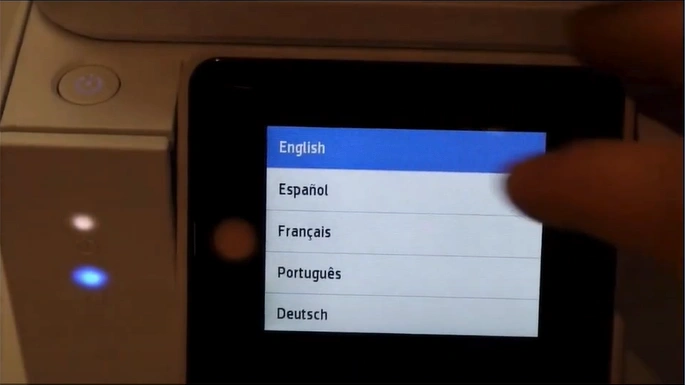
2. Then, on the control panel, select your preferred language.
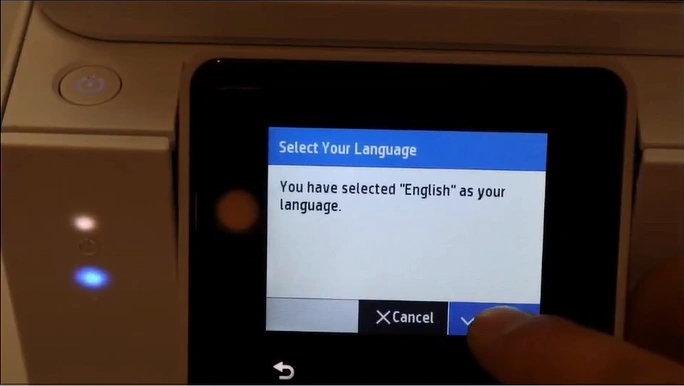
3. Confirm the selected language.
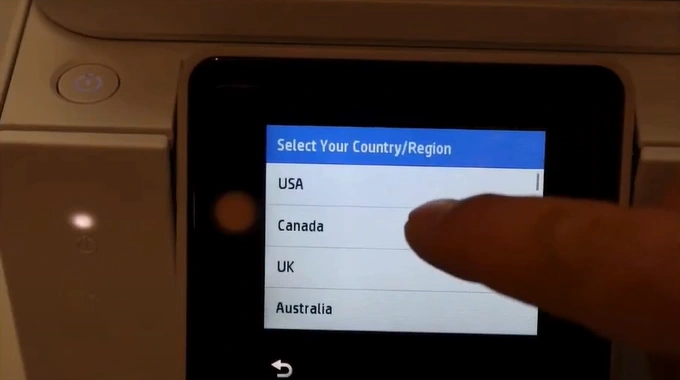
4. Now, choose your country.
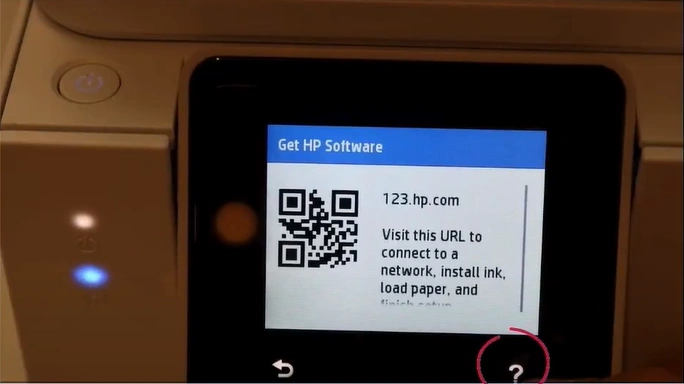
5. Tap on the question icon.
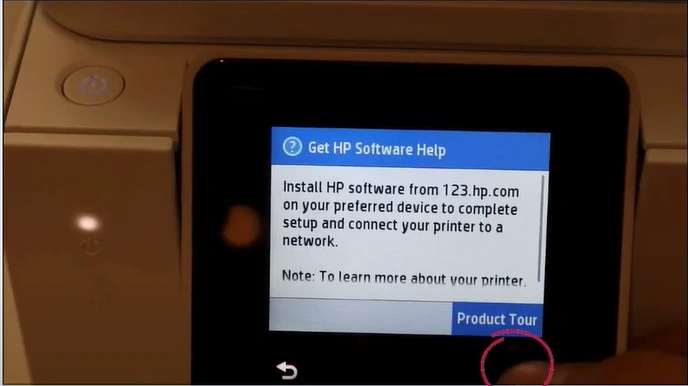
6. After that, you need to tap on the question icon once again.
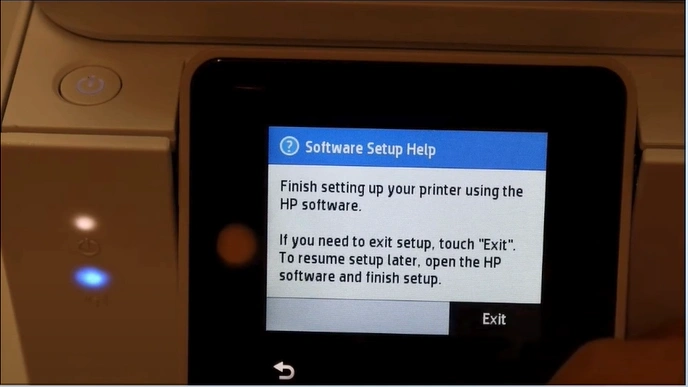
7. In the Software Setup Help page, tap on Exit.
8. The printer will ask to install ink cartridges.
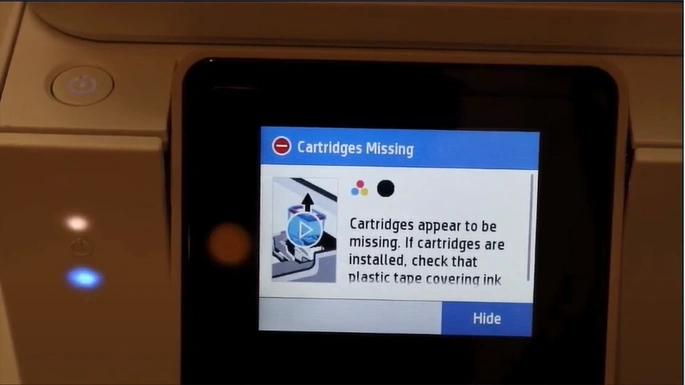
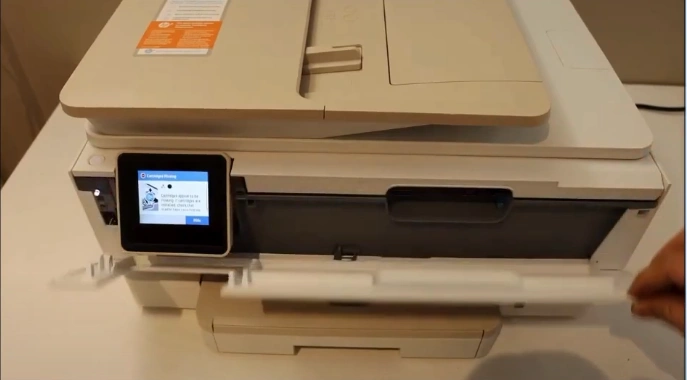
9. Next, open the front door.
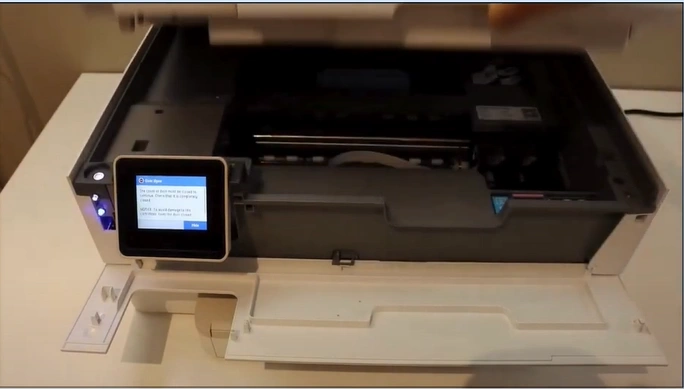
10. Lift the ink cartridge cover.
11. Unpack your ink cartridges.
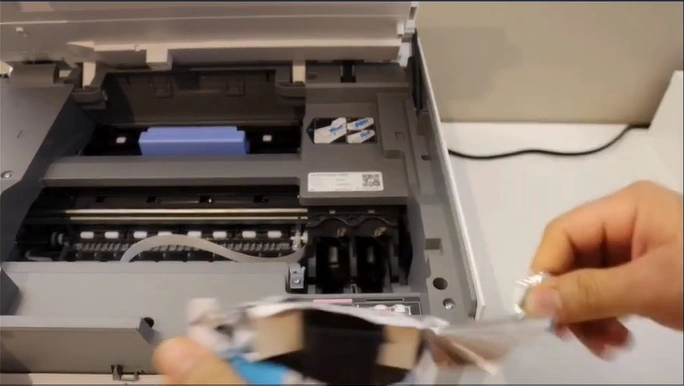
12. Remove the sealing.
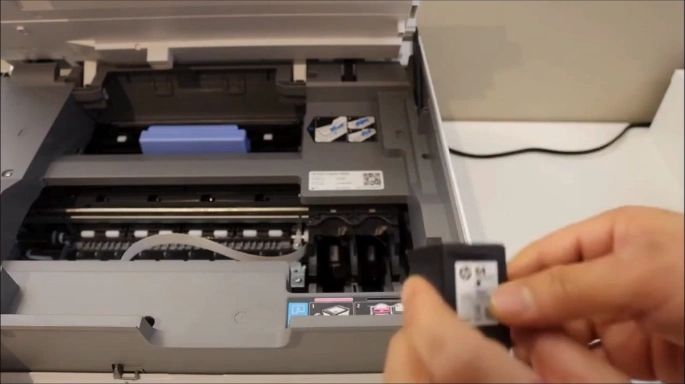
13. Insert the ink cartridges into the slot as instructed and then slide them in until they make a clicking sound.
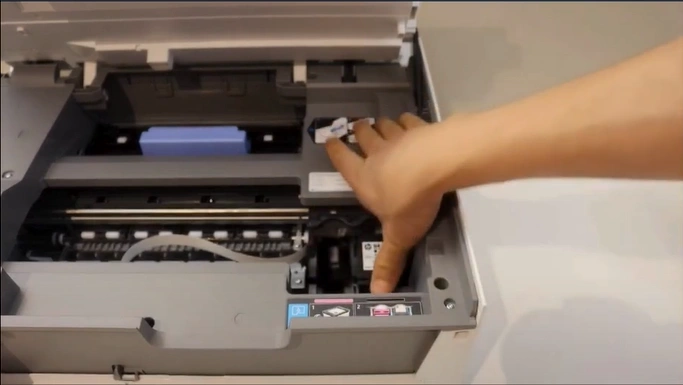
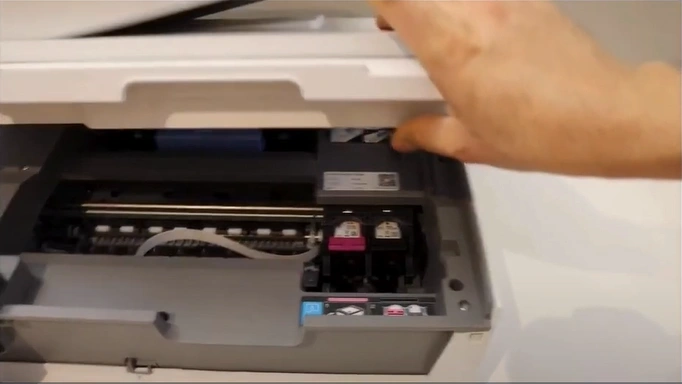
14. Next, close the front door.
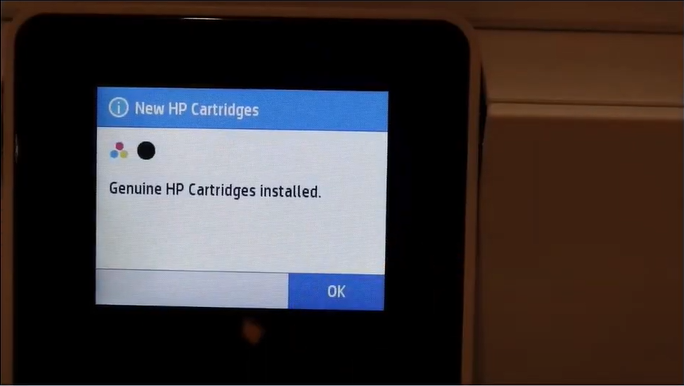
15. Once the display shows genuine HP cartridges installed, tap on OK.
16. Add paper to align the printhead.
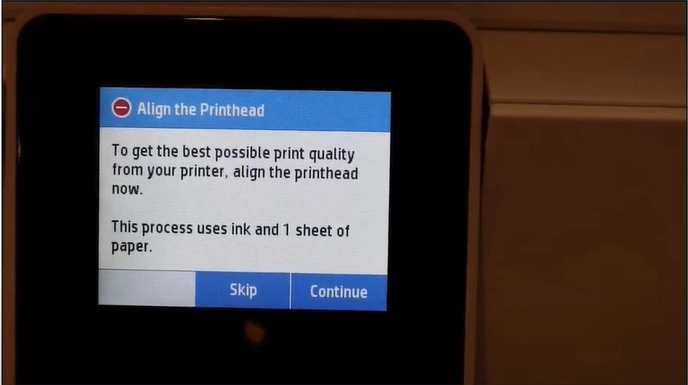
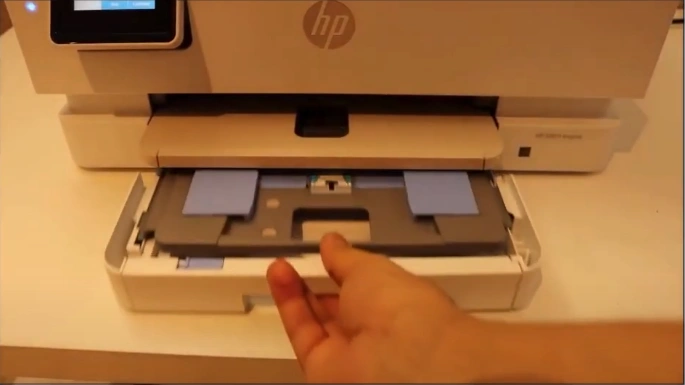
17. Slide out the paper tray.
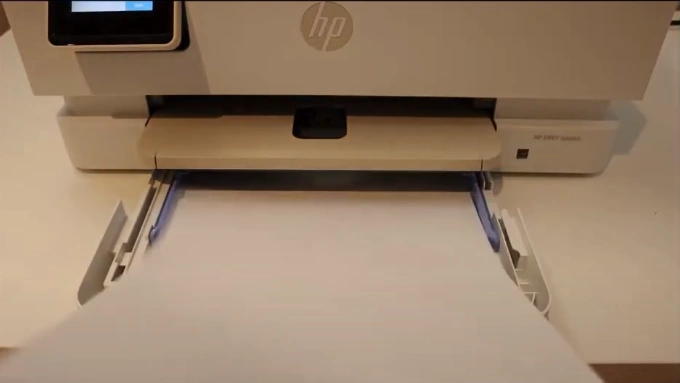
18. Insert the paper.
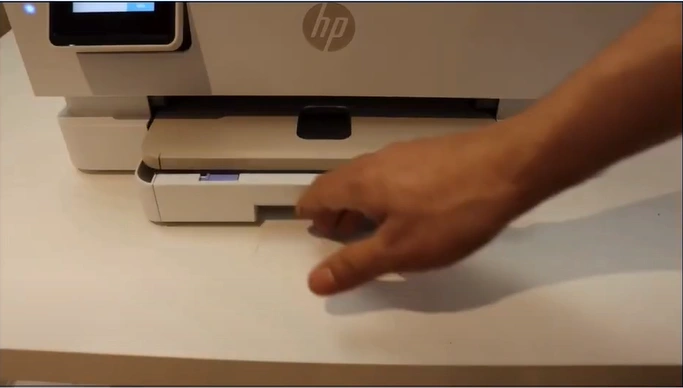
19. Close the paper tray.
20. Bring out the paper output tray.
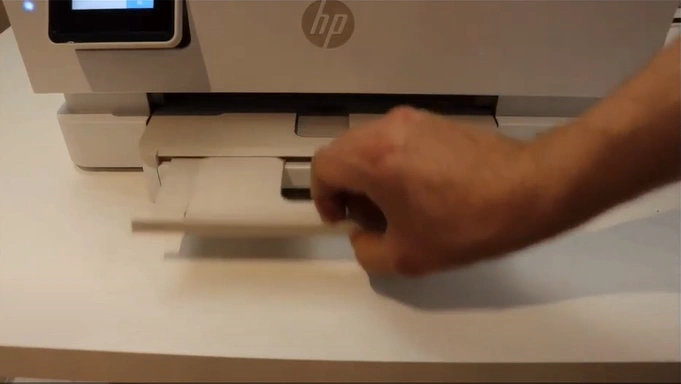
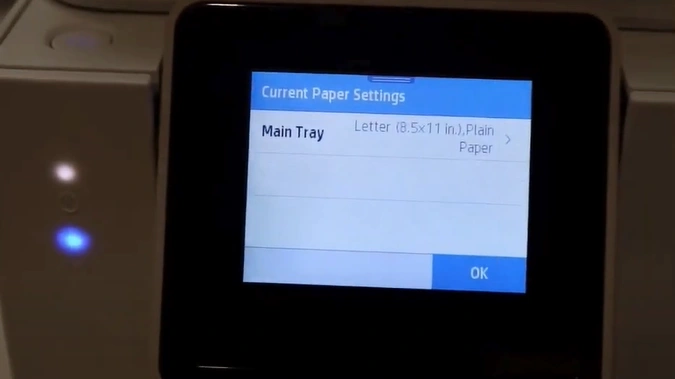
21. Go to the printer display and in the current paper settings, tap on OK.
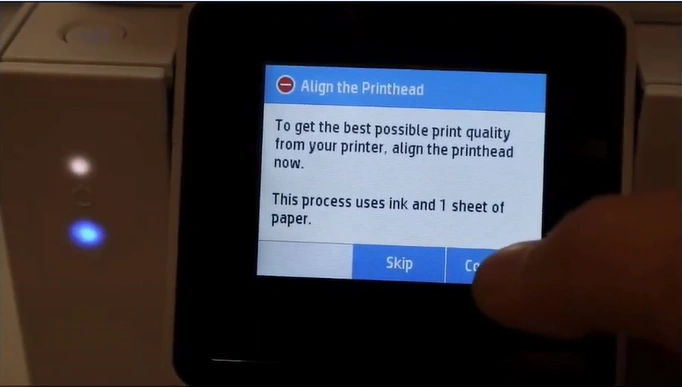
22. In Align the Printhead, press Continue.
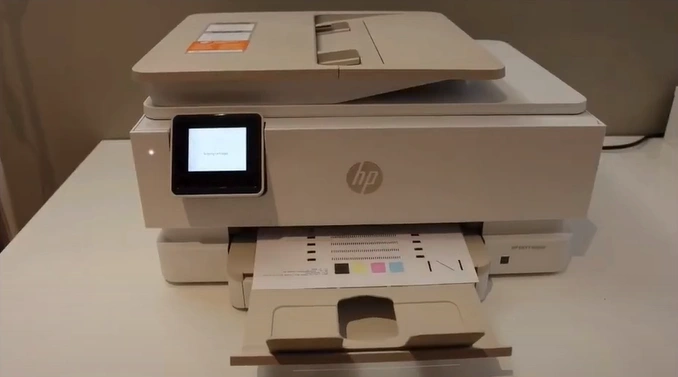
23. Once you receive the print, go to the printer display panel and tap on OK.
24. Tap on the settings icon on the printer display.
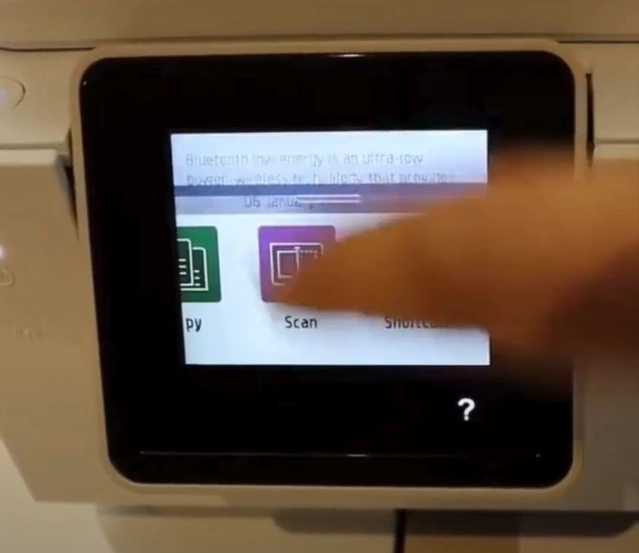
25. Scroll and open Network Setup.
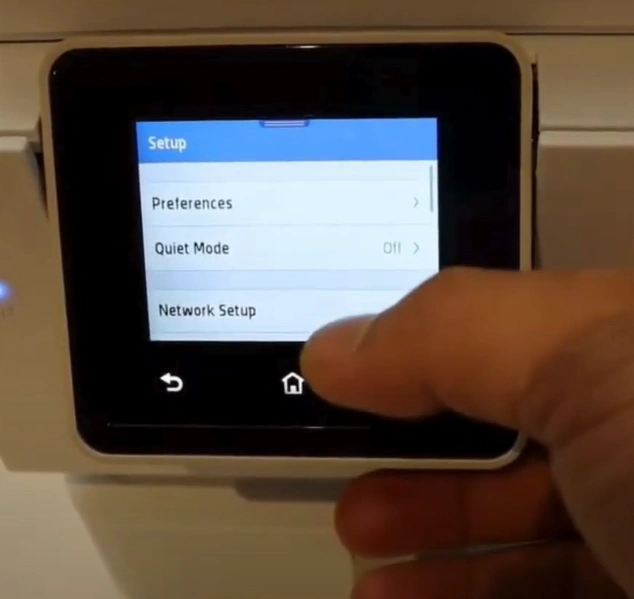
26. Open Wireless Settings.
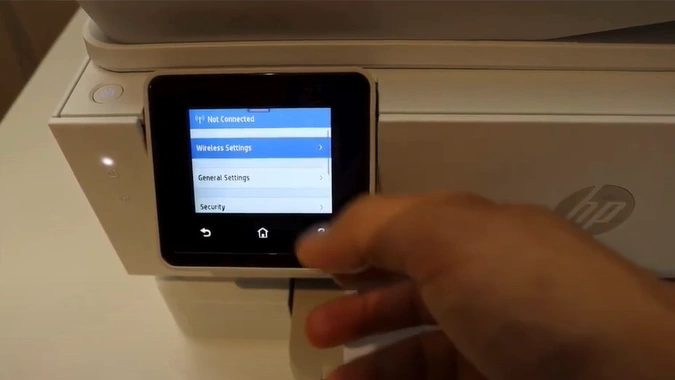
27. Select Wireless Setup Wizard.
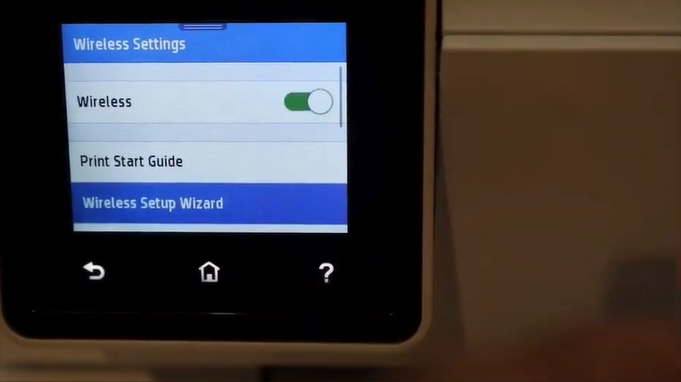
28. Wait for the printer to search for available Wi-Fi routers.
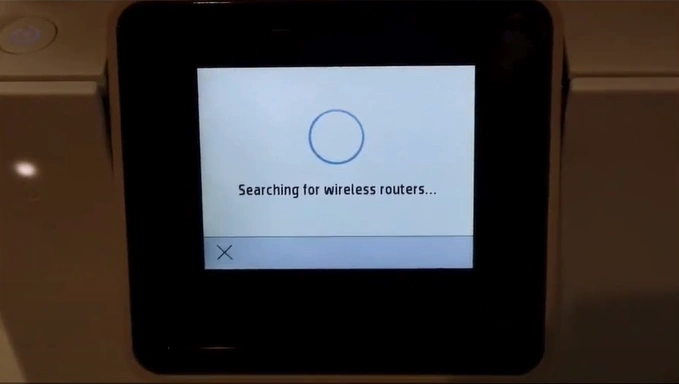
29. Select your Wi-Fi router name.
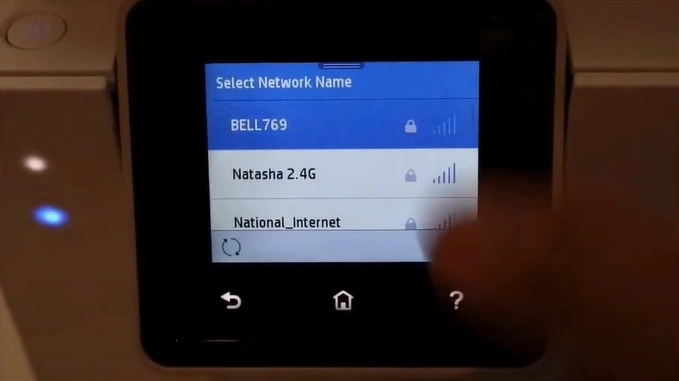
30. Tap on Touch to Enter the Password.
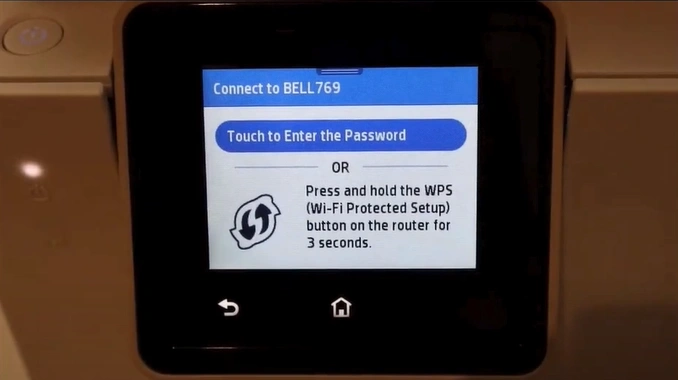
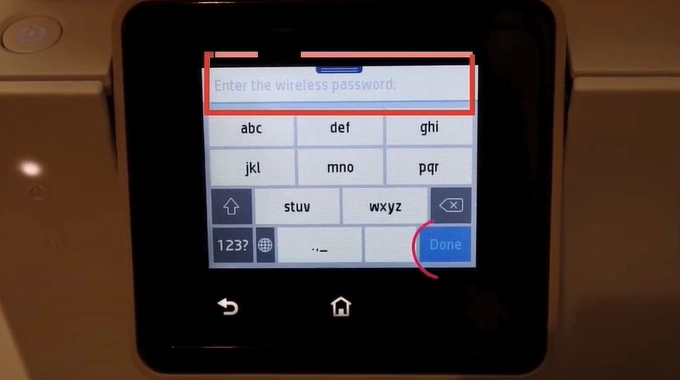
31. Enter the Wi-Fi password and tap Done.
32. Review the settings and tap on OK to confirm.
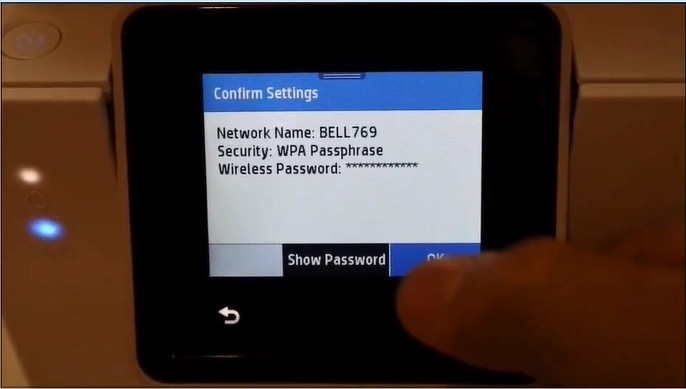
33. After a successful connection, tap on OK.
_1752137491.webp)
34. Finally, your HP ENVY Inspire 7955e printer will be ready to use.
Also Read:- How to Fix Paper Jam in HP Printer?
Final Words
If you follow these comprehensive steps correctly, then your HP ENVY Inspire 7955e printer setup process will be complete without much hassle. In addition, you need to confirm the device's compatibility, network connection speed, OS version, and other factors to avoid facing any problems. However, if any problems appear during the setup or you need more help with the setup, then it would be best to look for further guidance and assistance to get a profound understanding.

