How to Download and Install the HP Smart App on iPhone?
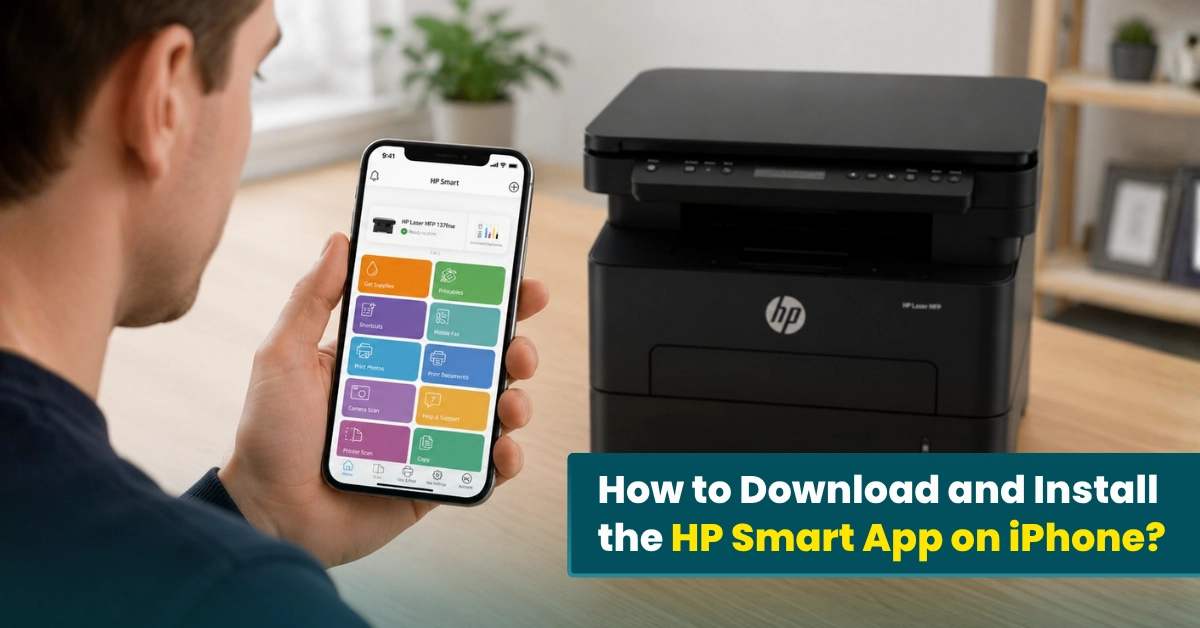
What if you could handle your daily print jobs on your HP printer in just a few taps? The HP Smart app makes it possible. The HP Smart app is quite popular among HP printer users because it makes it easier to print, scan, and copy right from your phone. You can manage all your printing tasks directly from your phone, making it much easier to handle every print job from one place.
If you have an Apple phone and want to know how to download and install the HP Smart app on your iPhone, we’re here to help.
Major Challenges Faced When Downloading or Installing the HP Smart App
Weak Internet Connection
A weak internet connection may interrupt the app download. The download may pause, fail, or take a long time to complete.
Low Storage Space
If your iPhone is running out of storage, the app may fail to install. Delete unnecessary files or apps to free up space for the app.
Compatibility Issues
Older operating systems may not support the latest version of the HP Smart app. So, you may need to update your iPhone OS before installing the app.
App Store Problems
Sometimes the App Store may not respond properly, and this can prevent the HP Smart app from downloading or updating.
Security or Permission Restrictions
Some device settings or restricted permissions may block the app installation.
Things to Check Before Downloading
Here is a list of things you should check before you start downloading and installing the HP Smart app on your iPhone:
- Update the App Store: Make sure the App Store is updated to the latest version. It helps avoid compatibility issues.
- Check Storage Space: Confirm that your iPhone has enough storage to download and install the app.
- Sign In to Your App Store Account: Make sure you are logged in to your Apple account before you start downloading the HP Smart app.
- Enable Required Permissions: Allow necessary permissions like notifications and network access if prompted.
- Disable VPN or Security Restrictions: Sometimes, VPN, firewall, or antivirus software may block the download. So, you must turn them off for a while if required.
Steps to Download and Install HP Smart App on iPhone
With the HP Smart app, you can set up your printer and print documents and photos wirelessly. It also lets you easily monitor ink levels, scan files, and troubleshoot common printer issues. Downloading and installing the app on your device is the first step to managing your printer jobs from your mobile device. Here’s how to do the same:
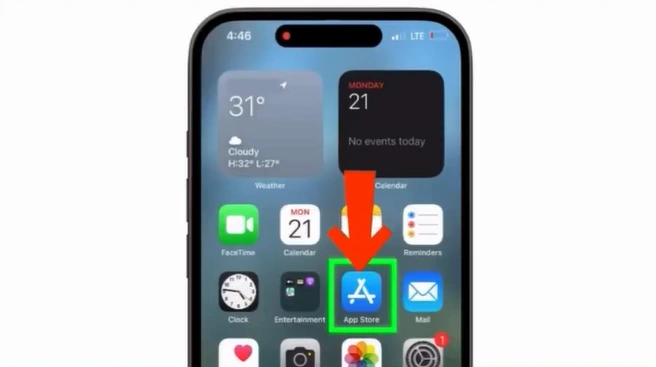
1. On your iPhone, tap on the App Store icon.
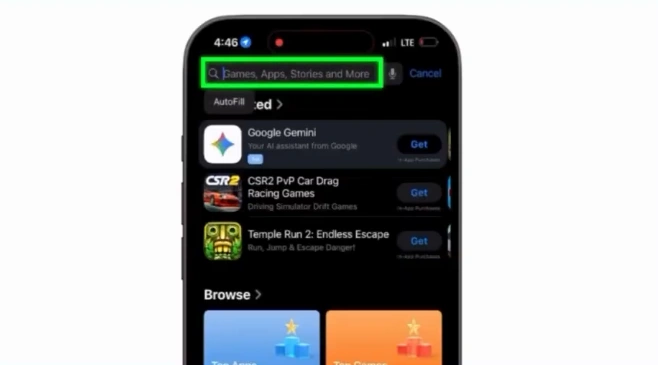
2. In the search bar, type “HP Smart.”
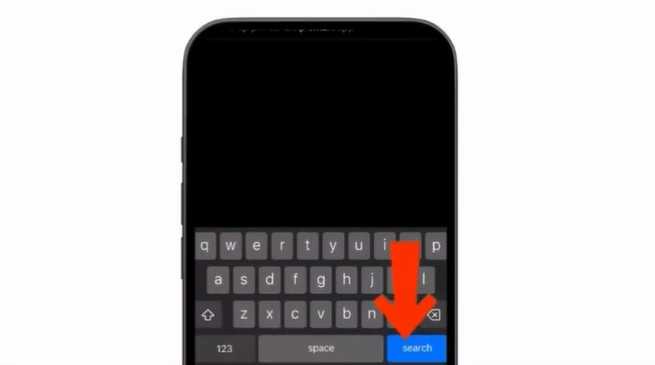
3. Press the Search button located at the bottom of the screen.
4. Select the official HP Smart app from the search results.
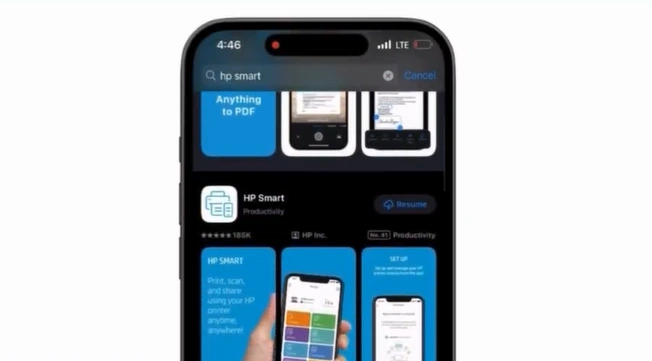
5. After that, tap on the “Get” button to start the download process.

Note: If prompted, confirm with Face ID, Touch ID, or your Apple ID password.
6. Wait for the application to download and install completely.
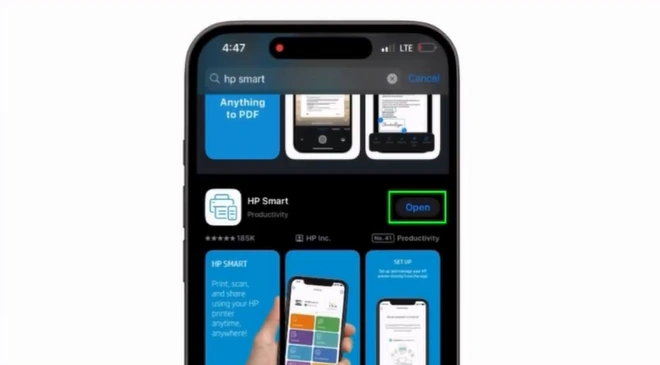
7. Once it is installed, tap on Open to launch the application.
How to Use the HP Smart App
If you have successfully installed the app, it’s time to use it. Here’s the right way to use this application:
1. Tap on the HP Smart app icon to launch it.
2. Once the app opens, sign in using your HP account email and password. If you do not have an account, create one by tapping on “Create Account or Sign Up.”
3. Turn on your printer and confirm it is connected to the same wireless network as your iPhone.
4. In the app, tap on the (+) icon or select the Add Printer option.
5. The app will search for nearby printers connected to the network.
6. When your printer shows up on your phone’s screen, tap its name and follow the prompts to finish the setup.
7. After it is done, you can scan files, print documents, check ink levels, and manage printer settings directly from the app.
Summing Up
That’s how you can easily download and install the HP Smart app on iPhone. Simply open the Apple App Store, search for the HP Smart app, tap on Get, and complete the installation. Once it is installed, you can start using it by connecting your HP printer to your device. You can print documents and photos remotely, scan files, monitor ink levels, and manage printer settings directly from your phone. Its simple interface and wireless features make printing easier and more convenient.
In addition, the app also provides real-time notifications about printer errors, low ink warnings, and firmware updates.
Frequently Asked Questions
Is the HP Smart app free for iPhone users?
Yes, the HP Smart app is completely free to download on iOS devices.
Which iPhones support the HP Smart app?
The app works on most iPhones running a supported version of iOS.
Do I need an HP account to use the HP Smart app?
Yes, you need to sign in or create an HP account to use the app and access its features.
Why can’t I install the HP Smart app on my iPhone?
If your iPhone is low on storage space or running an outdated iOS version, you may face installation issues. Delete unnecessary files to free up space and update your device software before installing the app.
Can I connect HP printer to Wi-Fi using the HP Smart app?
Yes, the HP Smart app lets you connect your printer to a wireless network directly from your iPhone by following the guided setup instructions in the app.

