How to Fix Driver Unavailable For HP Printer?

The "HP printer driver unavailable" issue appears when your PC fails to detect the driver for your device. This can occur due to incomplete setup, incorrect system settings, an outdated device operating system, and other factors. It is important to resolve this issue to ensure the printer functions correctly and accurately understands the printing commands. Here are the three primary solutions to remove the "driver unavailable" error for your HP printer.
Solution 1: Add Printer
Follow the proper guide to add the printer and resolve your HP printer's 'unavailable driver' error.
1. For the first step, open Printers & Scanners.
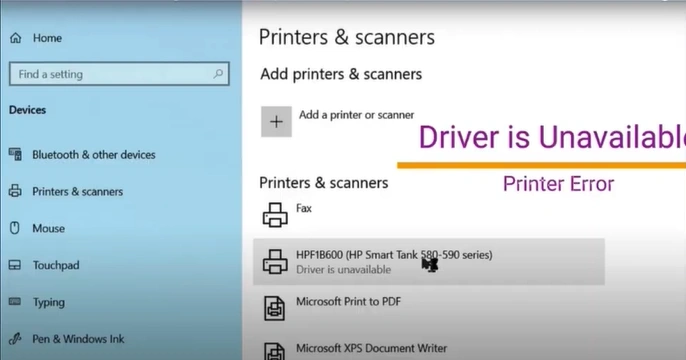
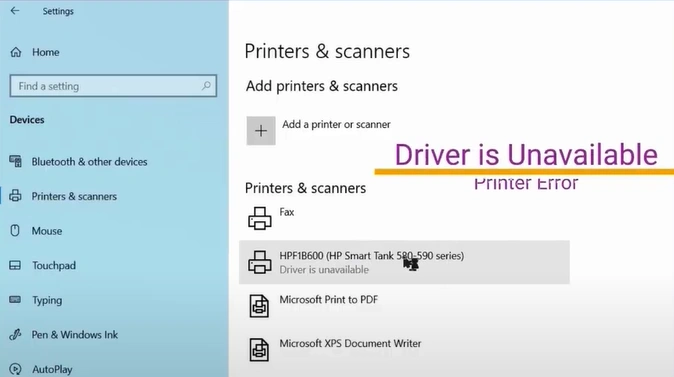
2. Select your printer.
3. Click on Remove device.
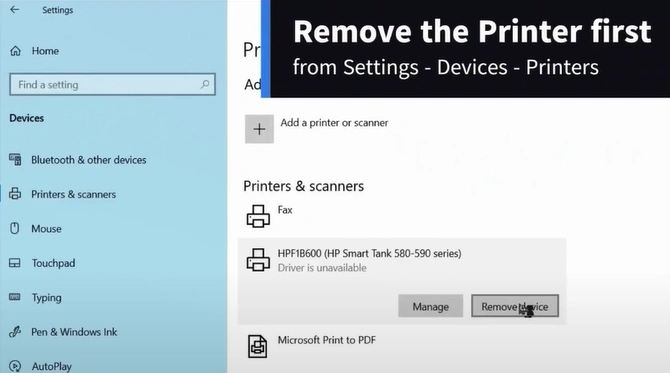
4. Click on Yes to remove the printer.
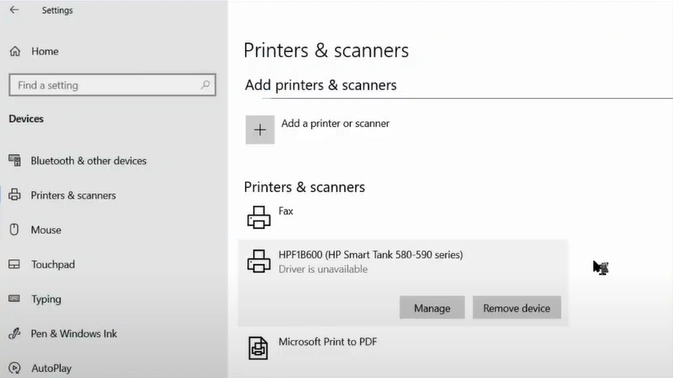
5. Click on Add a printer or scanner.
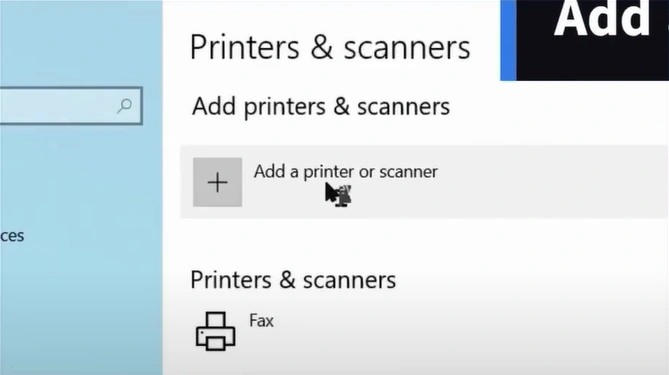
6. Choose your HP printer and click on Add device.
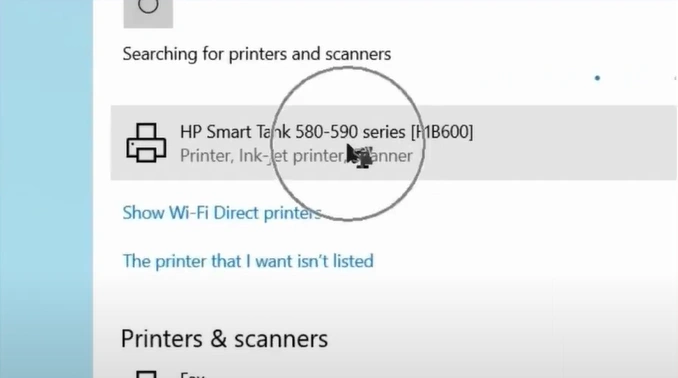
7. Once the printer is connected again, start printing.
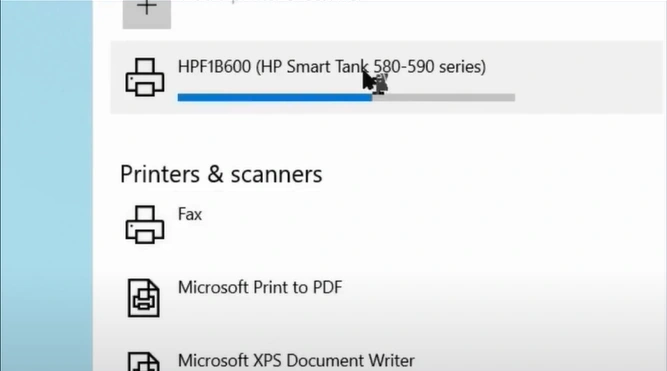
8. If your printer can't be found, add it manually.
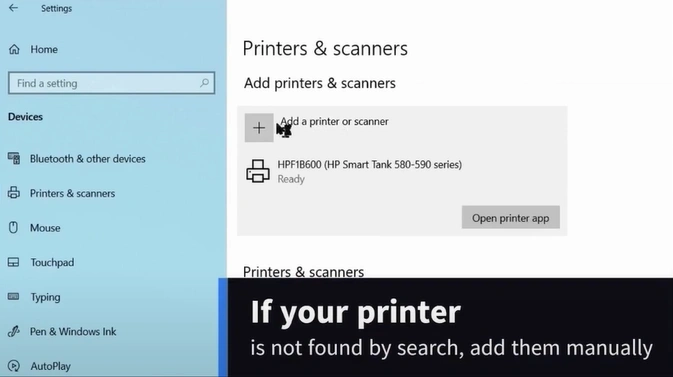
9. Click on Add a printer or scanner.
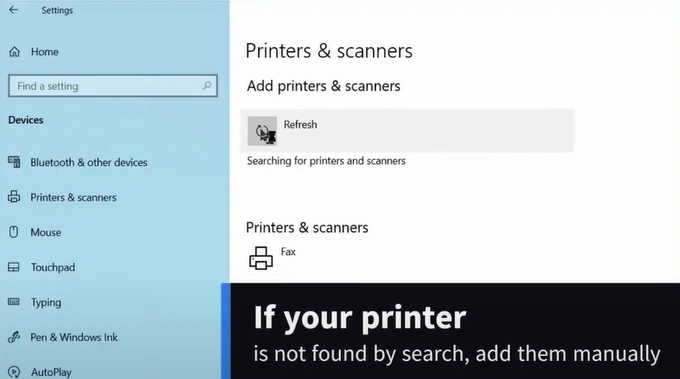
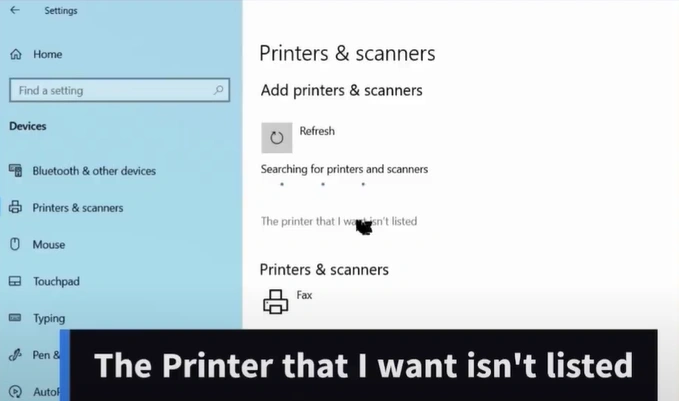
10. Click on "The printer that I want isn't listed."
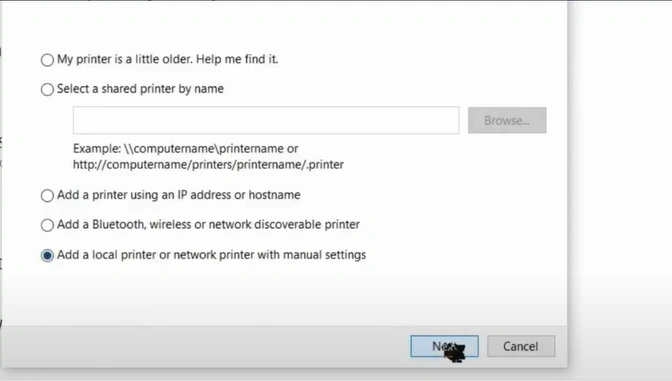
11. Then, you should click on the "Add a local printer or network printer with manual settings" option.
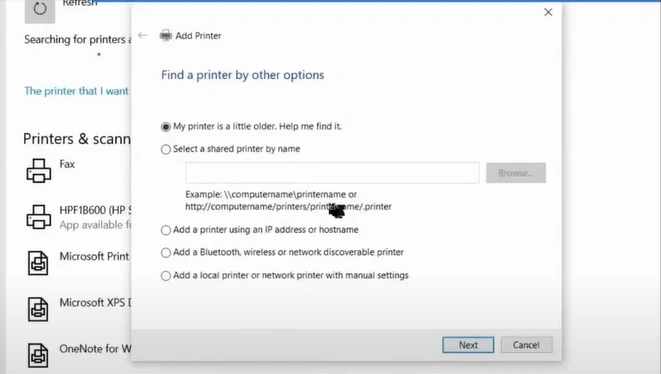
12. Then, click on Next.
13. Select the "Use an existing port" option.
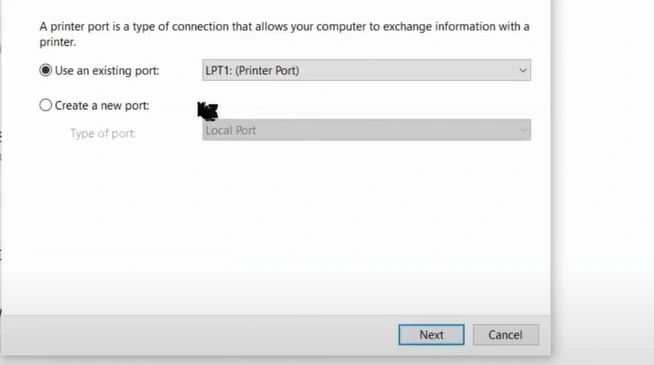
14. Select "LPT1" from the list of ports.
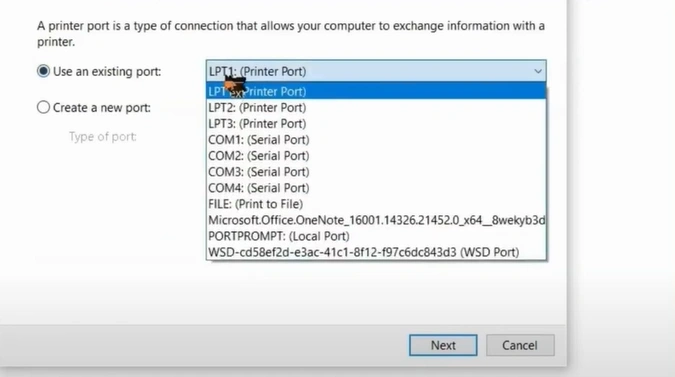
15. Click on Next.
_1747730028.webp)
16. In the printers, select your HP printers.
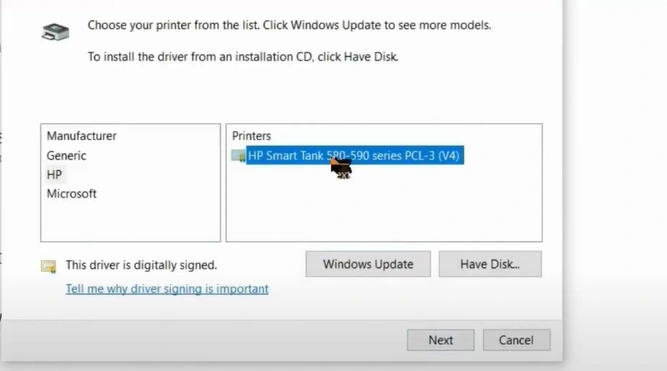
17. Click on Next.
_1747730126.webp)
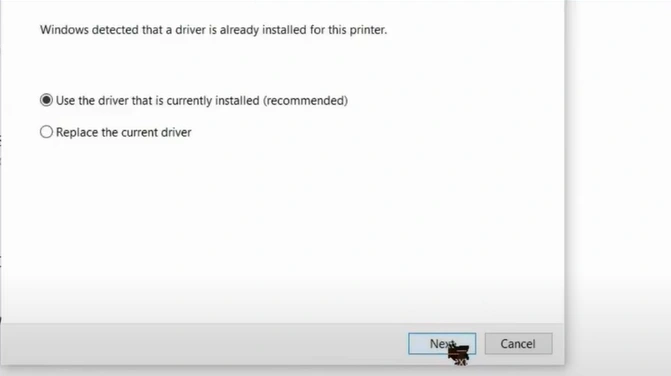
18. Select the "Use the driver that is currently installed" option.
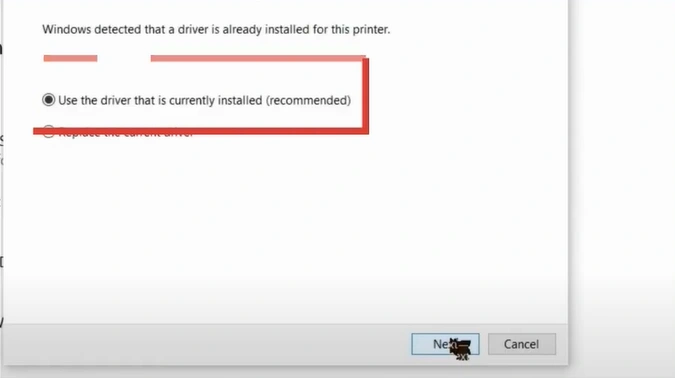
19. Click on the Next button.
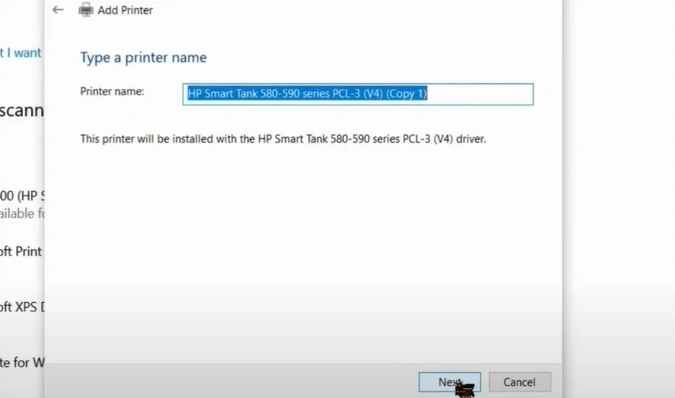
20. In the Type a printer name window, review the printer name and click Next.
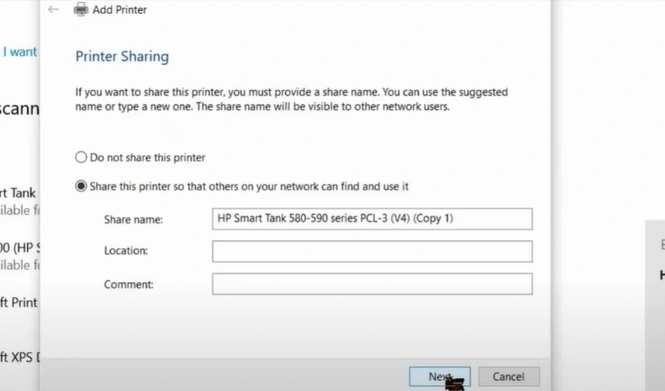
21. Now, in the Printer Sharing window, click on the Next button.
22. Once the printer is successfully connected, start printing again.
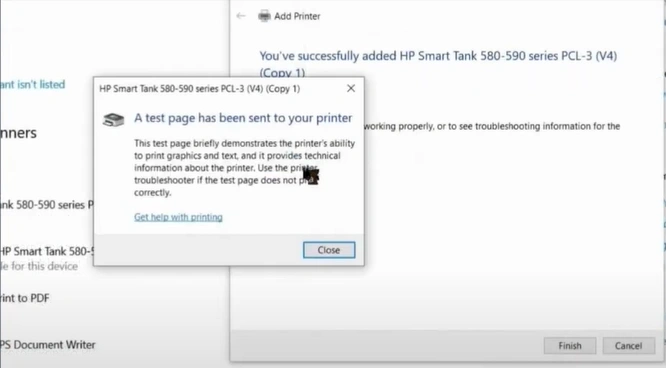
23. Check for the driver; if it is still unavailable, move to the next step.
Solution 2: Reinstall the Printer Driver
Here is the stepwise process for reinstalling the driver for your HP printer. Follow the steps carefully to get the right results.
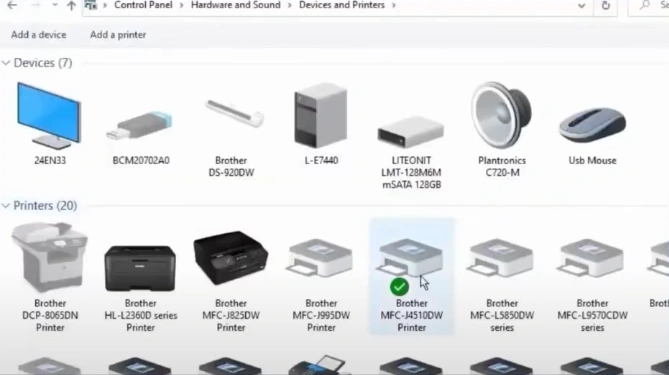
1. Choose to open the Control Panel and click on "View devices and printers."
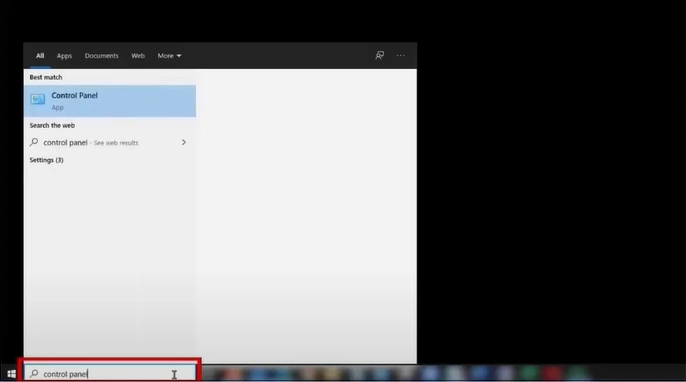
2. Right-click on your printer device and click "See what's printing."
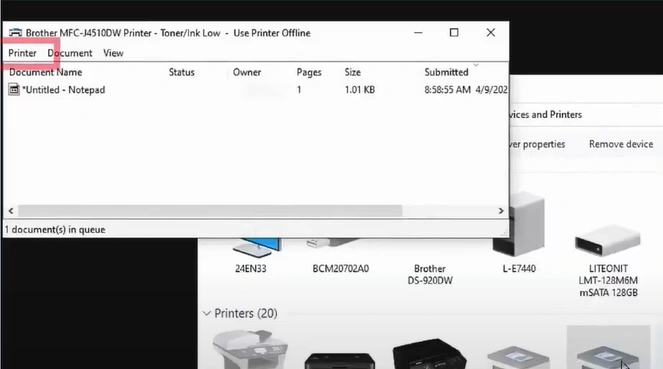
3. Now, click on the Printer tab, select Cancel All Documents, then click on Yes.
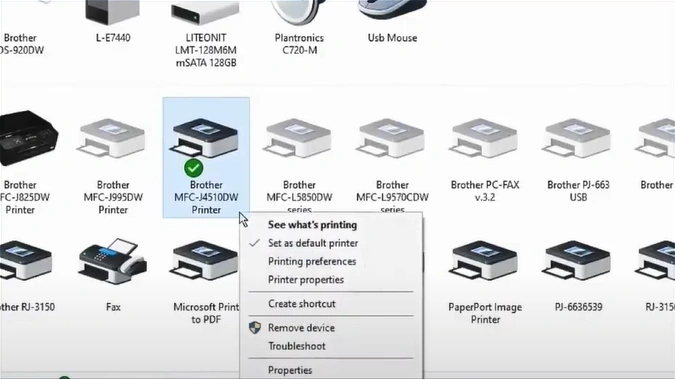
4. Right-click on your printer device, select Remove device, and click Yes.
5. Select any other printer and click on the Printer Server Properties tab.
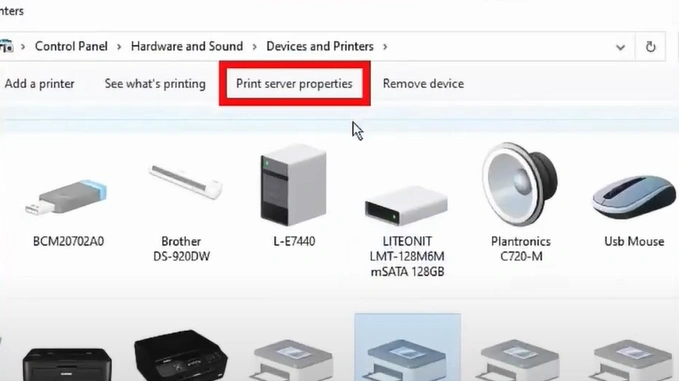
6. Then, click on the Drivers tab.
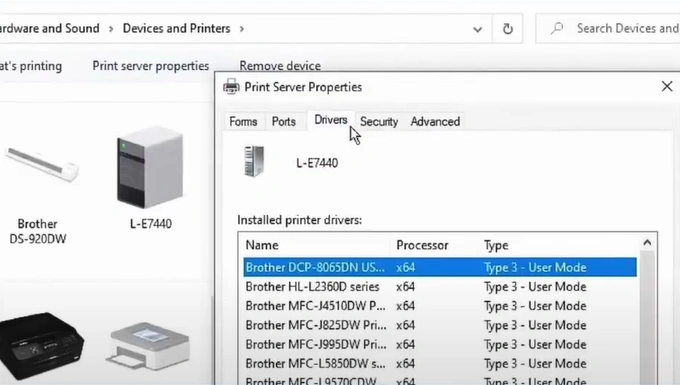
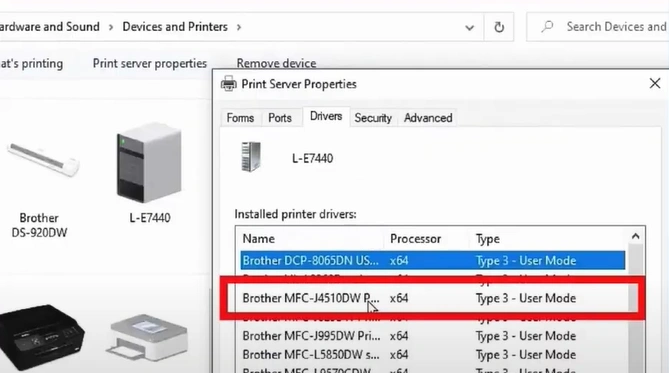
7. Look for your HP printer driver and click on the Remove button.
8. Select Remove Drivers Only, then click on OK.
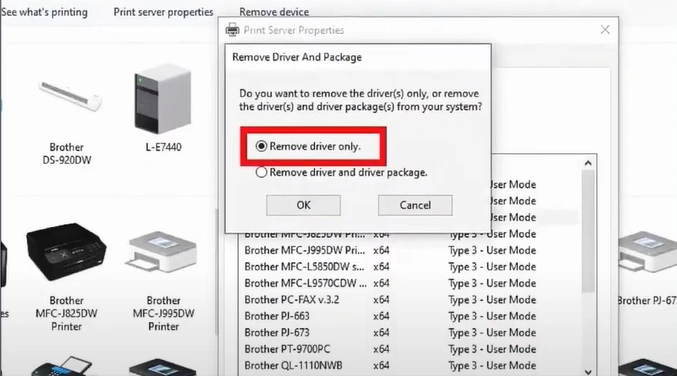
9. Click Yes to delete the printer driver.
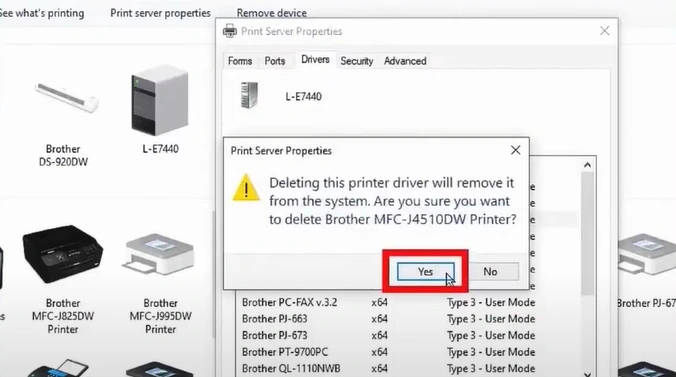
10. Open your browser and go to the HP printer driver's official website.
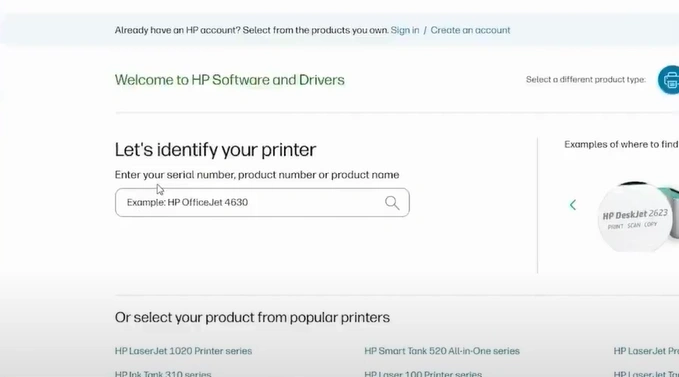
11. Enter the full name of your HP printer model in the search field and click Submit.
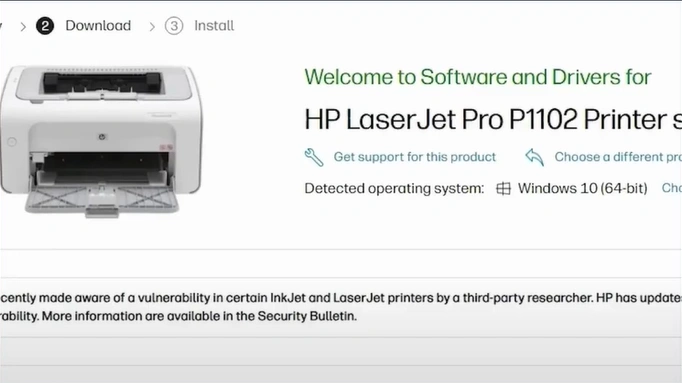
12. Verify the detected operating system.
13. Scroll down and expand Driver-Product Installation Software.
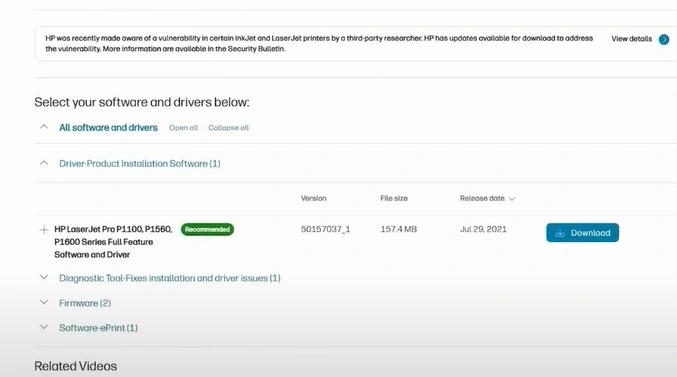
14. Download the latest driver.
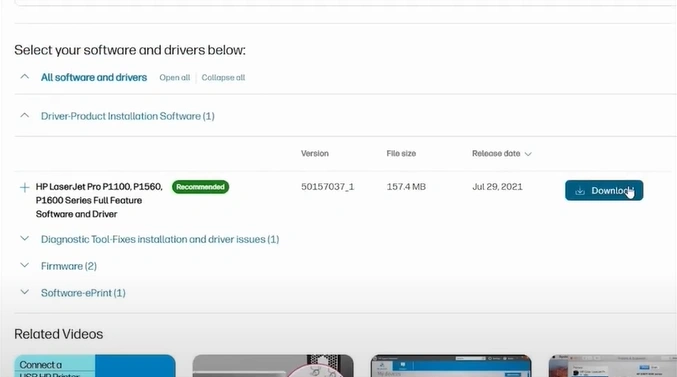
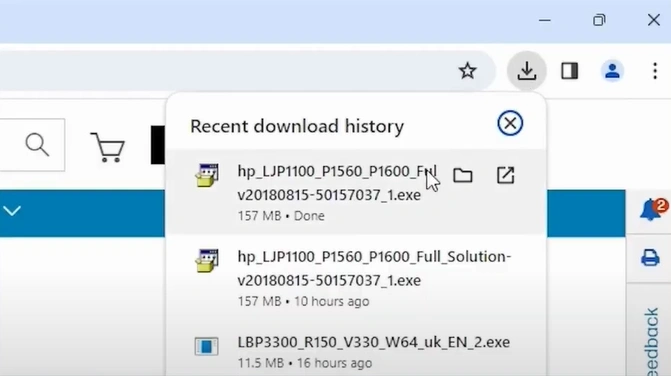
15. Open the downloaded file in the folder.
16. Then, drag and drop the file on the desktop.
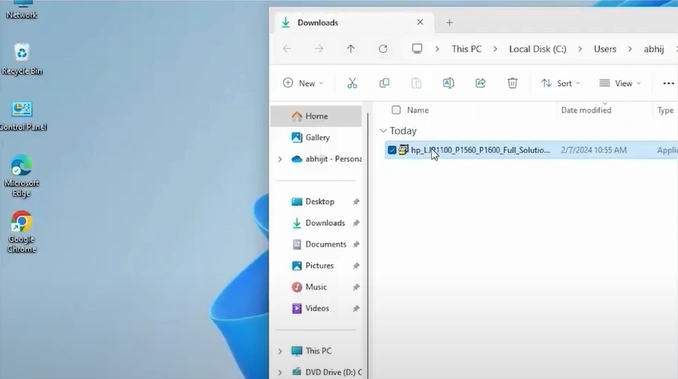
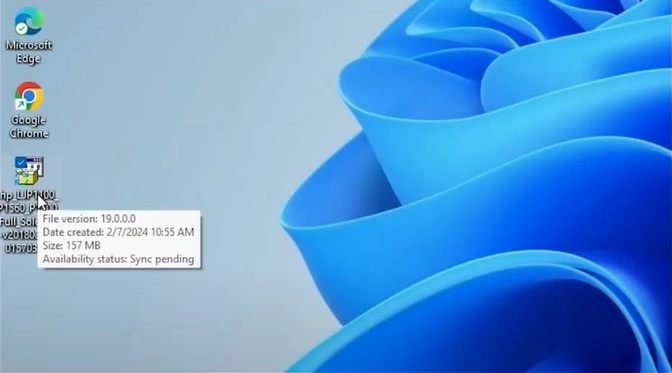
17. Right-click on the file and choose "Show more options" from the list.
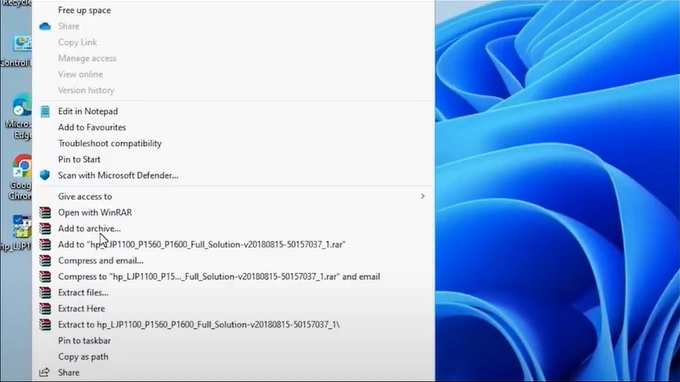
18. Click Extract Files and press the OK button in the new window.
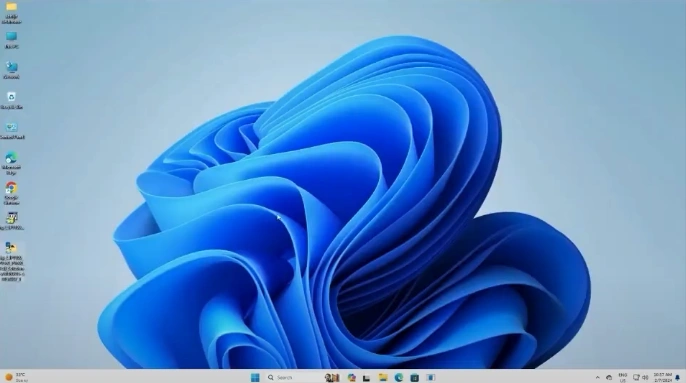
19. Open the start menu, then search and open the "Printers and Scanners" window.
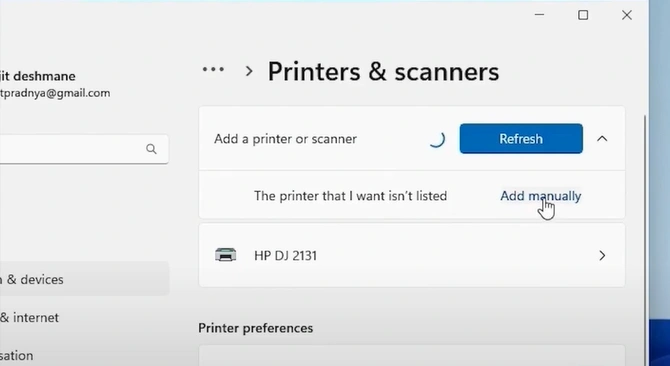
20. Next to "Add a printer or scanner," click on the Add device button.
_1747731516.webp)
21. A new option, "The printer that I want isn't listed," will appear, then click on Add manually.
22. Select the "Add local printer or network printer with manual settings" option and click on Next.
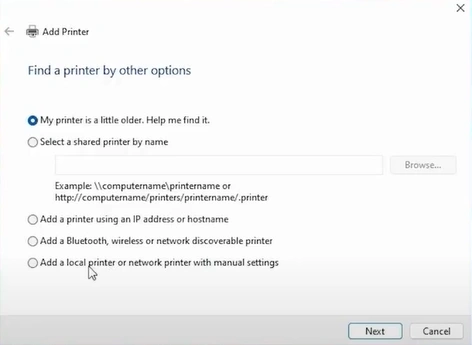
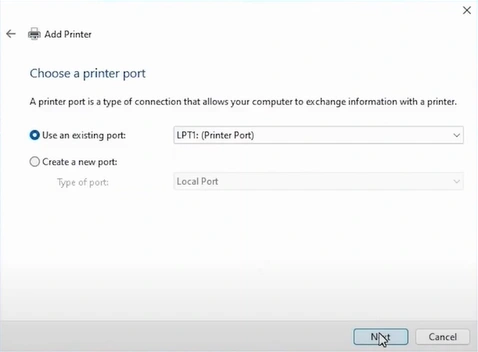
23. Choose the "Use an existing port" option, select the "USB_001" from the drop-down, and click on Next. (Note- Select com4_001 or Any HP port option if the USB option is unavailable.)
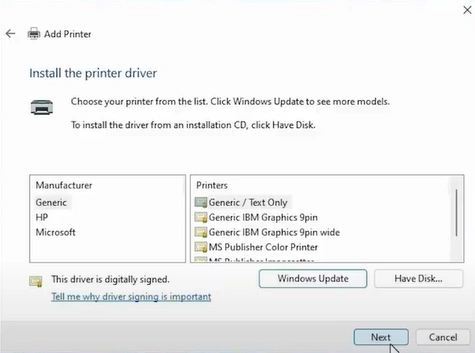
24. In the Add Printer window, click on the "Have Disk" button.
25. Click on Browse, open the extracted file, then open any ".INF" file.
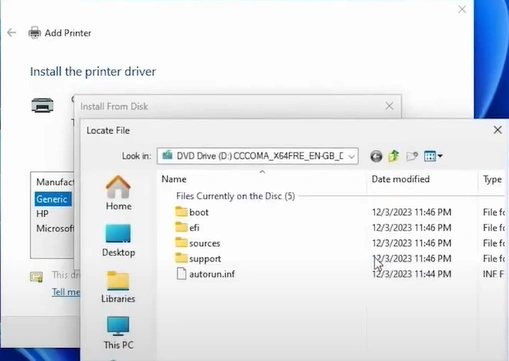
26. Click on OK.
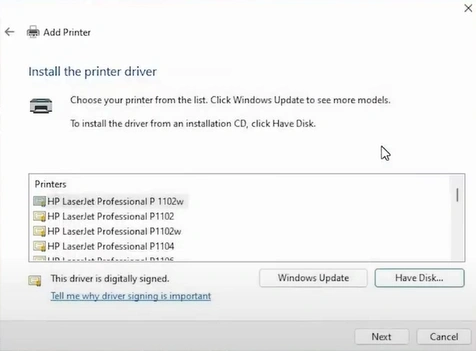
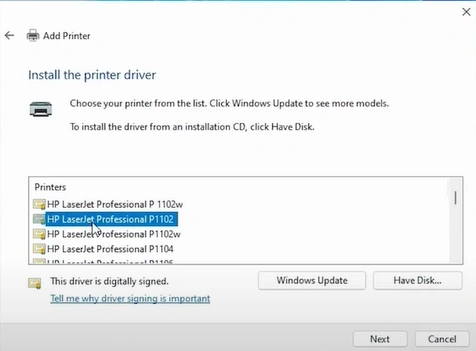
27. Select your HP printer model and click on Next.
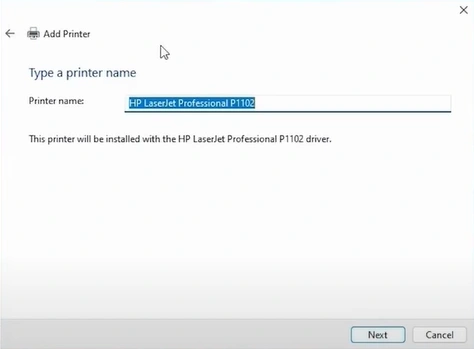
28. Provide a printer name if you want to click on Next.
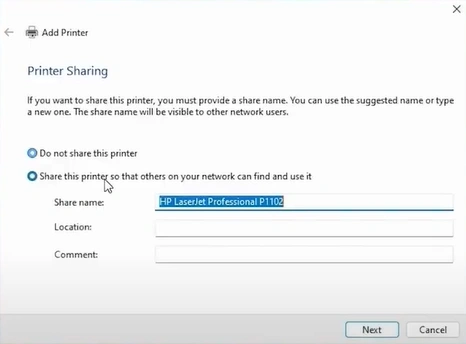
29. Choose your printer sharing option and click on Next.
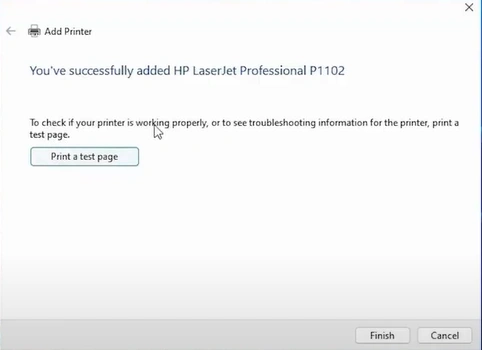
30. Click on "Print a Test Page" or "Finish".
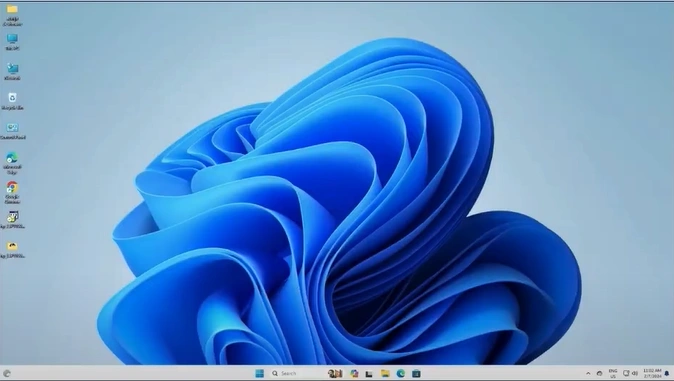
31. Open the Start menu again, then search and click on Printers and Scanners.
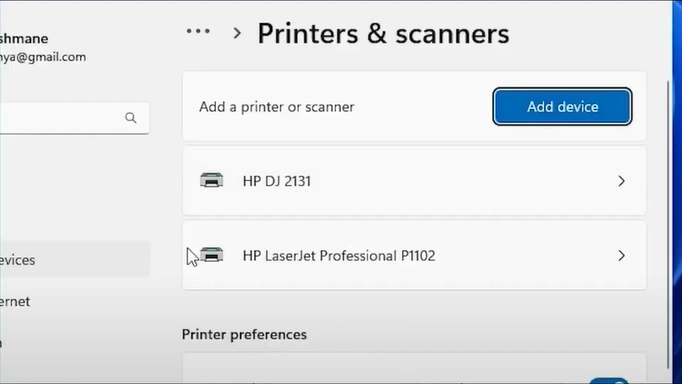
32. Verify that your printer is available.
Solution 3: Update the Windows Operating System
The steps below will help you update the operating system of your Windows device to see if it is able to fix the issue.
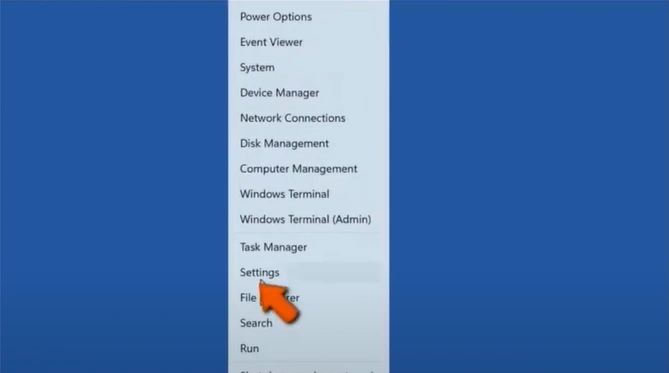
1. First, right-click on the Windows icon.
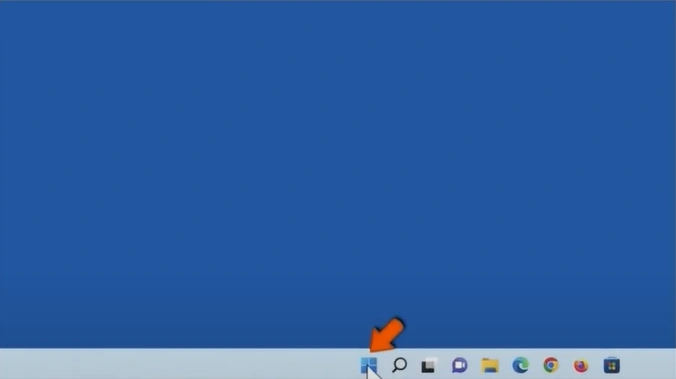
2. Click on Settings.
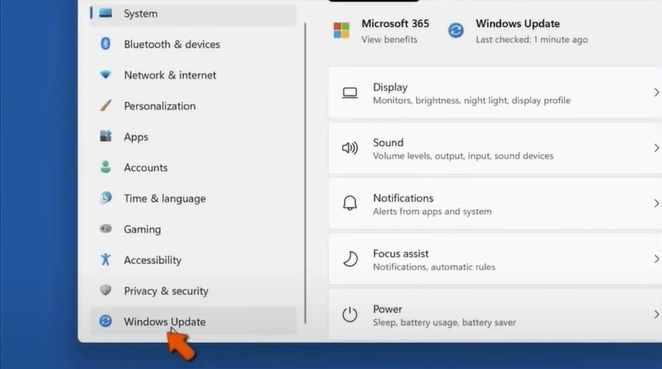
3. Click on Windows Update.
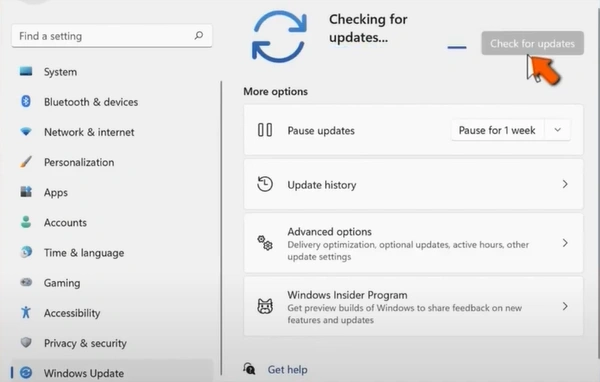
4. Wait for Windows to check for updates.
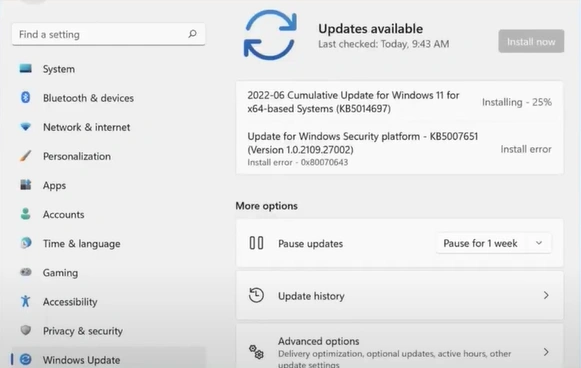
5. When the update is installed, click on the Restart Now button.
Wrap Up
Using these three solutions can fix your HP printer driver unavailable problem. Use all these methods and see if they are able to detect the driver and get your printing working perfectly. Moreover, if you are facing any problem or need more help in fixing this problem, then it is wise to get your hands on more solutions and assistance.

