How to Fix Driver Unavailable for Brother Printer?

Drivers are crucial to running your Brother printer smoothly and using its functions. However, on some occasions, you can face the driver-unavailable issue. This problem usually occurs due to several reasons, such as an outdated/missing printer driver, an outdated Windows operating system, the wrong printer setup, and a corrupt printer driver file.
Depending on the reasons behind the issue, you may need to use various solutions. Moreover, you can try various effective solutions if you do not know the actual problem of why the Brother printer driver is unavailable. Here, attain a step-by-step understanding of the 3 primary solutions to troubleshoot your driver issue in no time.
Method 1: Troubleshoot Printer
Your Brother printer can show the unavailable driver problem if there are some technical conflicts with it. As a result, follow the steps below to troubleshoot the printer to fix it.
1. Press the Windows + R keys to open Run.
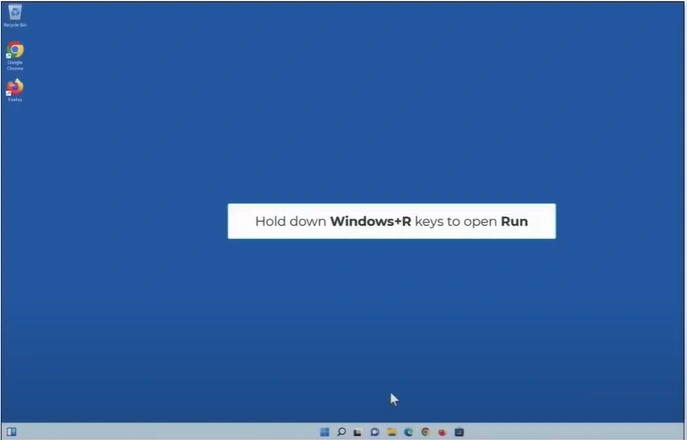
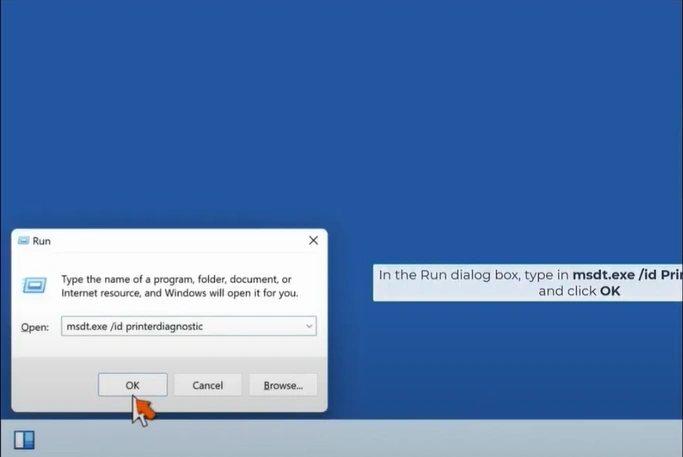
2. In the open field, enter “msdt.exe/id PrinterDiagnostic.”
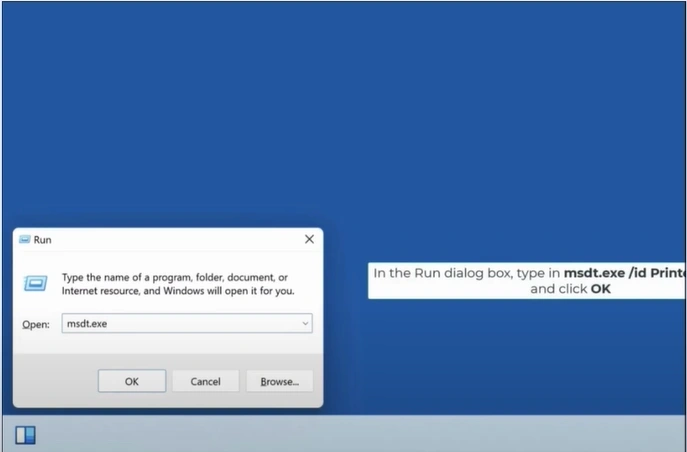
3. Then, click on OK.
4. In the “Troubleshoot and help prevent computer problems” page, click on Next.
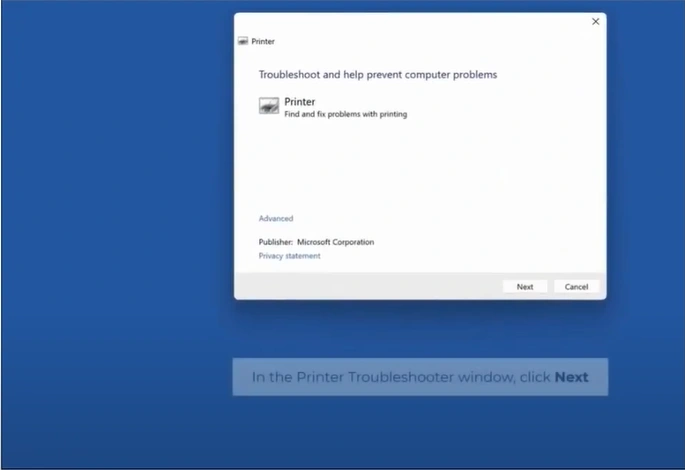
5. Wait for the system to detect the printer.
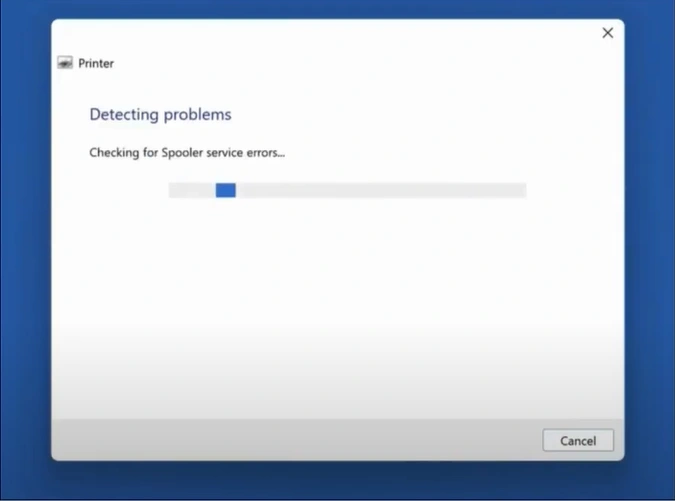
6. Now, select the printer you want to troubleshoot.
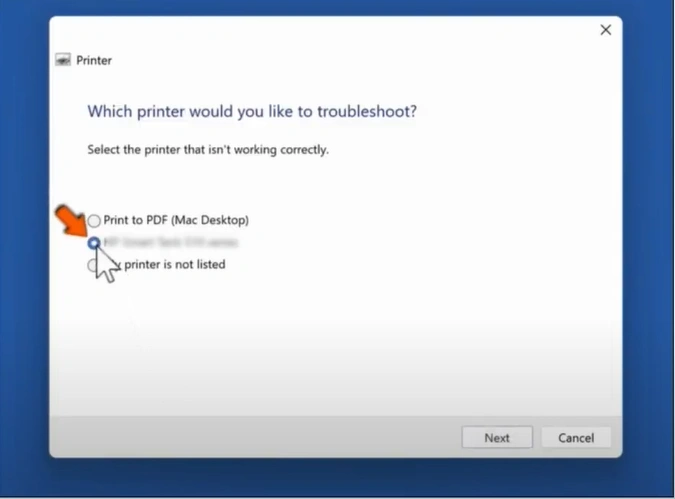
7. Then, click on Next.
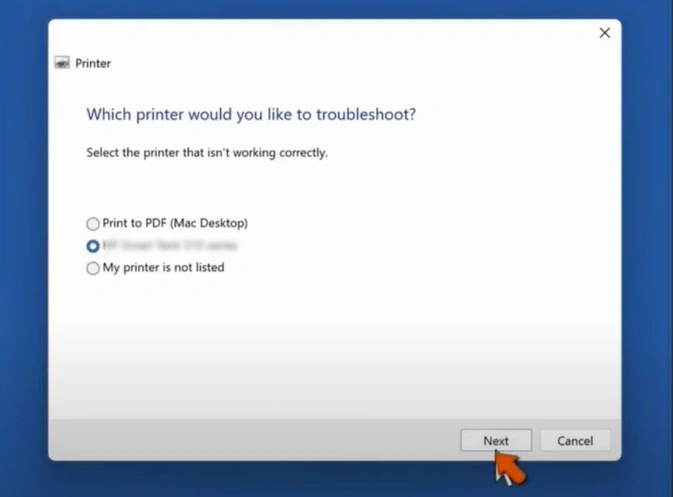
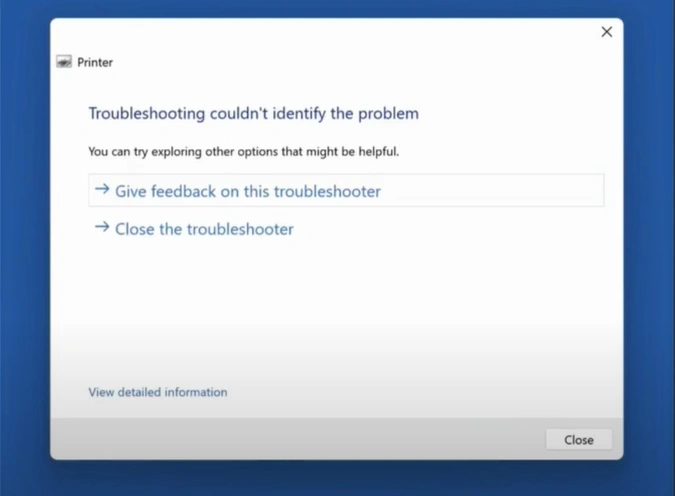
8. Wait for the system to troubleshoot and provide the fix.
Method 2: Reinstall the Printer Driver
Corrupt/outdated drivers are also the main cause of issues related to it. Below are the quick steps that will help you reinstall the suitable driver for your Brother printer.
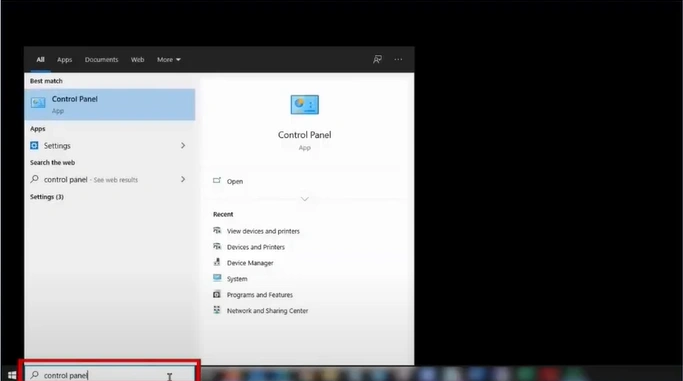
1. First, open the control panel and click on “View devices and printers.”
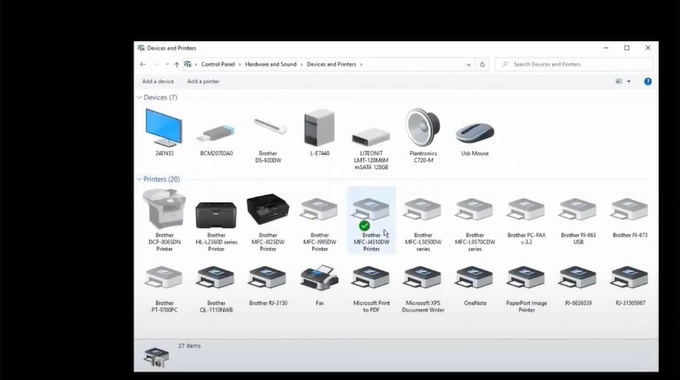
2. Right-click on your Brother printer device and click the “See what’s printing” option.
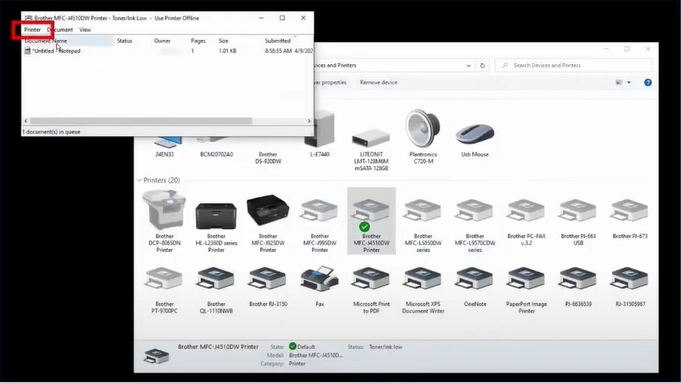
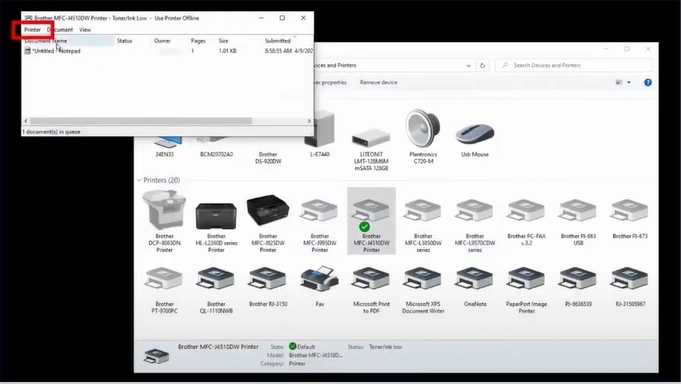
3. Click on the Printer tab, select “Cancel All Documents”, then click on Yes.
4. Right-click on your printer device, select Remove device, and click Yes.
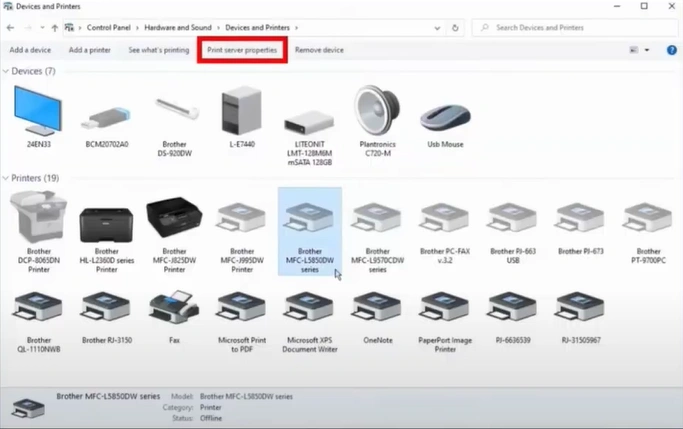
5. Select any other printer and click the Printer Server Properties tab.
6. Click on the Drivers tab.
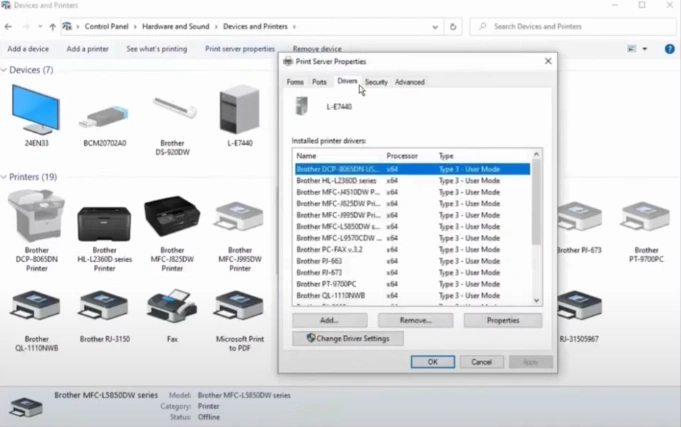
7. Now, locate your printer driver, select it, and click on the Remove button.
_1755508453.webp)
8. Select the “Remove drivers only” radio button, then click OK.
 (1)_1755508504.webp)
9. Choose Yes to delete the printer driver. (Note- If a window appears with “printer driver is currently in use,” reboot your computer and perform all the steps again.)
_1755509577.webp)
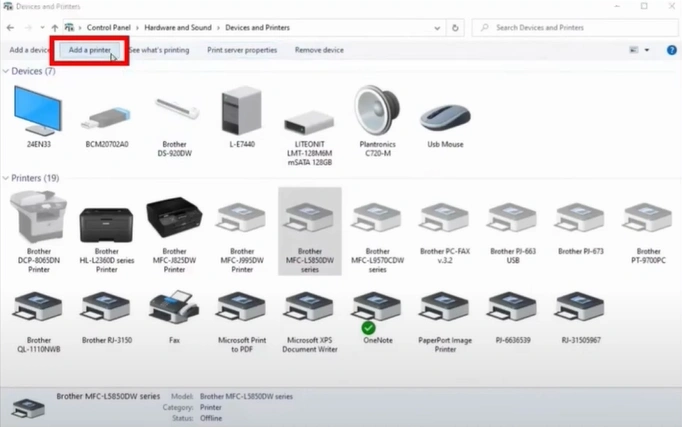
10. Click on the Add printer option.
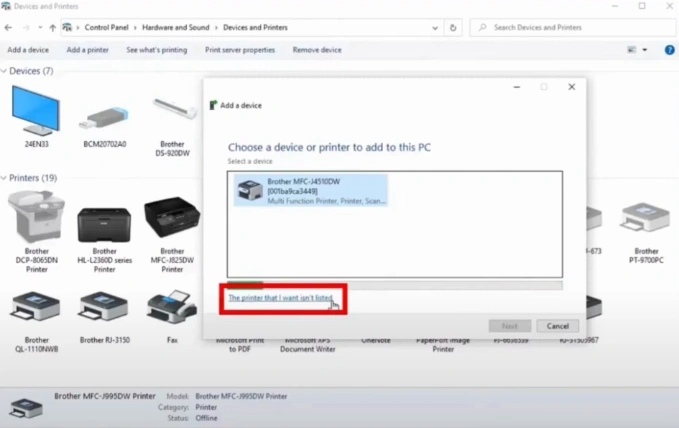
11. Click on the “The printer that I want isn’t listed” option.
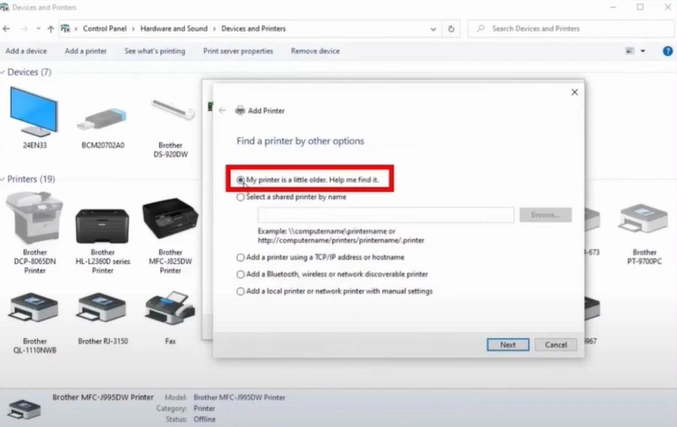
12. Select “My printer is a little older. Help me find it”, then click on Next.
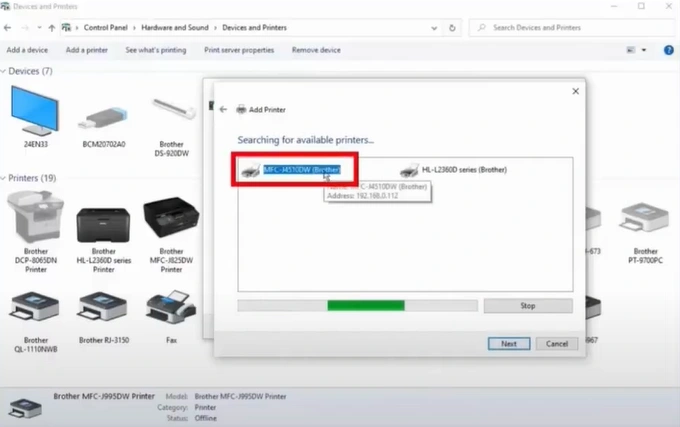
13. Select the Brother printer model and click on the Next button.
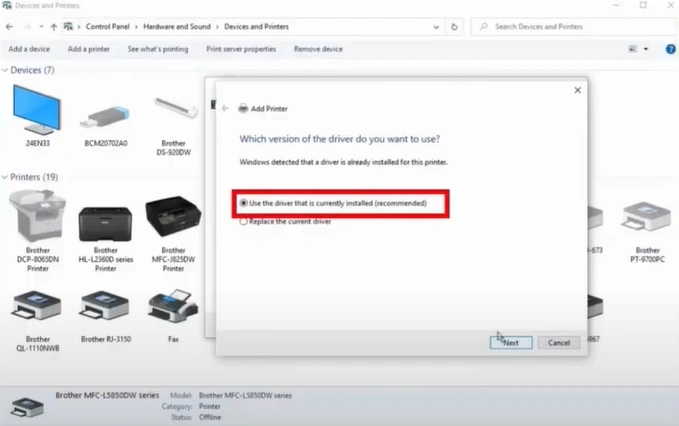
14. Now, choose the “Use the driver that is currently installed” option and then select the Next button.
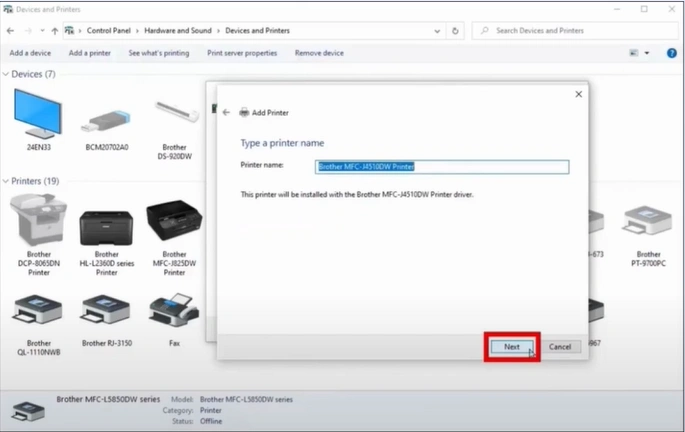
15. Provide the printer name or click Next.
16. Click on the “Print a Test Page” option.
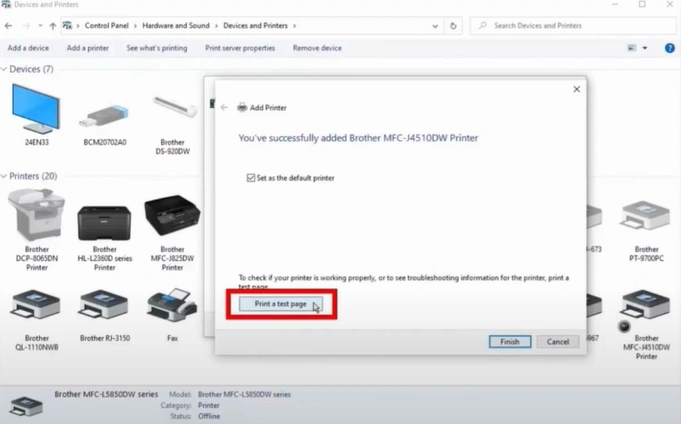
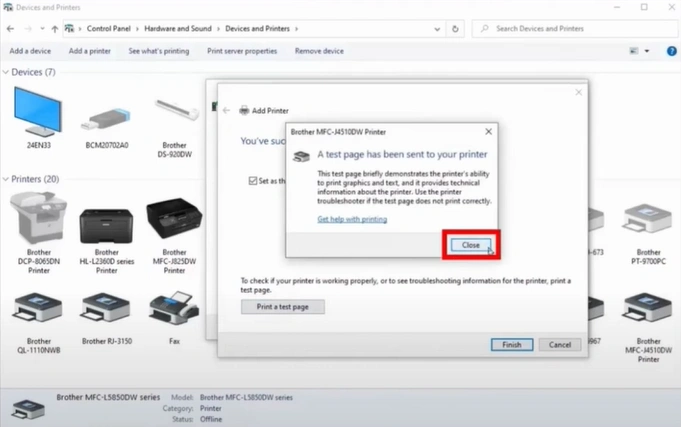
17. Click Close, then click on Finish.
Method 3: Update the Windows Operating System
With the help of the given procedure, you can update the operating system of your Windows device to get rid of the “Brother printer driver unavailable” issue.
1. Initially, click on the Windows icon.
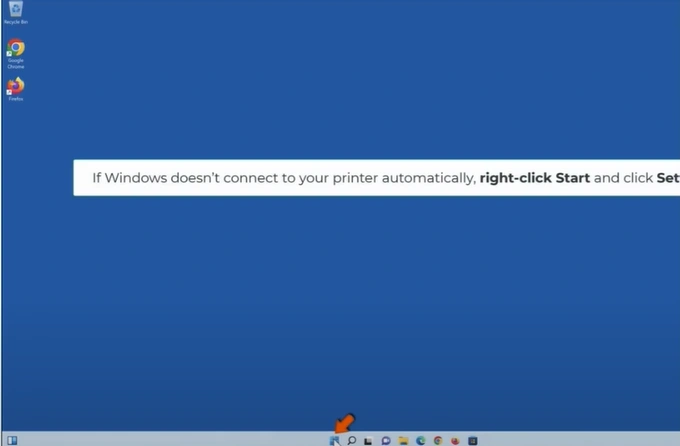
2. Click on Settings.
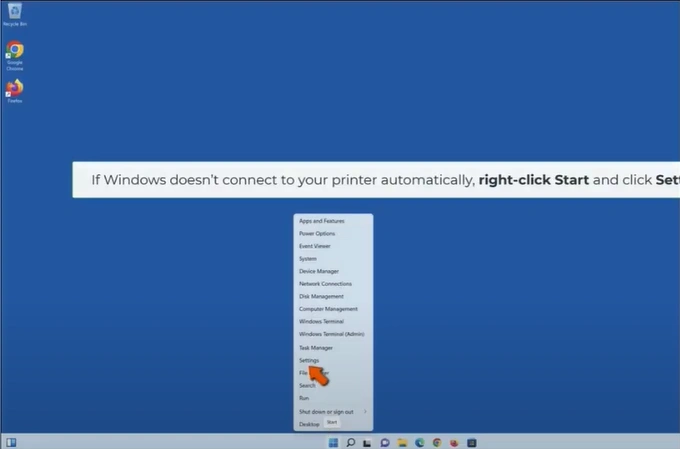
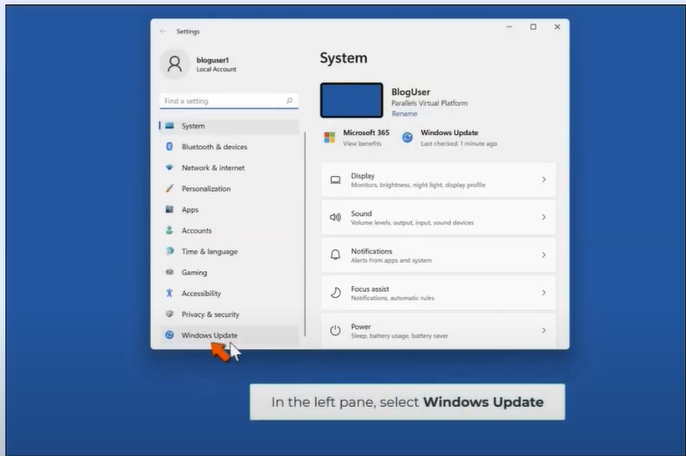
3. Click on Windows Update.
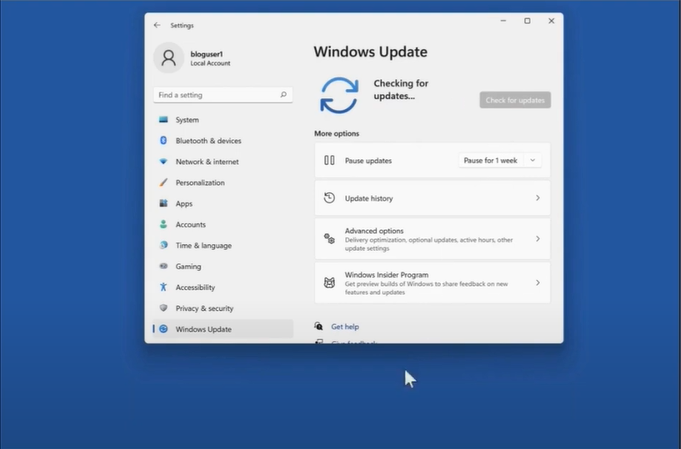
4. Wait for Windows to check for updates.
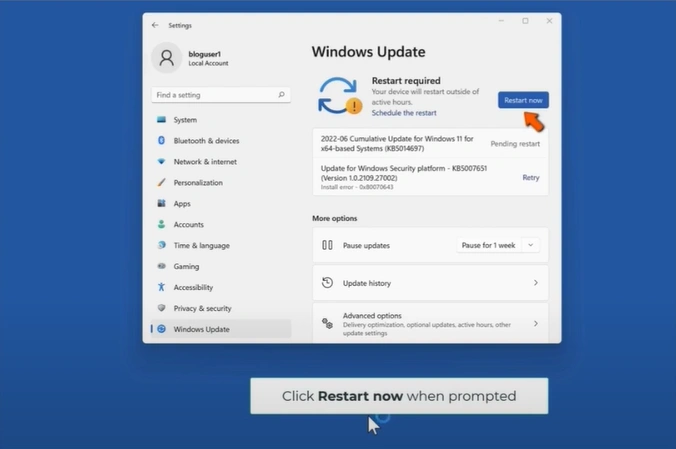
5. Once the OS update is installed, click on the Restart Now button.
6. Now, check if the driver is unavailable for the Brother printer problem still persists.
Wrap Up
After using these three solutions we have mentioned here, you can quickly remove the driver-unavailable issue for your Brother printer. Make sure you follow each method properly to avoid facing any complications and get your printer working perfectly without any hassle. Besides that, you can try to get your hands on several other solutions if necessary.

