HP DeskJet 2855e Not Printing? How to Fix It
When you press Print. The computer says it’s printing and the HP DeskJet 2855e does not print just sits there, or hums for a second and goes quiet. Meanwhile the form you need is still on the screen.
When a 2855e won’t print, the job is stuck in one of three places: the printer itself, the print queue on your computer, or the connection between them. The printer’s own test page tells you which, in about ten seconds.
Start with Fix 1. Most people don’t need to go past it.
Where is the job stuck?
Quick Answer
If your HP DeskJet 2855e isn’t printing, look at the display first: an E code points to the problem, and if the Resume light is on, fix the paper and press Resume. Then hold Cancel for three seconds to print a Printer Status Report. If that prints, the printer is fine, so clear the print queue on your computer and turn off Use Printer Offline. If the Wireless light is blinking, reconnect the printer in the HP app.
Important Note: The 2855e is an HP+ printer. HP says HP+ printers need to stay connected to the internet and use Original HP cartridges. A printer that has been offline for a long time, or has a non-HP cartridge in it, can stop printing even though everything else looks normal to your eyes.
Pete AI by Printer Tales: Seeing an E code you don’t recognize? Ask Pete AI what it means on the DeskJet 2855e. It’s free. Ask Pete AI
Fix 1: Check the printer itself
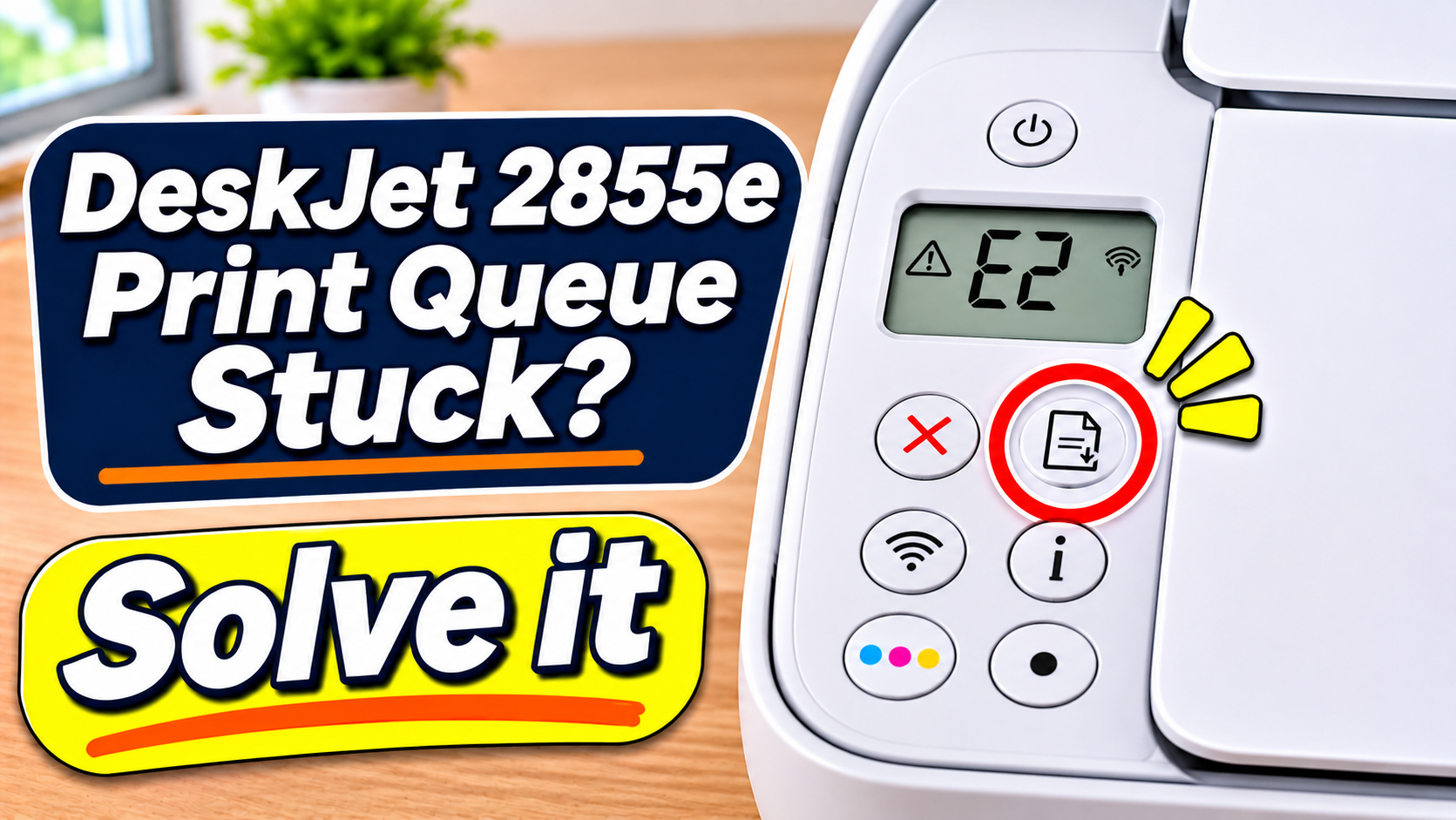
Read the display
The 2855e has no text screen, but its small display shows error codes. HP’s user guide for the DeskJet 2800e series lists them:
| E9 | Incomplete setup or offline error | Ask Pete AI |
Check the paper and the Resume light
- Check the input tray has plain paper, print side up, with the paper-width guide resting against the stack.
- If the Resume light is on, press Resume. The printer often just needs that nudge after a paper problem.
Print a test page from the printer
Hold Cancel for three seconds. The printer prints a Printer Status Report.
- It prints: the printer works. The problem is on your computer or the connection. Go to Fix 2.
- Nothing happens, or the page is blank: the problem is in the printer. Check the cartridges in HP DeskJet 2855e printing blank pages.
Donald's tip: Hang onto that printed Printer Status Report—taping it inside a nearby cabinet door gives you a baseline IP address and network name to compare against the next time the printer drops offline.
Fix 2: Clear the print queue on your computer
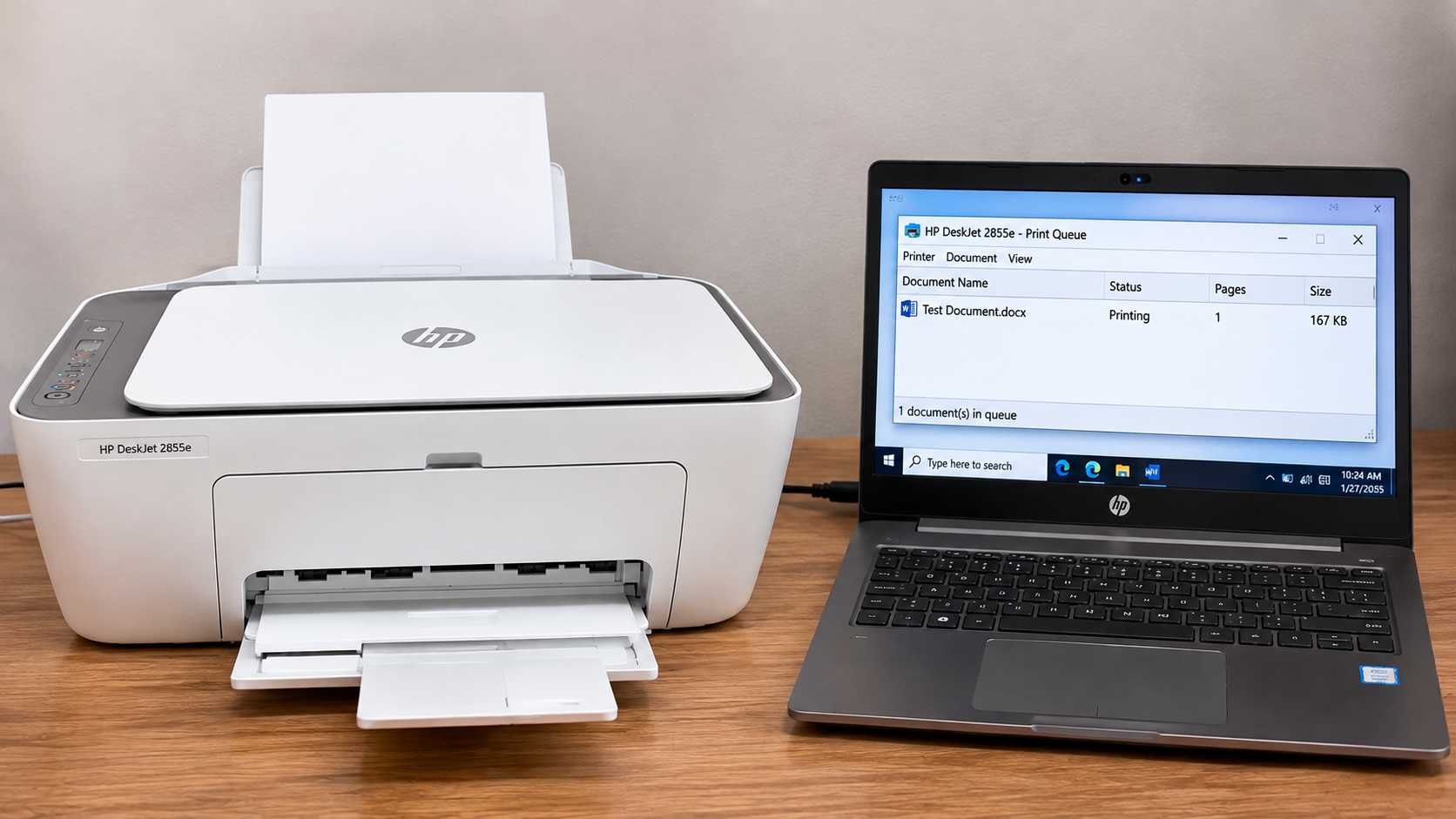
A single stuck job can block everything behind it.
On Windows 11:
- Open Settings, then Bluetooth & devices, then Printers & scanners.
- Click HP DeskJet 2800 series. That’s how the 2855e appears on computers.
- Click Open print queue.
- Click Printer at the top. If Use Printer Offline is ticked, click it to remove the tick.
- Click Printer, then Cancel All Documents, then Yes.
- Print again.
On a Mac: open System Settings, then Printers & Scanners. Select the printer, click the minus button to remove it, then add it back with the plus button.
Note Worthy: If the queue won’t empty, I restart the computer with the printer switched off, then turn the printer on once the computer is back up. Seven times out of ten the queue is empty after that.
Fix 3: Check the HP+ connection
The 2855e needs your Wi-Fi to print wirelessly, and HP+ needs the internet as well.
- Look at the Wireless light. Solid blue means connected. Blinking means it isn’t on your Wi-Fi.
- If it’s blinking, restart your router: unplug it, wait 30 seconds, plug it back in and wait for its lights to settle.
- Open the HP app (formerly HP Smart), tap the plus sign and add the printer again. Our HP DeskJet 2855e offline guide has the full steps.
- In the HP app, tap your printer and check for any message about cartridges or your HP account. An account or cartridge message can block printing.
Note Worthy: When a printer stops printing after a router swap, I check the Wi-Fi name first. New routers often use a different name or a combined 2.4 and 5 GHz network, and the printer quietly loses its connection.
Still not printing?
- Turn the printer off, unplug it for a minute, then turn it back on. That clears an E6 and many odd states.
- Reinstall the printer with the HP app on your computer.
- If the Resume light keeps coming back with no paper problem in sight, check for a torn scrap of paper. Our paper jam guide shows the hidden cleanout door underneath.
Summary
When the HP DeskJet 2855e won’t print, check the display for an E code, fix the paper and press Resume, then hold Cancel for three seconds to print a status report. If that page prints, clear the print queue and turn off Use Printer Offline on your computer. If the Wireless light blinks, restart the router and reconnect the printer in the HP app.
Written and tested by the Printer Tales DIY team. Steps checked against HP’s DeskJet 2800e series guides. Last updated: November 2026
Printer Tales is an independent DIY platform and is not affiliated with HP or any printer manufacturer.
Sources
- HP DeskJet 2800e All-in-One series Reference Guide (HP)
- HP DeskJet 2800 All-in-One series User Guide (HP)
Related Articles
Frequently Asked Questions
Why is my HP DeskJet 2855e not printing when it’s on?
It is usually due to a stuck job in the computer’s print queue, a paper problem waiting for Resume, or the printer has dropped off Wi-Fi.
How do I print a test page on the DeskJet 2855e?
Hold the Cancel button for three seconds to print a Printer Status Report.(I keep my status reports safely to compare time to time)
What does Error Code E4 mean on the DeskJet 2855e?
As HP’s guide says E4 is a paper jam.
What does Error Code E3 mean?
The cartridge carriage is stuck. Open the cartridge access door and clear anything in its way.
What name does the 2855e show on my computer?
It appears as HP DeskJet 2800 series.
Does the HP Deskjet 2855e need the internet to print?
Yes, It is HP+ printers and it must stay connected to the internet.