HP DeskJet 2855e Offline – How to Fix
The printer is on. The lights are on. And your computer still says the HP DeskJet 2855e is Offline. You’ve printed from it a hundred times, so what changed?
Usually something small: the router restarted, the computer picked the wrong network, or a setting called Use Printer Offline got switched on by itself. The fixes below go from quickest to most thorough, and each one takes a few minutes.
Which fix do you need?
Quick Answer
To get your HP DeskJet 2855e back online, turn the printer off, restart your router, then turn the printer on and wait for the Wireless light to stay solid blue. On Windows, open the print queue and make sure Use Printer Offline isn’t ticked. If it’s still offline, print a Wi-Fi test report (press Wireless and Information together), connect it to a 2.4 GHz network, and reconnect it in the HP app.
Important Note: The DeskJet 2855e works on 2.4 GHz Wi-Fi only. If your router shows two network names, one with “5G” in it, connect the printer to the other one.
Pete AI by Printer Tales: Printer keeps dropping offline? Ask Pete AI what to check on your router. It’s free. Ask Pete AI
Method 1: Restart everything in the right order
Order matters. The router has to be ready before the printer looks for it.
- Turn the printer off with the Power button.
- Unplug your router, wait 30 seconds and plug it back in. Wait about two minutes, until its lights are steady.
- Turn the printer back on. Wait for the Wireless light to stay solid blue.
- Restart your computer, then print again.
Donald's Tip: After a power cut I always switch the printer off and wait for the router first. When both come back at the same moment, the printer often gives up on the Wi-Fi before the router is ready.
Method 2: Turn off Use Printer Offline
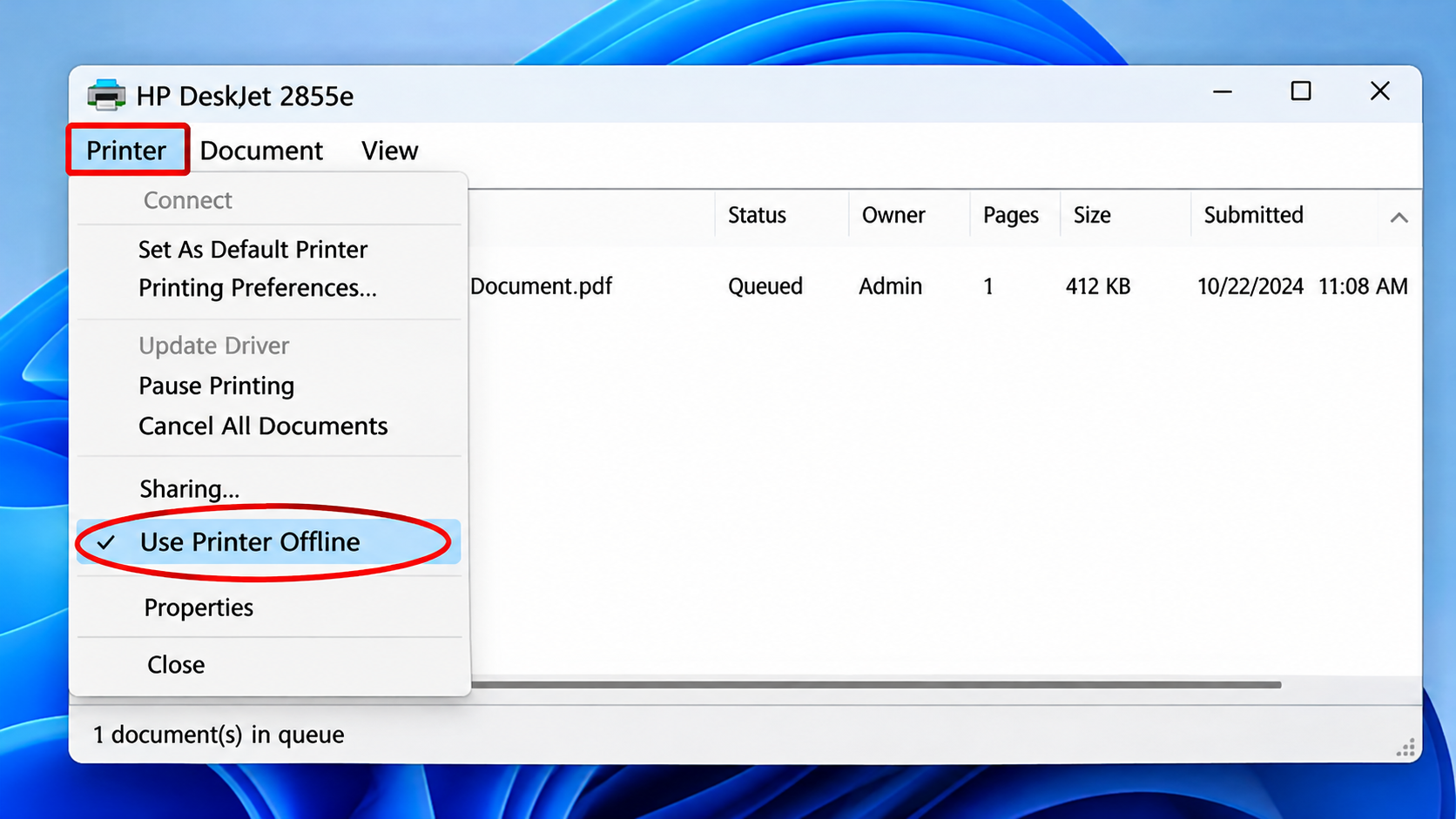
In Windows Operating system sometimes this setting is ticked by itself after a failed job.
- Open Settings, then Bluetooth & devices, then Printers & scanners.
- Click HP DeskJet 2800 series, then Open print queue.
- Click Printer at the top. If Use Printer Offline has a tick, click it to remove the tick.
- Click Printer, then Cancel All Documents, then Yes.
- Print again.
On a Mac, open System Settings, then Printers & Scanners, remove the printer with the minus button and add it back.
Method 3: Reconnect the printer to Wi-Fi
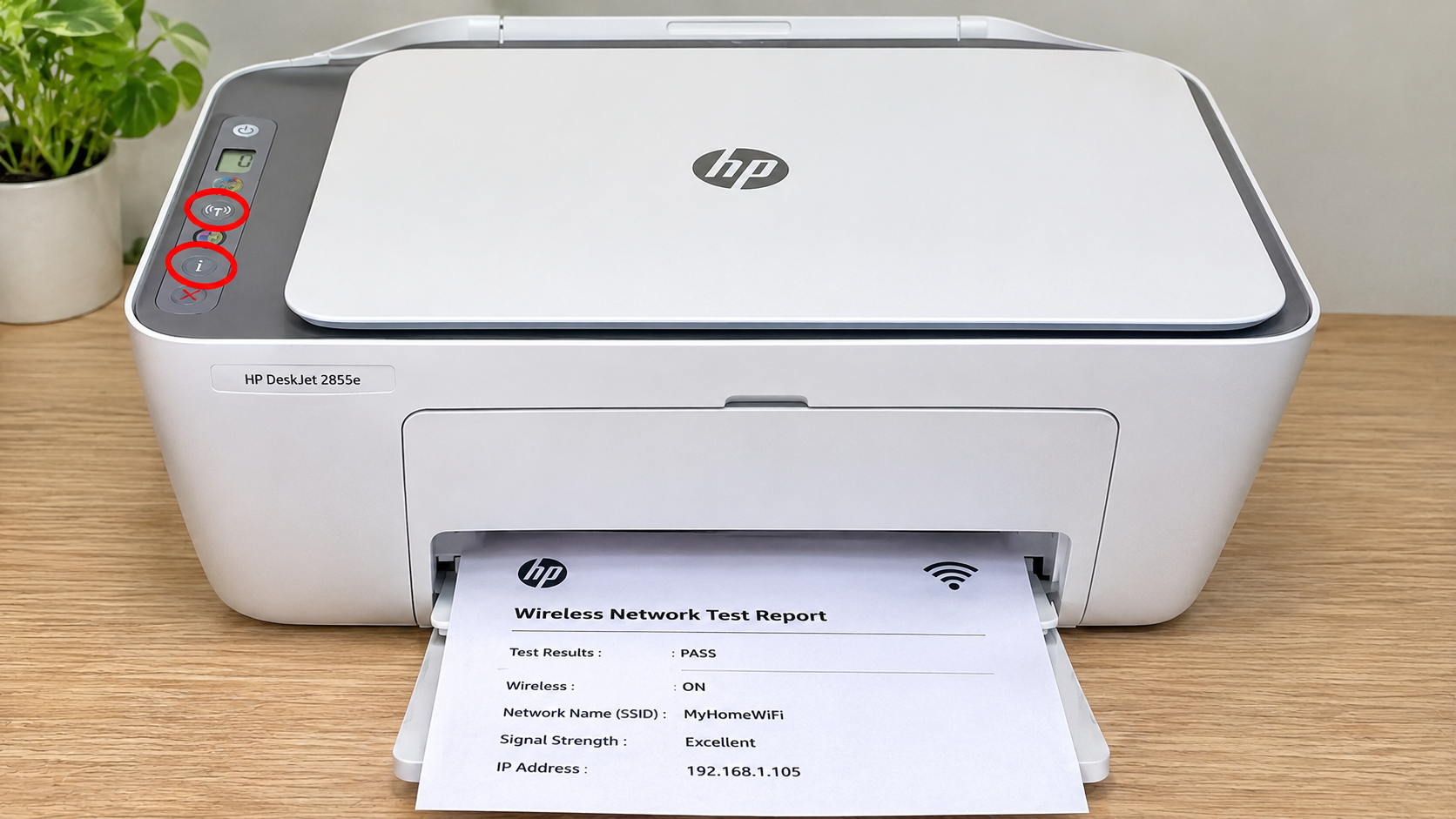
Check what the printer is connected to
Press the Wireless button and the Information button together. The printer prints a Wi-Fi Network Test Report and a Network Configuration Page.
- Check the network name matches your Wi-Fi.
- Check the result. The report says whether the test passed and what failed.
Use 2.4 GHz
The 2855e doesn’t use 5 GHz Wi-Fi. If your router has separate names, connect the printer to the 2.4 GHz one. If it uses one combined name, keep the printer close to the router while you set it up. HP suggests within about 6 feet (2 meters) during setup.
Reset the network settings and reconnect
- With the printer on, hold the Wireless button and the Cancel button together for about five seconds.
- Let go when the Wireless light starts blinking blue. The printer is now in setup mode.
- Open the HP app (formerly HP Smart) on your phone or computer, tap the plus sign and choose your printer.
- Follow the steps and enter your Wi-Fi password when asked. The HP app uses Bluetooth on your phone to find the printer during setup, so keep Bluetooth on.
Donald's Note : I write the Wi-Fi password on a sticky note before I start. The setup screen gives you a limited time, and hunting for the password on the back of the router is exactly when it times out.
Important: If the printer sits two rooms away from the router, I move it next to the router just for the setup, then carry it back. The connection usually holds once it’s made.
Still offline?
- Check your computer is on the same Wi-Fi network as the printer, not a guest network.
- Print the Network Configuration Page again and compare the IP address with the one your computer uses for the printer.
- Remove the printer from your computer and add it again with the HP app.
Summary
To fix an offline HP DeskJet 2855e, restart the router first and the printer after it, then turn off Use Printer Offline on your computer. If the Wireless light blinks, print a Wi-Fi test report, use a 2.4 GHz network, reset the network settings with Wireless and Cancel, and reconnect the printer in the HP app.
Written and tested by the Printer Tales DIY team. Steps checked against HP’s DeskJet 2800e series guides and HP’s support community. Last updated: November 2026.
Printer Tales is an independent DIY platform and is not affiliated with HP or any printer manufacturer.
Sources
- HP DeskJet 2800e All-in-One series Reference Guide (HP)
- HP DeskJet 2800 All-in-One series User Guide (HP)
Related Articles
Frequently Asked Questions
Why does my HP DeskJet 2855e keep going offline?
Usually a weak signal due to proximity, a router restart, or a combined 2.4 and 5 GHz network. Use 2.4 GHz and keep it within range.
Does the DeskJet 2855e work on 5 GHz Wi-Fi?
No. It works on 2.4 GHz only and most printers get offline due to this reason.
How do I print a Wi-Fi test report for HP DeskJet 2855e ?
Press the Wireless and Information buttons together for 3 seconds and the printer will start printing it.
How do I reset the Wi-Fi on the DeskJet 2855e?
Hold Wireless and Cancel together for about five seconds, until the Wireless light blinks. Then reconnect it in the HP app
What does a blinking blue Wireless light mean?
The printer isn’t connected to Wi-Fi, or it’s in setup mode.