HP Envy 5540 Printer not Printing [Fixed]
![HP Envy 5540 Printer Not Printing [Fixed]](https://printertales.com/public/upload/blog/6996bc8745016_hp-envy-5540-printer-not-printing-fixed-.webp)
Your HP Envy 5540 printer is not working at all, and that is causing a serious interruption in your daily tasks. Whenever you power on your printer, it shows an offline status even when it’s connected to your network, which adds to the confusion. Sometimes, it even prints blank pages after you click the Print button, which can be frustrating.
So, what should you do to fix the HP Envy 5540 printer not printing issue? You may be looking for solutions, and we have explained the best ones here for you. There is no guesswork anymore; just follow the troubleshooting tips we have outlined. Before we begin, let’s first understand the possible causes of the issue.
Common Causes of HP Envy 5540 Printer Not Printing Issue
It seems easy to fix the printer not printing issue, but there may be certain problems along the way. These may include:
- Network interruptions
- Printhead clogging
- Firmware or update errors
- Print queue errors
- Driver and software conflicts
4 Best Methods to Fix HP Envy 5540 Printer Not Printing Issue
Setting the printer as the default device, canceling all print jobs, reinstalling drivers, or performing a reset are some effective troubleshooting methods. Let’s understand each of these methods:
Method 1: Set Printer as Default Device
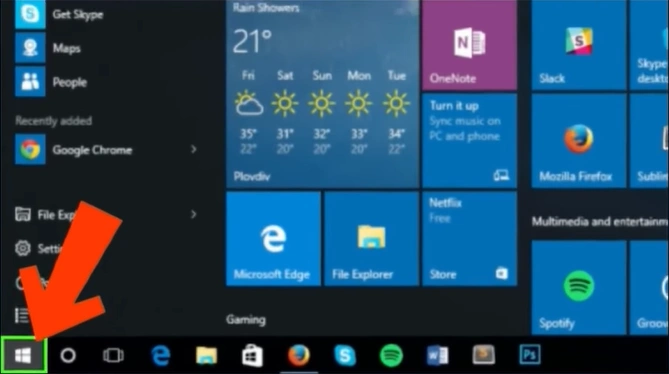
Step 1: Press the Windows Start button on your computer.
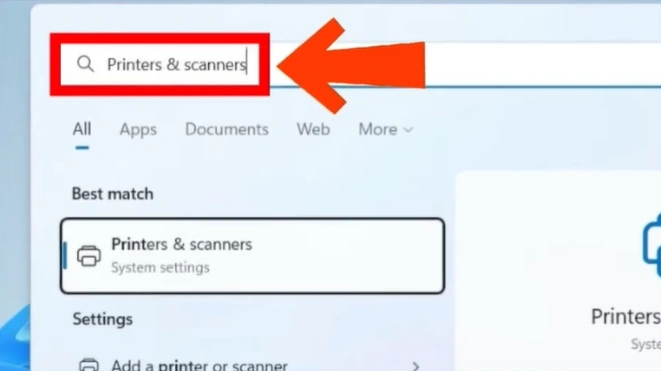
Step 2: Search for Printers & scanners, then open it.
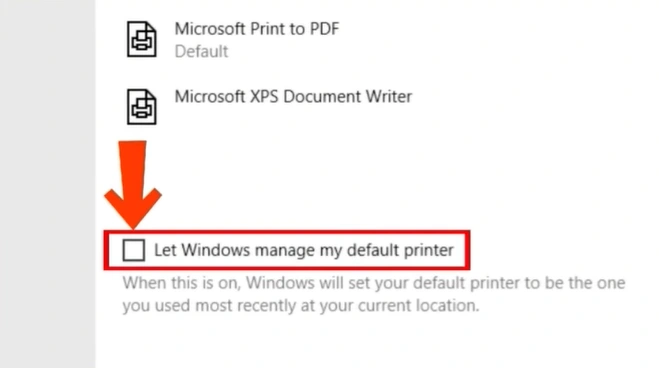
Step 3: Scroll down the page. Uncheck the “Let Windows manage my default printer” option.
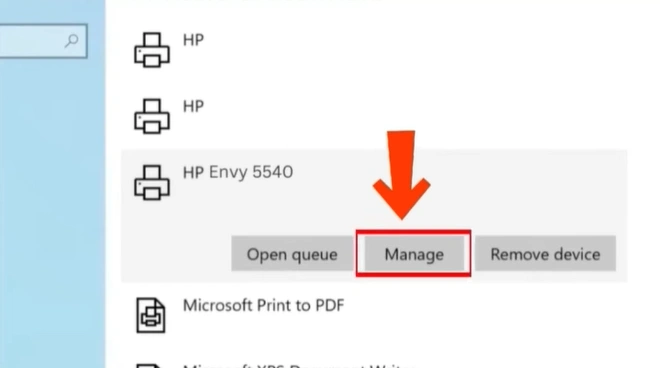
Step 4: Scroll up and select your HP Envy 5540 printer from the list of available devices.
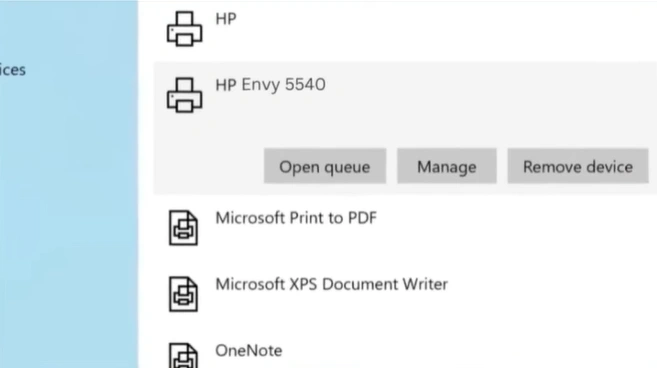
Step 5: Click on Manage.
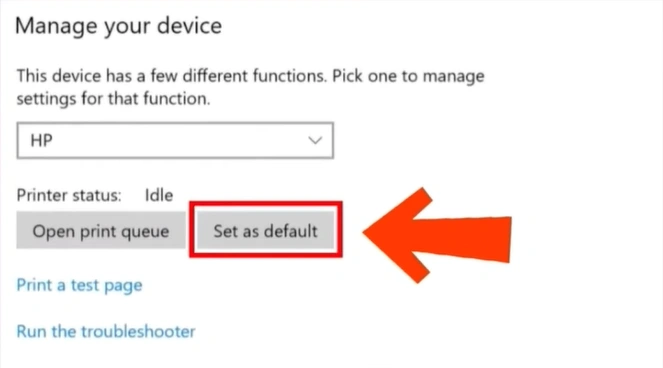
Step 6: Now, choose the “Set as default” option.
Method 2: Cancel Printer Jobs
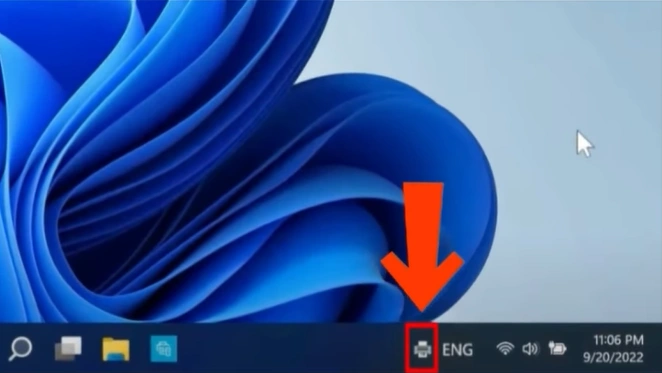
Step 1: Double-click on the printer icon at the bottom right of the taskbar.
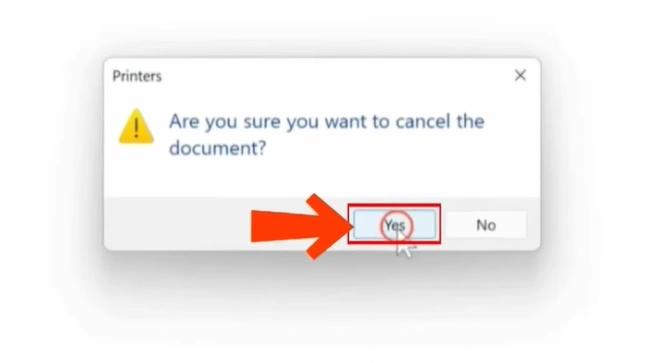
Step 2: Right-click on the print job you wish to cancel. Select “Cancel” from the list.
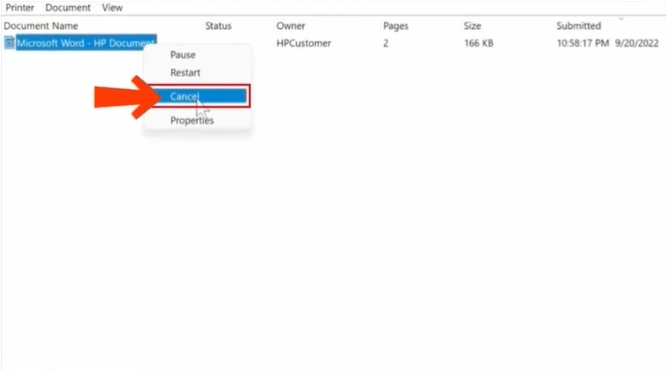
Step 3: Click Yes to confirm.
Method 3: Reinstall the Printer Driver
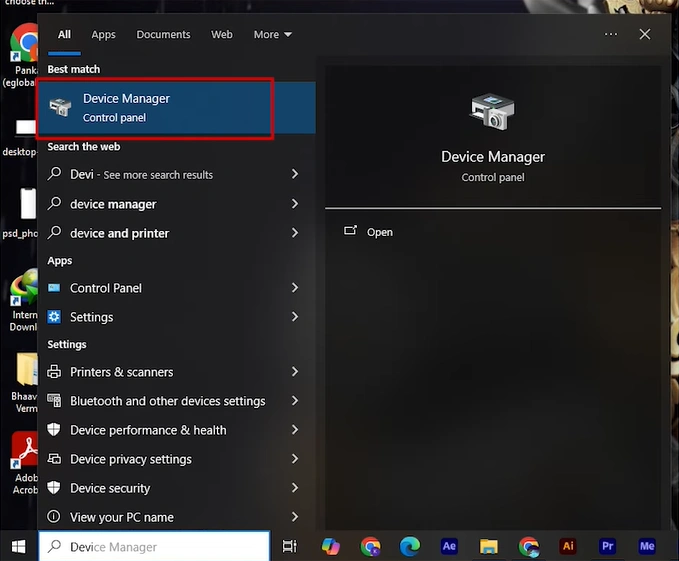
Step 1: Search for Device Manager in the search bar and open it.
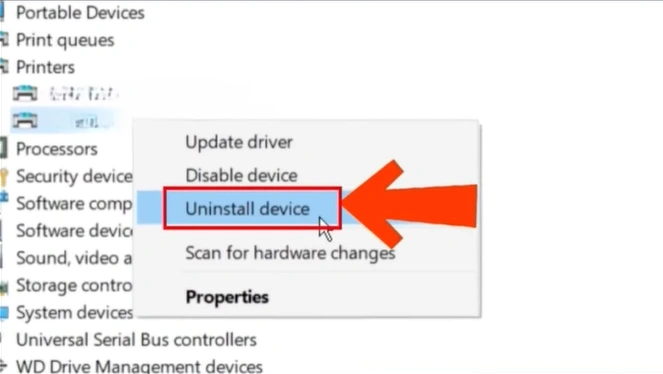
Step 2: Scroll and expand Printers, then right-click on the printer and select Uninstall device.
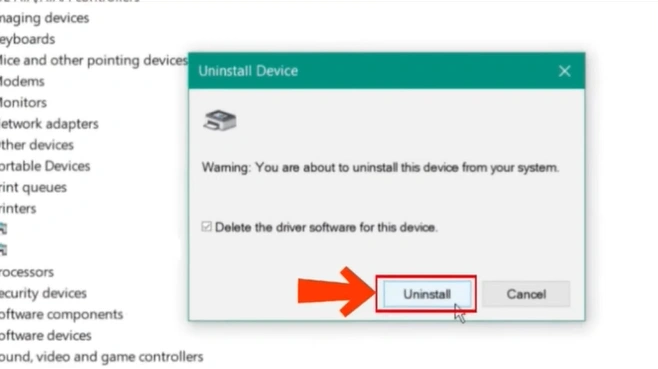
Step 3: In the Uninstall Device window, check the “Delete the driver software for this device” option and click the Uninstall button.
Step 4: Restart your computer.
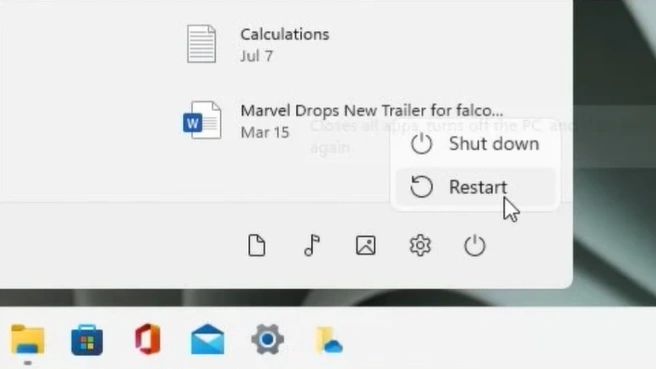
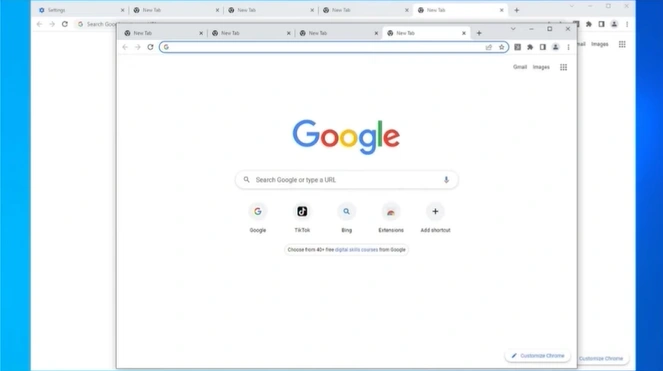
Step 5: Turn on your PC and open a web browser.
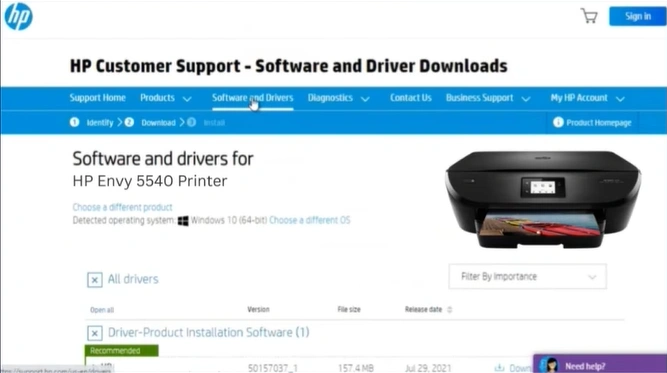
Step 6: Search and visit the official HP Support page.
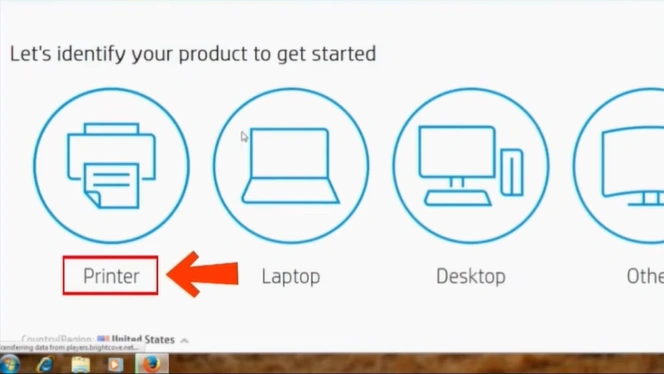
Step 7: Select Printer.
Step 8: On the next page, type your printer model number in the search box and click the “Submit” option.
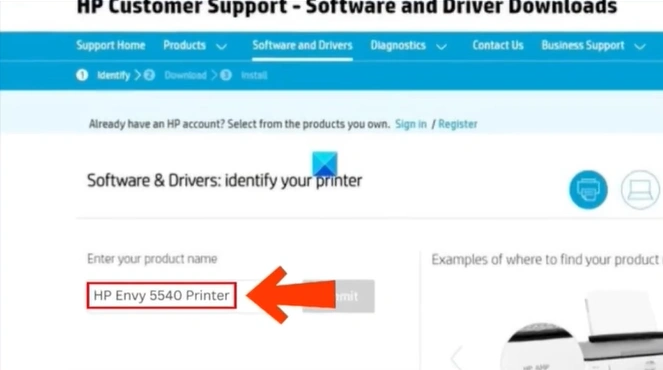
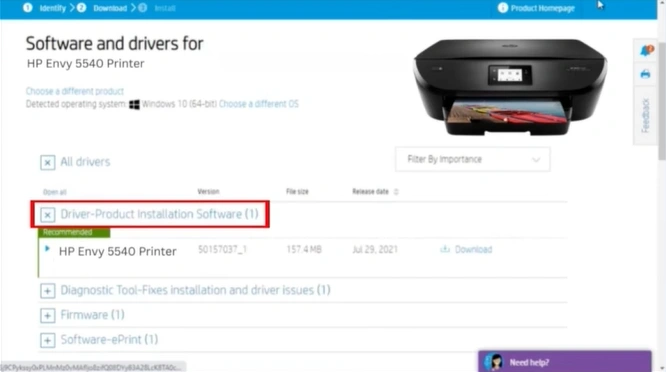
Step 9: Under Driver-Product Installation Software, click on Download and install the driver.
Method 4: Reset the Printer
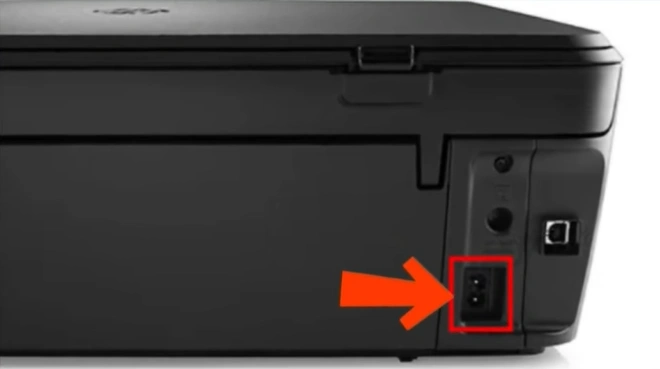
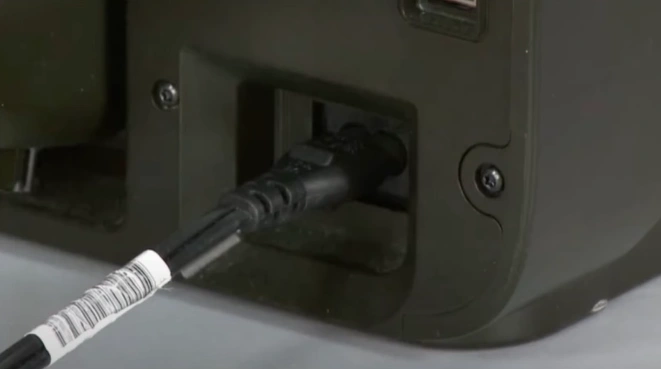
Step 1: Remove the power cord from the printer while it is on.
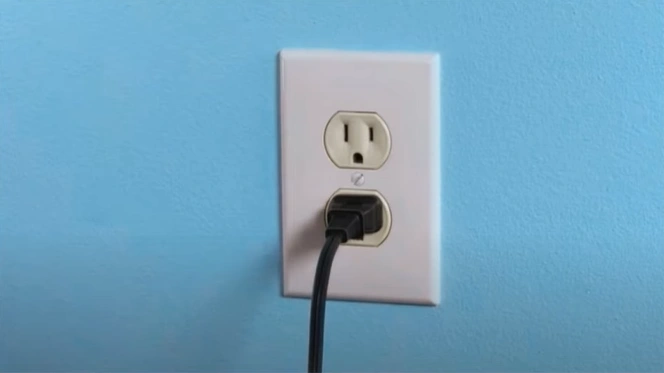
Step 2: Unplug the other end of the power cord from the outlet.
Step 3: Disconnect the power adapter, and wait for 1 minute.
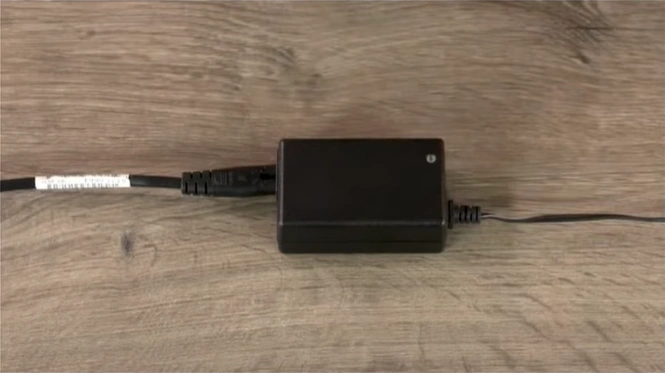
Step 4: After that, reconnect the power cord at both ends. The printer will reset automatically.
Prevent Your HP Envy 5540 From Stopping Printing Again
Here are some preventive measures that you should consider to have your printer work smoothly without fail:
- Keep ink levels in check: Always check the ink levels before printing. Replace the ink cartridges before they dry to avoid interruptions to your tasks.
- Clear the print queue when needed: Clear the print queue if there are stuck print jobs, as they may block new print tasks.
- Run maintenance tools: Use printhead-cleaning and alignment tools to maintain print quality.
- Maintain a steady internet connection: While using the printer, check your network connection. Ensure the printer is connected to a stable network for uninterrupted printing.
- Update drivers and firmware: To avoid compatibility issues that can lead to interruptions, keep your printer drivers and firmware up-to-date.
To Conclude
Whenever your printer shows an offline status, gives blank pages, or does not respond after hitting the print button, try any of the fixes mentioned above. Set the printer as the default device, cancel all pending print jobs, or uninstall and reinstall the driver from HP’s support page.
To prevent the issue from occurring in the future, check the ink levels, clear the print queue, and run printer maintenance tools regularly.
Related Aricle
Frequently Asked Questions
Does updating the driver fix HP Envy 5540 not printing issues?
Yes, updating or reinstalling the drivers can resolve the issue of your printer not printing. You can perform the update after Windows updates or when you see the “driver unavailable” error message.
Why is the HP Envy 5540 printer printing blank pages?
The printer may print blank pages due to several reasons, and it can happen because of a clogged printhead, wrong print settings, protective tape left on new cartridges, or improperly installed cartridges.
Why is my HP Envy 5540 connected but not printing?
If your printer shows “connected” but it does not print, then it means there could be issues such as:
Offline mode is enabled
Incorrect printer selected
Firmware glitch
The print queue is stuck
How to fix the HP Envy 5540 printer offline error?
Follow these easy steps to fix the offline error on your printer:
Restart both the printer and PC.
Ensure both devices are connected to the same wireless network.
On your computer, open the Control Panel.
Click on Hardware and Sound, then Devices and Printers.
Right-click the printer name and uncheck “Use Printer Offline.”
Clear any stuck print jobs.
If the issue persists, then reinstall the printer driver.
Why is my HP Envy 5540 printer not printing even though it has ink?
If the printer is not printing even with sufficient ink levels, it could indicate corrupted drivers, a printer offline status, clogged printheads, or a connection issue. Try restarting the printer, checking Wi-Fi connectivity, cleaning the printhead, and reinstalling the printer driver to resolve the issue.

